Use API in test scenarios, test suites
Configuring a JDBC test is the configuration step that creates the commands, but where and how to use the JDBC test will be completely configured by the user on the test scenario.
How to use JDBC in Test Scenario
Step 1: Access the Low-code screen within the test scenarios. Refer to Low-code Test scenario.
Step 2: Use the Key-word Controller as “Client” and set the Platform to JDBC.

Step 3: Drag the key-word JDBC CALL into the low-code screen within the JDBC client.
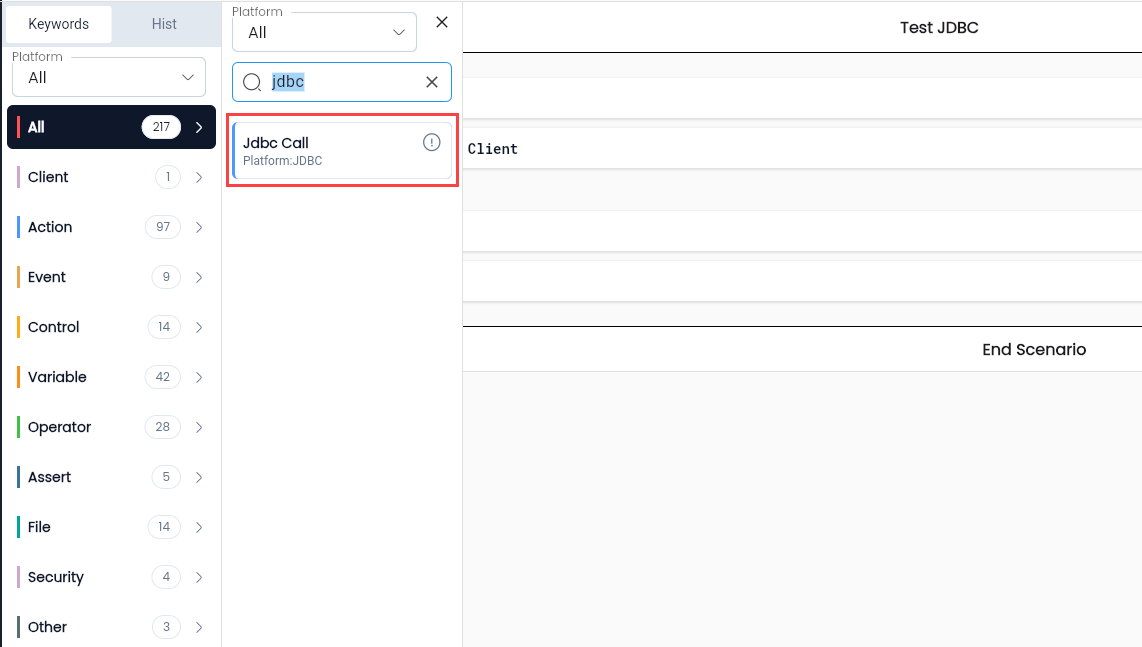
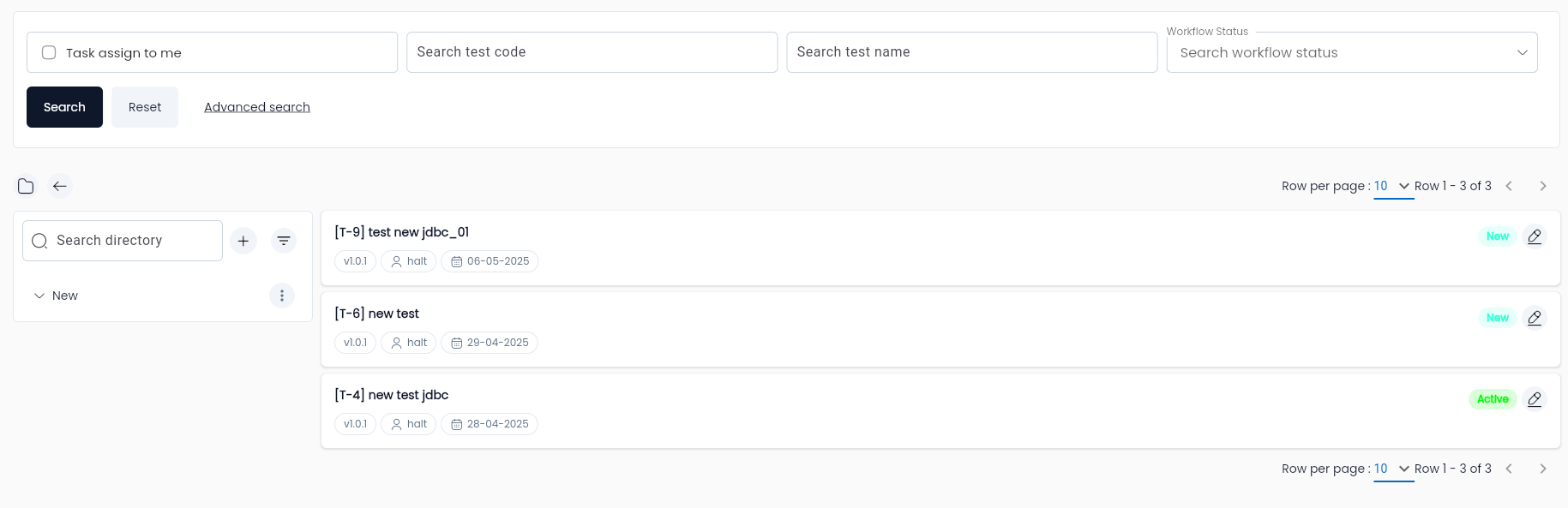
Step 4: Configure the JDBC Call Property, and select the data code in the JDBC call property screen.

Step 5: The screen will display a list of initialized JDBC instances. Click to select the JDBC you want to call.
Step 6: After selecting the JDBC, the JDBC call property screen for the JDBC call keyword will change.
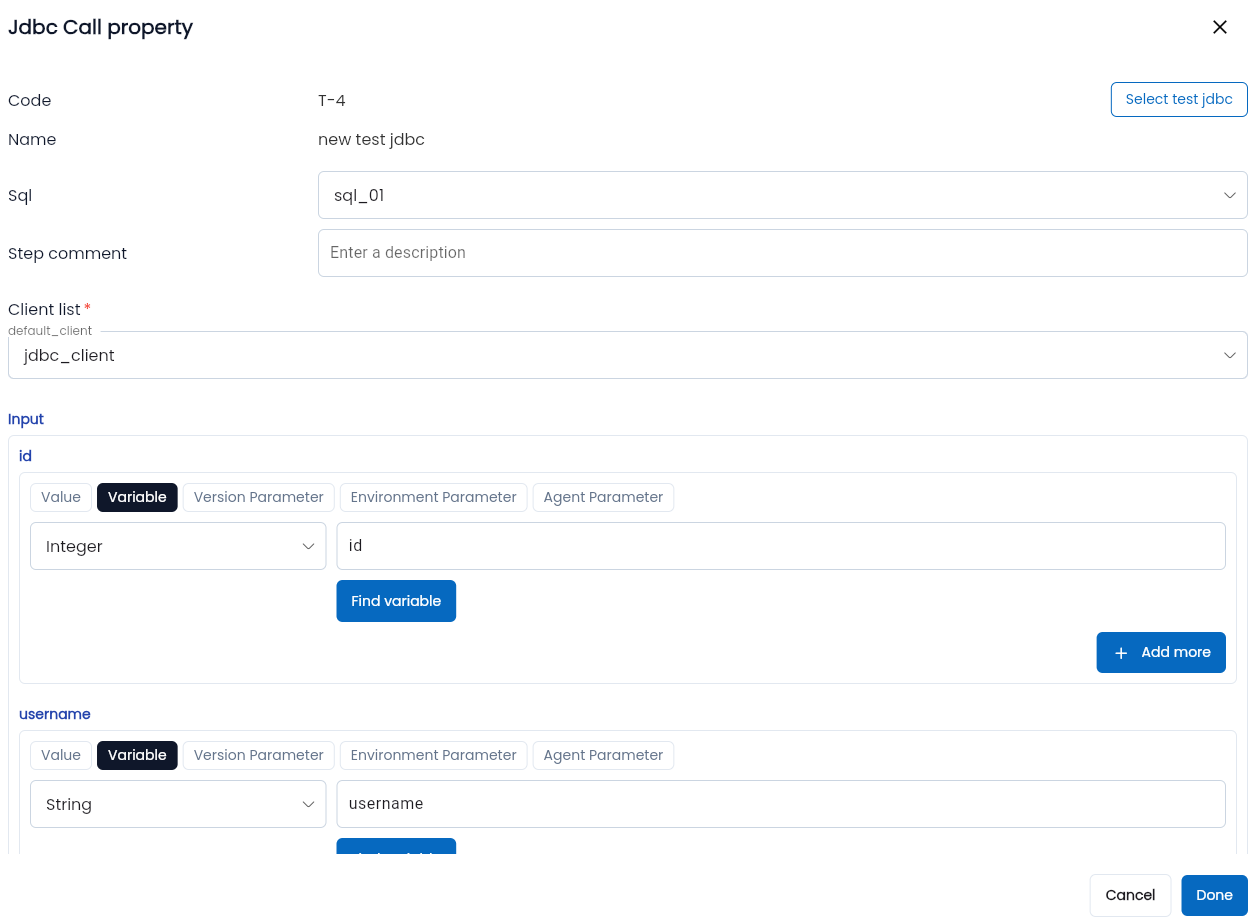
Enter the required information:
| Field | Mandatory | Format | Constraints | Description |
|---|---|---|---|---|
| Code | Yes | AutoComplete | The code of the selected JDBC from JDBC Lib | |
| Step Comment | - | Text | Description for calling the JDBC | |
| Input Input parameters used for JDBC | ||||
| Các parameter Input | Displays if there are parameters defined in the selected JDBC’s parameter list or in the query builder configuration (if any). | Enter data to be used as input parameters for the JDBC query. | ||
| Output Output parameters for JDBC | ||||
| Type | Yes | Combobox | Displays a list of data types for the output variable. The user can select one value. | |
| Data Type | Yes | Combobox | Default selection: Call Output | The data type for the output variable, which holds the returned output of the JDBC. |
| Name | Yes | Text | The name of the variable that will store the output value. |
Step 7: Click the Close button to save the JDBC call property. You will see the low-code line as follows:

Step 8: Use the key-word Assign Value to create a variable that will store the assigned value. The data returned from the database query is in the form of a list. Therefore, you need to use a loop (for) to extract the output.
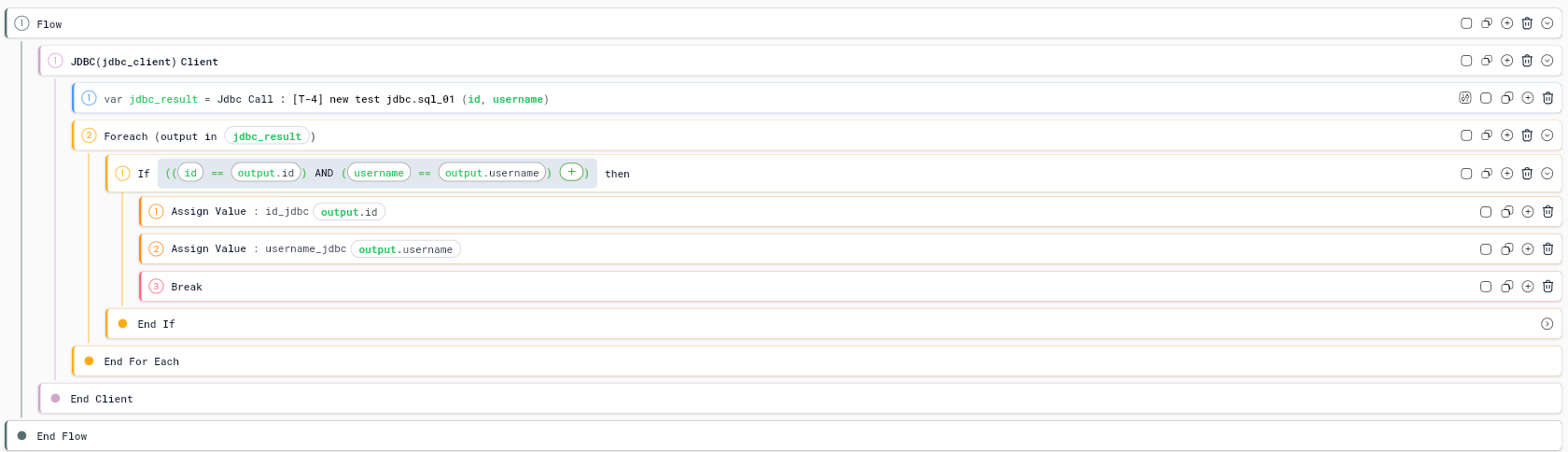
The Jdbc_result is an output containing a list of callOutputs, so when using the loop to iterate through the JDBC call output, each loop will go through each row of data returned.

Configure a variable to store the value.
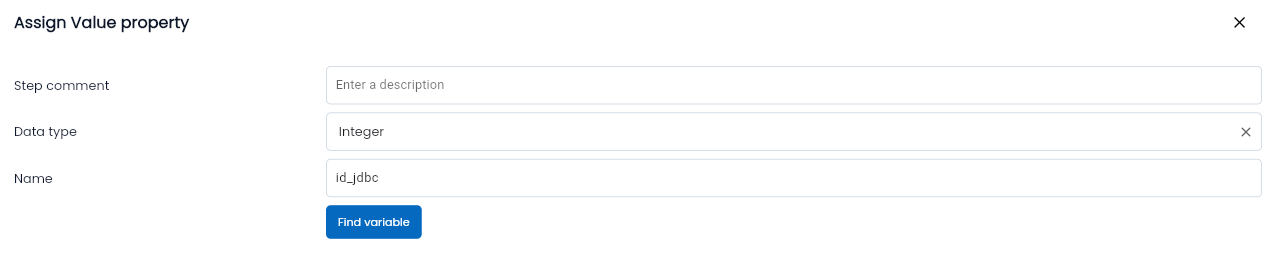
Configure the value to be extracted from the response, at the output returned by JDBC. The returned dataset is in the form of Call Output. Extract the value of a specific element from the Call Output.

Step 9: Click Save in the Low-code section. When the scenario is executed, the data will be returned according to the output parameters that were configured.