Runs
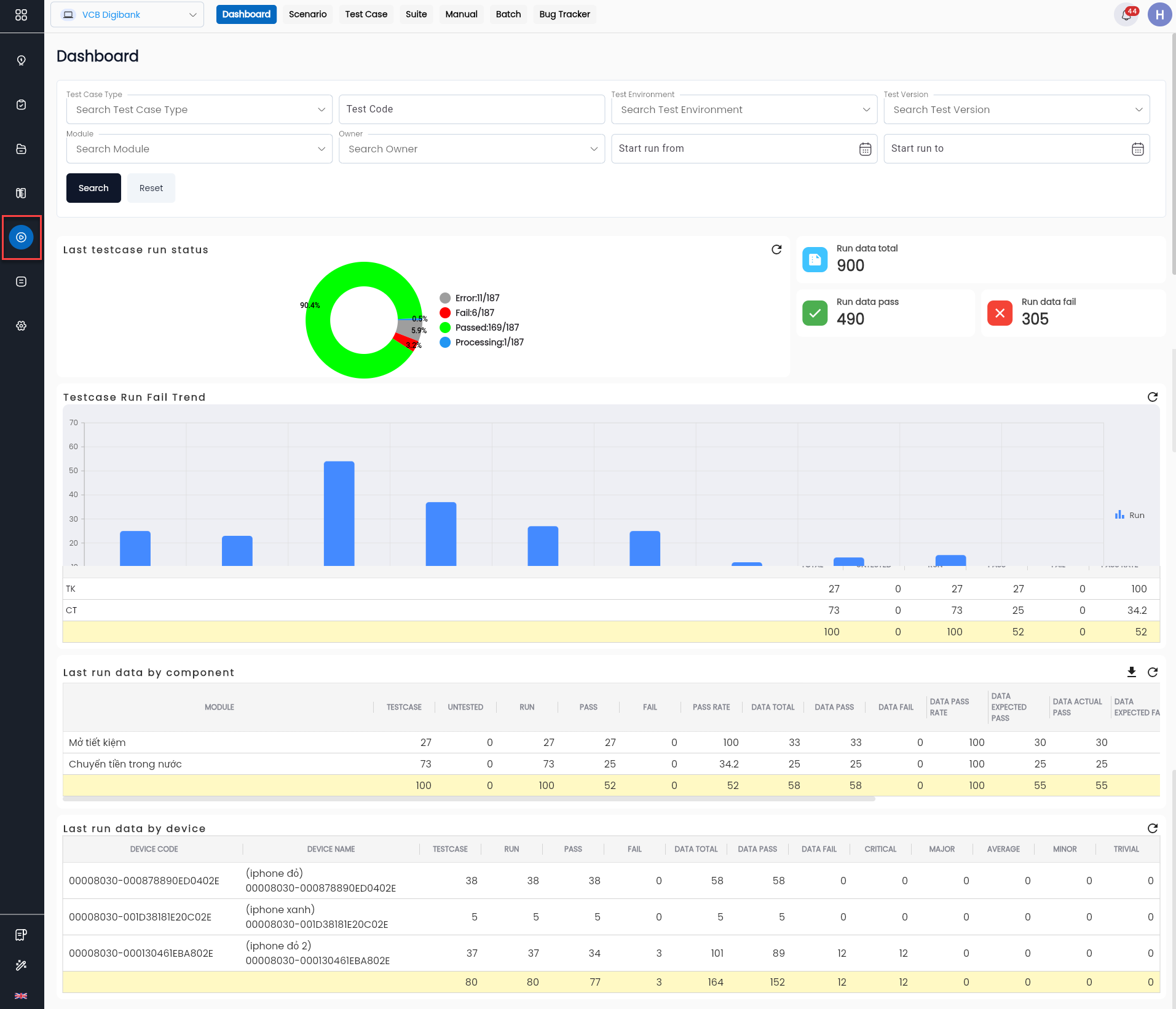
Runs Screen
Filtering Test Runs
Filtering in the Dashboard Tab
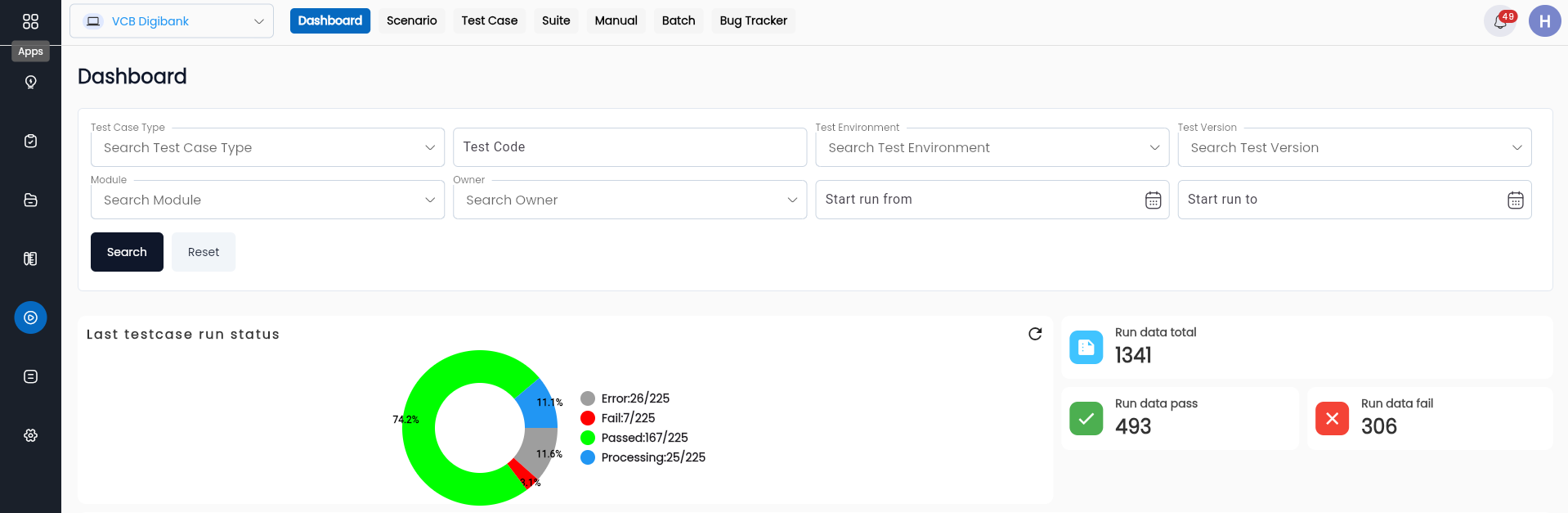
To filter, users enter the desired information fields in the search area, including:
| Information Field | Mandatory | Format | Constraints | Description |
|---|---|---|---|---|
 | - | Icon | - | Click icon  to hide/show the search filter function to hide/show the search filter function |
| Test Type | - | Combobox | - | Field for searching by the type of test scenario |
| Project Version | - | Combobox | - | Field for searching by the version of the project available in the system |
| Project environment | - | Combobox | - | Field for searching by the product development environment |
| Project module | - | Combobox | - | Field for searching by the component of the project |
| Test owner | - | Combobox | - | Field for searching by the creator |
| Start run from | - | Date | - | Field for searching from a specific date |
| Start run to | - | Date | - | Field for searching to a specific date |
 | - | Button | - | Click the button to search for test execution results based on the entered filter conditions |
 | - | Button | - | Click the button to clear the previous filter conditions |
Search results: The number of test scenarios by type available in the project:
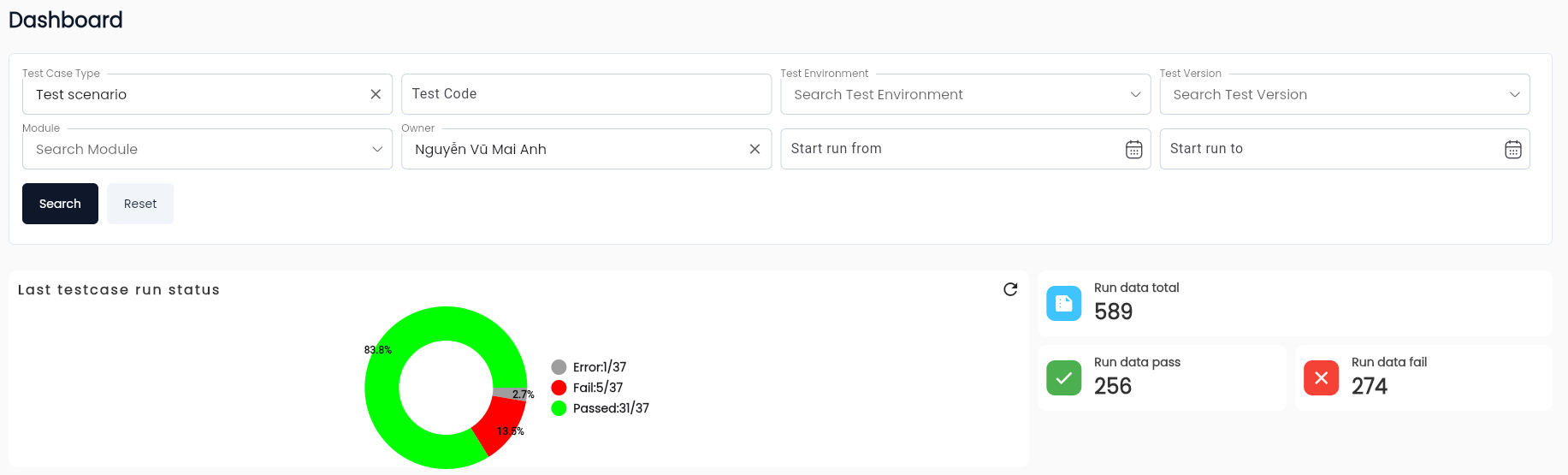
In this:
| Information Field | Description |
|---|---|
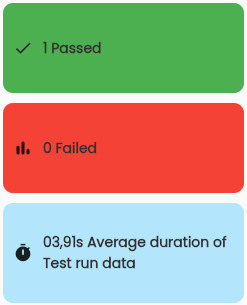
| Test run status | Statistics of the number of active test runs by status |
| Total | Total number of test runs |
| Pass | Total number of test runs that passed |
| Fail | Total number of test runs that failed |
Filtering in the Test Function Tabs
Filtering in the Test case runs, Scenario, Suite, and Manual function tabs is similar.
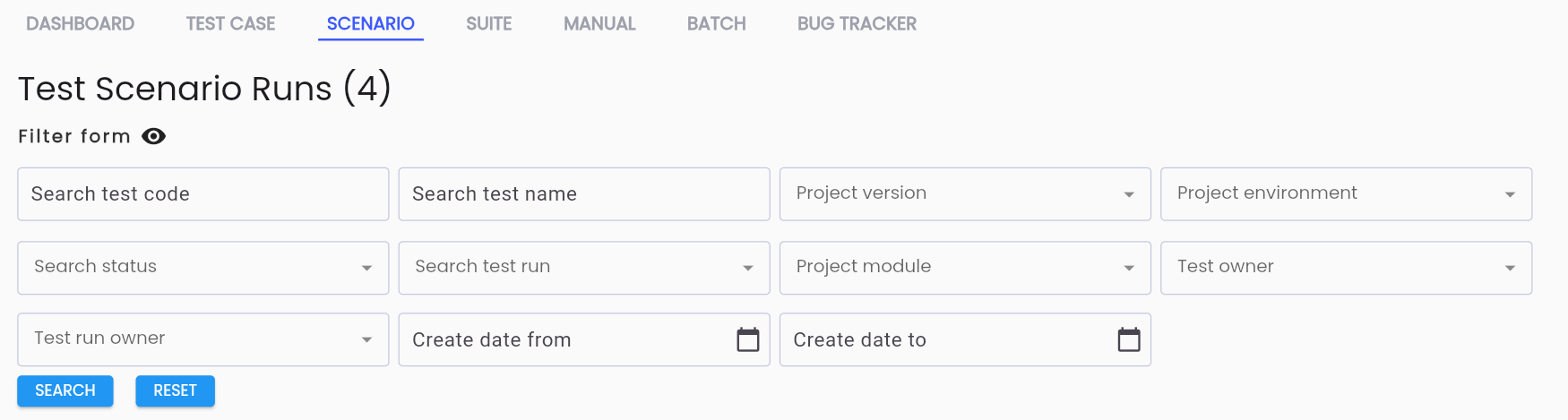
Filtering in the Test Case Runs Function Screen
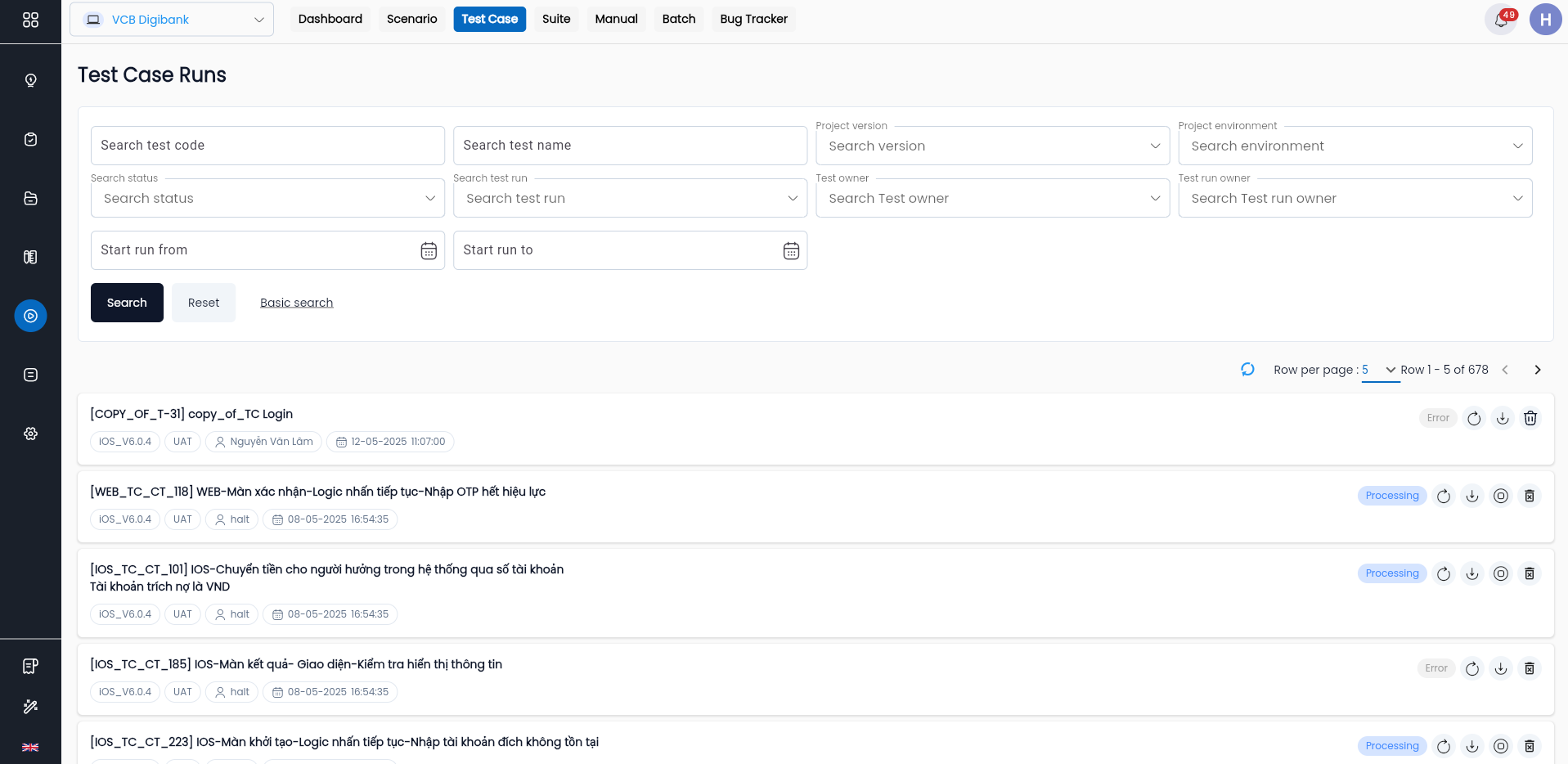
To filter, users enter the desired information fields in the search area, including:
| Information Field | Mandatory | Format | Constraints | Description |
|---|---|---|---|---|
| - | - | - | Click icon to hide/show the search filter function |
| Test code | - | Text | - | Field for searching by code |
| Test name | - | Text | - | Field for searching by name |
| Project version | - | Combobox | - | Field for searching by the version of the project available in the system |
| Project environment | - | Combobox | - | Field for searching by the product development environment |
| Status | - | Combobox | - | Field for searching by status: + Pass + Fail + Waiting + Canceled + Error + Processing |
| Test run | - | Combobox | - | Field for searching by type: + Draft + Complete |
| Project module | - | Combobox | - | Field for searching by the component of the project |
| Test owner | - | Combobox | - | Field for searching by the creator of the scenario |
| Test run owner | - | Combobox | - | Field for searching by the creator of the test run |
| Start run from | - | Date | - | Field for searching from the start date of the test run |
| Start run to | - | Date | - | Field for searching to the start date of the test run |
| - | Button | - | Click the button to search for test execution results based on the entered filter conditions |
| - | Button | - | Click the button to clear the previous filter conditions |
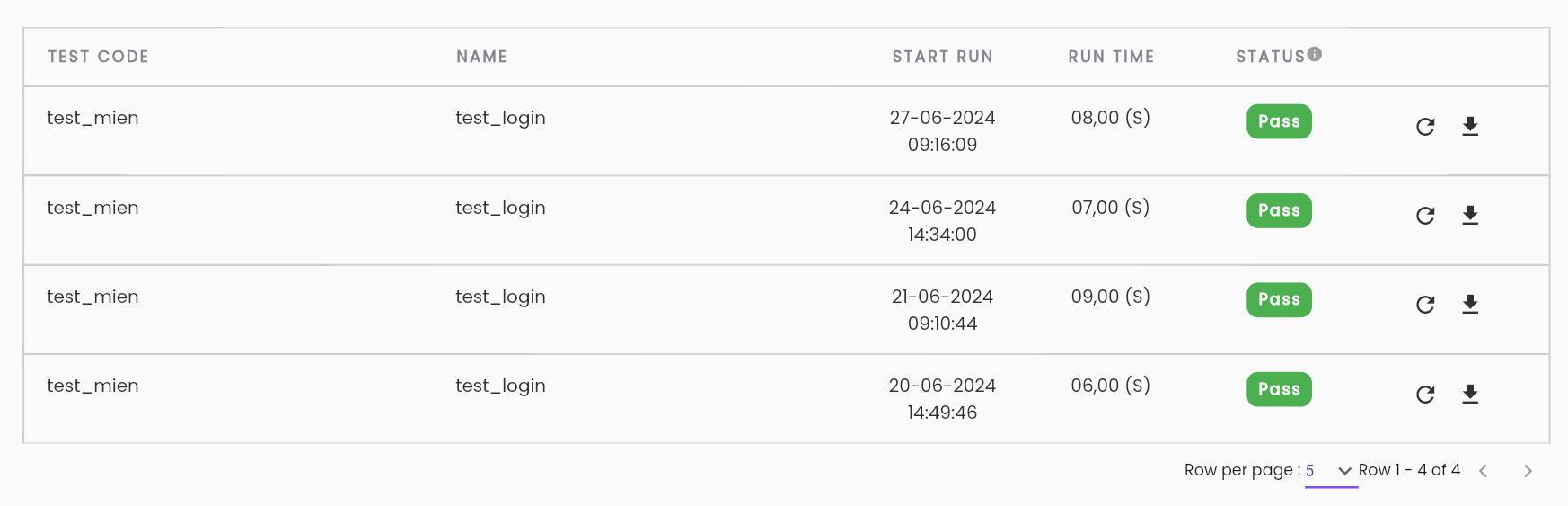
The result list of test scenarios in the project:
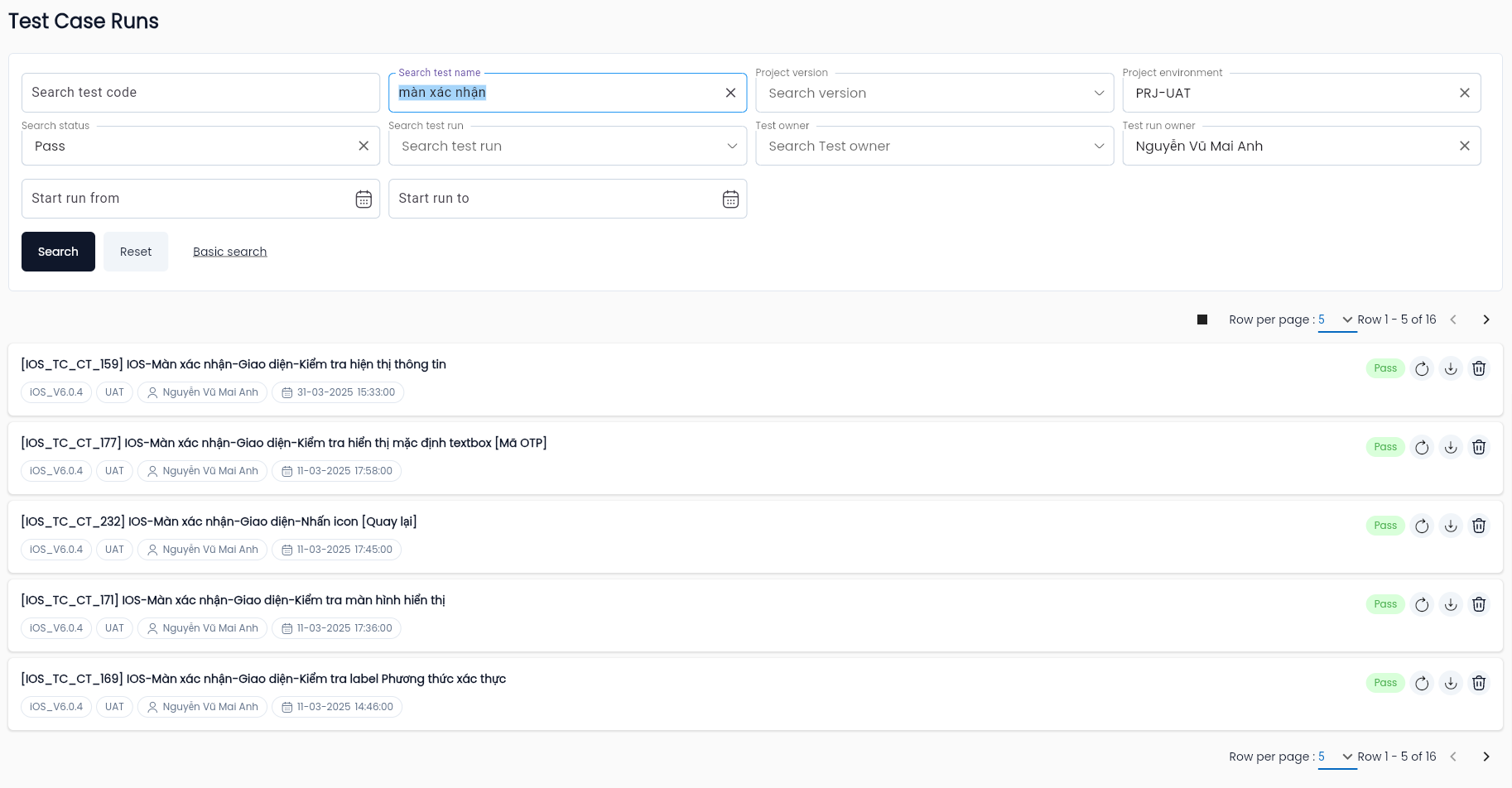
In this:
| Information Field | Description |
|---|---|
 | Click icon  and then select “Download result” to download the test case run data to your device and then select “Download result” to download the test case run data to your device |
 | Click the rerun button to execute the test case run again. The operations are similar to the first test execution, refer to the section Thực thi kiểm thử |
| TEST CODE | Code of the test scenario |
| NAME | Name of the test scenario |
| START RUN | Start time of the test scenario execution |
| TOTAL PROCESSING TIME | Total time taken for the test scenario execution |
| STATUS | Status of the test scenario execution |
Filtering in the BATCH Tab
Test Batch Runs is a list of data for test types that are BATCH.
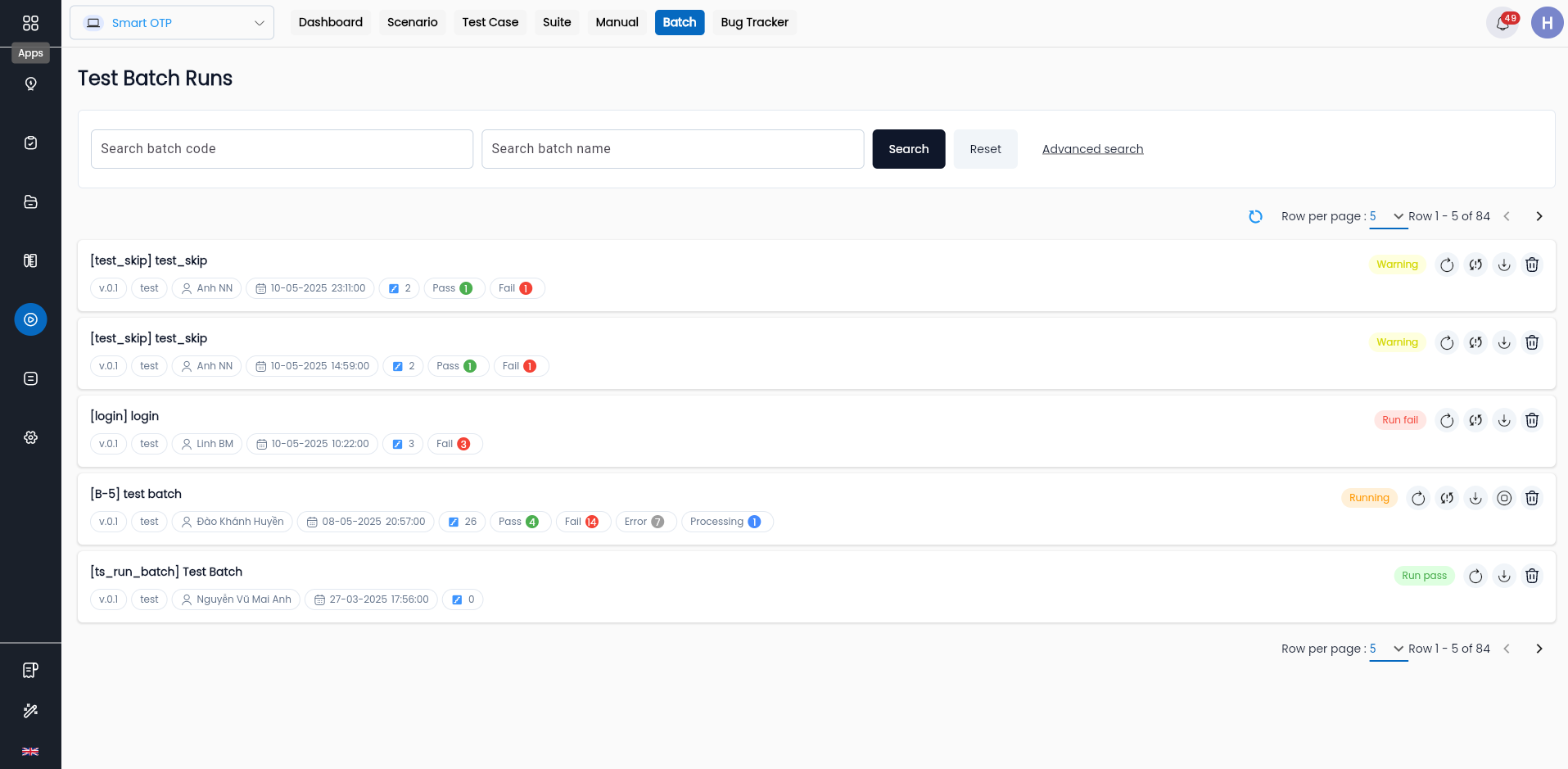
To filter, users enter the desired information fields in the search area:
Referring to the section Filtering in the Test Function Tabs with the fields appearing in the TEST BATCH RUNS tab.
The result list of test scenarios in the project:
| Information Field | Mandatory | Format | Contraints | Description |
|---|---|---|---|---|
| Create date from | - | Date | - | The date search data field is created from date |
| Create date to | - | Date | - | The data field searches from creation date to date |
| Status | - | Combobox | - | Search data field by status: + New + Running + Run pass + Run fail + Warning |
| - | Button | - | Click the button to search for test script execution results according to the previously entered filter conditions |
| - | Button | - | Click the button to clear the previous filter conditions |
The result list of test scenarios in the project:
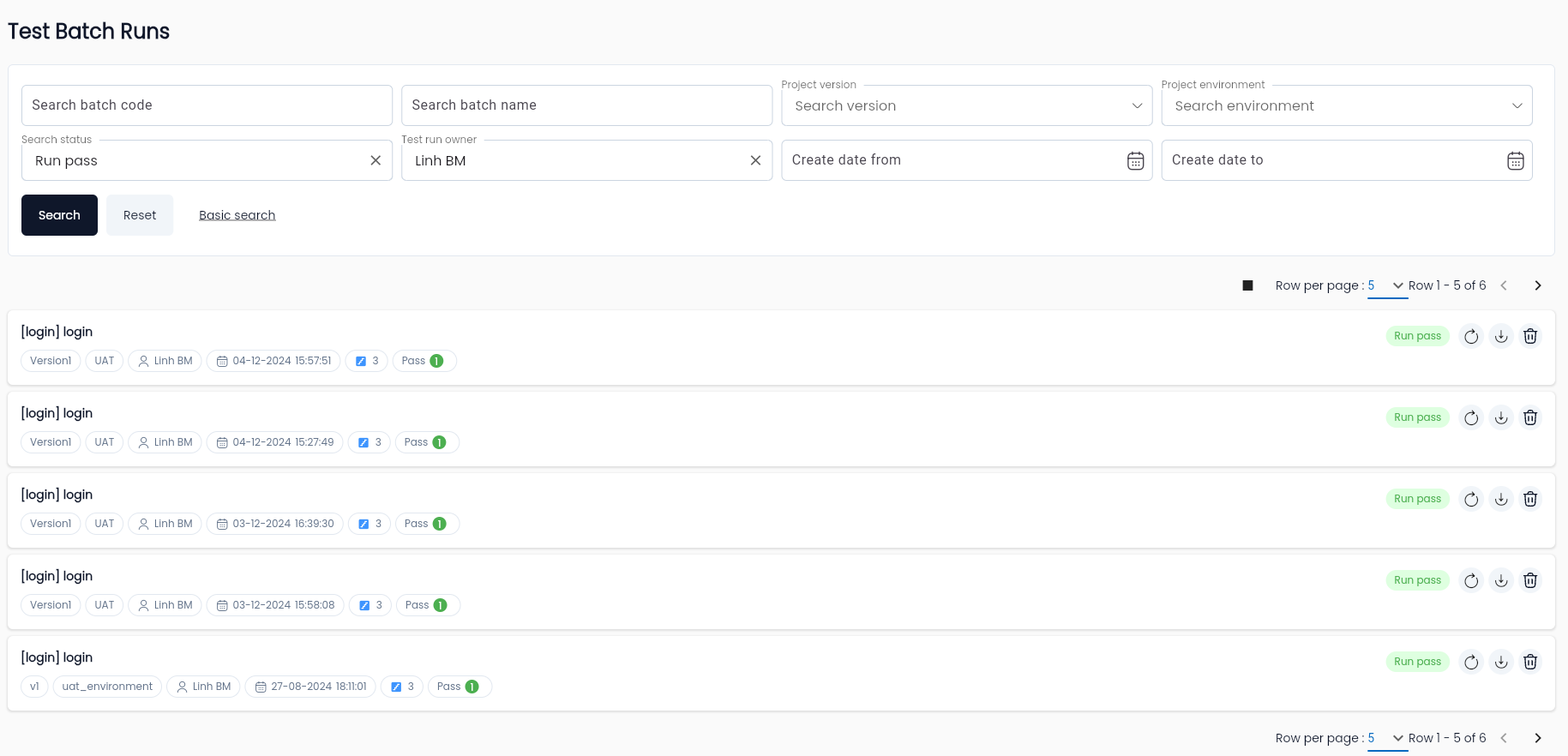
In this:
| Information Field | Description |
|---|---|
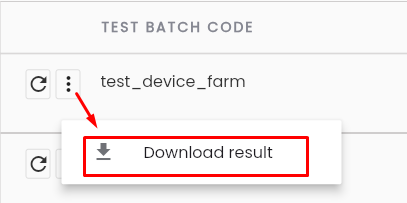 | Click the icon to select “Download result” to download the test case run data to your device |
| Click the rerun button to execute the test case run again. The operations are similar to the first test execution, refer to the section Overview of Test Execution |
| TEST BATCH CODE | Code of the BATCH test scenario |
| NAME | Name of the BATCH test scenario |
| SCHEDULE DATE | Start time of the BATCH test run |
| CREATE DATE | Time when the BATCH test run was created |
| OWNER | Creator of the BATCH test run |
| STATUS | Status of the TEST run |
Filtering in the BUG TRACKER Tab
BUG TRACKER is a list of bug data that occurred during the TEST RUN process, which users reported using the “Report Bug” function.
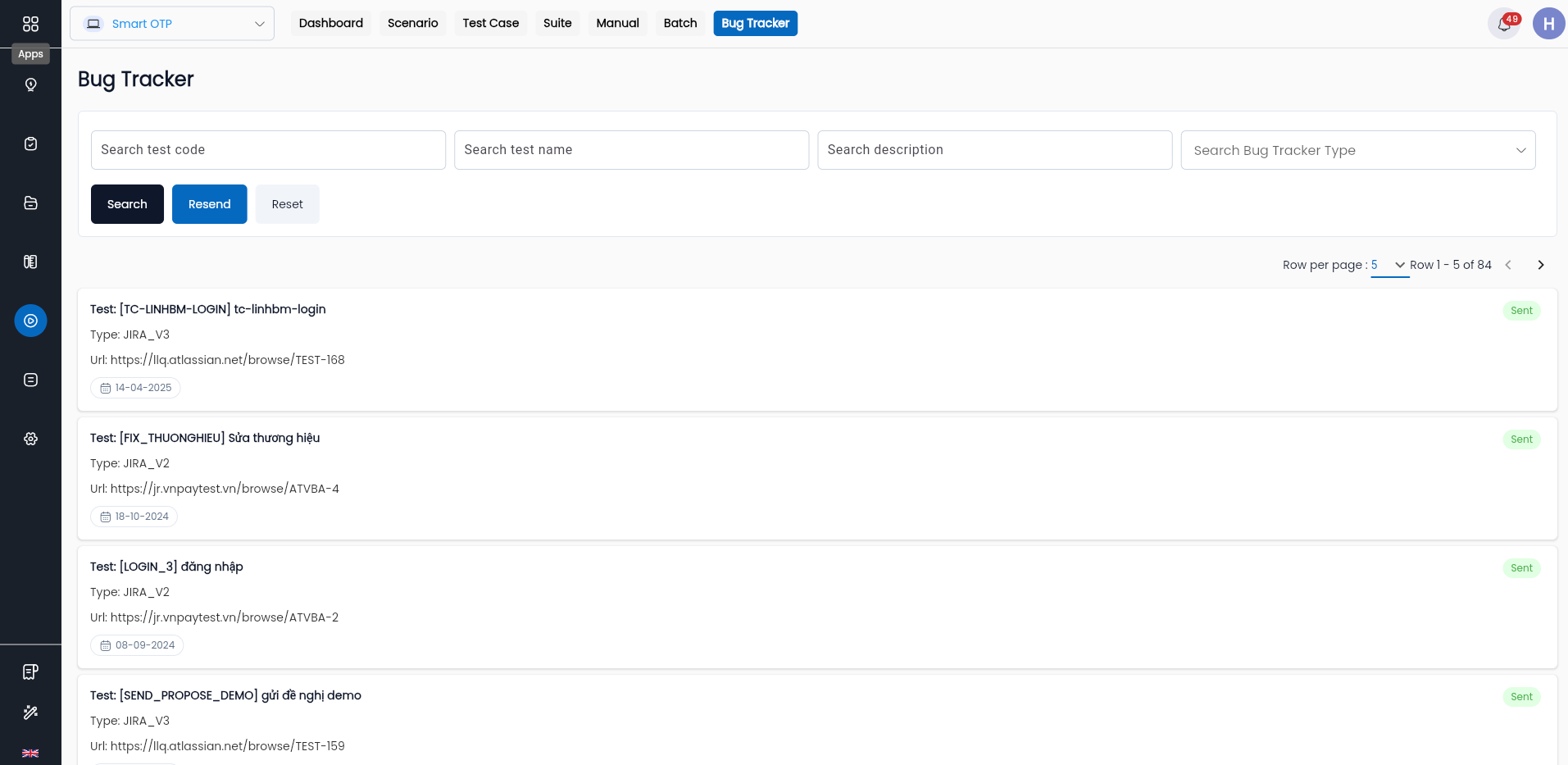
To filter, users enter the desired information fields in the search area, including:
| Information Field | Mandatory | Format | Constraints | Description |
|---|---|---|---|---|
| - | Icon | - | Click icon to hide/show the search filter function |
| Test code | - | Text | - | Field for searching by the code of the test scenario |
| Description | - | Text | - | Field for searching by the description of the bug report |
| Bug tracker type | - | Combobox | - | Displays a list of integrated bug management tools in the system: +LLQ Work management + Jira + Mantis Users can select one value. |
| - | Button | - | Click the button to search for the bug tracker based on the entered filter |
| - | Button | - | Click the button to clear the previous filter conditions |
 | - | Button | - | Click the button to resend all bug trackers with the status “ERROR” |
The result list of reported bug trackers in the project:
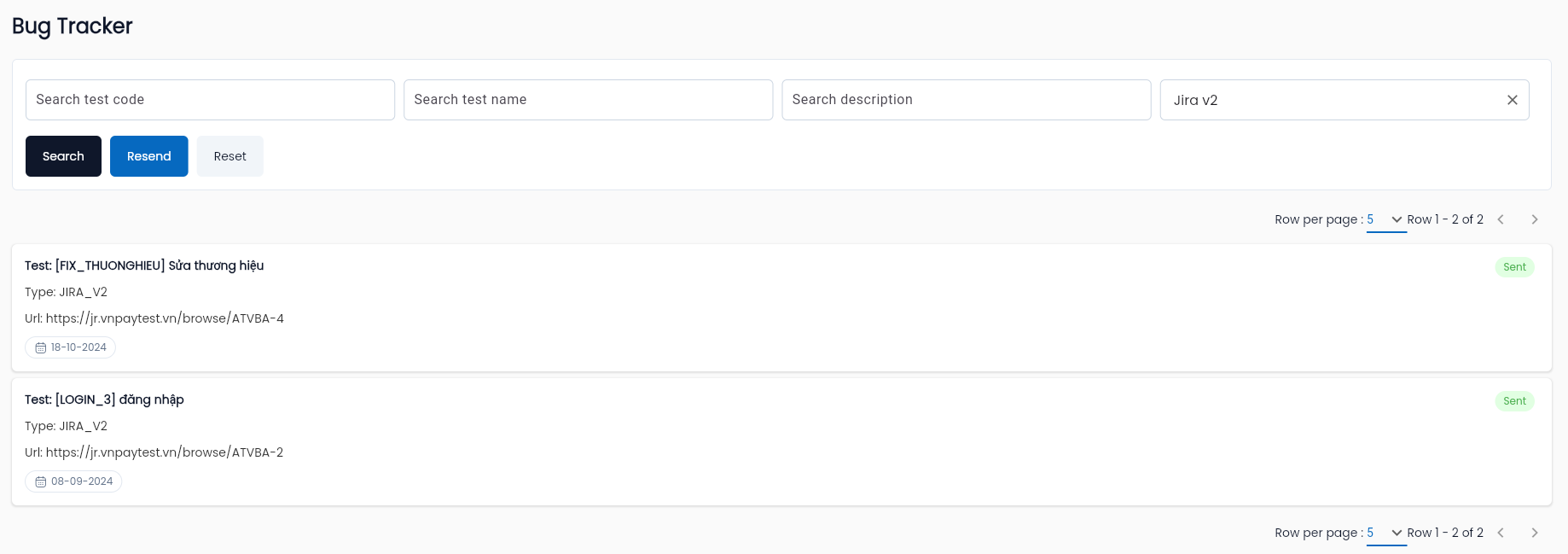
In this:
| Information Field | Description |
|---|---|
| TEST CODE | Code of the test scenario |
| REPORT DATE | Date the bug report was created |
| DESCRIPTION | Description of the bug report |
| TRACKER CODE | Code of the bug management tool |
| TRACKER NAME | Name of the bug management tool |
| TRACKER URL | URL of the bug report |
| STATUS | Status of the bug tracker |
Detailed Execution Results
Detailed Results in the Test Case Runs, Scenario, Suite, Manual Functions
- The detailed results of the Test case runs, Scenario, Suite, and Manual functions are similar.
- For detailed execution results, refer to the section Execution results
Detailed Results of Test Batch Runs
The steps for users to access the detailed results of Test Batch Runs are similar to viewing the detailed results of test case runs. Refer to the section Kết quả thực thi
Dashboard Tab
This tab provides an overview of the statistics of batch steps in the test execution of Batch.
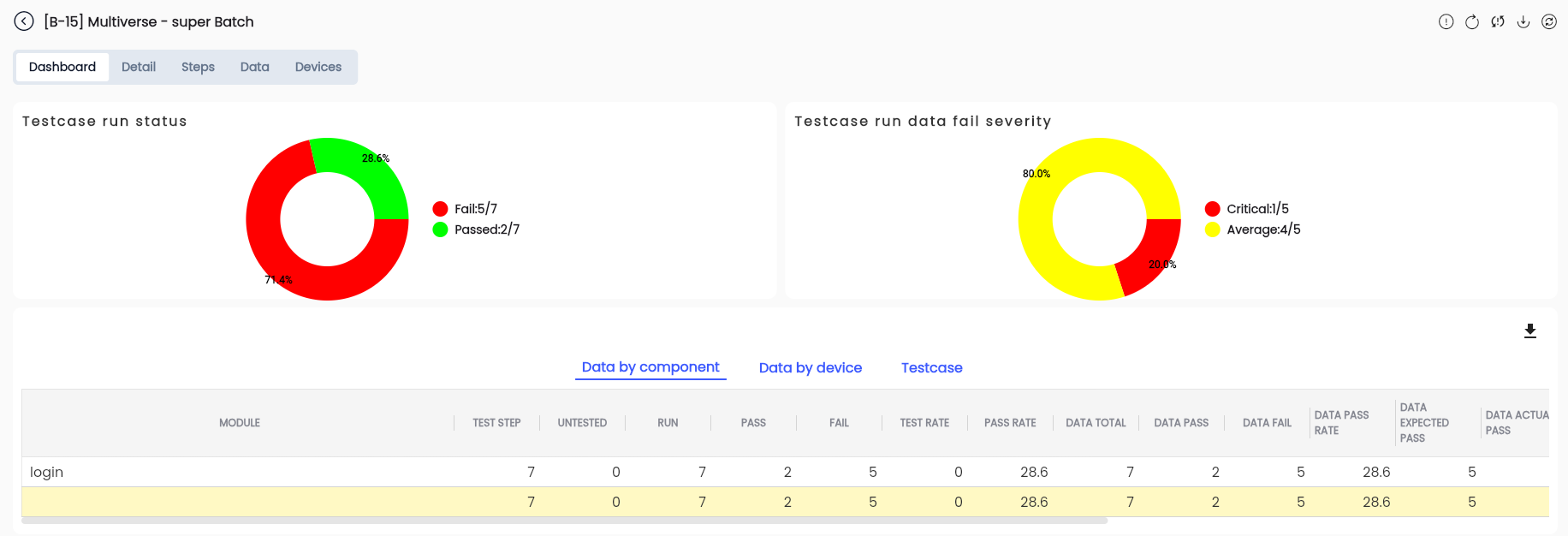
- The system displays two statistical charts:
-
- Test run data fail severity: Statistics of the number of RUN FAIL scenarios by severity levels.
- Test run status: Statistics of the number of scenarios by execution status.
Additionally, the system displays a grid of information summarizing the number of RUN FAIL scenarios by severity levels on a Project Module. The information about the modules is declared in the Settings function and selected in test cases, scenarios, and suites.
Tab Detail
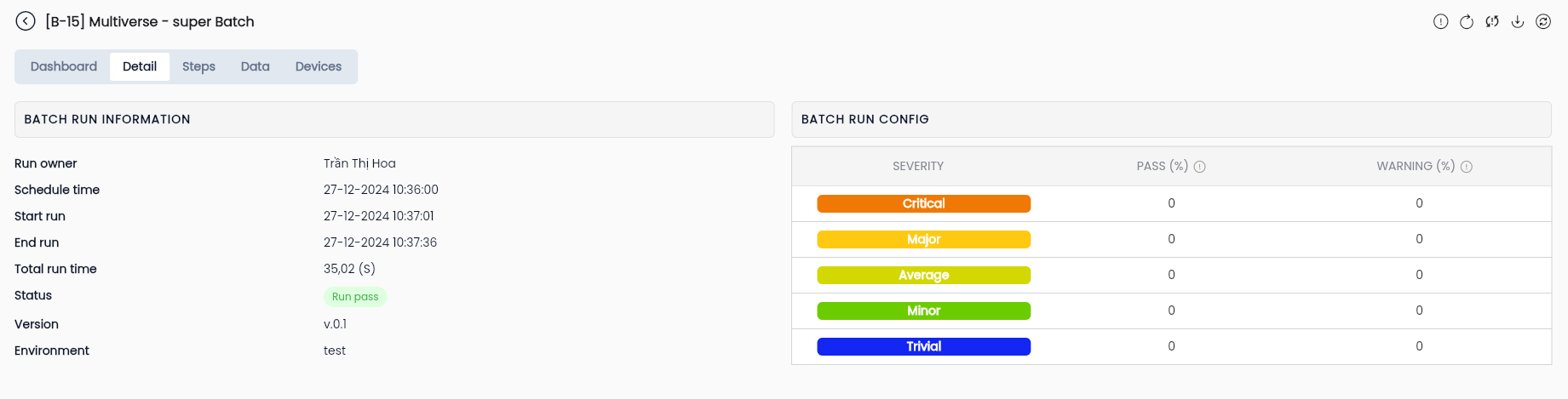
This tab provides detailed information about the results of a Batch test execution, including:
- Basic information of the Batch test execution (BATCH RUN INFORMATION)
- Configuration information for evaluating the output results of the Batch run by severity levels (BATCH RUN CONFIG)
- Information about batch steps belonging to the test Batch (BATCH RUN STEPS), with support for searching by name and execution status of the batch step.
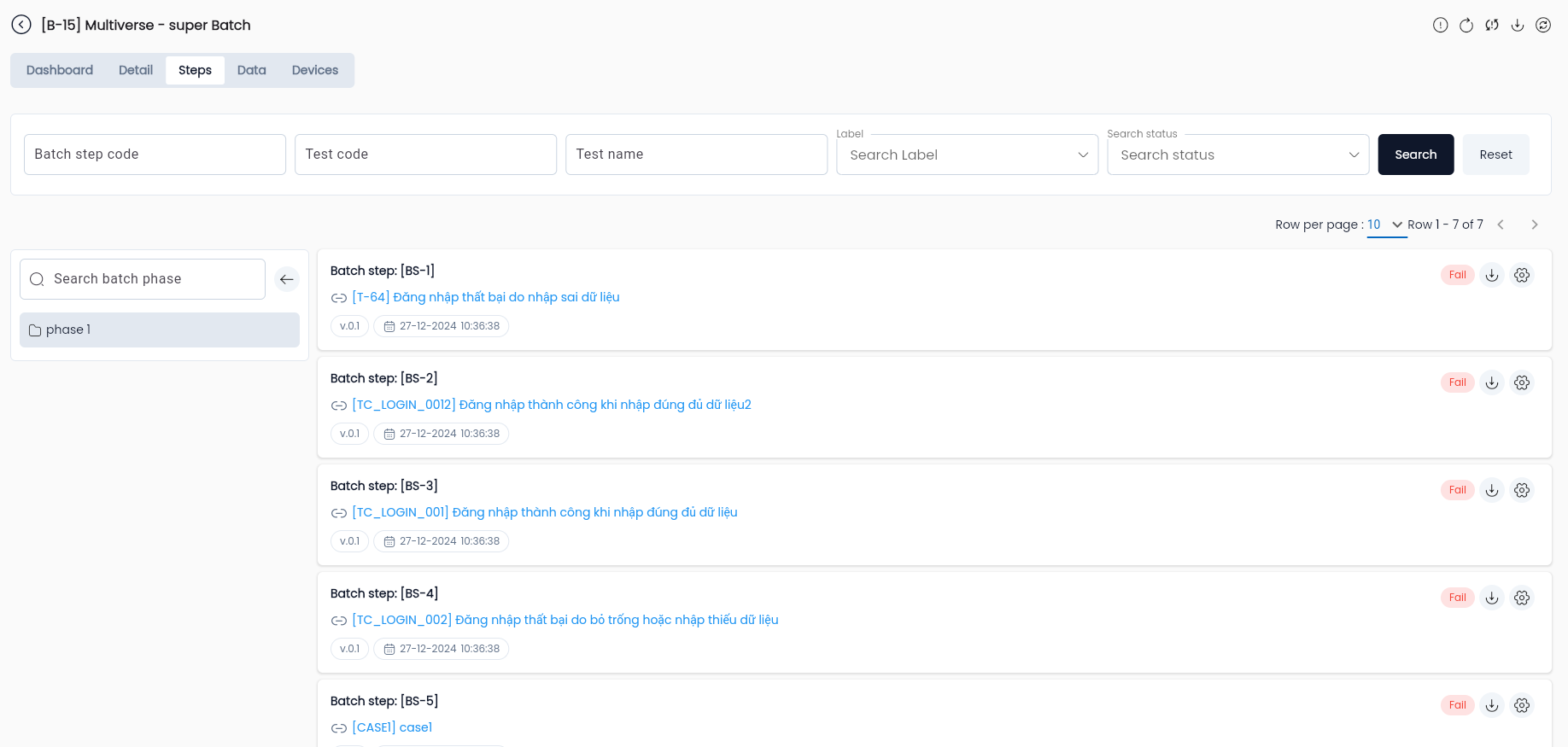
Description of Information on a Batch Step Data Set
| Information Field | Description |
|---|---|
 | Click the “Download Result” button to download the test execution data to your device |
| BATCH STEP NAME | Name of the batch step declared in the “CREATE BATCH STEP” function |
| TEST NAME | Name of the test scenario selected for use in the batch step |
| VERSION | Version of the test scenario selected for use in the batch step |
| ENVIRONMENT | Environment of the test scenario selected for use in the batch step |
| STATUS | Execution status of the batch step |
Users select a row of data in the Batch Steps grid, and the system displays the information of the execution results of the test case, scenario, or suite depending on the selected batch step. For result information, refer to the section Viewing Execution Results.
Detailed Bug Tracker
The data describing the Bug Tracker has been introduced in the section Report Bug.