Test Batch
During product development, multiple versions are updated to meet user needs and address market issues. In such cases, regression testing is necessary to ensure that old features continue to function correctly in the current version.
However, a large system will have many small features, corresponding to numerous test scenarios. Performing each test scenario individually can be time-consuming when reviewing the scenarios that need to be executed. To conduct regression testing quickly, the testing tool must support batch testing.
What is Test Batch?
Test Batch is a feature that facilitates batch testing, specifically for regression testing.
Test Batch Library
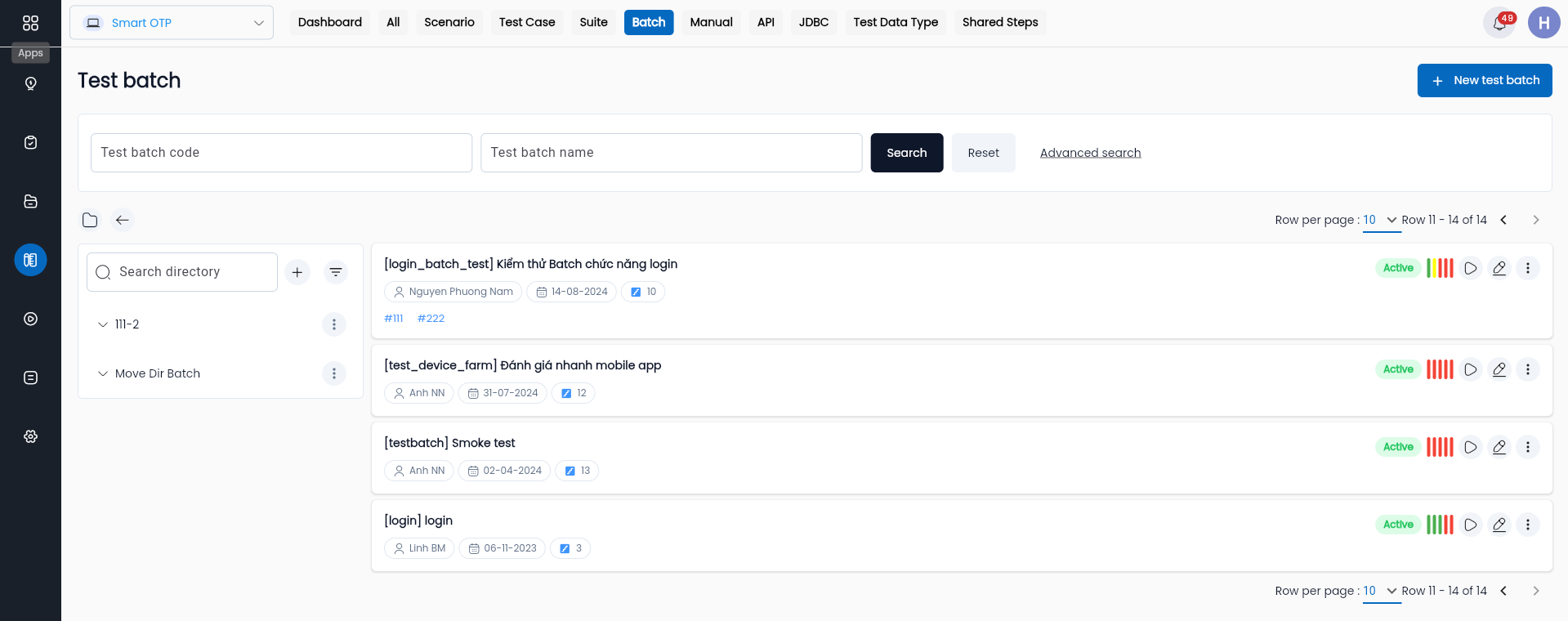
Field Description
| Field Name | Mandatory | Định dạng | Constraints | Description |
|---|---|---|---|---|
| Filter form | - | Icon | - | Click vào button  to show/hide the filter form. to show/hide the filter form. |
| Test Batch name | - | Text | - | Enter the test batch name to search by name. |
| Search Status | - | Combobox | - | Select the batch status to search: Active, Inactive |
 | - | - | - | Click the button to search based on the entered conditions. |
| Name | - | - | - | Name of the test batch. |
| Batch Steps | - | - | - | Number of Batch Steps in the Test Batch. |
| Last run | - | - | - | Statistics on the number and status of batch steps during the last run, differentiated by colors: + Green (Pass) + Red (Fail) + Orange (Running) + Blue (New) + Yellow (Warning) |
| Owner | - | - | - | Creator of the test batch. |
| Create date | - | - | - | Creation date. |
 | Icon | - | Click vào icon  to show batch-related features: + Run + Edit + Delete to show batch-related features: + Run + Edit + Delete | |
 | Icon | - | Click vào icon  to display the batch details screen. to display the batch details screen. | |
| New Test Batch | - | Button | - | Click to create a new test batch. |
Creating a New Test Batch
Step 1: Click button  , The system will display the “CREATE TEST BATCH”.
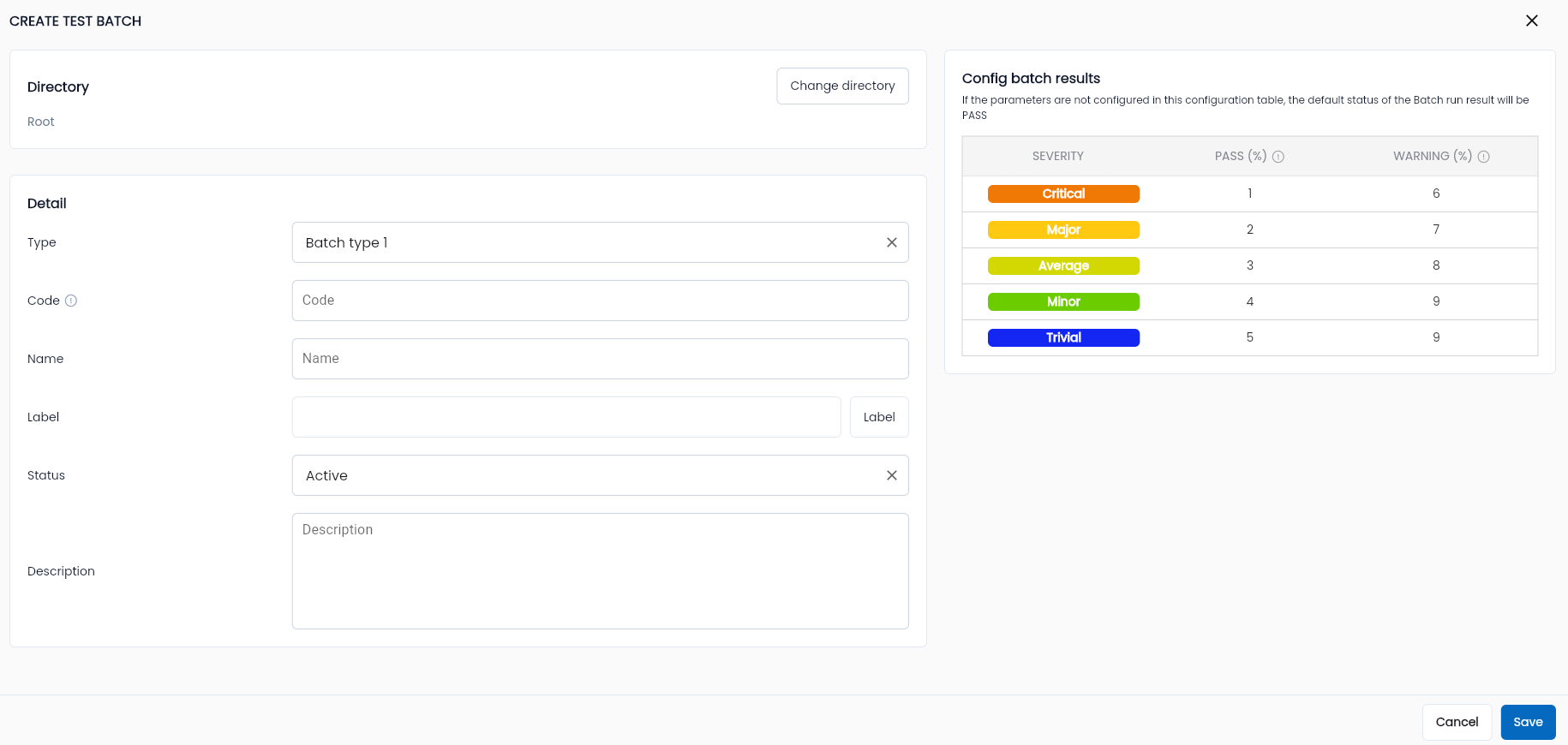
Step 2: Completely and validly enter the required information fields:
| Field Name | Mandatory | Format | Constraints | Description |
|---|---|---|---|---|
| Code | - | Text | If the user enters a code, it must be unique, start with a letter, and cannot contain special characters other than “_” or “-”. | Identifier code for the test batch within the testing project. If left blank, the system generates a code following the structure B-stt, where: + B is the test batch symbol. + stt is an incrementally generated unique number starting from 1. |
| Name | Yes | Text | - | Enter the name of the test batch (should relate to a module or function). |
| Status | Yes | Combobox | - | Select the batch status: + Active + Inactive. |
| Description | - | Textarea | - | Enter a description of the test batch. |
| Config batch results | - | Table | - | This is a user-defined manual configuration for assessing batch execution results based on the failure rate at each severity level. For example, let a represent the failure rate at the Critical severity level across all failures in the batch: a = Critical failures / Total failures. Similarly, for other severity levels. The evaluation is as follows: + Pass: If a at all severity levels is less than the configured Pass threshold. + Warning: If a is less than the configured Warning threshold but greater than the Pass threshold. + Fail: If any a exceeds the configured Warning threshold for any severity level. |
| OK | - | Button | - | Click “OK” to save the batch. |
| CANCEL | - | Button | - | Click “CANCEL” to cancel. |
Step 3: Click “OK”, and the system will notify: “Create successful”.
Editing a Test Batch
Step 1: On the batch library screen, click the “⋮” button corresponding to the batch you want to edit, then select “Edit”.

The system displays the Edit Test Batch screen.
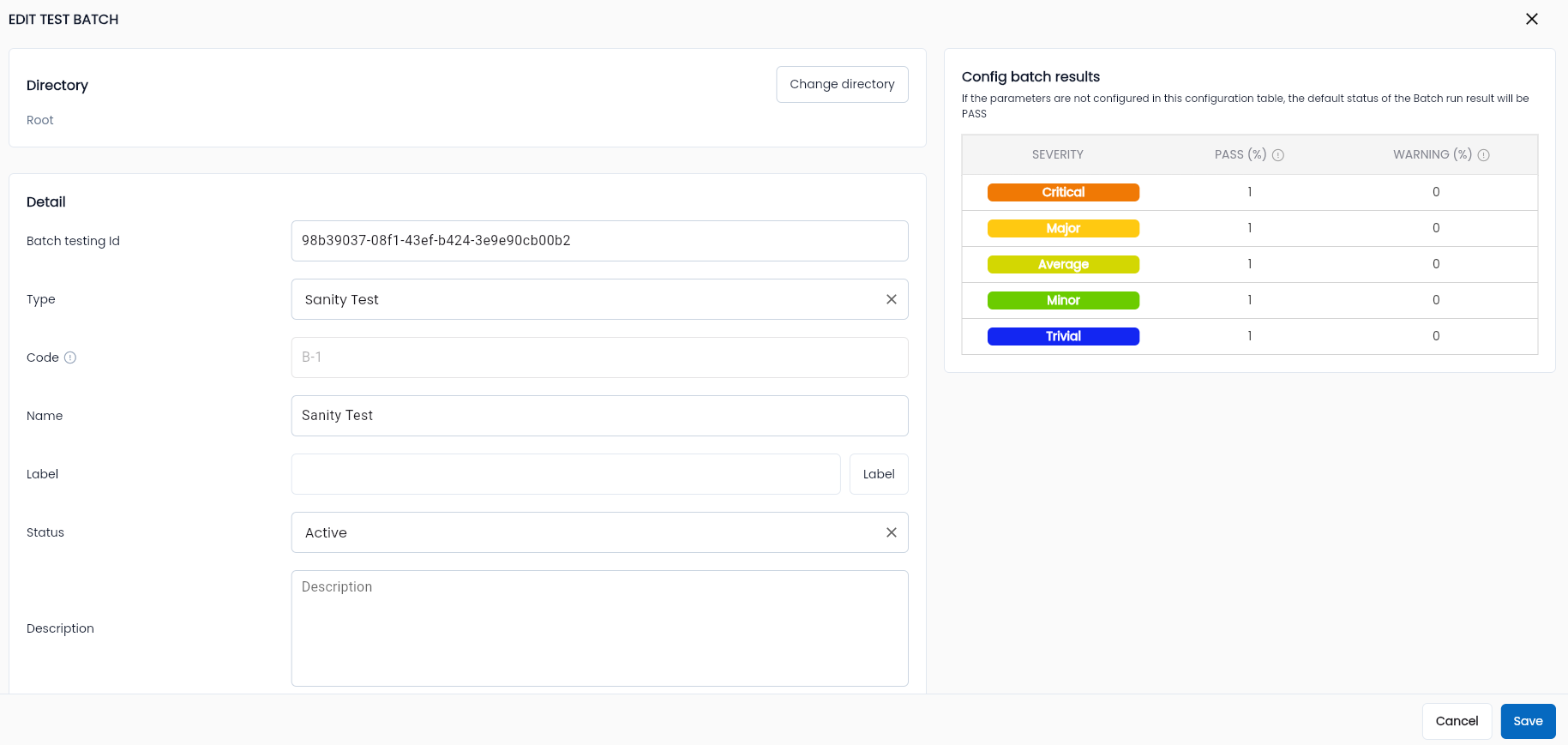
Step 2: Edit the necessary information (ID and Code cannot be edited).
Step 3: Click “OK”, the system will notify: “Edit successful”.
Deleting a Test Batch
Only batches without batch steps can be deleted.
Step 1: On the batch library screen, click the “⋮” button corresponding to the batch you want to delete, then select “Delete”.
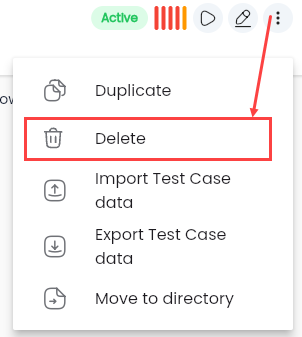
The system displays a delete confirmation popup.
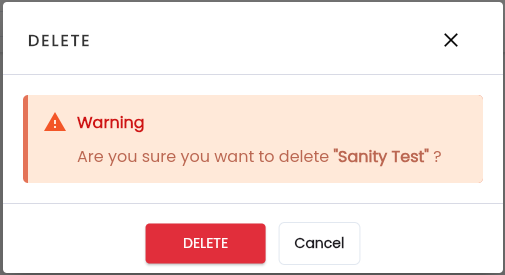
Step 2: Click “Delete”, and the system will notify: “Delete successful”.
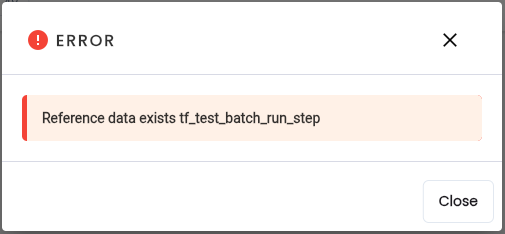
If the batch has been run or contains Batch Steps, the system will display a message indicating that the batch cannot be deleted.
What is a Batch Step?
Batch Steps are the individual steps within a Batch, which can be a test case, test scenario, or test suite, depending on the user’s configuration.
On the test batch library screen, click any batch to view its details. Navigate to the "Batch Step" tab to see the batch steps.
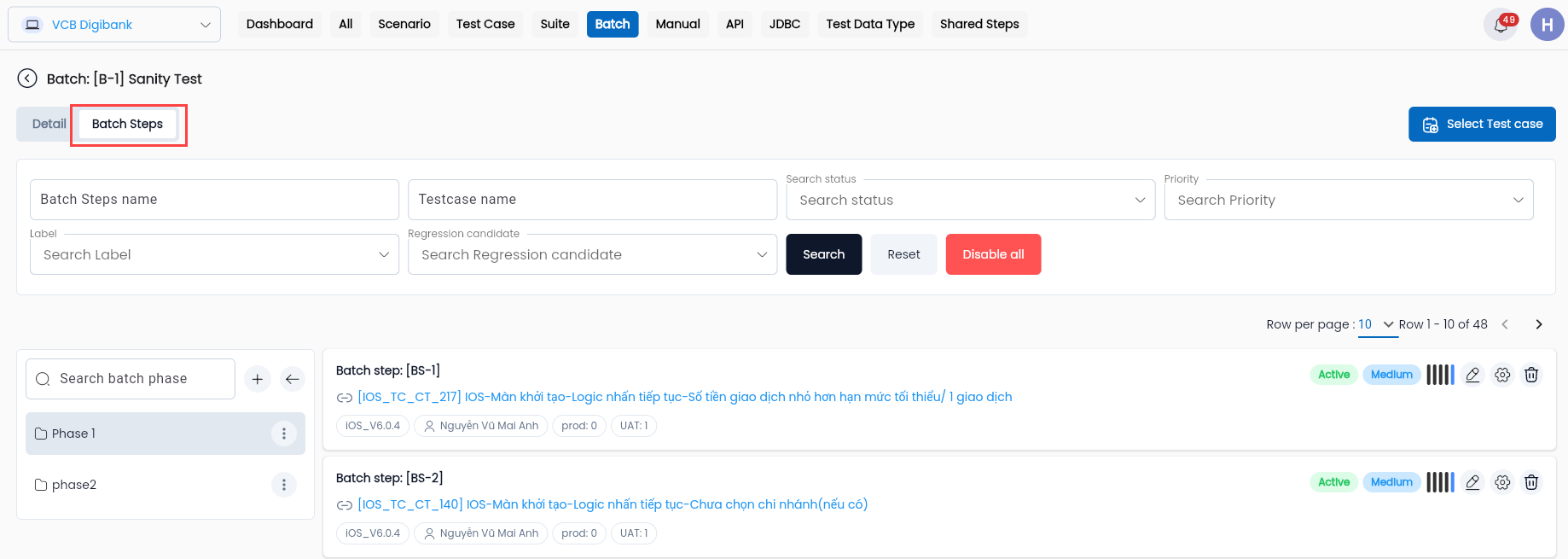
In this:
| Field Name | Mandatory | Format | Constraints | Description |
|---|---|---|---|---|
| Filter form | - | Icon | Click the button to show/hide the filter form. | |
| Batch Step name | - | Text | Enter the batch step name to search by name. | |
| Search Status | - | Combobox | Select the batch step status to search: + Active + Inactive. | |
| Priority | - | Combobox | Select the priority level of batch steps to search: + High + Medium + Low. | |
| Regression candidate | - | Combobox | Search by the system's automated suggestions based on the last 10 runs: + None + Primary + Secondary + Tertiary. | |
 | Button | Click to search based on entered conditions. | ||
| Name | - | - | Name of the test batch step. | |
| Test Name | - | - | Name of the selected test scenario (test case, test scenario, or test suite). | |
| Owner | - | - | Creator of the batch step. | |
| - | Icon | Click vào icon , The system pops out a list of functions that the user can operate with batch steps: - Edit: Edit batch step - Delete: Delete batch step | |
| New Batch Step | - | Button | Click on the “New Batch Step” button, the system displays the Create Batch Step screen |
New Batch Step
Step 1: On the Batch Step list screen, click “New Batch Step”, and the system will display the CREATE BATCH STEP.
Step 2: Enter all mandatory and valid information, including:
| Field Name | Mandatory | Format | Constraints | Description |
|---|---|---|---|---|
| Code | Có | Text | The code must be unique, cannot be edited, start with a letter, and cannot contain special characters other than “_” or “-”. | Allows users to enter the code of the batch step, which serves as an identifier for distinguishing between tests. |
| Name | Có | Text | Enter the name of the batch step. Users should name it similarly to the related test case/scenario/suite for easier management. | |
| Status | Có | Combobox | Status of the batch step: - Active: Active - Inactive: Inactive | |
| Description | - | Textarea | Description of the batch step. | |
| Choose a test case | - | Button | Click to select a test case to become a batch step. | |
| Choose a test scenario | - | Button | Click to select a test scenario to become a batch step. | |
| Choose a test suite | - | Button | Click to select a test suite to become a batch step. | |
| OK | - | Button | Click “OK” to validate the information. If successful, the batch step will be saved. | |
| CANCEL | - | Button | Click “CANCEL” to cancel the creation of the batch step. |
To create a batch step, users must select one of the following test types: test case, test scenario, or test suite.
Selecting a Test Case for a Batch Step
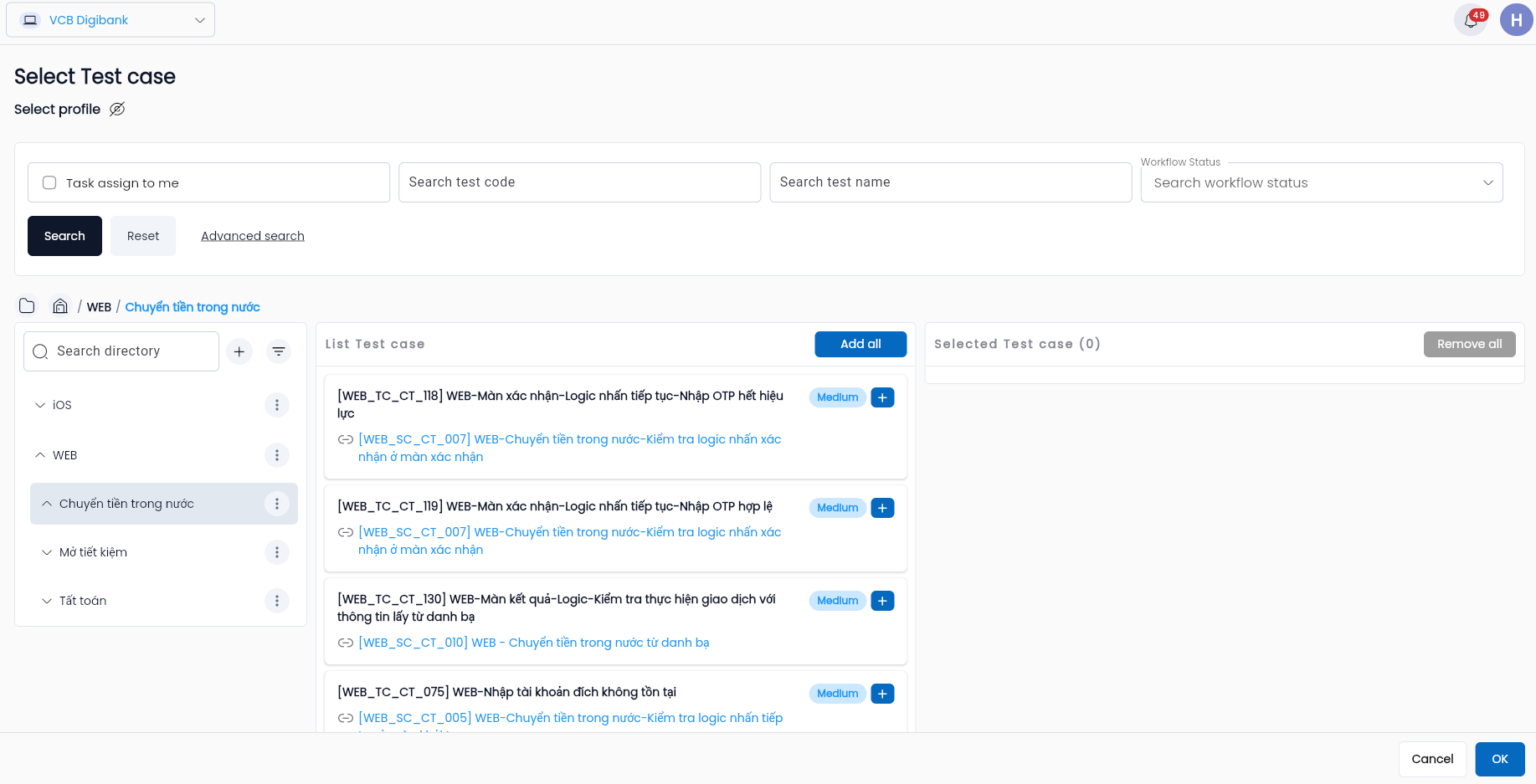
- After clicking “Select a test case”, the system will display the project’s test case list. The data and search functions are similar to those in the TEST CASE tab within the TEST LIBRARY.
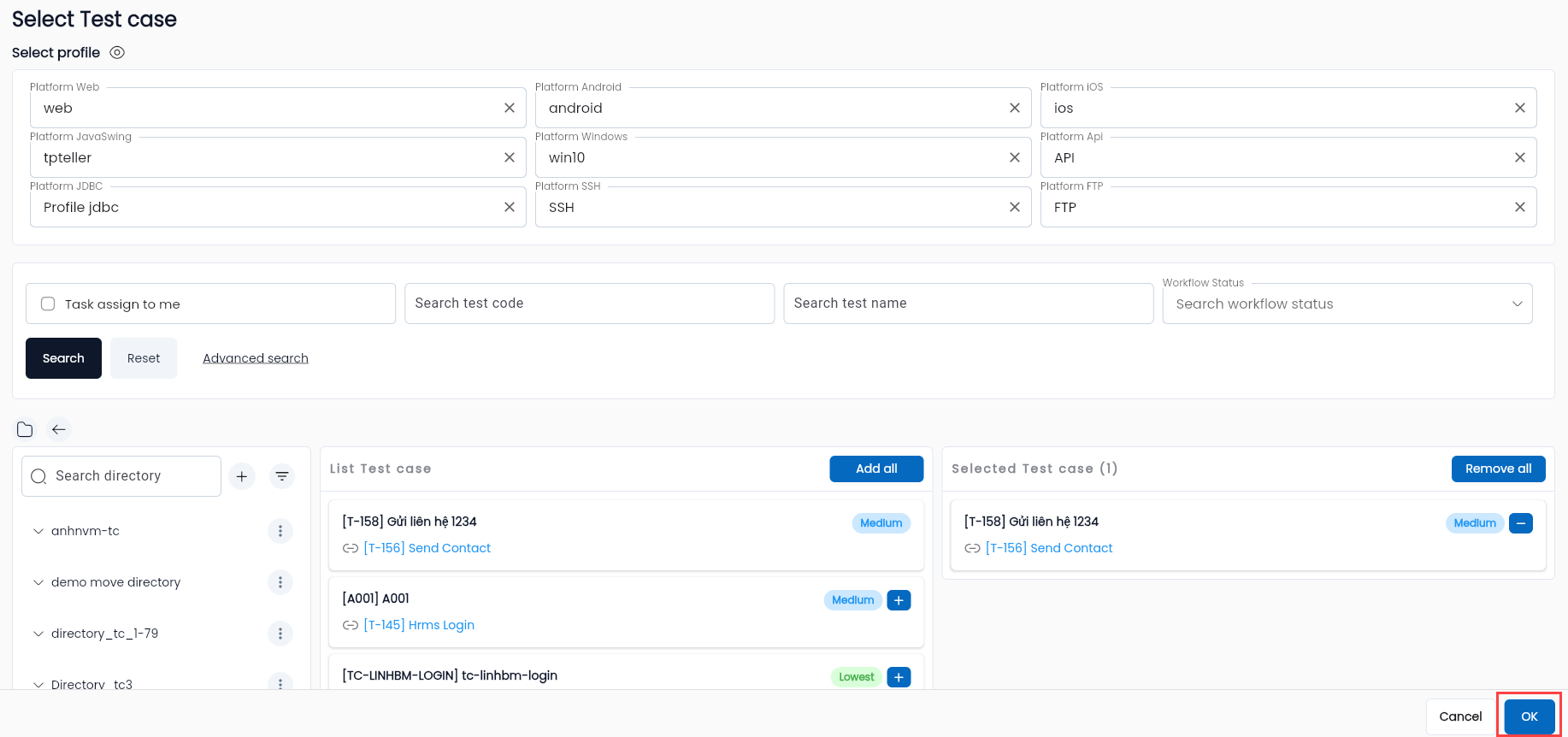
Additionally, a radio button is added for selecting the test case to be used for batch steps.
Selecting directories/test cases works similarly to configuring test case scenarios.
After selecting a test case, click "OK". The system will return to the Create Batch Step screen, displaying the selected test case name and its parameters.
Selecting a Test Scenario
At Step 2, if the user clicks “Choose a test scenario”, the system will display the scenario selection screen. The data and search features are similar to those in the Scenario tab within the TEST LIBRARY.
A radio button is also added for selecting the test scenario to be used for batch steps.
After selecting a test scenario, click “OK”. The system will return to the Create Batch Step screen displaying the selected scenario name and its parameters.
Selecting a Test Suite
- At Step 2, if the user clicks “Choose a test suite”, the system will display the test suite selection screen. The process is similar to selecting a test case.
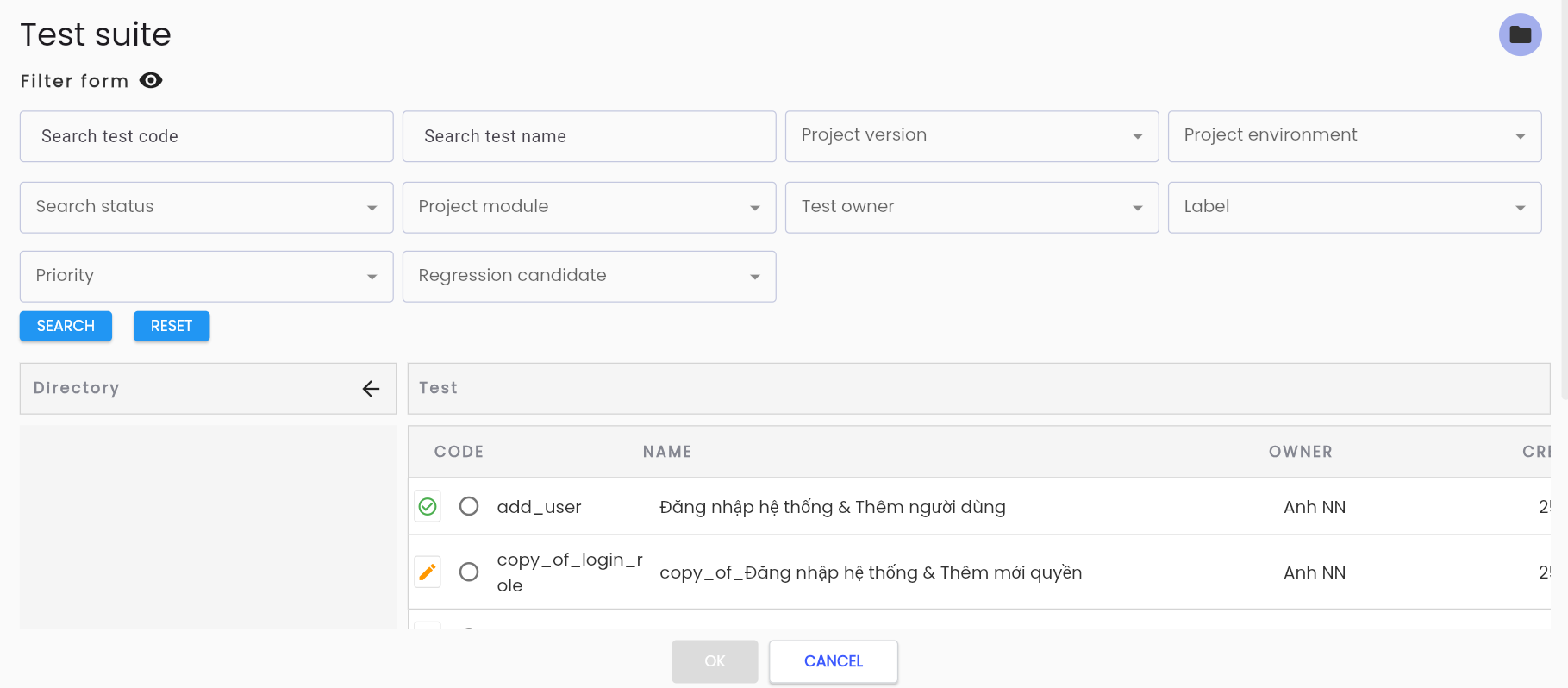
Step 3: After selecting the test to become a batch step, enter data for its parameters.
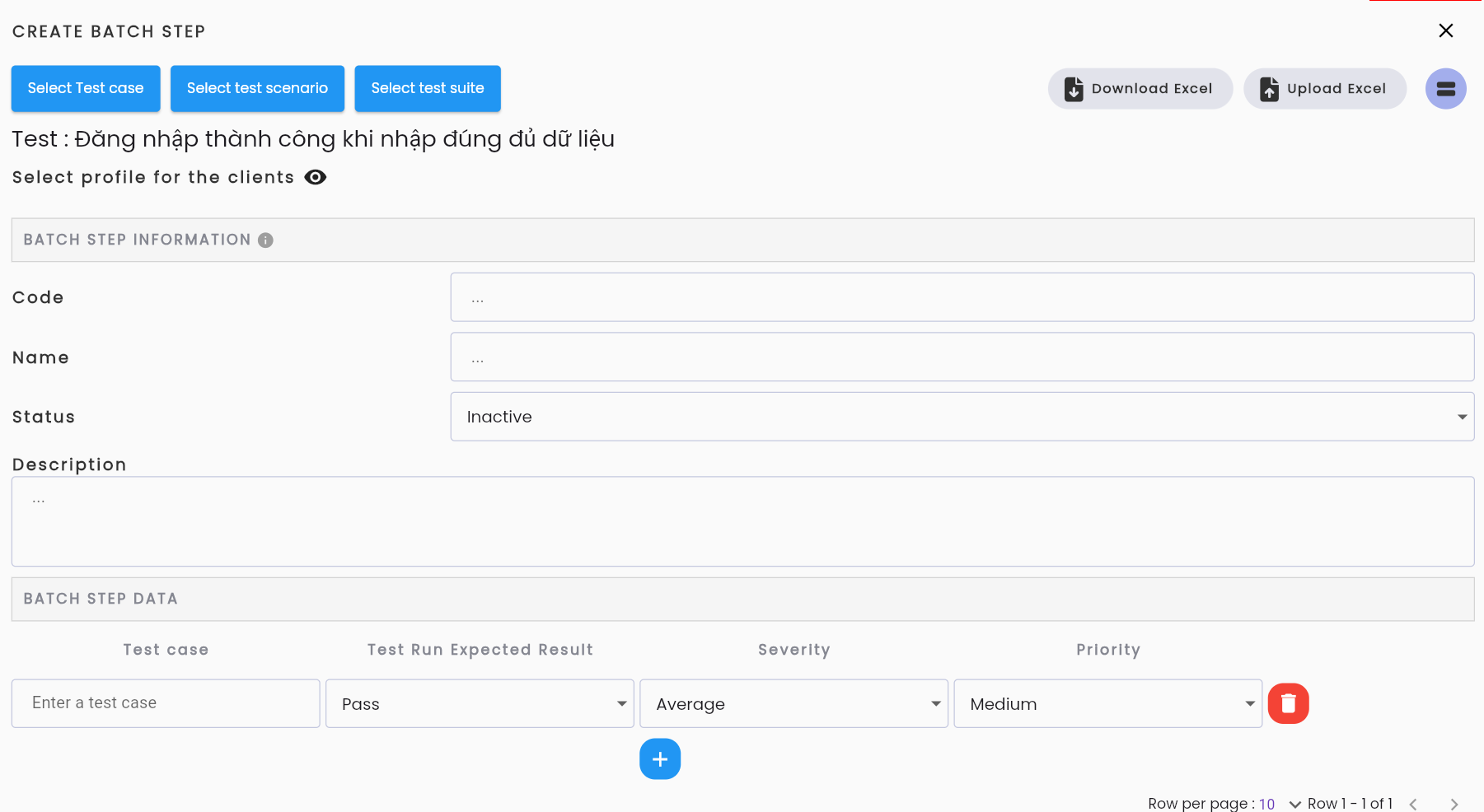
In this:
| Field Name | Description |
|---|---|
| Highlighted Area | These are the parameters of the selected test scenario. |
 | A feature that allows users to bulk-insert data into the test scenario's test data (batch step). Clicking Download Excel downloads a template file with the test scenario’s fields. |
 | A feature that lets users upload pre-prepared data for the test scenario via Excel. Clicking Upload Excel opens a popup for selecting the Excel file. |
 | Click this icon to arrange parameters in columns or rows. |
 | Click this Add icon to manually add a data set for the test scenario. |
Auto Data Input Instructions
Step 1: Click Upload Excel
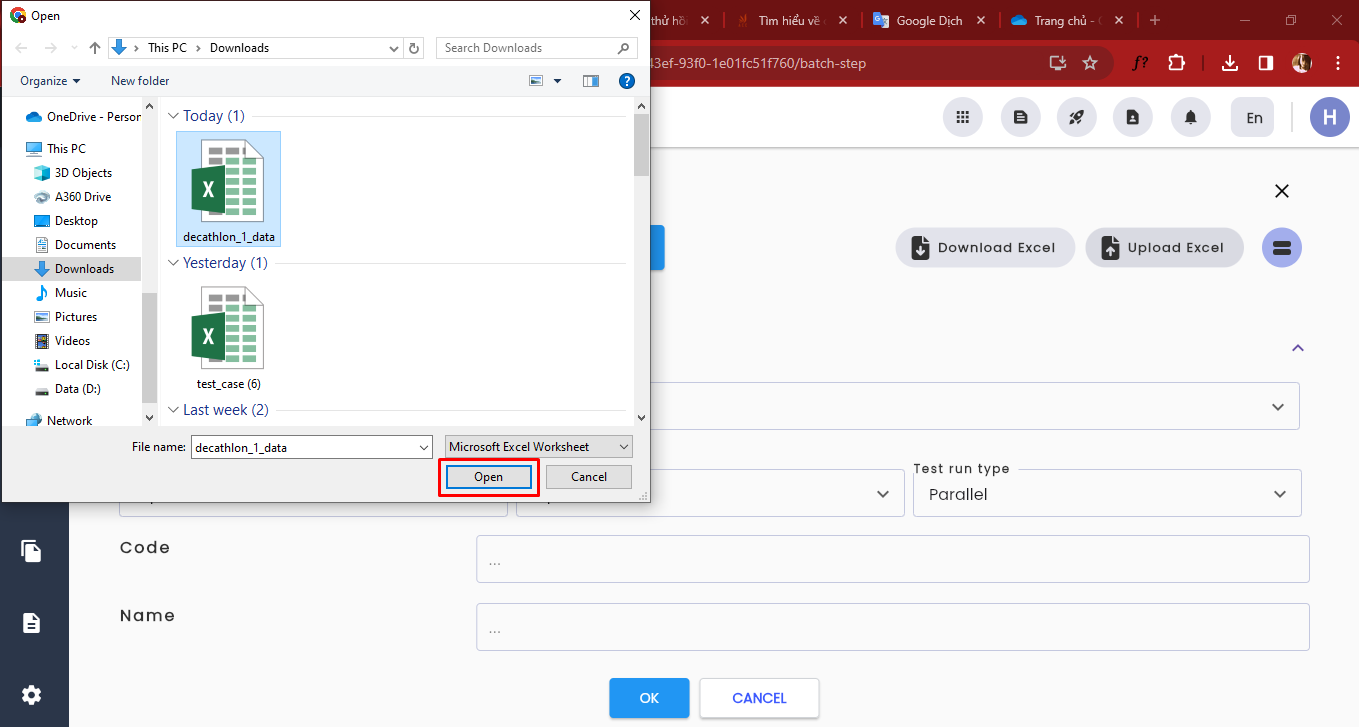
Step 2: Select the Excel file.
Step 3: Click “Open”, and the system will notify: "Update successful"
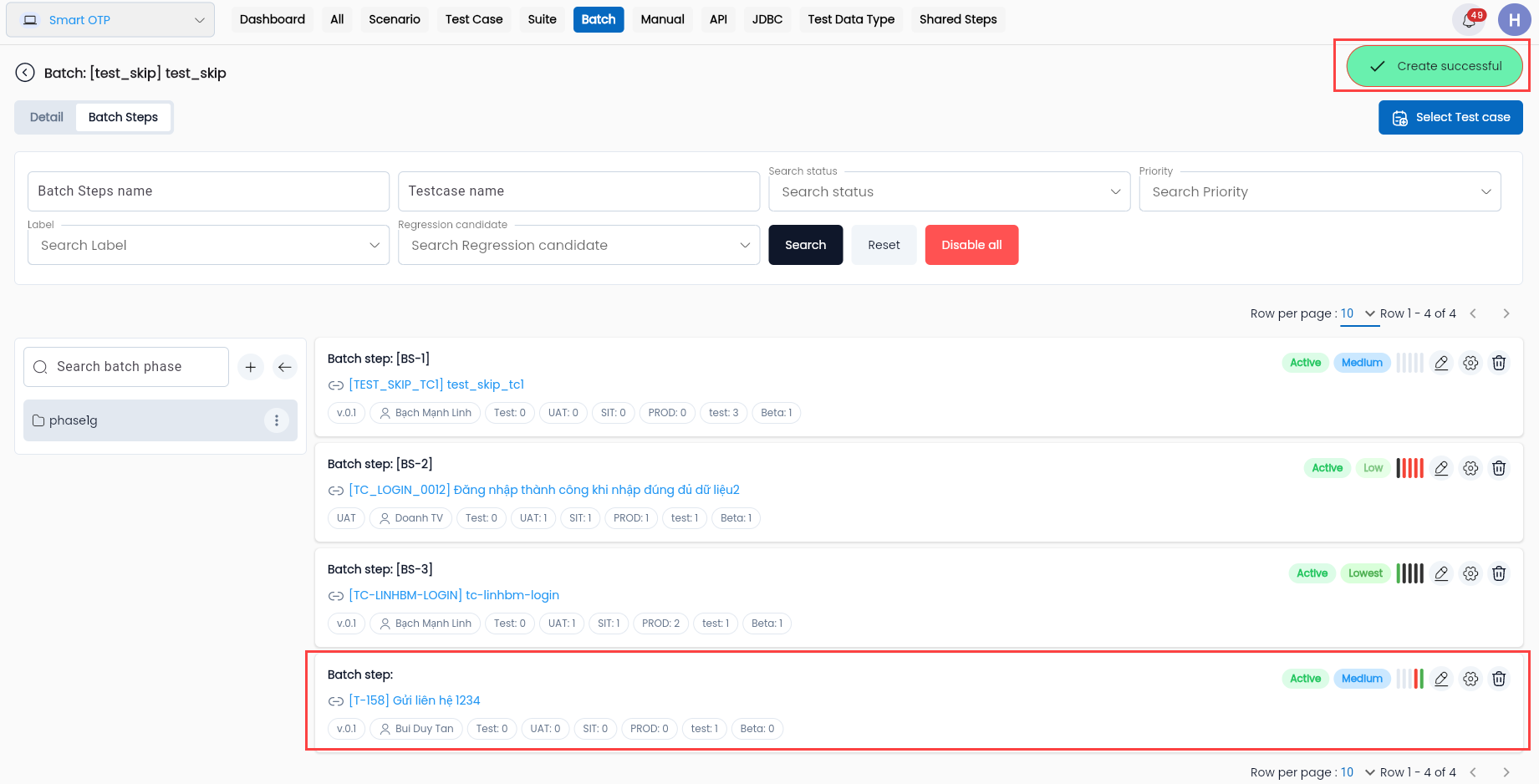
Step 4: Click OK,the system will notify: "Create Successful"
Edit Batch Step
Step 1: On the Batch Step tab, click the “⋮” button corresponding to the batch step to edit. The system will display the Edit Batch Step screen.
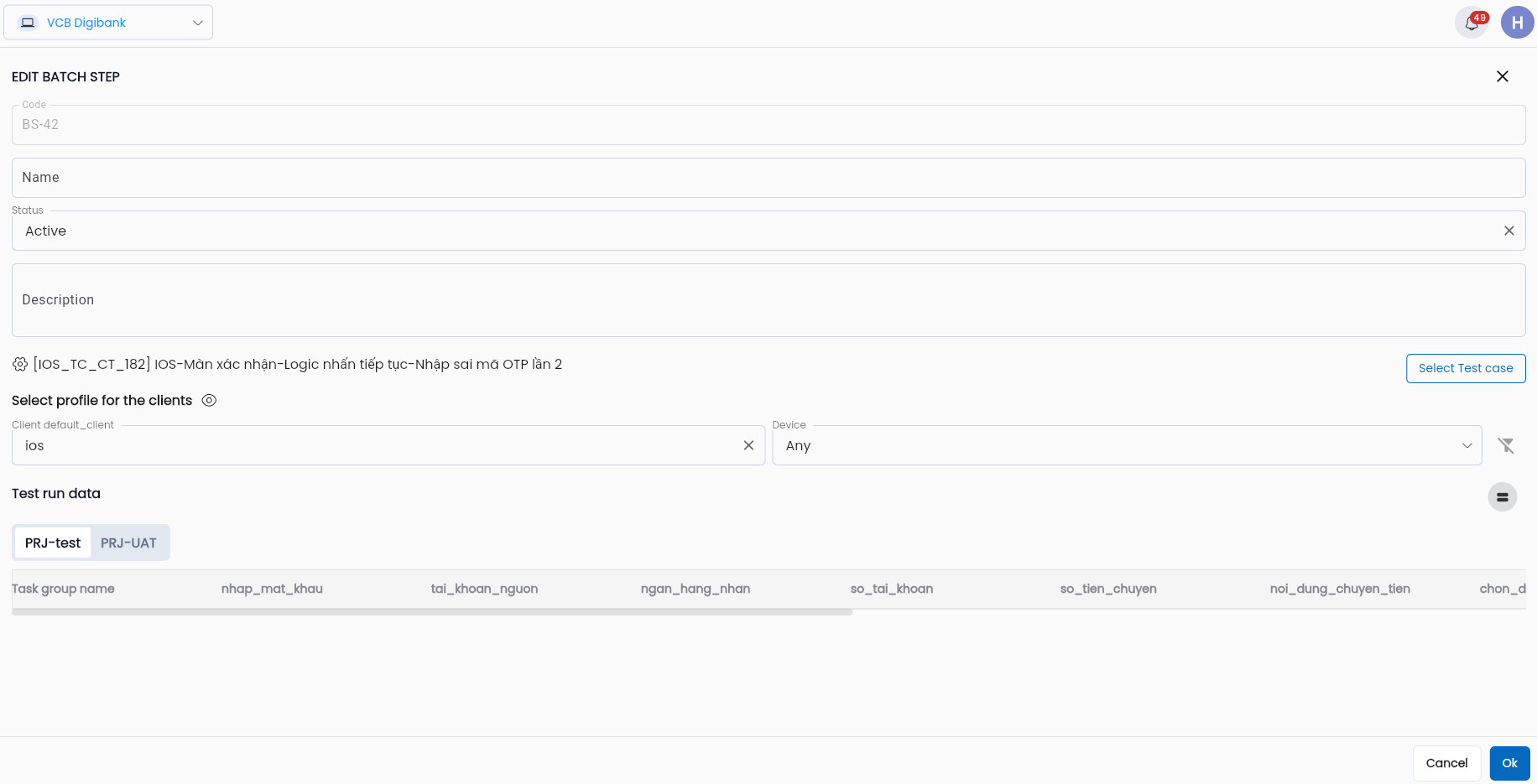
Step 2: Edit the necessary information as in the Create Batch Step process.
Step 3: Click “OK”, the system will notify: “Update successful”.
Delete Batch Step
Only batch steps that have not been run can be deleted.
Step 1: On the Batch Step tab, click vào button “⋮” button corresponding to the step to be deleted, then select “Delete”.

The system displays a delete confirmation popup.
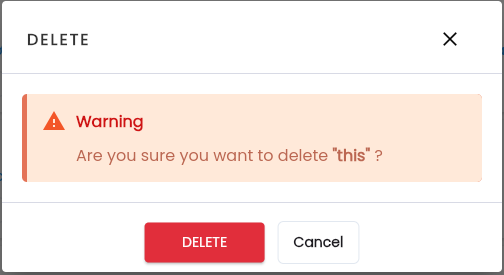
Step 2: Click “Delete”, the system will notify: “Delete successful”.
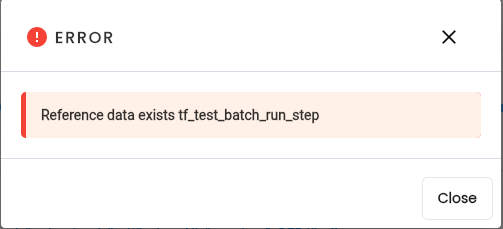
If the batch step has been run previously, the system will display a message indicating that the batch run step exists.
Executing a Test Batch
Step 1: On the test batch library screen, click the “⋮” button corresponding to the batch to be executed, then select Run.

The system displays the execution screen.
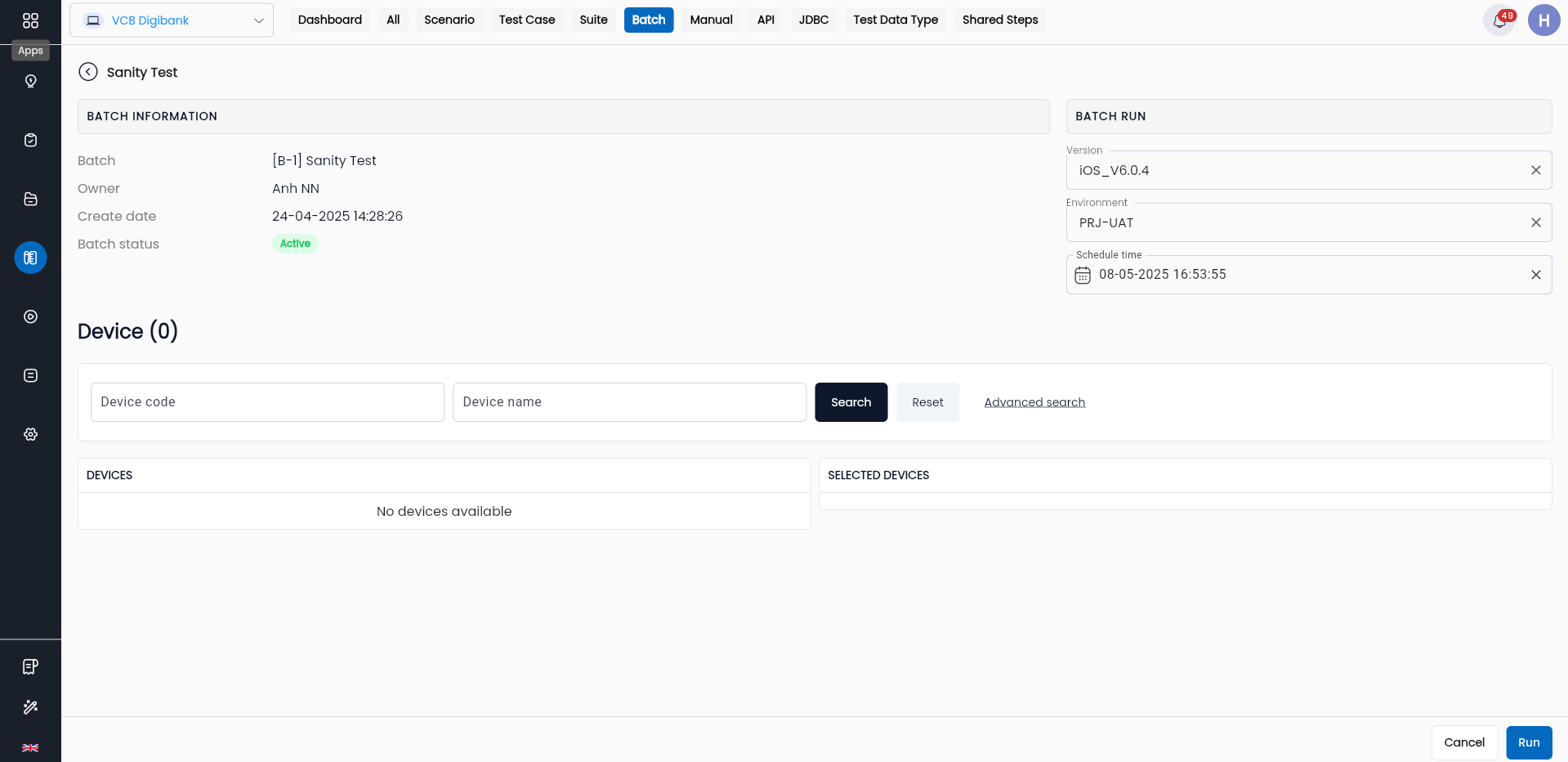
Step 2: Set the execution schedule for the test batch, including:
- Schedule date: The default schedule is real-time, but users can adjust it to a specific future time.
Step 3: After setting the execution schedule, click “Run”. The system navigates to the Batch Execution screen and displays the execution status as “New”.
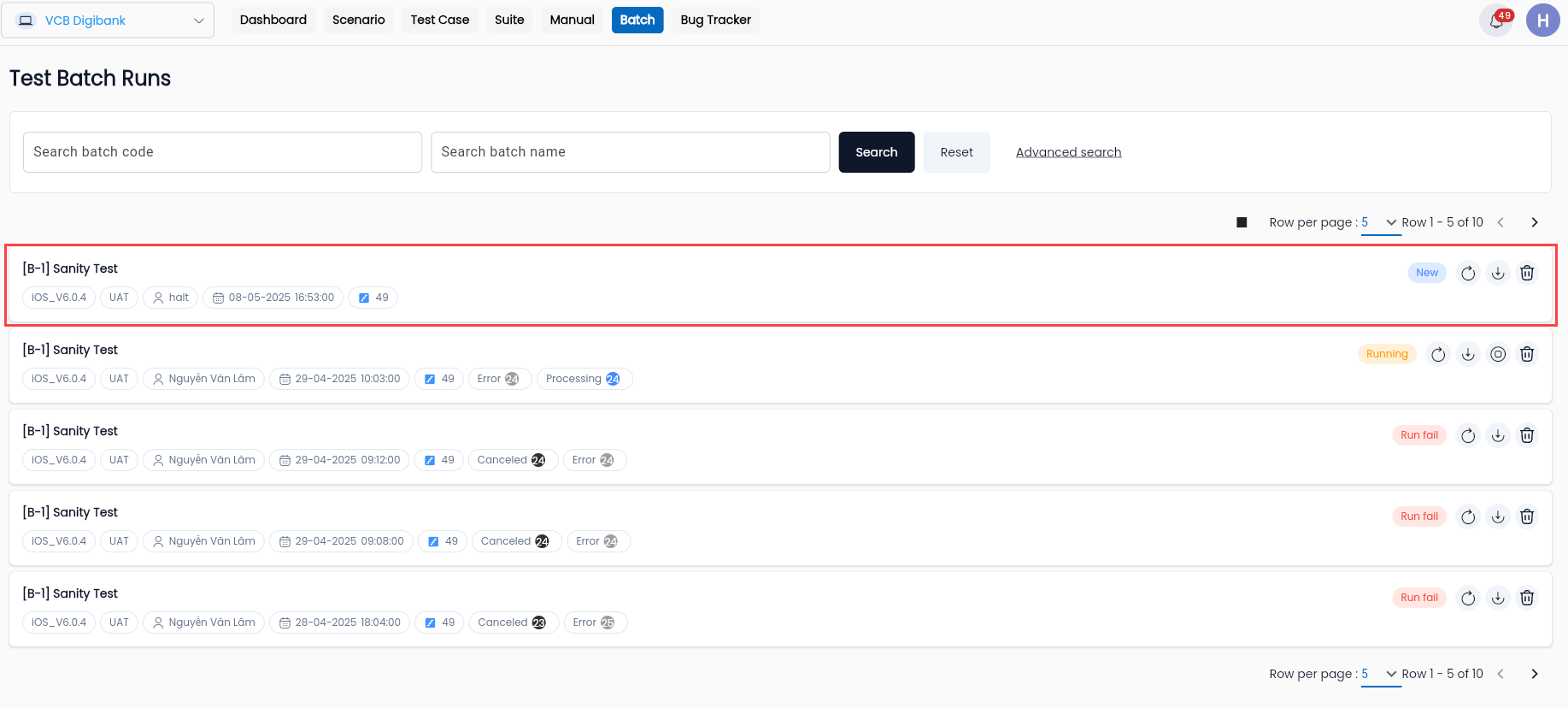
During execution, the status of the test batch changes to "Waiting" before transitioning to the final execution result (Fail/Pass).