Manage by directory
Directory is a folder containing test scripts, grouped by creator, component, and execution platform (e.g., Web, App, etc.).
Users are not required to create directories for management purposes. However, grouping test scripts with similar characteristics into directories is recommended to facilitate management, tracking, and control of test scripts. This ensures that all required business flows and test data are executed as required by the project.
Hide/Show the Directory tab
The directory tab in the system can be flexibly hidden or shown as needed by the user.
Method 1: Click  to toggle the directory visibility.
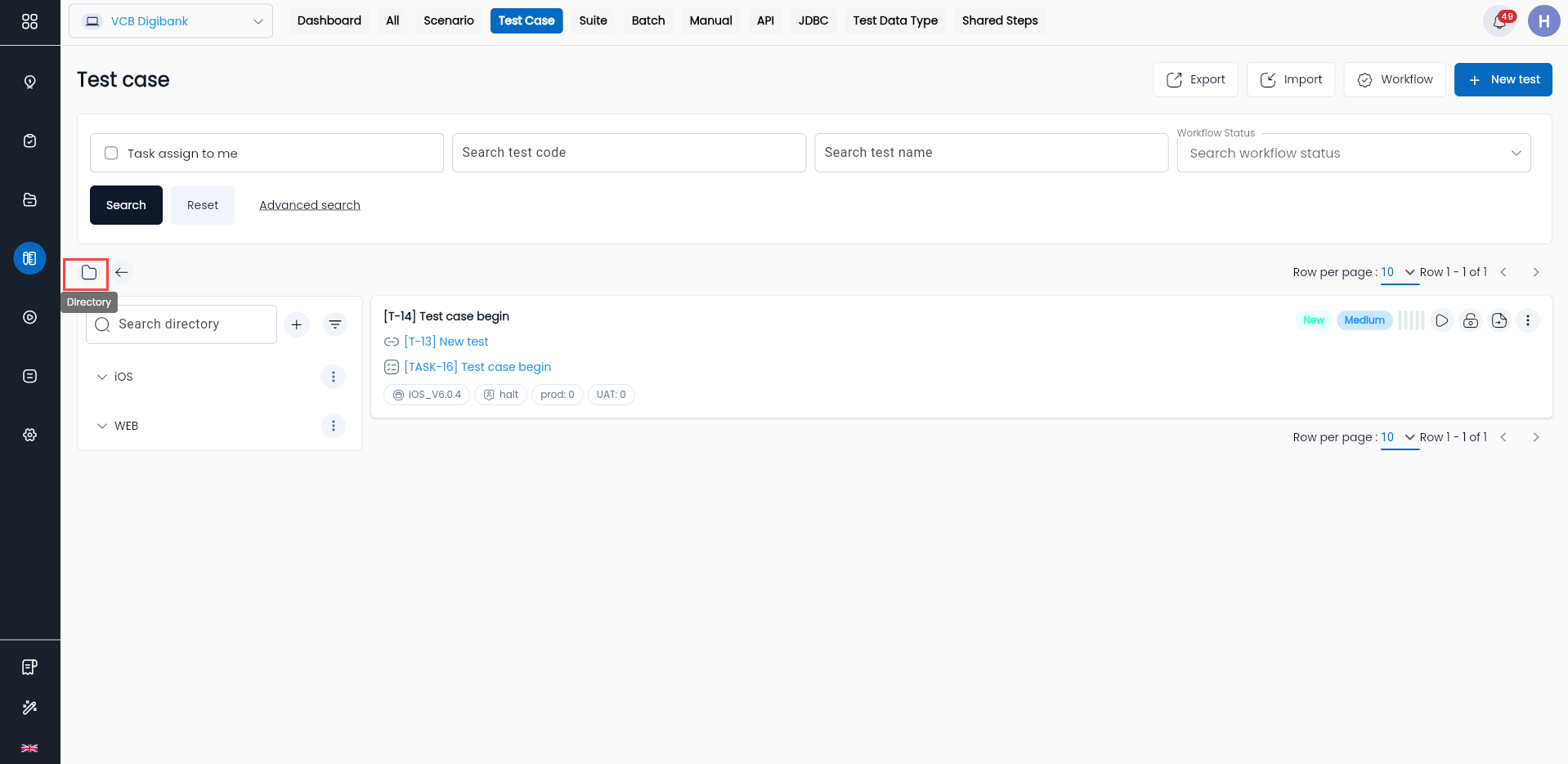
Method 2:
- Click button
 to display the Directory tab if it is hidden.
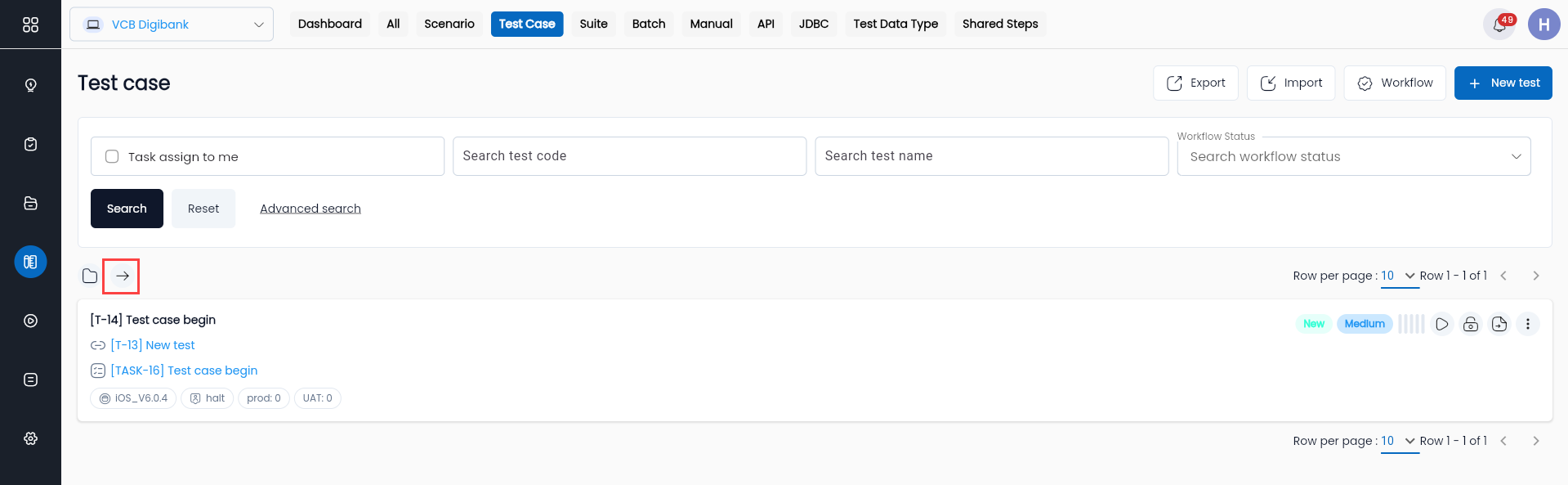
- Click button
 to hide the Directory tab if it is currently displayed.
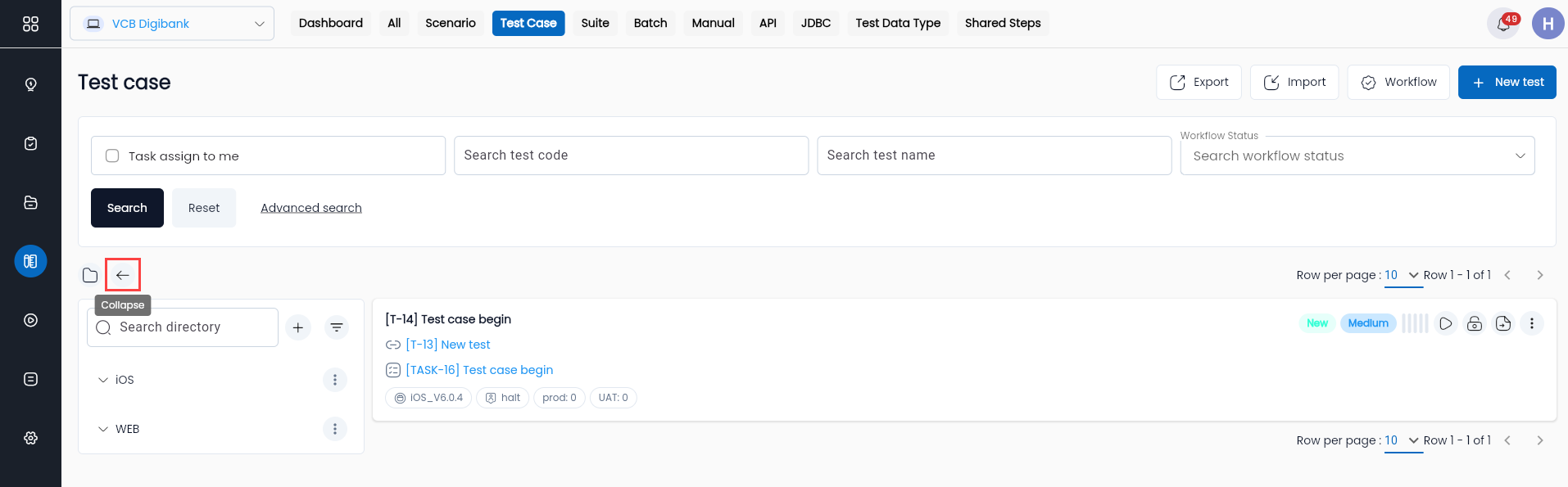
Note: Both methods can be used interchangeably to hide or show the Directory tab.
Create a Directory
Create a Directory in the Test Case Tab
Step 1: Display the Directory tab (if hidden) by following the instructions in Hide/Show the Directory tab
Step 2: Create a new Directory.
- On the “Test Case” tab, click button
 to create a new Directory at the Root level.
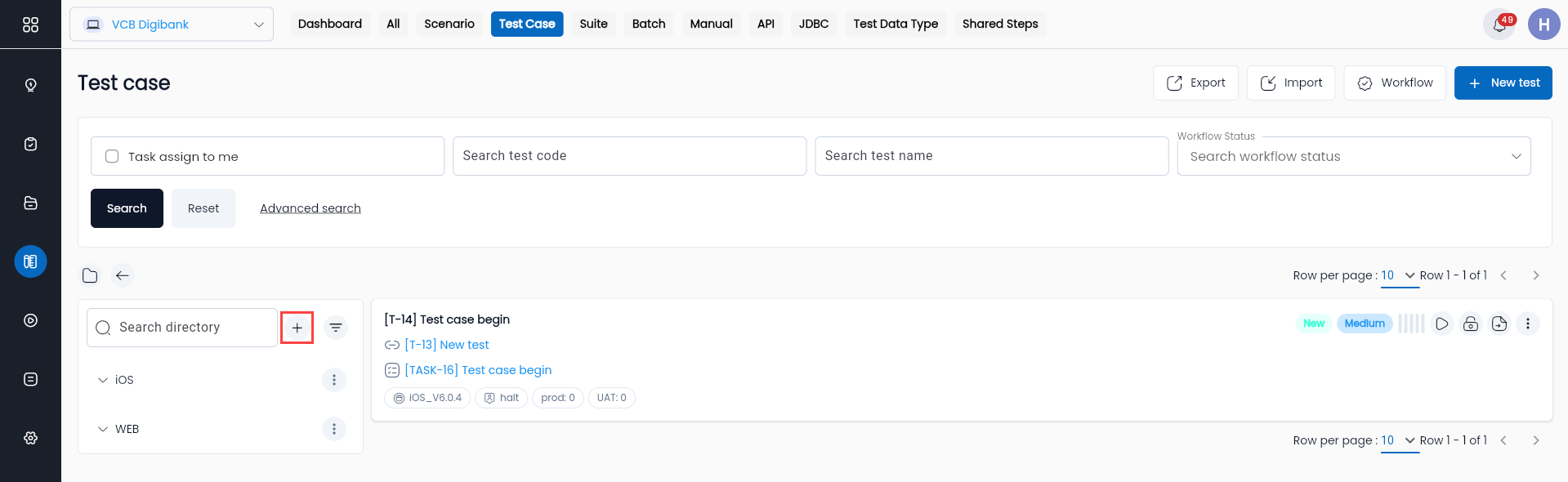
- To create a subdirectory within an existing directory, click the button in the desired parent directory.
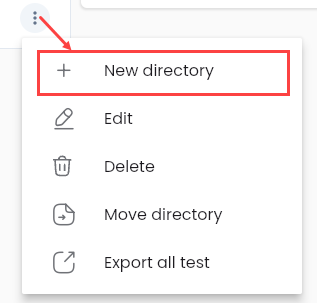
- The system will then display the “CREATE DIRECTORY” screen.
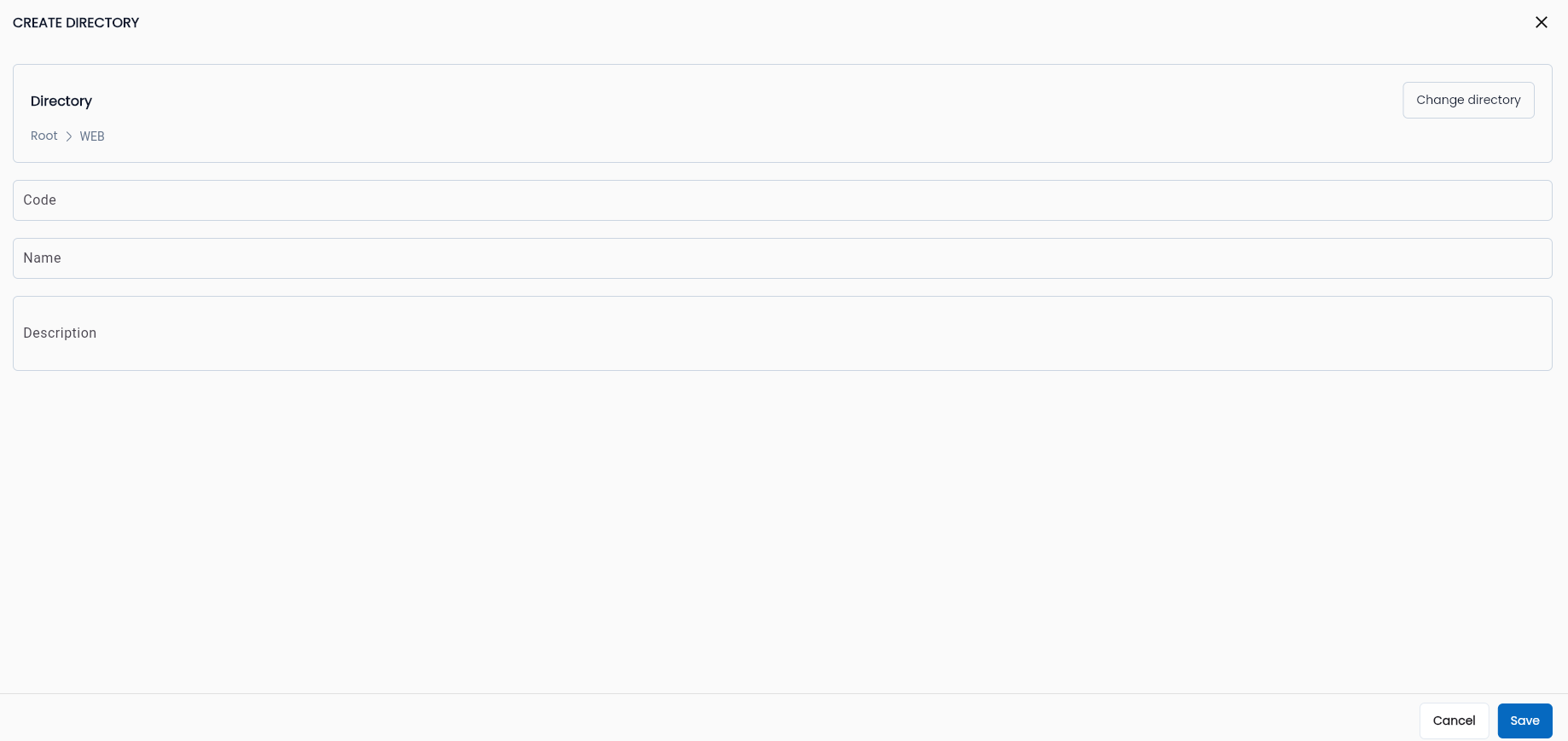
Bước 3: Fill in the following fields
| Field | Mandatory | Format | Constraints | Description |
|---|---|---|---|---|
| Directory | Yes | Label | The location of the directory in the system. If created at the root, it will not be part of another parent directory. | |
| Code | - | Text | The directory code. This field is used to differentiate between directories. | |
| Name | Yes | Text | Must be unique within the same tab. | The name of the directory. It is recommended to name it based on the module or test script functionality for easier management. |
| Description | - | Textarea | A description of the directory, providing an overview for other users in the system to understand its content. | |
| OK | - | Button | Click “OK” to save the directory. | |
| CANCEL | - | Button | Click “CANCEL” to cancel the creation of the directory. |
Step 4: Click “OK” The system will display the message: “Create Successful”
Create a Directory in Other Tabs
The process is the same as in the “TEST CASE” tab.
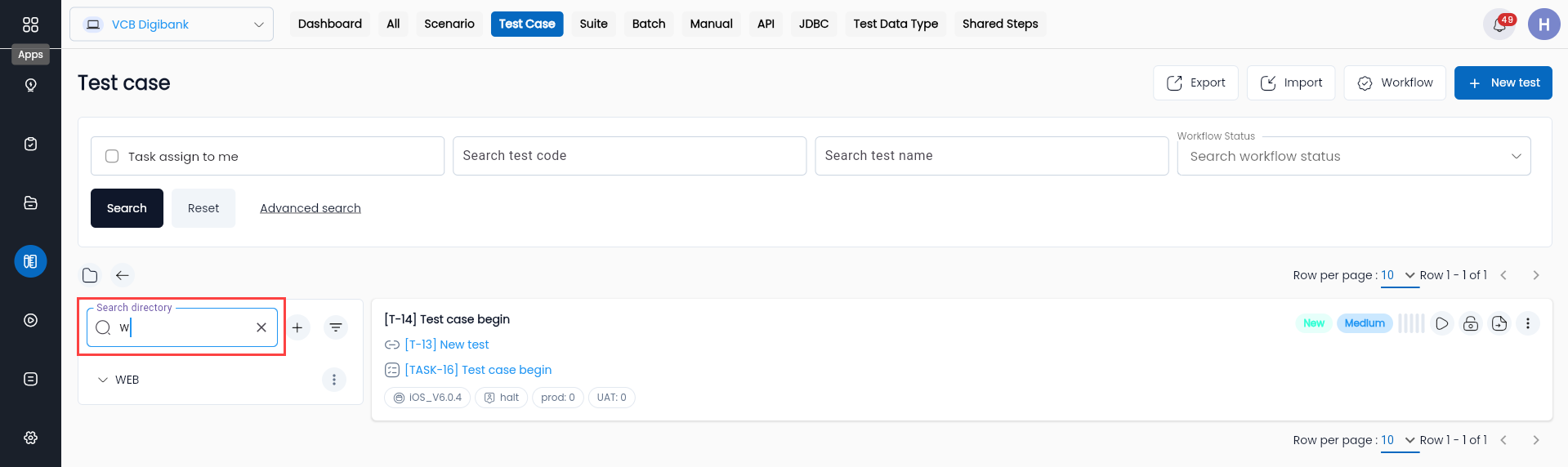
Search for a Directory
Step 1: Display the Directory tab (if hidden) by following the instructions in Hide/Show the Directory tab
Step 2: Enter the directory name in the Search Directory name field. The system will search as you type.
Edit a Directory
Edit a Directory in the Test Case Tab
Step 1: Display the Directory tab (if hidden) by following the instructions in Hide/Show the Directory Tab.
Step 2: On the "Test Case" tab, click the “image” button on the desired directory to display the action list, and then click “Edit”
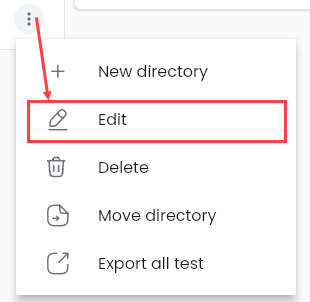
The system will then display the “EDIT DIRECTORY” screen.
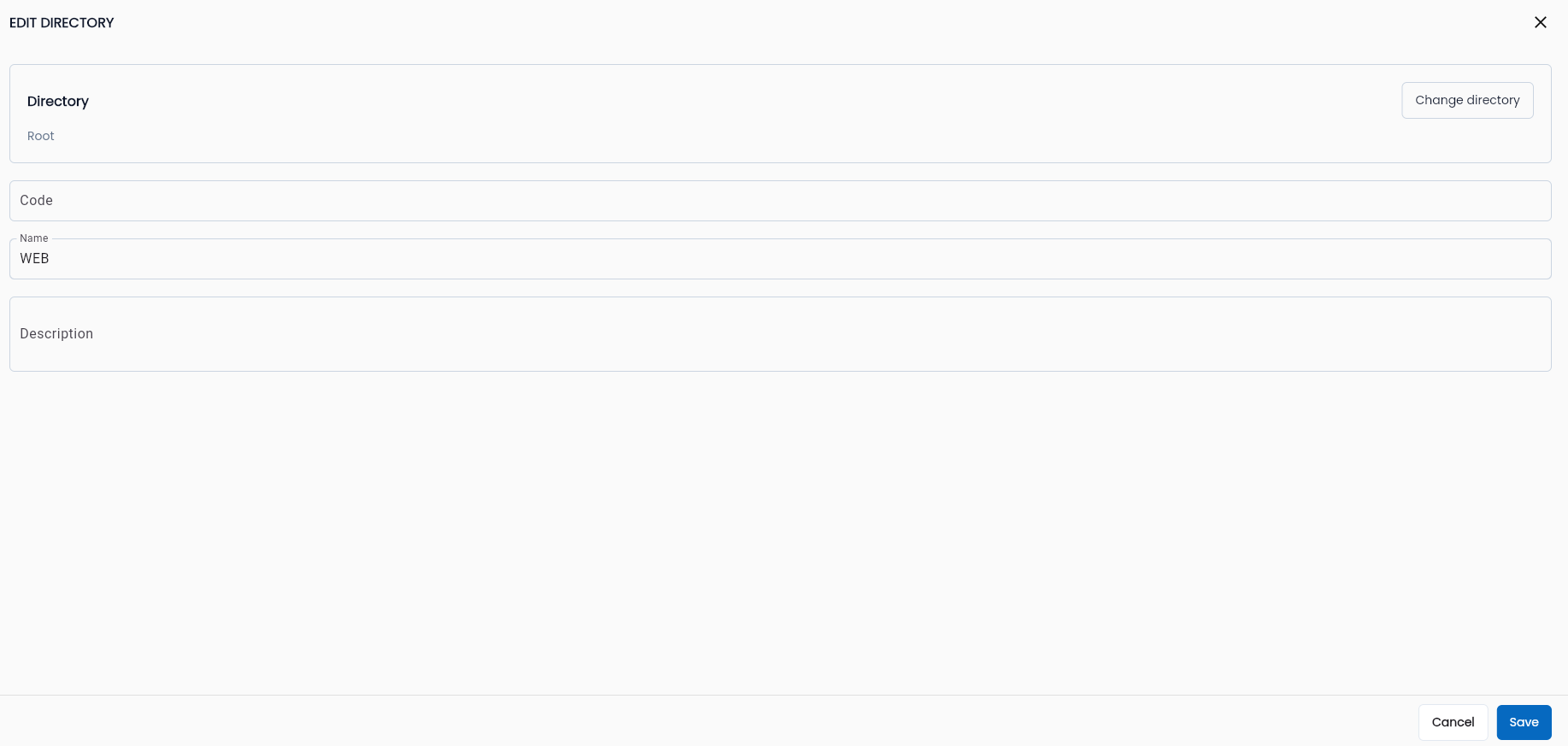
Step 3: Enter information fields, in which the information fields are similar on the CREATE DIRECTORY section. Reference to item Create a directory.
Step 4: Click “OK”, The system will display the message “Create Successful”
Edit a Directory in Other Tabs
The process is the same as in the “TEST CASE” tab.
Move to directory
To move a directory within the Test Case tab
Step 1: Display the Directory tab (if hidden) by following the instructions in Ẩn/Hiện tab Directory
Step 2: On the “Test Case” tab, click button  corresponding to the directory you want to move. Select “Move to directory”
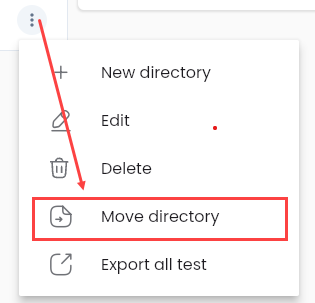
The system will display the message: “Copy “…” successful, choose a directory to move”.
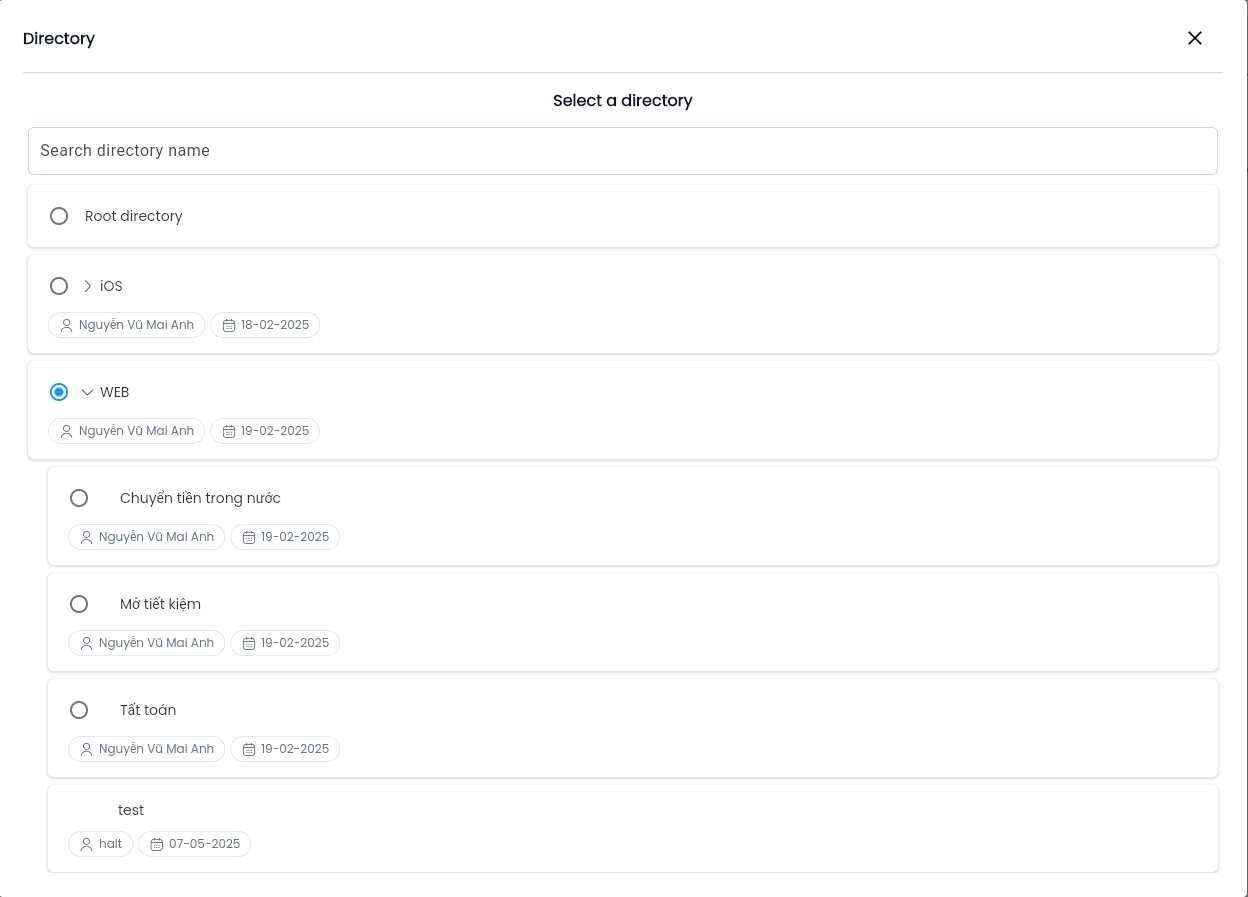
Step 3: On the “Test Case” tab, click button “⋮” button corresponding to the target directory. Select “Paste to directory”
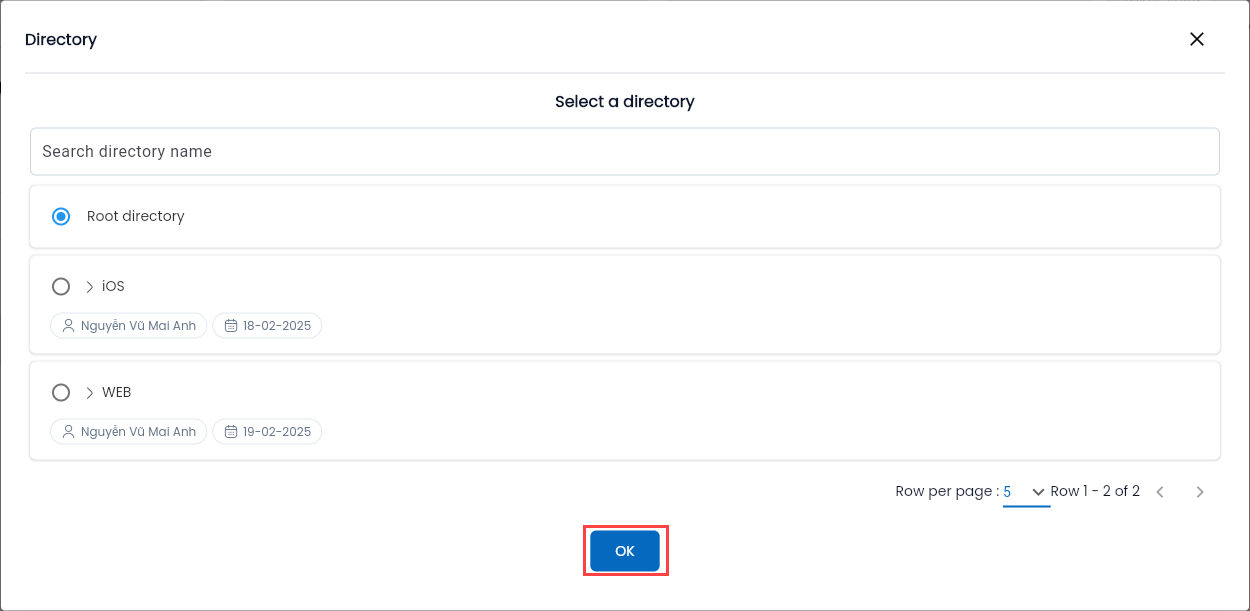
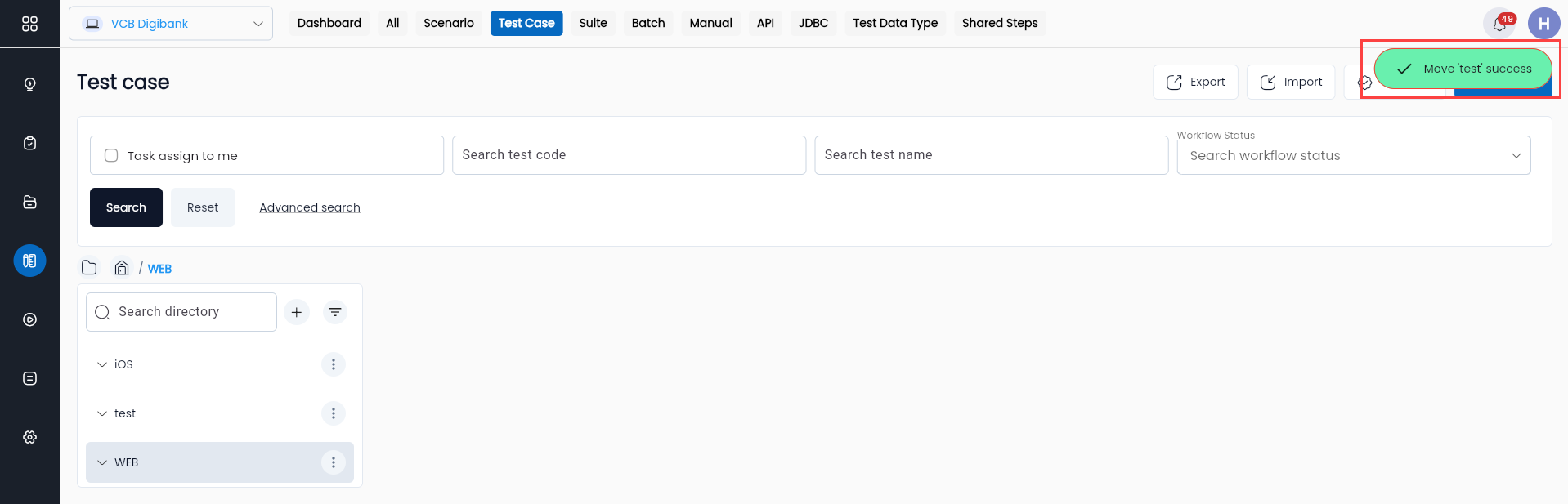
The system will display the message: “Move “…”, success”.