Shared Steps
In testing scenarios or flows, there are often repetitive steps, such as login or approval.
To reuse a configuration section in other test scenarios or suites, users can use the copy-drag function to replicate a group of keywords. However, switching between test scenarios and suites to perform copy and drag actions can lead to errors, and users may also need to recreate parameters for the copied keywords, increasing the likelihood of mistakes. To address these challenges, the QA Platform introduces shared steps a feature that enables users to reuse existing algorithm segments effectively.
What are Shared Steps?
Shared Steps is a feature that supports the configuration of test scenarios or suites by allowing users to reuse existing scenarios or repetitive configuration steps.
Shared steps function like test scenarios but are designated with the type "shared steps" and can be called from any test scenario or suite using the Action call keyword.
Users should employ shared steps whenever a group of actions is repeated across multiple test scenarios or suites. When using shared steps, variable names can be modified without affecting the original shared steps or other test scenarios.
Creating Shared Steps from the Shared Steps Library
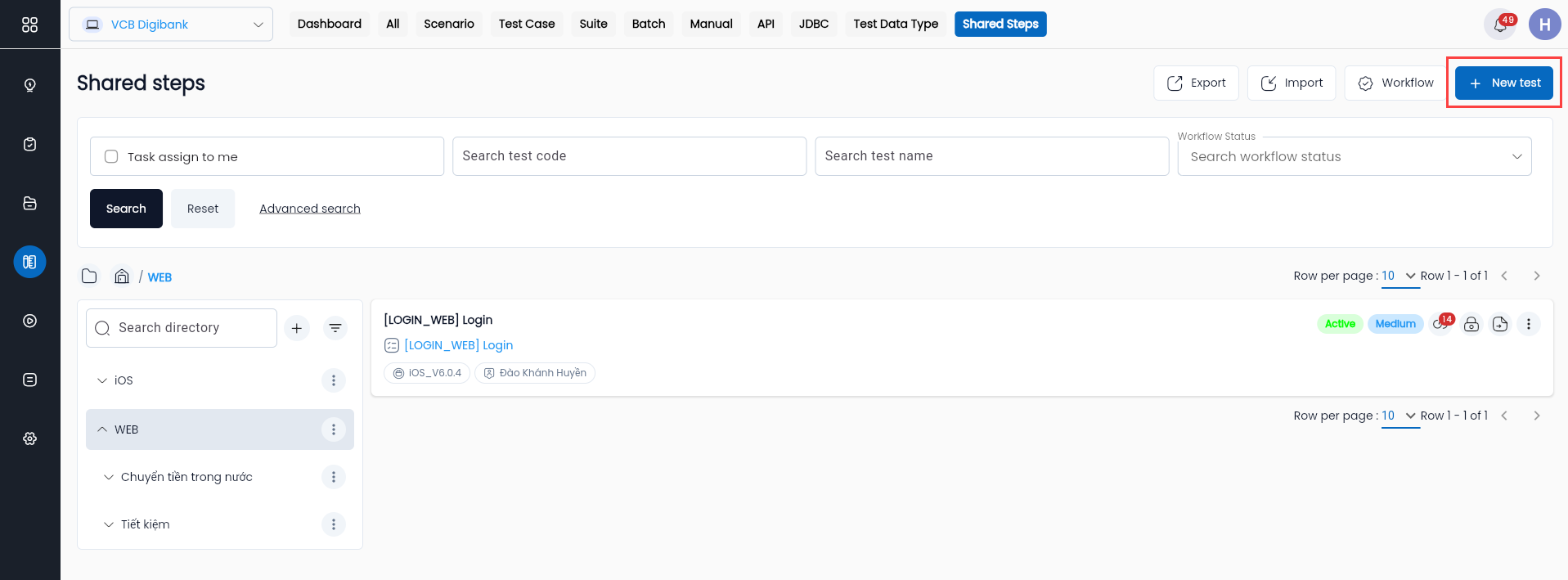
Step 1: To create shared steps from the shared steps library screen, click the “NEW TEST” button, The system will display the "Create Shared Steps" screen.
Step 2: Complete all required fields with valid information:
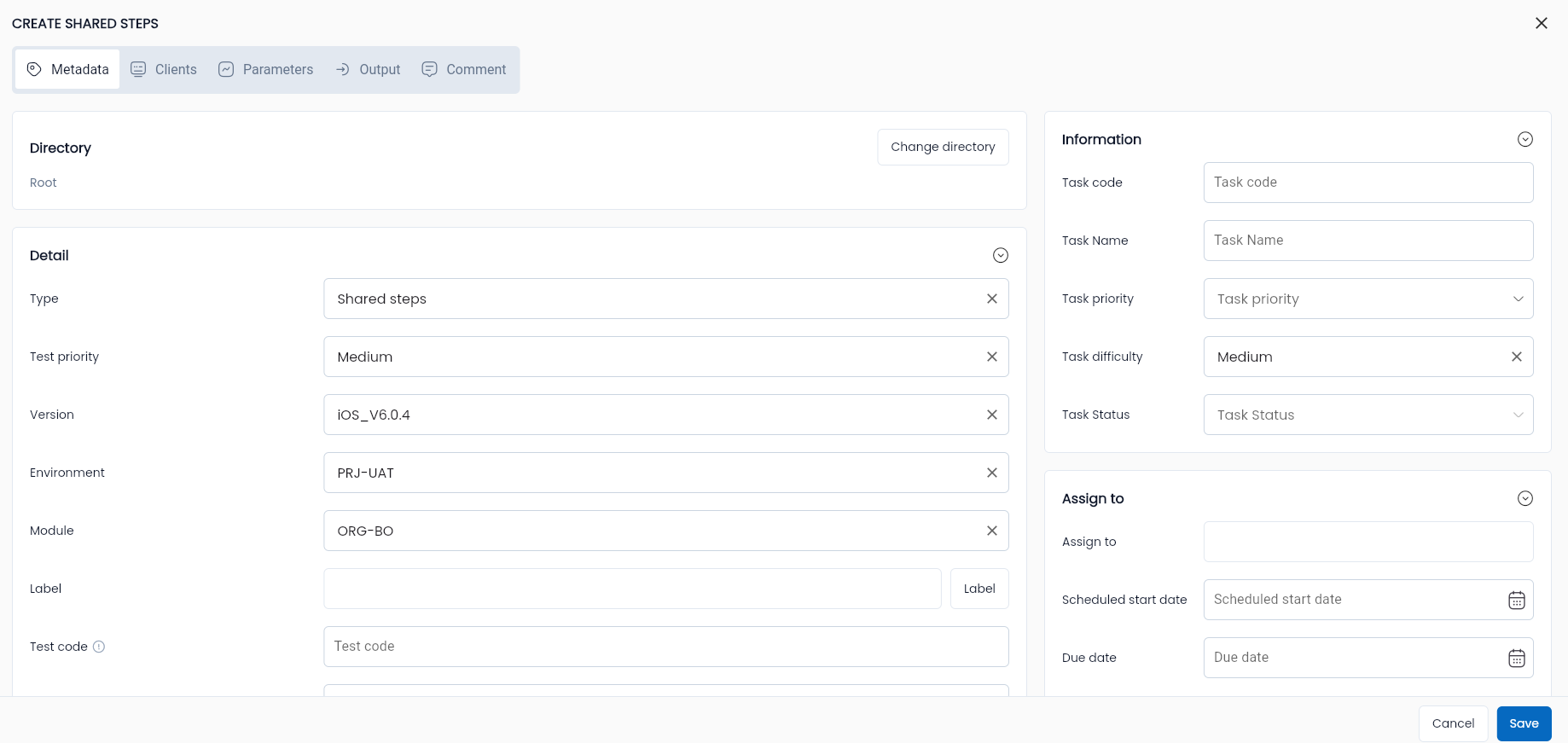
Description of information fields
| Field Name | Mandatory | Format | Constraints | Description |
|---|---|---|---|---|
| Tab General information General information of a shared steps. Similar to Test Scenario, refer to section Create a new test scenario | ||||
| Tab Clients Stores platforms to serve running 1 shared steps. | ||||
| Platform | Yes | Combobox | Choose the platform on which shared steps are built. The system automatically creates Platform for the Web platform by default. | |
| Name | Yes | Text | The name of the platform used for shared steps. The default system automatically creates Name as “default_client”. | |
| Tab Parameters Store Parameters to serve running 1 shared steps. | ||||
| Show description | - | Button | Allows users to hide/show the “Description” data of a Parameter in shared steps. | |
| New parameter | - | Button | Allows users to create a new Parameter for shared steps. | |
| Clear parameter | - | Button | Allows users to delete all Parameters declared for shared steps. | |
| Data Type | Yes | Combobox | Data type of a parameter. When creating a new parameter, the system defaults to "String". | |
| Name | Yes | Text | The name must start with a letter, must include numbers and must not contain special characters other than "_" | Name of a parameter. |
| Description | - | Text | Descriptive data field of a parameter. | |
| Tab Output Stores outputs containing values that are the output of a shared steps. | ||||
| New output | - | Button | Allows users to create a new output for shared steps. | |
| Clear output | - | Button | Allows users to delete all Output declared for shared steps. | |
| Data Type | Yes | Combobox | Data type of a parameter. When creating a new parameter, the system defaults to "String". | |
| Name | Yes | Text | The name must start with a letter, must include numbers and must not contain special characters other than "_" | Name of a parameter. |
Step 3: Click “OK” to create shared steps. The system will display a low-code shared steps screen similar to a scenario screen and confirm successful creation.
User Menu for Shared Steps
The shared steps menu includes the following options, similar to test scenarios:
Instructions for using the functions refer to the item Test scenario
- Low-code
- Edit
- Delete
- Duplicate
- Import
- Export
- Remove to directory
However, a shared step is a group of actions that are repeated in many test scenarios. It can be a group of actions in the middle of the business flow, so it cannot be executed independently, leading to the operation menu without "Run".
Using Shared Steps
Conditions to Use Shared Steps: The status of the shared steps being called must be Active.
Step 1: On the Test Scenario/Test Suite Configuration screen, drag and drop the “Action call” keyword to the desired position.
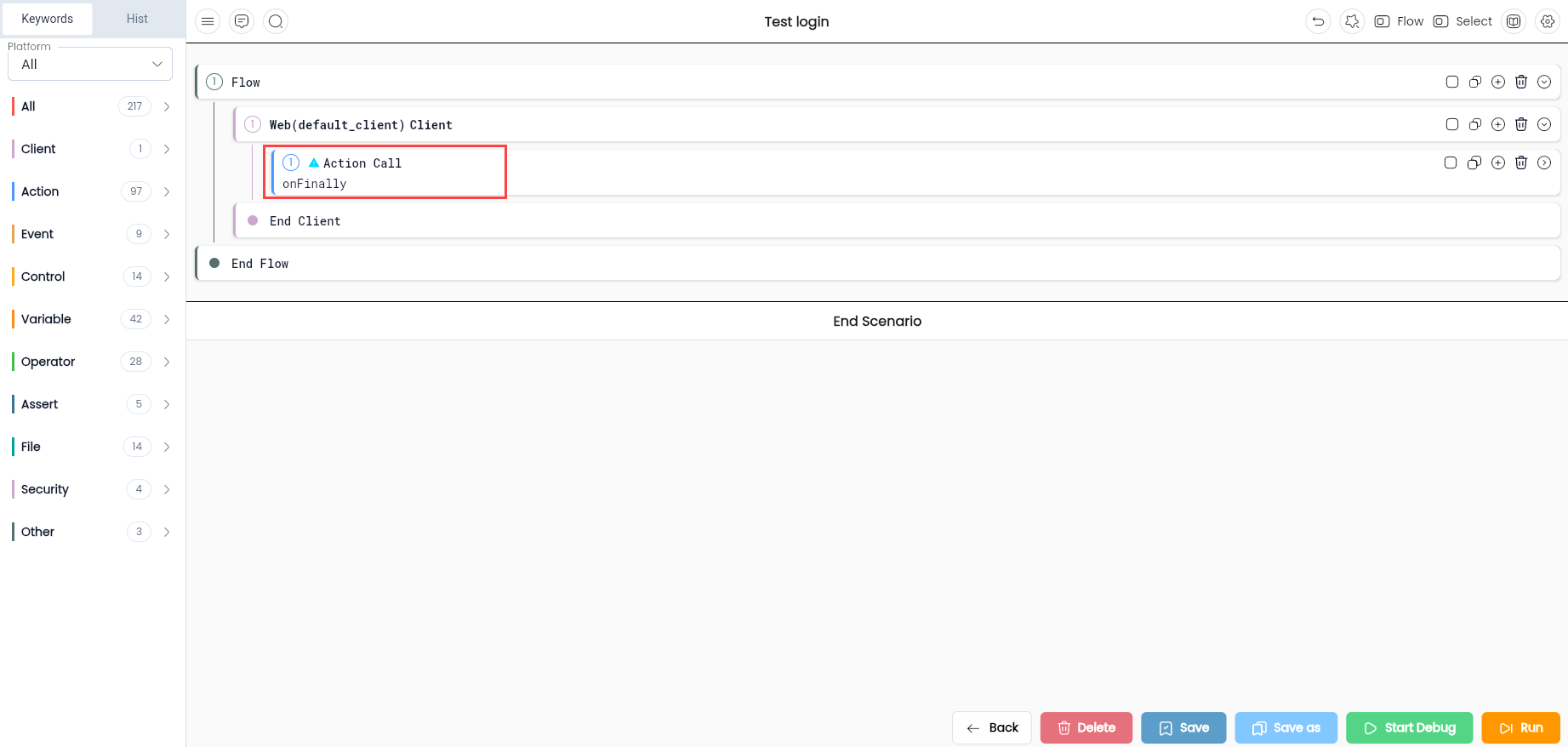
Step 2: Click on the "Action call", The system will display the Action call property.
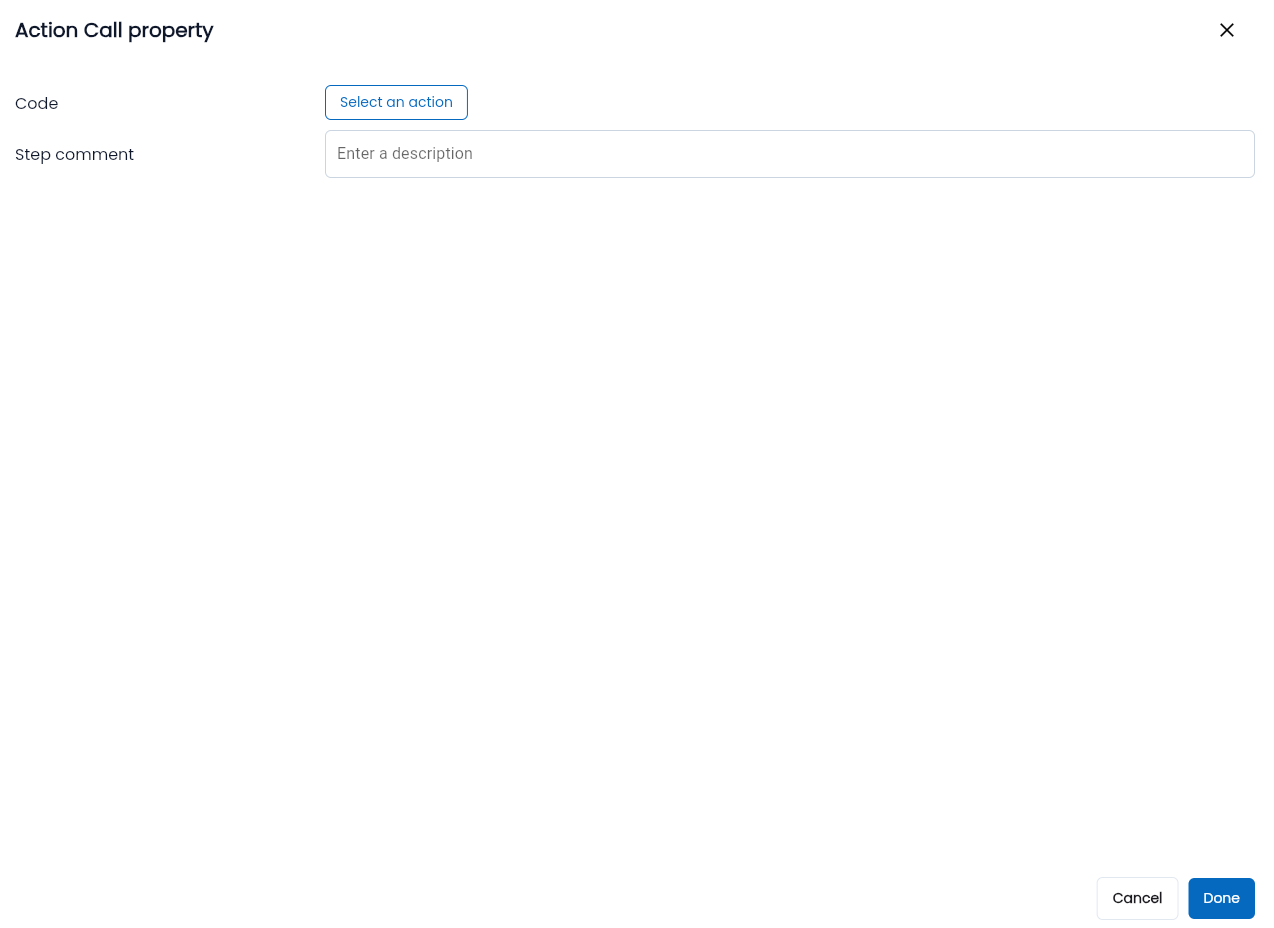
Information Fields:
| Field Name | Mandatory | Format | Constraints | Description |
|---|---|---|---|---|
| Code | Yes | Autocomplete | When clicking on the "Code" field, the system displays the shared steps option screen. | |
| Step Comment | - | Text | A description for using the selected shared step. |
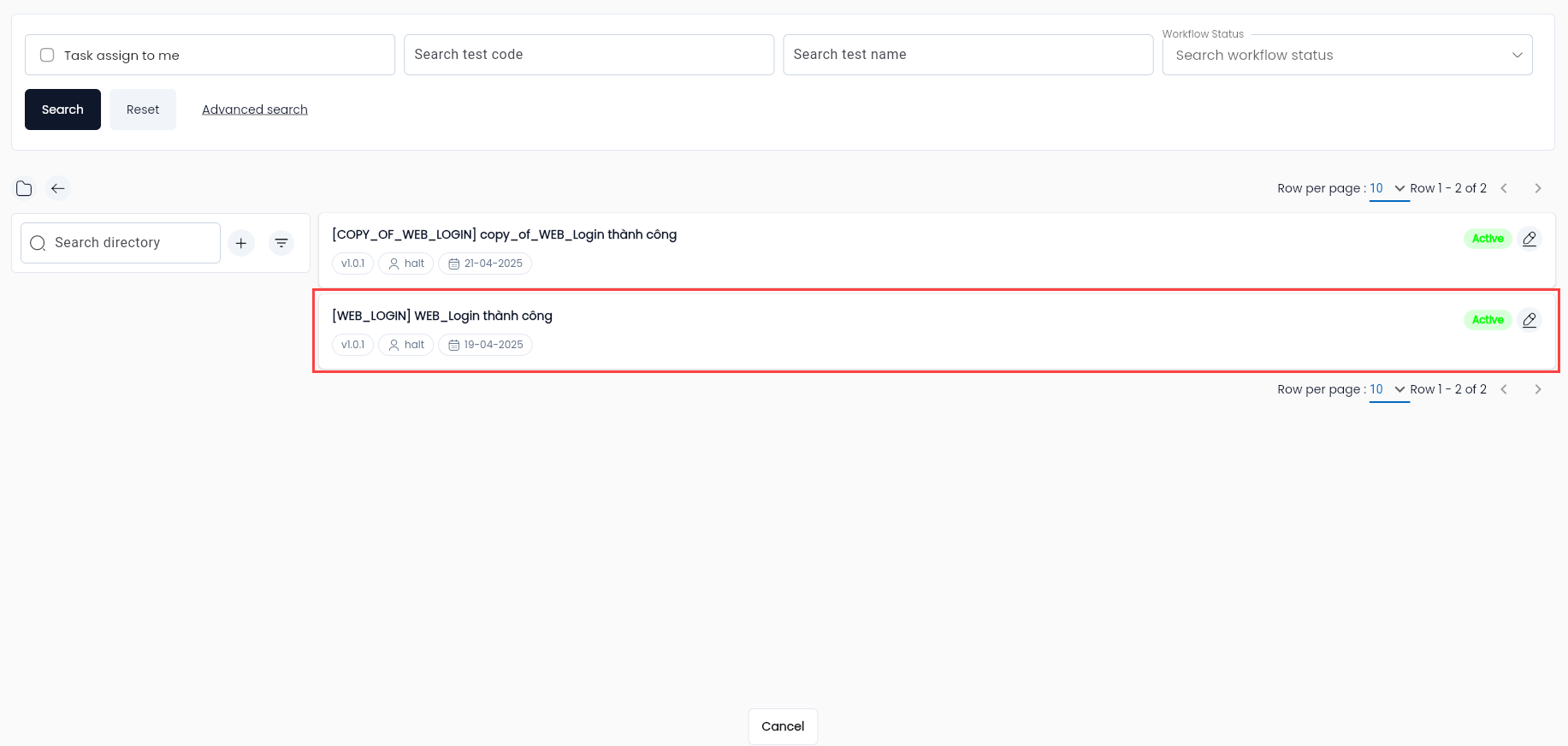
The fields and functional buttons are similar to those in the Shared Steps Tab of the Test Library screen. However, an additional action is included to allow users to select the specific shared step data row they want to use in a test scenario.
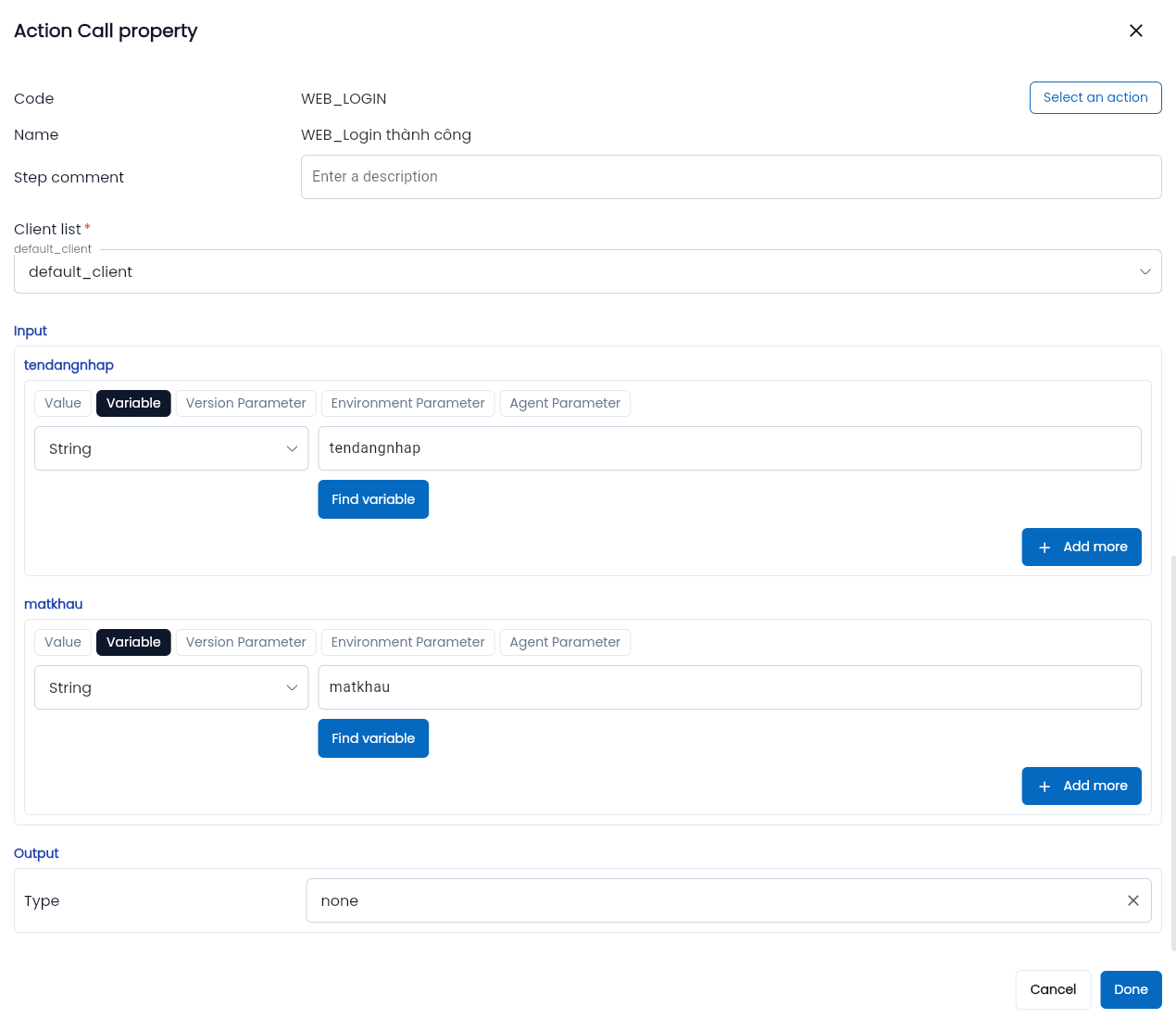
Select one shared steps from the list. The system will return to the Action Call Property screen and automatically fill the "Code" field with the selected shared step.
Additional Information After Successfully Selecting a Shared Step:
- Client
- Input ( If the low-code shared step is configured )
- Output ( If the low-code shared step is configured )
| Field Name | Mandatory | Format | Constraints | Description |
|---|---|---|---|---|
| Default_client | Yes | Combobox | Select a client in the scenario with the same platform as the shared steps client. | |
| Input | - | Names of the shared steps' parameters. Users can modify the type and name of the parameters. | ||
| Output | - | Combobox | Output allows users to retrieve the shared step output to use as input for another action in the scenario. The options include: + None: No output retrieval + Variable + newVariable + version_variable + Environment_variable + Agent_variable The system defaults to “none”. |
Step 3: Enter all mandatory fields with valid data.
Step 4: Click “Save”, the system will return to the scenario configuration screen and display the name of the shared step along with its parameters in the Action Call.
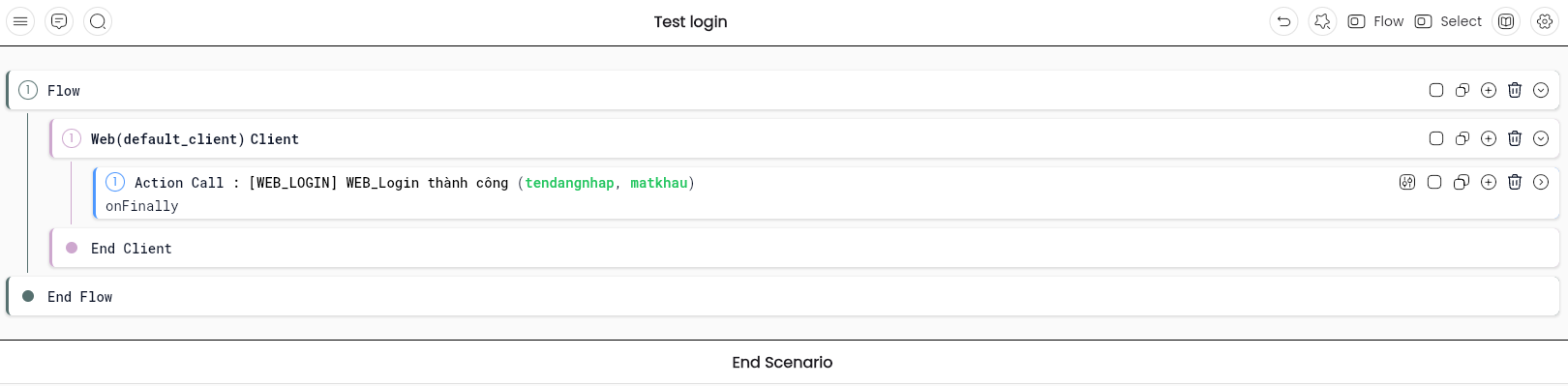
Editing Shared Step Configurations
Editing Configurations from the Shared Steps Library
Step 1: Access the Low-Code Shared Steps screen.
Step 2: Make edits and update the shared step configurations similarly to how it's done for a test scenario.
Step 3: Click “Save” to save the updated configurations. The system will display a notification: “Test has been updated”.
Editing Shared Steps from a Scenario
Step 1: On the scenario configuration screen, click the view config icon corresponding to the shared step you want to edit.
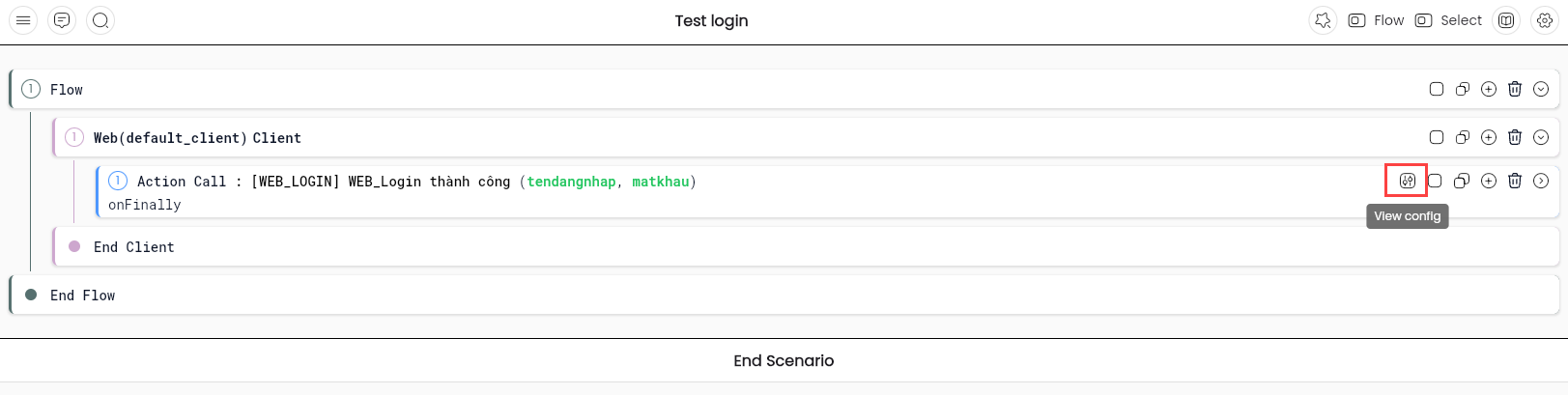
The system will display the Shared Steps Configuration screen.
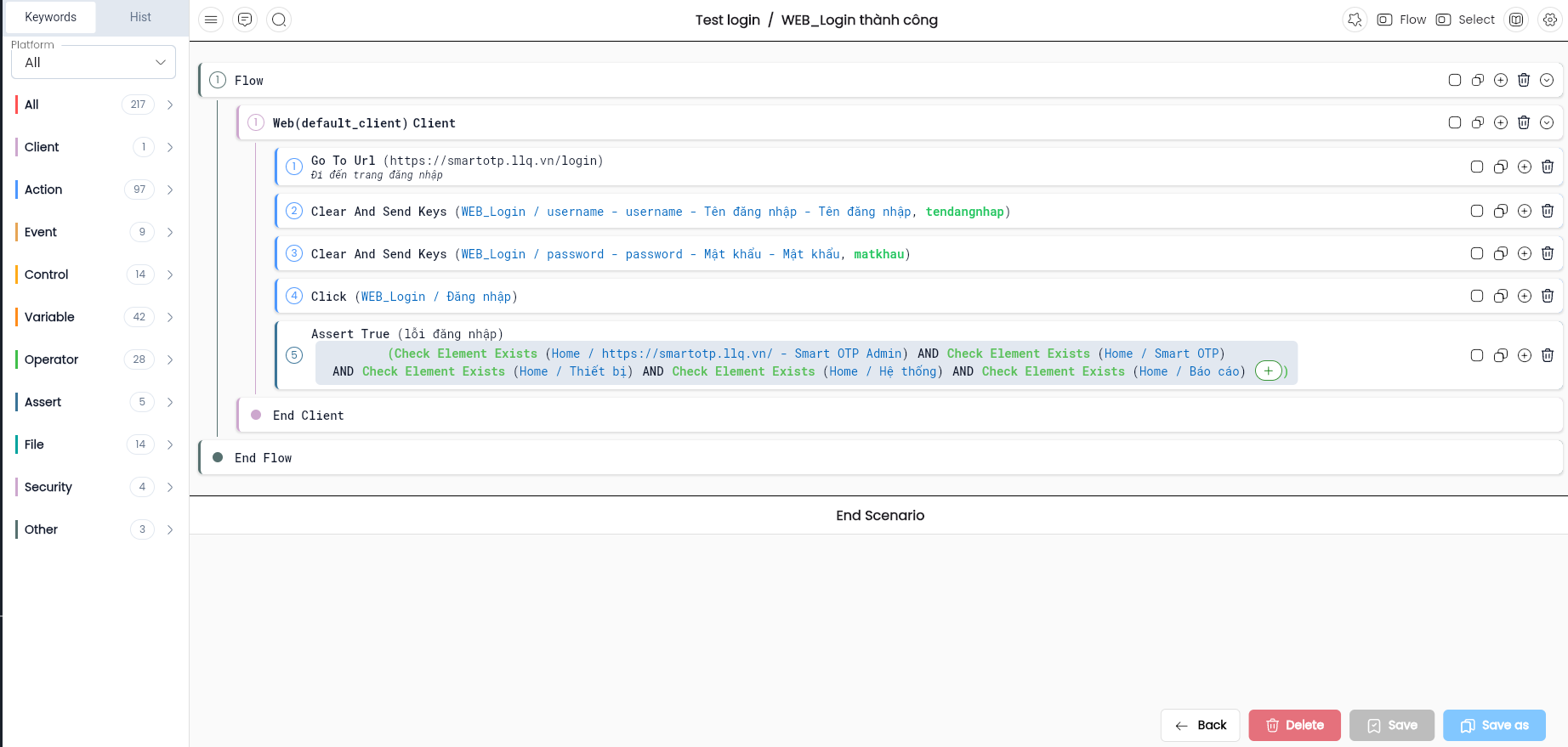
Step 2: Make edits and update the shared step configurations.
Step 3: Click “Save” to save the updated configurations. The system will notify: “Test has been updated” and save the changes to the original shared steps.
Note: If the changes to the shared steps apply only to a specific scenario, at step 3, click “Save as” and enter information as required to duplicate the shared step, saving it as a new version without affecting other scenarios/suites that use the original shared step.
If a scenario requires a newly saved shared step, return to the scenario configuration screen, click on the corresponding Action Call, and select the shared step as usual.