Test Case
What is Test Case?
A test case is a test script derived from a test scenario, which shows details about a specific data case of the scenario, expected results, severity, and priority of the test case.
Create a test case
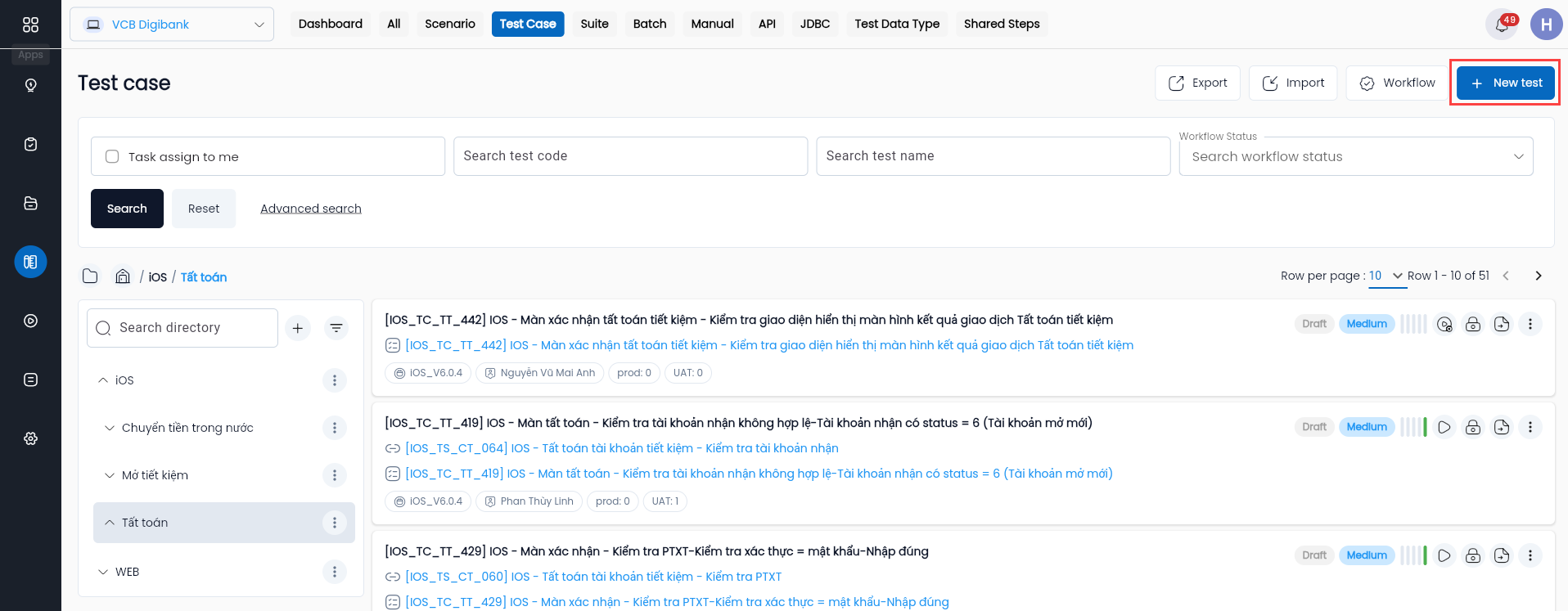
Step 1: On the test case library screen, click “NEW TEST”, the system displays the test case metadata screen
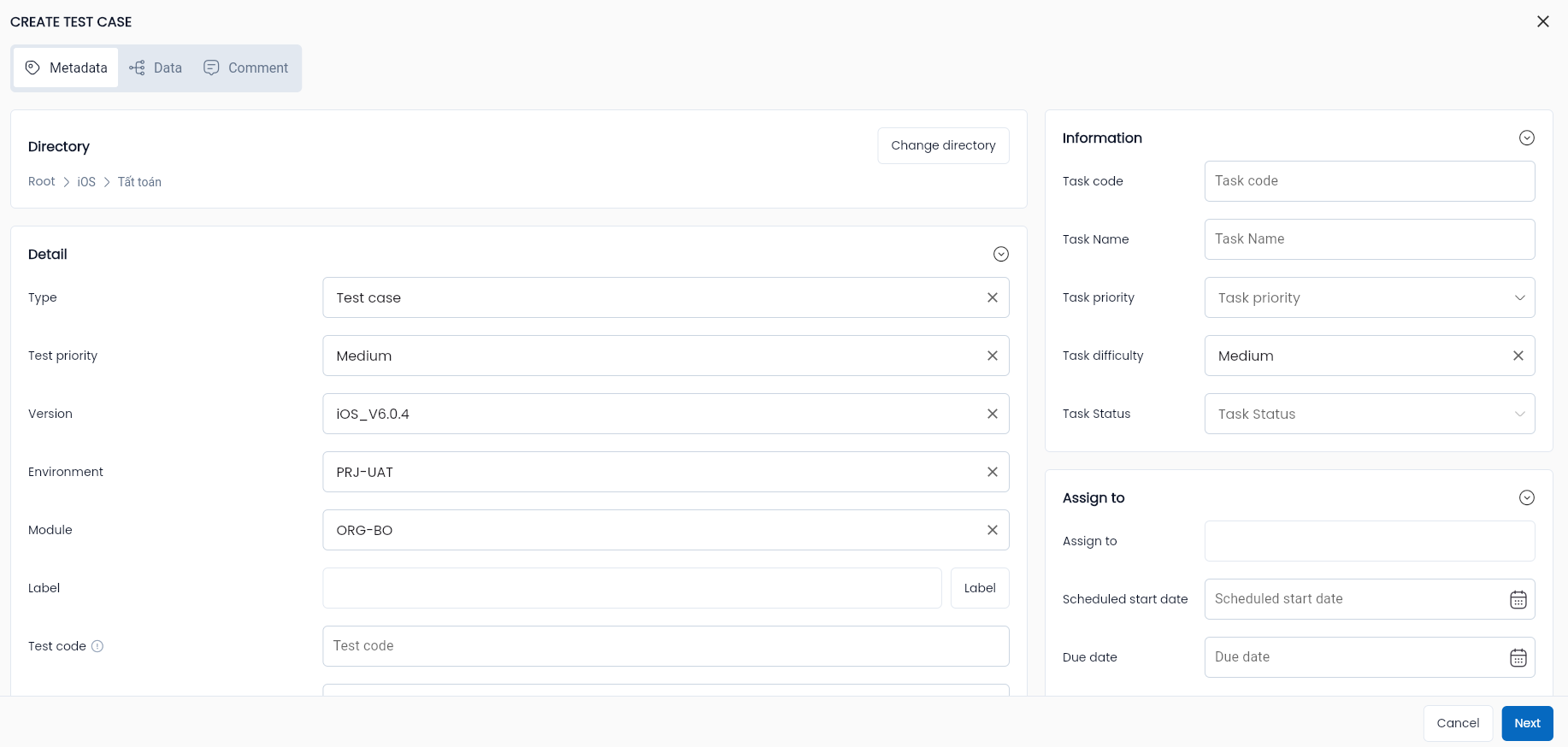
Step 2: Completely and validly enter the required information fields of the test case, including:
-
General information: Similar to test scenarios, the type is Test case
-
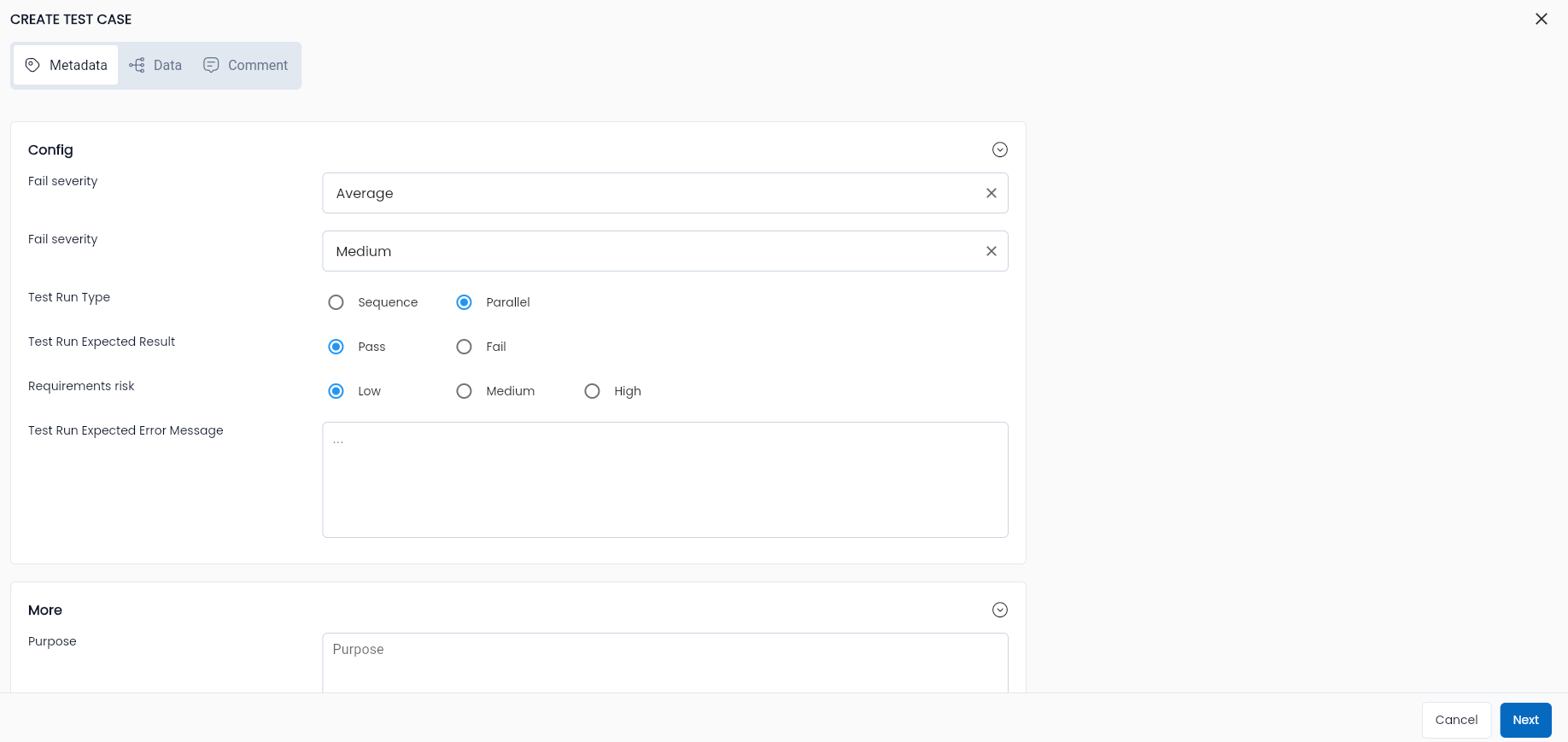
Config
| Field Name | Mandatory | Format | Constraints | Description |
|---|---|---|---|---|
| Tab General information General information section of a test case. Similar to Test Scenario, refer to the section Create a new test scenario | ||||
| Tab Config | ||||
| Test Run Type | Yes | Radio button | Allows the user to select one of two values: - Parallel: Simultaneous testing - Sequence: Sequential testing | |
| Fail severity | - | Combobox | Displays 5 severity levels, allows the user to select a value: - Critical: Serious, prevents the user from performing the test function properly - Major: High, but does not completely prevent the user from performing the test function - Average: Medium - Minor: Low, does not affect user experience - Trivial: Not really a bug and does not impact user experience, but should consider fixing | |
| Fail priority | Yes | Combobox | Priority level based on the test function of the test case, determines the priority: - Highest - High - Medium - Low - Lowest | |
| Test Run Expected Result | Yes | Radio button | Expected result of the test case - Pass - Fail | |
| Requirements risk | Yes | Radio button | Risk recommendation - Low - Low risk (rarely occurs) - Medium - Medium risk - High - High risk | |
| Test Run Expected Error Message | - | Textarea | Expected error message when failing | |
 | - | Button | Test case is built based on a test scenario | Select a test scenario to pass test parameters. |
 | - | Button | Test case is built based on a test suite | Select a test suite to pass test parameters. |
Step 3: Choose a test scenario or test suite for the test case
The steps to choose a test scenario or test suite to pass test parameters for the test case are similar. If the test case is built based on a test suite, in step 3 click “Choose a test suite” and follow the same steps as selecting a test scenario.
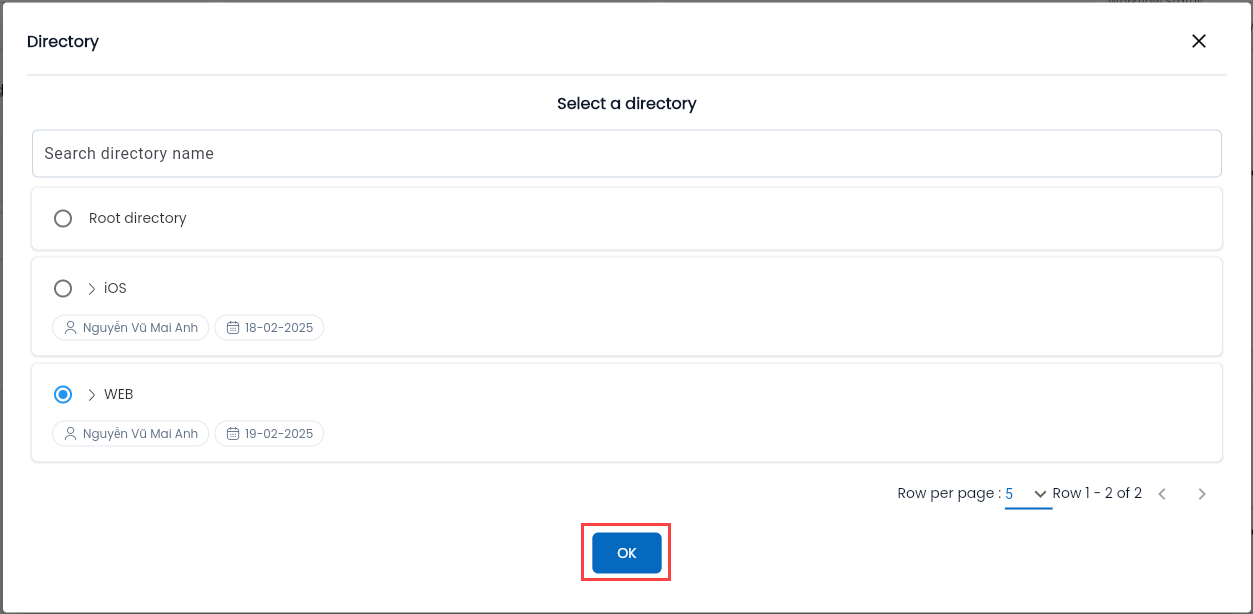
Choose test scenario: When you click “Choose a test scenario,” the system will display the test scenario selection screen.
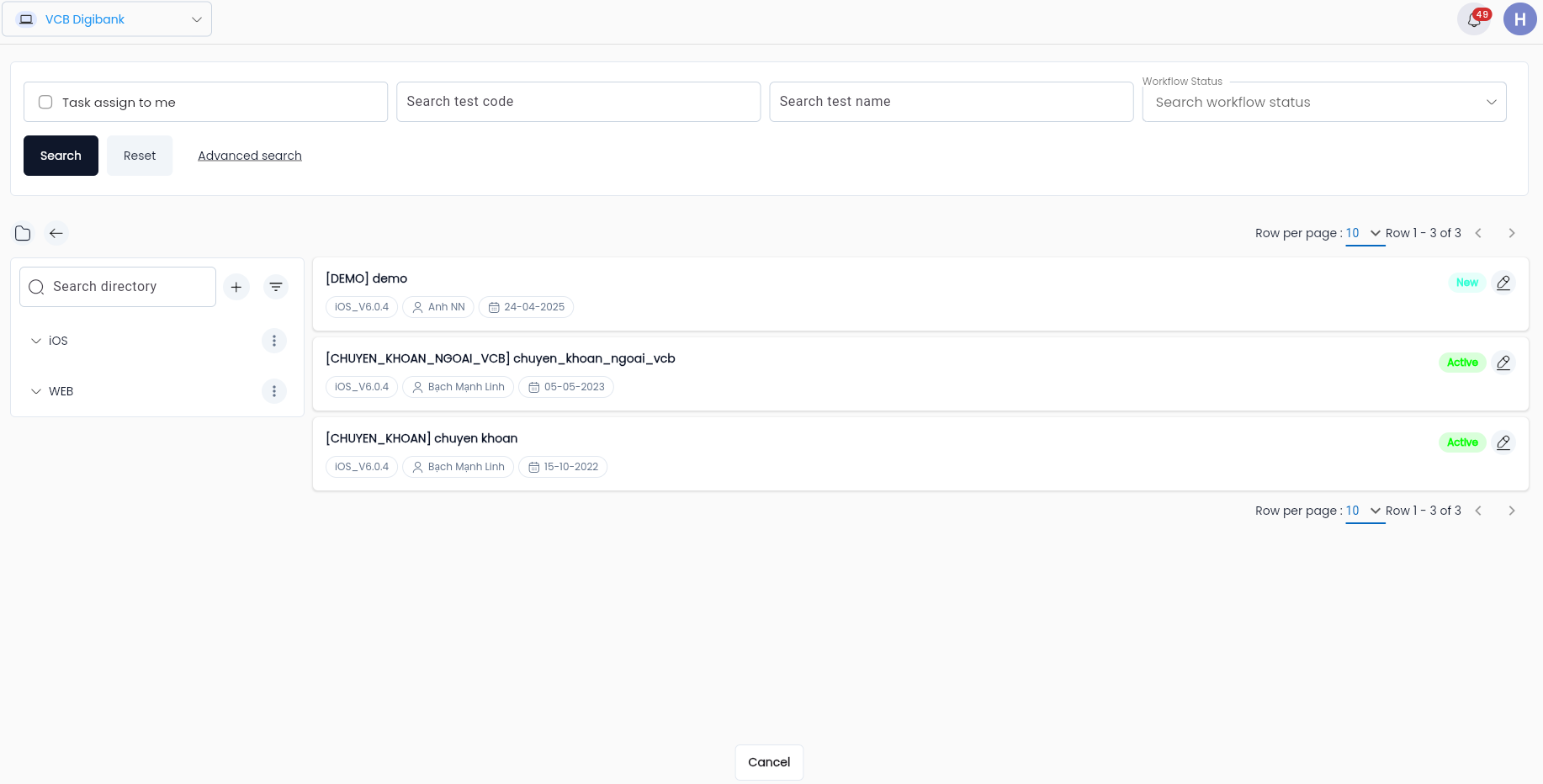
In which, the information fields on the screen are similar to the function of searching for test scenarios, referring to the section Filtering in the Test Function Tabs
ExceptionsOn the data table, a radio checkbox is added to each row of data.
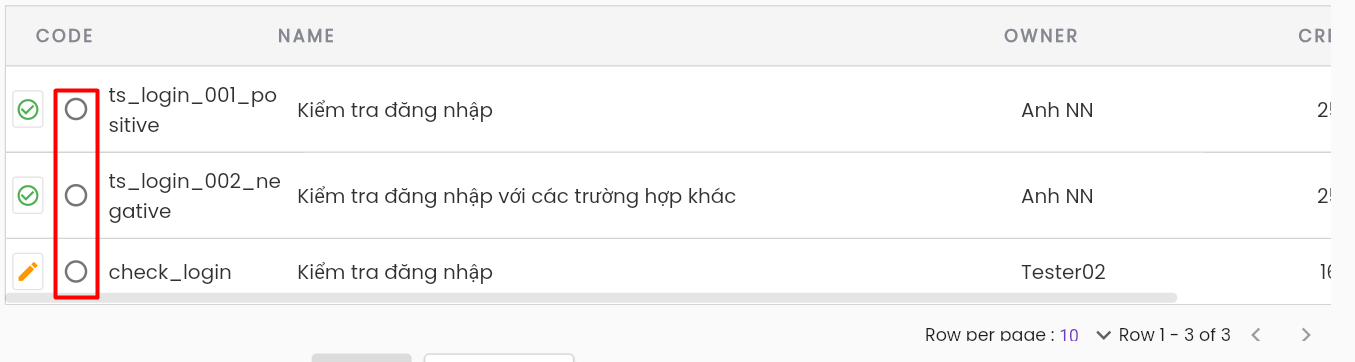
Step 4: Click the radio button corresponding to the test scenario you need to select, then click “OK”, hệ thống quay lại màn hình Config test case, đã có tên scenario và các parameter của scenario đó.
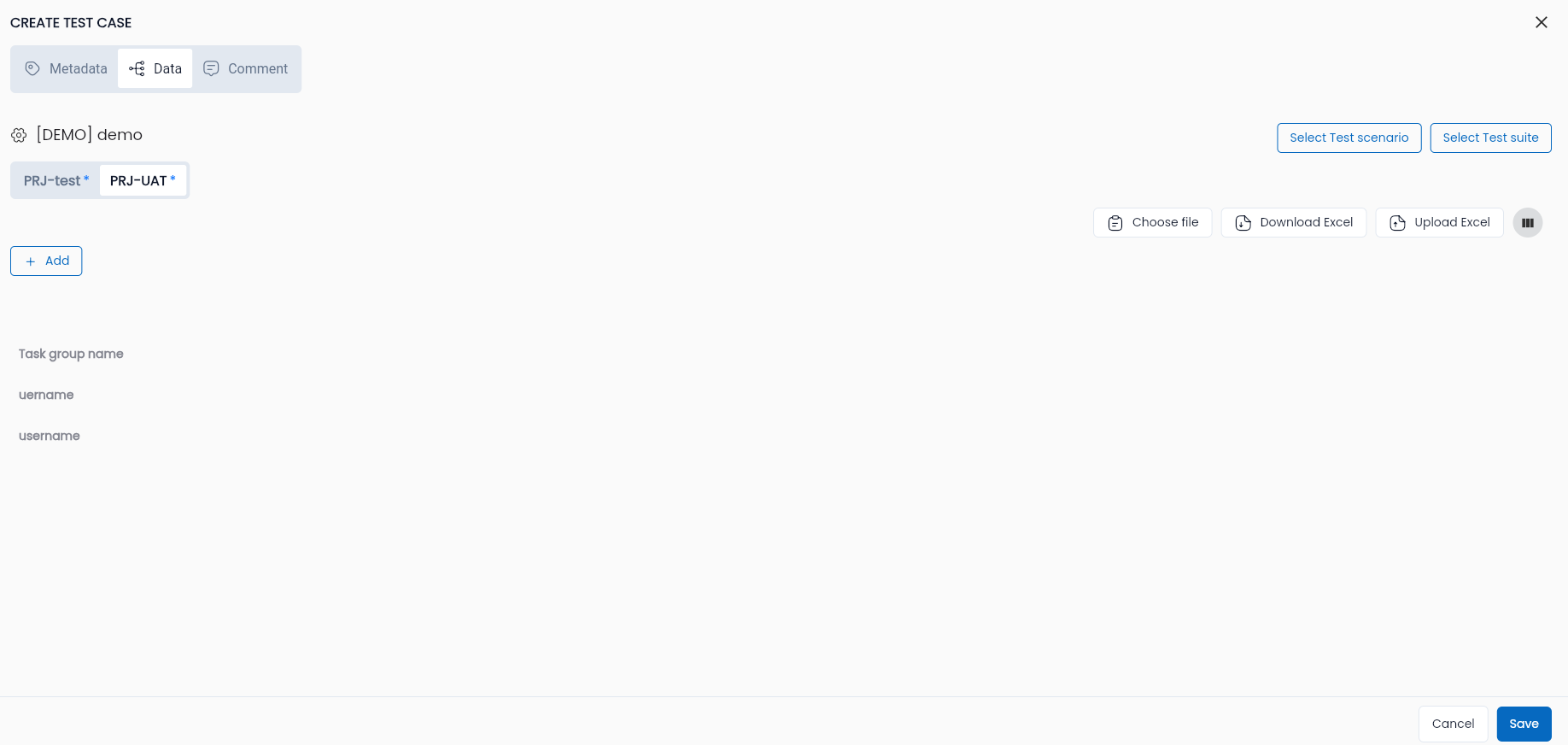
In this:
| Field Name | Mandatory | Format | Constraints | Description |
|---|---|---|---|---|
| Test name | - | Label | The name of the test scenario being called | |
| Parameters | - | Text | Enter the information of the Parameters declared in the test scenario or test suite | |
 | - | Icon | Appears when at least 1 item is present | Click the Delete icon to remove a data row |
 | - | Icon | Click the Add icon to manually add a data row for the test case. Can click multiple times | |
| Download Exel | - | Button | Click Download Excel to download the parameter form of the test scenario | |
| Import Excel | - | Button | Click Import Excel and choose the file to upload the Excel file containing the test case data (in the format downloaded when clicking “Download Excel”) automatically | |
| Choose File | - | Button | Click Choose File and select the active data file in the project (in the File function) | |
 | - | Icon | Click this icon to layout the parameters of one item in rows or columns |
Step 5: Click “OK”, and the system will return to the test case library screen while displaying the message “Create successful”
Edit test case
Step 1: On the test case library screen, click the “⋮” button corresponding to the test case you want to edit the information for.
Step 2: Click the “Edit metadata” button
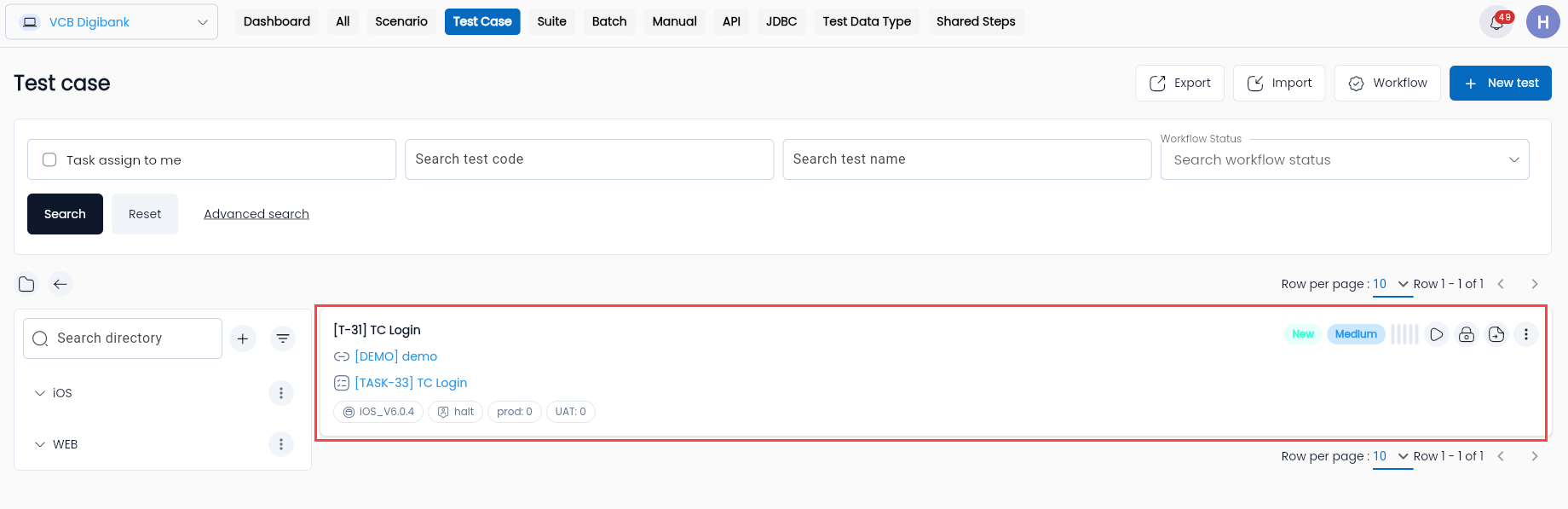
The system navigates to the test case information editing screen. The information fields are the same as the new add screen. The Code field is not allowed to be edited
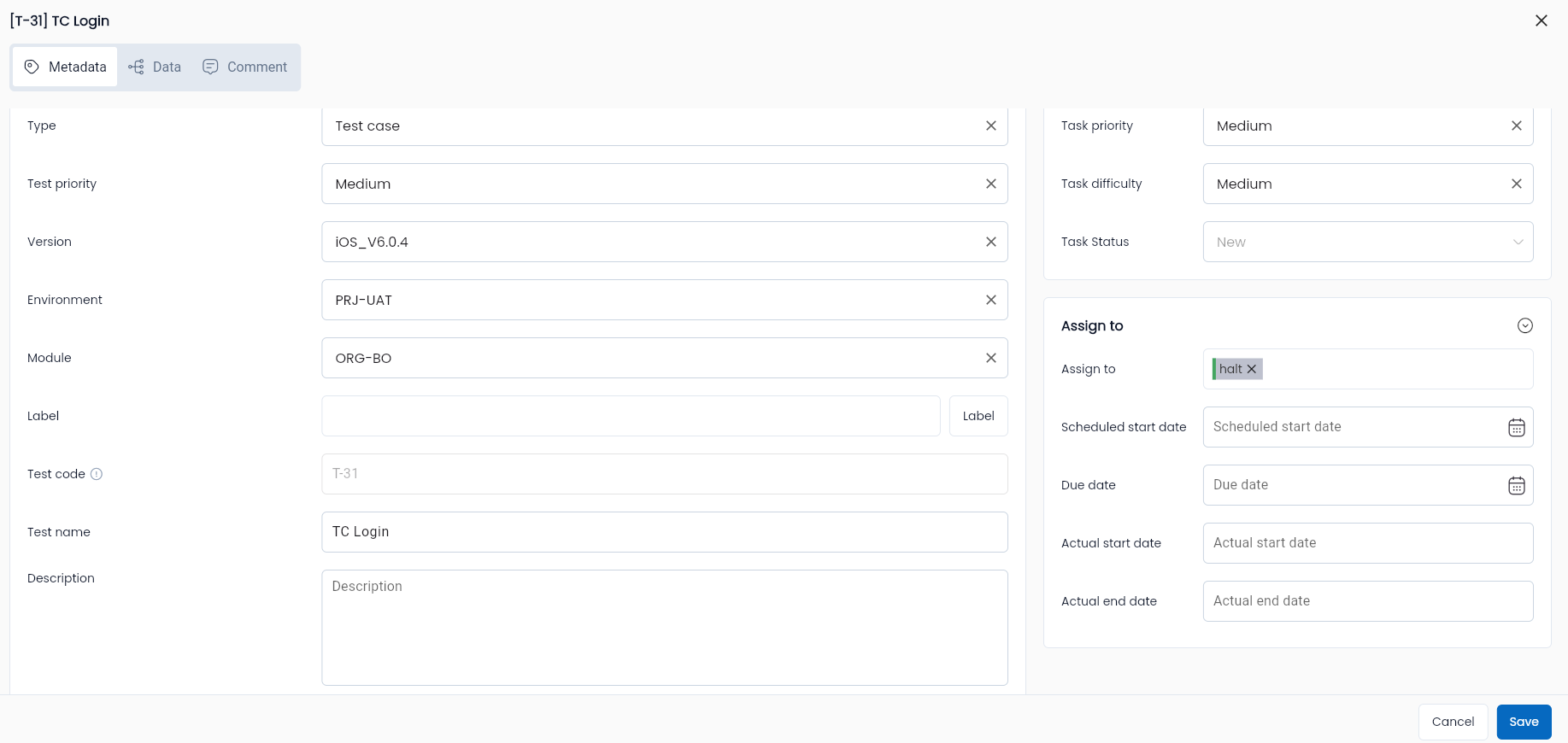
Step 3: Enter the information you want to edit for the test case.
Step 4: Click OK. The edited information for the test case will be updated. The system will display the message “Updated successful”.
Edit Config test case
Step 1: Access the Config test case screen
To access the config screen of a test case, the user can follow two methods:
-
Method 1: On the test case library screen, click on the test case that needs to be edited to quickly access the config screen.
-
Method 2: Click on the test case that needs editing, the system will display the Edit Test case screen, then click on the “Config” tab.
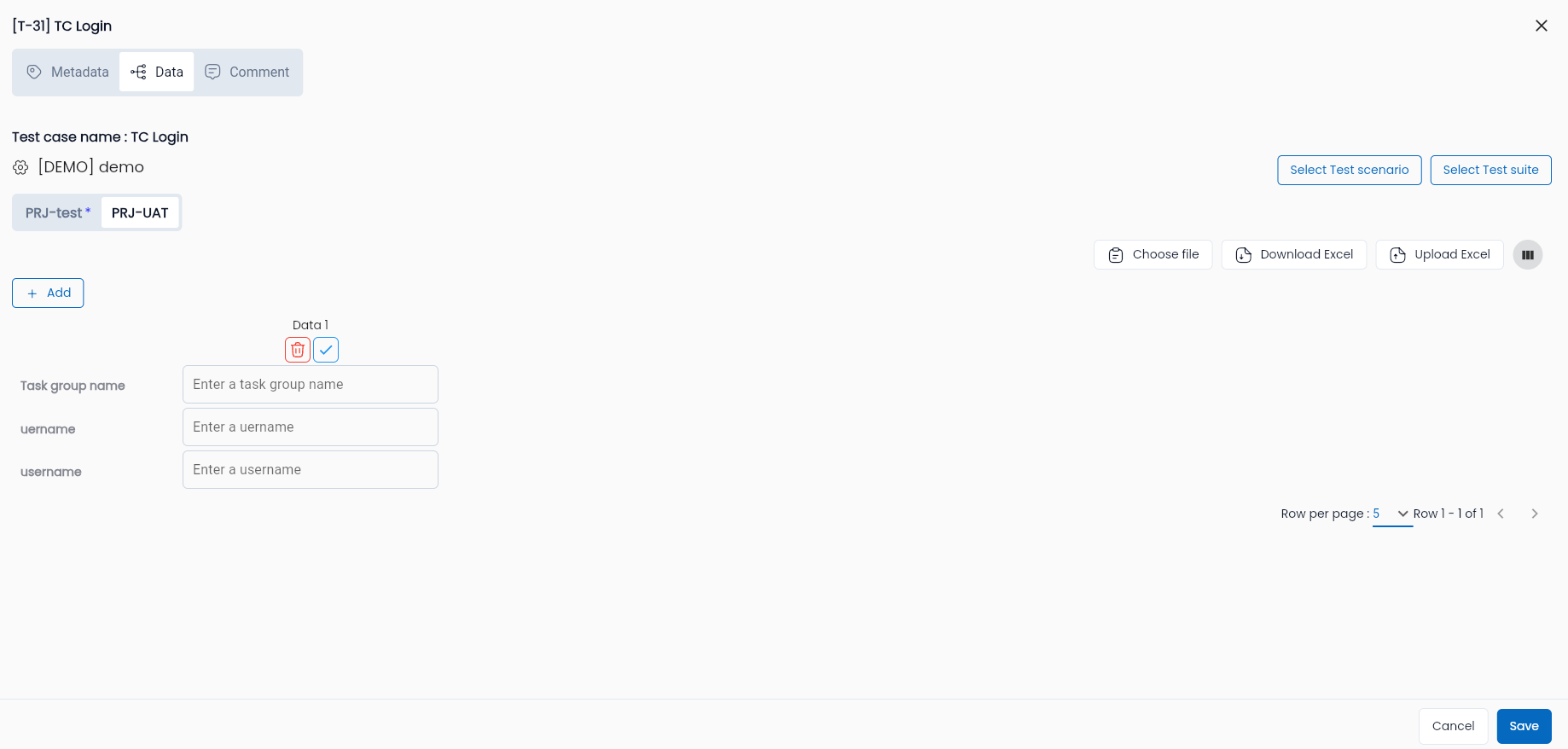
Step 2: Enter the information to be edited similar to when creating a new test case
Step 3: Click “OK” to save editing information
Delete Test case
It is possible to delete a test case through the case library screen as long as the test case has not been run:
Step 1: On the test case library screen, click “⋮” corresponding to the test case you want to delete, select Delete
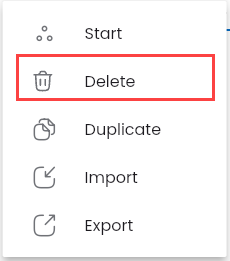
The system displays a deletion confirmation popup
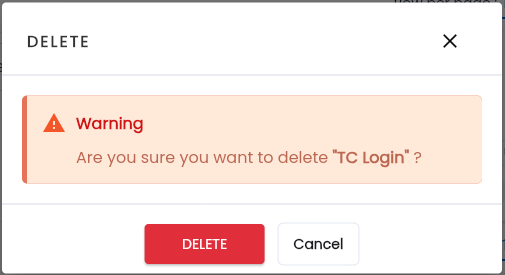
Step 2: Click “DELETE”, the system will notify that the test case has been successfully deleted.
Duplicate test case
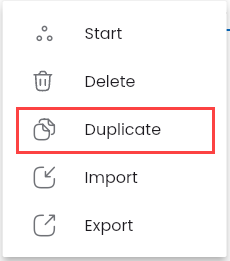
Step 1: Click button “⋮” corresponding to the test case you want to duplicate, then select “Duplicate”
Step 2: The fields in the “Duplicate test case” screen will be copied, referring to the fields in the section Create a test case.
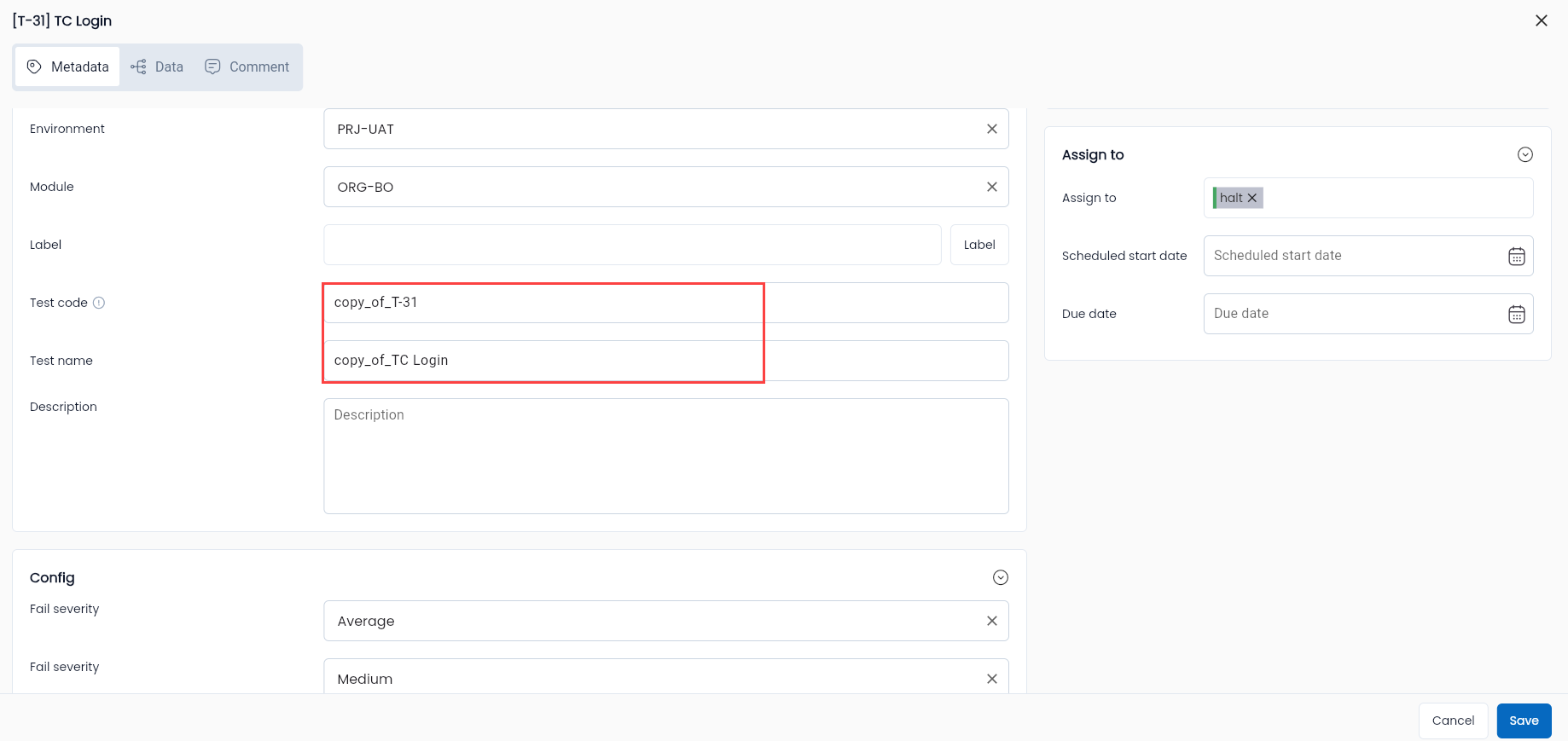
Field Descriptions:
| Field Name | Mandatory | Format | Constraint | Description |
|---|---|---|---|---|
| Tab General information | ||||
| Thông tin cơ bản | ||||
| Code | Yes | Text | The code must be unique and cannot be edited. The minimum length is 2 characters, must start with a letter, and cannot contain special characters except for "_" and "-" | The code of the duplicated test case will be automatically edited by the system to “copy_of_” + the original test case code. The user can edit it. |
| Name | Yes | Text | The name of the duplicated test case will be automatically edited by the system to “copy_of_” + the original test case name. The user can edit it. | |
| Metadata Configuration Information | ||||
| Project | Yes | Combobox | Displays a list of projects on the system that the user is involved in. You can duplicate test cases from different projects. Only one value can be selected. | |
| Workflow Status | Yes | Combobox | Allows the user to choose one of four values: Draft / Reject / Active / Review |
Step 3: Choose a test scenario/test suite similar to when creating a new test case.
Step 4: Click “OK”, the system will display the test case library screen of the project being worked on and the message “Duplicate successful”.
Execute test case
Step 1: On the test case library screen, click the “⋮” button corresponding to the test case you want to execute, then select “Run”.

Step 2: Enter complete information on the Run test case screen.
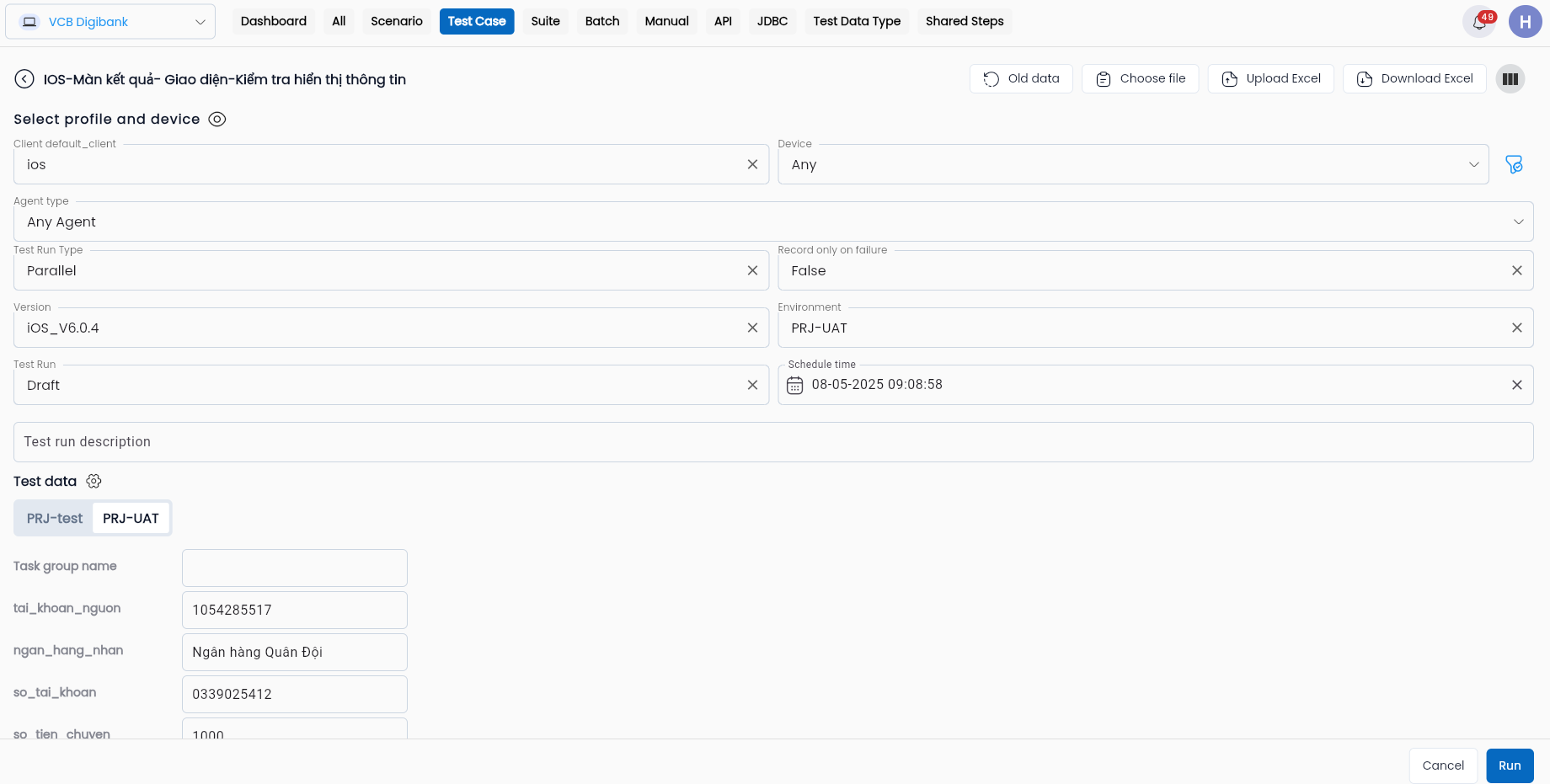
In this:
| Field Name | Mandatory | Format | Constraints | Description |
|---|---|---|---|---|
| Function Button | ||||
| Old data | - | Button | This function button will display the list from the previous Run so that the data set from the last Run can be reused. | |
| Choose File | - | Button | This function button displays the File Storage screen containing the data sets that have been uploaded to the system. | |
| Upload Excel | - | Button | This function button allows users to upload a data set prepared in an Excel file. | |
| Download Excel | - | Button | This function button allows users to download the sample Excel file containing the necessary information for the test scenario run. | |
 | - | Button | Adjust the display style of the parameters on the screen to horizontal or vertical. | |
 | - | Button | This function button allows adjusting the visibility of platform information for the test case run. | |
 | - | Button | This function button helps to add a new test data for the current run. | |
 | - | Button | This function button helps to delete test data from the current run. | |
| Thông tin trường thông tin | ||||
| Client | Có | Combobox | Displays a list of profiles declared in the Project Settings that match the Client of the test scenario. Only one value can be selected. | |
| Test Run Type | Có | Combobox | Allows the user to choose one of two values: - Parallel: Simultaneous testing - Sequence: Sequential testing | |
| Agent Type | Có | Combobox | Choose the Agent type that will execute the test: - Public: The system will select public active agents on the system with the same profile settings - Private: The user’s agent will execute the test scenario - AnyAgent: The system will choose any agent (public and private agents) with the same profile selected. | |
| Version | Có | Combobox | Hiển thị danh sách các version có trạng thái active của dự án | Choose the version of the system/application to be tested that the test scenario will execute. Only one value can be selected. |
| Environment | Có | Combobox | Hiển thị danh sách các environment có trạng thái active của dự án | The environment in which the test scenario will be executed. Only one value can be selected. |
| Test Run | Có | Combobox | Allows the user to choose one of two values for the Agent information: + Draft + Complete. After the test scenario Run is complete, data in “Draft” can be changed to “Complete” based on user preferences, but vice versa is not allowed. | |
| Schedule time | Có | Date | The time when the test scenario will be executed. The system defaults to real-time, but users can choose another future time to schedule the test execution. | |
| Test run description | - | Text | A description for the test run. | |
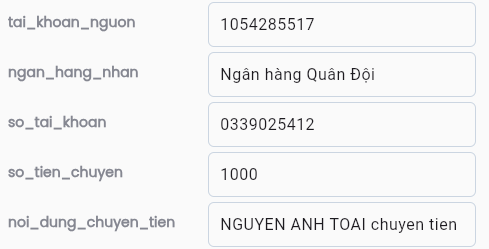 | - | The parameter value information for the test case run. |
Step 3: Click “Run”.
After clicking “Run,” the system will navigate to the Runs screen, and automatically record the process of executing the configured steps on the test system.
Export Json file
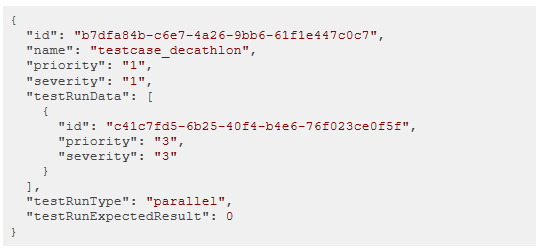
This feature allows downloading the JSON file of a test case, which contains various information.
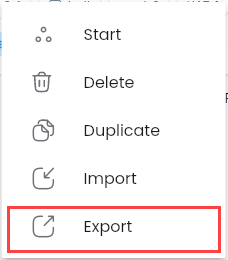
On the test case library screen, click the “⋮” button corresponding to the test case you want to download, then select “Export”.
The system will download the JSON file of the test case.
Import Json file
This feature allows uploading the JSON file of another test case, replacing the values of attributes such as priority, severity, test run expected result, and test run expected error message with the corresponding attributes of that test case.
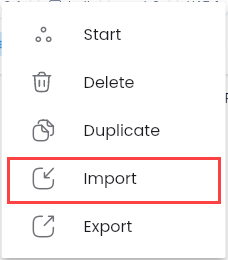
Step 1: On the test case library screen, click the “⋮” button corresponding to the test case you want to upload, then select “Import”.
Step 2: Select the prepared JSON file of the test case.
Step 3: The system will display the message “Create successful” and update the information in the test case config according to the newly uploaded JSON file.
Note: Ensure you select the correct JSON file of the test case to upload, and avoid selecting the wrong JSON file of a test scenario or other types of test cases.
Move to directory
This feature allows moving a test case from one directory in the test case library to another directory.
Step 1: Click the “⋮” button corresponding to the test case you want to move, then select “Move to directory”.

After selecting “Move to directory” the system will display the message “Copy. . . successful, choose a directory to move”.
Step 2: On the “Test Case” tab, click the “⋮” button on the target directory you want to move the test case to, and select “Paste to directory”.
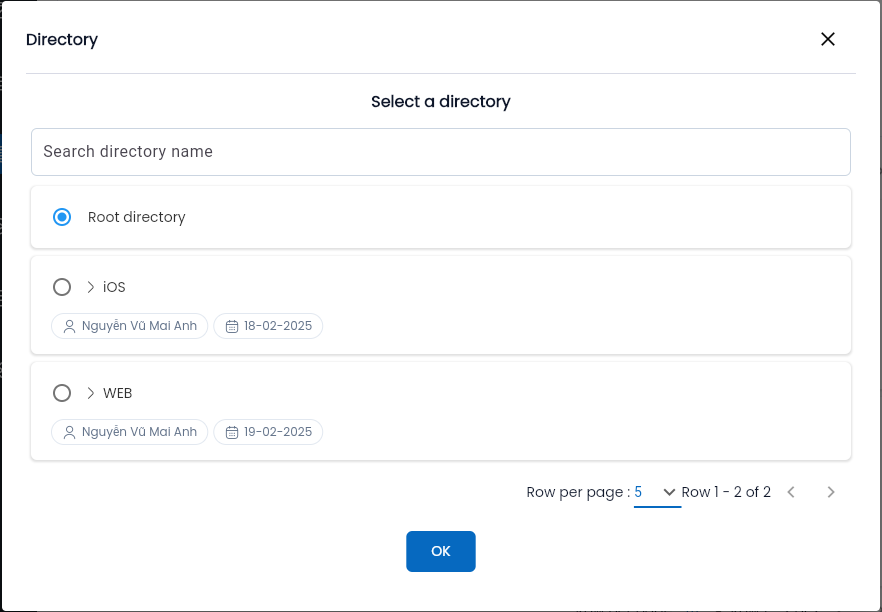
Then, the system will display the message: “Move “…” success”.