Test scenario
What is a Test Scenario?
A Test Scenario is a type of testing script that includes a detailed standard process for executing tests. A test scenario can include many test cases.
Functions in a Test Scenario
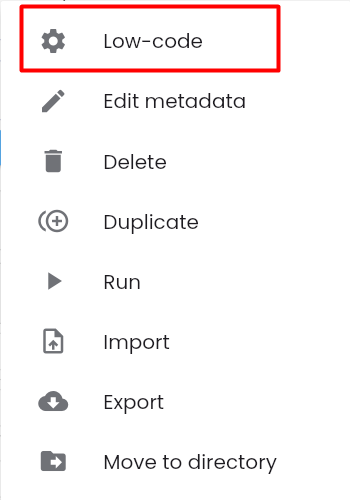
- Low-code: Configure the test scenario
- Edit metadata: Edit the metadata information of the test scenario
- Delete: Delete the test scenario
- Duplicate: Clone the test scenario
- Run: Execute the test scenario
- Import: Replace the configuration of the test scenario with the configuration of another test scenario using a JSON file.
- Export: Download the JSON file of the test scenario
- Move to directory: Move the test scenario to another directory
Creating a New Test Scenario

Step 1: On the SCENARIO tab screen, click the “NEW TEST” button, the system displays the metadata screen of the scenario.
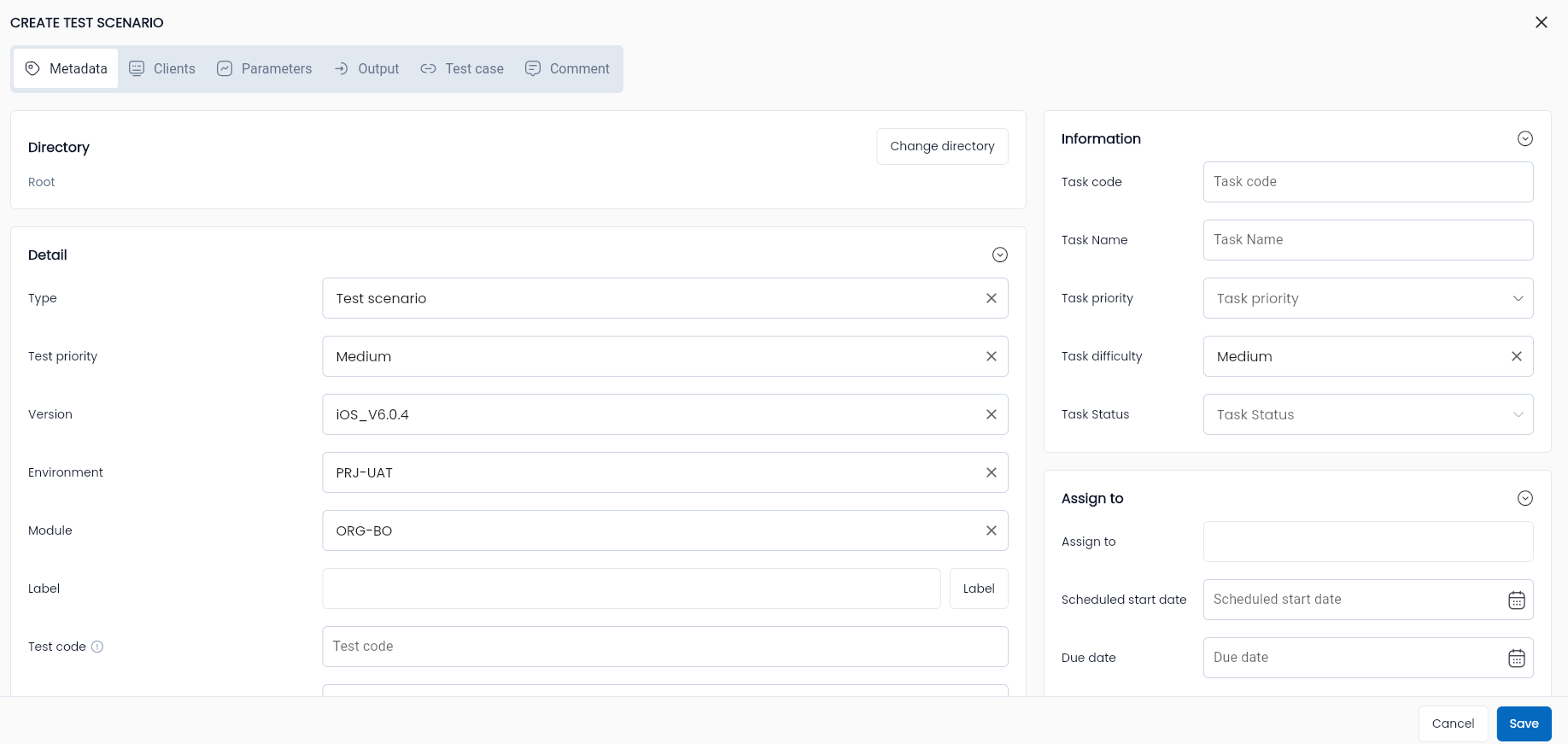
Step 2: Enter all required and valid information for the fields, including:
General Information Tab This section contains general information about a test scenario.
Includes two parts:
- Basic information of the script
- Metadata configuration information
| Field Name | Mandatory | Format | Constraints | Description |
|---|---|---|---|---|
| Basic Information | ||||
| Code | Yes | Text | If the user enters a code, it must be unique, at least 2 characters long, start with a letter, and only contain characters a-z (case insensitive), numbers, "_" and "-" | This is the code used to identify the test script in the system. If the code is left blank, the system will automatically generate it according to the structure T-stt, where stt is the sequence number of the test among the automatically coded test scripts of the Project. |
| Name | Yes | Textbox | This is the name of the test script. Users should give a meaningful name related to the function/case being tested. | |
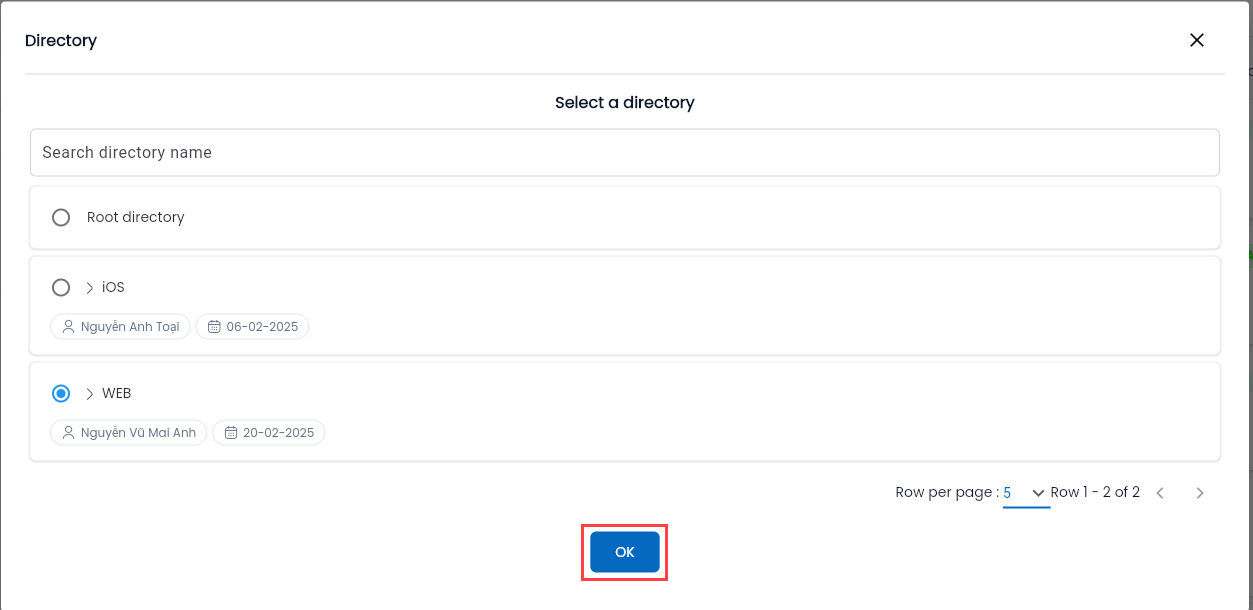
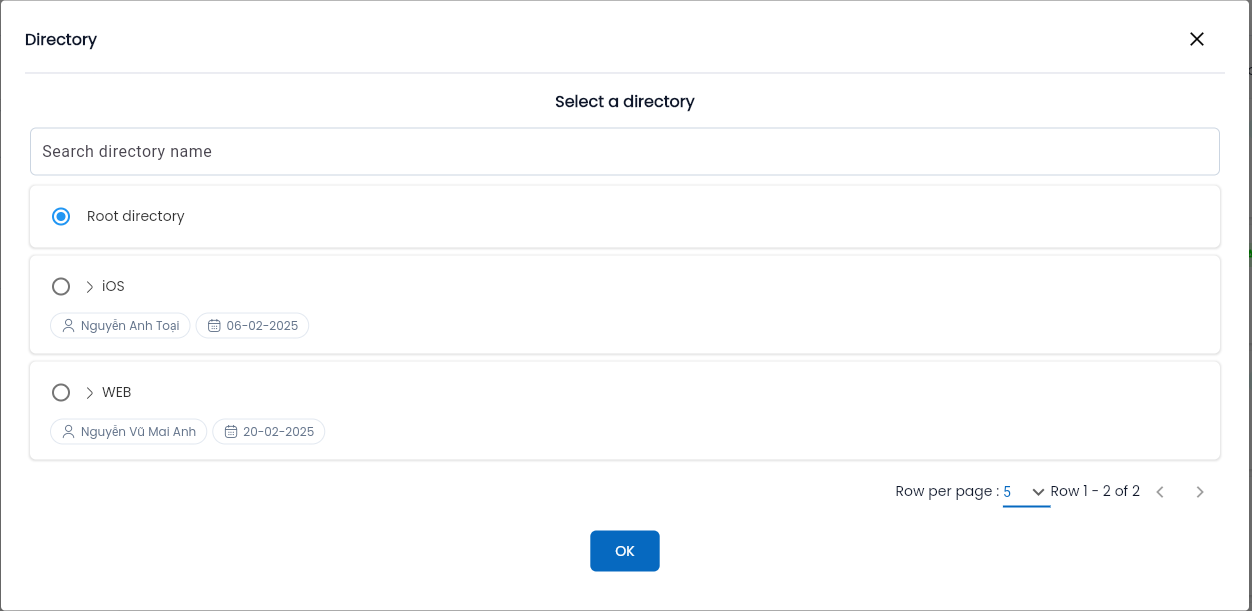
| Directory | - | Button | Displays a list of directories | This is the directory containing the test script after it is created in the project. How to choose a directory |
| Label | - | Button | Select one or more labels that the user wants to attach. How to attach label | |
| Description | - | Textarea | This is a detailed description of the test script to help project members understand the test being created. | |
| Purpose | - | Textarea | This is the purpose of performing the test script. | |
| Precondition | - | Textarea | This is the prerequisite condition that must be met before executing the test script. | |
| Test steps | - | Textarea | These are the steps to be performed in the test script, serving as a reference for whether the execution flow matches the intended flow and purpose of the test. | |
| Expected Result | - | Textarea | This is the expected outcome of the test script. For example, with a login case, the expected result is "Login successful." | |
| Test data | - | Textarea | This is the input data for the test. | |
| Configuration Information | ||||
| Type | Yes | Combobox | Displays a list of test types, allowing the user to select one value: + Test case + Test suite + Test manual + Test suite + Api + JDBC + Shared steps | |
| Version | Yes | Combobox | Displays a list of active versions of the testing project | Allows the user to select the version of the testing project. The test belongs to which version will select that version. |
| Environment | Yes | Combobox | Displays a list of active environments of the testing project | Allows the user to select the development environment of the project. The test belongs to which environment will select that environment. |
| Module | Yes | Combobox | Displays a list of active modules of the testing project | Allows the user to select a module of the testing project. The test belongs to which module will select that module. |
| Test Priority | Yes | Combobox | The user selects one of three statuses to determine the priority level of the test scenario: + High + Medium + Low |
Tab Client
Stores the Parameters to serve the execution of a test scenario.
| Field Name | Mandatory | Format | Constraints | Description |
|---|---|---|---|---|
| Platform | Yes | Combobox | Select the platform on which the test scenario is built. The system automatically creates a Platform for the Web platform. | |
| Name | Yes | Text | The name of the platform used for the test scenario. The system automatically creates the Name as “default_client.” |
Tab Parameters
Stores the Parameters to serve the execution of a test scenario.
| Field Name | Mandatory | Format | Constraints | Description |
|---|---|---|---|---|
| Show description | - | Button | - | Allows the user to hide/show the “Description” field of a Parameter in the test scenario. |
| New parameter | - | Button | - | Allows the user to create a new Parameter for the test scenario. |
| Clear parameter | - | Button | - | Allows the user to delete all declared Parameters for the test scenario. |
| Data Type | Yes | Combobox | - | The data type of a parameter. The system defaults to “String” when creating a new parameter. |
| Name | Yes | Text | Name must start with a letter, must include a number, and cannot contain special characters other than “_” | The name of a parameter. |
| Description | - | Text | - | The description field of a parameter. |
Tab Output
Stores the outputs containing parameters that are the outputs when executing a test scenario.
| Field Name | Mandatory | Format | Constraints | Description |
|---|---|---|---|---|
| New output | - | Button | - | Allows the user to create a new output for the test scenario. |
| Clear output | - | Button | - | Allows the user to delete all declared Parameters for the test scenario. |
| Data Type | Button | Combobox | - | Displays the data type of a parameter. The user can select one value. The system defaults to “String” when creating a new output. |
| Name | Button | Text | Name must start with a letter, contain characters a-z (lowercase), numbers, and cannot contain special characters other than “_” | The name of a parameter. |
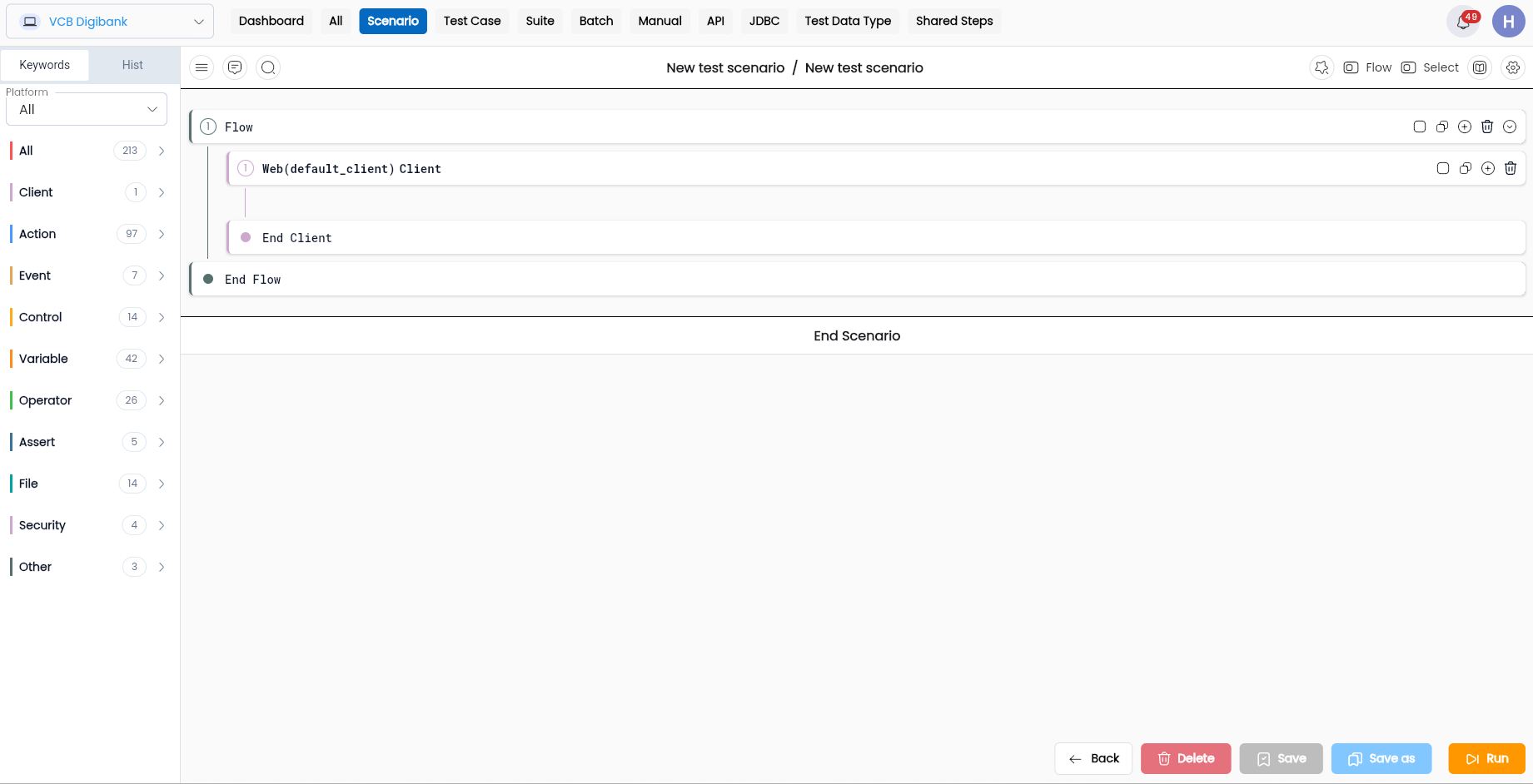
Step 3: Click “OK” to create the test scenario, the system displays the “Low-code” test scenario screen and notifies “Create successful”
At step 3, if the user does not want to continue creating the test scenario, click “CANCEL.”
Low code
This is the function to configure the test scenario, building the algorithm to execute the steps in a test scenario.
To access the low-code test scenario screen, the user can do it in two ways:
Method 1: Click on the corresponding data row of the test scenario.
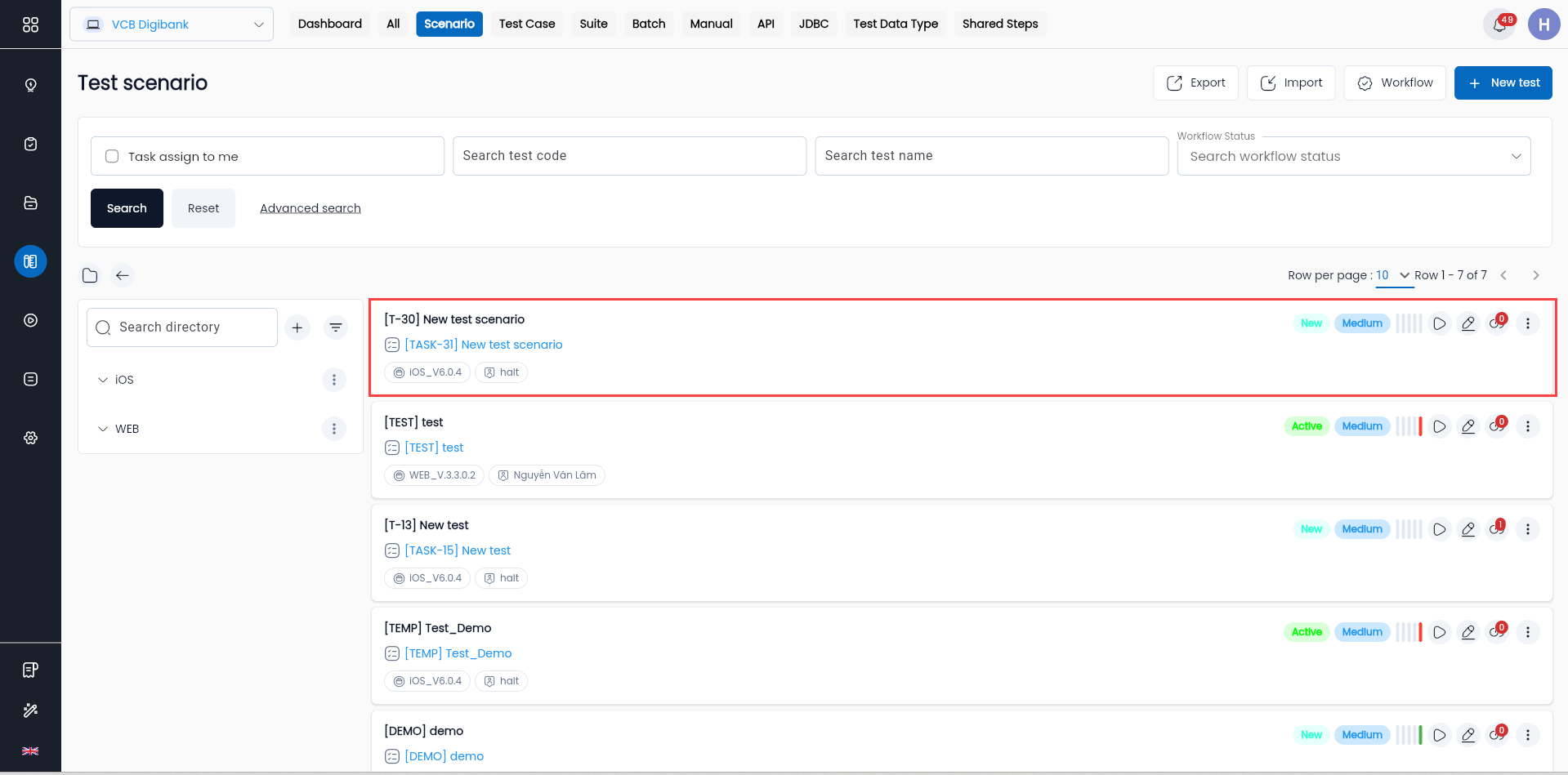
Method 2:
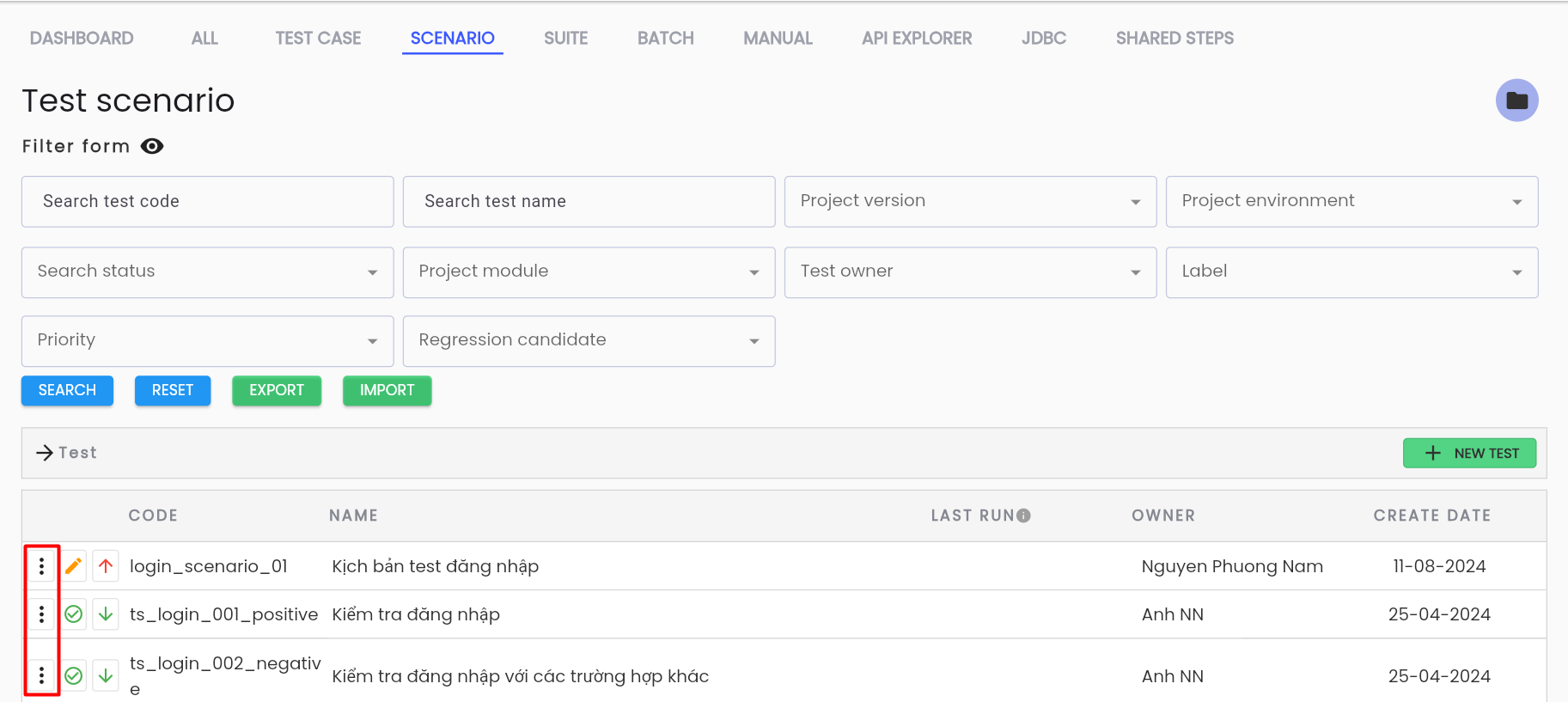
- Step 1: Click button
 corresponding to the test scenario to access.
- Step 2: Select “Low-code” from the list of functions.
The system displays the Low-code screen.
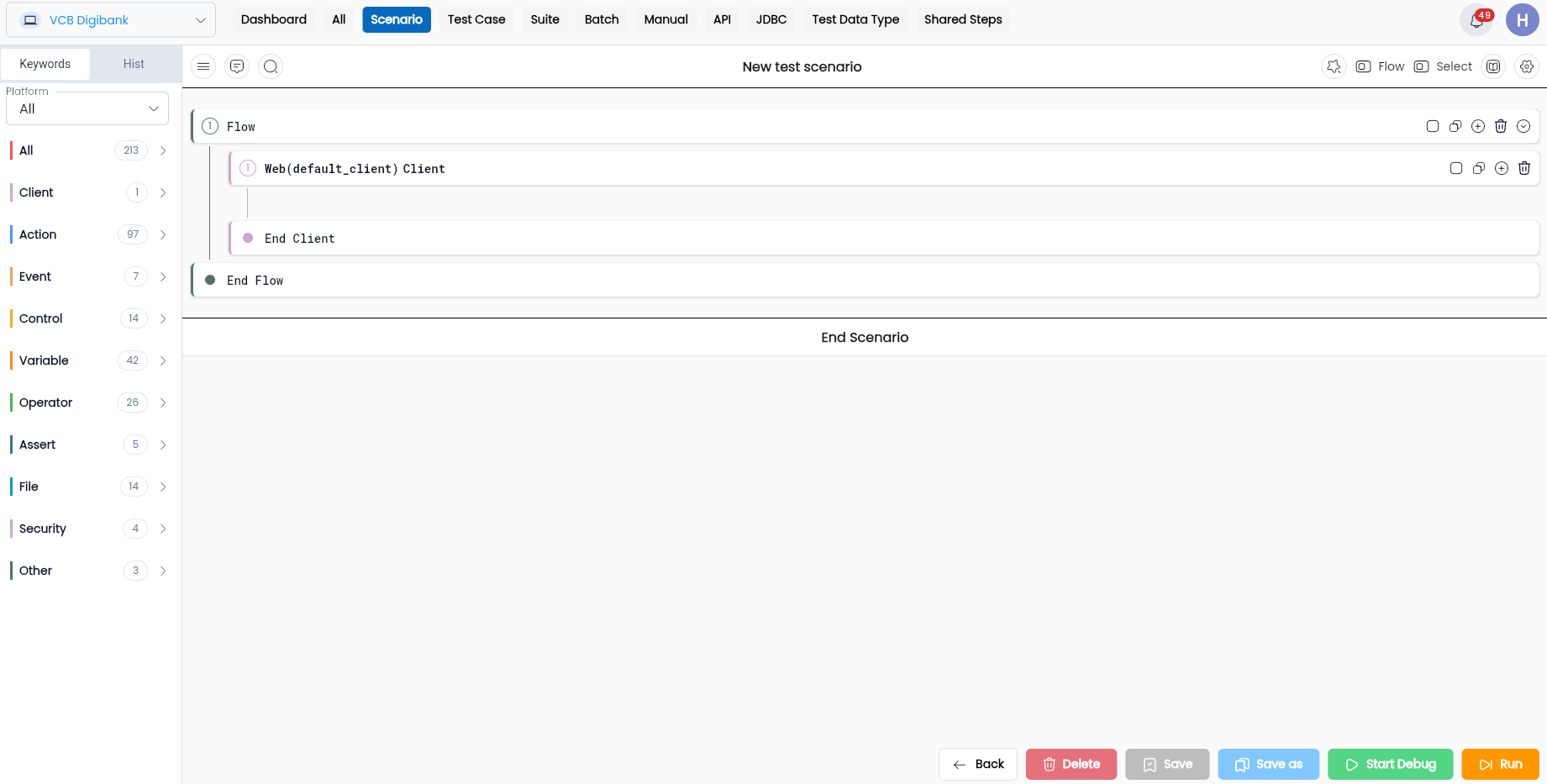
Description of Information Fields
| Function | Description |
|---|---|
 | Name of the test scenario |
 | Click this icon to hide/show the list of keywords |
 | Comment: This function allows users (including all users authorized to use the test scenario) |
 | Search: This function allows users to search for keywords used in the test scenario |
 | Debug list action: This function allows users to debug the entire scenario or a group of keywords as desired, thereby checking the correctness of the logic and algorithm of the scenario before execution |
 | This function allows users to switch from displaying detailed configuration of the scenario to flow and vice versa, helping reviewers to see the flows within the scenario (if any) without needing to view the entire configuration |
 | This function allows users to switch to the metadata screen of the scenario from the low-code screen |
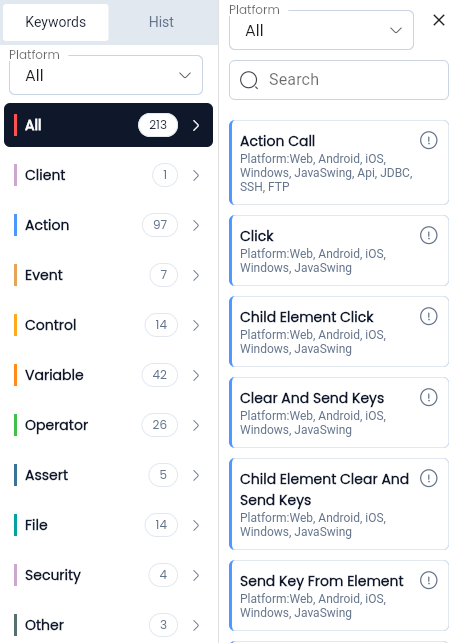 | Keyword: Actions and control conditions that allow users to build the algorithm to execute the test steps of the scenario, divided into 6 types of keywords: + Client: The platform to execute + Action: Actions interacting with elements in the testing system + Control: Helps users control actions in test steps according to certain requirements + Variable: Helps users create and control variables + Operator: Conditions to perform controls + Assert: Helps users define expected outputs with specific conditions + File: Actions interacting with files in the testing system + Other: Other types that do not affect the execution of the steps of the scenario |
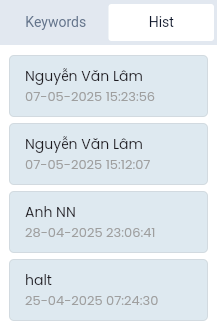 | History: This function allows users to view the entire history of configuration edits of the test scenario, thus being able to reuse some commands that have been deleted/edited before |
 | Play action: This function allows users to navigate the Agent browser by executing each action of the scenario, thereby checking the correctness of the action |
 | Disable/Enable: This function allows users to perform the operation of disabling/enabling whether the configuration line can be manipulated during the execution of the test scenario or not. The button affects all keywords in the system. |
 | Copy: This function allows users to copy a flow, group, control, action... within the same scenario or different scenarios (operations within the same tab of the browser) from any history version of that scenario. |
 | Duplicate: This function allows users to clone a keyword down to the position immediately below the selected keyword. Configuration information must be selected again. The button affects all keywords in the system. |
 | Delete: This function allows users to delete a flow, group, control, action… of the scenario |
 | Record: At Keyword Group, the system supports users to create a line of low-code inside the group with the exact information the user has configured on the View Screenshot screen. |
| Add Multiple: At the Keyword Group, the system allows users to create multiple identical keywords with Locators used from a list in the Element Repository or Find Element. The order of the created keywords follows the sequence in which the user selects the Elements. |
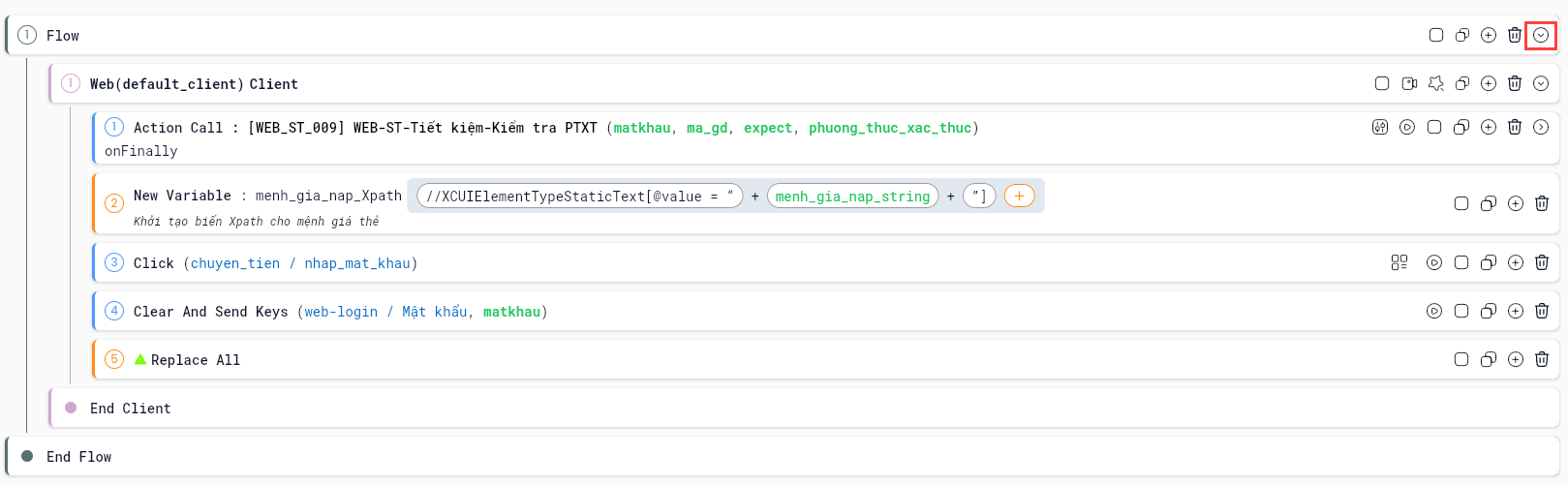 | Collapse: This feature allows scenarios to be collapsed by flow, client, group, control, etc. Expand: This feature enables users to display all actions and controls that were previously collapsed in the scenario. |
 | Start Debug: This feature begins the process where the QA platform controls the browser/device via the Agent. |
 | Displays after Start Debug is activated, allowing users to stop the Agent browser and end the debugging process. |
 | View Screenshot |
 | Save as: This feature lets users save the current scenario as a new scenario while keeping the original scenario unchanged (a form of duplication). |
 | Save: Saves changes made to the scenario, including configuration and metadata. |
 | Delete: This feature allows users to delete an action/group by dragging the action/group and dropping it onto the Delete button. |
 | After copying an action/group, users can left-click on Drag to paste, hold the mouse, drag it to the desired position to insert the copied action/group, and release. |
 | Back: Click the Back button to return to the scenario library screen. |
Edit Test Scenario
Step 1: On the Test Scenario Library screen. Click button  of the test scenario want to edit information
Step 2: Click select “Edit metadata”

The system navigates to the Test Scenario Edit screen. The information fields are identical to those on the Add New screen, except that the Code field is not editable.
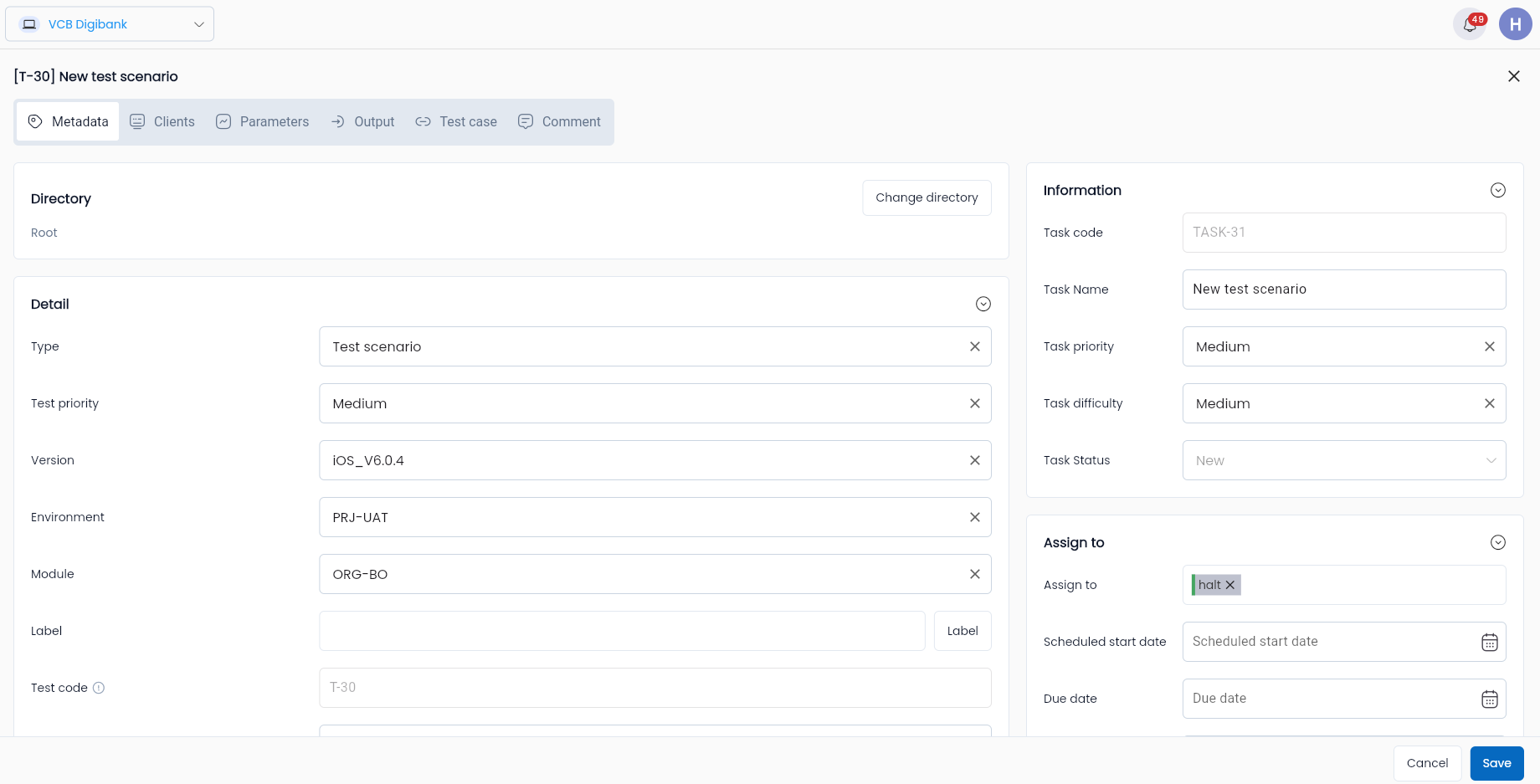
Step 3: Proceed to enter the metadata information you want to modify for the test scenario. The information fields on the Edit Test Scenario screen are similar to those in the Creating a new test scenario section.
Additionally, add additional information fields Tab General information:
Metadata configuration information
| Field Name | Mandatory | Format | Constraints | Description |
|---|---|---|---|---|
| Tab General information | ||||
| Thông tin cấu hình metadata | ||||
| Status | Yes | Combobox | Allows users to choose 1 of 3 values: Draft/ Active/ Review | |
| Workflow Status | Yes | Combobox | Allows users to choose 1 of 4 values: Draft/ Reject/ Active/ Review |
Step 4: Click OK. Editing information for test scenarios is updated. The system displays a notification “Updated successful”.
Delete Test Scenario
You can delete a test scenario through the Scenario Library screen, provided that the test scenario has not been run.
Step 1: At the Test Scenario Library screen. Click button of the test scenario you want to delete
Step 2: Click on the button “Delete”
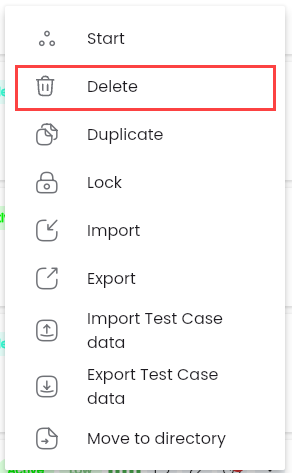
Display deletion confirmation popup
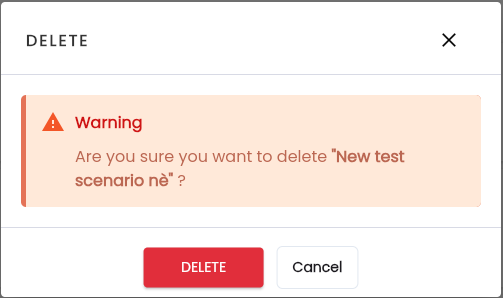
Step 3: Click “Delete”, test scenario will be deleted from the system.
Duplicate test scenarios
Copy test scenarios from the scenario library. When copying a test scenario, all information, both configuration and description, is copied:
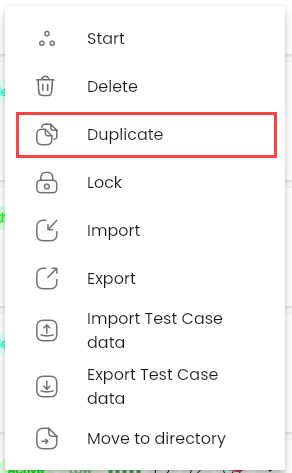
Step 1: Click the “image” button corresponding to the test scenario you want to duplicate and select “Duplicate”
Step 2: The information fields in the “Duplicate test scenario” screen are copied, referencing the information fields in the Creating a new test scenario.
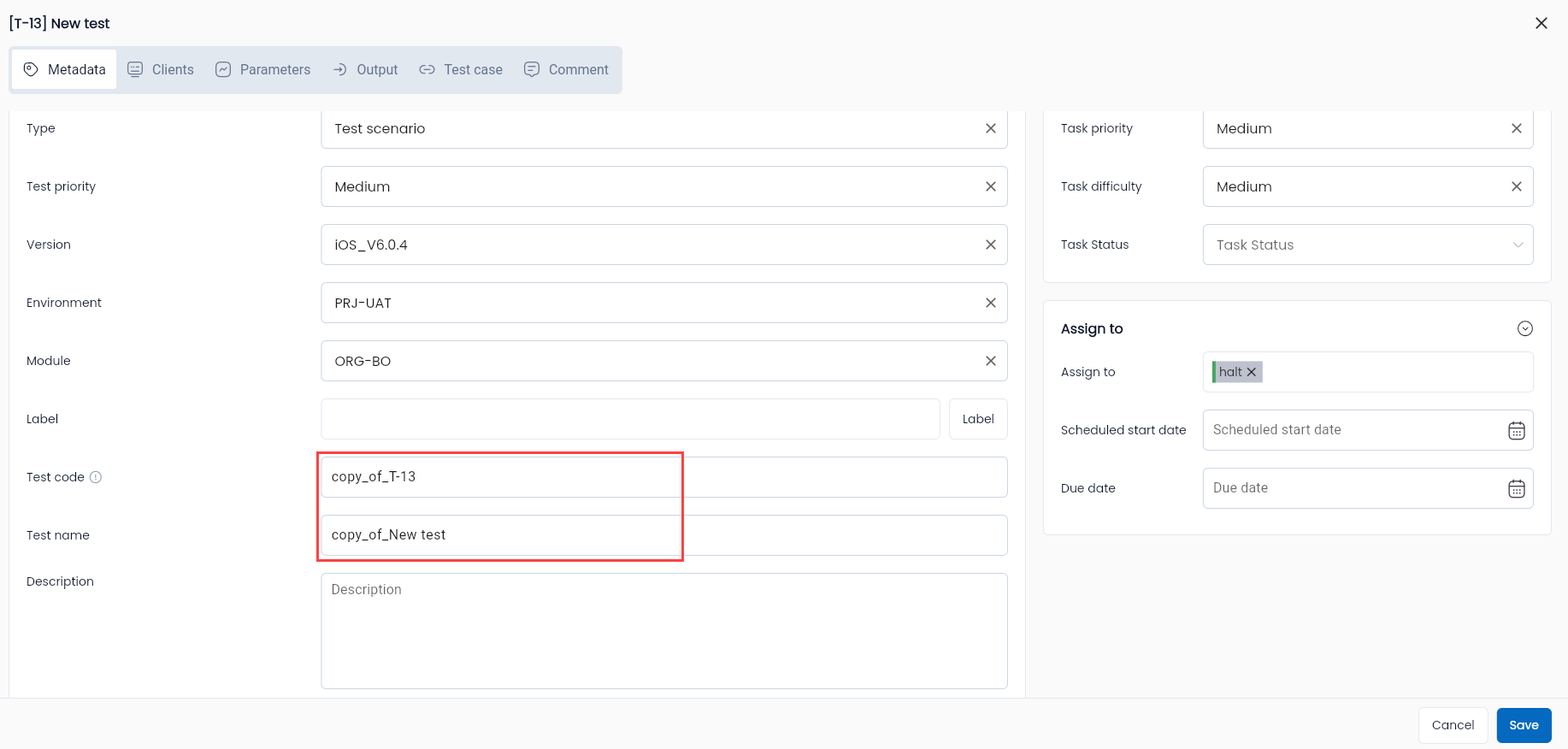
Exceptions:
Basic information
| Field Name | Mandatory | Format | Constraints | Description |
|---|---|---|---|---|
| Tab General information | ||||
| Basic information | ||||
| Code | Yes | Text | Must be unique and non-editable, start with a letter, have a minimum length of 2 characters, and not contain special characters except “” and “-”. | For duplicated scenarios, the system automatically modifies the code to “copy_of” + the code of the original scenario used for duplication. |
| Name | Yes | Text | For duplicated scenarios, the system automatically modifies the name to “copy_of_” + the name of the original scenario used for duplication. The user can edit this field. | |
| Project | Yes | Combobox | Displays a list of projects on the system that the user is part of. Scenarios can be duplicated across different projects. Only one value can be selected. | |
| Workflow Status | Yes | Combobox | Allows the user to select one of four values: Draft/ Reject/ Active/ Review |
Step 3: Click “OK”
The test scenario is copied and displayed in the selected project's scenario library
Run Test Scenario
How to execute test scenarios from scenario library:
Step 1: Click the “image” button at the test scenario you want to run, select it “Run”

Step 2: Proceed to enter information at the Run Test Scenario information screen
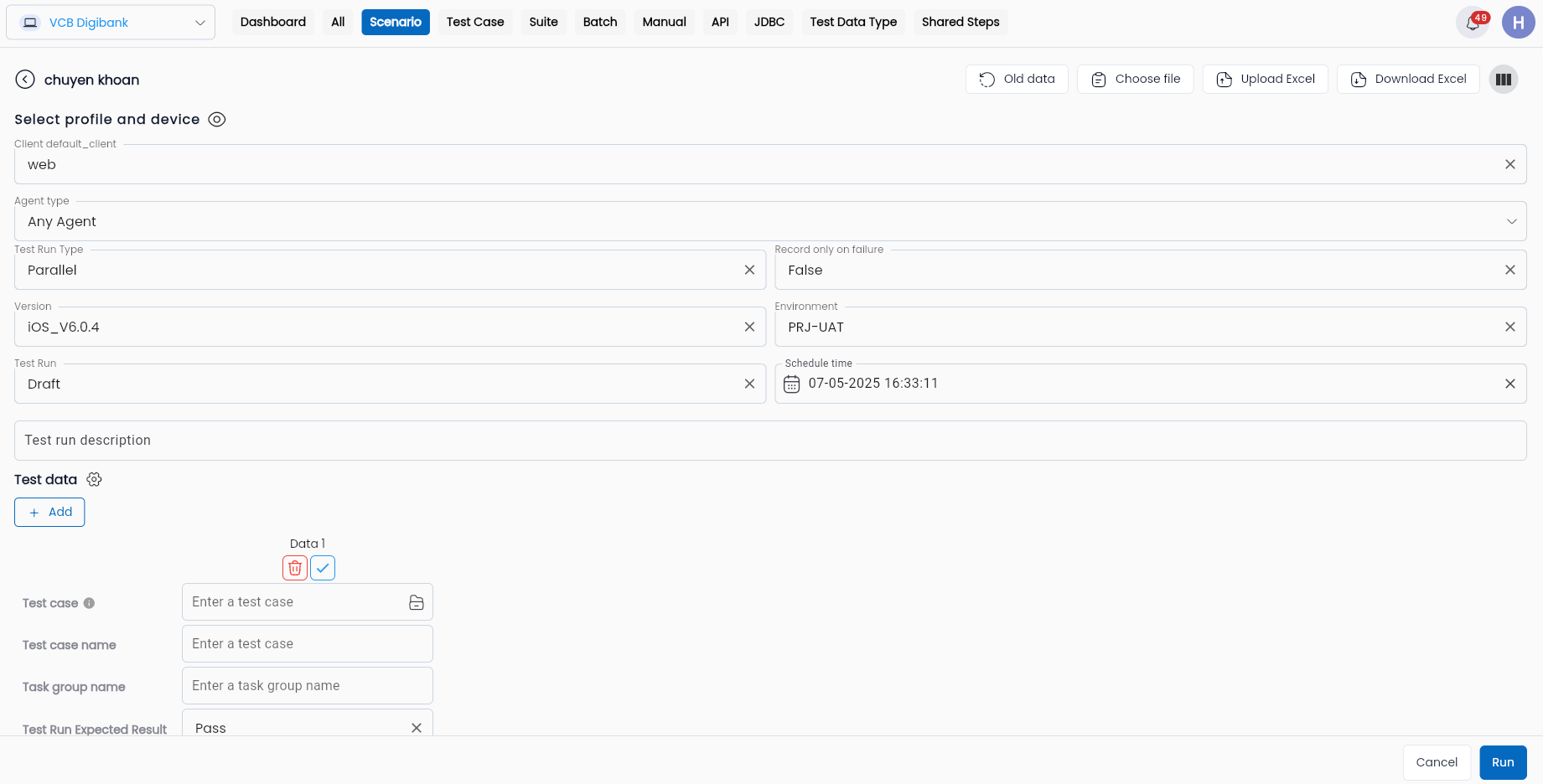
Description of Information Fields
| Field Name | Mandatory | Format | Constraints | Description |
|---|---|---|---|---|
| Functions button | ||||
| Old data | - | Button | The function button will display the list of previous Runs again so that you can reuse the data set from the previous Run. | |
| Choose File | - | Button | The function button displays the File Storage screen containing the data sets that have been uploaded to the system. | |
| Upload Excel | - | Button | The function button helps users upload data sets that have been prepared using Excel files. | |
| Download Excel | - | Button | The function button allows users to download a sample excel file containing the information fields needed to run the test scenario. | |
 | - | Button | Adjust the display style of information fields in the screen horizontally or vertically. | |
 | - | Button | Adjustment function button to hide/show platform information of the Run test scenario. | |
 | - | Button | The function button helps create one more test case data during the run. | |
 | - | Button | Function button helps delete test case data during run. | |
| Information field information | ||||
| Client | Yes | Combobox | Displays a list of Profiles declared in the Projects Setting function that match the Client of the test scenario. Only 1 value can be selected. | |
| Test Run Type | Yes | Combobox | Allows users to choose 1 of 2 values: + Parallel (Concurrent Testing) + Sequence (Sequence Testing). | |
| Agent Type | Yes | Combobox | Select the type of Agent that will execute the test: + Public: The system will select active public agents on the system with the same settings as the selected profile + Private: The user's agent is executing the test test version + AnyAgent: The system will select any Agent with the same selected profile. Users are allowed to choose 1. | |
| Version | Yes | Combobox | Displays a list of versions with active status of the project. Select the version of the system/application to be tested on which the test script will be executed. Allows selection of 01 value. | |
| Environment | Yes | Combobox | Displays a list of environments with active status of the project. Is the product development environment where test scripts will be executed. Allows you to choose 01 value. | |
| Test Run | Yes | Combobox | Allows users to choose 1 of 2 values for Agent information: + Draft + Complete. After the Run test scenario is completed, the Run data according to “Draft” can be changed to “Complete” depending on the user's purpose, but vice versa is not allowed. | |
| Schedule time | Yes | Date | Is the time it will take to execute the test script. The system defaults to realtime, users can choose another time in the future to set the test execution schedule. | |
| Test run description | - | Text | Description for the test run. | |
| Test case | - | Text | Enter the name of the test case. | |
| Test Run Expected Result | Yes | Combobox | Allows users to choose 1 of 2 test case result values of Run Test Scenario: + Pass + Fail. | |
| Severity | Yes | Combobox | Displays 05 levels of severity, allowing users to choose 1 value: + Critical + Major + Average + Minor (Low) + Trivial (Not necessarily an error and does not affect the user experience). | |
| Priority | Yes | Combobox | Allows users to choose 1 of 5 test scenario priority values: + Highest + High + Medium + Low + Lowest |
Step 3: Click “RUN” After clicking the “Run” button, the system will redirect to the Runs screen. At the same time, the system automatically records the process of running the configured steps on the test system.
The execution result refers to the item Kết quả thực thi
Import Json File
JSON is a data format that follows a specific set of rules and is readable by almost all programming languages, used for data transmission.
To edit or copy the configuration of a test scenario, besides duplicating, users can also import a JSON file into an already created test scenario.
Step 1: Click vào button corresponding to the test scenario you want to upload, select “Import”
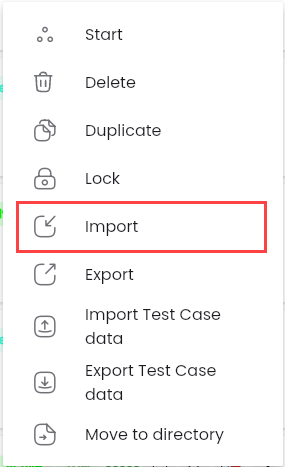
Step 2: Select the .json file you want to import, click Open. Notification system create successful.
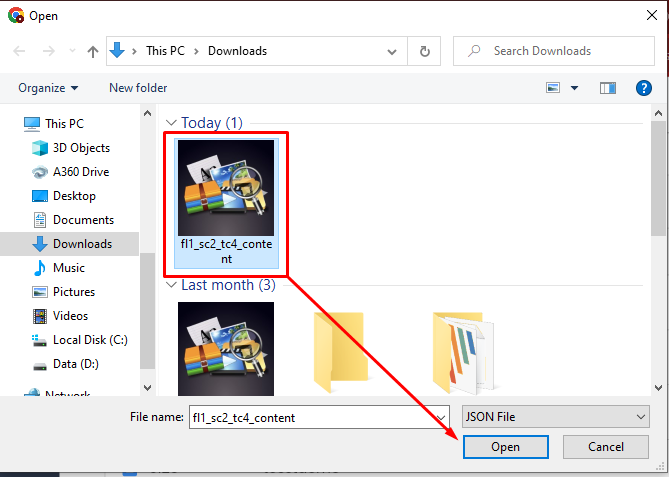
Click on test scenario to import .json file, the screen displays the test scenario configuration updated according to the uploaded file, parameters are automatically updated.
Export Json File
Click button corresponding to the test scenario you want to upload, select “Export”.
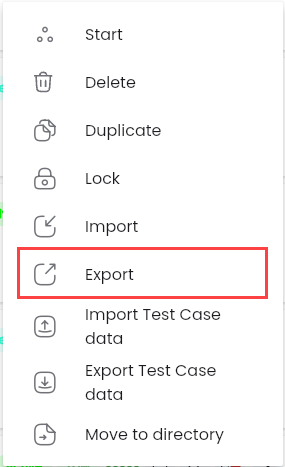
The file is downloaded and displayed in the folder on the user's computer.
Move to Directory
This is a function that allows users to move test scenarios from one library/directory to another.
Step 1: Click button corresponding to the test scenario you want to move or select “Move to directory”.
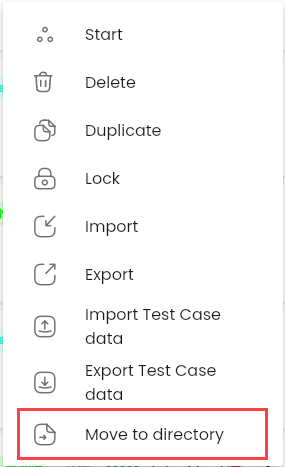
Select “Move to directory” successful, the system will display a notification “Copy ... successful, choose a directory to move”.
Step 2
On the “SCENARIO” tab screen, click button on the destination directory you want to move to to display a list of operations on that directory and select “Paste to directory”.
After that, the system displays a message on the screen: “Move “...” success”.