Manual Test
Manual Test is a manual testing process performed entirely by the tester's actions. For test cases that cannot be executed or do not require automated tools, the Centralize Automation Testing Suite allows users to manage them in the Manual Test tab.
Test cases related to Non-functional testing can also be managed in Manual.
Types of Tests Managed by Manual
For small functional test flows with low repetition frequency and minimal input data for test scripts, users can choose manual testing instead of automated testing.
Manual allows users to update the results and manage test scripts for these cases.
Creating a Manual Test
Step 1: In the Manual Library screen, click the button  to create a new Manual Test. The system will display the Create Manual Test screen.
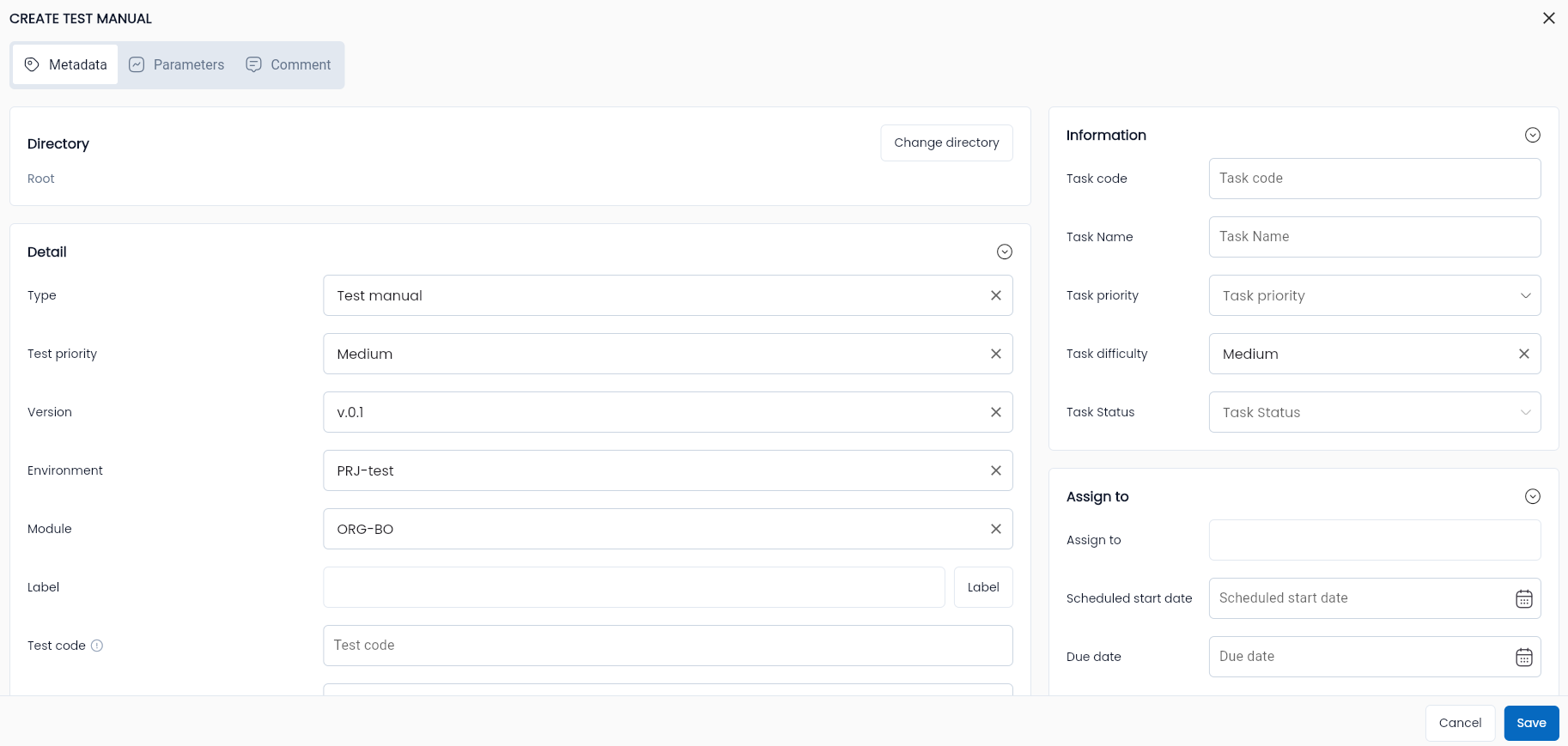
Step 2: Enter all required and valid fields, including:
| Field Name | Mandatory | Format | Constraints | Description |
|---|---|---|---|---|
| Tab General information General information of a Manual Test. Similar to Test Scenario, refer to Tạo mới một test scenario | ||||
| Tab Parameters Stores the Parameters for Manual Test | ||||
| Show description | - | Button | Allows users to show/hide the "Description" field of a Parameter in the manual test. | |
| New parameter | - | Button | Allows users to create a new Parameter for the manual test. | |
| Clear parameter | - | Button | Allows users to delete all Parameters defined for the manual test. | |
| Data Type | Yes | Combobox | The data type of a parameter. The system defaults to "String" when creating a new parameter. | |
| Name | Yes | Text | The name must start with a letter, containing letters (a-z, uppercase, lowercase), numbers, and characters "_" and "-" | The name of the parameter. |
| Description | - | Text | The description field of a parameter. |
Step 3: Click “OK”, the system will notify “Create successful”.
Editing a Manual Test
Step 1: In the manual test library screen, click the “⋮” icon corresponding to the manual test to edit, then select "Edit".
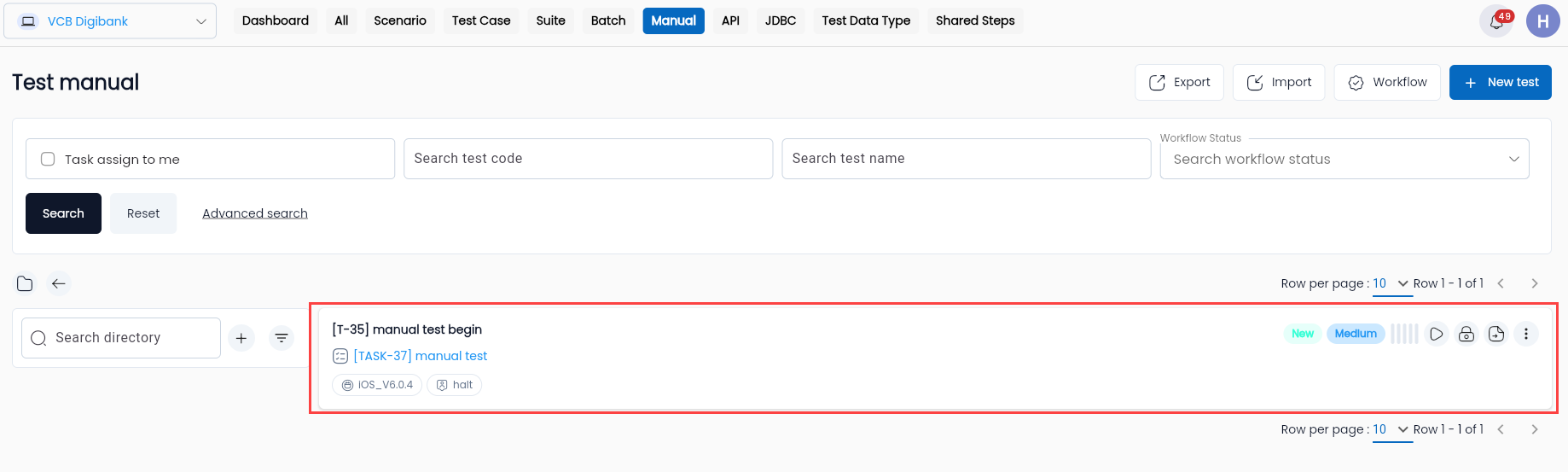
The system will display the Edit Test Manual screen.
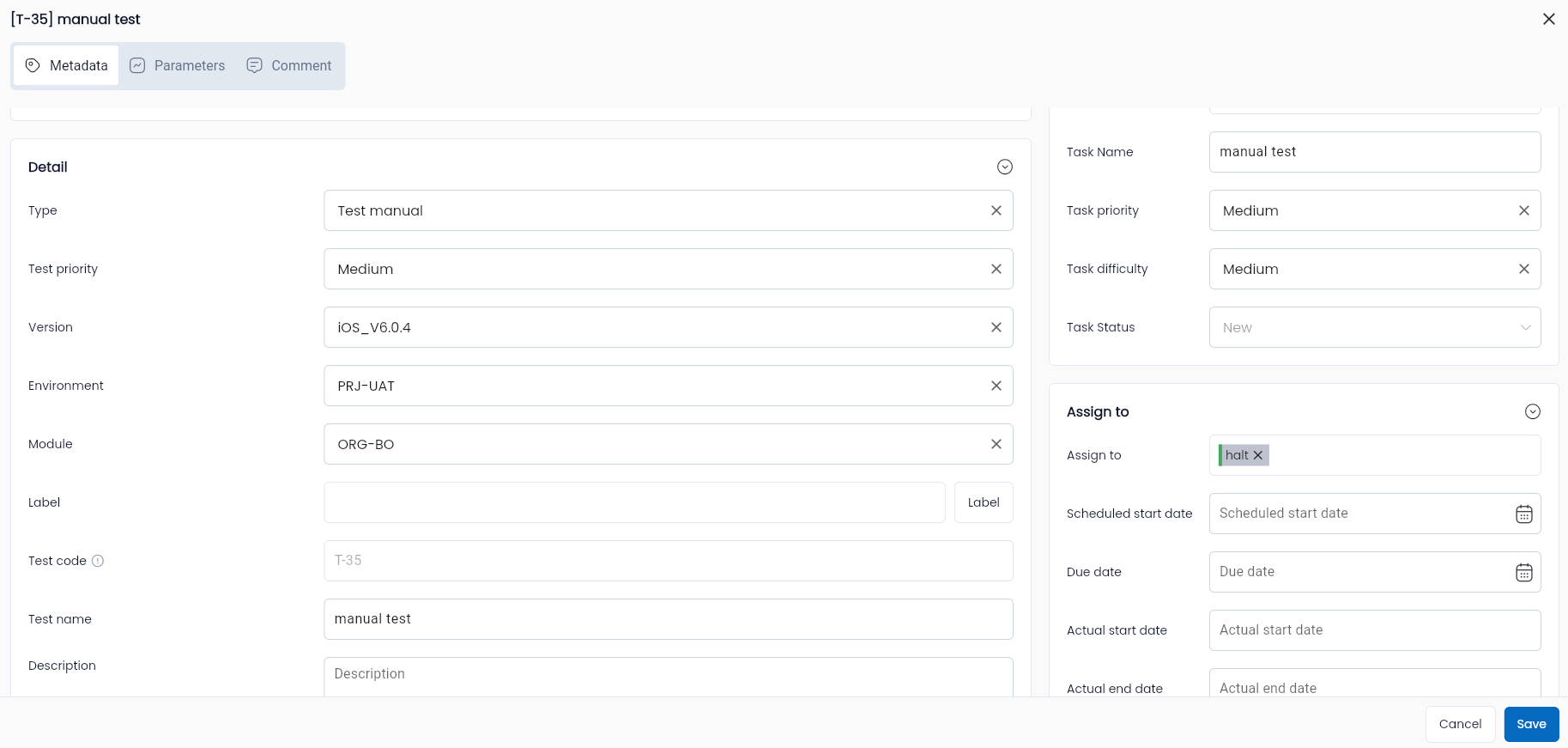
Step 2: Enter the required modifications, the fields are similar to the Create Manual Test function, with additional fields:
| Field Name | Mandatory | Format | Constraints | Description |
|---|---|---|---|---|
| General information | ||||
| Workflow Status | Yes | Combobox | Allows the user to select one of four values: Draft/ Active/ Review/ Reject |
Step 3: Click “OK”, the system will notify “Edit successful”.
Deleting a Manual Test
Manual tests can only be deleted if they have no run history.
Step 1: In the manual test library screen, click the “⋮” icon corresponding to the manual test to delete, and select “Delete”.
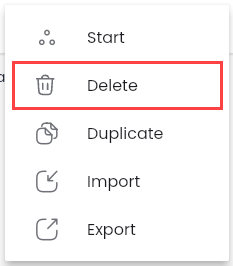
The system will display a confirmation popup.
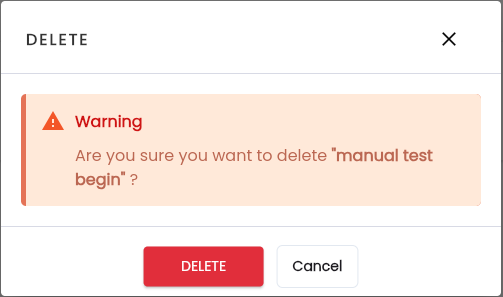
Step 2: Click “Delete”, the system will notify “Delete successful”.
Note: If the manual test has been run, the system will notify that run data exists and cannot be deleted.

Duplicating a Manual Test
Step 1: In the manual test library screen, click the “⋮” icon corresponding to the manual test to duplicate, and select “Duplicate”.
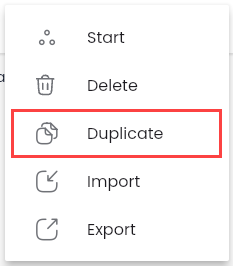
The system will display the DUPLICATE TEST MANUAL screen.
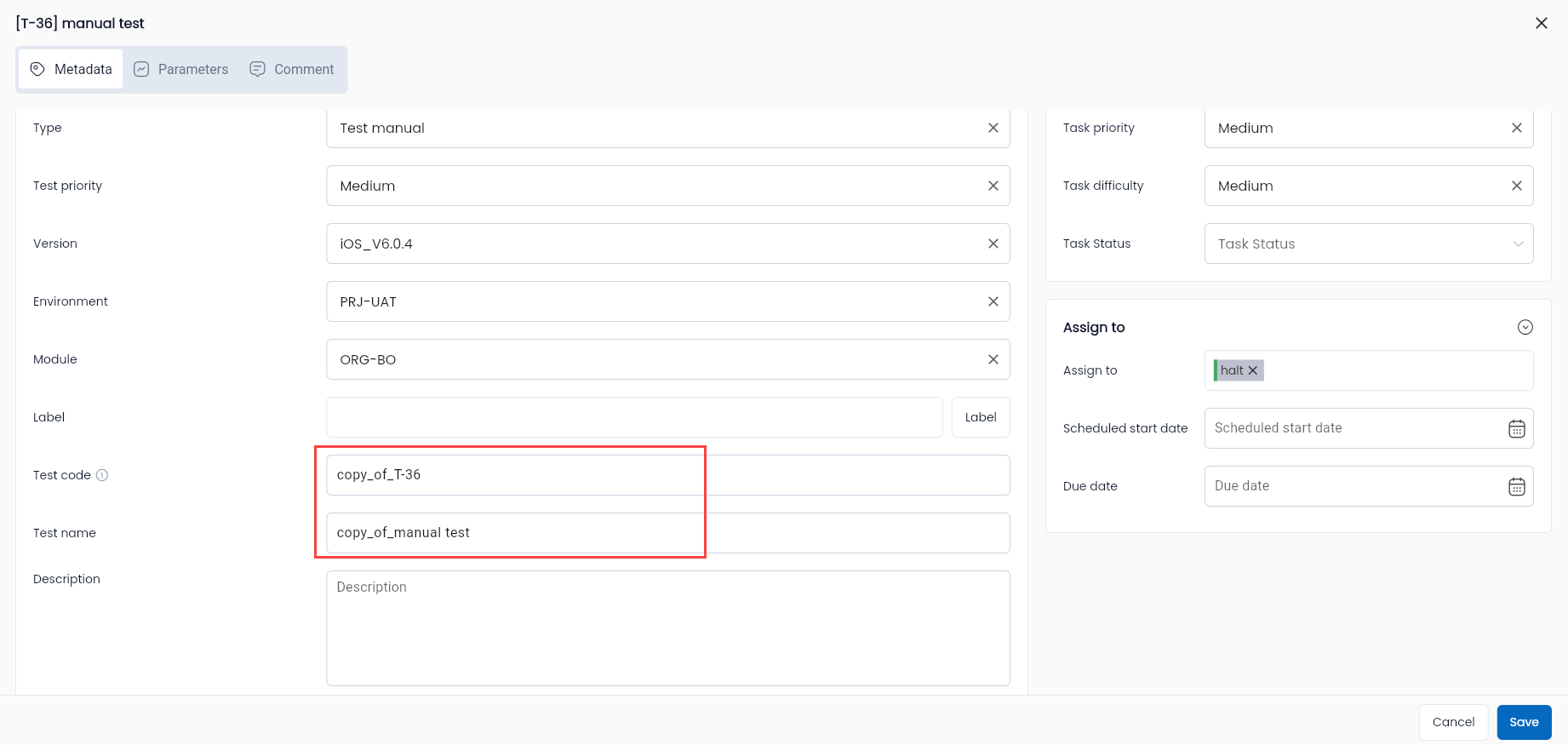
Step 2: Enter all required and valid fields, including:
Step 3: Enter the required modifications, the fields are similar to the Create Manual Test function, with additional fields:
| Field Name | Mandatory | Format | Constraints | Description |
|---|---|---|---|---|
| General information | ||||
| Code | Yes | Text | The duplicate manual test code will be automatically edited by the system to “copy_of_” + the code of the original manual test. The user can modify it. | |
| Name | Yes | Text | The duplicate manual test name will be automatically edited by the system to “copy_of_” + the name of the original manual test. The user can modify it. | |
| Workflow Status | Yes | Combobox | Allows the user to select one of four values: Draft/ Active/ Review/ Reject |
Step 4: Click “OK”, the system will notify “Duplicate successful”.
Running a Manual Test
Step 1: In the manual test library screen, click the “image” button corresponding to the manual test for which you want to update execution results, and select Run

The system will display the manual run screen.
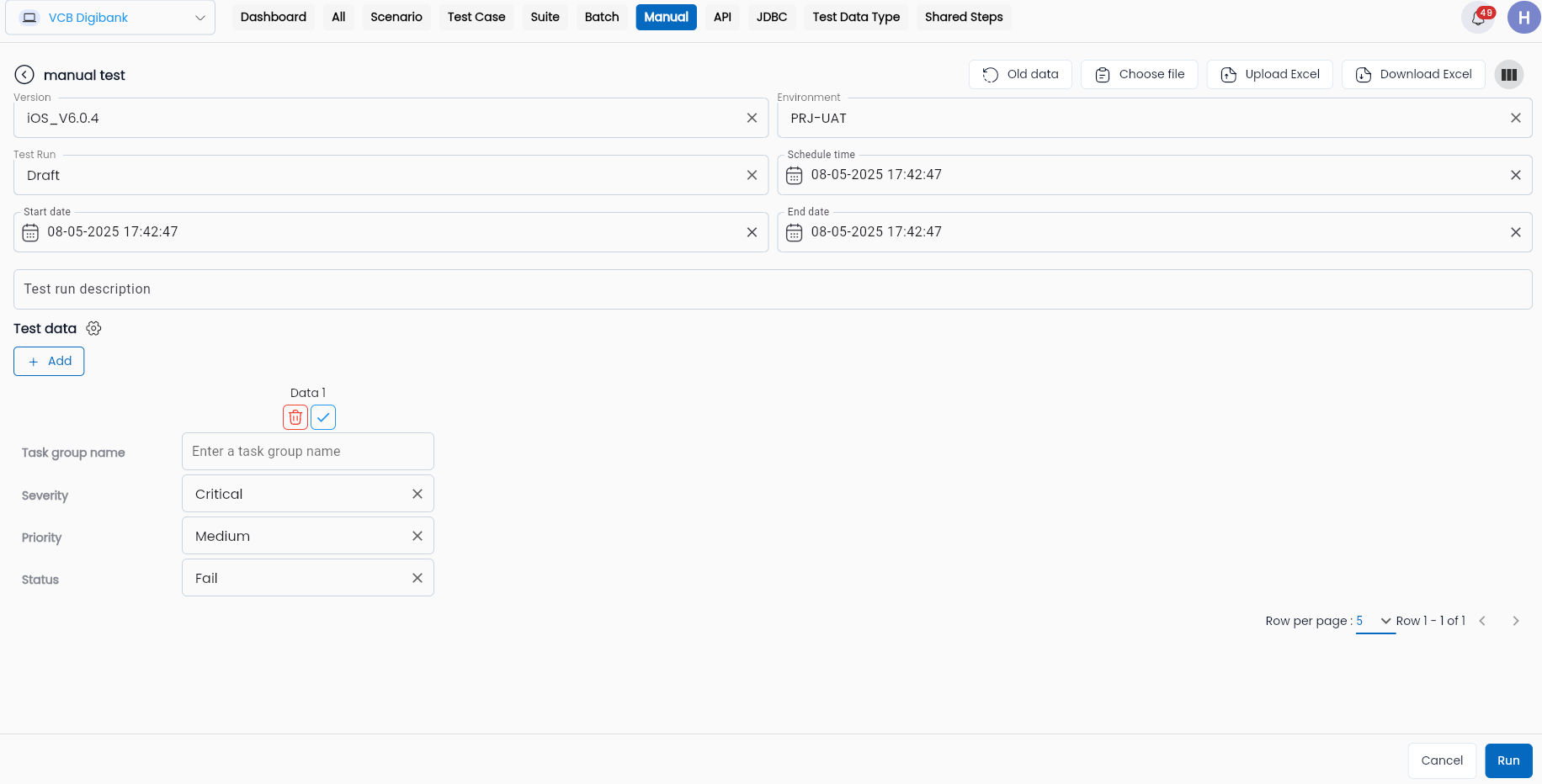
Step 2: Update the execution results and description for the test case, including:
| Field Name | Mandatory | Format | Constraints | Description |
|---|---|---|---|---|
| Functional Buttons | ||||
| Old data | - | Button | This button will display the previous run data so that users can reuse the data from the last run. | |
| Choose File | - | Button | This button will display the File Storage screen containing the datasets already uploaded to the system. | |
| Upload Excel | - | Button | This button allows users to upload a dataset prepared in an Excel file. | |
| Download Excel | - | Button | This button allows users to download a sample Excel file containing the required fields for the next run of the test scenario. | |
 | - | Button | Adjusts the display of fields in the screen either horizontally or vertically. | |
 | - | Button | This button helps add a new test case data for the run. | |
 | - | Button | This button helps delete test case data for the run. | |
| Information field information | ||||
| Version | Yes | Combobox | Allows the user to select one of the versions defined in the "Version" tab of the “Setting” function. | |
| Environment | Yes | Combobox | Allows the user to select one of the environments defined in the "Environment" tab of the “Setting” function. | |
| Test Run | Yes | Combobox | Allows the user to select one of two values for the Agent information: + Draft + Complete. After the test scenario run is completed, "Draft" run data can be changed to "Complete" according to the user's purpose, but vice versa is not allowed. | |
| Schedule time | Yes | Date | The time when the manual test scenario starts running. | |
| Start date | Yes | Date | The time when the manual test starts execution. | |
| End date | Yes | Date | The time when the manual test execution ends. | |
| Test run description | - | Text | Description for the test run. | |
| Severity | Yes | Combobox | Allows the user to select one of the five severity levels of the test case for the Manual Test Run: + Critical + Major + Average + Minor + Trivial. | |
| Priority | Yes | Combobox | Allows the user to select one of the five priority levels of the test case for the Test Scenario Run: + Highest + High + Medium + Low + Lowest |
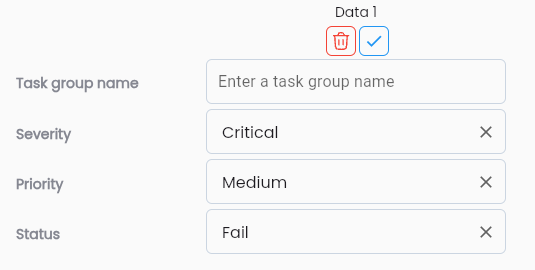
Step 3: Click “Run”, the system will update the results.
Export Json File
This feature allows users to download the JSON file for the manual test, which contains the information entered in the metadata of the manual test.
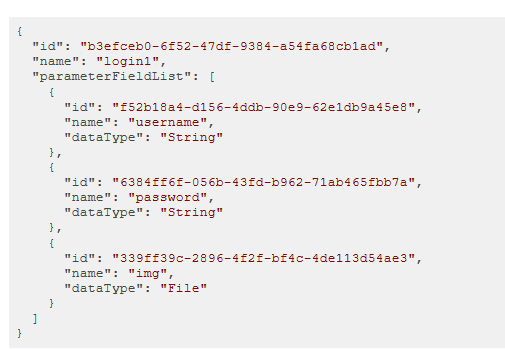
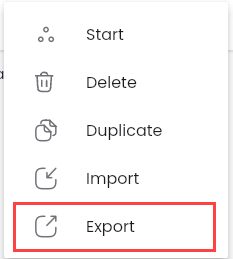
In the manual test library screen, click the “⋮” button for the test case you want to download, and select “Export”.
Import Json File
Step 1: In the manual test library screen, click the “⋮” button for the manual test you want to upload, and select “Import”.
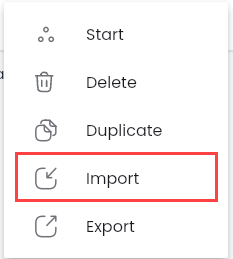
Step 2: Select the json file of the test manual prepared earlier.
Step 3: The system will notify “Create successful” and update the configuration information for the manual test according to the newly uploaded JSON file.
Note: Make sure to select the correct JSON file for the test case to upload. Avoid selecting a JSON file for a test scenario or another type of test script.
Move to Directory
This feature allows users to move a manual test from one library/directory to another.
Step 1: Click button “⋮” button corresponding to the manual test you want to move, and select “Move to directory”
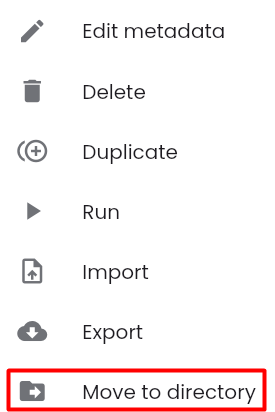
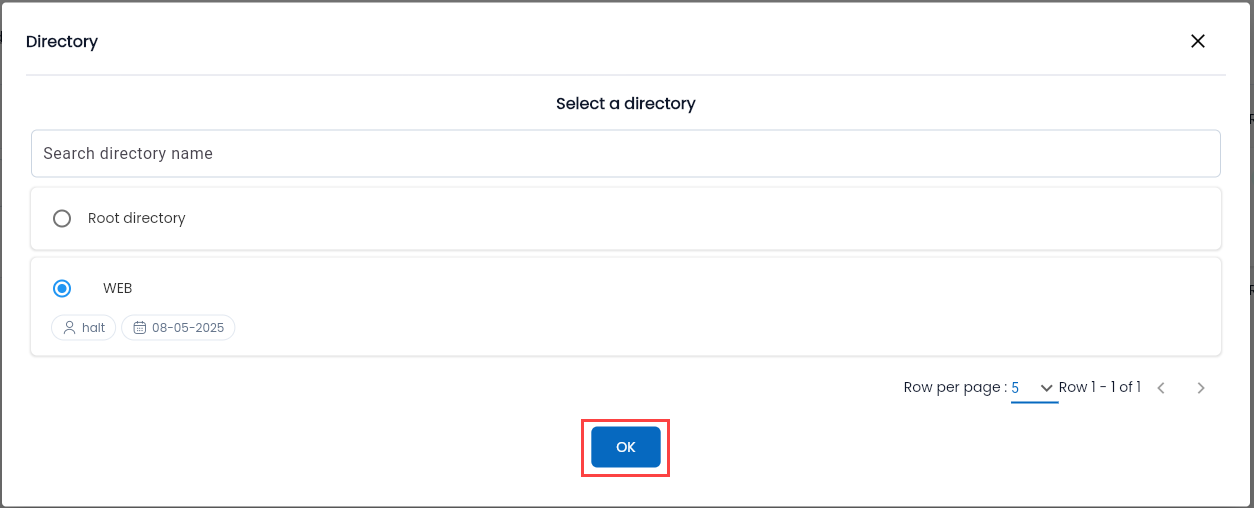
After selecting “Move to directory”, the system will display the message “Copy . . . successful, choose a directory to move”
Step 2: In the “Test Manual” tab, click icon “⋮” icon on the destination directory where you want to move the test and select “Paste to directory”
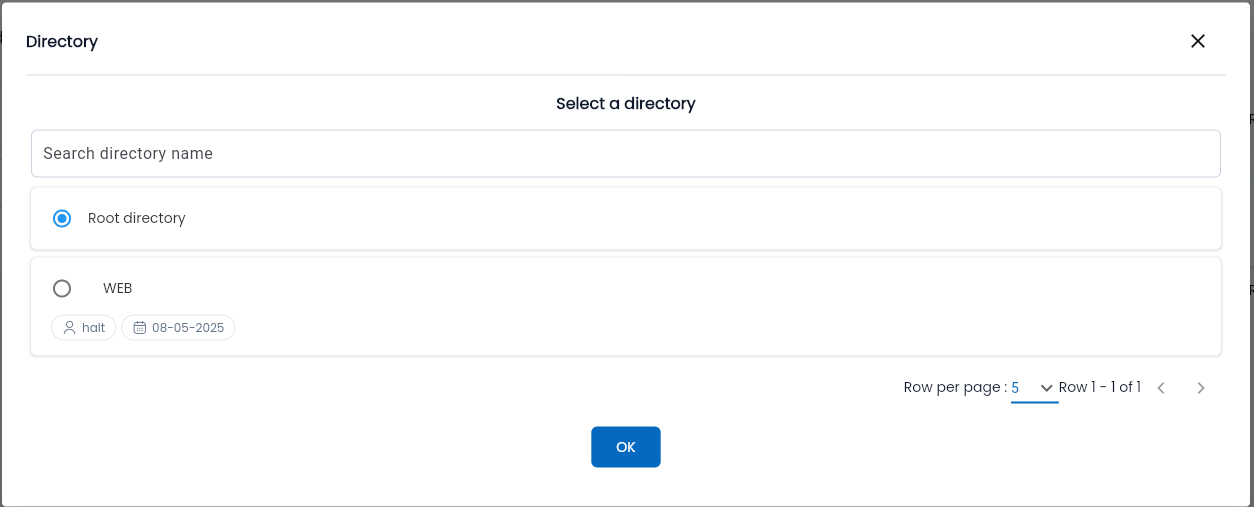
The system will display a success message: “Move “…” success”.