Initializing test scenarios in LLQ QA Platform
Manual Initialization
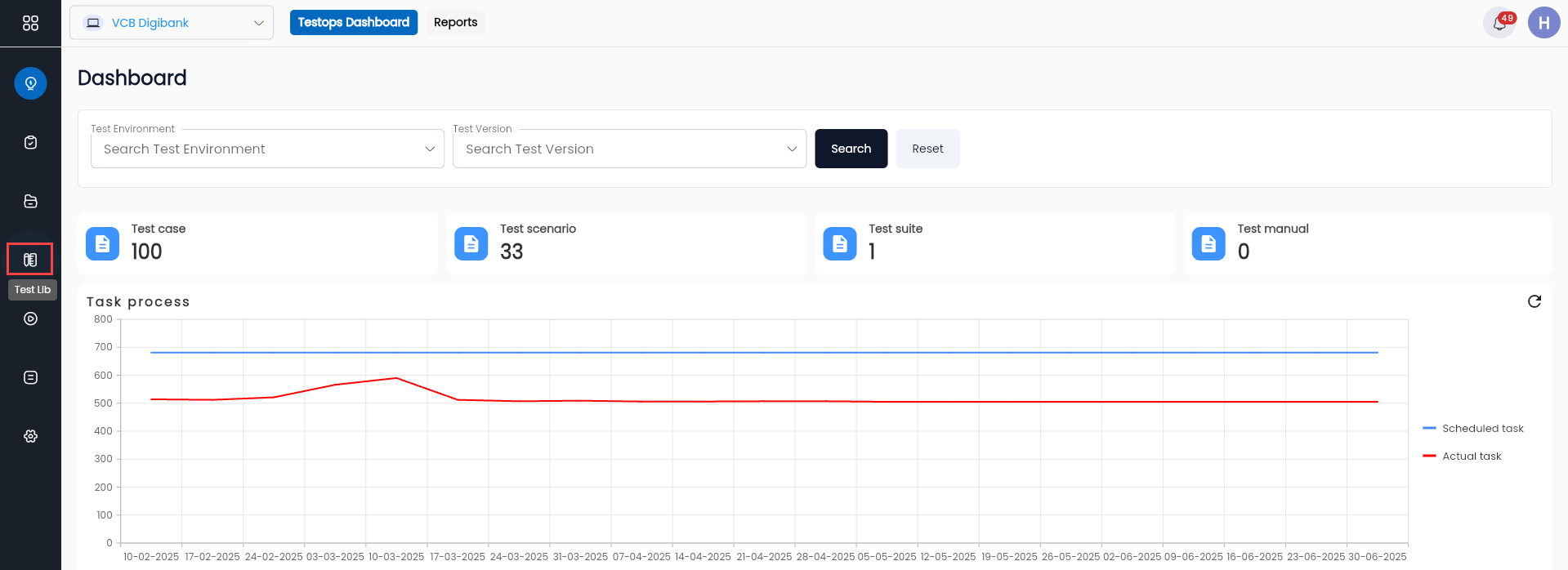
Step 1: Click Test Lib on the project menu list.
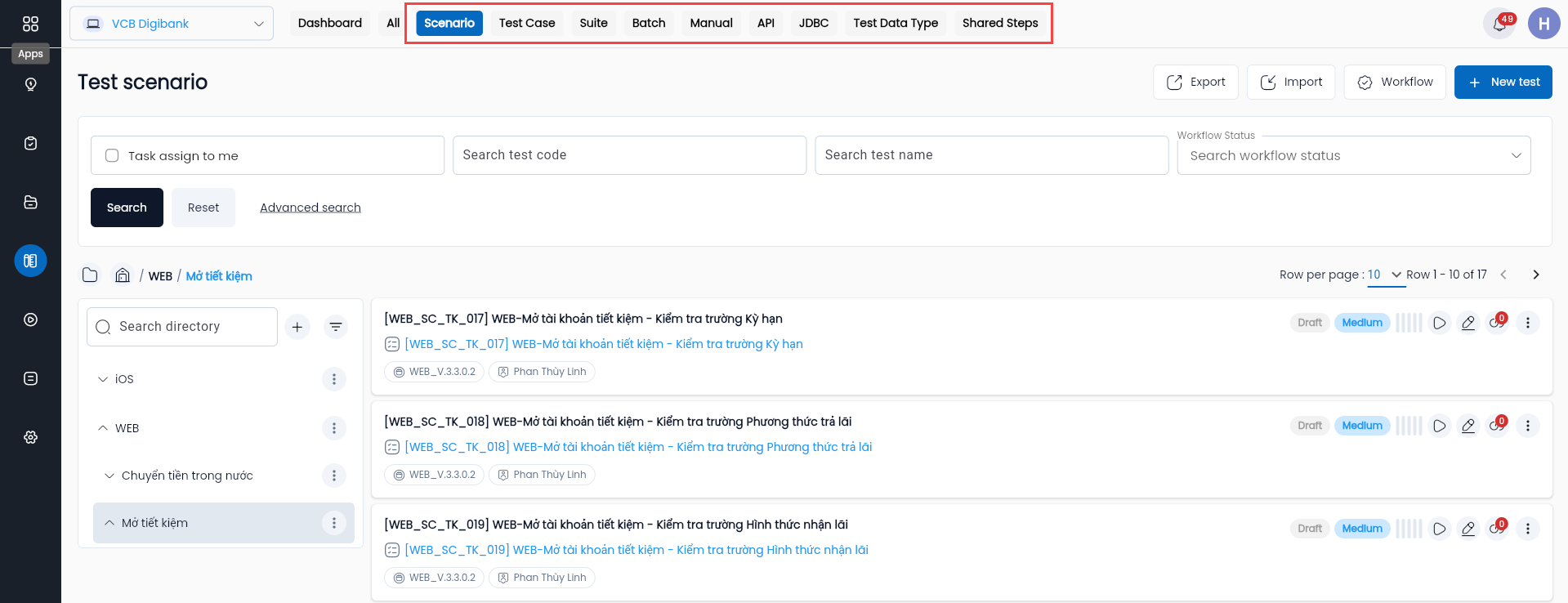
Step 2: Click the type of test that the user wants to create.
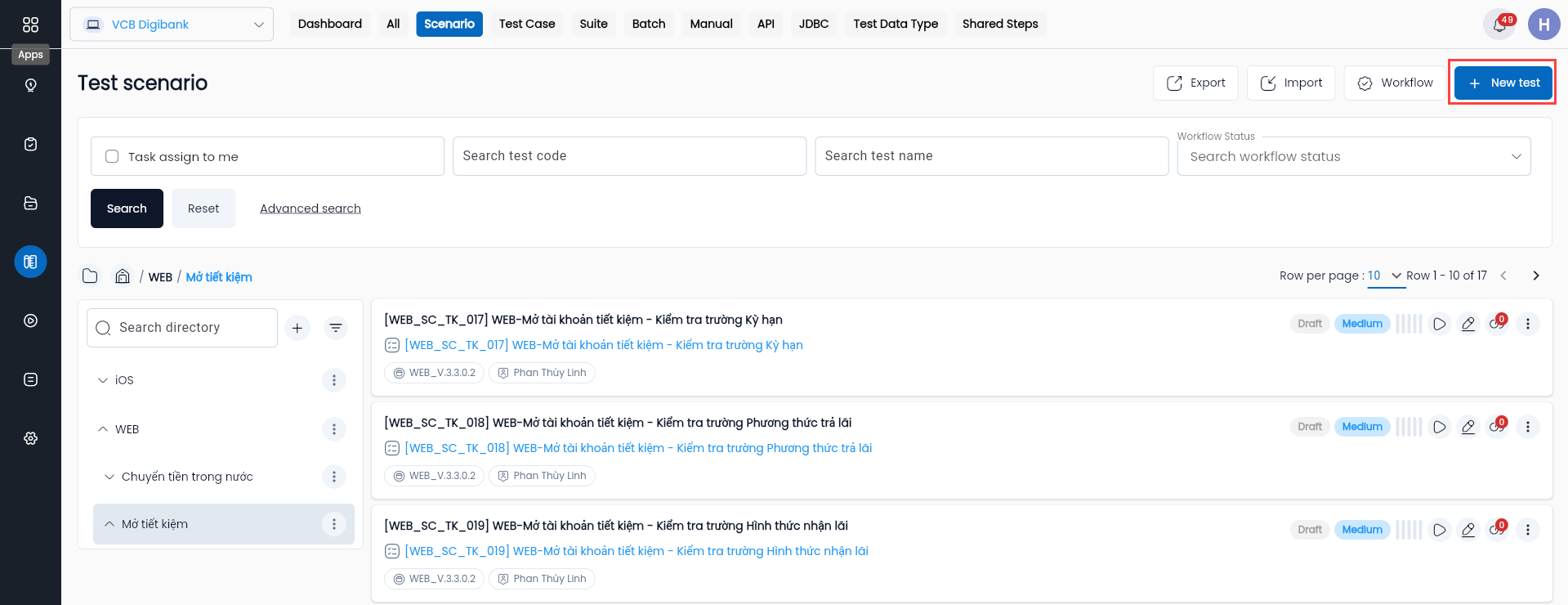
Step 3: Depending on the type of test being created, click the “NEW TEST” button.
Step 4: Enter all necessary information into the creation form (tab General information).
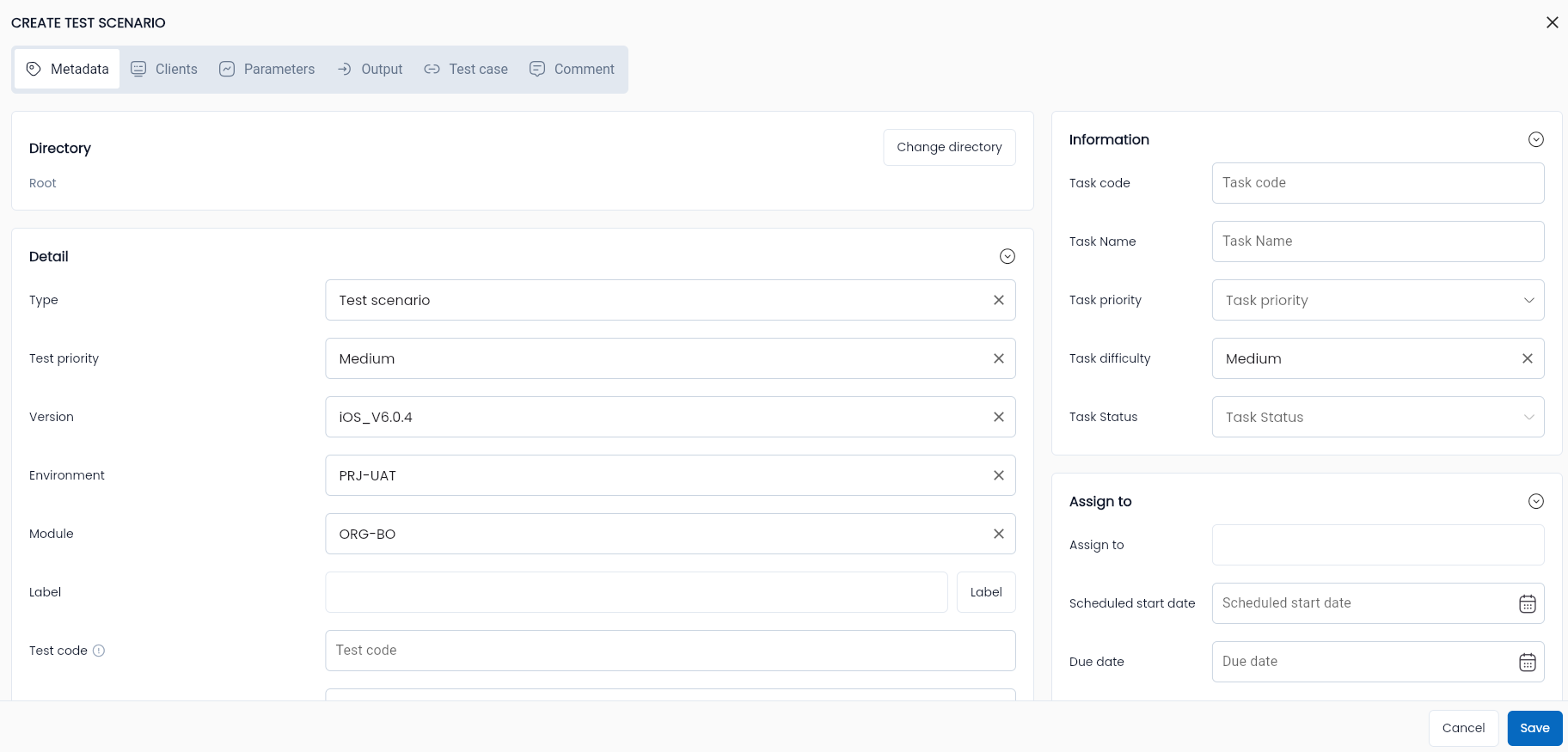
Description of the fields:
| Field Name | Mandatory | Format | Constraints | Description |
|---|---|---|---|---|
| Information fields | ||||
| Code | - | Textbox | If entered, the code must be unique, at least 2 characters long, start with a letter, and contain only a-z (lowercase, uppercase), numbers, "_" and "-" | The identifier for the test scenario in the system If left empty, the system will automatically generate it in the format T-stt, where "stt" is the sequential number of the test in the automatically numbered test list of the Project. |
| Name | Yes | Textbox | The name of the test scenario Users should choose a meaningful name related to the functionality/test case being created. | |
| Directory | - | Button | Displays a list of directories | The directory where the test scenario will be stored after creation in the project How to choose a directory |
| Label | - | Button | Select one or more labels to assign. How to attach label | |
| Description | - | Textarea | A detailed description of the test scenario to help team members understand the test being created | |
| Purpose | - | Textarea | The purpose of creating the test scenario | |
| Precondition | - | Textarea | Preconditions that must be met before executing the test scenario | |
| Test steps | - | Textarea | The steps for executing the test scenario, serving as a reference to check whether the test follows the correct flow and purpose | |
| Expected Result | - | Textarea | The expected outcome of the test scenario For example, for a login case, the expected result might be "Đăng nhập thành công" | |
| Test data | - | Textarea | The input data for the test | |
| Thông tin cài đặt | ||||
| Type | Yes | Combobox | Displays a list of test types, the user must select one: + Test case + Test suite + Test manual + Test suite + Api + JDBC + Shared steps | |
| Version | Yes | Combobox | Displays a list of active versions of the test project | Allows the user to select the version of the test project. The test belongs to the selected version. |
| Environment | Yes | Combobox | Displays the list of active environments of the test project | Allows the user to select the development environment for the project. The test belongs to the selected environment. |
| Module | Yes | Combobox | Displays the list of active modules of the test project | Allows the user to select a module of the test project. The test belongs to the selected module. |
| Test Priority | Yes | Combobox | The user selects one of the three states to determine the priority of the test scenario: + High + Medium + Low |
Step 5: Click the OK button, and the system will display the message “Create successful”. The newly created test will appear in the data grid.
Create Tests Automatically via Excel File
Export Excel Template from the System
To create tests automatically via an Excel file, you must first download the template file from the system. Here's how:
Step 1: Click Test Lib on the list menu
Step 2: In any tab, click the "EXPORT" button

The template file will be downloaded to the download folder on your computer.
Step 3: Fill in the required information in the template file.
| Field Name | Mandatory | Format | Constraints | Description |
|---|---|---|---|---|
| TYPE | Yes | List option | Choose a test type: + Test case + Test scenario + Test manual + Test suite + Test api + Test jdbc + Shared steps | |
| APPLICATION_MODULE | Yes | Text | Code of the Project module already created in the system | Enter the code of the Project module you want to use in the system. |
| CODE | Yes | Text | Must be unique | Enter the test code |
| NAME | Yes | Text | Enter the name of the test | |
| LABELS | - | Text | To attach any label, enter the code for that label on the system. The labels are separated by "," | |
| TEST_PRIORITY | Yes | List option | Select one of the three priority statuses for the test: + High + Medium + Low | |
| PURPOSE | No | Text | Enter the purpose of the test | |
| PRECONDITIONS | No | Text | Enter the preconditions for the test | |
| INPUTS | No | Text | Enter the test data | |
| STEPS | No | Text | Enter the test steps | |
| EXPECTED_RESULTS | No | Text | Enter the expected results of the test | |
| DIRECTORY_PATH | Yes | Text | Enter the path of the directory. Path to the directory. If the directory does not exist in the system, it will be created automatically when the Excel file is imported. Syntax: /directory/sub-directory/... | |
| SCENARIO_SUITE_CODE | Yes if type = test case | Text | If the type is test case, enter this column. Code of the scenario or suite created in the system before this test case. | Enter the code of the test scenario or test suite that this test case refers to. See more test cases |
| APPLICATION_ENVIRONMENT | Yes | Text | Code of the Project environment already created in the system | Enter the code of the Project environment you want to use in the system. |
| APPLICATION_VERSION | Yes | Text | Code of the Project version already created in the system | Enter the code of the Project version you want to use in the system. |
| WF_STATUS | Yes | List option | Select one of the four statuses to determine the status and progress of the test: + Draft: not completed yet + Active: ready to use + Review: under review + Reject: rejected | |
| DESCRIPTION | - | Text | Enter the description of the test |
Note: Test Cases must follow Test Scenarios and Test Suites if the Test Case refers to codes of Test Scenarios or Test Suites that are created in the same Excel file under SCENARIO_SUITE_CODE.
Step 4: After entering all the information, click the IMPORT button and select the Excel file with the list of tests. The system will create the tests as specified in the list.