Configure Test API - Low code
Low-code: is the function to configure API, build servers, endpoints, schemas to perform steps in an API Test.
To access the Low-code test API screen, users can do it in two ways:
-
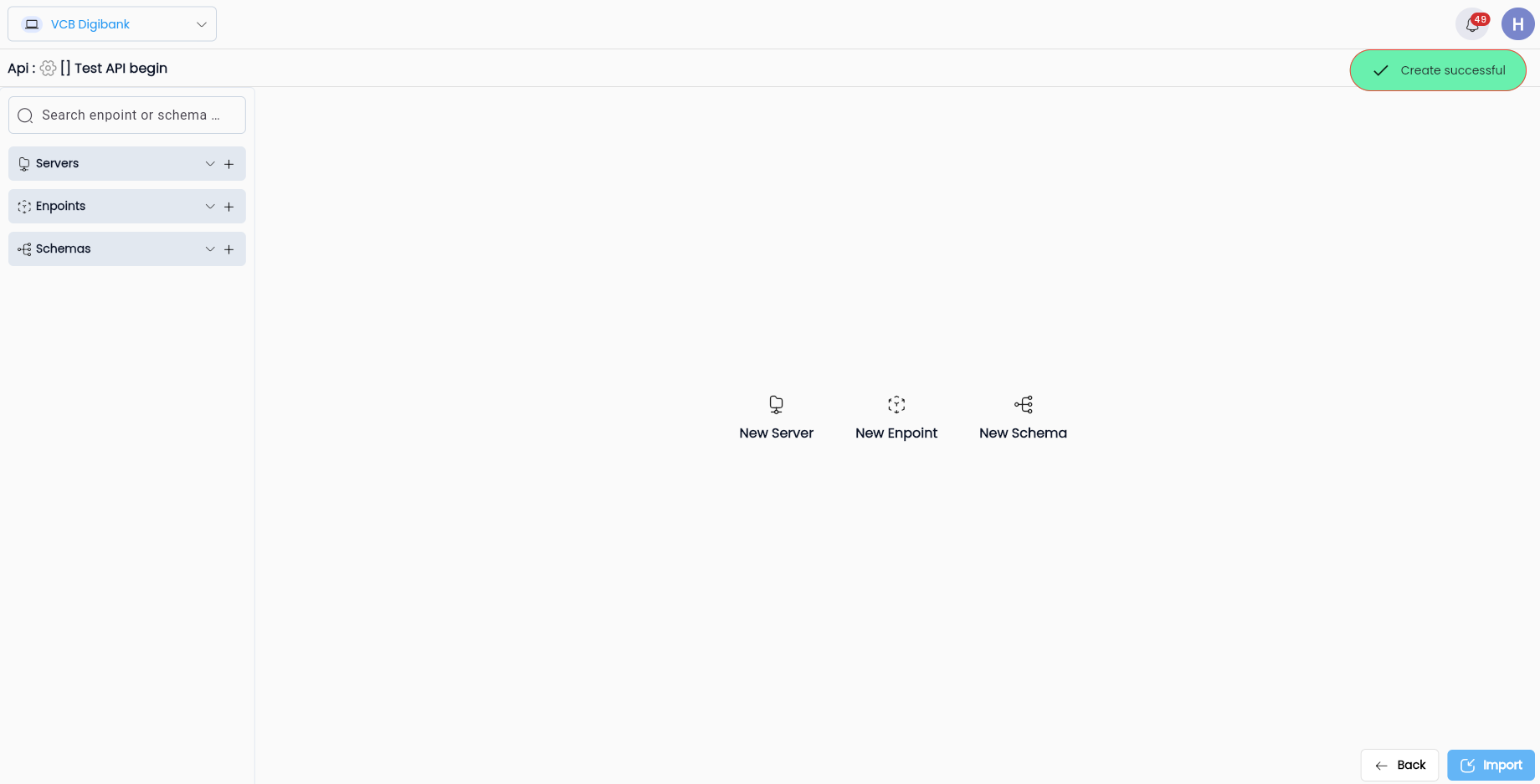
Method 1: Click on the data line of the corresponding test scenario.
-
Method 2:
- Step 1: Click the button “⋮” corresponding to test scenario you need to access
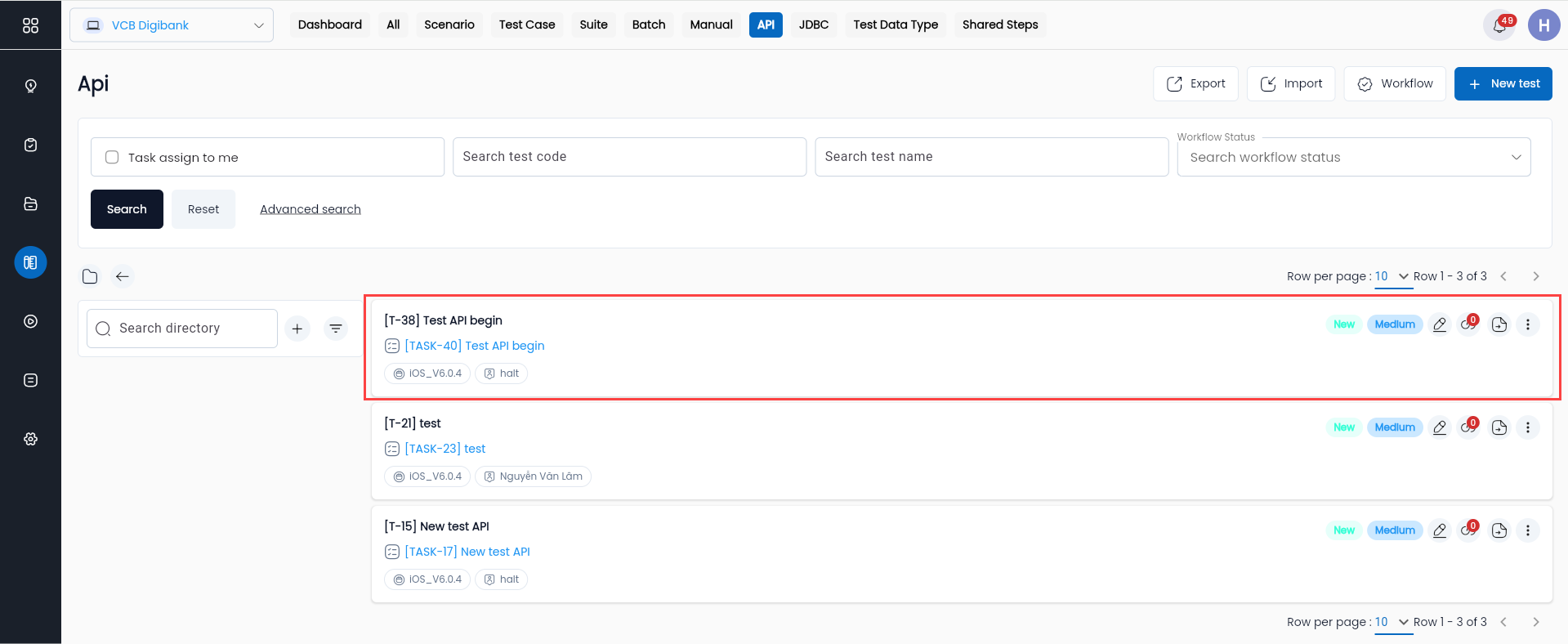
- Step 2: Select “Low-code” in the function list
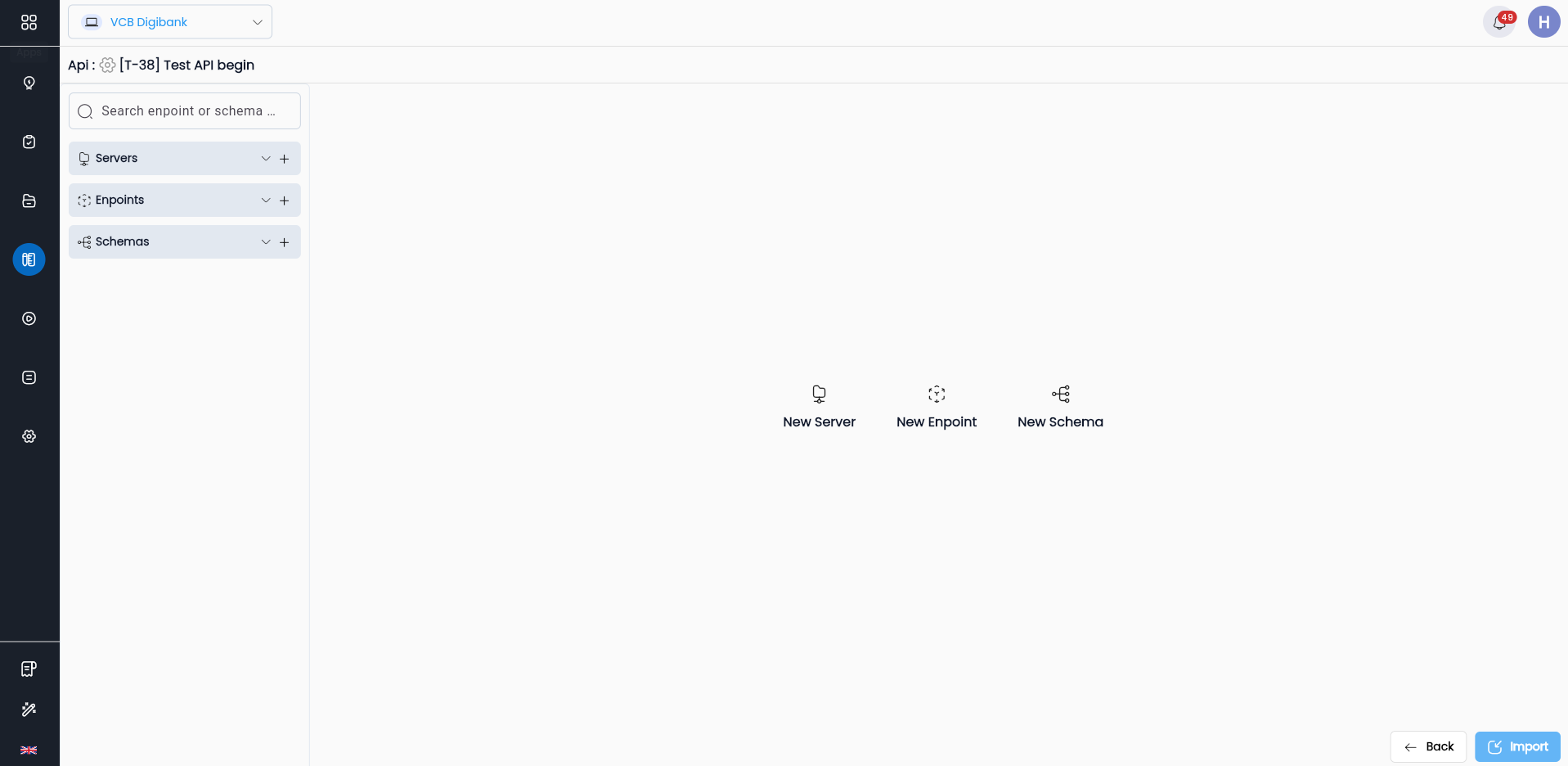
Low-code screen display system

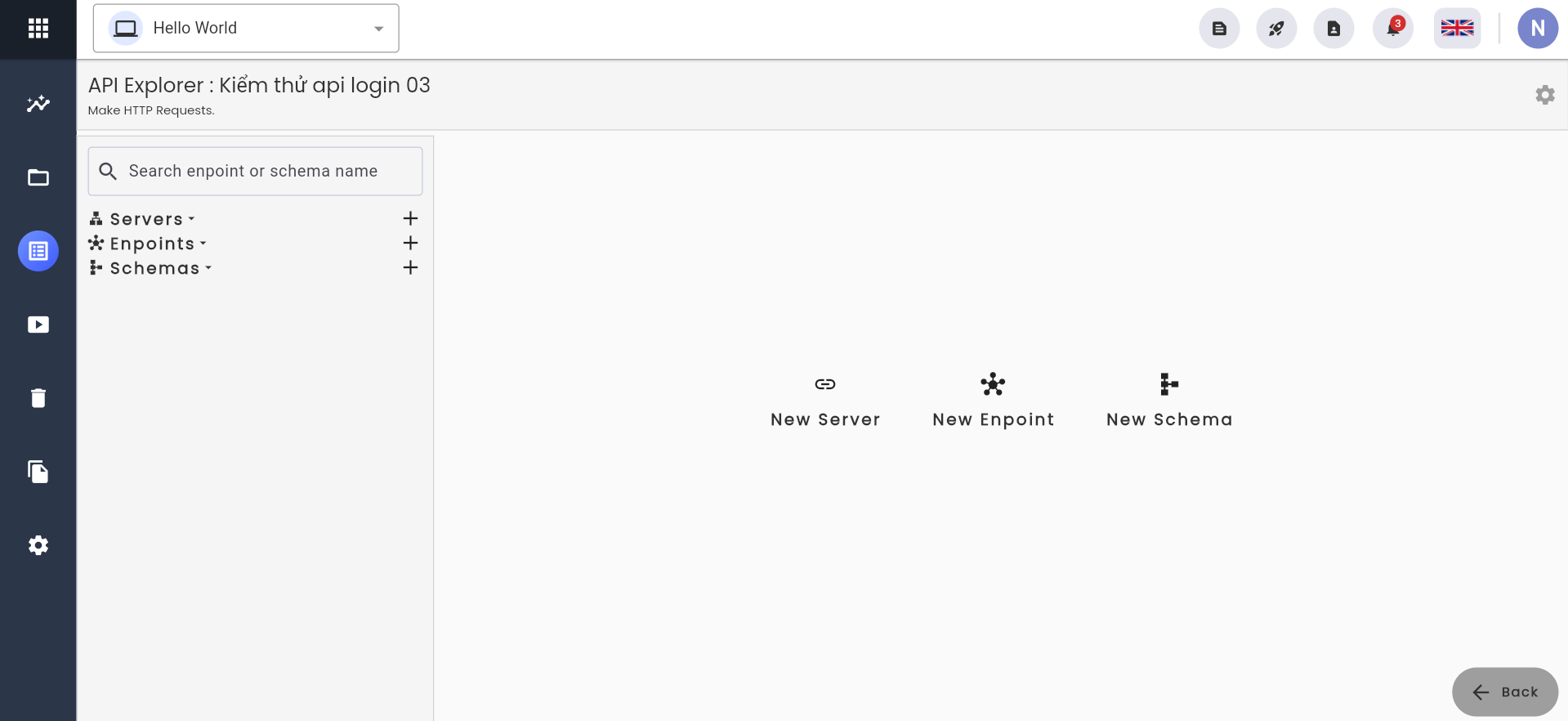
Functions in low-code screens
| Function | Description |
|---|---|
 | Create a new Server |
 | Create a new Endpoint |
 | Create a new Schema |
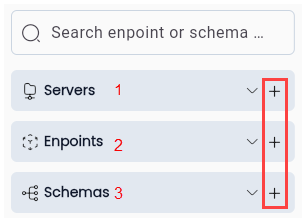 | 1. List of servers 2. List of Enpoints 3. List of Schemas Click button  to create a new corresponding function to create a new corresponding function |
 | Search: The function allows users to search for Enpoints or Schemas by name |
 | Function that allows users to switch to the test api metadata screen from the low-code screen |
 | Back: Click the “Back” button to return to the scenario library screen |
Servers
- Servers are created for statistical purposes, storing servers, strings containing the domain name of the URL that will make API calls.
- At the Low code API Explorer, Servers in Low-code do not have the configuration function for calling requests through but will be declared when making API test calls in test cases, test scenarios or test suites.
Add new servers
Step 1: In the Low-code screen, click “New server” or button  to create a new server
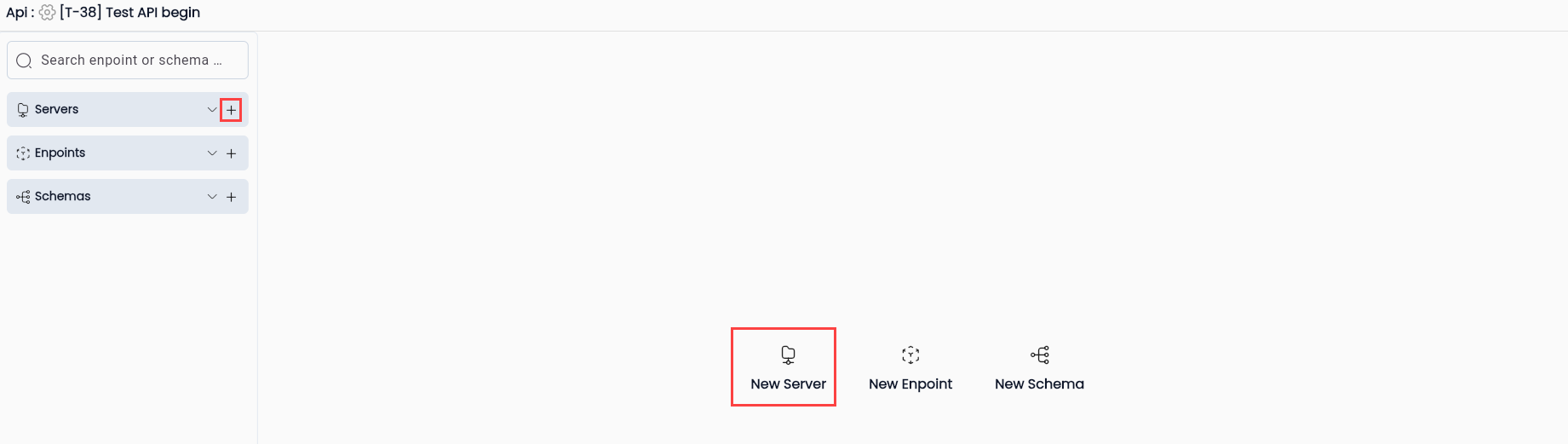
Step 2: The system displays the screen to add a new server, the user enters and clicks “Save”
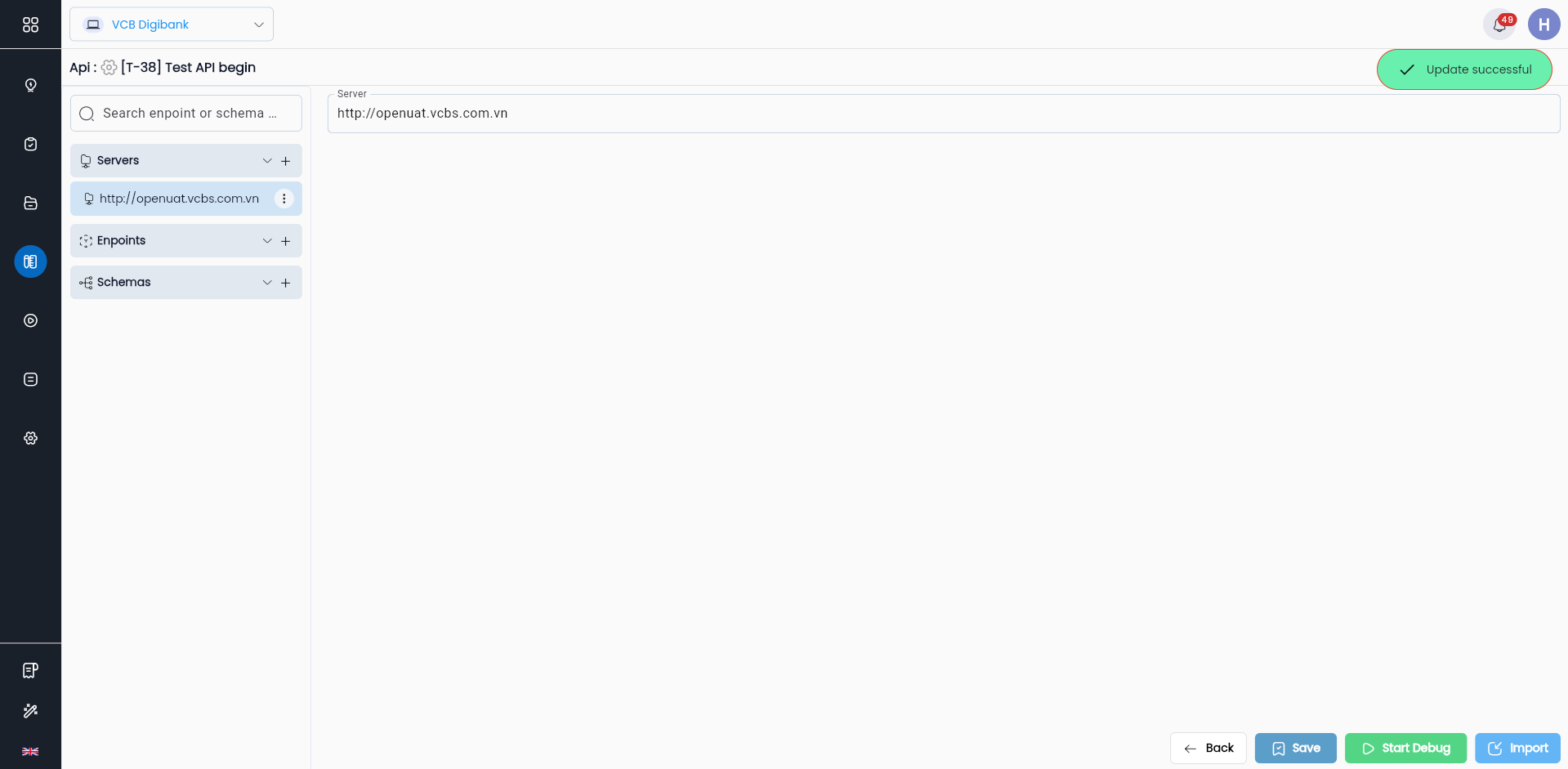
Successfully added, the system notifies “Update successful” and displays the declared server in the list of servers
Edit server
Step 1: At the Low-code screen of the API test, the user selects the server data line he wants to change.
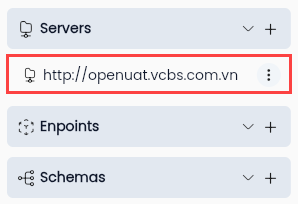
Step 2: Edit the information that needs to be changed and click “Save”
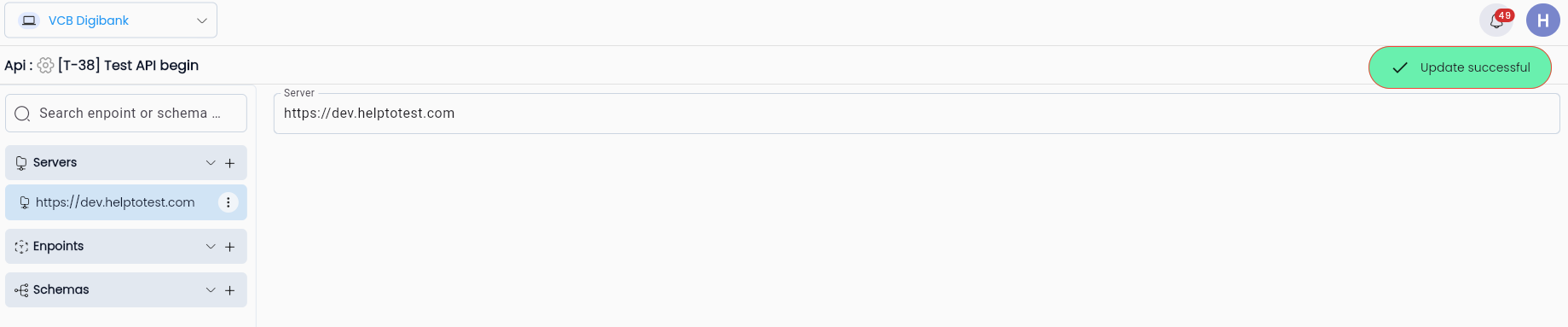
The system displays a notification of successful editing and displays the edited server in the list of servers.
Delete Servers
Step 1: At the Low-code screen of the API test, the user clicks the “⋮” button on the server data line they want to delete and selects Delete.
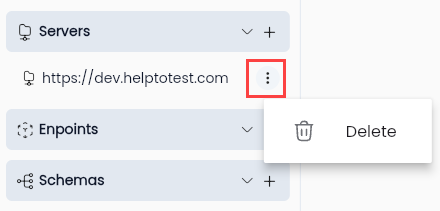
The system displays a deletion confirmation popup
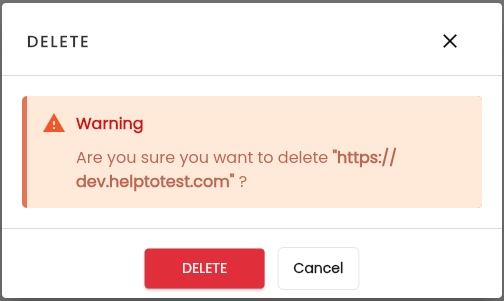
Step 2: Click “Delete”, notification system Delete successful
Endpoints
Endpoints are created to configure information related to an API call via HTTP Request
Add new Endpoints
Step 1: In the Low-code screen, click “New Endpoint” or button to create a new endpoint.
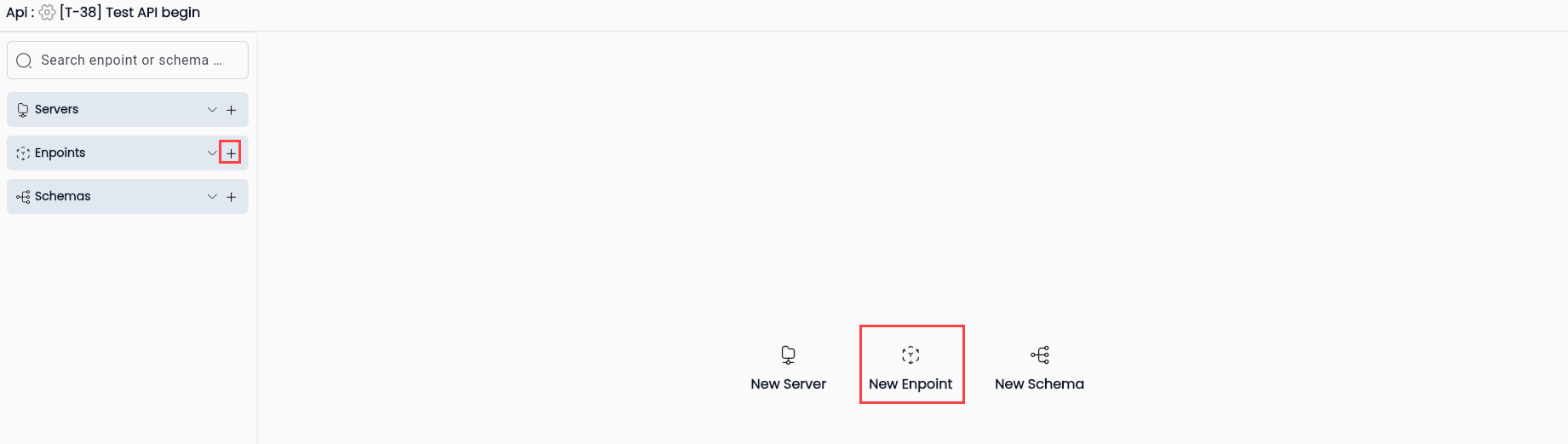
Step 2: The system displays the screen to add a new endpoint, the user proceeds to enter the necessary information.
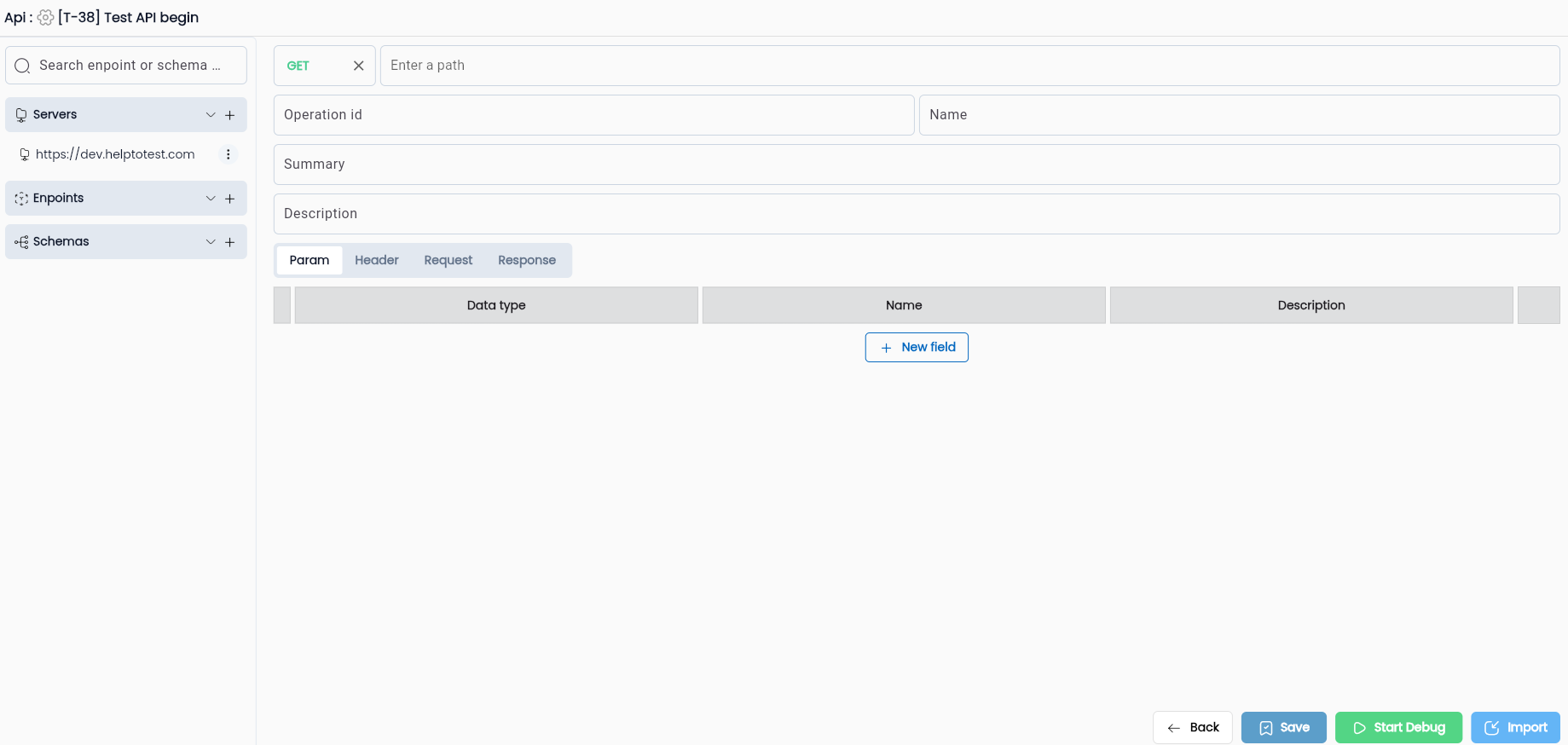
In there:
| Field Name | Mandatory | Format | Constraints | Description |
|---|---|---|---|---|
| HTTP Method | Yes | ComboBox | HTTP methods: are the actions that testers perform when accessing the API: + Get: retrieves data from the server + POST: adds data to an existing file or resource in a server + PUT: replaces an existing file or resource of a server + DELETE: Removes data from the server + Patch: updates requested data fields | |
| Path | Yes | Text | Path to the location where the HTTP method is executed | |
| Name | Yes | Text | Name of the request endpoint | |
| Summary | - | Text | Mnemonic name of the API | |
| Operation id | - | Text | API format | |
| Description | - | Text | Description for the API |
Param
Managing params on the system is used to map with params in API requests at the Header, Request, Response tab

| Field Name | Mandatory | Format | Constraints | Description |
|---|---|---|---|---|
 | - | Button | Click button to create a new parameter | |
| Name | Yes | Text | Parameter name | |
| DataType | Yes | Combobox | Data type of parameter. The default system when creating a new one is "String" | |
| Description | - | Text | Description of the parameter |
Header
Allows users to pass Header to the API

| Field Name | Mandatory | Format | Constraints | Description |
|---|---|---|---|---|
| - | Button | Click the button to create a new header parameter. When clicking the button, Header Property screen to create Value for Header Refers to the item Header | |
| Name | Yes | Text | Header name | |
| Value | Yes | AutoComplete | After “Save” in the Header Property screen, the value/name depending on the type of variable used by the user will be the value of this header paramater. | |
| Description | - | Text | Description of the header |
Request
Allows users to pass Requests to the API
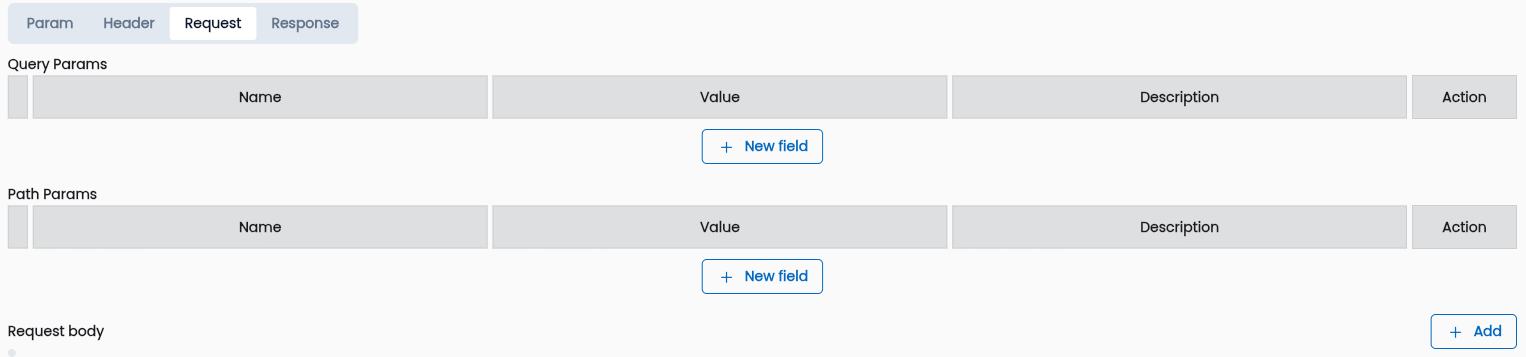
| Field Name | Mandatory | Format | Constraints | Description |
|---|---|---|---|---|
| Request | - | Tab | Api request information refers to the item Request API |
Response
Allows users to configure response for API
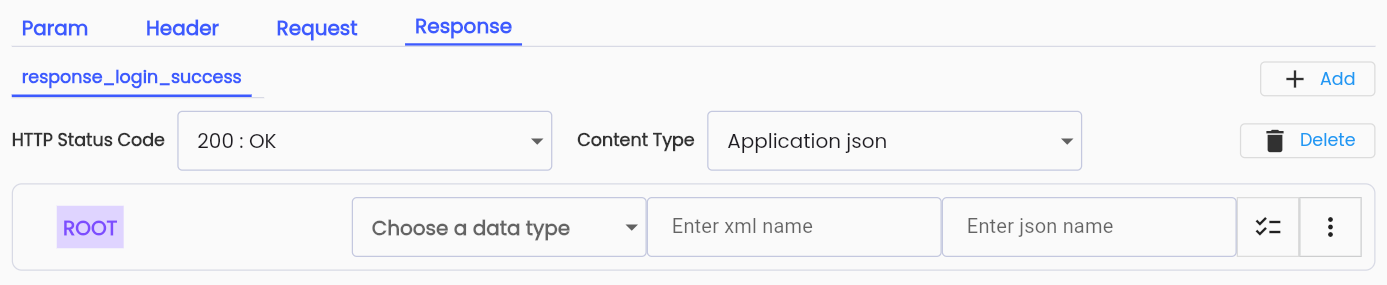
| Field Name | Mandatory | Format | Constraints | Description |
|---|---|---|---|---|
| Response | - | Tab | Api response information refers to the item Response API | |
 | - | Button | Click the button and the system validates the information. If successful, the api is saved and displays the message "Update sucessful", the Endpoints information is displayed on the Endpoints list. | |
 | - | Button | Click the button to cancel the API creating operation the system resets the form and returns to the API library screen |
Successfully added, the system notifies "Update successful" and displays the declared server
Header
The API header is like an additional source of information for each API call a tester makes, representing the meta-data associated with the API Request and Response
Headers help users track any potential issues, providing information about:
- Request and Response Body
- Request Authorization
- Response Caching
- Response Cookie
Create Header for API:
Step 1: On the Header tab, click the “Add” button, the system displays the Header properties screen of the Header
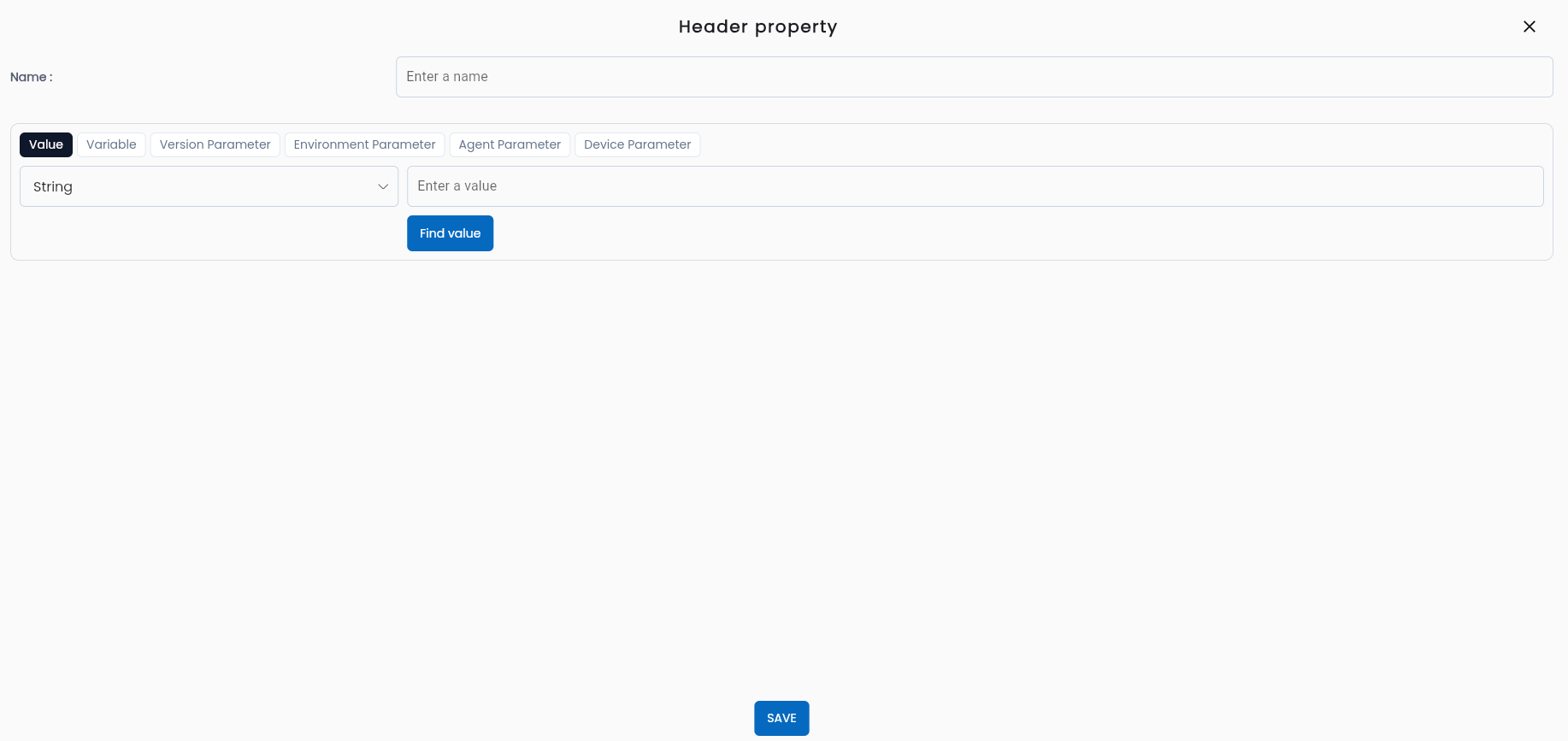
Step 2: Completely and validly enter required information fields, including:
| Field Name | Bắt buộc | Định dạng | Ràng buộc | Mô tả |
|---|---|---|---|---|
| Name | Có | Text | Tên của Header | |
Type 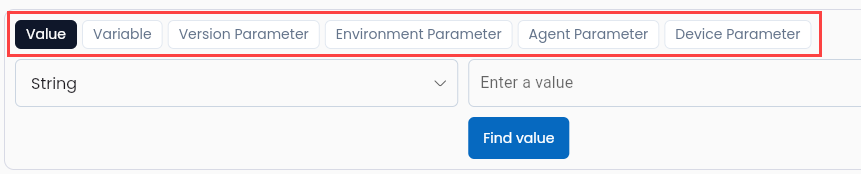 | Yes | Các kiểu giá trị của tham số Header. Có thể chọn 1 trong các tab phù hợp với mục đích sử dụng | ||
| Data type | Có | Combobox | Kiểu dữ liệu | |
| Name | Có | Text | Chỉ hiển thị khi type khác “Value”. Giá trị phải bắt đầu bằng 1 chữ cái, bắt buộc bao gồm chữ số và không được sử dụng kí tự đặc biệt (ngoại trừ “_”) | Tên của tham số đã được khai báo trong project hoặc tên của biến (Variable) |
| Value | Có | Text | Chỉ hiển thị khi type = “Value” | Nhập giá trị trực tiếp của tham số Header |
| Find Value | - | Button | Chỉ hiển thị khi type = “Value” | Click vào Find Value hệ thống sẽ hiển thị danh sách các giá trị đã được định nghĩa trước đó của dự án |
| Find Variable | - | Button | Nếu Type là Variable | Click vào Find Variable hệ thống sẽ hiển thị danh sách các tham số đã được định nghĩa trước đó của dự án |
Step 3: Click “Save” notification system “Update successful”
Request API
Request API includes all input data to an API on the API's Request tab.
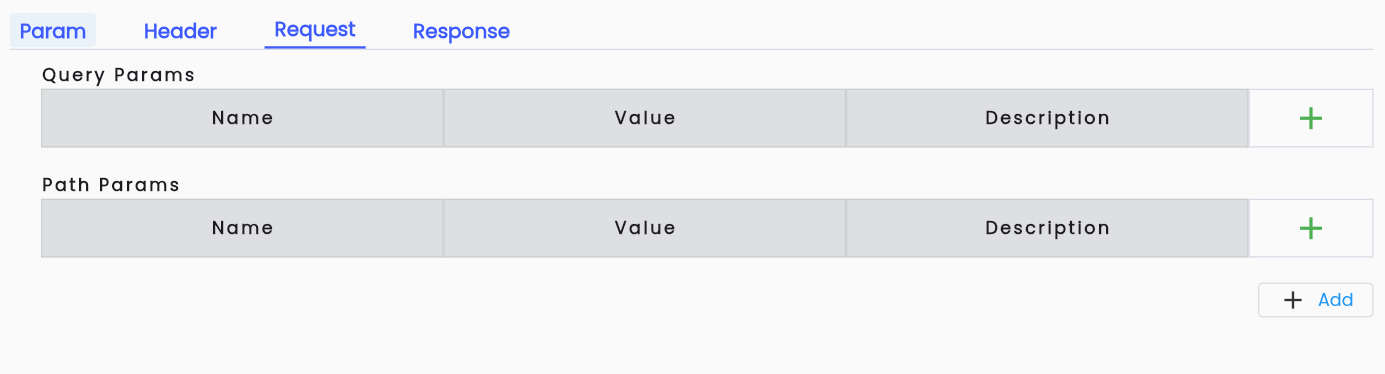
In there:
Note: If the params/variables used in the API are initialized using system params, the system parameters can be initialized in the Param tab of Enpoints and mapped to the params/variables in an API request. If you do not map, the system will automatically create new parameters.
Description of the information field
Query Params list
Manage params passed on the URL path according to the "key-value" value corresponding to the "name-value"

| Field Name | Mandatory | Format | Constraints | Description |
|---|---|---|---|---|
 | - | Button | Add 1 new query params. Clicking on the system button will display the “Query Params property” screen. | |
 | - | Button | Click to delete a query params | |
 | - | Button | Click to edit a query params. Edited information is similar to newly added information | |
 | - | Button | Move positions between params (can be of different param types if) | |
| Name | Yes | Text | Name query param | |
| Value | Yes | AutoComplete | If making a new addition, the value is required | The Value value is determined when the user clicks the “Save” button in the “Query Params property” screen after completing the operation of adding or editing the query param. The operation of adding or editing is similar to Header. Reference to section Header |
Path params list
Manage path params passed on URL paths by value url/{path-param}

| Field Name | Mandatory | Format | Constraints | Description |
|---|---|---|---|---|
| - | Button | Add new path params. Clicking on the system button will display the “Path Params property” | |
| - | Button | Click to delete a path params | |
| - | Button | Click to edit a path params. Edited information is similar to newly added information | |
| - | Button | Move positions between params (may be of different types of params) | |
| Name | Yes | Text | Path param name | |
| Value | Yes | AutoComplete | If making a new addition, the value is required | The Value value is determined when the user clicks the “Save” button in the “Path Params property” screen after completing the operation of adding or editing path params. The operation of adding or editing is similar to Header. Reference to section Header |
Body list
Includes 5 types of request Type:
- None
- Multipart-form
- Application json
- Application xml
- Raw

| Field Name | Mandatory | Format | Constraints | Description |
|---|---|---|---|---|
 | - | Button | Add a new API body request. Click the button and the system will display the "Add a request" screen. | |
 | - | Button | Delete an API body request |
Add a request Click the Add button on the Request tab interface
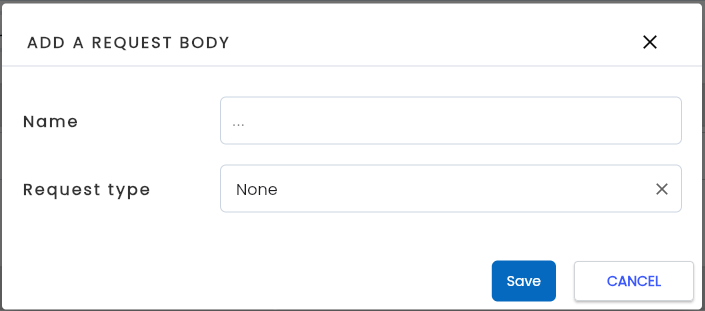
| Field Name | Mandatory | Format | Constraints | Description |
|---|---|---|---|---|
| Name | Yes | Text | Name of request body | |
| Request Type | Yes | Combobox | Requires users to choose 1 of 5 request Type depending on the intended use. Once added, changes can be made. Note: Each API can create multiple request bodies, but each type can only be created once in an API. |
Note: Each API can create multiple request contents, but each type can only be created once in an API.
Body request type: None
Request Type None will determine that the API Request does not use body parameters.
Note: If the API does not use a request body, it is not necessary to create a request body with type None.
Body request type: Multipart-form
Request Type Multipart-form will determine which API Request to use if the API has a File upload action.

Description of the information field
| Field Name | Mandatory | Format | Constraints | Description |
|---|---|---|---|---|
| - | Button | Click to add a new params in the multipart-form | |
| - | Button | Click to delete a new params in the multipart-form | |
| - | Button | Click to edit a new params in the multipart-form | |
| Type | Yes | AutoComplete | Type of 1 params in multipart-form, representing 1 of 2 values: + Data + File | |
| Name | Yes | Text | Param name | |
| Value | Yes | AutoComplete | If making a new addition, the value is required | The Value is determined when the user clicks the “Save” button in the “Params property” screen after completing the operation of adding or editing params. |
Create Multipart-Form request for API:
Step 1: On the Multipart-form, click button 

Step 2: Completely and validly enter required information fields, including:
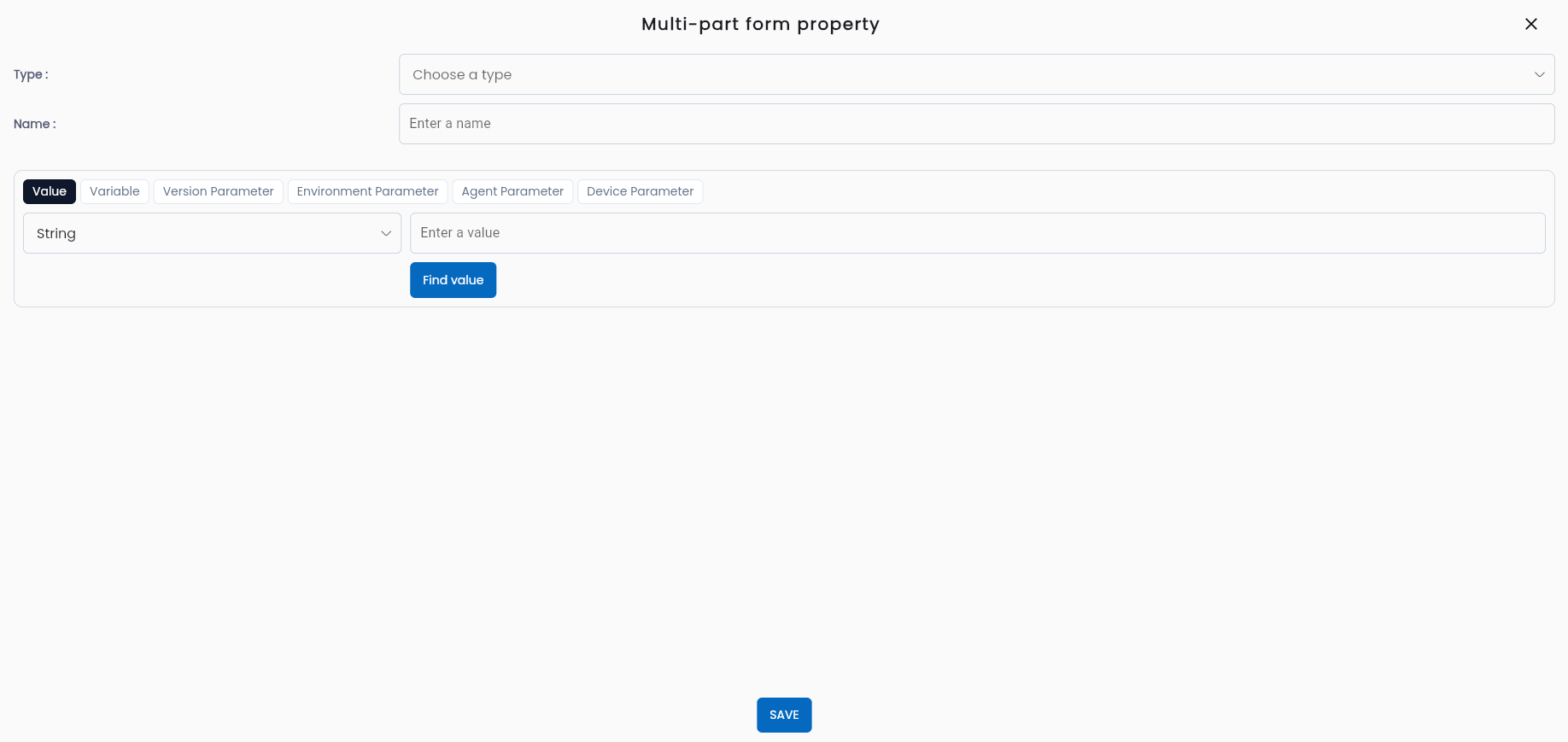
| Field Name | Mandatory | Format | Constraints | Description |
|---|---|---|---|---|
| Type | Yes | Combobox | In multi-part form type, the user chooses 1 of 2: + Data + File | |
| Name | Yes | Text | Name of Header | |
| Type | Yes | Value types of the Header parameter. You can choose one of the tabs that suits your intended use | ||
| Data type | Yes | Combobox | Data type | |
| Name | Yes | Text | Only displayed when the type is different from “Value”. Value must start with a letter, must include numbers and cannot use special characters (except “_”). | The name of the parameter declared in the project or the name of the variable (Variable) |
| Value | Yes | Text | Only displayed when type = “Value” | Enter the value of the Header parameter directly |
| Find Value | - | Button | Only displayed when type = “Value” | Click on Find Value, the system will display a list of previously defined project values |
| Find Variable | - | Button | If Type is Variable | Click on Find Variable, the system will display a list of previously defined project parameters |
| Data type | Yes | Combobox | Data type of multipart-form. In addition to the data types for regular data, additional data types for File: + File + Elements + Repository Element + Password + Null + Empty String + RandomValue + Json + Excel Workbook + Excel Sheet + Excel Row + Excel Cell + Match Result + Schema |
Step 3: Click “Save”
Step 4: Click “OK”
Body request type: Application json
The screen request body type is Application json

| Field Name | Mandatory | Format | Constaints | Description |
|---|---|---|---|---|
 | - | Label | Indicates that the parameter used will be the original parameter of the request | |
 | - | Combobox | Perform data type selection for json params. In addition to the usual primitive data types, you can also choose the following data types: + Object + Schema | |
 | - | Checked Button | If button checked  : Determines the data on the parameter in that json becomes a List. For example: If the data type of the variable is “String” it is selected as a list. The Type data entered for this variable must be a List : Determines the data on the parameter in that json becomes a List. For example: If the data type of the variable is “String” it is selected as a list. The Type data entered for this variable must be a List | |
 | - | Text | The name will be used in the request to test the api. If the request is application json, "json name" will be used. If the request is application xml, "Json xml" will be used. | |
 | - | Button | Click on the button and the system displays the screen “XML AND JSON OPTIONS” | |
 | - | Button | Button only appears on parameters with data type “Object”. | Clicking on the image button, the system will create an additional parameter in Object |
 | - | Button | The original parameter has the data type “Object”. | Click on the image button, the system will create an additional parameter in Object |
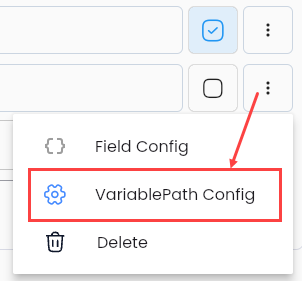 | - | Button | Button only appears on parameters located in parameters with data type “Object” or parameters with data type "Schema". | Click on the image button, the system displays the “Variable Path” screen |
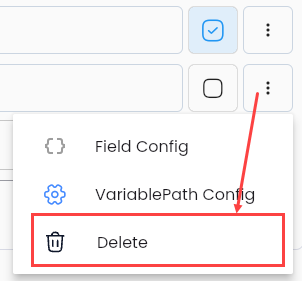 | - | Button | Button only appears on parameters within parameters with data type “Object” | |
| Name | - | Text | The original parameter has data type “Object” | Name of parameter on the system 1 parameter or variable has been declared on the system |
Note: The data fields “name” and “jsonName” are different:
- name is the parameter name used in the system to configure the value for the json parameter and will not be used to configure the request body for the API
- jsonName is the name of the parameter in the API request body.
Schema data supports testing APIs with nested Object data types. In such cases, the parent parameter will have the Object data type and the child parameter will have the Schema data type.
Field Config Function
Press the  button then select “Field Config”. The system will display the “XML AND JSON OPTIONS” screen.
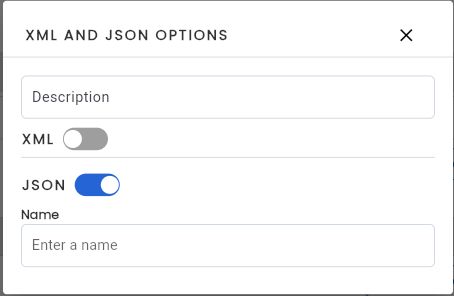
In there
| Field Name | Mandatory | Format | Constraints | Description |
|---|---|---|---|---|
| Description | - | Text | - | Description of the json parameter |
 | - | Switch Button | - | Is a button to control wheter the parameter being declared is used in the api request body or not. |
| Name | - | Text | - | The name will be used in the request to test the api |
VariablePath Config
Press the button the select “VariablePath Config”. The system will display the “Variable path”.
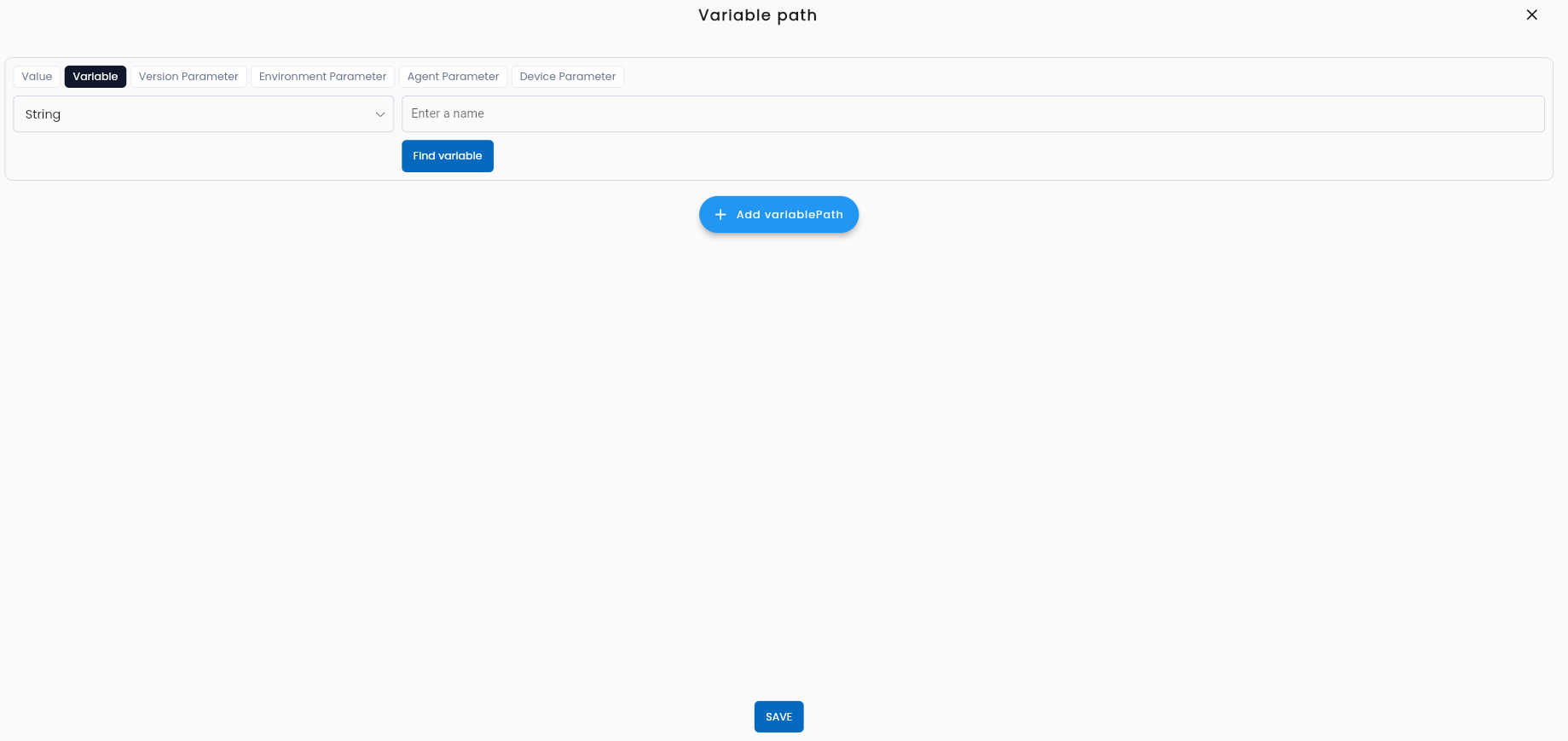
Trong đó
| Field Name | Mandatory | Format | Constraints | Description |
|---|---|---|---|---|
| Type | Yes | Possible values for Header parameter types | ||
| Data type | Yes | Combobox | - | Data type |
| Name | Yes | Text | Only displayed when the type is different from "Value". Value must start with a letter, must include numbers and cannot use special characters (except "_") | The name of the parameter declared in the project or the name of the variable (Variable) |
| Value | Yes | Text | Only visible when Type = “Value” | Enter the value directly for the Header parameter |
| Find Value | - | Button | Only visible when Type = “Value” | Click Find Value, the system will display a list of previously defined values of the project |
| Find Variable | - | Button | If Type is Variable | Click on Find Variable, the system will display a list of previously defined project parameters |
Body request type: Application xml
Similar functions request type is Application json instead of using jsonName, we will use xmlName
Besides
Field Config Function
Press button then choose “Field Config”. The system will display the screen “XML AND JSON OPTIONS”.
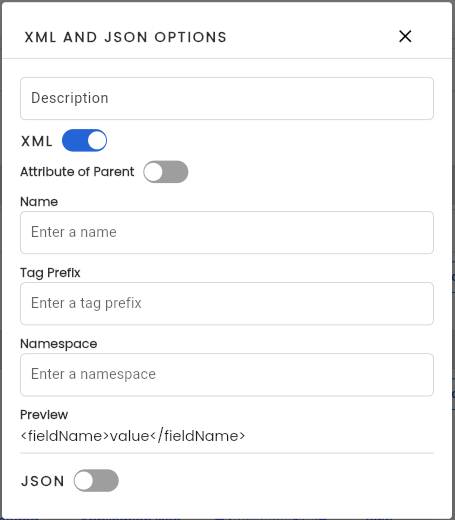
In there
| Field Name | Mandatory | Format | Constaints | Desciption |
|---|---|---|---|---|
| Description | - | Text | - | Description of the json parameter |
 | - | Switch Button | - | Is a button to control whether the parameter being declared is used in the api request body or not. |
 | - | Switch Button | ||
| Name | - | Text | - | The name the user gives to the parameter that identifies the element in the XML document |
| Tag Prefix | - | Text | - | Tag prefix is used to distinguish XML elements from each other. |
| Namespace | - | Text | - | Namespace is used to distinguish XML elements from each other. |
Body request type : Raw
Request Type Raw will determine whether the API Request is used if the API used is of type "json" or "xml" but will not be processed before creating the api request.

In there
| Field Name | Mandatory | Format | Constraints | Description |
|---|---|---|---|---|
| Body data | - | Textarea | Is the body data in the api request |
Response API
API response is the API response data after processing an API request.

Create Response for API:
Step 1: On the Response tab, click button “Add”, the system displays the “Add a response”
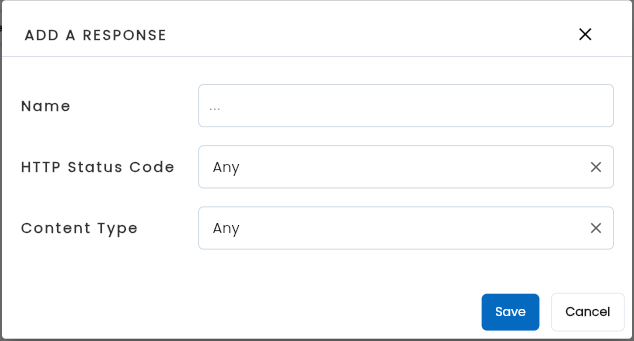
Step 2: Completely and validly enter required information fields, including:
| Field Name | Mandatory | Format | Constraints | Description |
|---|---|---|---|---|
 | - | Button | Confirm the creation of a new Api response | |
 | - | Button | Cancel creating a new Api response | |
| Name | Yes | Text | The name of the Api Response stored in the system | |
| HTTP Status Code | Yes | Combobox | Users can select specific http status codes or can select “Any” so the system will automatically identify them. | |
| Content Type | Yes | Combobox | Users can select specific data types or can select "Any" so the system will automatically identify them. |
Step 3: Click “OK”
Added successfully, the newly created response information is displayed on the screen.

Content Type includes 4 data types:
- Any
- Application json
- Text xml
- Application xml
The steps to configure the returned data information are similar to configuring a request with request type: Application json and Application xml. Reference to Request API section.
Edit Endpoints
Step 1: At the Low-code screen of the API test, the user selects the Endpoint data line they want to change.
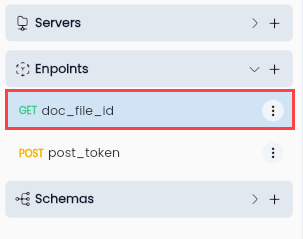
Step 2: Edit the information “Save”
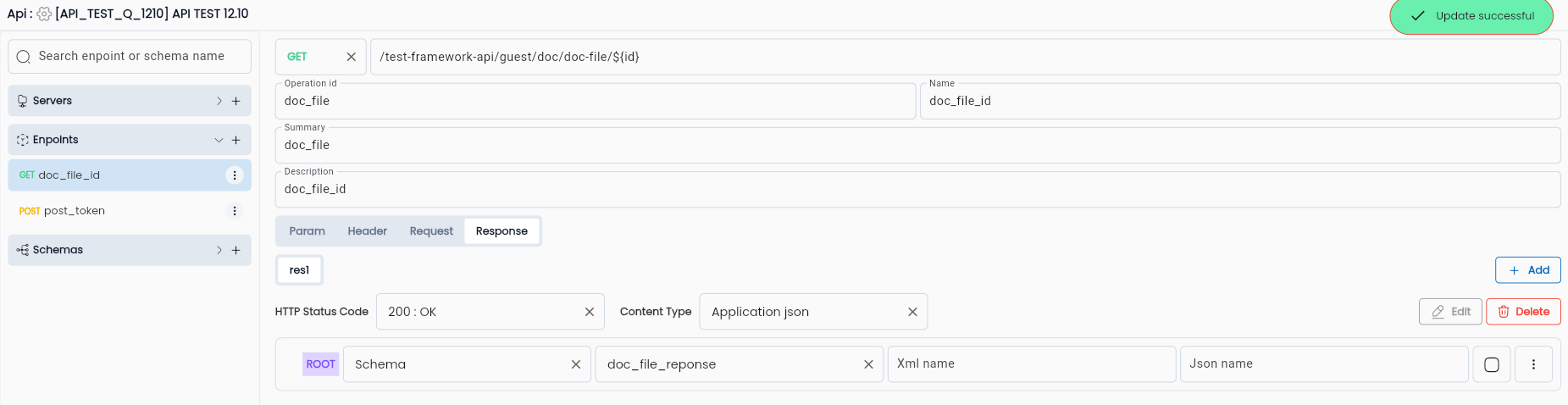
The system displays a notification of successful editing and displays the edited Endpoint in the Endpoints list.
Delete Endpoint
Step 1: At the Low-code screen of the API test, the user clicks the button  on the Enpoint data line you want to delete and select Delete.
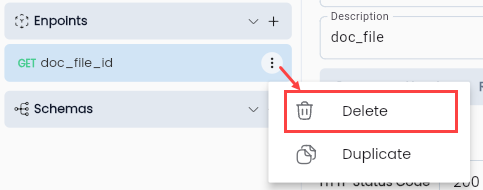
The system displays a deletion confirmation popup.
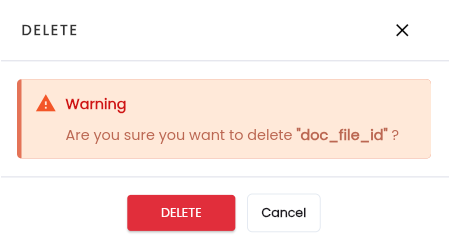
Step 2: Click “Delete”, notification system Delete successful
Duplicate Endpoint
Step 1: At the Low-code screen of the API test, the user clicks the button on the Endpoint data line you want to delete and select Duplicate.
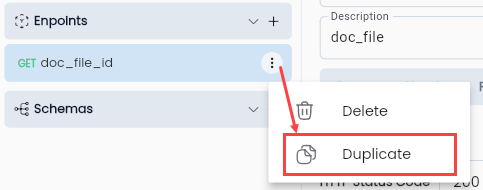
The system displays the Endpoint screen that has been successfully duplicated with full information of Url, Param, Header, Request, Response along with Name = name of the duplicated endpoint + "_copy"
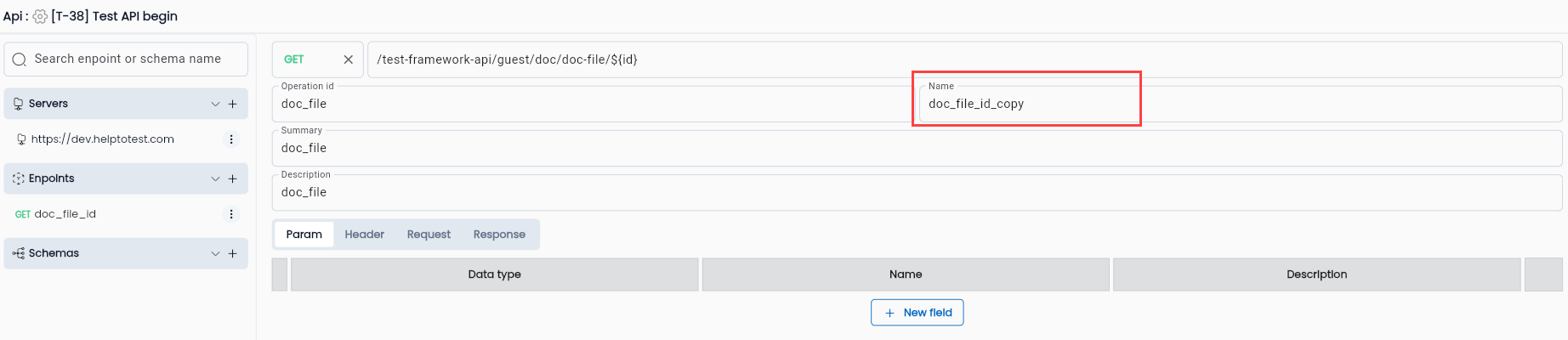
Step 2: Click “Save”, the system notifies Update successful, the Endpoints list is updated to describe the information field whose Endpoint has been successfully Duplicated.
Schemas
Schemas are created to support the management of parameters with data type "Object" in the Endpoints section.
Add new Schemas
Step 1: In the Low-code screen, click “New Schema” or button to create a new endpoint.
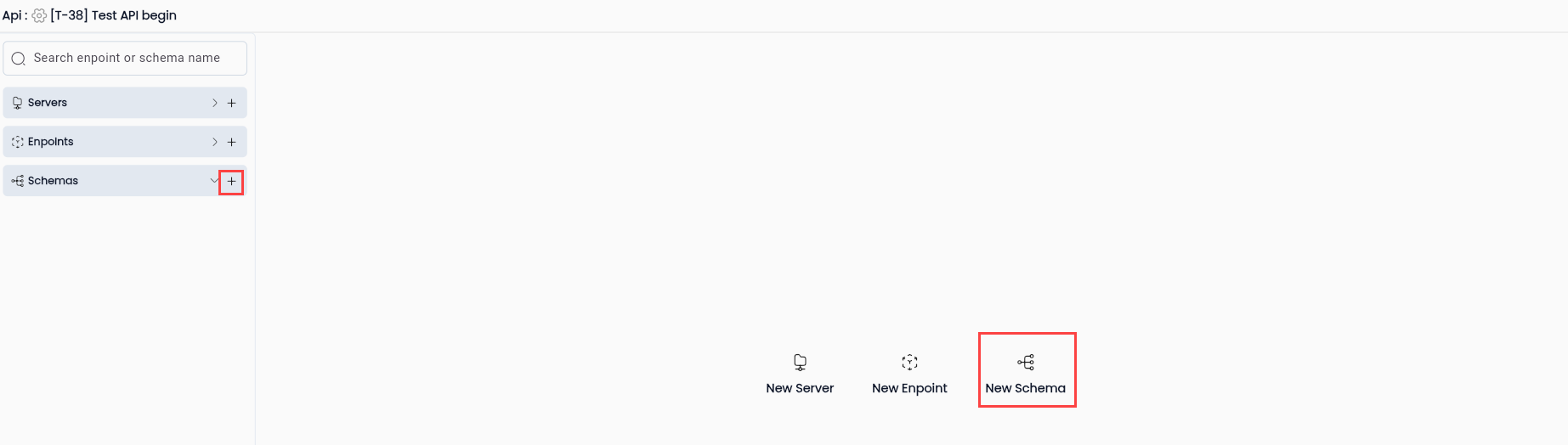
Step 2: The system displays the new schema adding screen, the user proceeds to enter the necessary information.

| Field Name | Mandatory | Format | Constraints | Description |
|---|---|---|---|---|
 | - | Button | Click the button to add a data field in a schema | |
| - | Button | Click on the system button to display the screen “XML AND JSON OPTIONS”. | |
 | Yes | Text | Name of Schema | |
| Name | Yes | Text | The name of the data field in the schema. | |
| Data Type | Yes | Combobox | Data type of a data field. When creating a new parameter, the system defaults to "String". In addition to normal data types, it is possible to create a Schema data field in a Schema. | |
| Xml | Yes | Text | The name will be used in the request to test the request is application xml. | |
| Json | Yes | Text | The name will be used in the request to test the api if the request is application json. | |
| - | Checked Button | If button checked image: Determines the data on the parameter in that json becomes a list. For example: If the data Type of the variable is "String", it is selected as a list. The Type data entered for this variable must be a List |
Successfully added, the system notifies “Update successful” and displays the declared schema in the Schemas list.
Field Config
Click the button “img” then select “Field Config” the system displays the screen “XML AND JSON OPTIONS”.
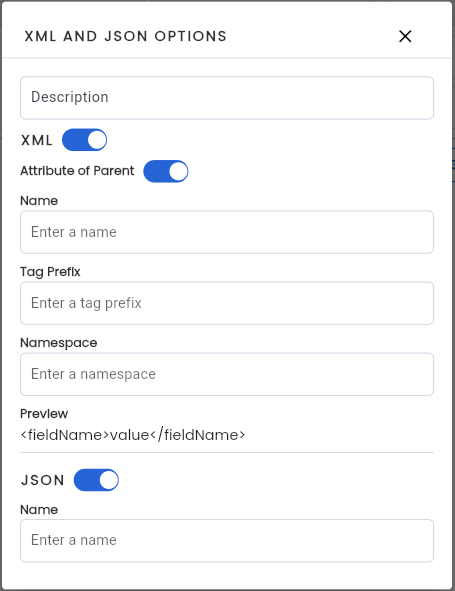
Trong đó
| Field Name | Mandatory | Format | Constraints | Description |
|---|---|---|---|---|
| Description | - | Text | Description of the data field |
XML Options
| Field Name | Mandatory | Format | Constraints | Description |
|---|---|---|---|---|
| - | Switch button | Is a button to control whether the parameter being declared is used in the api request body or not. | |
| - | Switch button | ||
| Name | - | Text | The name the user gives to parameter that identifies the element in the XML document. | |
| Tag Prefix | - | Text | Tag prefix is used to distinguish XML elements from each other. | |
| Namespace | - | Text | Namespace is used to distinguish XML elements from each other. |
Json Options
| Field Name | Mandatory | Format | Constraints | Description |
|---|---|---|---|---|
| - | Switch button | Is a button to control whether the parameter being declared is used in the api request body or not. | |
| Name | - | Text | The name will be used in the request to test the api |
Edit Schemas
Step 1: At the Low-code screen of the API test, the user selects the Endpoint data line that he wants to change.
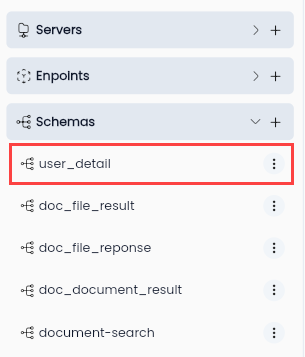
Step 2: Edit the information that needs to be changed and click “Save”
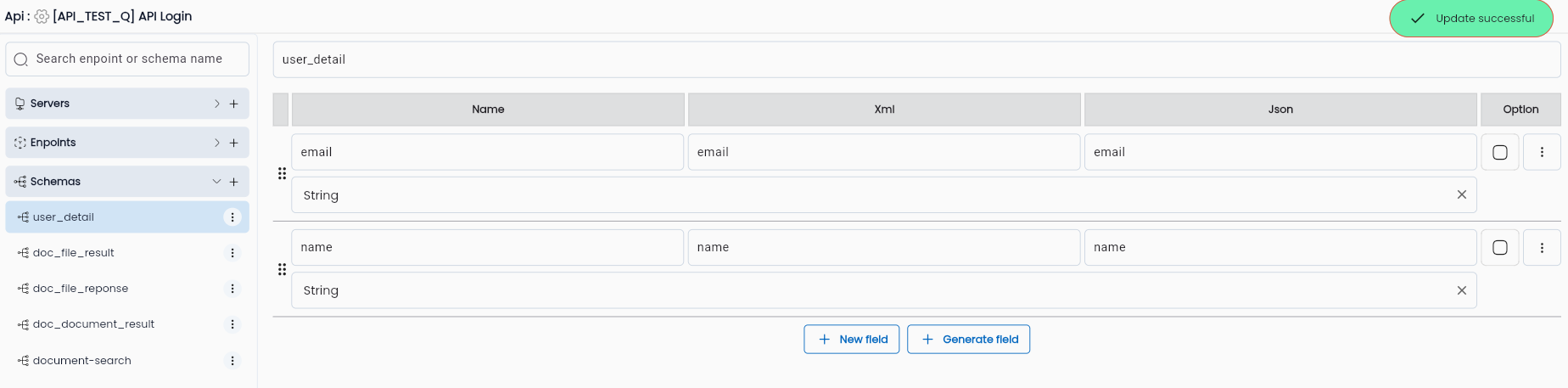
The system displays a notification of successful editing and displays the edited Schema in the Schemas list.
Delete Schema
Do the same as Endpoints. Reference to section Endpoints
Duplicate Schema
Do the same as Endpoints. Reference to section Endpoints