Using API in Test Scenario, Test Suite
Configuring a new API test is just the first step of creating the API on the system. The usage of the API in the test scenario or test suite will be completely configured by the user.
How to Use API in Test Scenario
Step 1: Access the Low-code screen for testing scenarios. Refer to Low-code Test scenario.
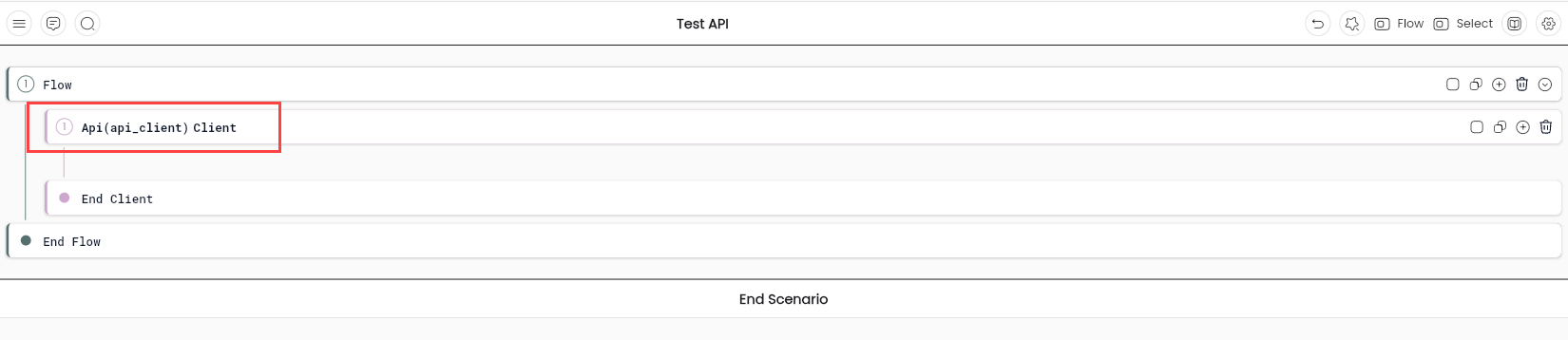
Step 2: Use the Key-word Controller "Client" and set the Platform as "Api".
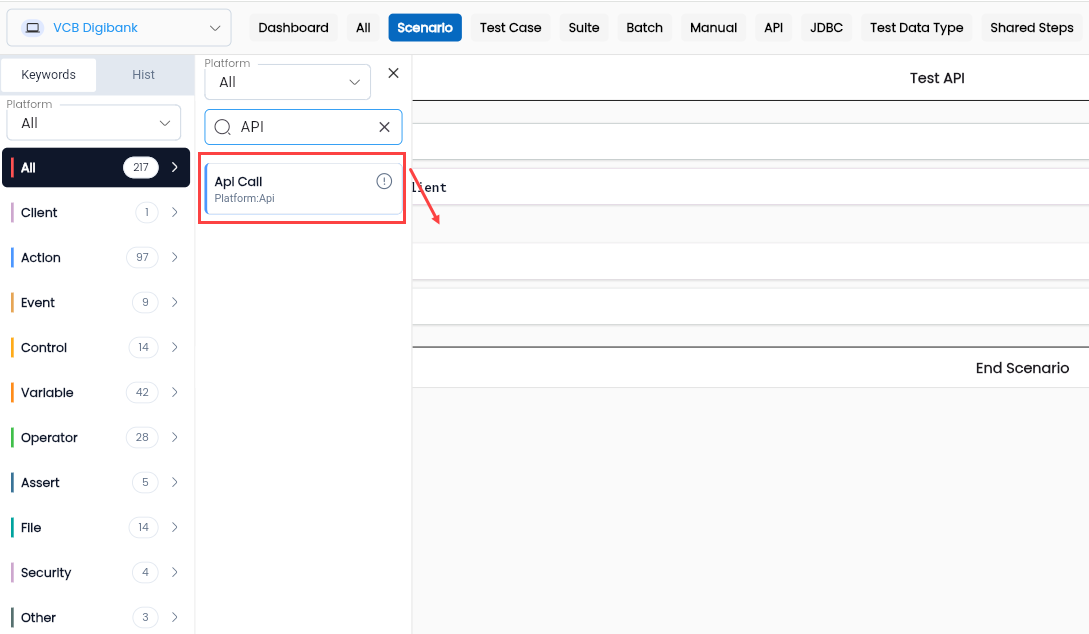
Step 3: Drag the API CALL keyword into the low-code screen within the client API.
Step 4: Configure the Api Call Property and select the code data on the Api call property screen.

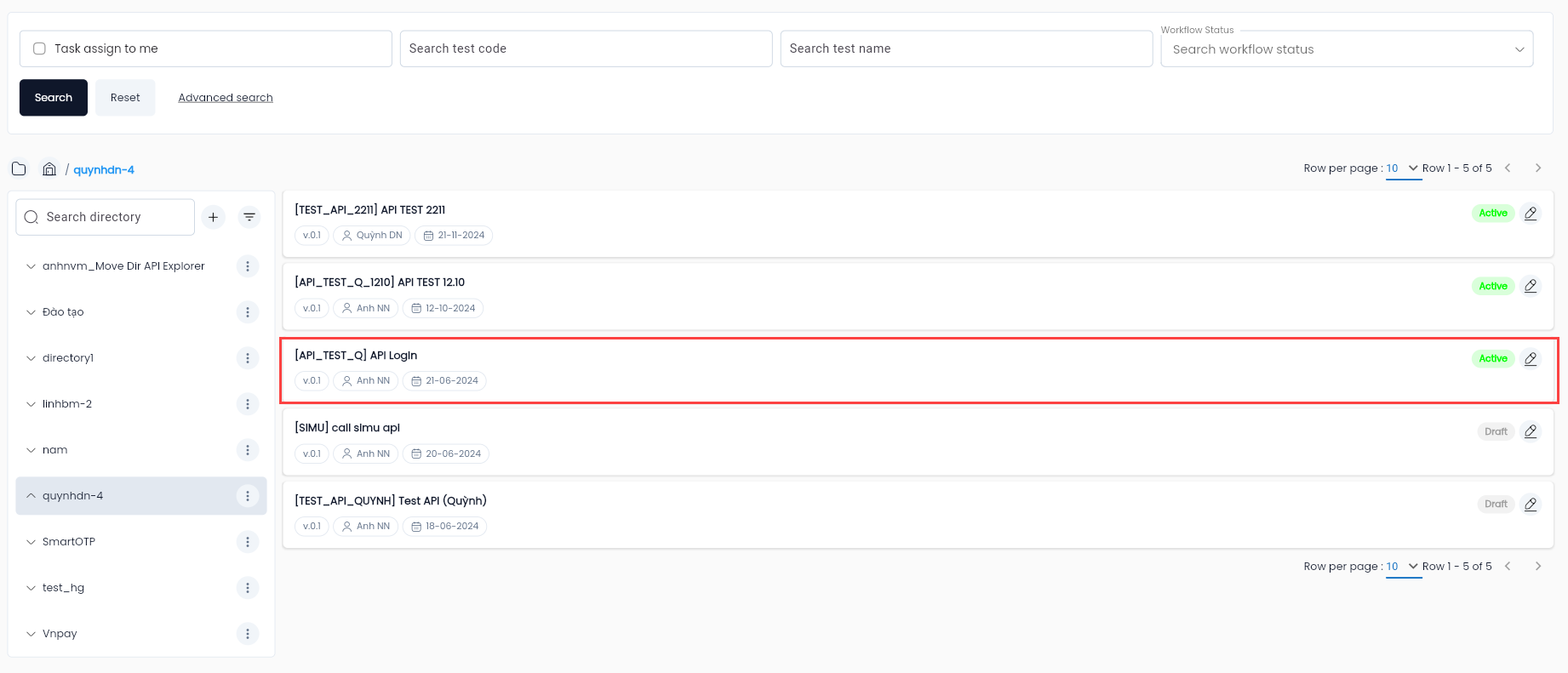
Step 5: The screen will display the list of APIs that have been created. Click to select the API you want to call.
Step 6: After selecting the API, the Api call property screen for the API call keyword will change.
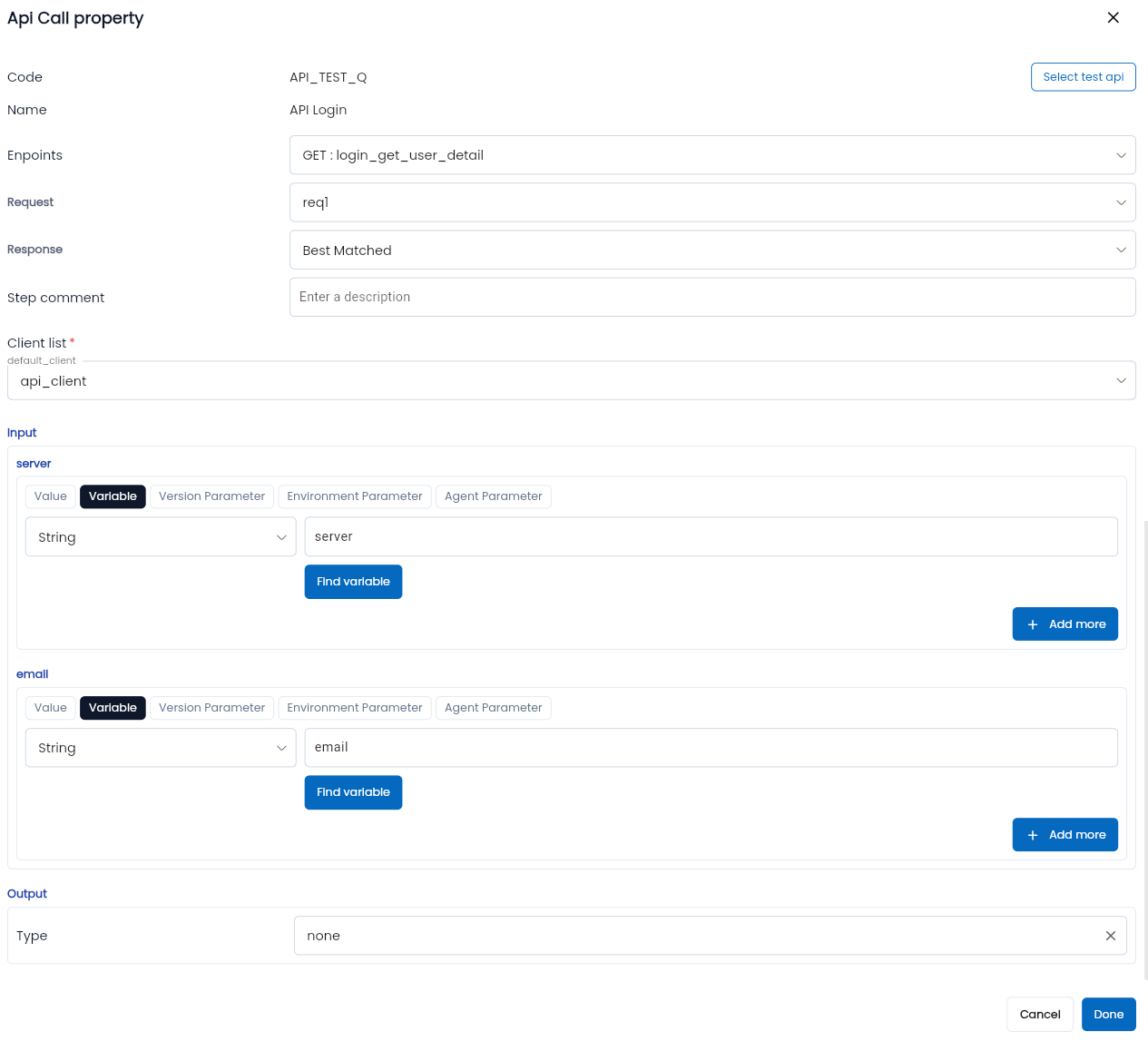
| Field Name | Mandatory | Format | Constraints | Description |
|---|---|---|---|---|
| Code | Yes | AutoComplete | The code of the selected API in the API Explorer | |
| Enpoints | Yes | Combobox | Displays the list of endpoints that have been created for the selected API. You must choose one value. | |
| Request Type | Yes | Combobox | Displays the request type options: + None: No request body, + Multipart-form: Form request with a file, + Application json: Sends JSON data in the request body, + Application xml: Sends XML data in the request body, + Raw: Sends data in any custom format like JSON, XML, or any other text format. You can select one value. |
Input: Parameters used for the API
| Field Name | Mandatory | Format | Constraints | Description |
|---|---|---|---|---|
| Server | Yes | Text | Default parameter of the API, should appear when using the API Call. | The endpoint address for calling the API. The server will combine with the endpoint's path to form the URL for calling the API. |
| Các Parameter Input | - | Displays if parameters are declared in the selected endpoint or if parameters are defined in the test configuration. | Enter data used as input for the API parameters. Select the data source and values appropriate for the selected parameter's value source. |
Output: Parameters for the API response
| Field Name | Mandatory | Format | Constraints | Description |
|---|---|---|---|---|
| Type | Yes | Combobox | Displays the list of data types for the output variable. You can select one value. | |
| Data Type | Yes | Combobox | Default to Call Output | The data type of the output variable to store the returned output from the endpoint. |
| Name | Yes | Text | The name of the variable that will store the output value. |
Bước 7: Click Close button to save the Api call property. The low-code line will look as follows:
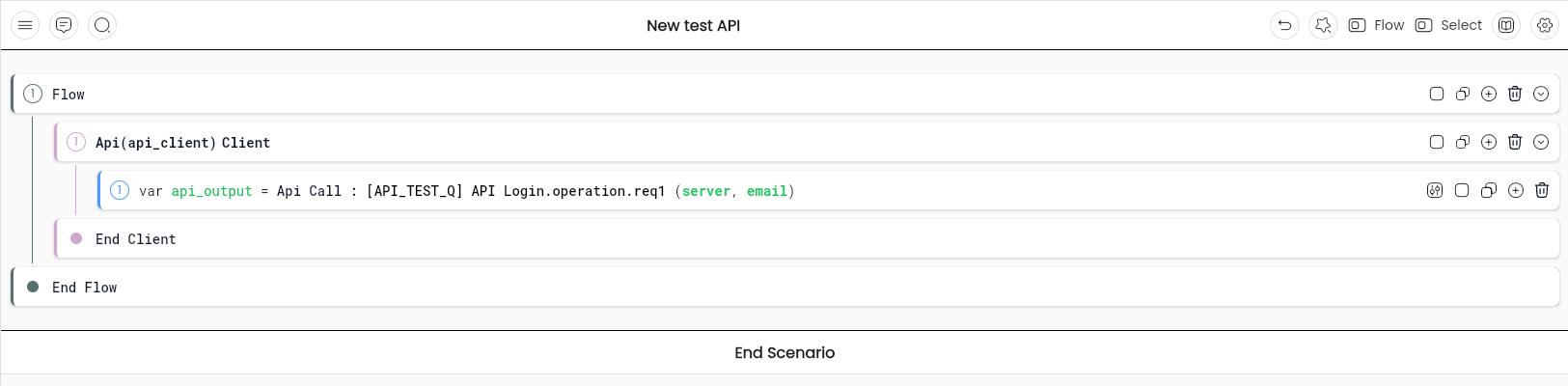
Note: The output variable here will contain the entire response list returned by the API. Therefore, to retrieve parameters from the returned response, you need to configure how to extract parameters from the response.
Step 8: Use the Assign Value keyword to create a variable to store the response value.
The response parameters will depend on the status code and content type of the response.
For example:
- If the Response Status Code = 200, Content Type = Application json: response parameter = result_200_json
- If the Response Status Code = 500, Content Type = Any: response parameter = result_500
- If the Response Status Code = Any, Content Type = Application xml: response parameter = result_xml
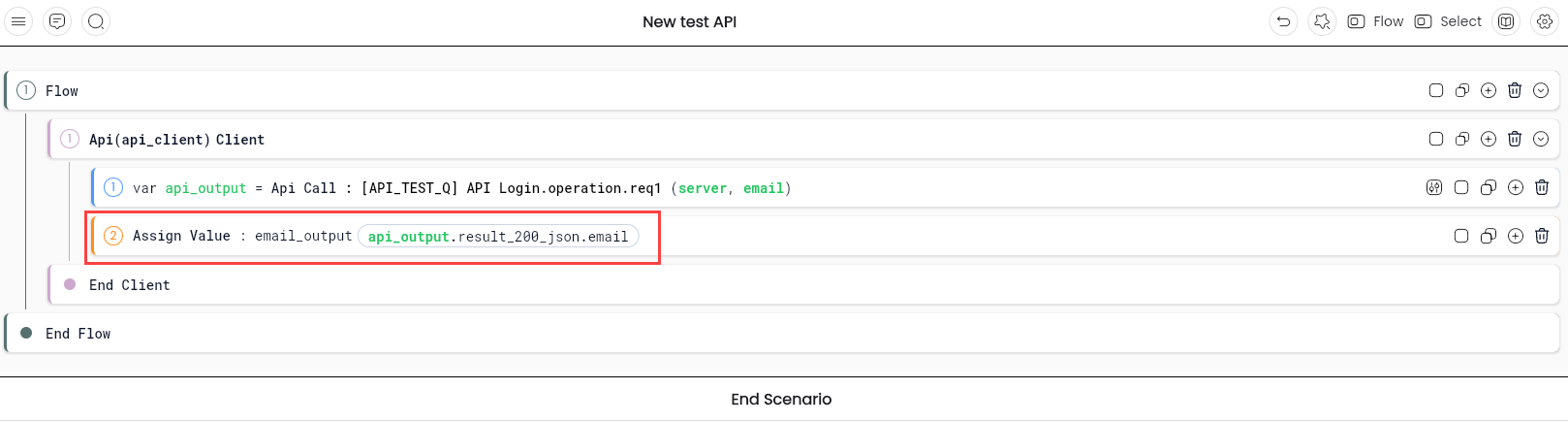
Configure the variable to store the value:
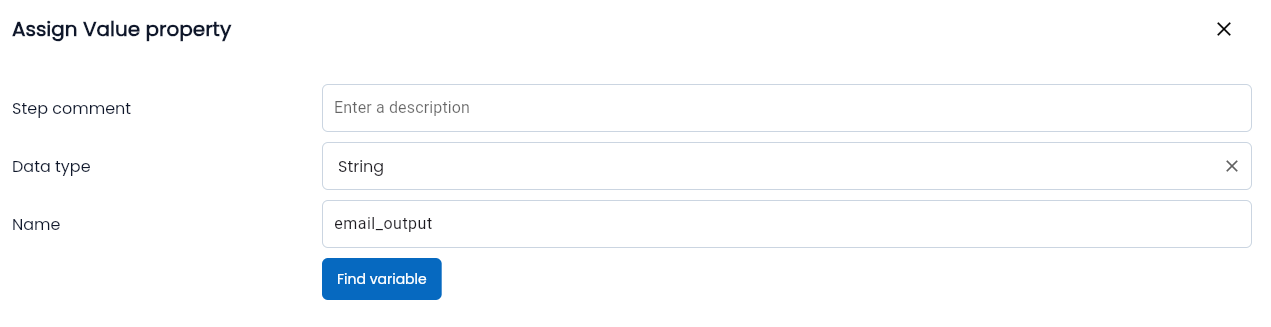
Configure the value extracted from the response. The output returned by the API is placed in the "result_200_json" field, with the data type being JSON.
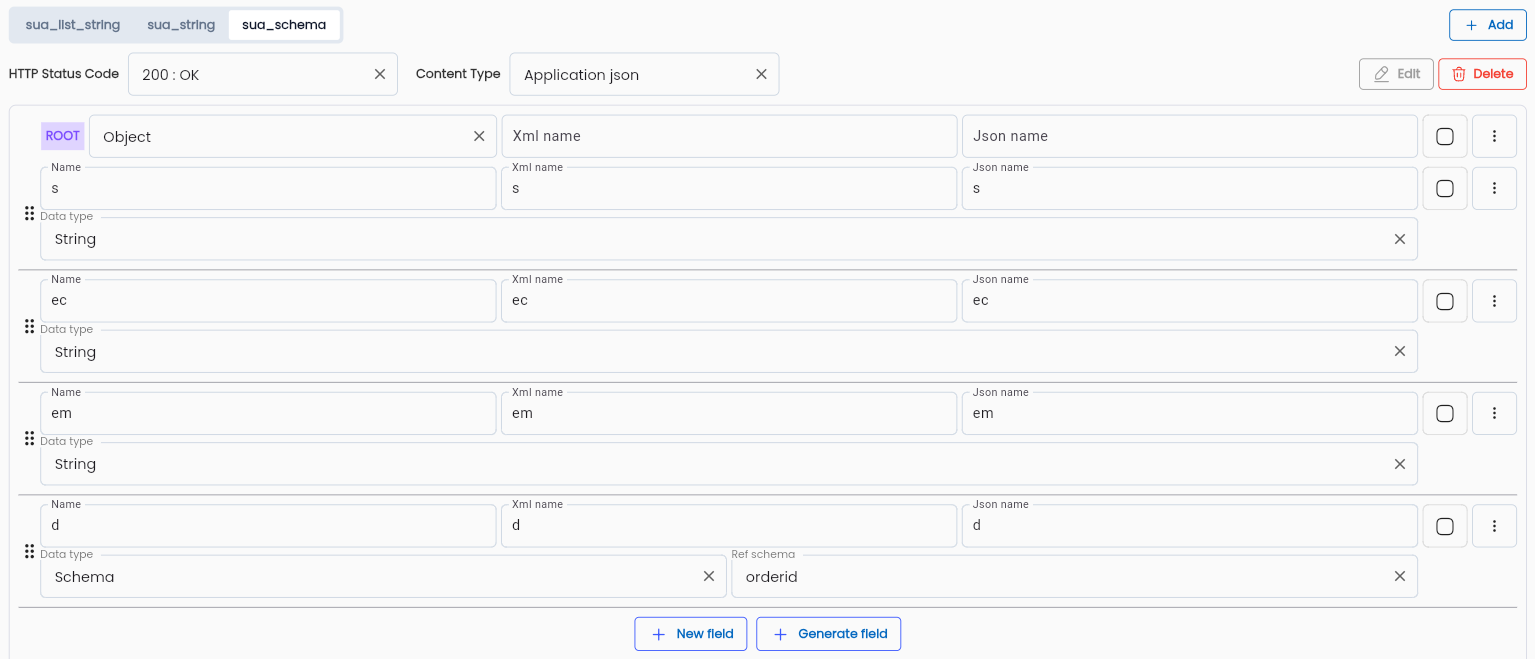

Retrieve the value of "id" from the response
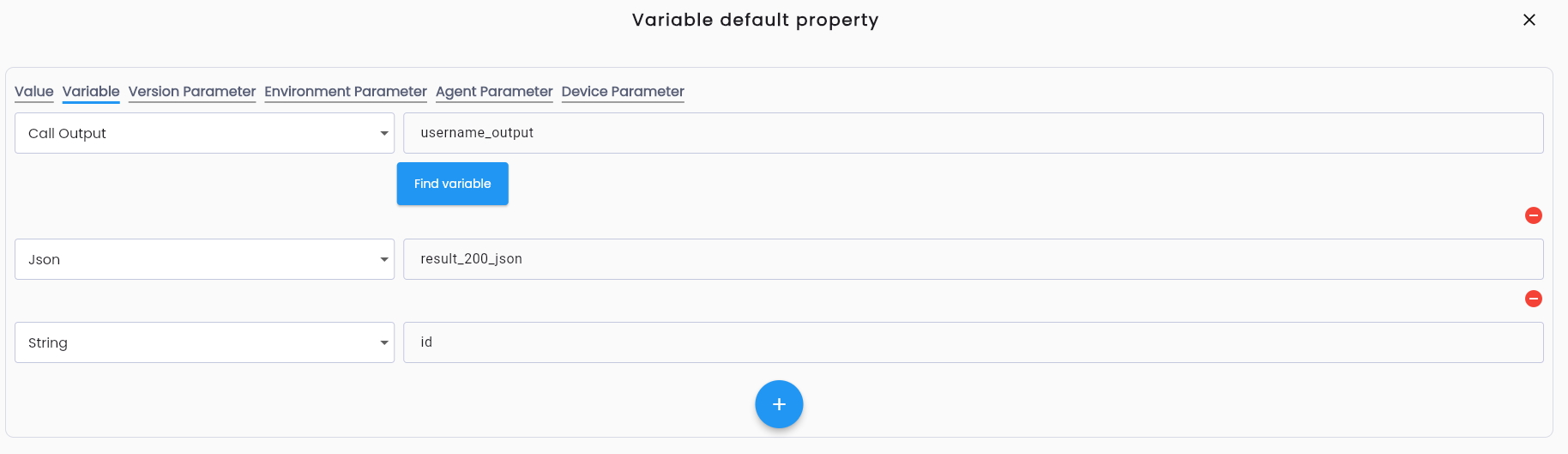
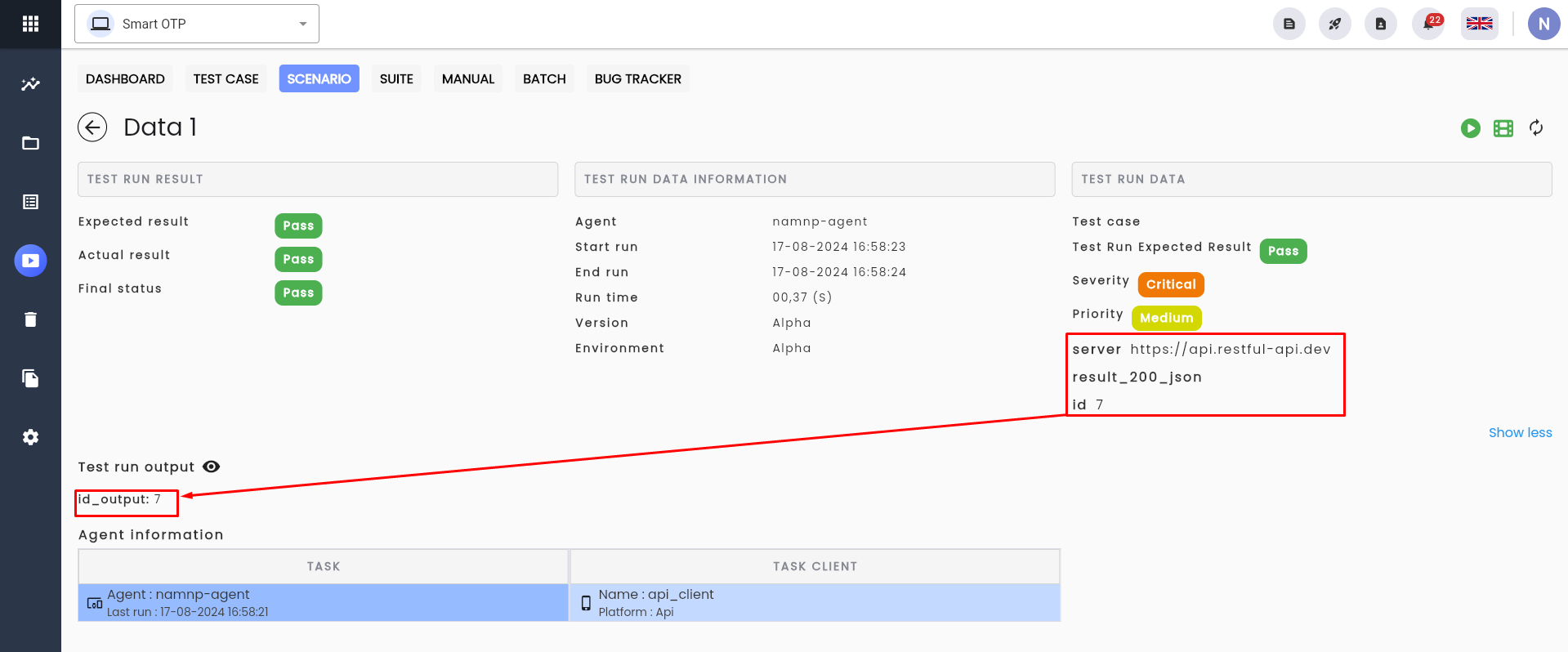
Step 9: Click Save on the Low-code section. When executing the scenario, the returned data will match the output parameters that have been created.