Execution Results
Viewing Execution Results
After clicking run to execute the system, it will navigate to the Test Run screen, where the most recent execution will be displayed first in the data grid with the status Waiting. Learn more about execution results
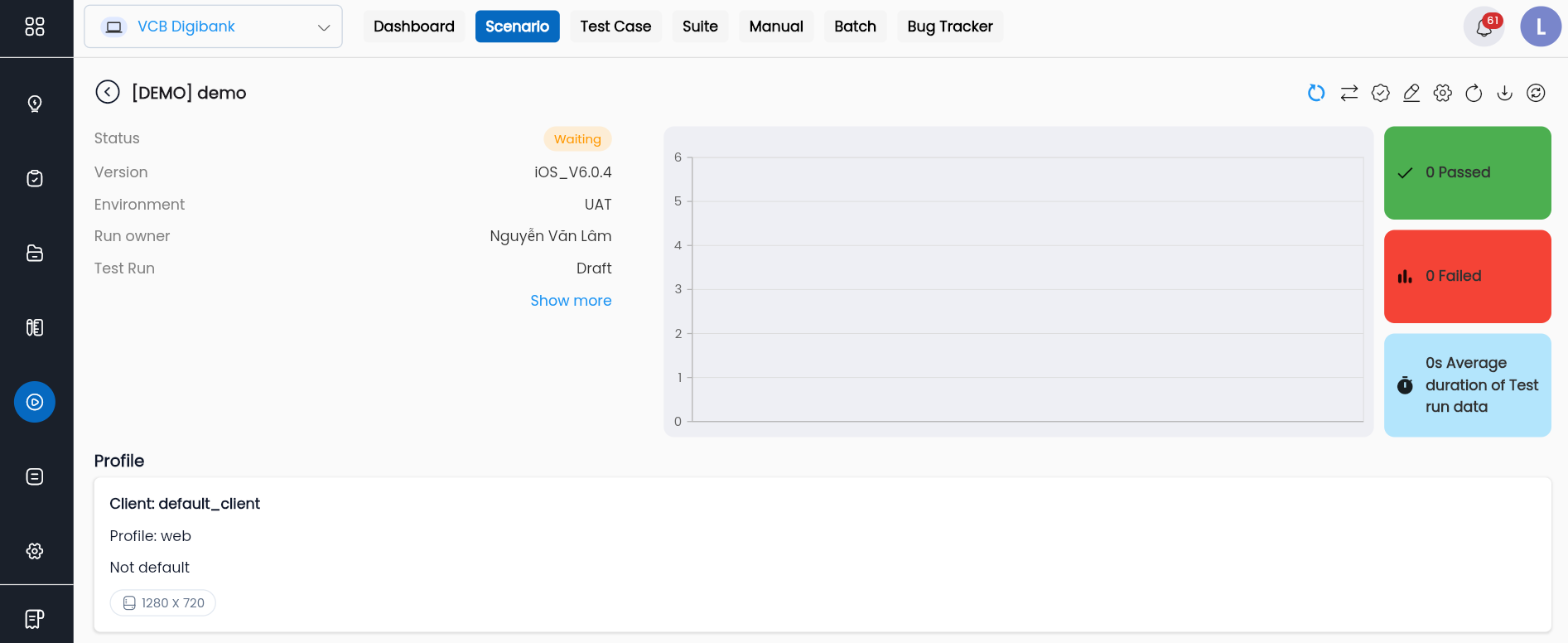
To view detailed execution results, follow these steps:
Step 1: Click on the recent execution displayed in the data grid.
Step 2: Wait for the execution to finish, then click the Refresh button to display the final results of the execution as well as the datasets involved in the execution.
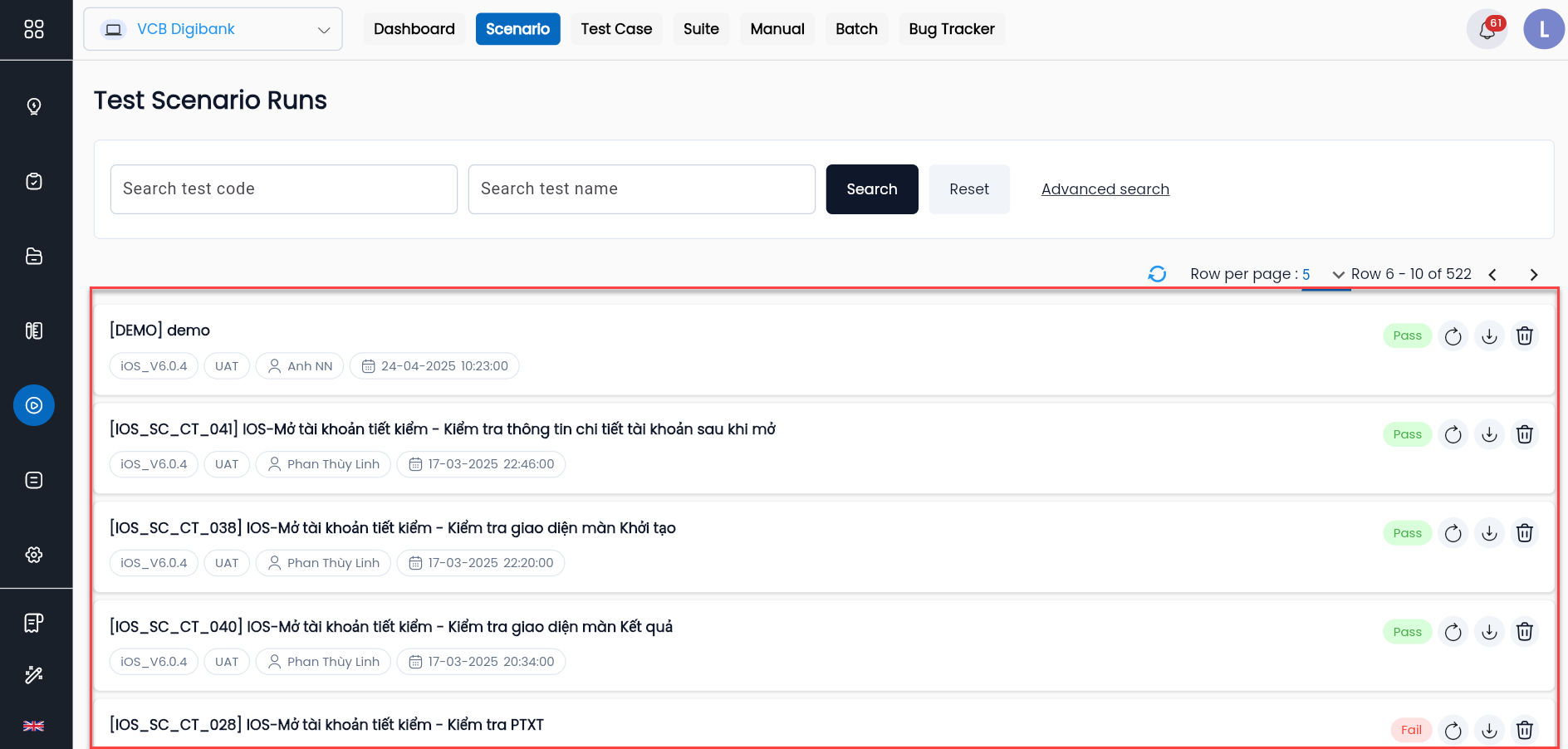
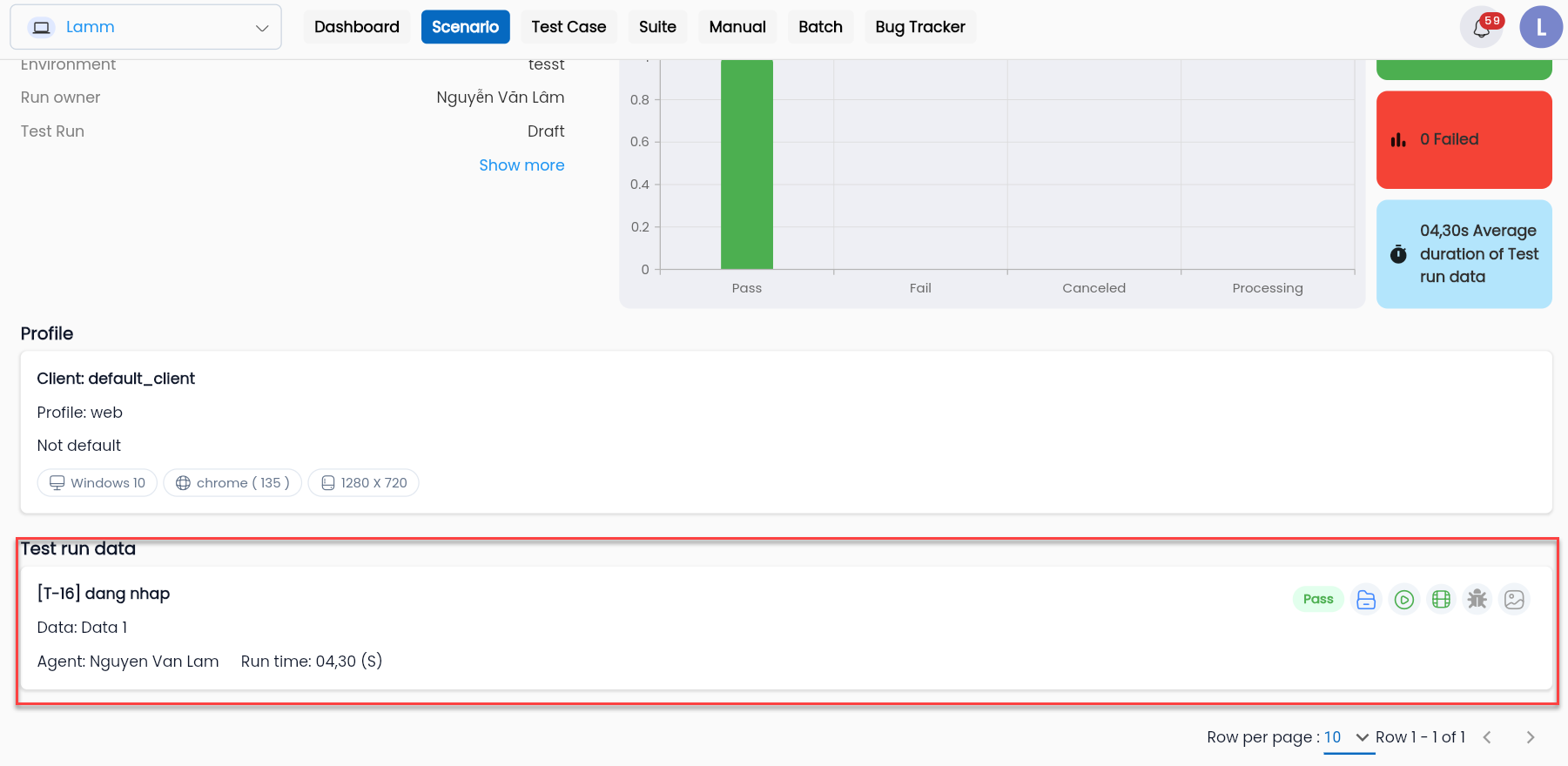
Step 3: The system displays detailed information about the execution, including:
- Basic information of the execution
- Statistical chart of the result statuses of the datasets in the execution
- The testing environment selected by the user
- List of results of the datasets
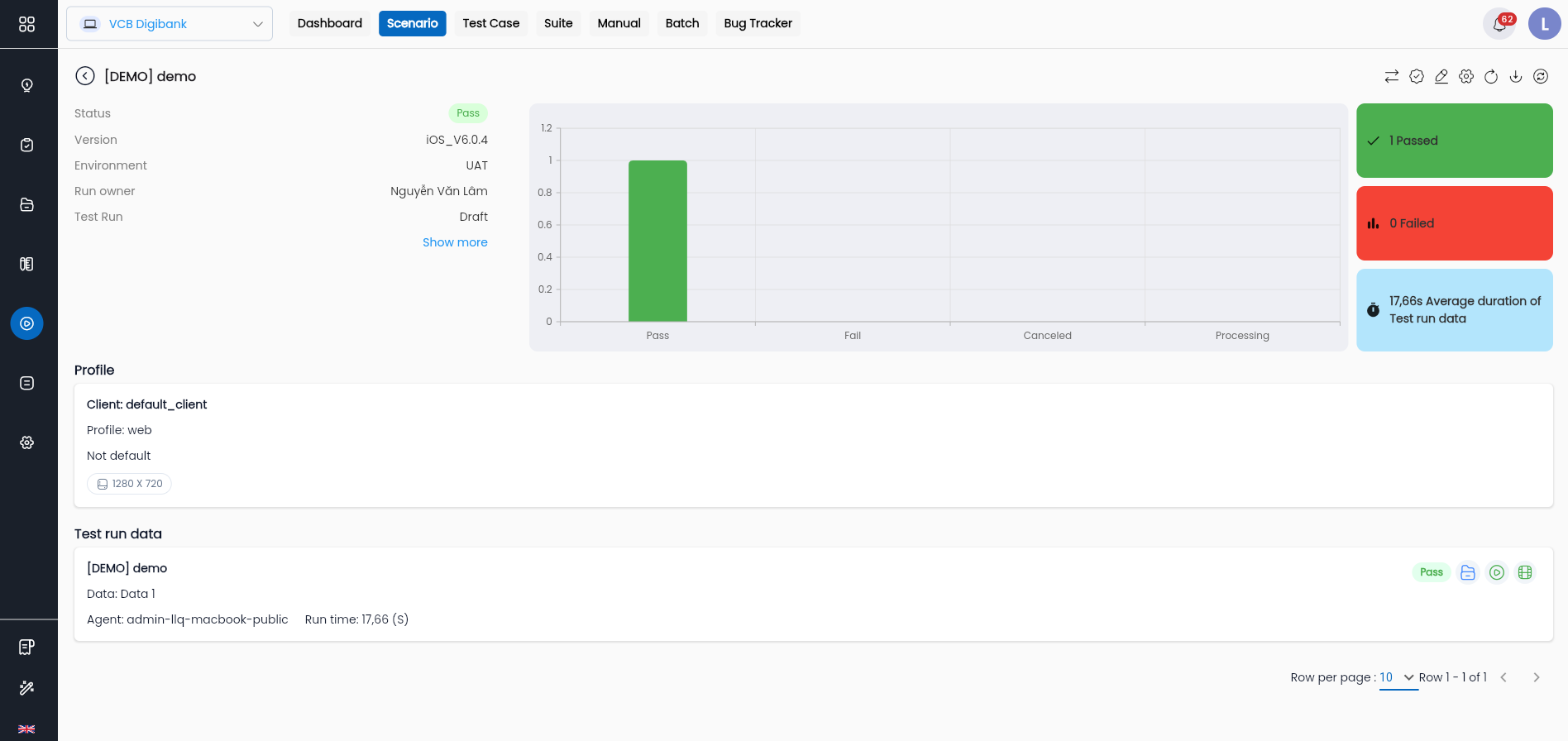
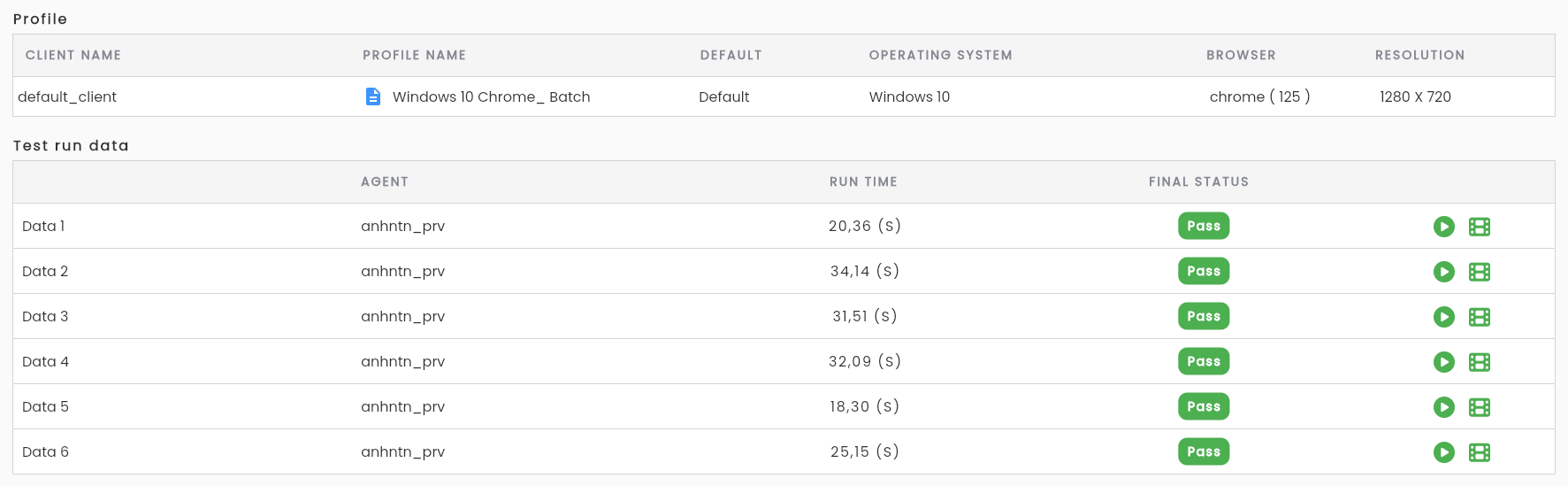
Step 4: If the user wants to view detailed results of a specific dataset, click on that specific data in the list.
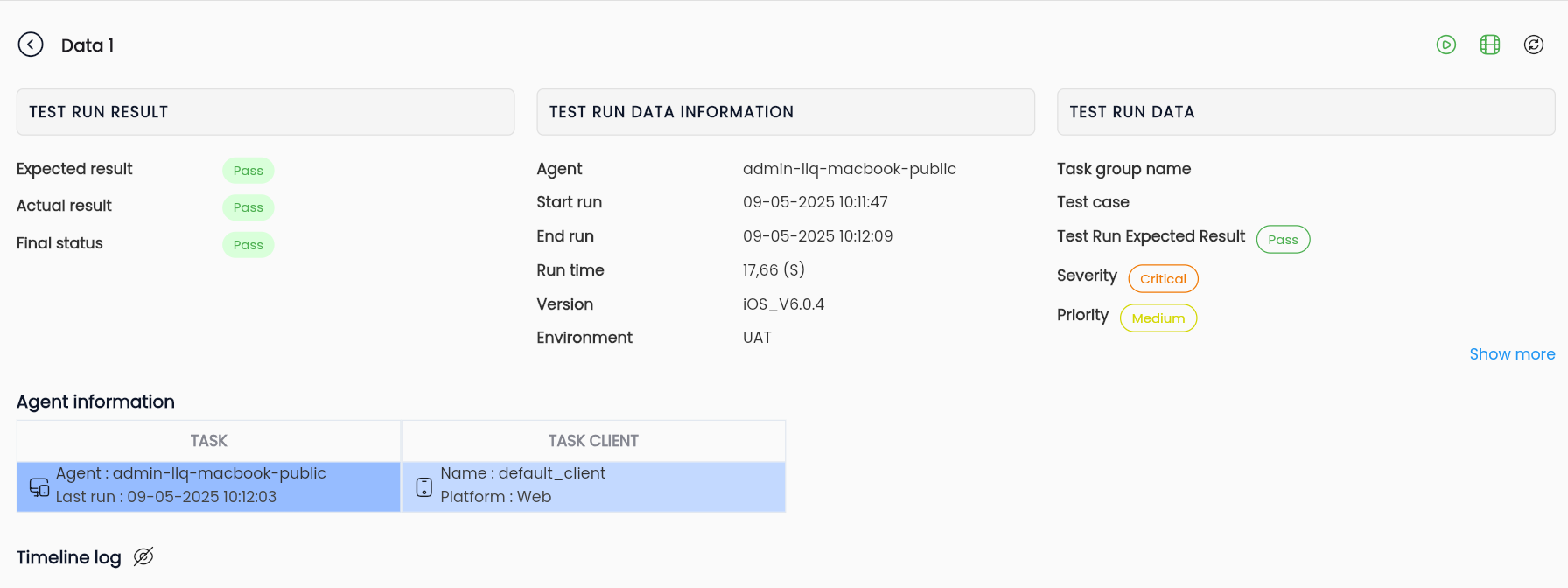
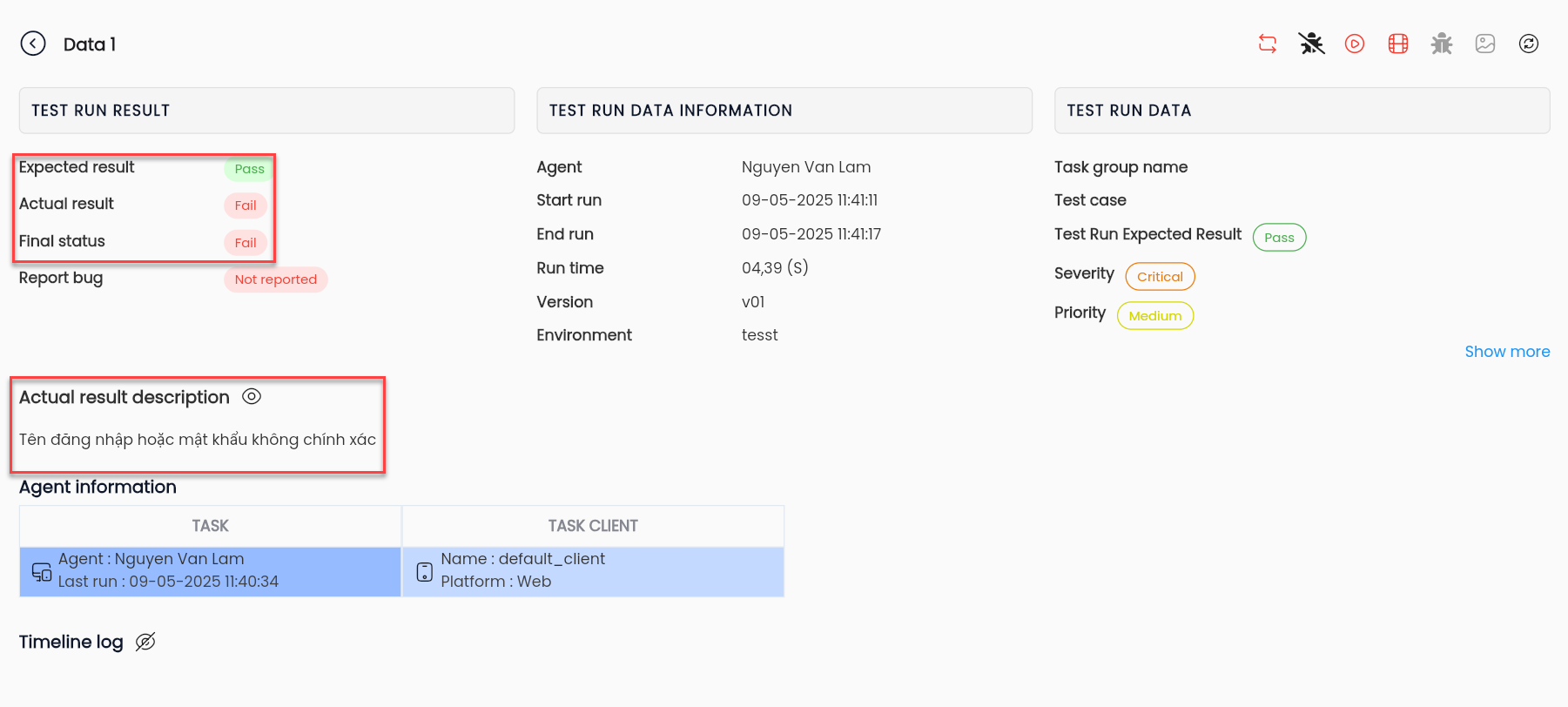
Step 5: The system will display detailed result information of a dataset, including:
- Basic information of the test run (TEST RUN DATA INFORMATION)
- Input data (TEST RUN DATA)
- Output data (TEST RUN RESULT)
- Agent information (Agent information)
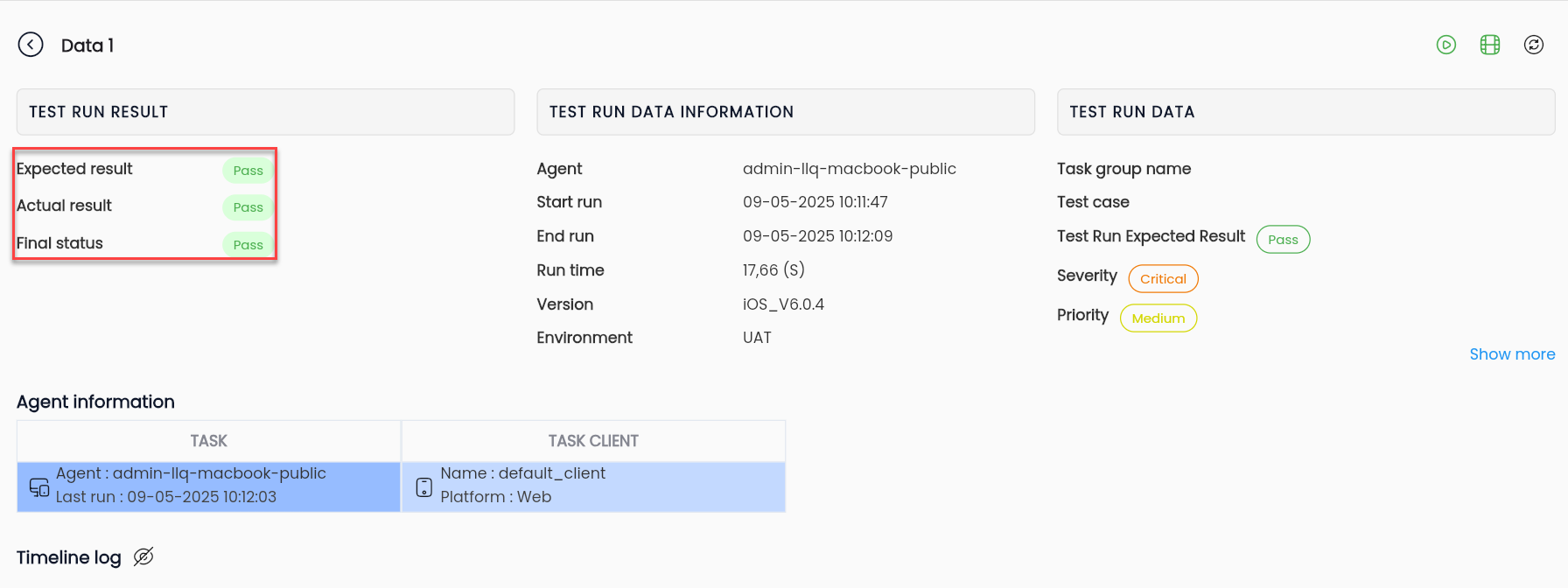
Note: The final result of a dataset will be based on the actual result (Actual result) and the expected result (Expected result).
- Final Status = Pass when:
- Expected result (Tester’s expectation) is Pass & Actual result (Actual run result) là Pass
- Expected result (Tester’s expectation) is Fail & Actual result (Actual run result) là Fail
- And vice versa.
Identifying Errors
If an error occurs during test execution, the user needs to distinguish whether the error is due to configuration or during execution.
Identifying Configuration Errors:
Step 1: After clicking run, if you wait a long time and still do not see the execution browser displayed, click the Refresh icon on the detailed execution results screen.
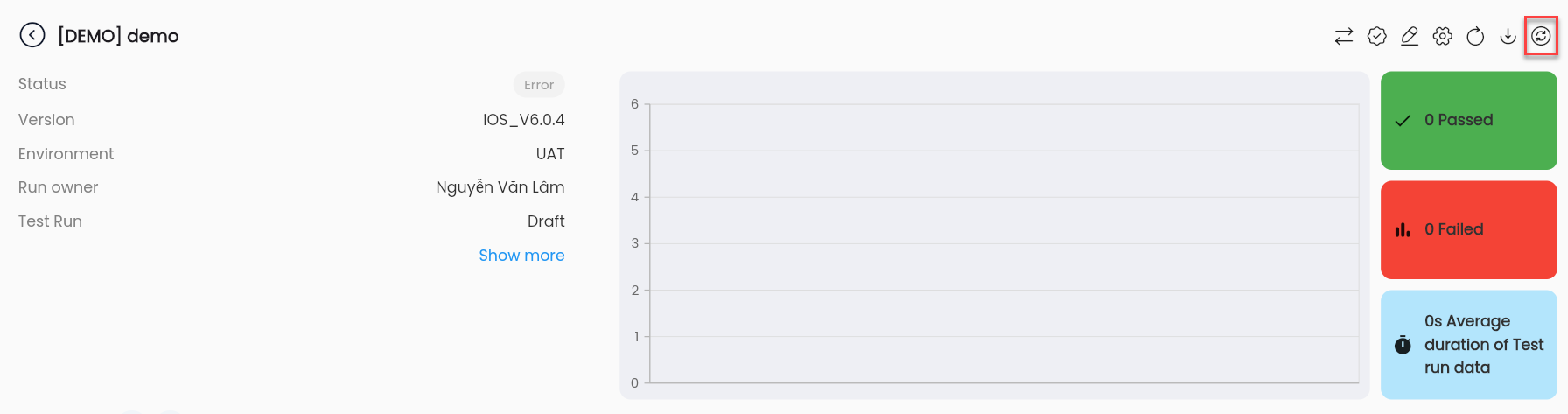
Step 2: Observe the status of the execution; if it shows gray – Error, the error description will be displayed in the Description on the detailed execution results screen.
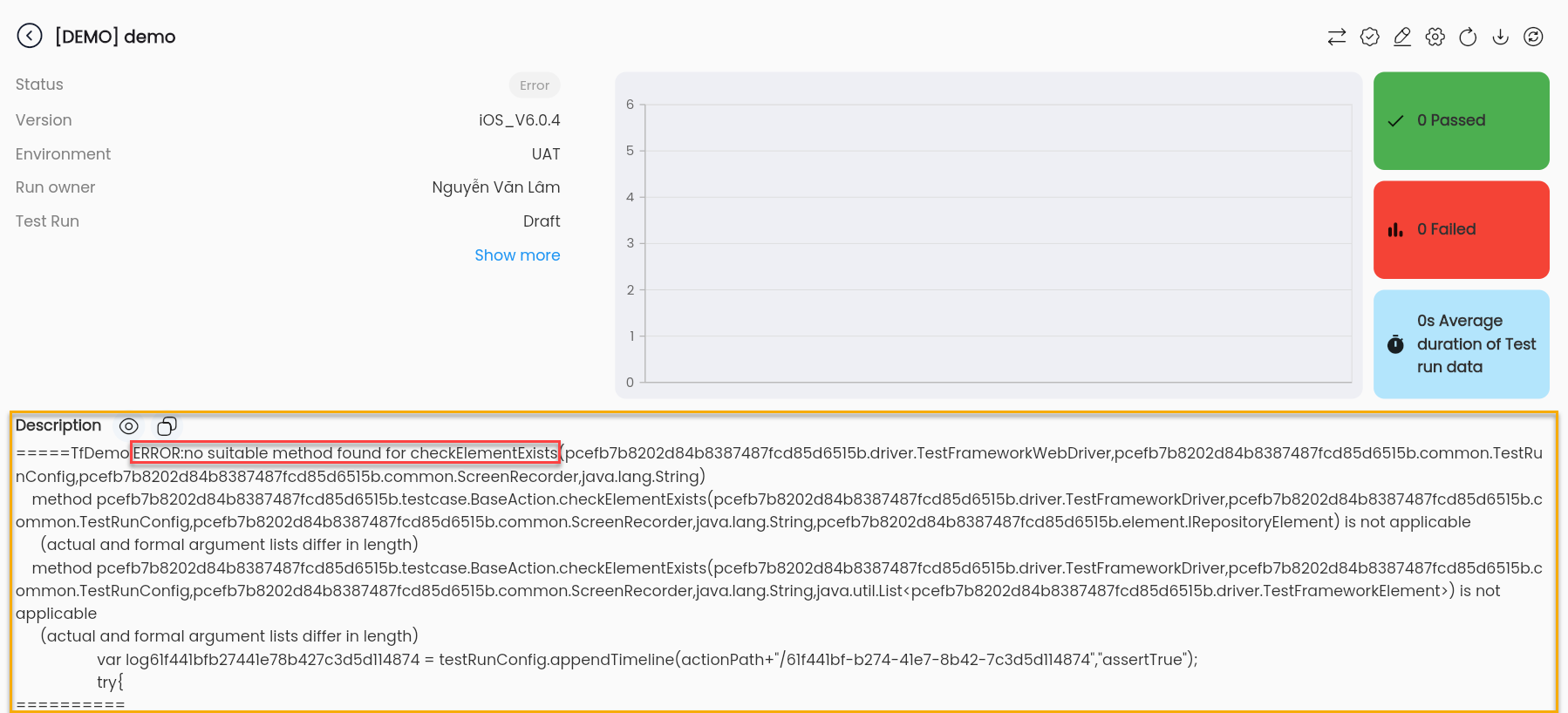
Learn more about typical configuration errors and how to fix them
Identifying Execution Errors:
Step 1: After clicking run, if you wait a long time and still do not see the execution browser displayed, click the Refresh button on the detailed execution results screen.
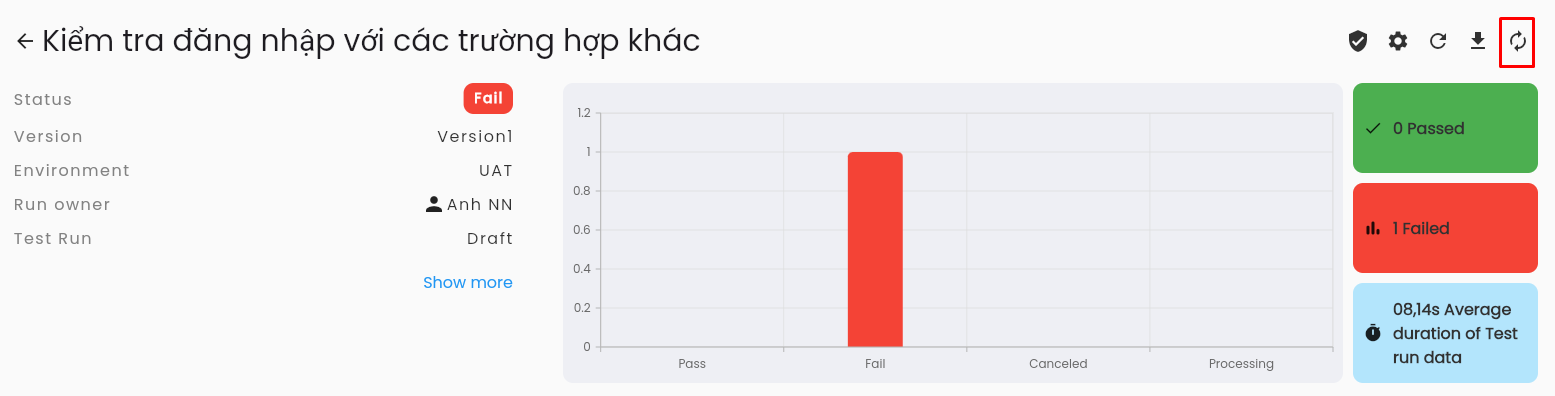
Step 2: In the list of data from the test run, select a data entry that has a fail result that you want to check for errors.
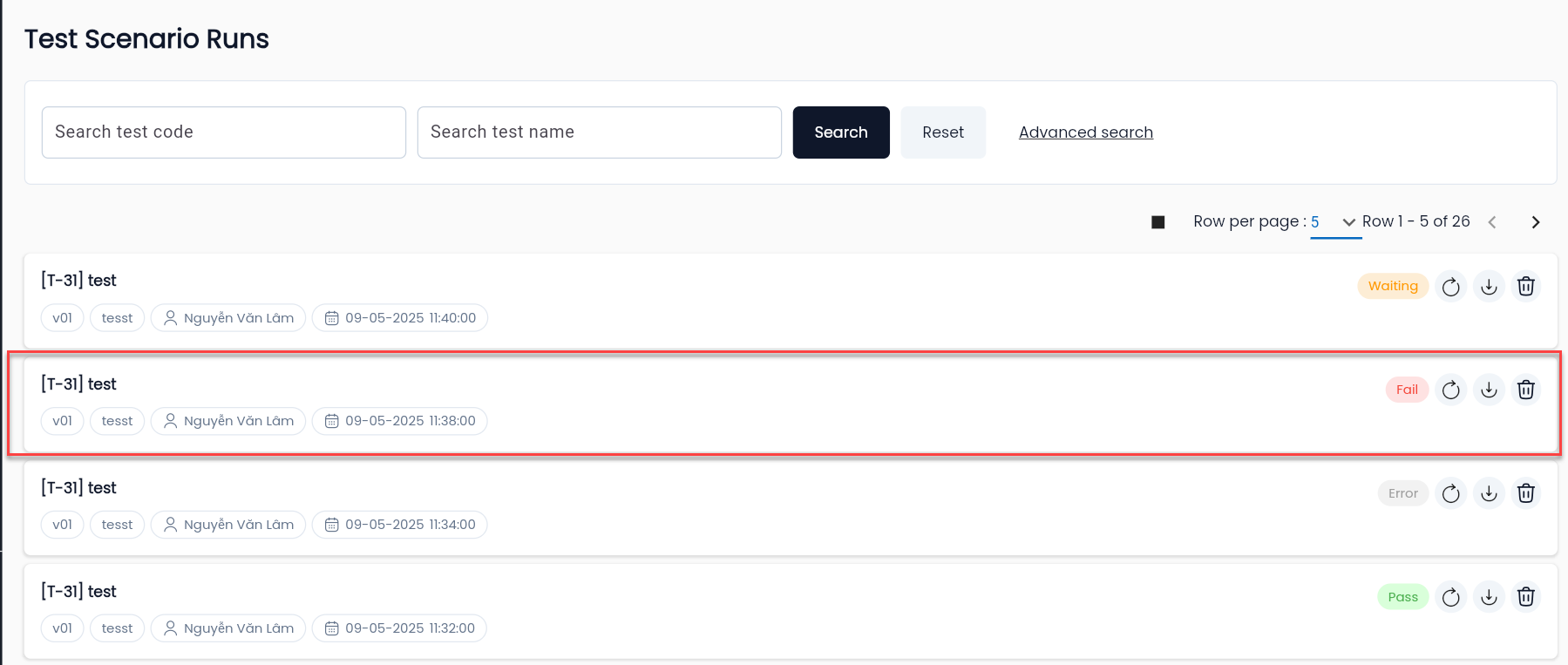
Step 3: Observe the result status; if it shows red – Fail, the error description will be displayed in the Actual result description.
Learn more about typical execution errors and how to fix them
How to Identify Error Locations During Execution Errors
To identify error locations during execution, the system provides several utilities to assist users:
- View debug: Identify error locations in the configuration interface.
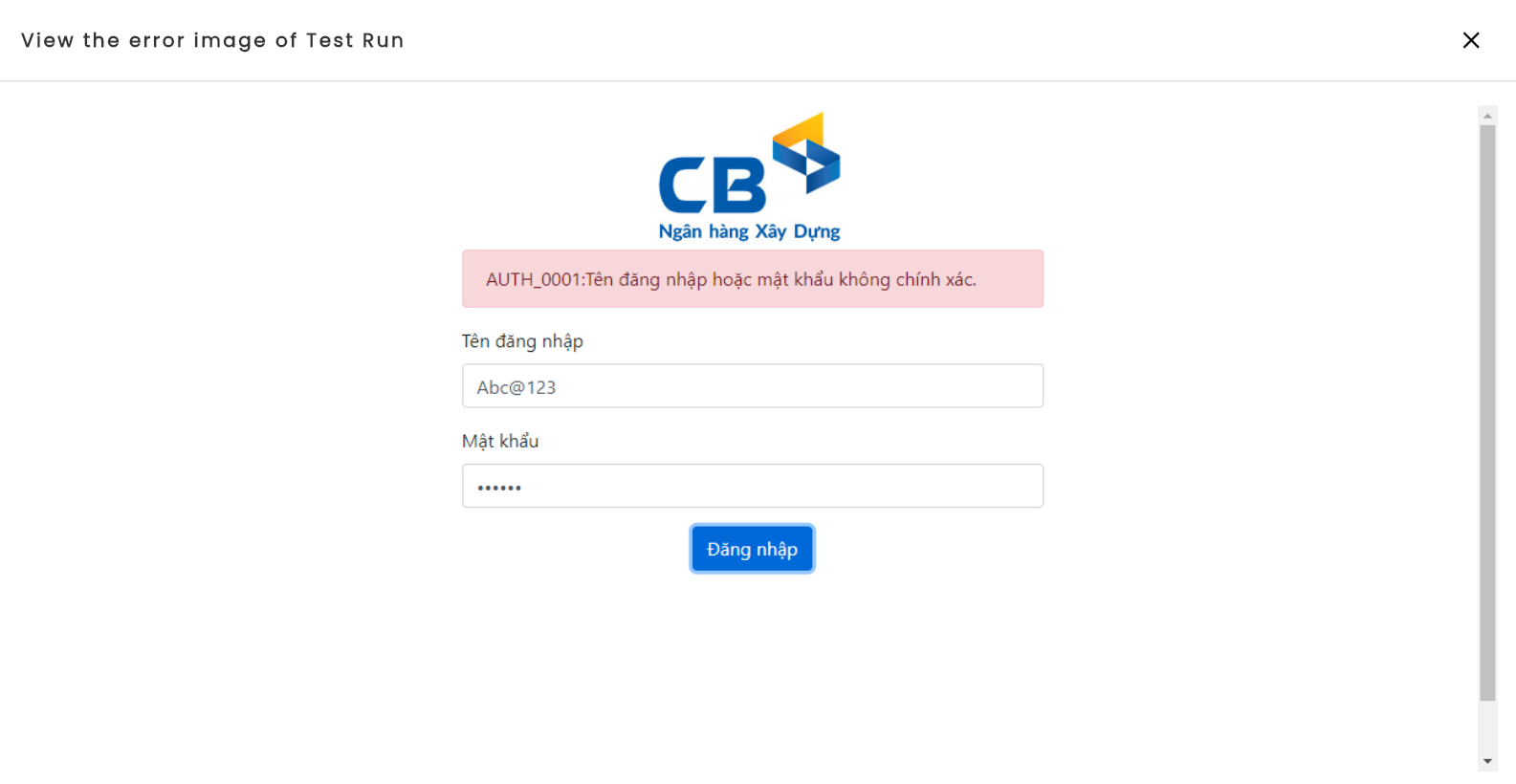
- View image error of test: Screenshot of the application being tested when an error occurs.
View debug
Step 1: On the detailed execution results screen, select a dataset that encountered an execution error, click the View debug icon of that dataset.
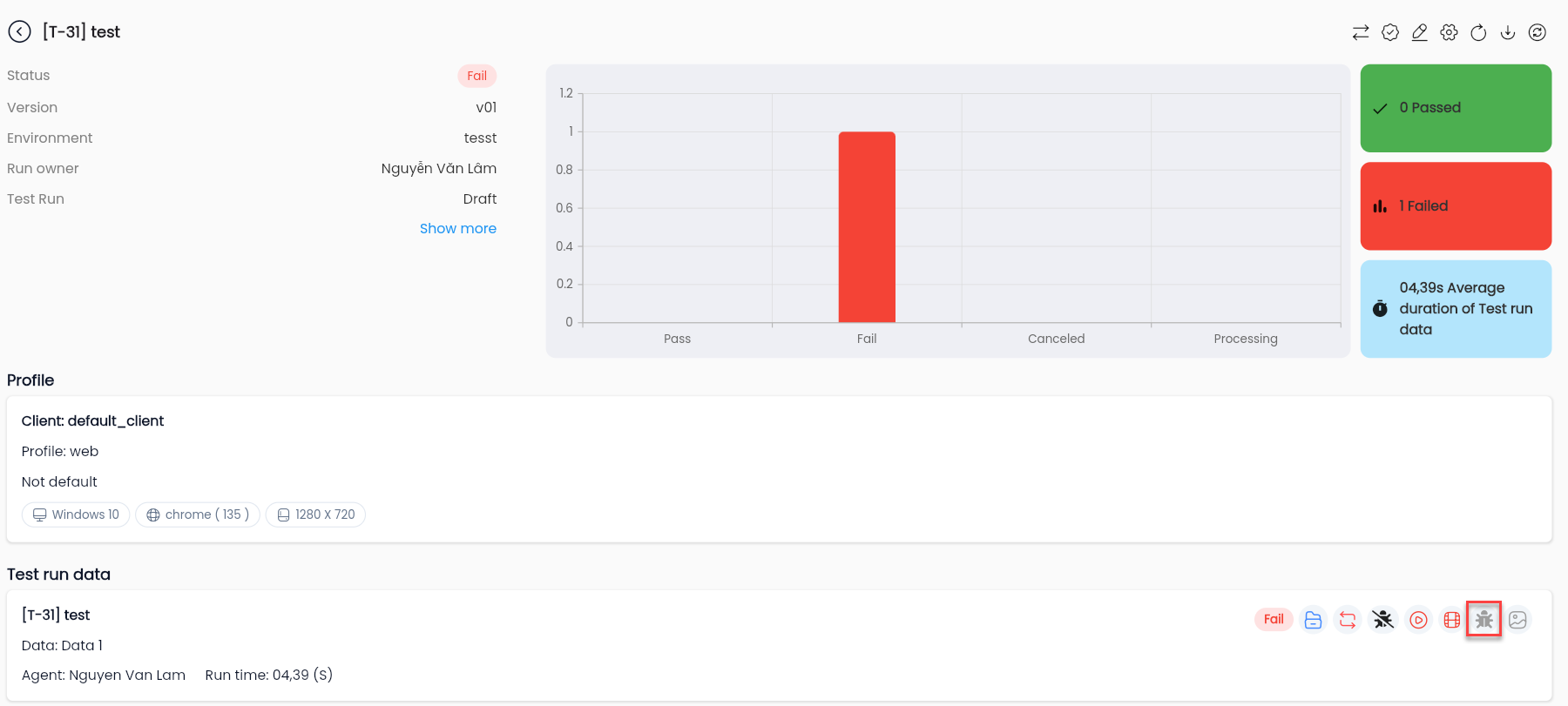
Note: The View debug icon is displayed when the actual result of the dataset during test execution is fail.
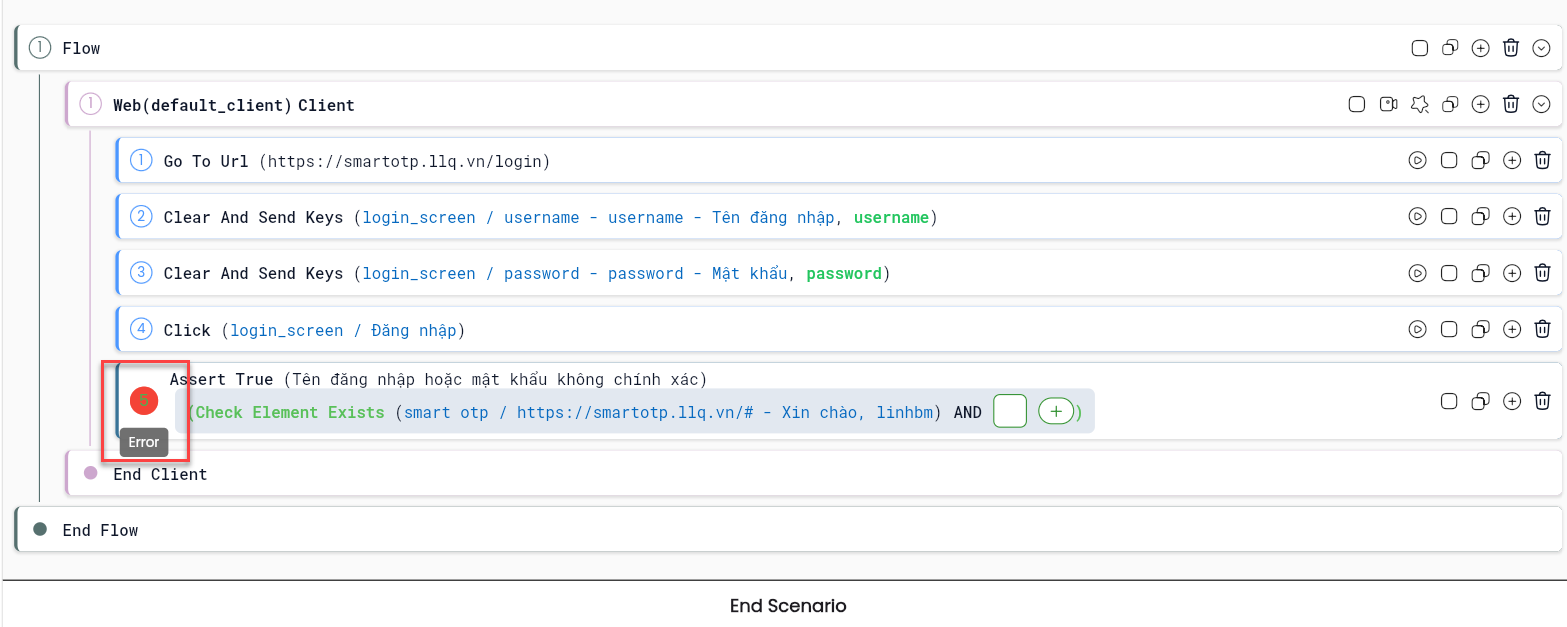
Step 2: In the configuration interface, the system will highlight the step where the execution error occurred.
View image of test
To use the View image of testfeature, when setting up the Profile in the Image disabled field, the user needs to select false. Learn more about profile setup
Step 1: On the detailed execution results screen, select a dataset that encountered an execution error, click the View image error of test icon of that dataset.
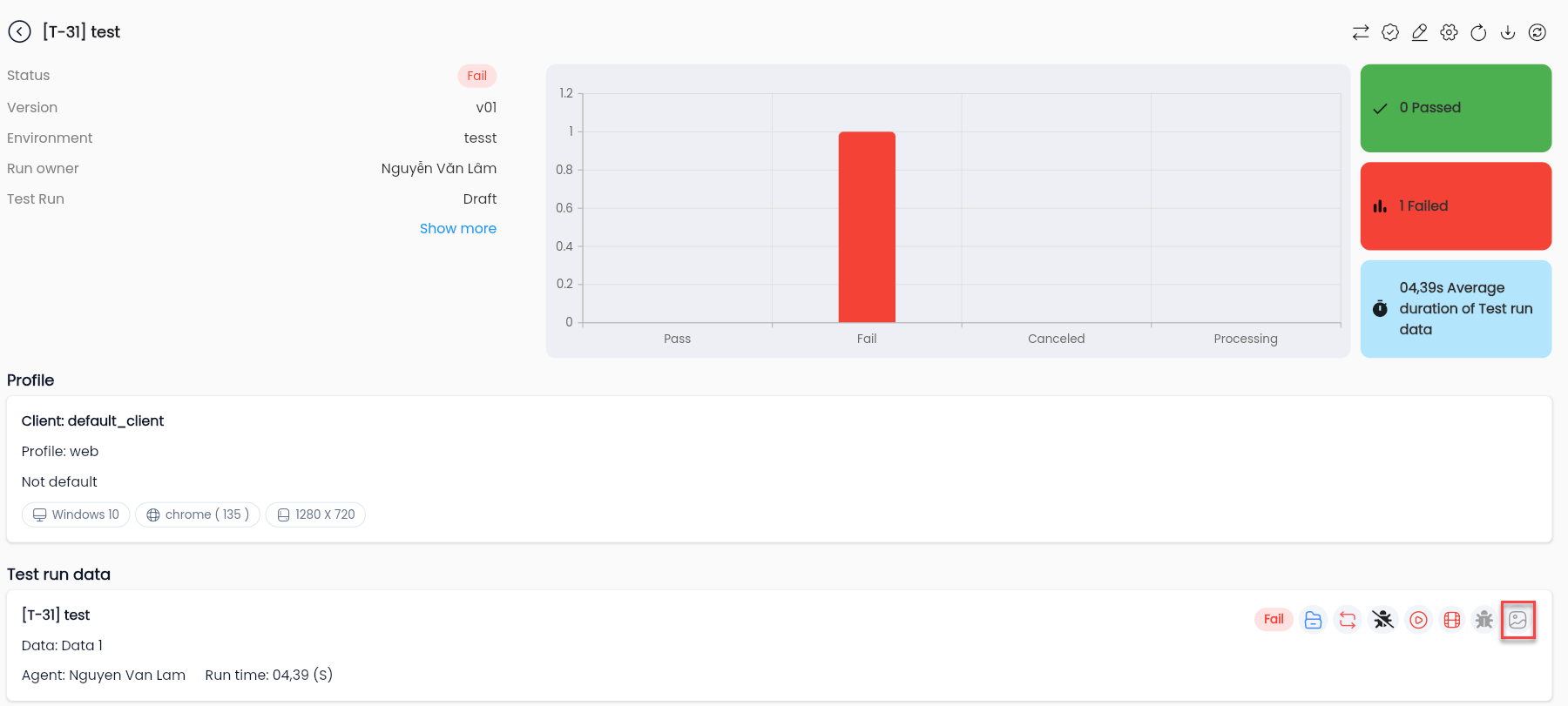
Note: The View image error of test icon is displayed when the actual result of the dataset during test execution is fail.
Step 2: The system displays a popup to view the screenshot of the error in the application being tested.
Execution Video
After the execution process is completed, users can review the video to confirm whether it ran correctly according to the configured business flow, and whether any steps were missed. This is also a way to identify where execution errors occurred.
Step 1: On the detailed execution results screen, select a dataset that the user wants to view the video for, click the Play video of test icon of that dataset.
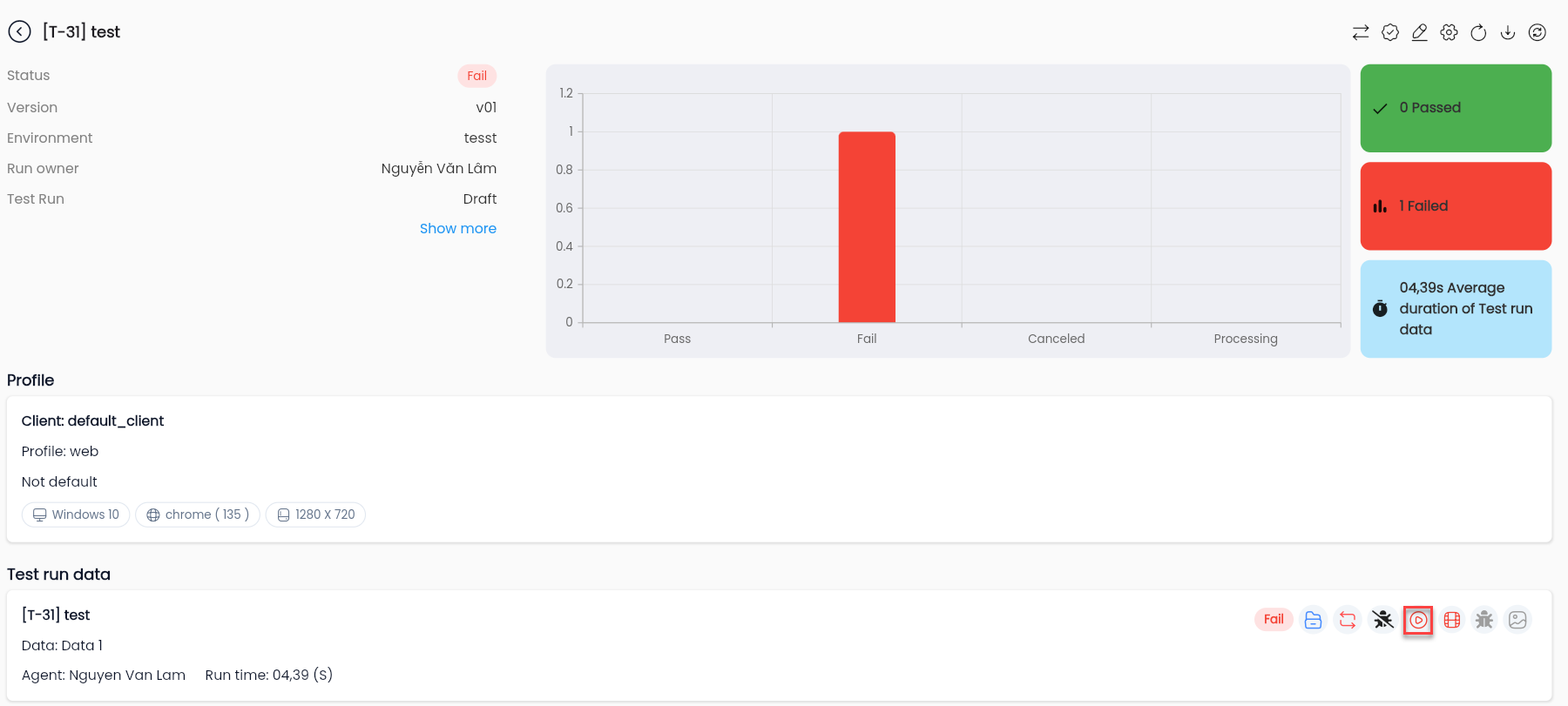
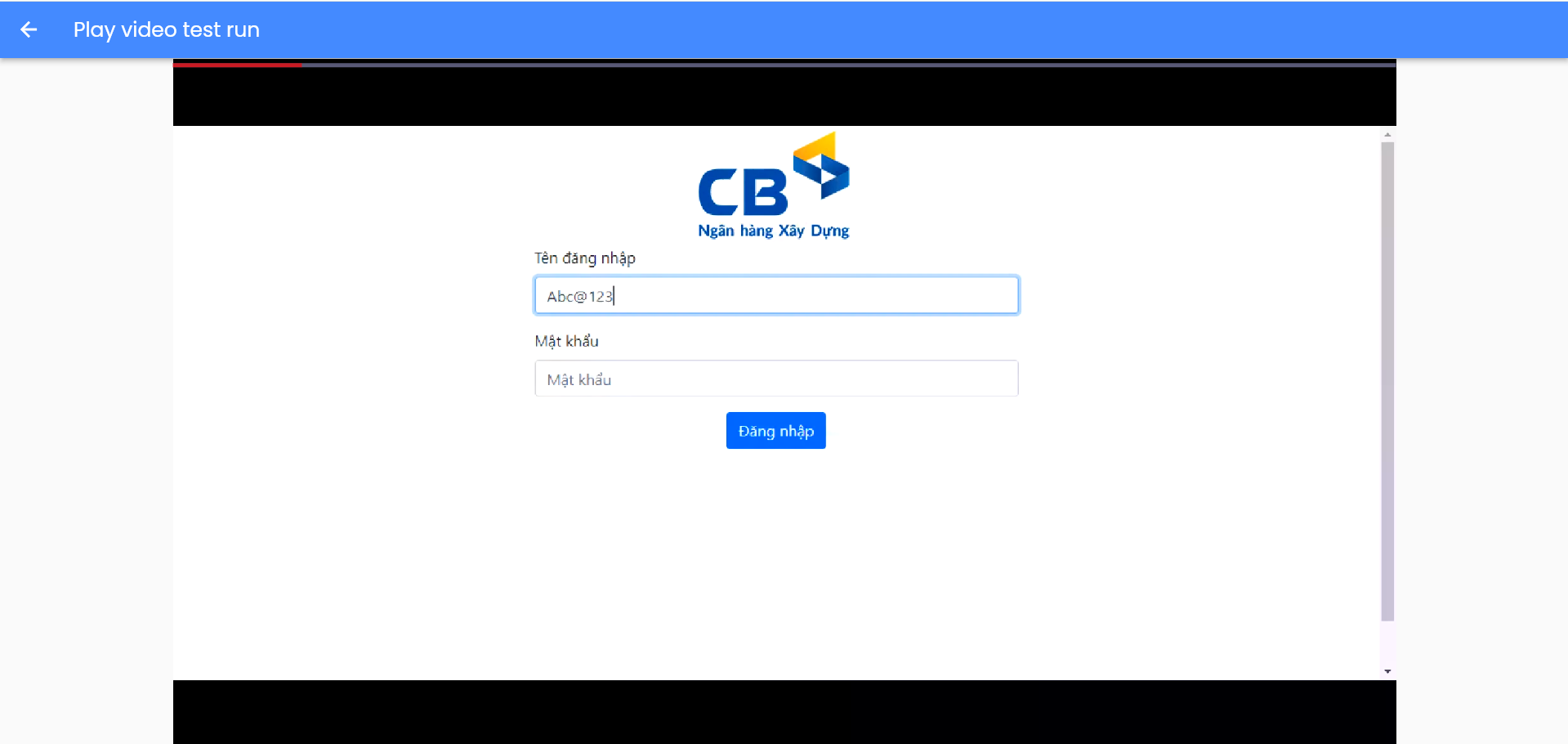
Step 2: The system redirects to the screen to play the execution video.
Note: To view the video, when setting up the testing environment, the record feature must be enabled (Recorded disable = False). The video will be a compilation of screenshots taken during the configuration steps.*
Report bug
For datasets with a final result status (Final status) of fail, users can report bugs to integrated bug management tools (Jira, Mantis, LLQ Work Management, etc.) when setting up the project.
Users can report bugs manually or configure to automatically report bugs when integrating with bug management tools. Automatic bug reporting will push the bug each time an execution error occurs.
The information pushed along with the error includes: error description, error image, and test data for developers to easily reproduce the error.
How to report bugs manually is as follows:
Conditions to Report Bugs on Centralized Automation Testing Suite
Integrating Bug Management Tools
When setting up the Project, users need to select a bug management tool integrated with the Centralized Automation Testing Suite.
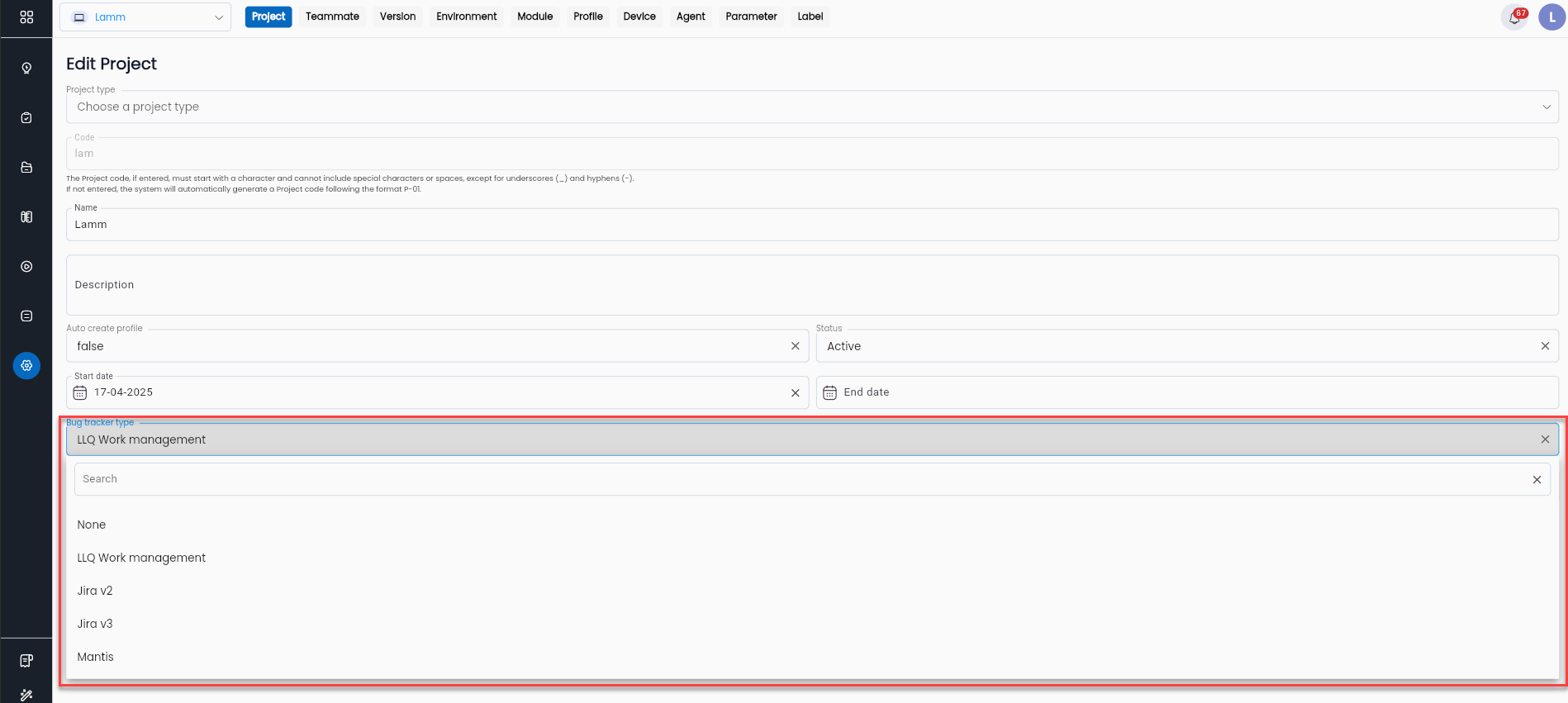
Currently, the LLQ QA Testing Suite supports integration with bug management tools such as Jira, Mantis, and LLQ Work Management.
Test Execution Type
To report bugs on the Centralized Automation Testing Suite, the execution type of the test scenario must be “Complete.” The execution type (test run) is set before running the test scenario.
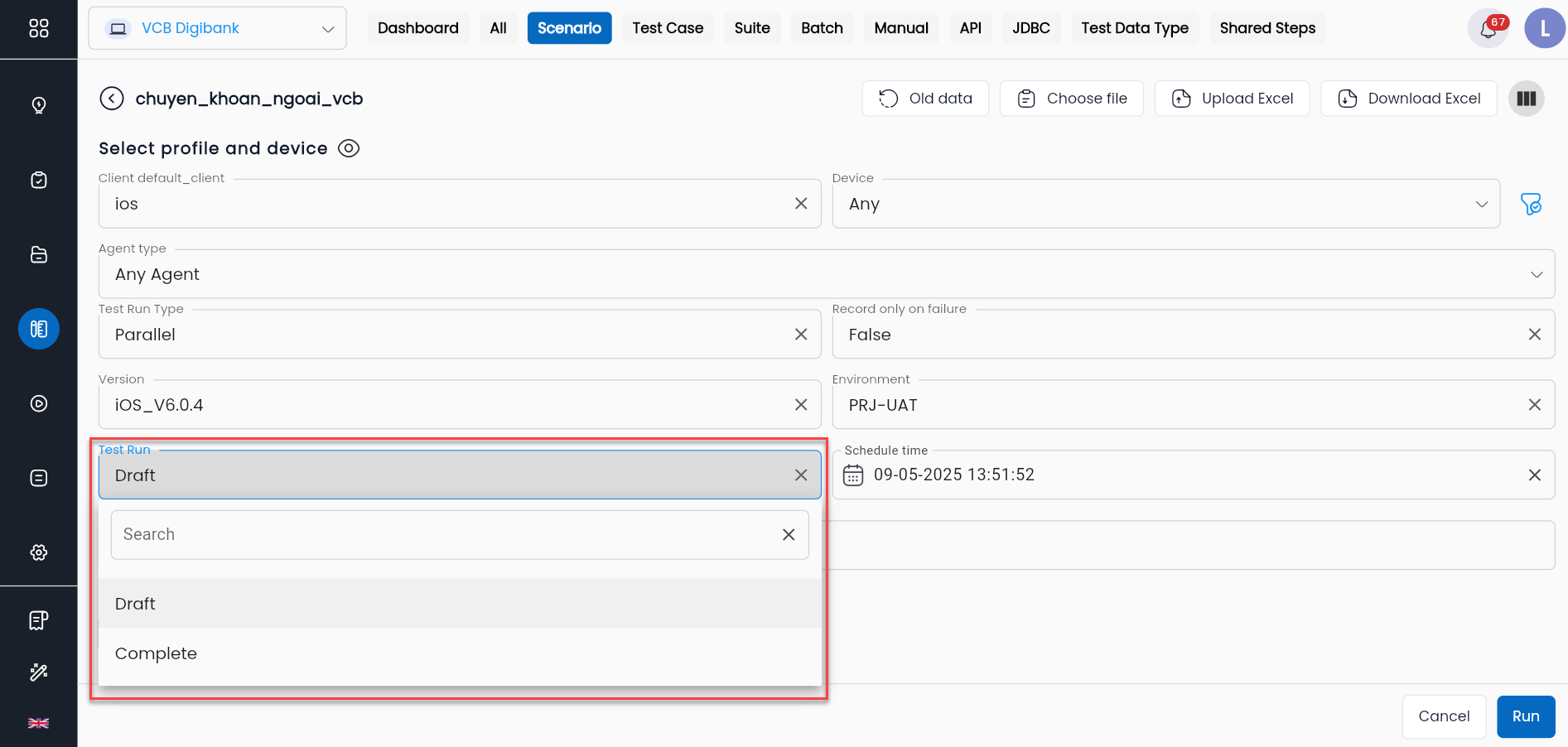
If the test scenario has a Test Run status of Draft and the user wants to report a bug from that run, the user needs to change the status from Draft to Complete.
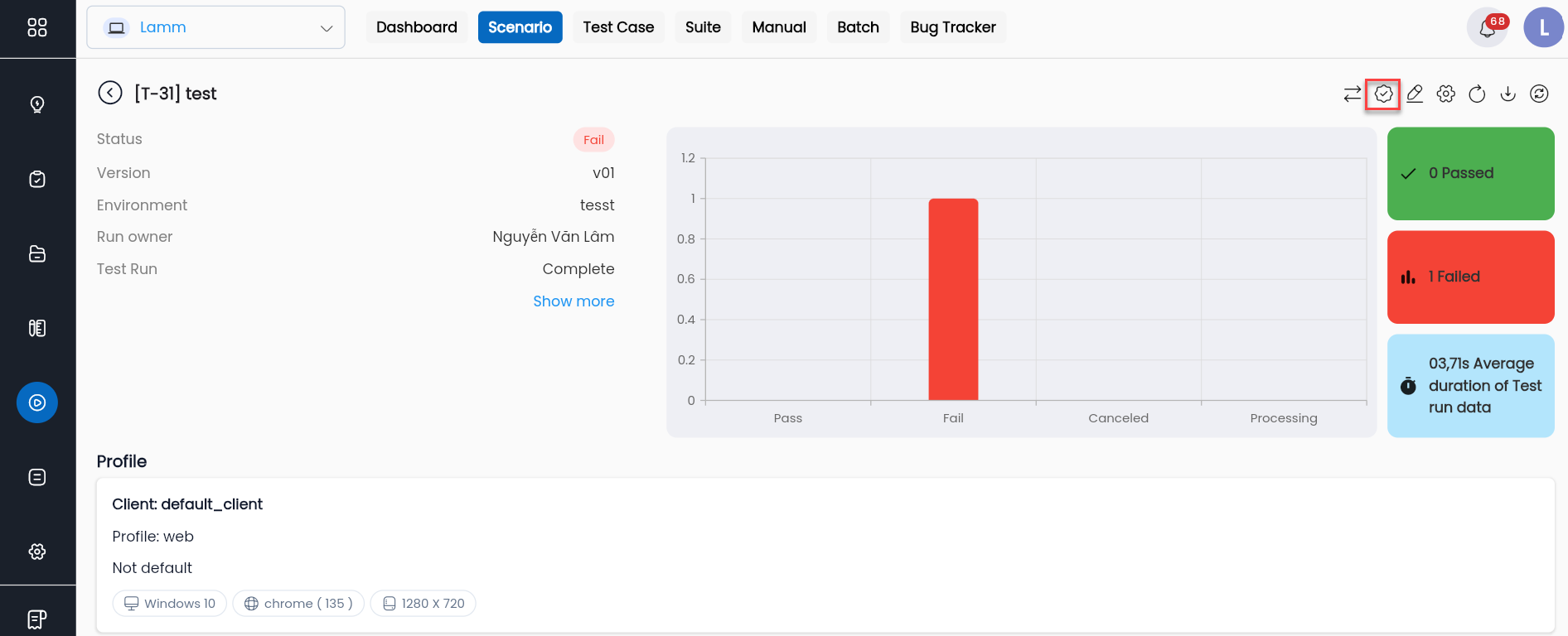
Step 1: On the execution results screen of the test scenario, click the Mark complete.
The system displays a confirmation popup to change to Complete.
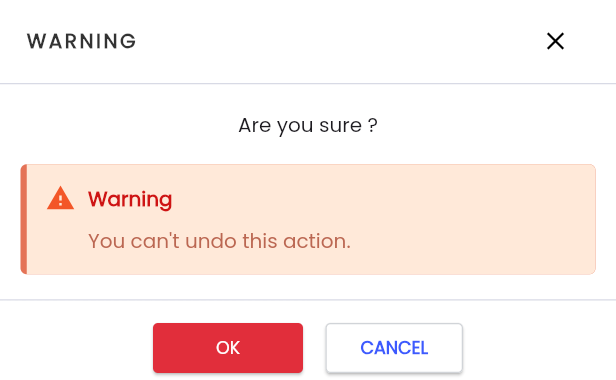
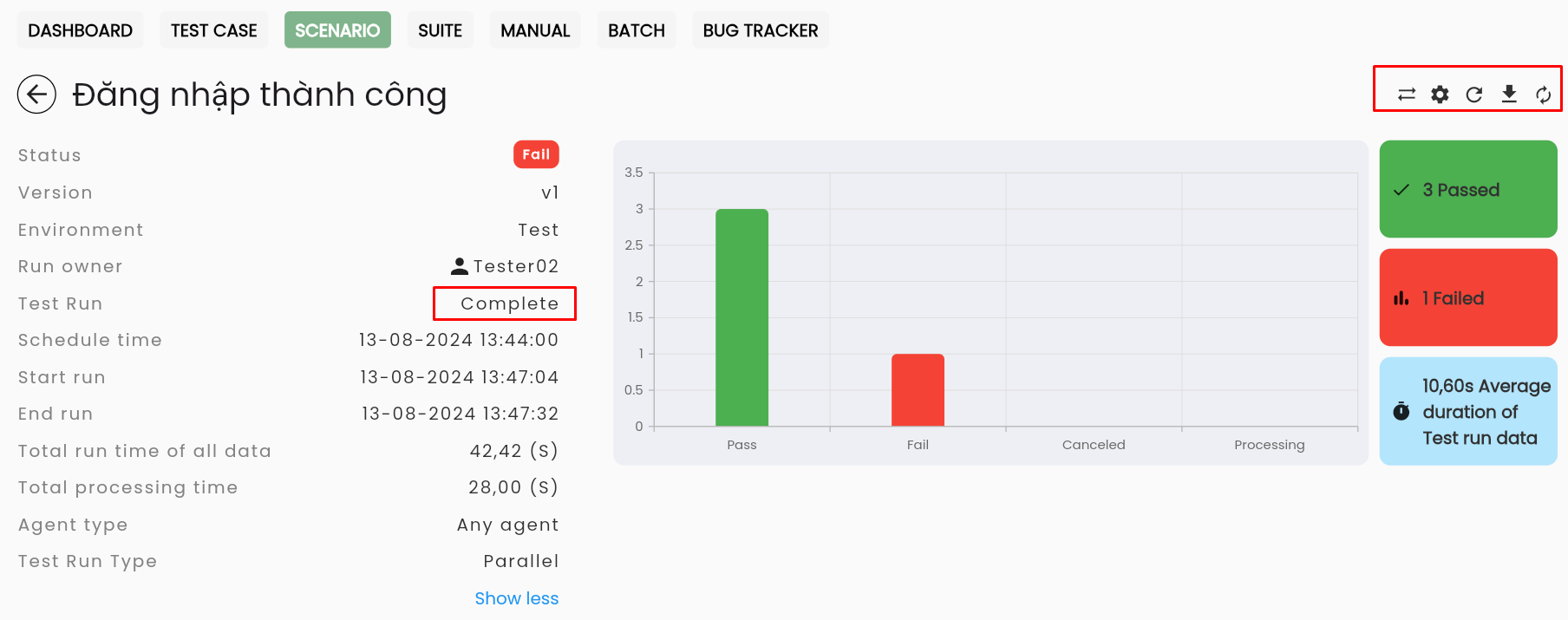
Step 2: Click OK, and the system updates the Test run to Complete and no longer displays the Mark Complete icon.
Reporting Bugs on Centralized Automation Testing Suite
Step 1: On the detailed execution results screen, select a dataset that encountered an execution error, click the Report bug icon of that dataset.
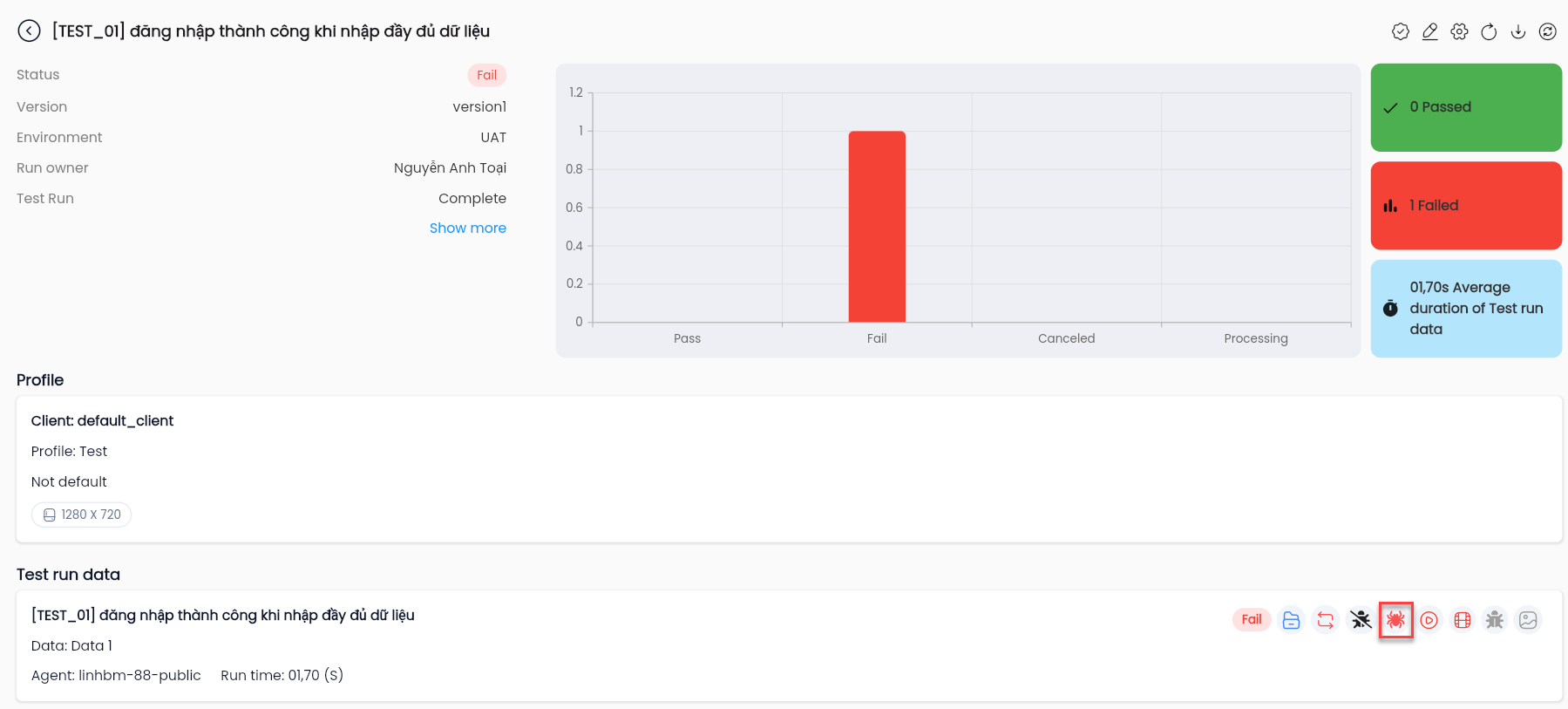
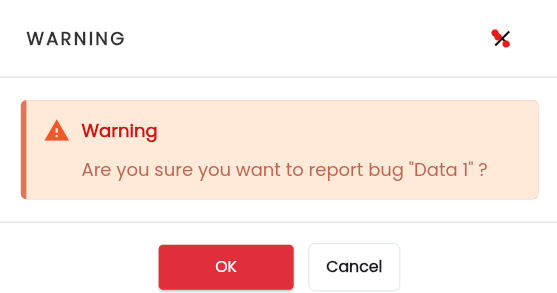
The system displays a confirmation popup to report the bug.
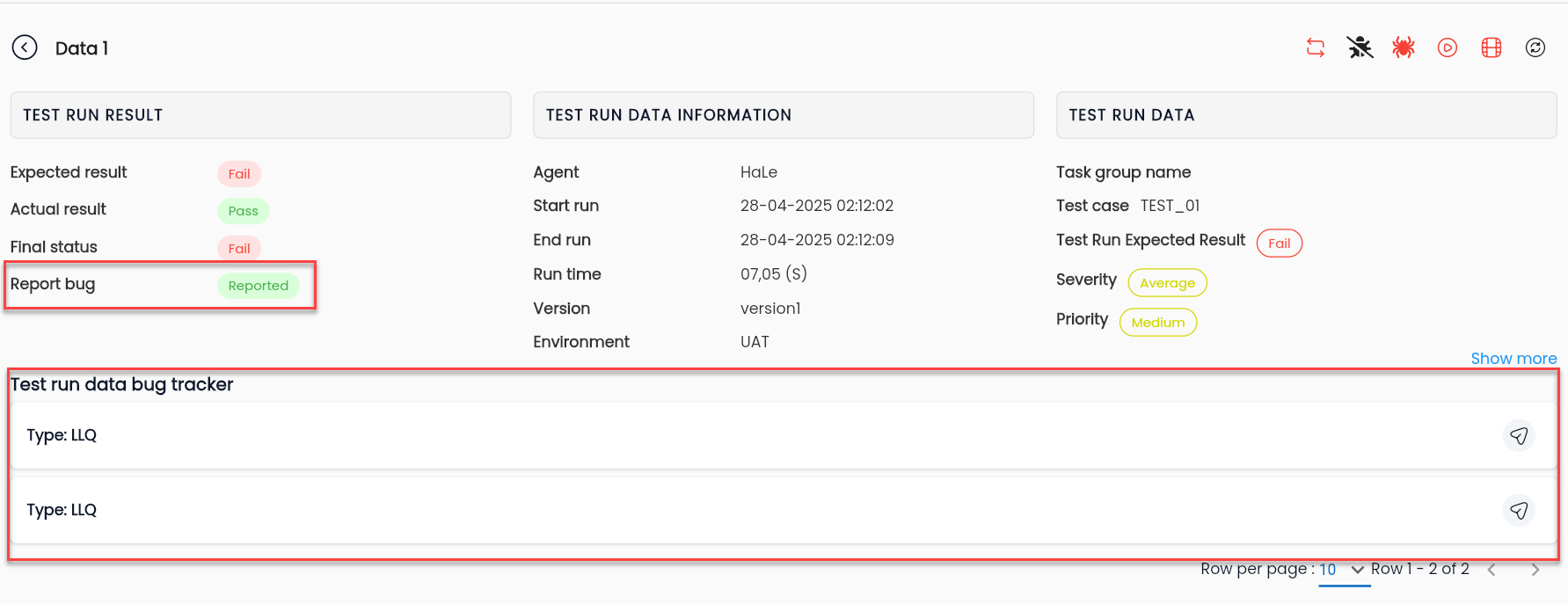
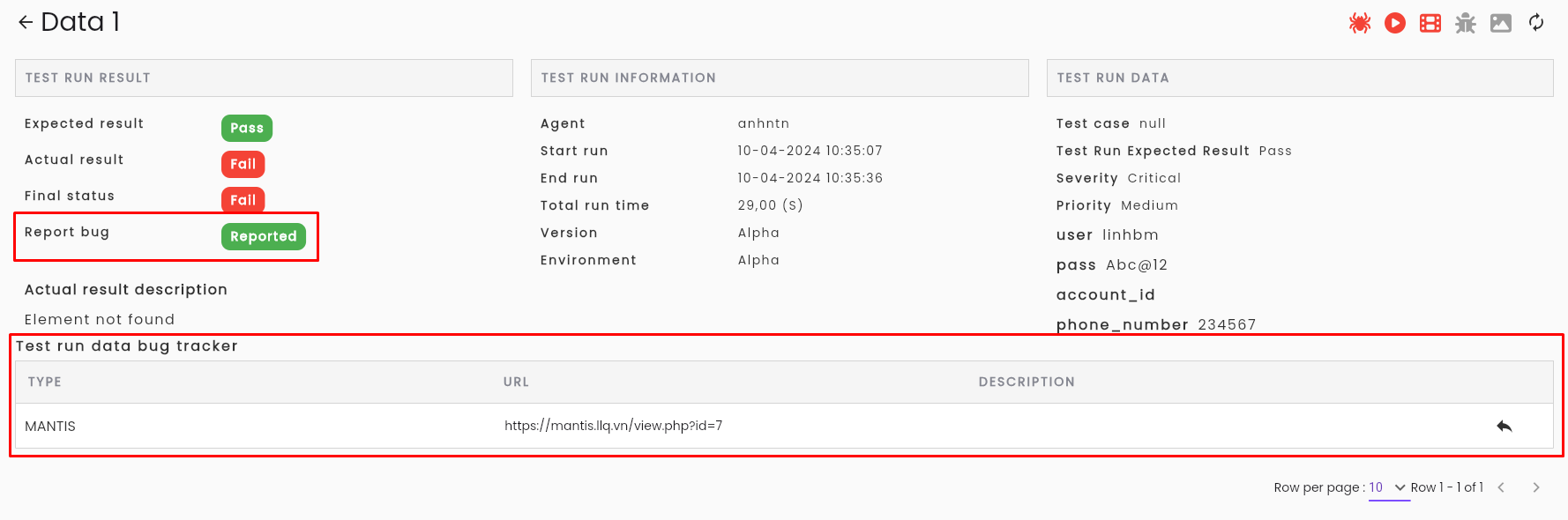
Step 2: Click OK, and the system notifies Report bug successful, while updating the Bug Tracker Status Report Bug from Not report to green Reported, displaying the Test run data bug tracker box along with a quick access link to the reported error.
Reporting Results of an Execution
An execution can consist of many different data rows and yield various results. Users can download a report file to view and analyze the results more quickly.
How to download the results report of an execution:
Step 1: On the detailed execution results screen, click the Download result icon.
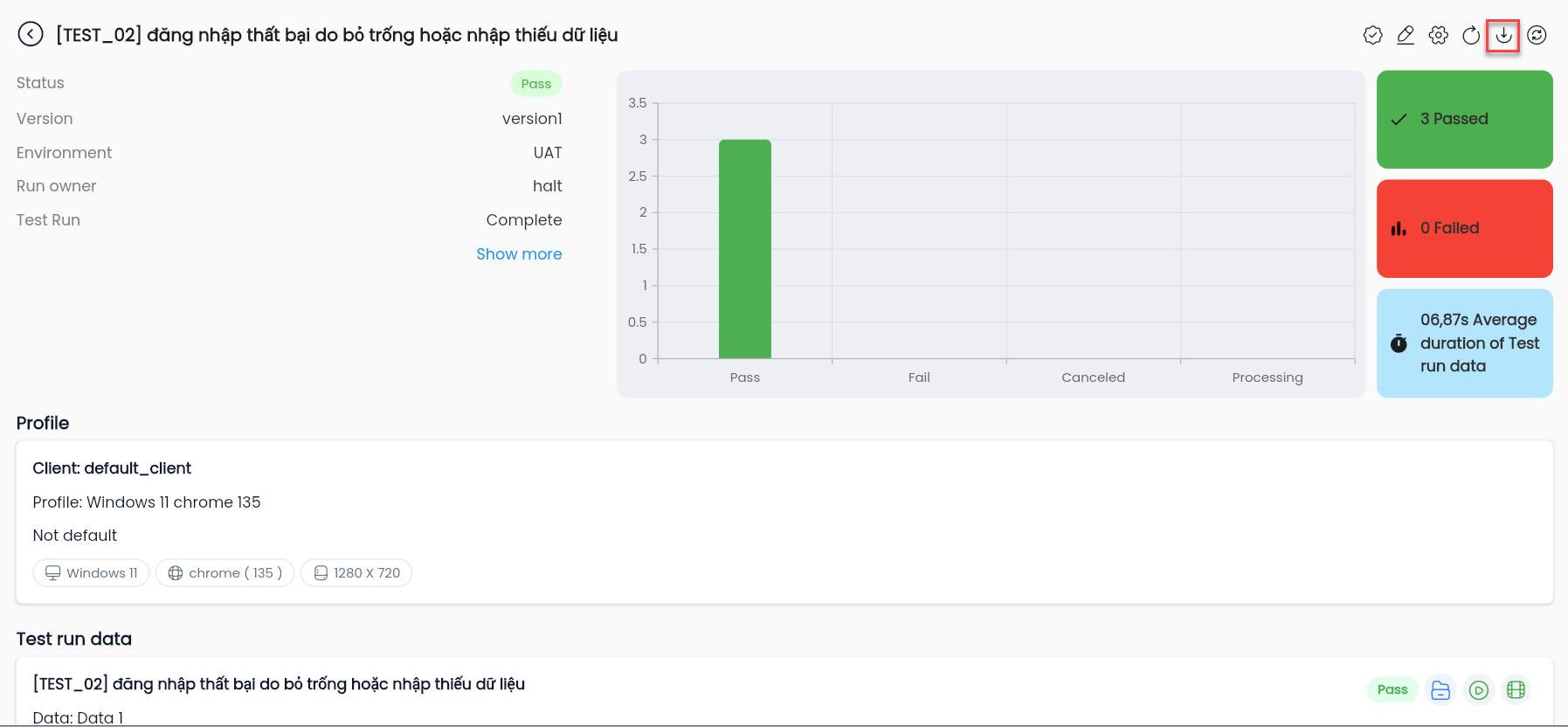
Or click the Download result icon in the list of executions.
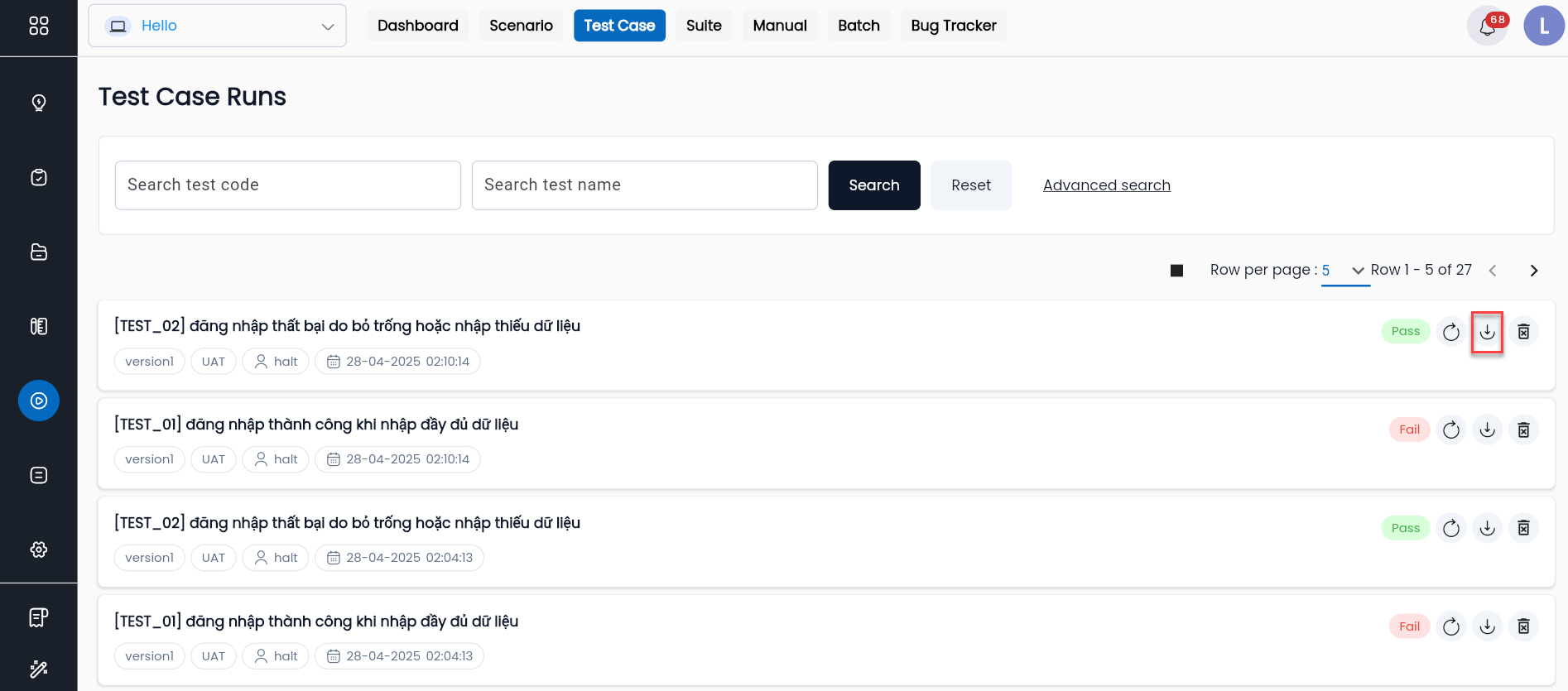
Step 2: The system will download the results file to the user's computer. The results file will include the following information:
-
Test run information: Basic information of the execution.

-
Result: Results of the datasets.

-
Data: Test data.

-
Parameter: List of parameters of the test scenario.