Parameter
Overview of Project Parameter Management
Project parameters are shared variables created for use across the entire project. Types of project parameters include:
- Environment variable
- Version variable
- Agent variable
- Device variable
This section will guide users on managing the parameter list in the Centralize Automation Testing Suite:
Create a new parameter
Details on creating each type of parameter:
To configure project parameters in the Centralize Automation Testing Suite, follow these steps:
Step 1: Click SETTING in the project menu.
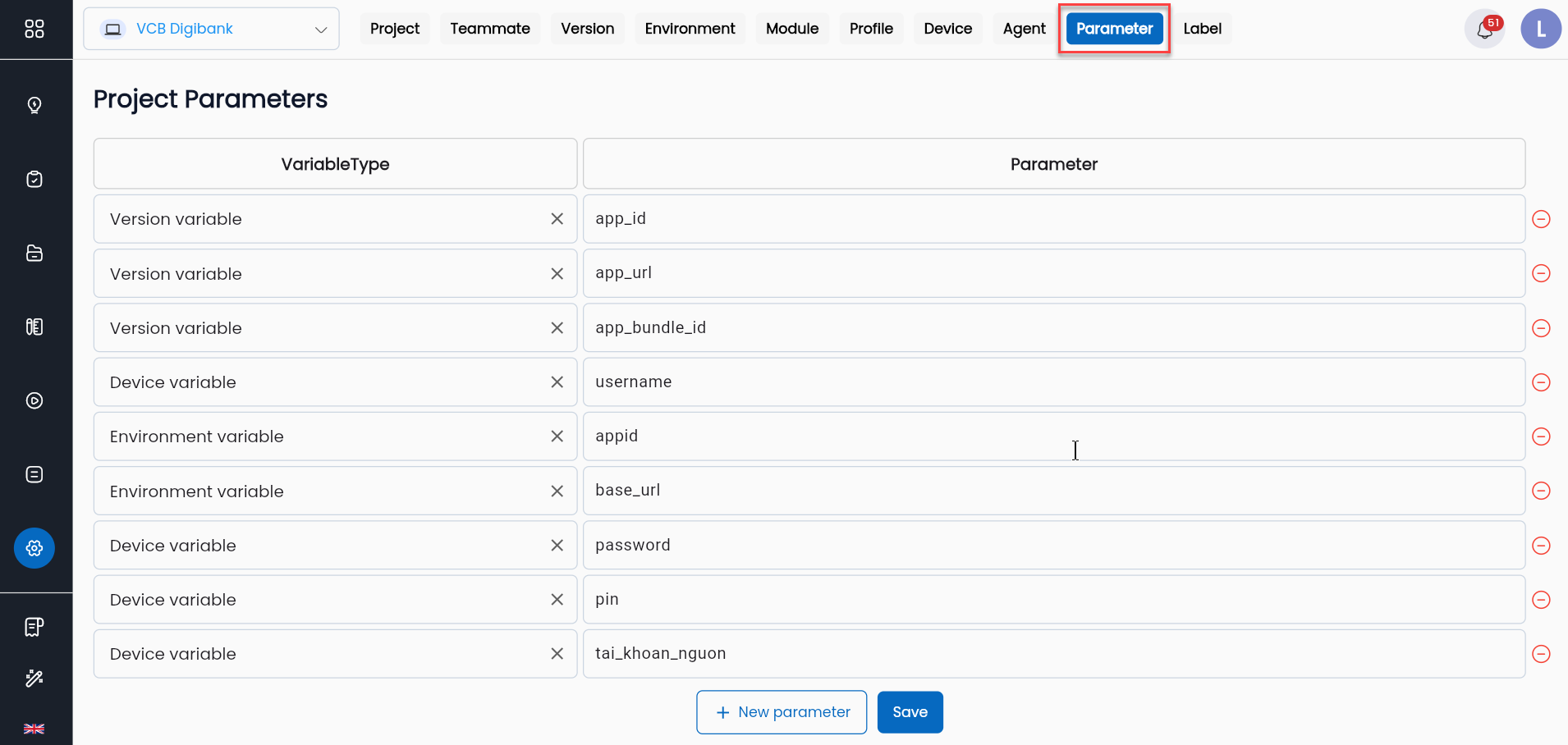
Step 2: Select the PARAMETER tab
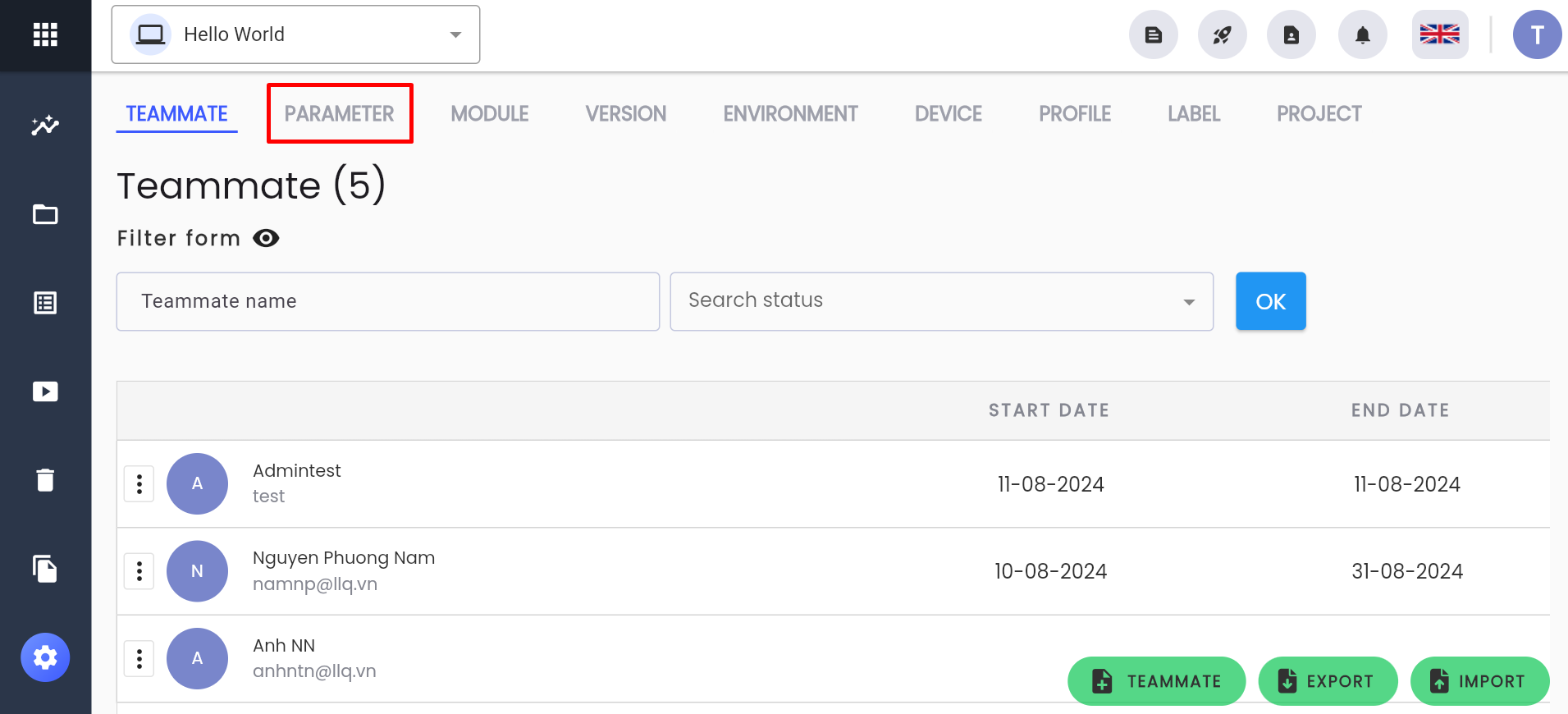
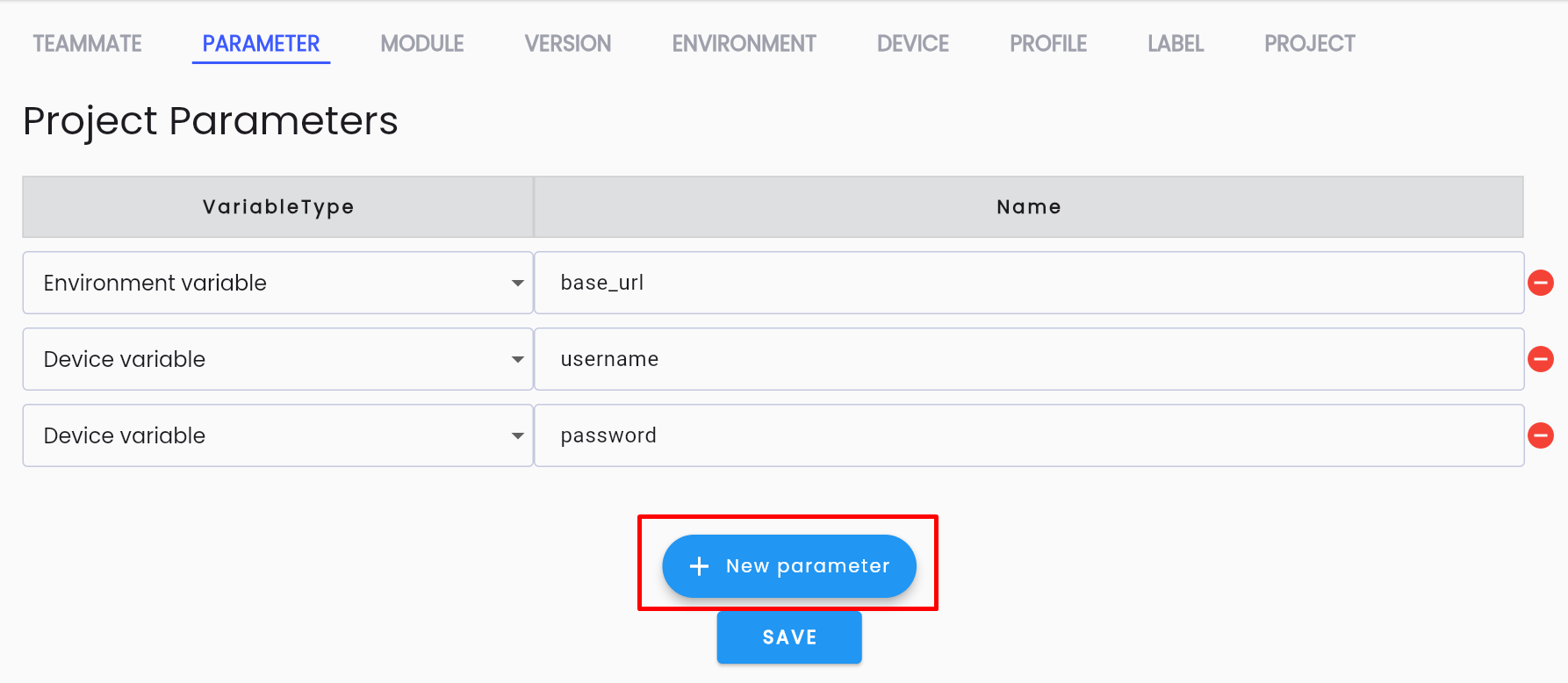
Step 3: Click NEW PARAMETER to add new parameters. There is no limit to the number of parameters created at once.
Step 4: The system displays a configuration form for the parameter.
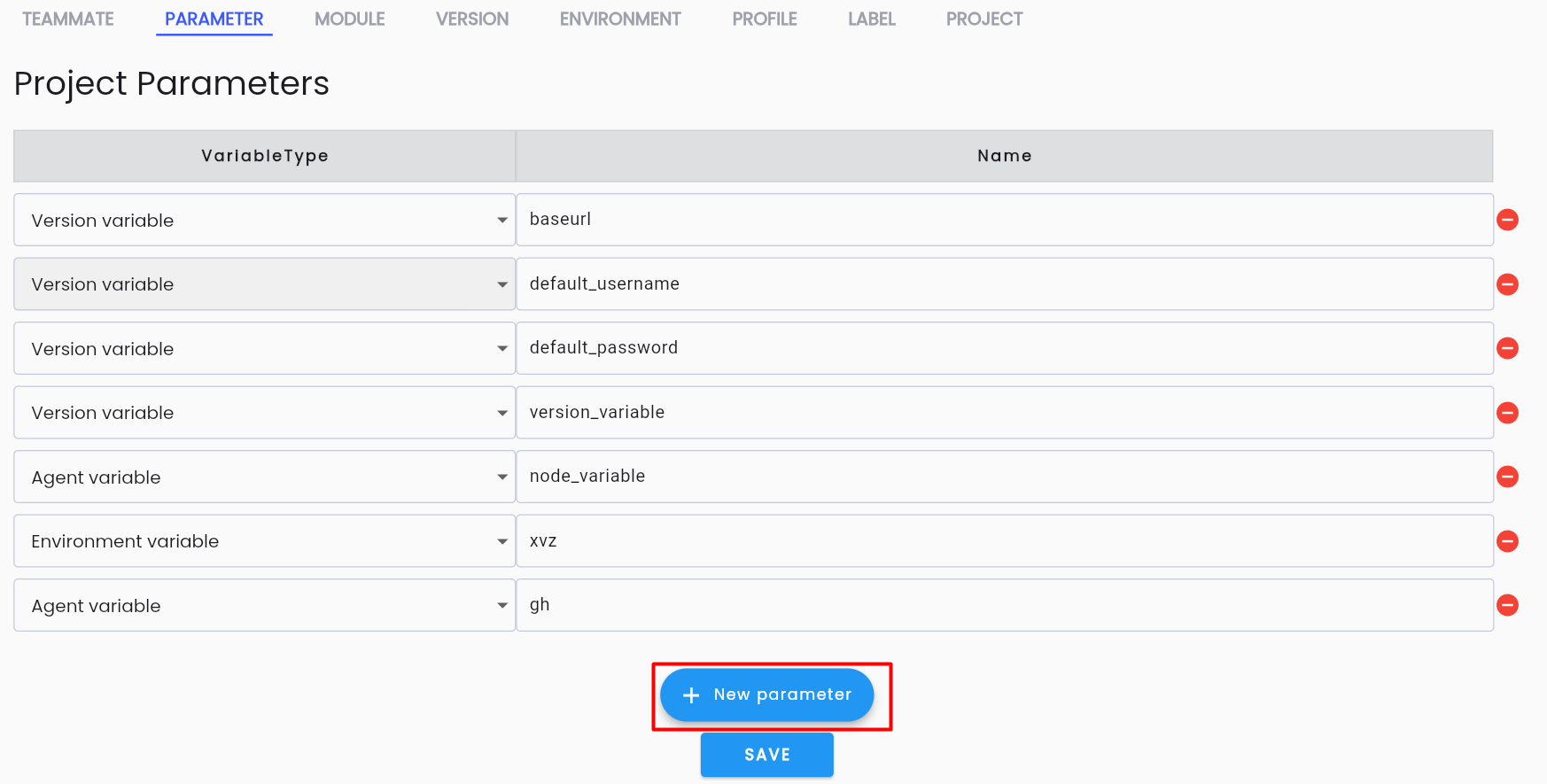
Field descriptions:
| Field Name | Mandatory | Format | Constraints | Description |
|---|---|---|---|---|
| VARIABLE TYPE | Yes | Combobox | The type of parameter being created. Options include: + Environment variable + Version variable + Agent variable + Device variable Only one value can be selected per parameter. | |
| NAME | Yes | Textbox | NAME must be unique, start with a letter, and only contain lowercase letters (a-z), numbers, and “_”. | Enter the name of the parameter. |
Step 5: Once all information is correctly entered, click SAVE to save the newly created project parameters. The system displays the message: “CREATE SUCCESSFUL”
View and Edit Parameters
To view and edit project parameters in the Centralize Automation Testing Suite, follow these steps:
Step 1: On the PARAMETER tab screen, select any parameter to edit and update its details as needed.
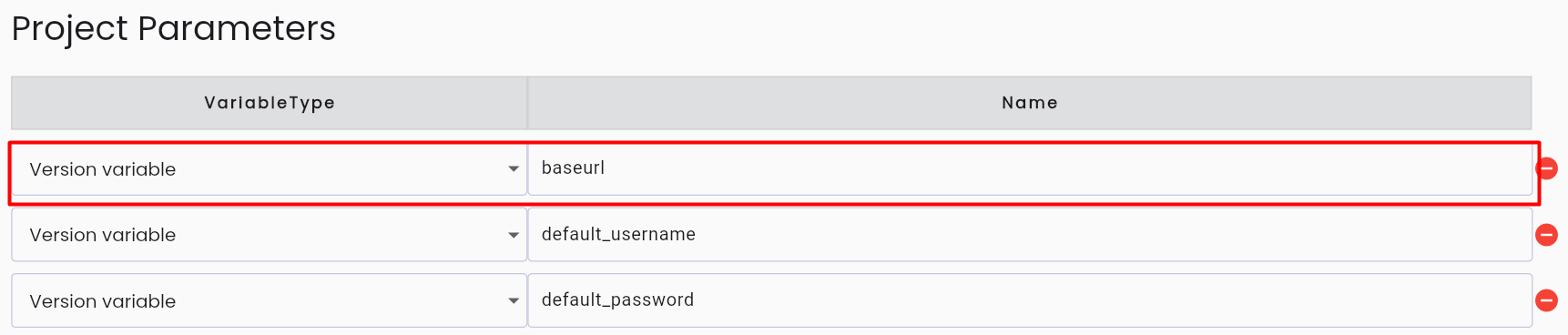
Field descriptions:
| Field Name | Mandatory | Format | Constraints | Description |
|---|---|---|---|---|
| VARIABLE TYPE | Yes | Combobox | The type of parameter being created. Options include: + Environment variable + Version variable + Agent variable + Device variable Only one value can be selected per parameter. | |
| NAME | Yes | Textbox | NAME must be unique, start with a letter, and only contain lowercase letters (a-z), numbers, and “_”. | Enter the name of the parameter. |
Step 2: After editing, click SAVE to save the updated information. The system displays the message: “UPDATE SUCCESSFUL”
Delete Parameters
To delete project parameters in the Centralize Automation Testing Suite, follow these steps:
Step 1: On the PARAMETER tab screen, select the parameter to delete and click the delete icon on the right side of the parameter.
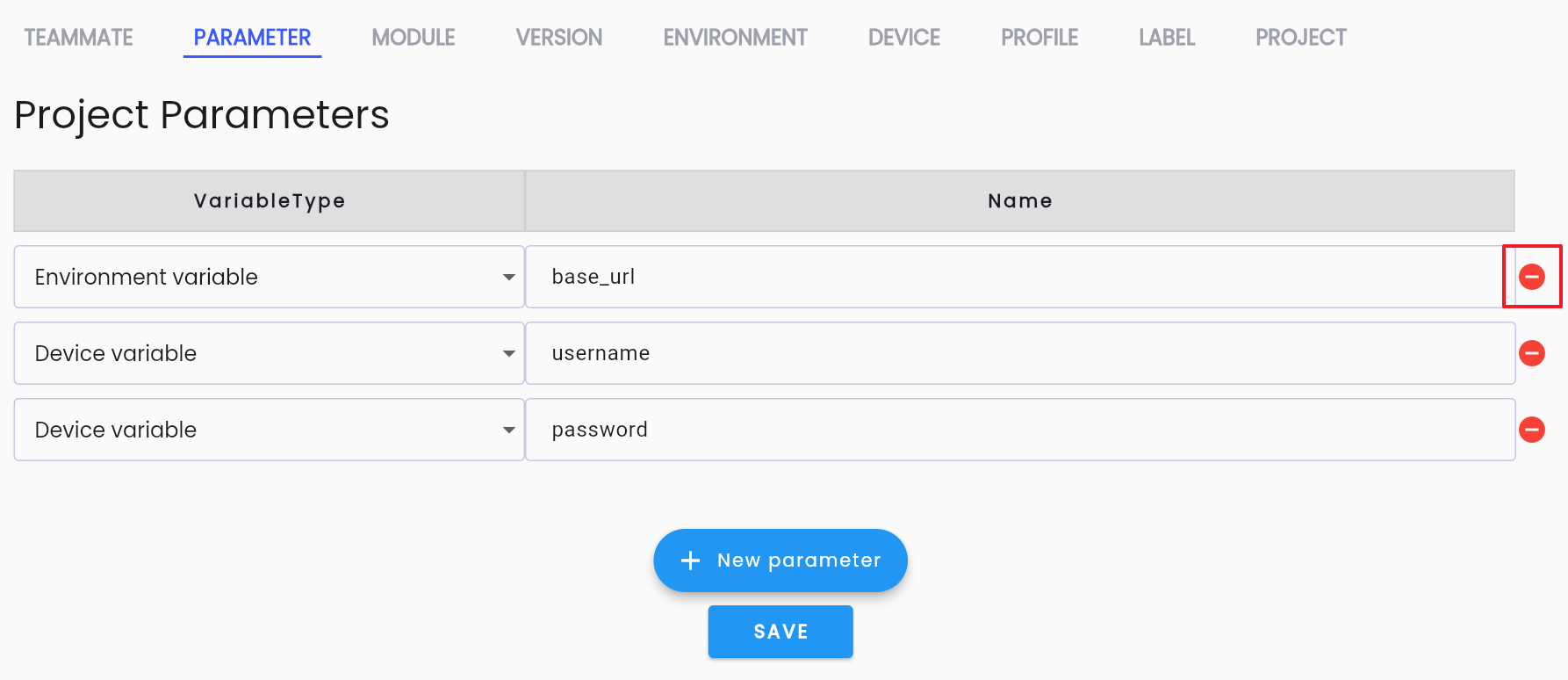
Step 2: Click SAVE to confirm the deletion. The system displays the message: “UPDATE SUCCESSFUL”