Version
Overview of Version in Centralize Automation Testing Suite
Version is a term used to refer to the classification of unique states of computer software during its development and release.
For example: version 1.0, version 2.0, version 3.0, ...
Why is there a need for versions?
Each version has certain changes compared to the previous version of the software. To evaluate the overall quality of each version, during testing, test cases (test case, test scenario, etc.) must be associated with specific versions during execution.
Additionally, there are values that change with each version such as URL, username, password, etc. Users can create version parameters to use during configuration.
This section will guide users on how to manage versions in Centralize Automation Testing Suite:
- Create a new version
- View and edit version
- Delete version
- Configure version parameters
- Edit version parameter values
Create a new version
To create a new version in Centralize Automation Testing Suite, follow these steps:
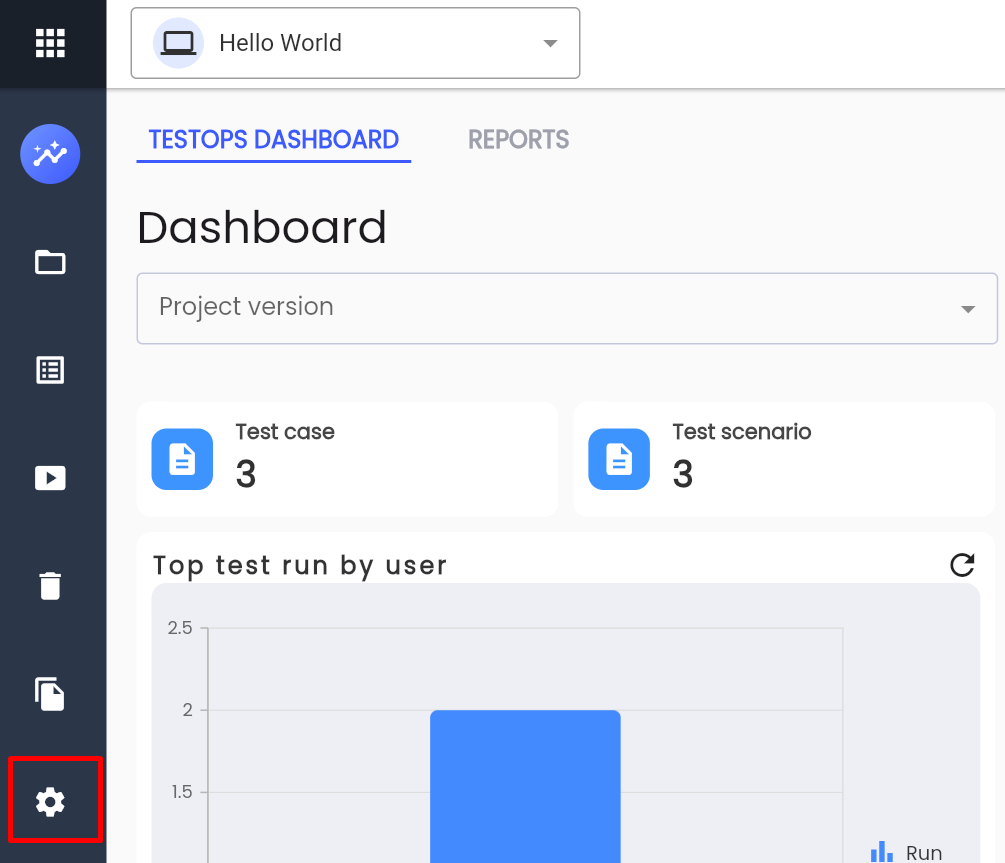
Step 1: Click Setting on the project menu
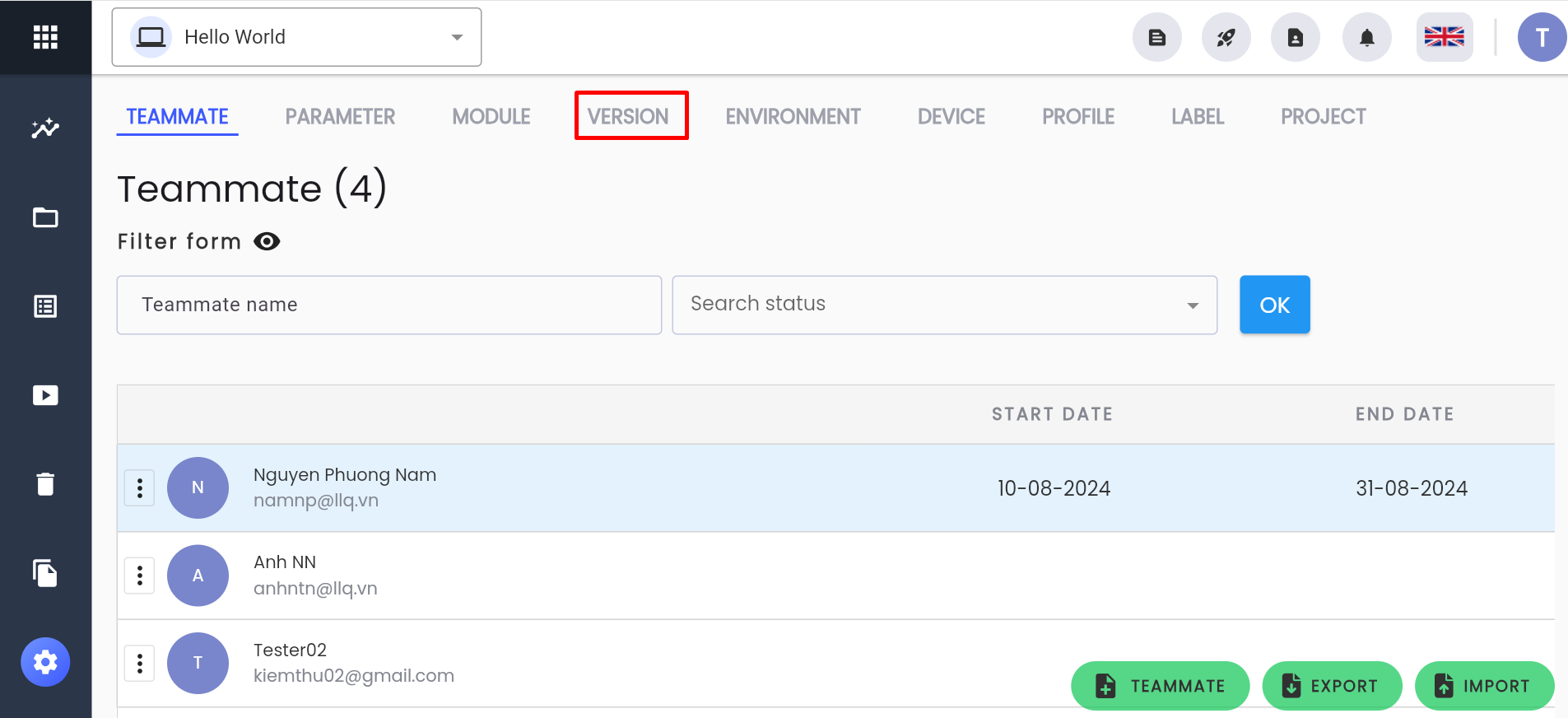
Step 2: Select the VERSION tab
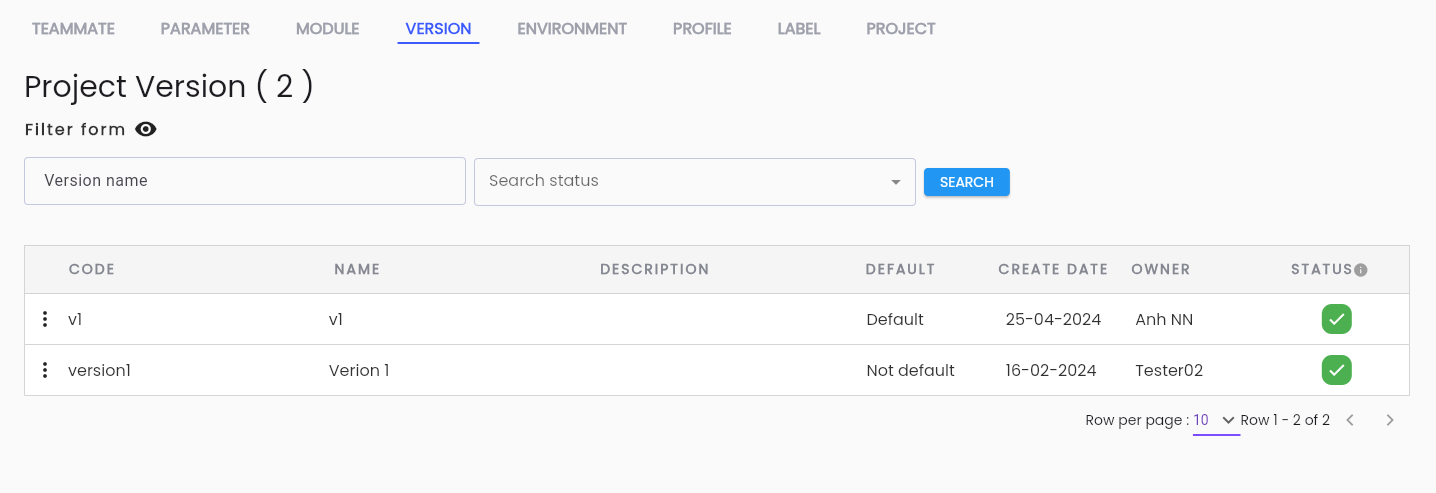
The system displays the list of versions of the project:
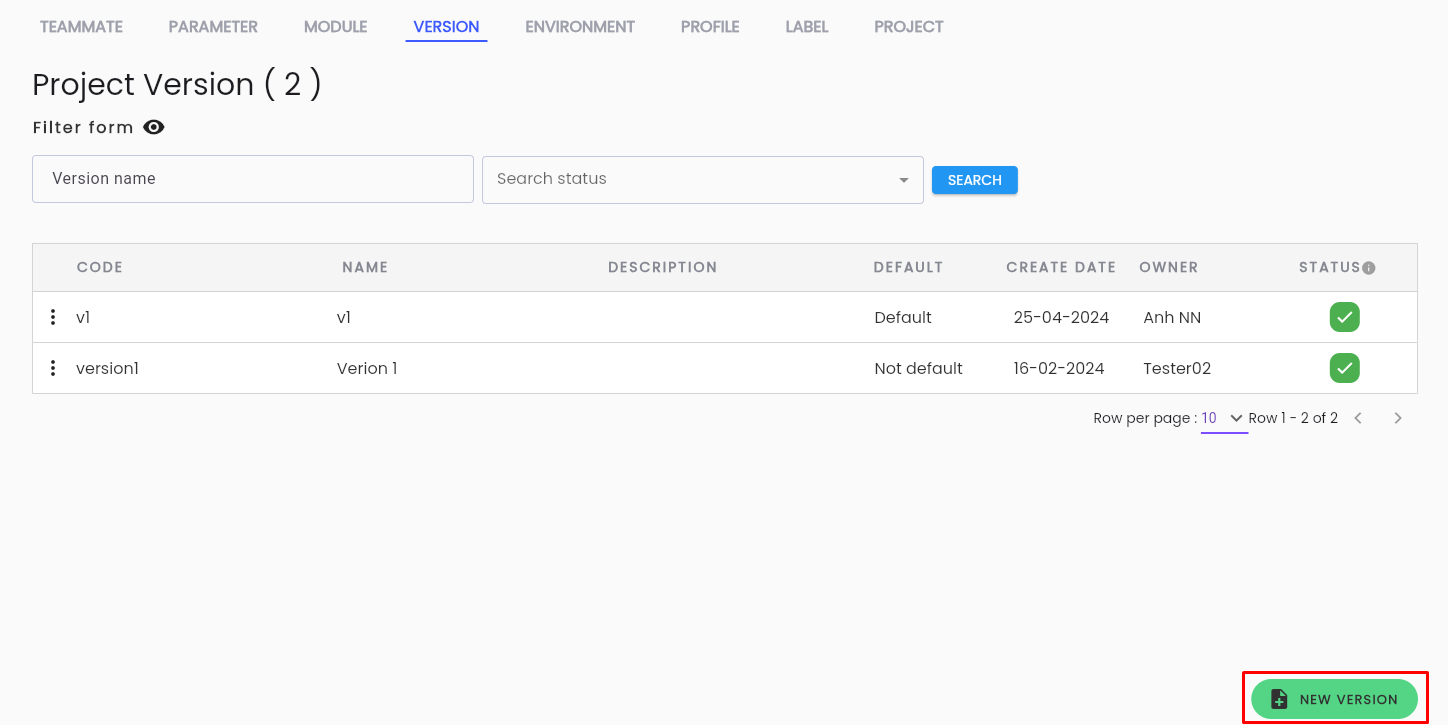
Step 3: Click NEW VERSION
Step 4: Enter the correct and complete information into the CREATE PROJECT VERSION form
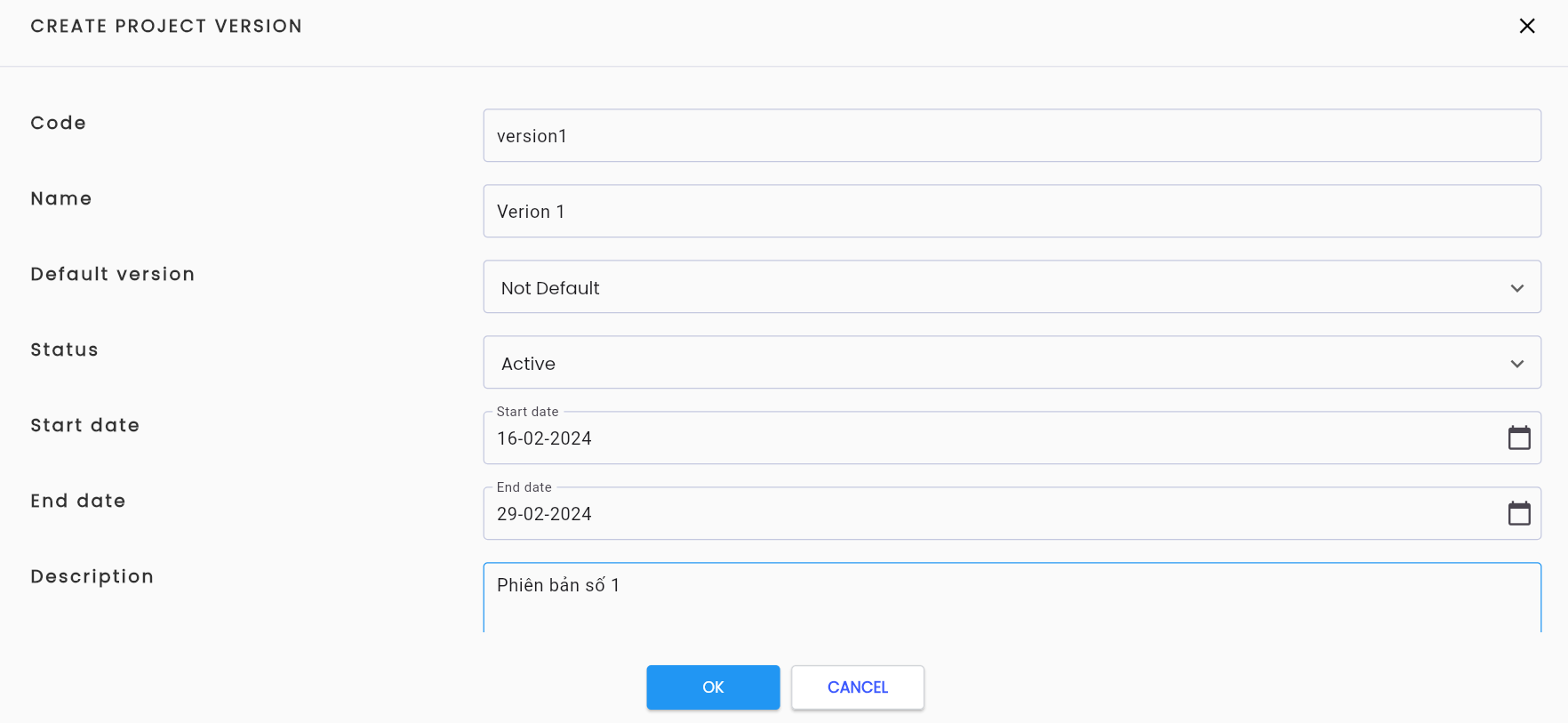
Description of the fields:
| Field Name | Mandatory | Format | Constraints | Description |
|---|---|---|---|---|
| Code | Có | Textbox | Code phải là duy nhất | The code of the version |
| Name | Có | Textbox | The name of the version | |
| Default version | Có | Combobox | Set the default for the version. Allows selection of 1 of 2 values: + Default: Functions with a version field default to this version + Not default: does not default to this version | |
| Status | Có | Combobox | The status of the version, values include: + Active: The version is active + Inactive: The version is inactive | |
| Start date | Có | Date | The start date of the version | |
| End date | Có | Date | The end date of the version | |
| Description | Không | Textarea | The description of the version |
Step 5: Click OK. The system displays the message “Create Successful”
View and Edit Version
To view and edit a version in Centralize Automation Testing Suite, follow these steps:
Step 1: On the VERSION tab, select any version you want to view/edit, click ⋮ on the left side of the record
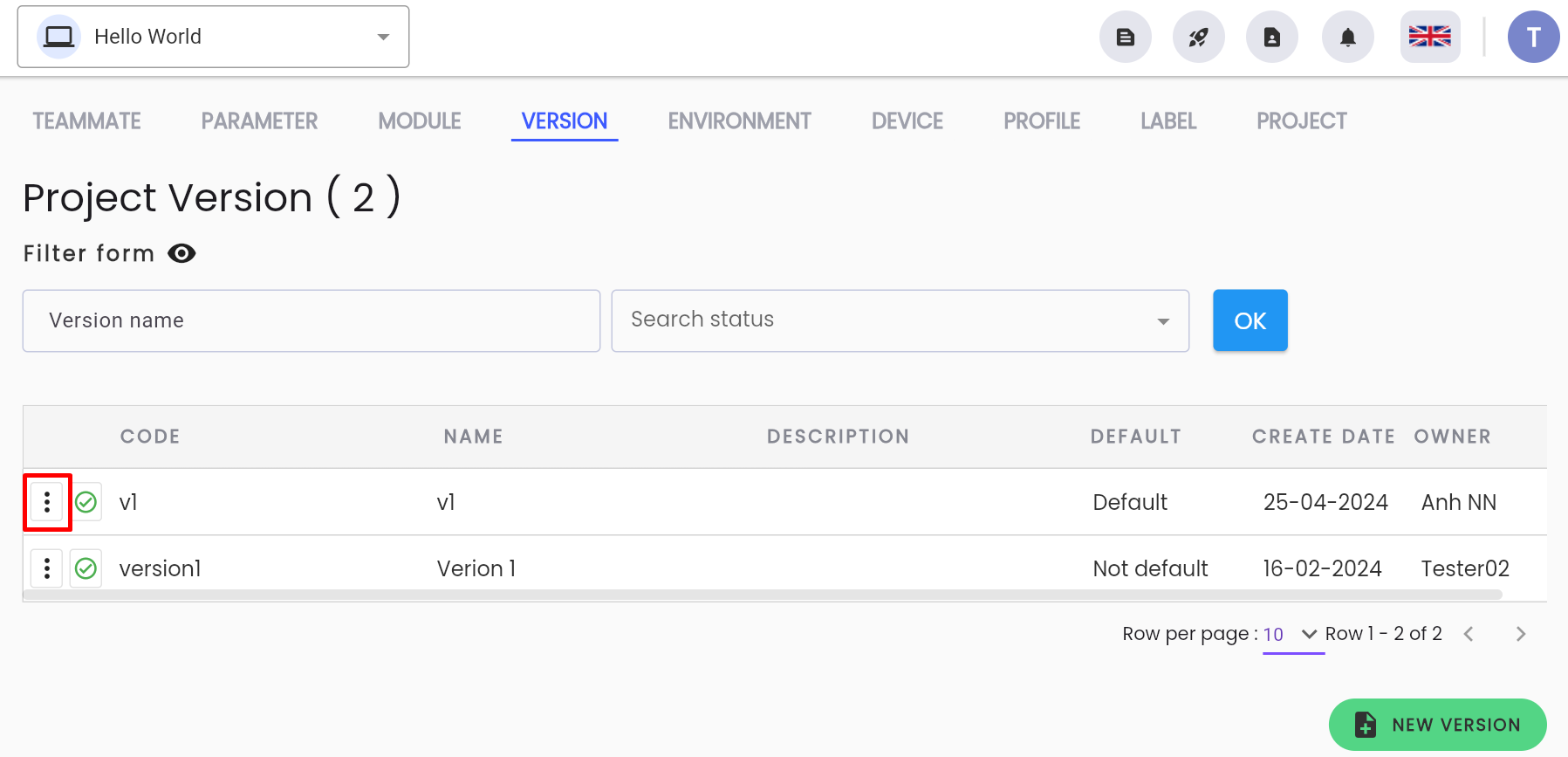
Step 2: Select Edit metadata from the displayed menu or click directly on the record

Step 3: View and edit the version information as required. Create a new version
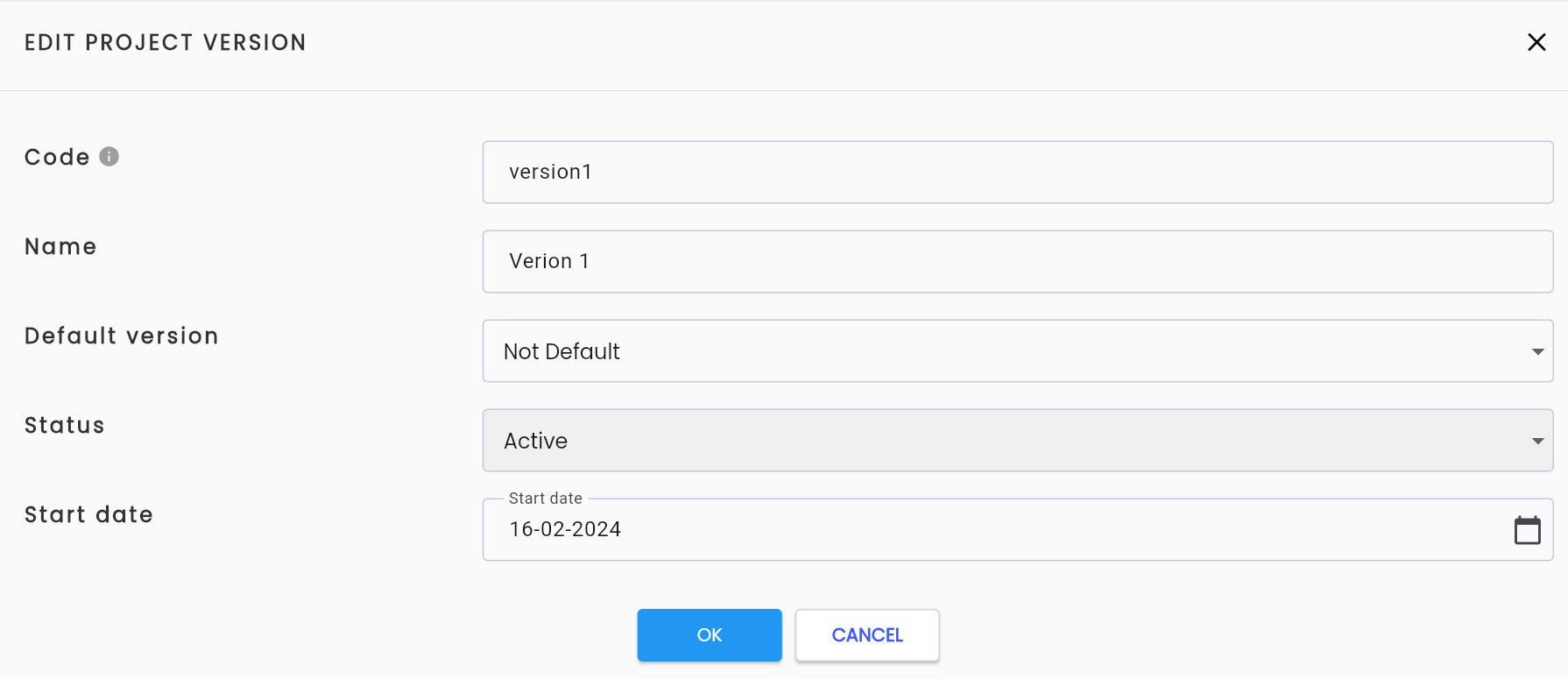
Step 4: Click OK, the system displays the message “Update successful”
Delete Version
Note: The condition to delete a version is that the version must not have data constraints (has never been used). If it has been used, it cannot be deleted.
To delete a version in Centralize Automation Testing Suite, follow these steps:
Step 1: On the VERSION tab, select any version you want to delete, click ⋮ on the left side of the record
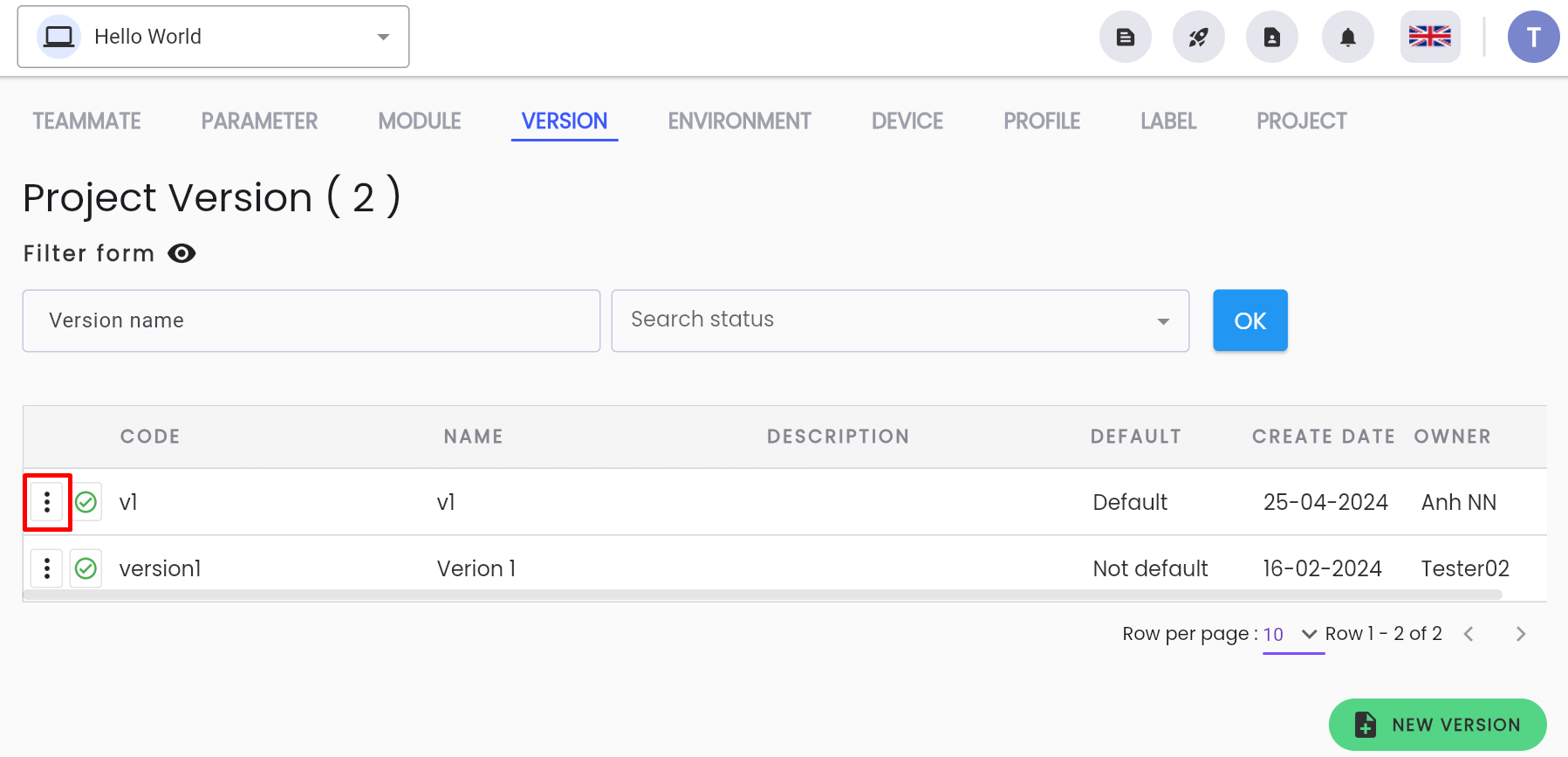
Step 2: Select Delete from the displayed menu

The system displays a confirmation popup to delete the version
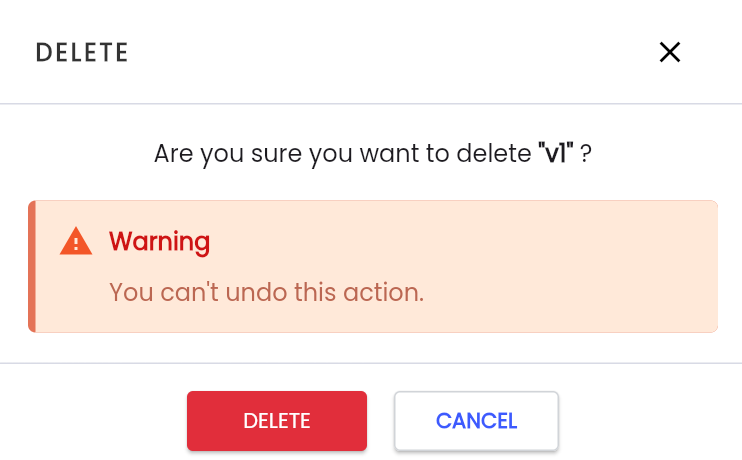
Step 3: Click Delete to confirm the deletion of the version, the system displays the message “Delete successful”
Initialize Version Parameters
Version parameters are consistent operational parameters across software versions. The value of these parameters in each version is fixed.
For example: Username and password in each test version do not change. Username and password can be set as version parameters.
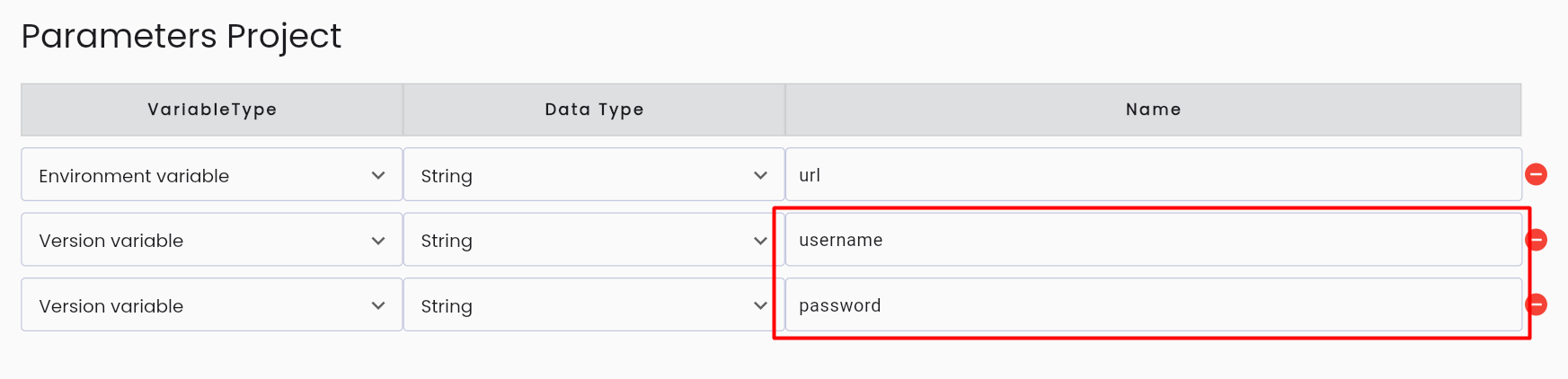
Why are version parameters needed?
Similar to environment parameters, using version parameters during test scenario configuration helps limit the need to change information; the values of the parameters will vary depending on the version selected by the user during testing execution.
To initialize version parameters in Centralize Automation Testing Suite, follow these steps:
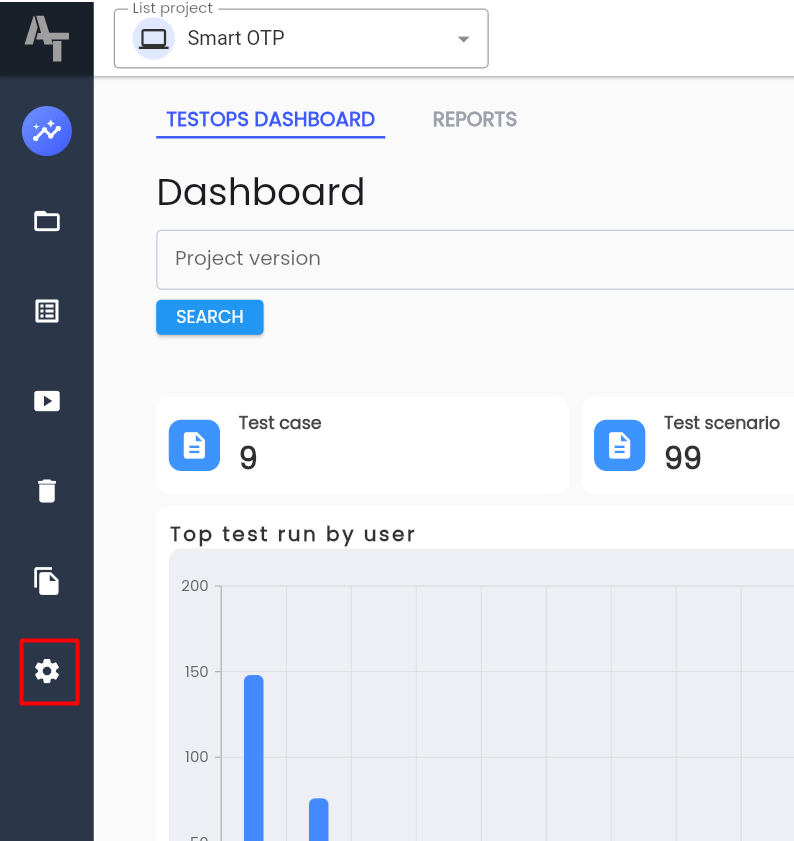
Step 1: Click Setting on the project menu.
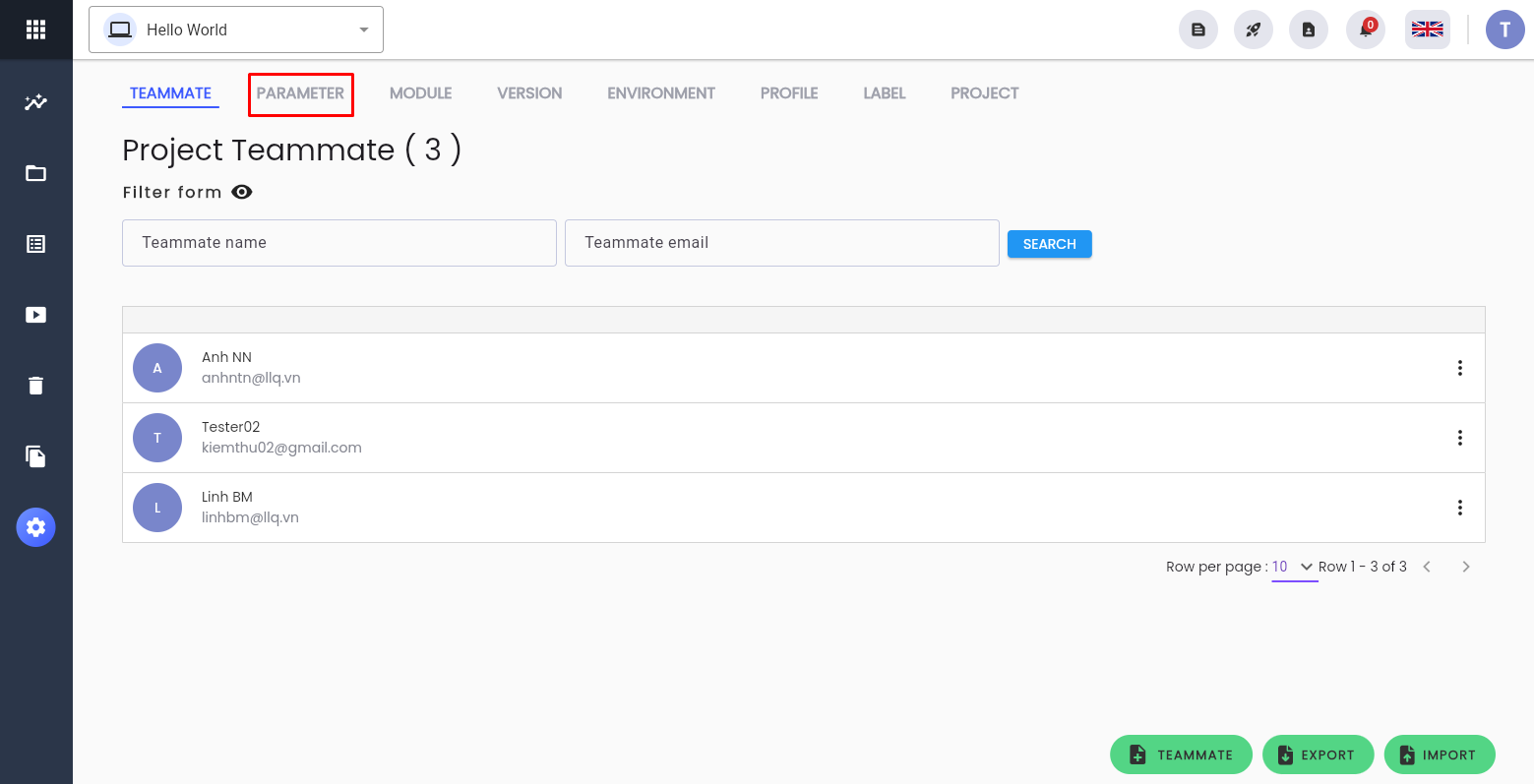
Step 2: Select the PARAMETER tab.
Step 3: Click the New parameter button to create additional parameters. There is no limit to the number of parameters created at once.
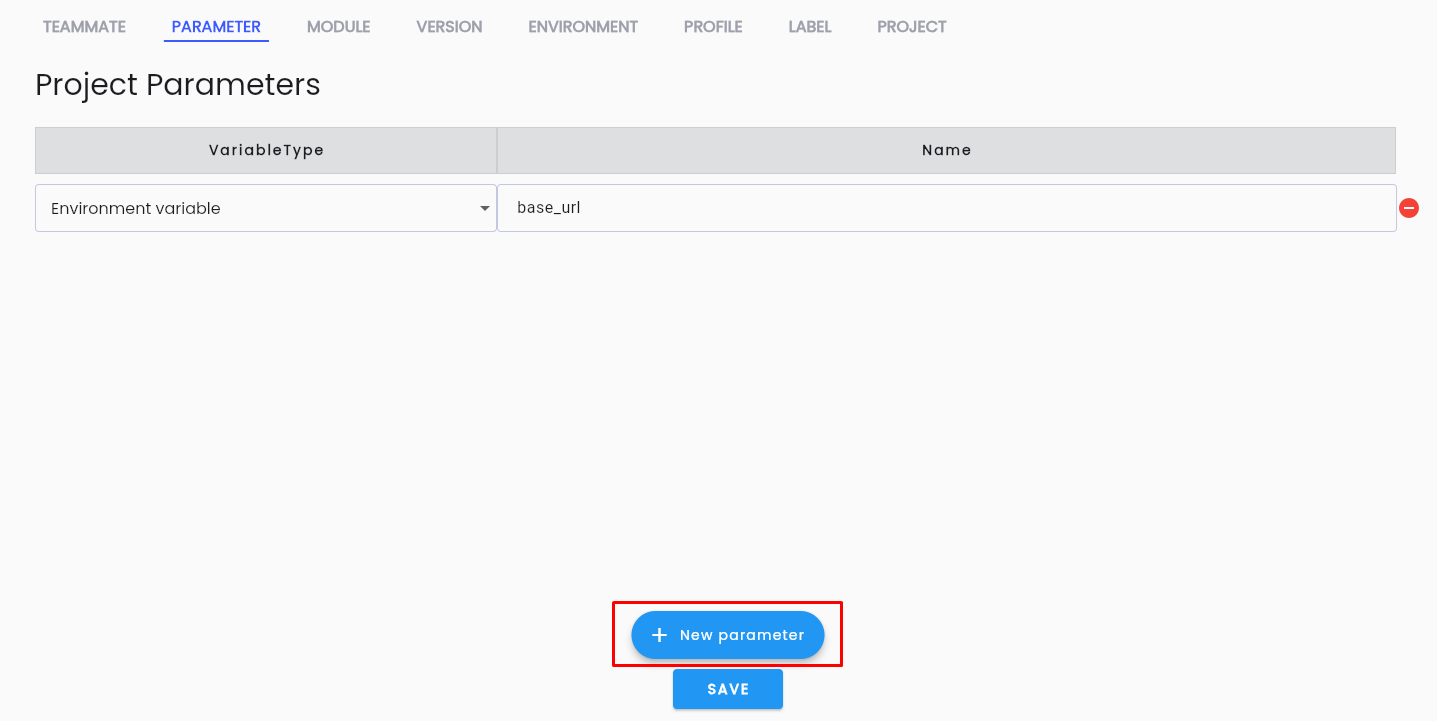
Step 4: The system displays information to configure the parameter.
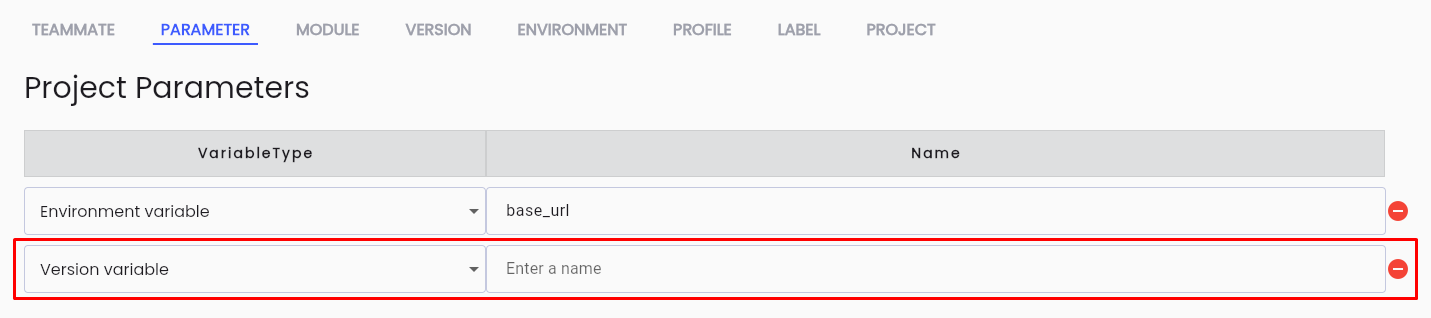
Description of the fields:
| Field Name | Mandatory | Format | Constraints | Description |
|---|---|---|---|---|
| Variable Type | Yes | Combobox | Select Version variable | |
| Name | Yes | Textbox | Name must be unique, start with a letter, only contain lowercase letters a-z, digits, and “_” | User enters the name of the version parameter. |
Step 5: After entering the correct and complete information, click the SAVE button to save the created version parameters. The system displays the message “Create successful”
Configure Version Parameter Values
To configure version parameter values in Centralize Automation Testing Suite, follow these steps:
Step 1: On the VERSION tab chọn một phiên bản bất kỳ người dùng cần cấu hình giá trị tham số, click ⋮ ở phía bên trái bản ghi
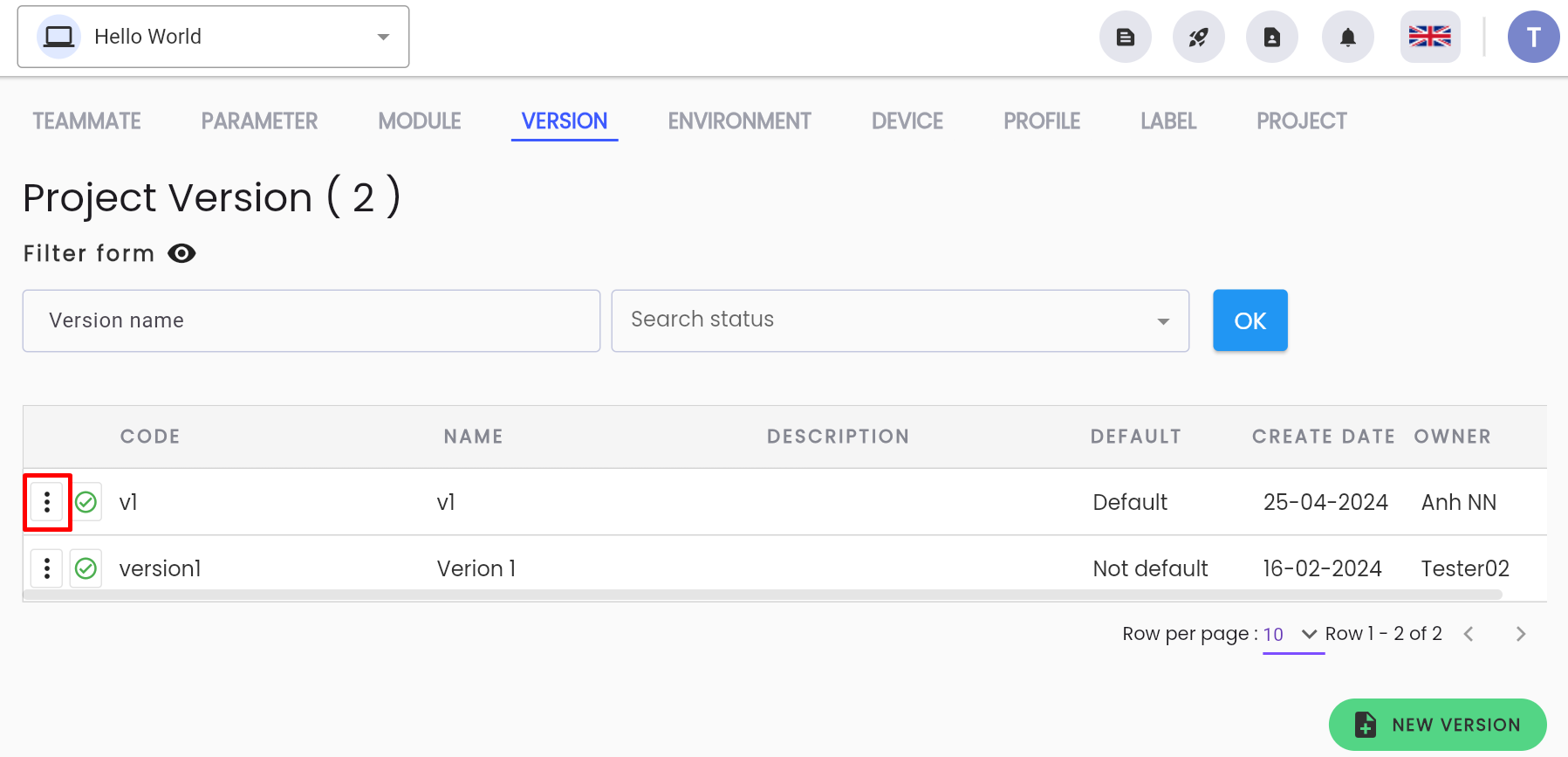
Step 2: Click Config parameters

The system displays the screen to update version parameters:
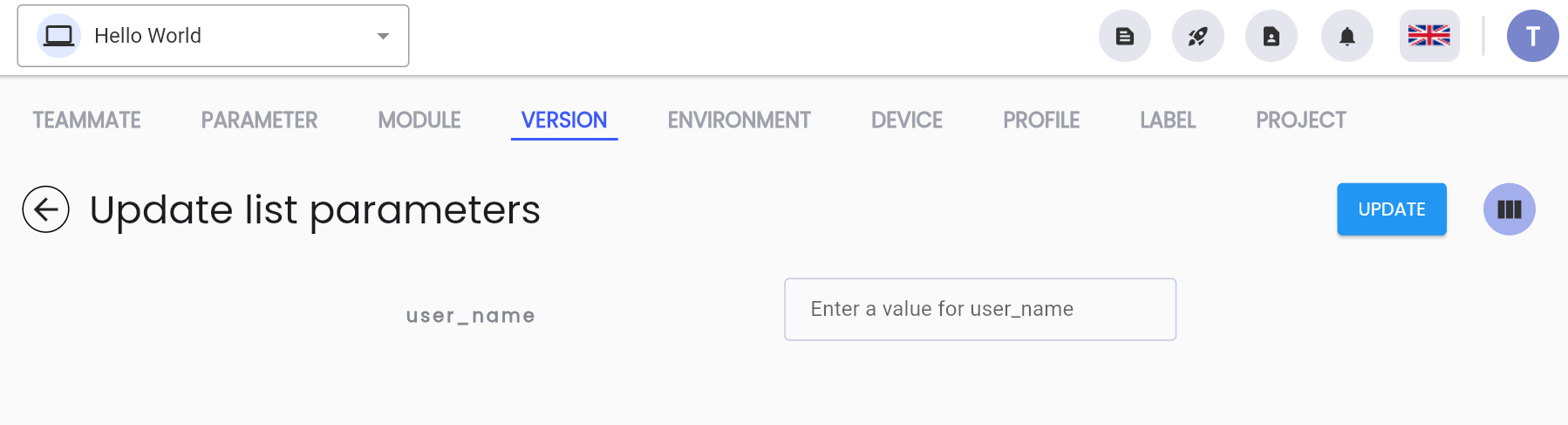
Step 3: Enter values for the corresponding parameters of the version, click UPDATE to update the parameter values. The system displays the message “Update successful”