Creating Automated Test Scenarios
Overview of Test Scenarios
After creating and setting up the project, the next step is to create automated test scenarios. When creating a new test scenario, basic metadata information such as code, name, test steps, etc., will be included.
The Centralize Automation Testing Suite uses a keyword-based configuration method, where a test scenario consists of keywords that represent user actions on the application/software being tested.
There are two ways for users to create test scenarios in the system:
- Create manual test types: create directly on the Centralize Automation Testing Suite
- Create automated test types: import an Excel file containing a list of test scenarios into the Centralize Automation Testing Suite
This section will guide you on how to create a manual test scenario.
Creating Manual Automated Test Scenarios
To create a new test scenario directly in the system, follow these steps:
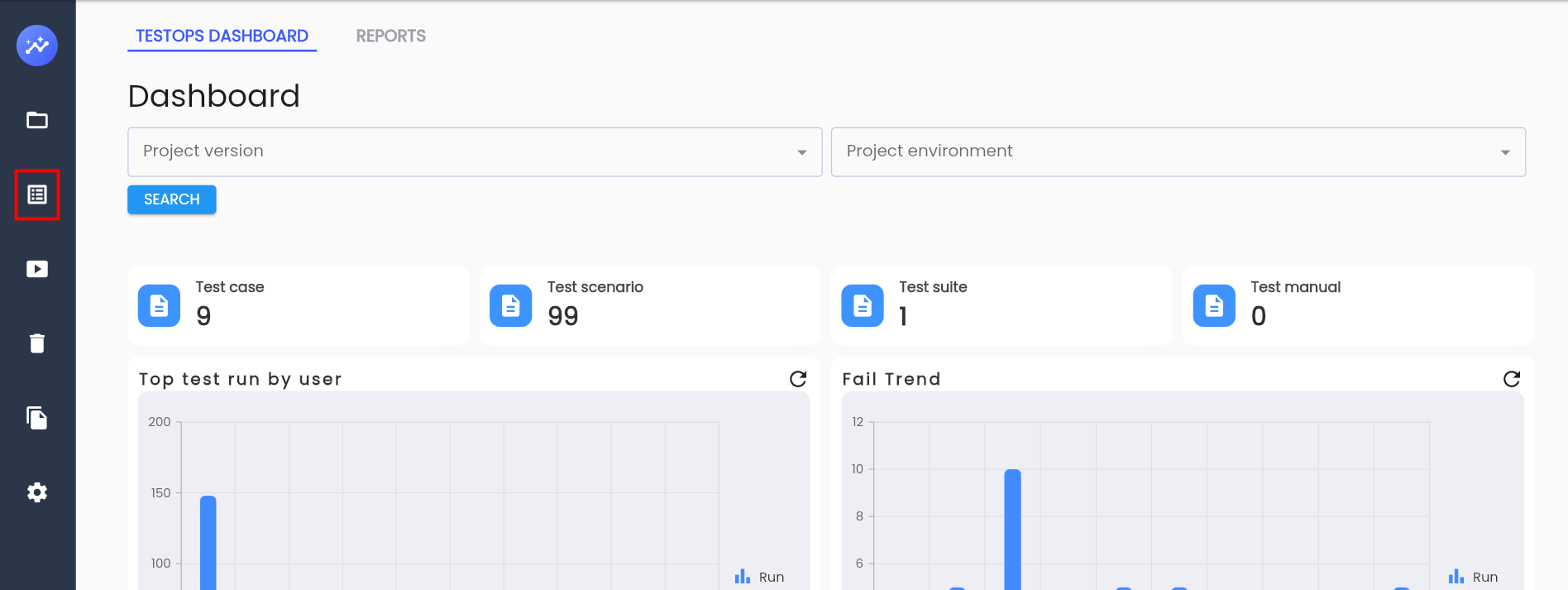
Step 1: Click Test Lib on the project menu list
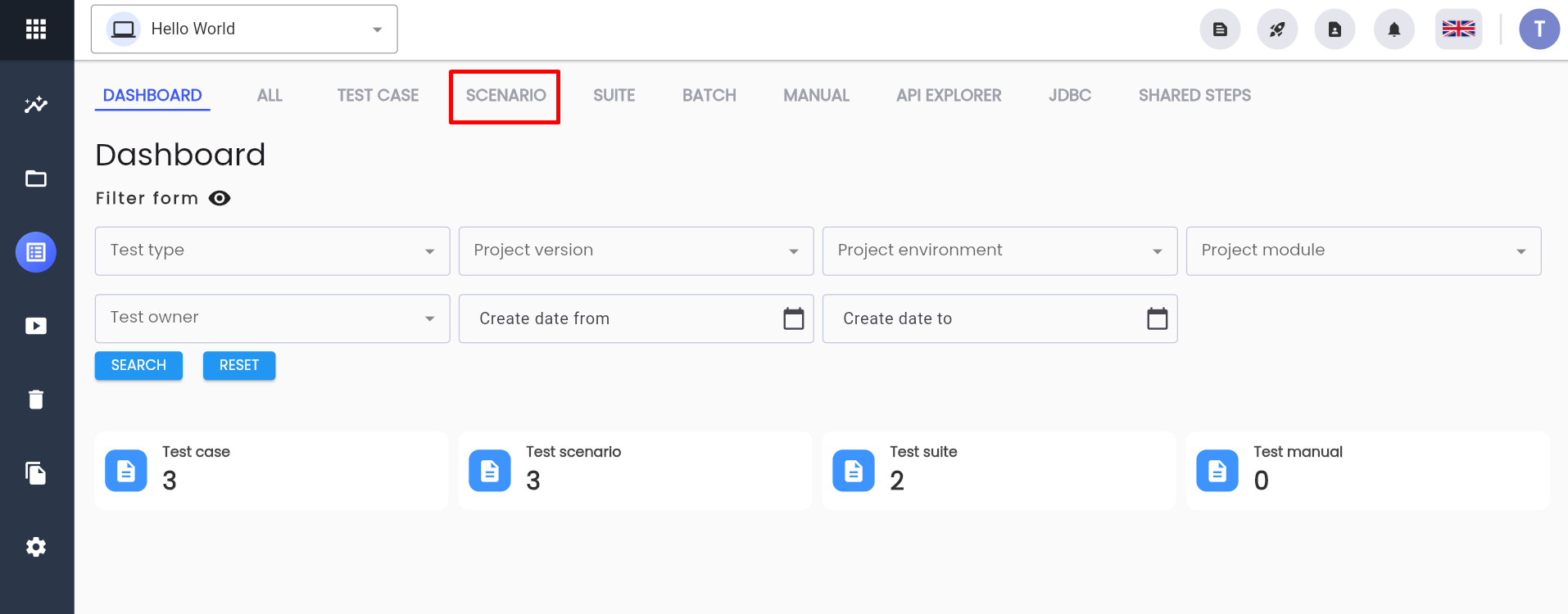
Step 2: Click SCENARIO tab
Step 3: Click “NEW TEST”
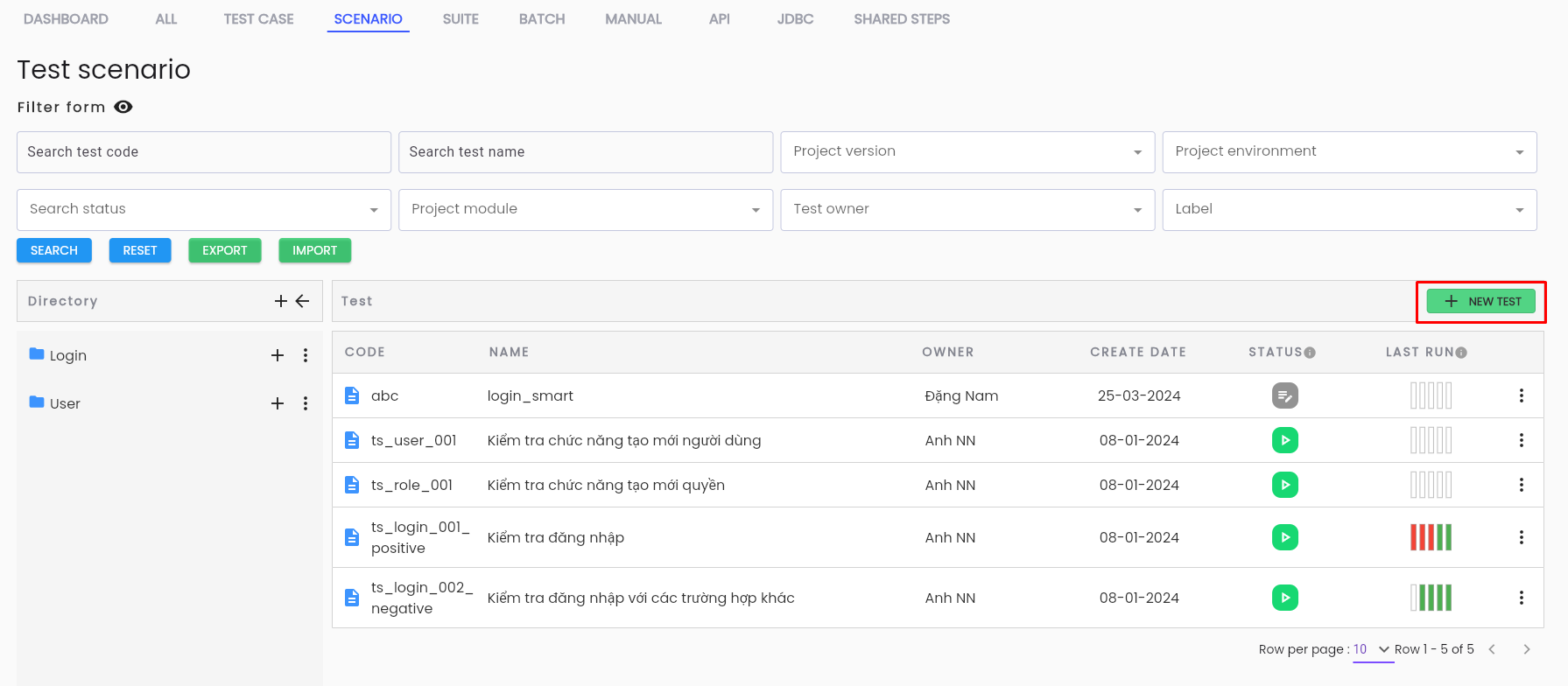
The system displays the CREATE TEST SCENARIO screen, tab General Information
Step 4: Enter all required information into the new creation form (tab General Information)
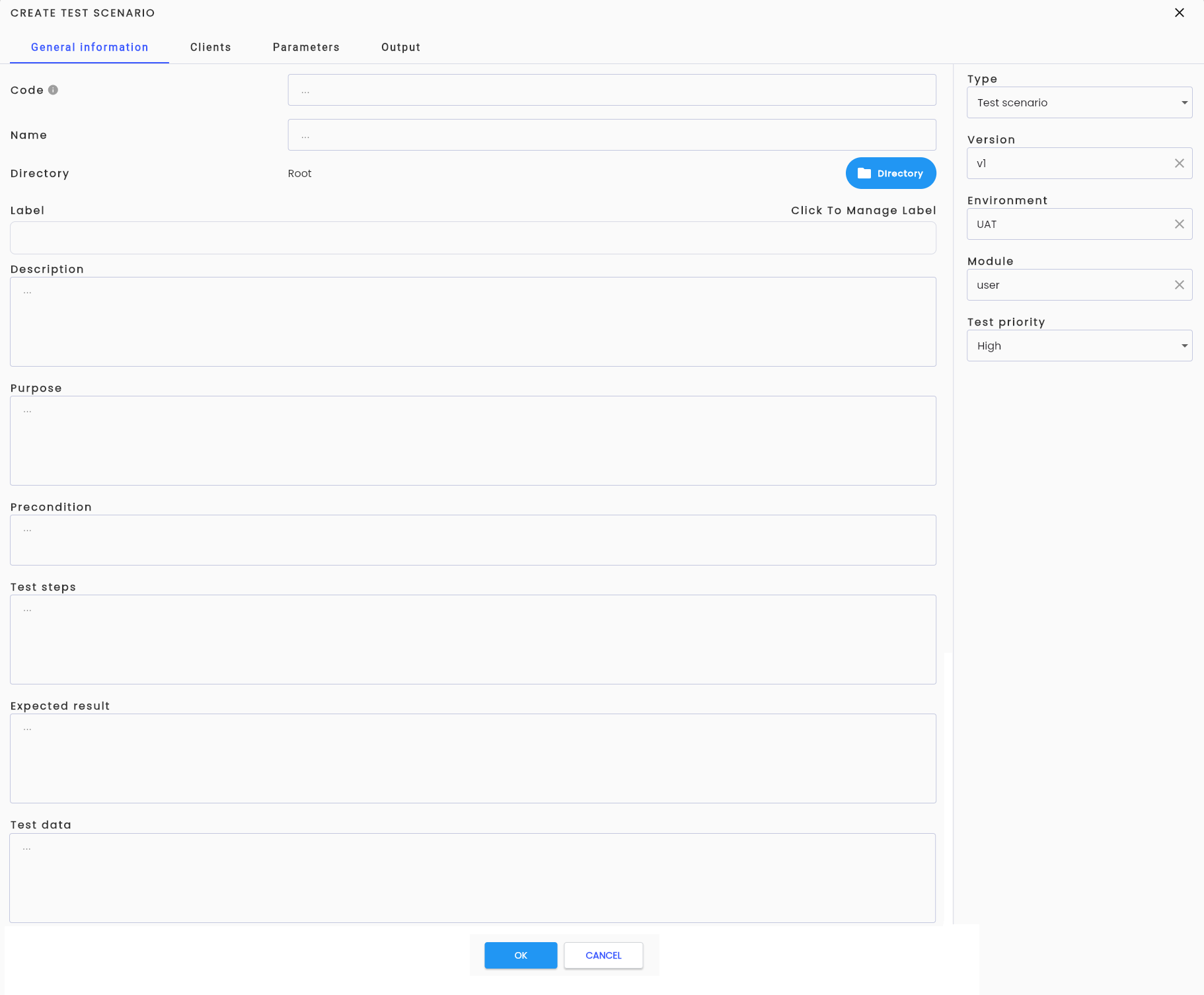
Description of Information Fields
| Field Name | Mandatory | Format | Constraints | Description |
|---|---|---|---|---|
| CODE | No | Textbox | If entered, the Code must be unique, at least 2 characters long, start with a letter, and only contain characters from a-z (case insensitive), digits, "_" and "-" | This is the test scenario code used to identify the test scenario in the system. If the user does not enter a Code, the system will automatically generate a code according to the formula T-STT E.g.: T-1 |
| NAME | Yes | Textbox | This is the name of the test scenario | |
| DIRECTORY | No | Button | Displays a list of directories of the selected test type | This is the directory containing the test scenario to help users manage and track it more easily. Choose one directory where the user wants to save the test. How to choose a directory |
| TYPE | Yes | Combobox | This is the classification of the test scenario, with selectable values including: + TEST CASE + TEST SCENARIO + TEST SUITE + TEST MANUAL + JDBC + API + SHARED STEPS The user is creating a test in the SCENARIO tab, and the system defaults the type to TEST SCENARIO | |
| VERSION | Yes | Combobox | Displays a list of active versions of the project | This is the development version of the product in the project. The test scenario belongs to which version will be selected |
| ENVIRONMENT | Yes | Combobox | Displays a list of active environments of the project | This is the development environment of the product in the project. The test scenario will be conducted in which environment will be selected |
| MODULE | Yes | Combobox | Displays a list of active modules in the project | This is the component of the test scenario in the project. The test belongs to which module will be selected |
| TEST PRIORITY | Yes | Combobox | This is the priority level for executing the test. Values include: + HIGH: test scenarios with HIGH priority will be executed first + MEDIUM: medium priority + LOW: low priority | |
| LABEL | No | Button | Choose one or more labels that the user wants to attach. How to attach labels | |
| DESCRIPTION | No | Textarea | This is a description of the test scenario being created | |
| PURPOSE | No | Textarea | This is the purpose of the test scenario | |
| PRECONDITION | No | Textarea | This is the prerequisite condition that must be met to execute the test scenario | |
| TEST STEPS | No | Textarea | These are the steps to be taken in the test scenario | |
| EXPECTED RESULT | No | Textarea | This is the expected result of the test scenario | |
| TEST DATA | No | Textarea | This is the data that the user uses in the test scenario | |
| DESCRIPTION | No | Textarea | Allows the user to enter a description |
Step 5: Click the OK button. The system displays the message “Create successful”
How to Choose a Directory
Manage test scenarios by directory
To choose a directory while creating a new test scenario, do the following:
Step 1: In the new creation form (tab General Information), click Directory
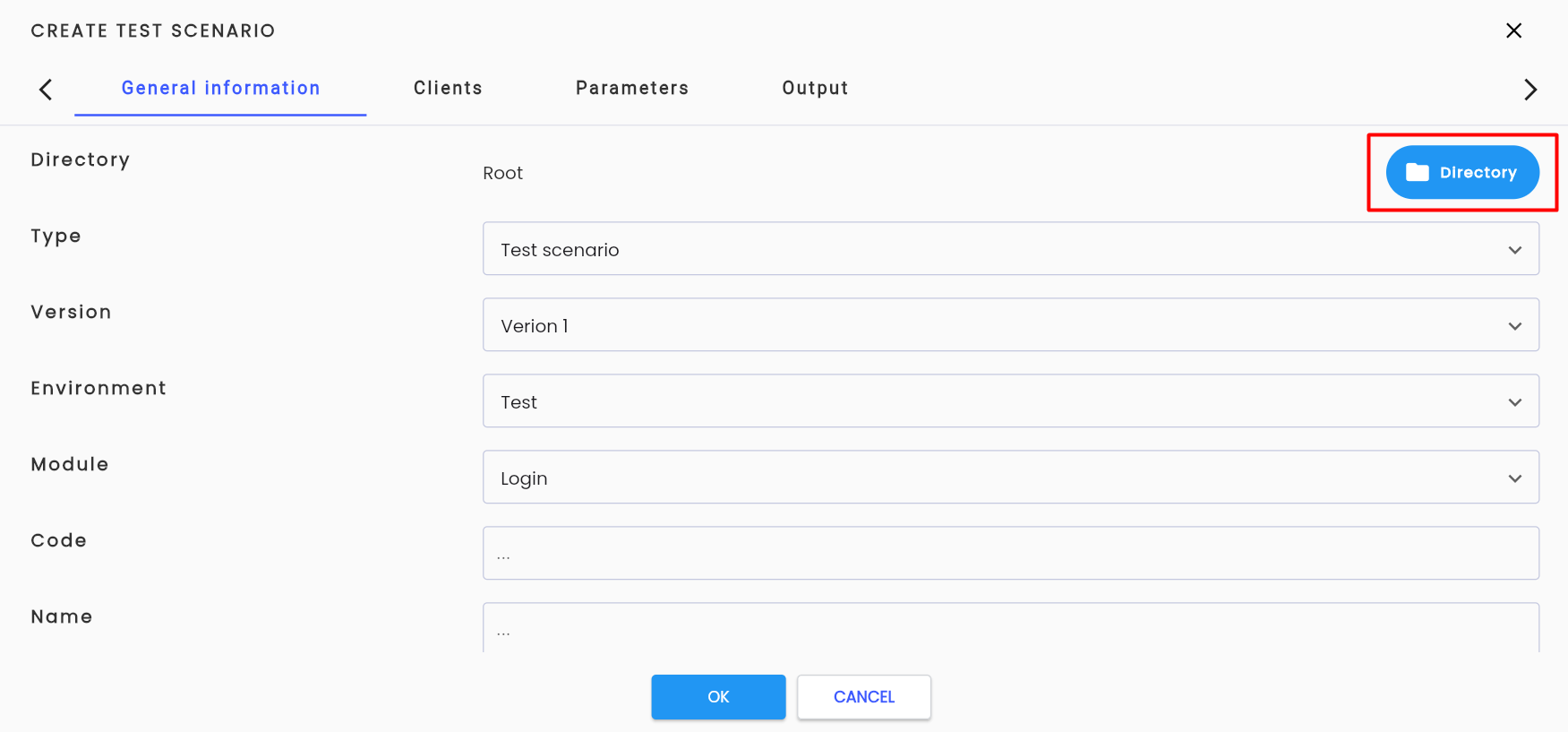
Step 2: Check one suitable directory and click OK
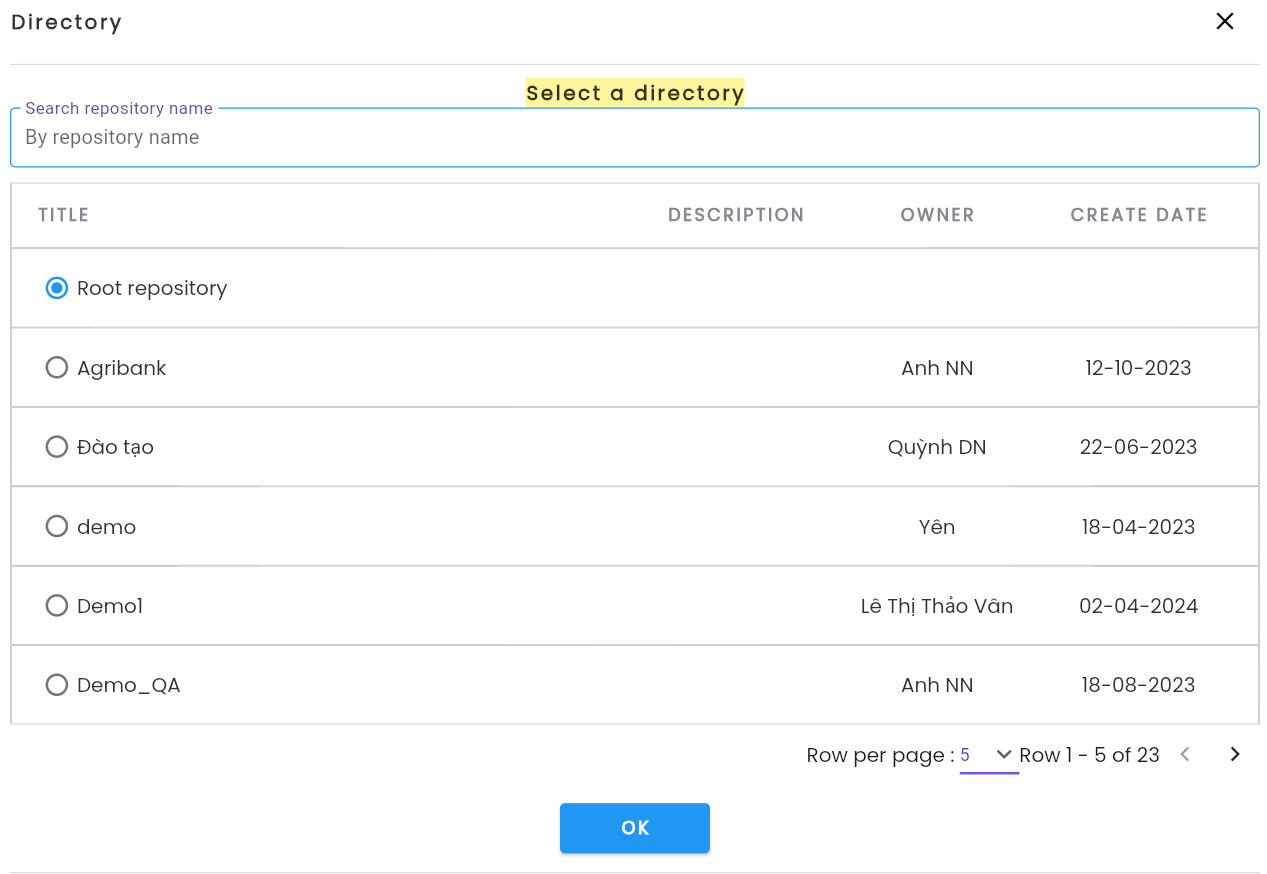
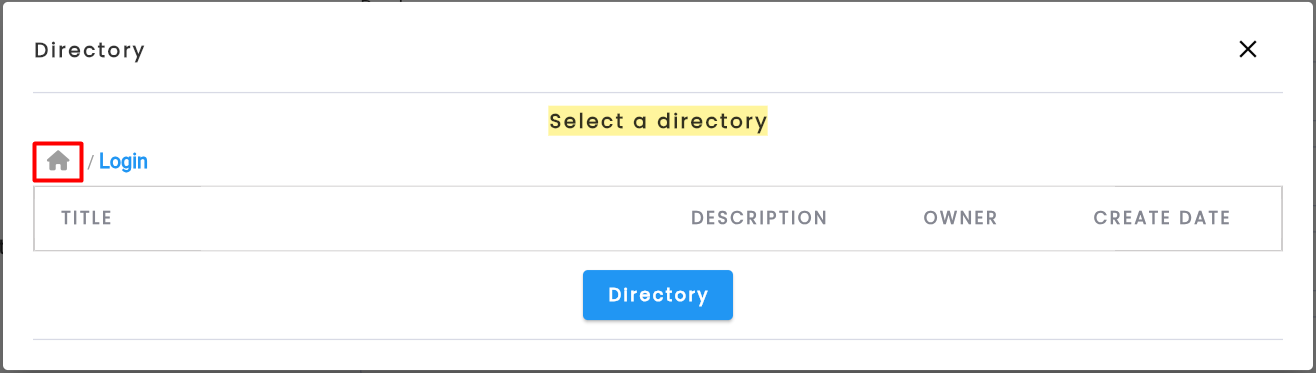
Note: If the user wants to select a subdirectory of a directory, click on that directory
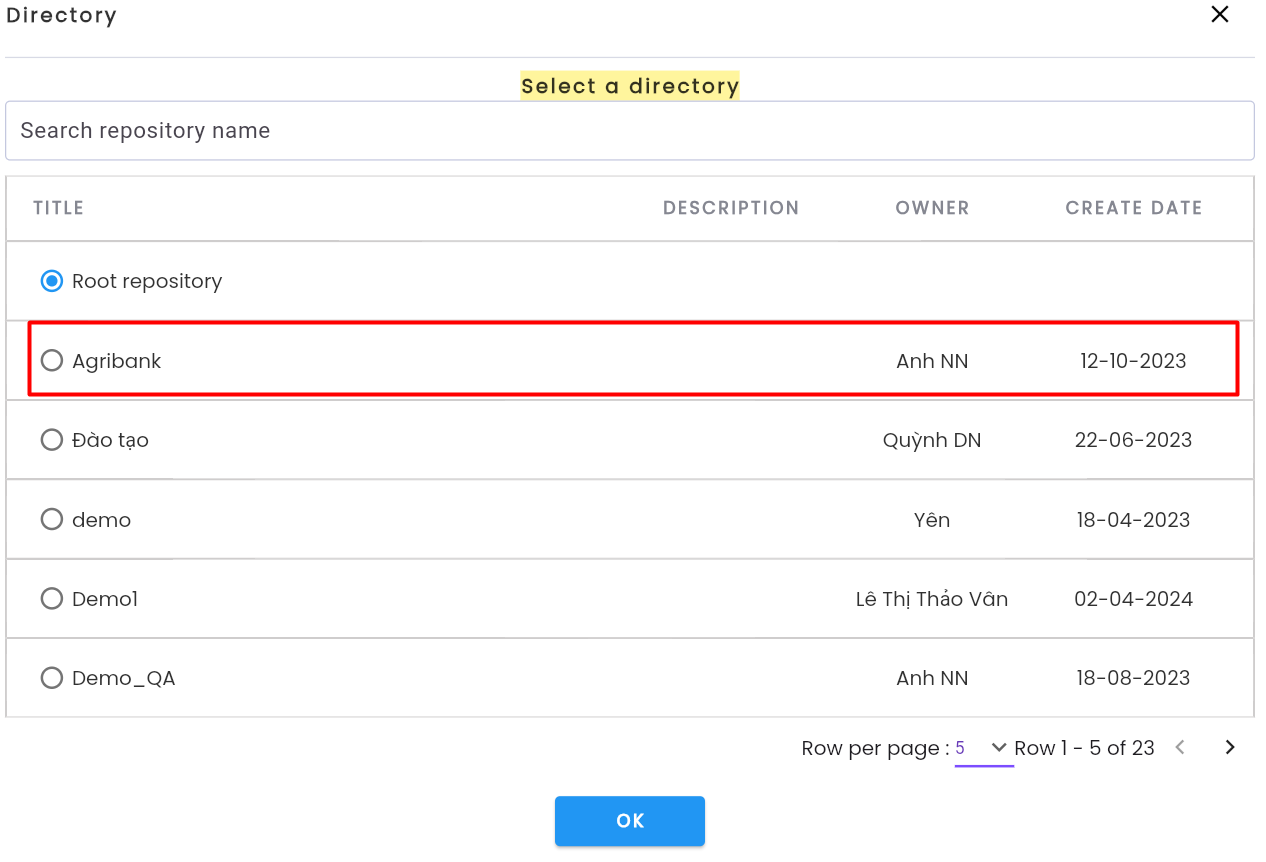
Click on the breadcrumb at the top of the data table to go back
How to Attach Labels
To attach a label while creating a new test, do the following:
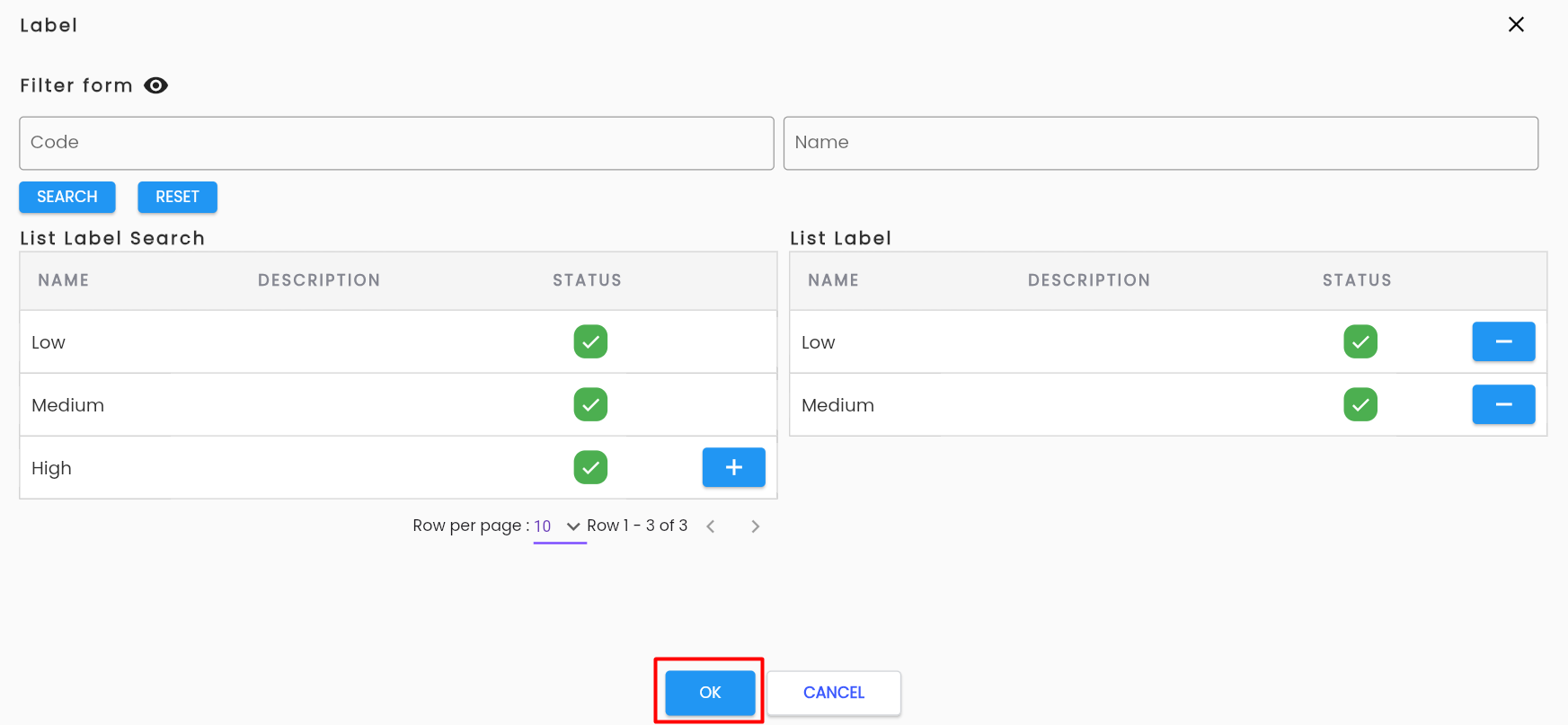
Step 1: In the new creation form (tab General Information), click text Click to Manage Label or click the textbox Label
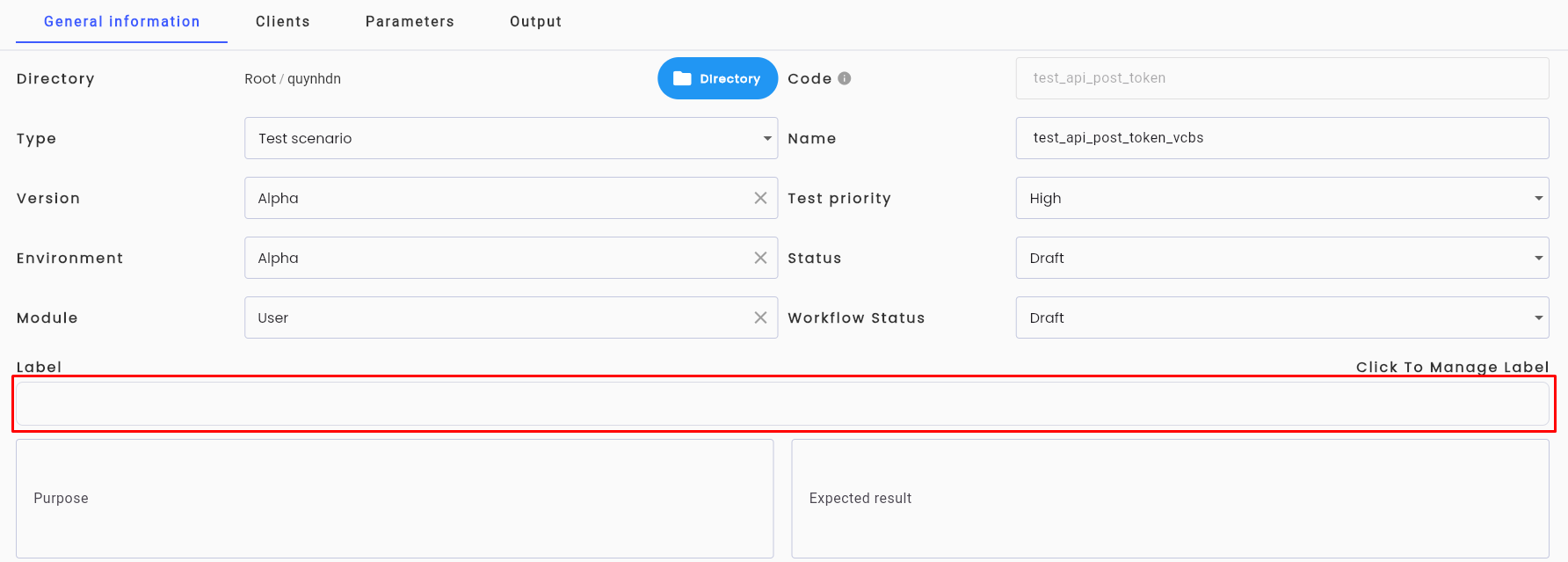
The system displays a list of labels that are Active in the project.
Step 2: Click the “+” button on the labels you want to attach
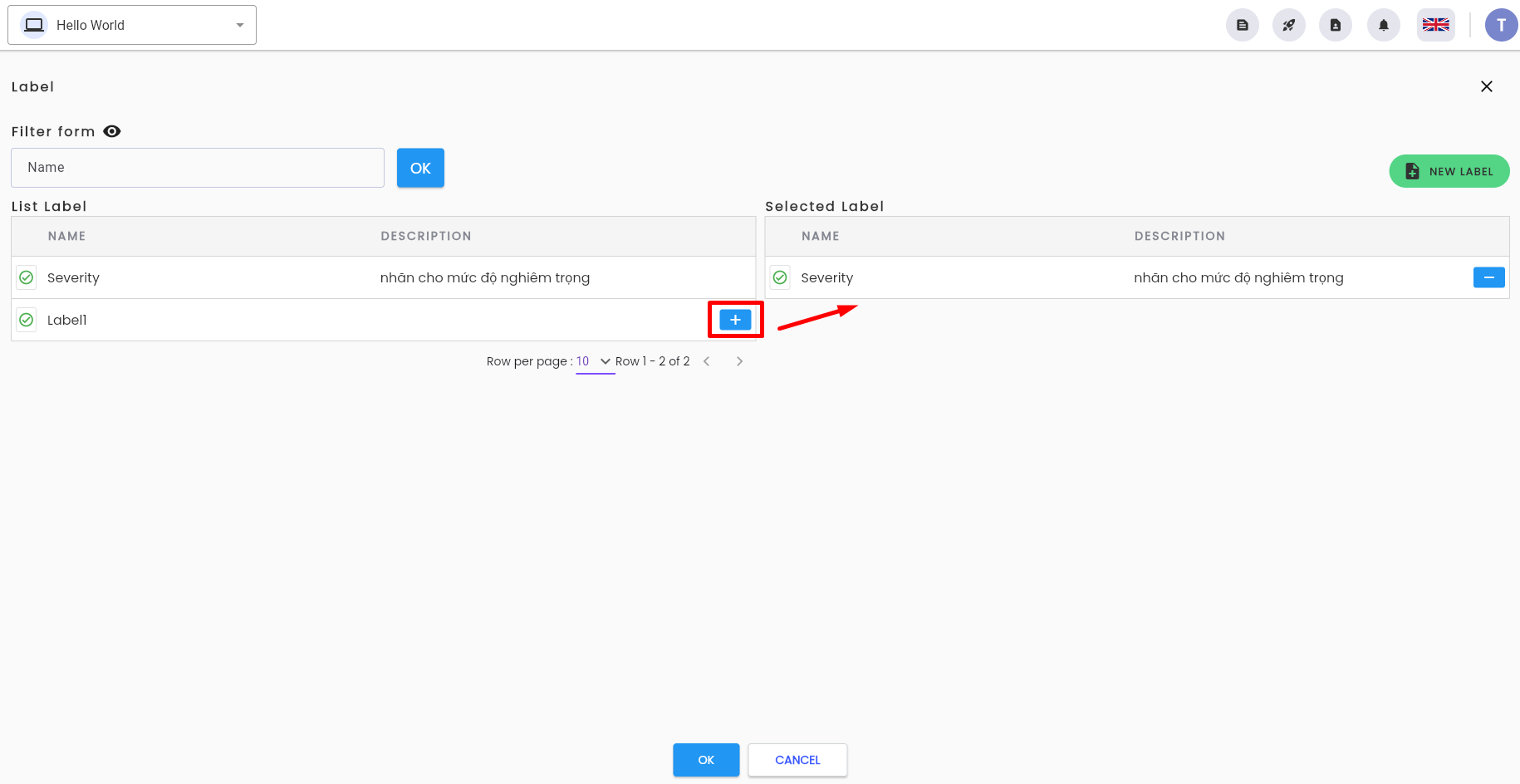
Step 3: Click OK to save