Profile
Overview of Profiles in Centralize Automation Testing Suite
A profile is a feature that allows users to run test scripts with customized settings, which include specific parameters set by the tool or a framework. The main information for setting up a profile includes: Platform, Operating System, and Browser (if testing on a computer).
If the user has enabled Create a test project during project setup, there is no need to manually create a profile. The profile will be automatically created when the user starts the Agent (private) based on the platform and operating system parameters (e.g., Windows 10 Chrome 120).
This section will guide users on how to manually set up a profile and use certain profile features:
Create/Set Up a Profile
To manually create a profile in the Centralize Automation Testing Suite, follow these steps:
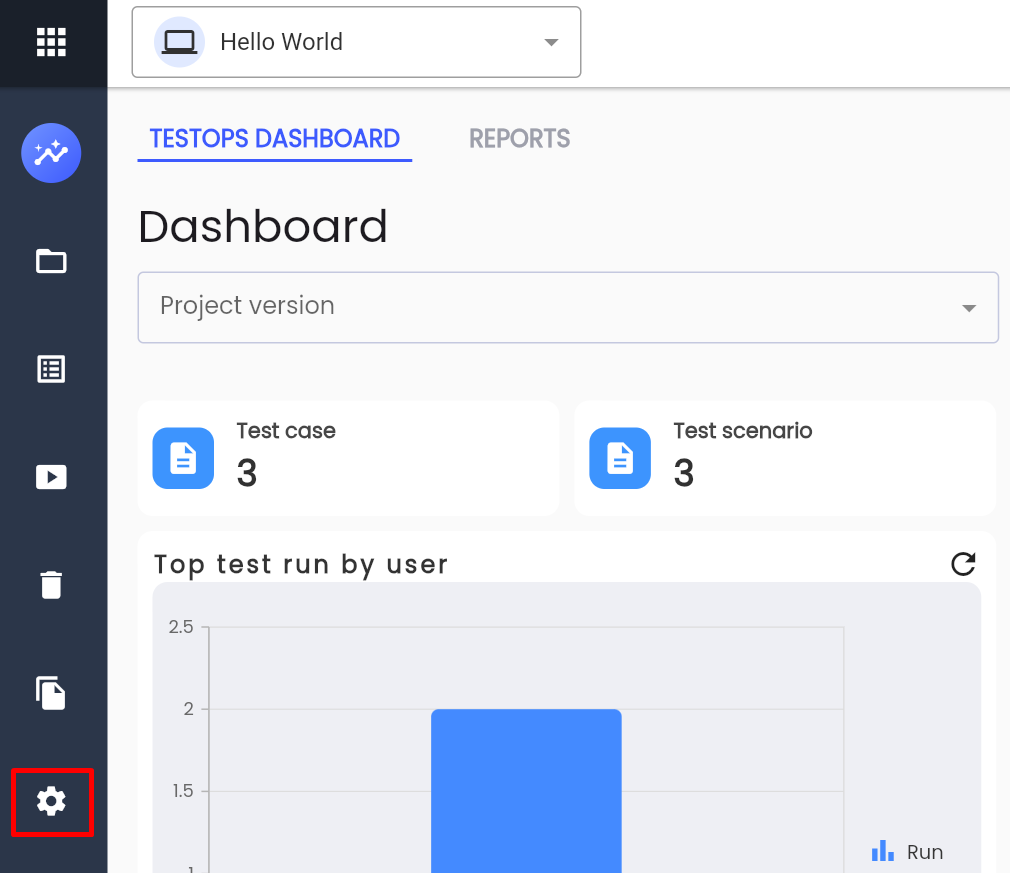
Step 1: Click Setting in the project menu.
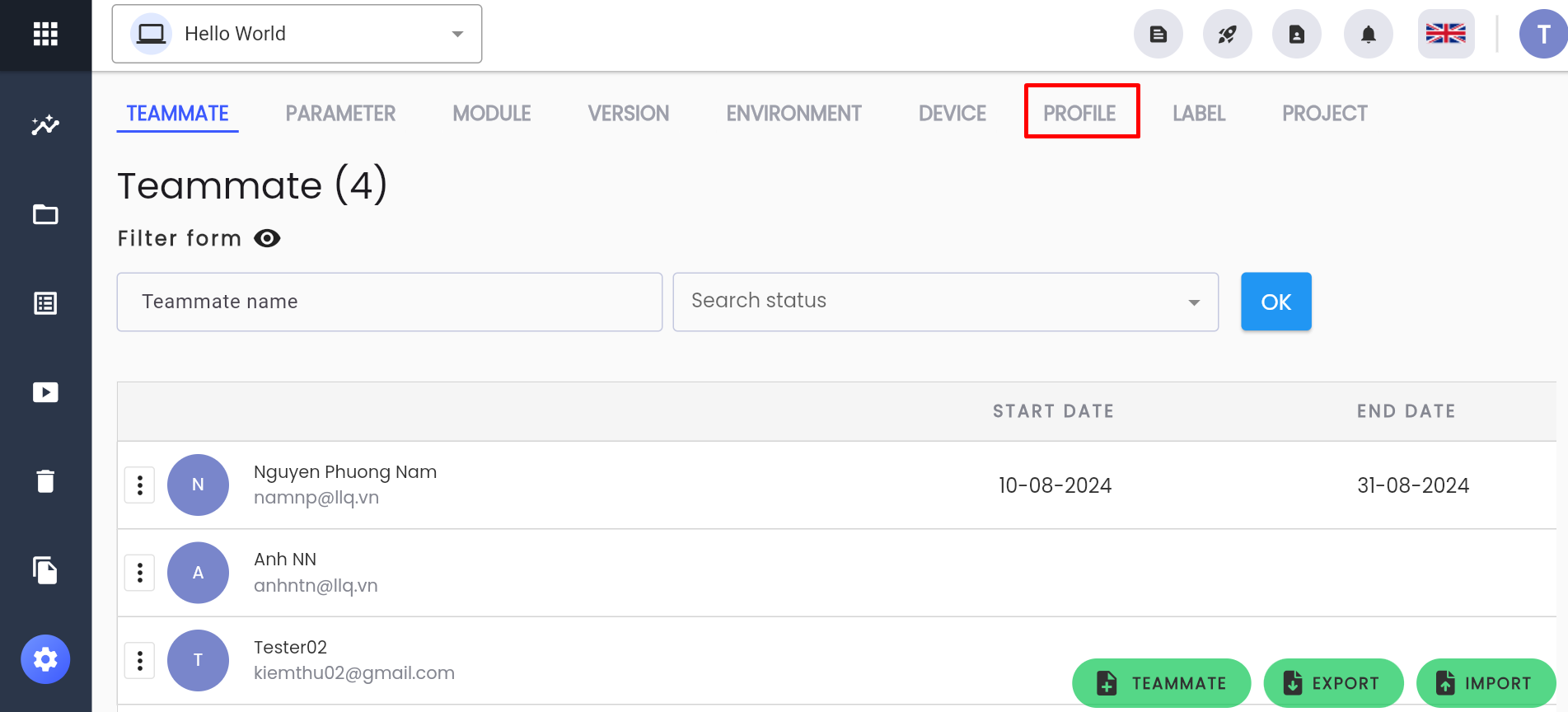
Step 2: Select the PROFILE tab
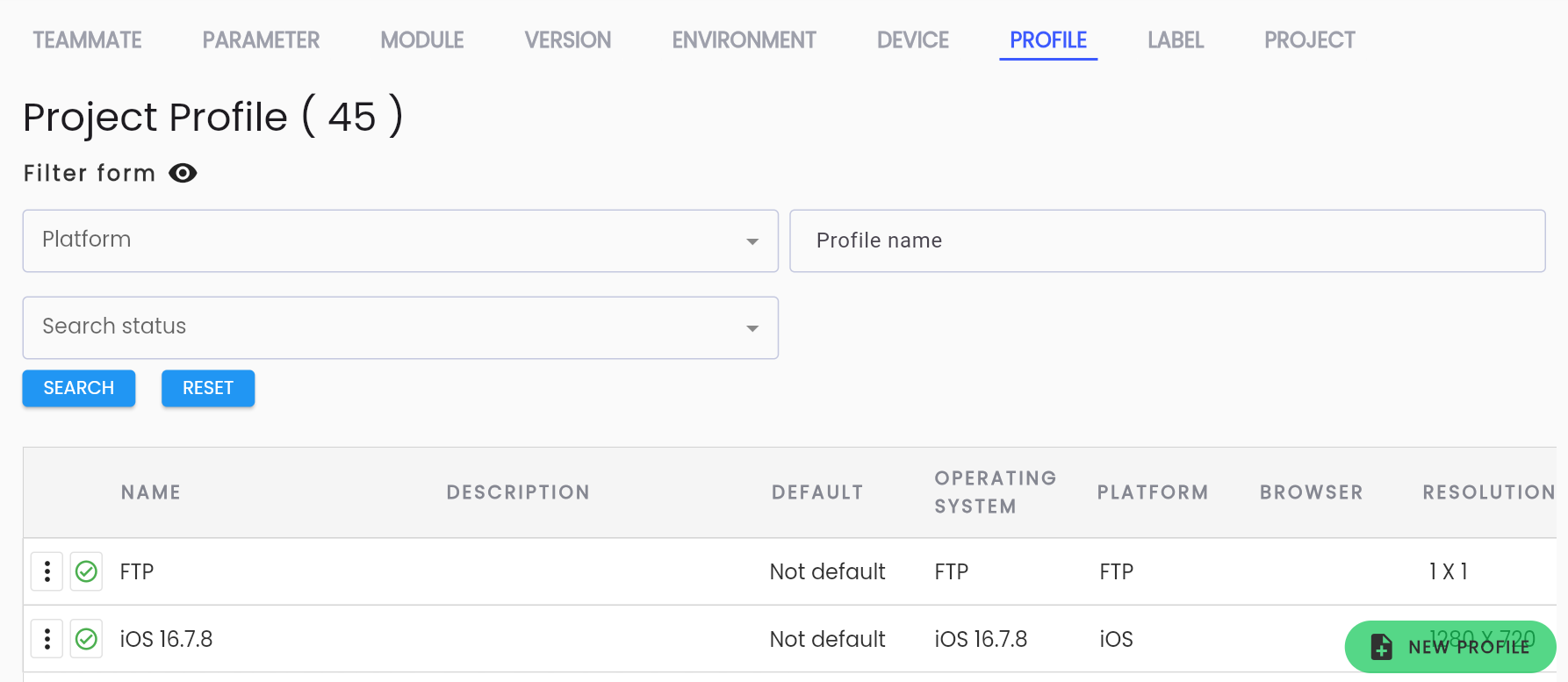
The system will display the project’s profile list:
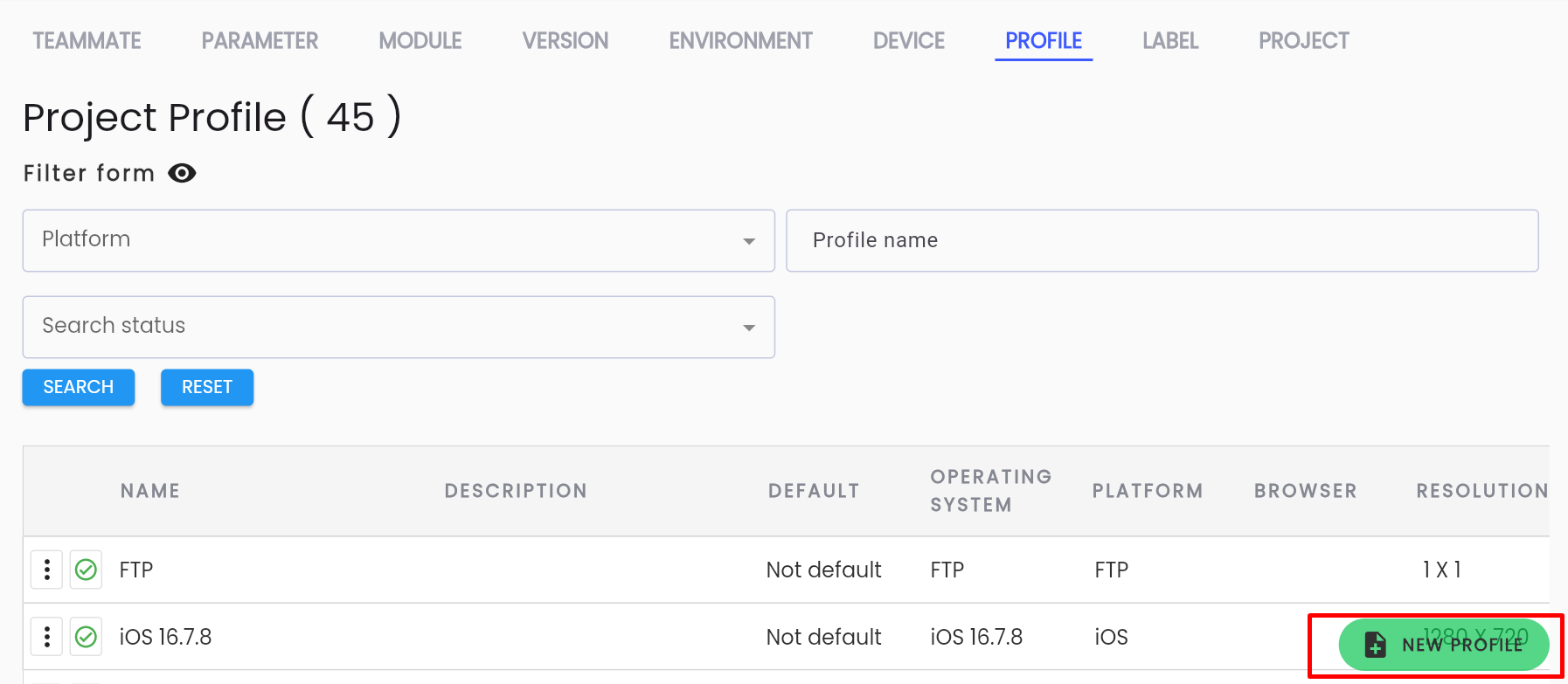
Step 3: Click the NEW PROFILE button
Step 4: Enter the required information in the CREATE PROJECT PROFILE form.
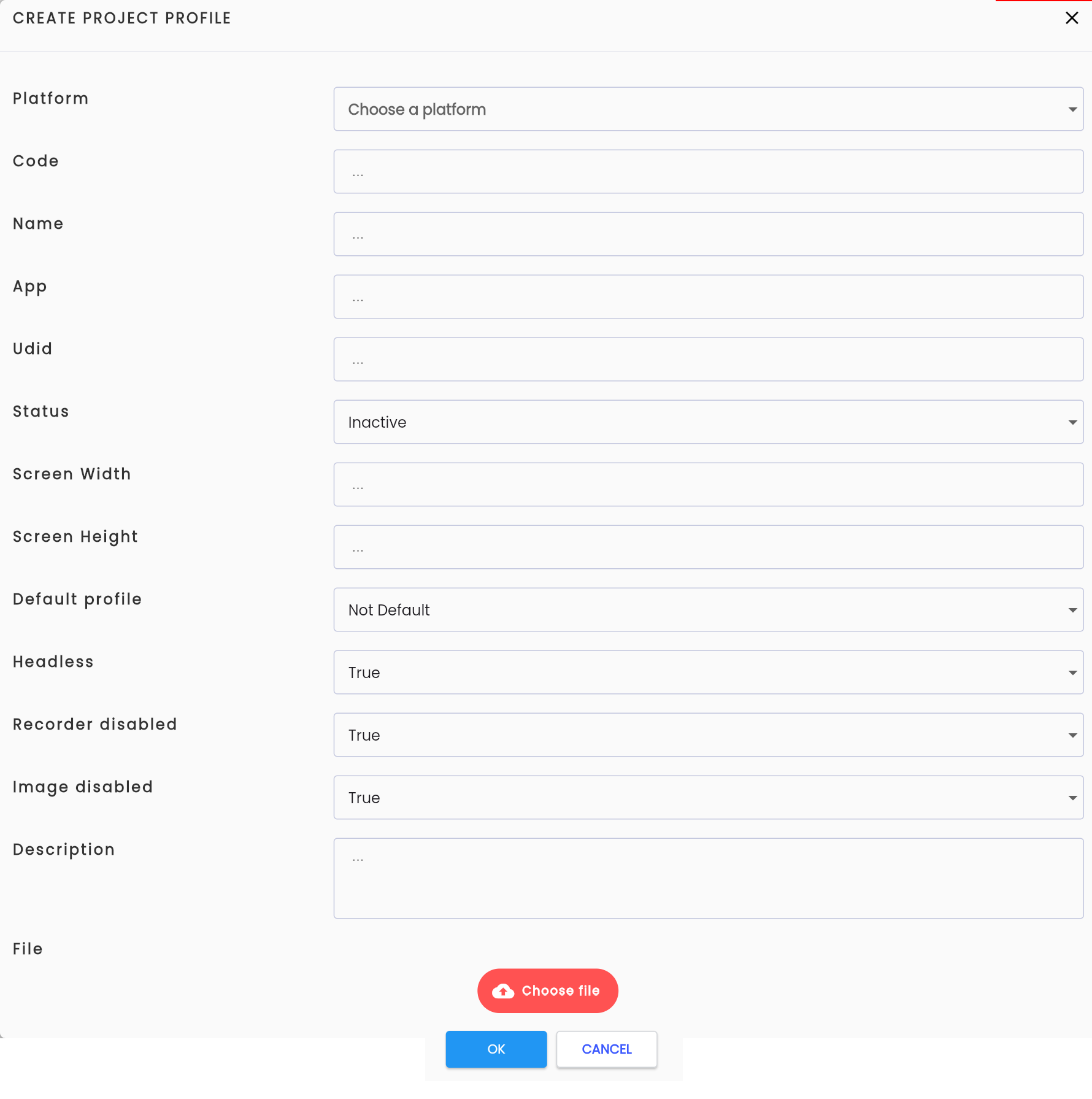
Field descriptions:
| Field Name | Mandatory | Format | Constraints | Description |
|---|---|---|---|---|
| Platform | Yes | Combobox | The platform for the product, options include: + Web + Android + IOS + JavaSwing + Windows + API + JDBC + SSH + FTP Cho phép chọn một giá trị | |
| Code | Yes | Textbox | Code must be unique | Profile code |
| Name | Yes | Textbox | Profile name, users should name it according to the OS for easy identification. | |
| App | No | Textbox | App ID or app path | |
| Udid | No | Textbox | Udid of the device (read the note below if unsure what Udid is). | |
| Status | Yes | Combobox | Profile’s operational status, options include: - Active: Profile is active - Inactive: Profile is inactive | |
| Screen Width | Yes | Textbox | Screen width of the device or browser | |
| Screen Height | Yes | Textbox | Screen height of the device or browser | |
| Default profile | Yes | Combobox | Set the default profile for the project, options include: - Default: Functions with profile fields will default to this profile - Not default: This profile is not selected by default | |
| Operating system | Yes | Combobox | Values change based on the selected platform | The operating system for testing on the selected platform. Choose the appropriate OS based on the platform. |
| Browser | Yes | Combobox | Only visible for Web platform after selecting Operating System | Browser for testing on the selected platform and OS. Only one value can be selected. |
| Browser version | Yes | Combobox | Visible only when Browser is not “Any” | Browser version, only one value can be selected. |
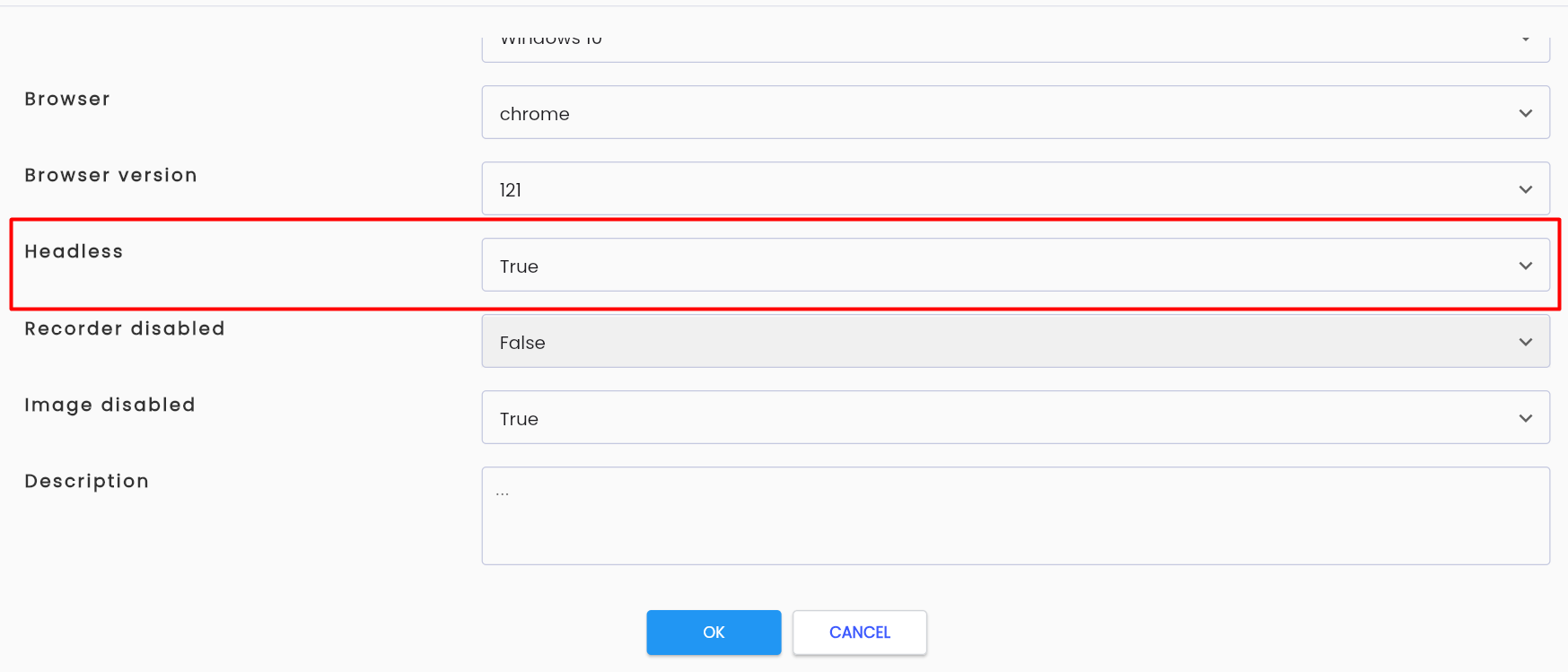
| Headless | Yes | Combobox | Determines whether the browser operates with or without UI. Options: - True: Yes - False: No Only 1 value can be selected | |
| Recorder disabled | Yes | Combobox | Recorder function that records test execution. Allows users to disable screen recording during execution. Options: - True: có - False: không | |
| Image disabled | Yes | Combobox | Image function that captures a screenshot when an error occurs during execution. Allows users to disable image capture. Options: - True: có - False: không | |
| Description | No | Textarea | Profile description | |
| File | No |
Step 5: Click OK. The system displays the message: “Create successful”
Note:
- UDID stands for “Unique Device Identifier”, a unique identifier string used to differentiate iPads or iPhones from other devices.
- Headless browser refers to a program that simulates a browser without a user interface. It works like any other browser but does not display the UI.
View and Edit Profile
To view and edit a profile in the Centralize Automation Testing Suite, follow these steps:
Step 1: On the PROFILE tab screen, select the profile you wish to view/edit and click the ⋮ icon on the left of the record.
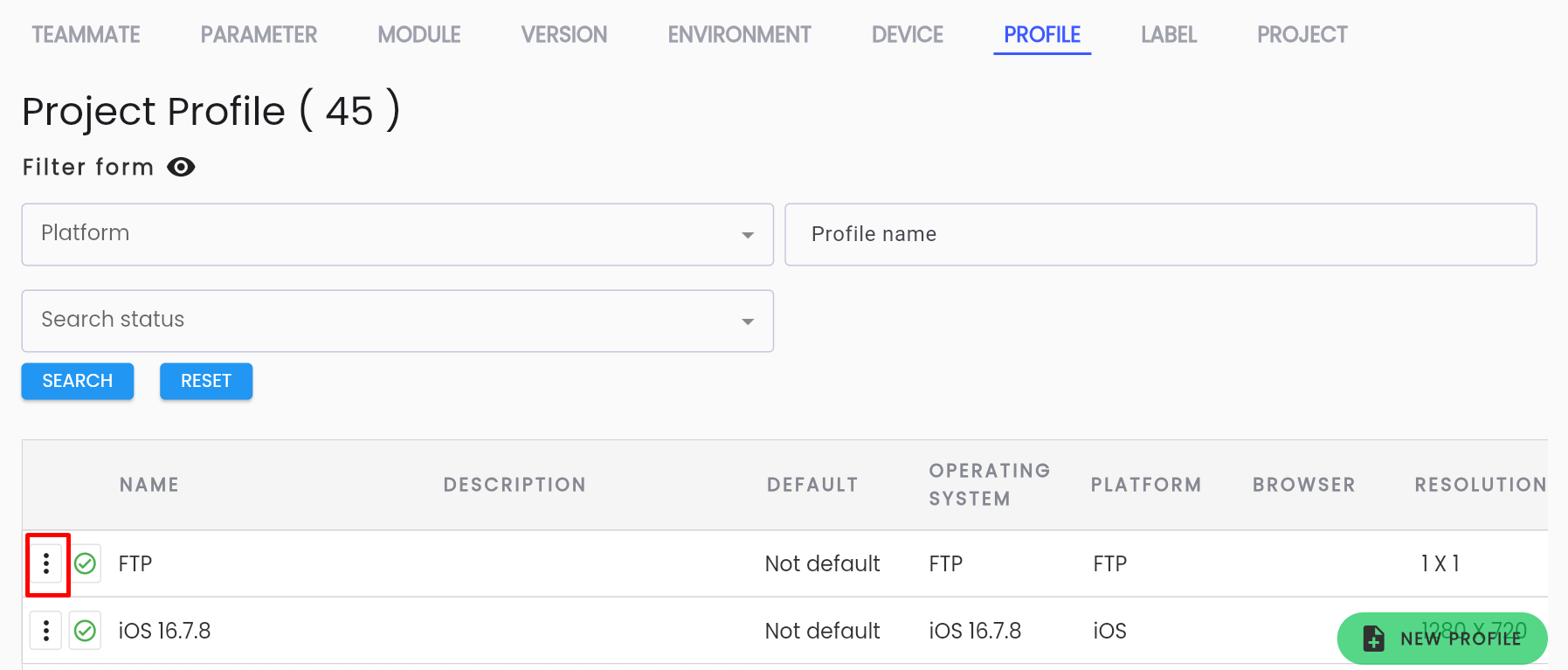
Step 2: Click Edit or select the record to view/edit.

Step 3: View and edit the profile information as required. Information Fields.
Step 4: Click OK. The system displays the message: “Update successful”
Note: The Code field cannot be edited.
Delete Profile
Note: A profile can only be deleted if it has not been used for test execution. If the profile has been used, it cannot be deleted.
To delete a profile in the Centralize Automation Testing Suite, follow these steps:
Step 1: On the PROFILE tab screen, select the profile you want to delete and click the ⋮ icon on the left side of the record.
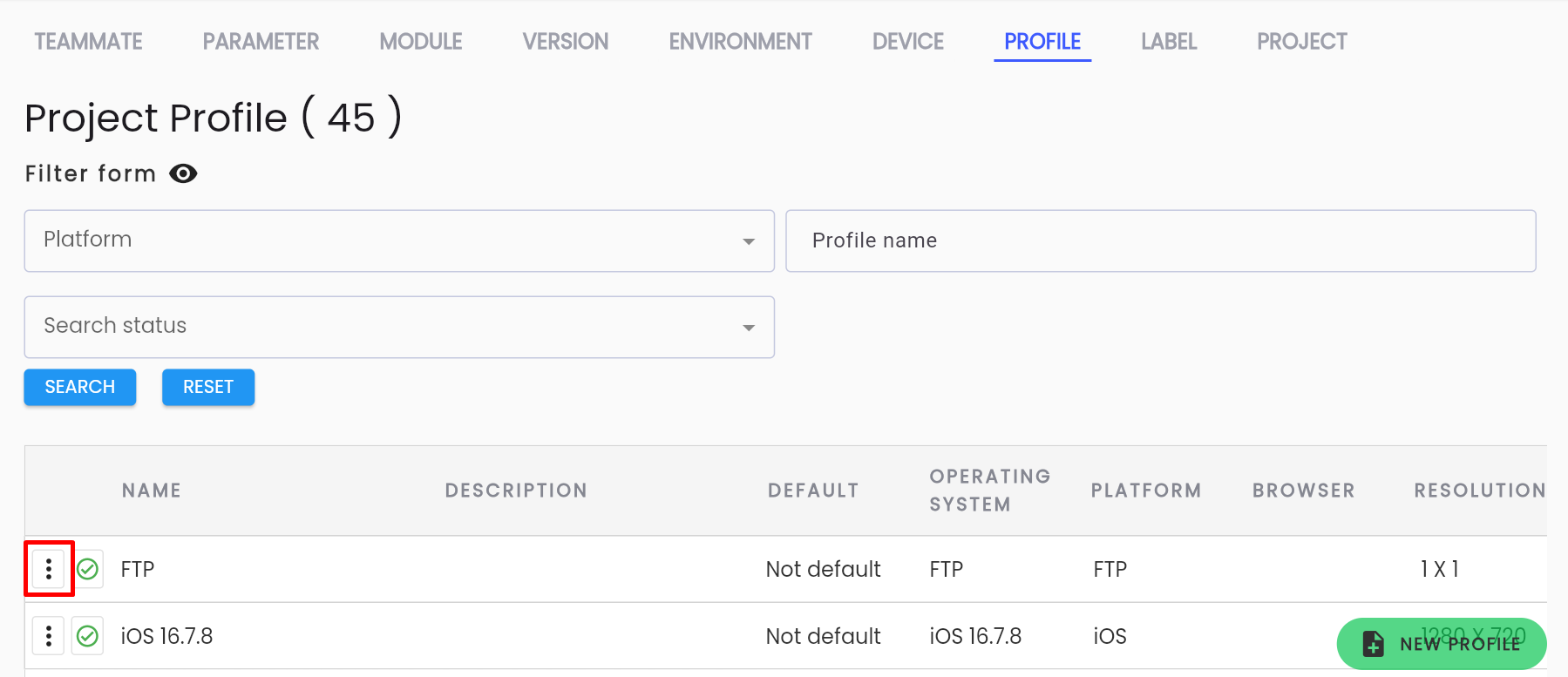
Step 2: Click Delete

The system will display a confirmation popup for deleting the profile:
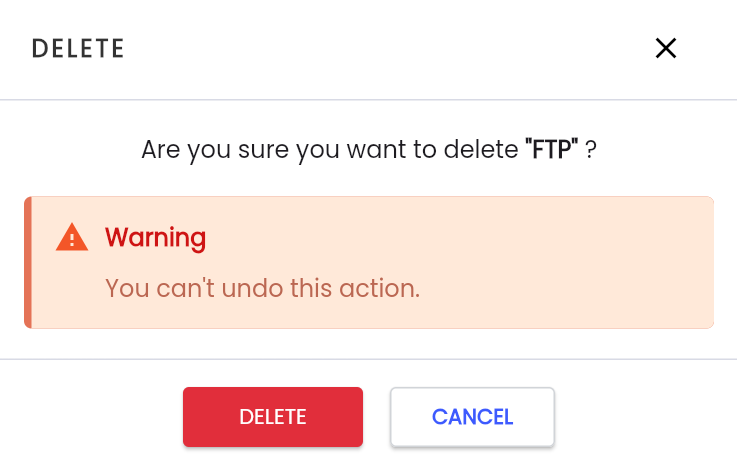
Step 3: Click DELETE to confirm the deletion. The system will display the message: “Delete successful”
Headless Profile
The system only supports the following browsers in headless mode: Chrome, Firefox, Microsoft Edge.
To configure a profile in headless mode, follow these steps:
Step 1: Go to Setting > Profile
Step 2: Create a new profile or edit an existing one.
Step 3: In the Headless field, select TRUE to enable headless browser mode.
Step 4: Click OK để to complete.