Member
Overview of Member Management
This section will guide users on how to manage components in the Centralized Automation Testing Suite:
- Add a new member to the project
- Update member permissions in the project
- Update member roles in the project
- Delete a member from the project
Add a New Member to the Project
To add a new member to the project, follow these steps:
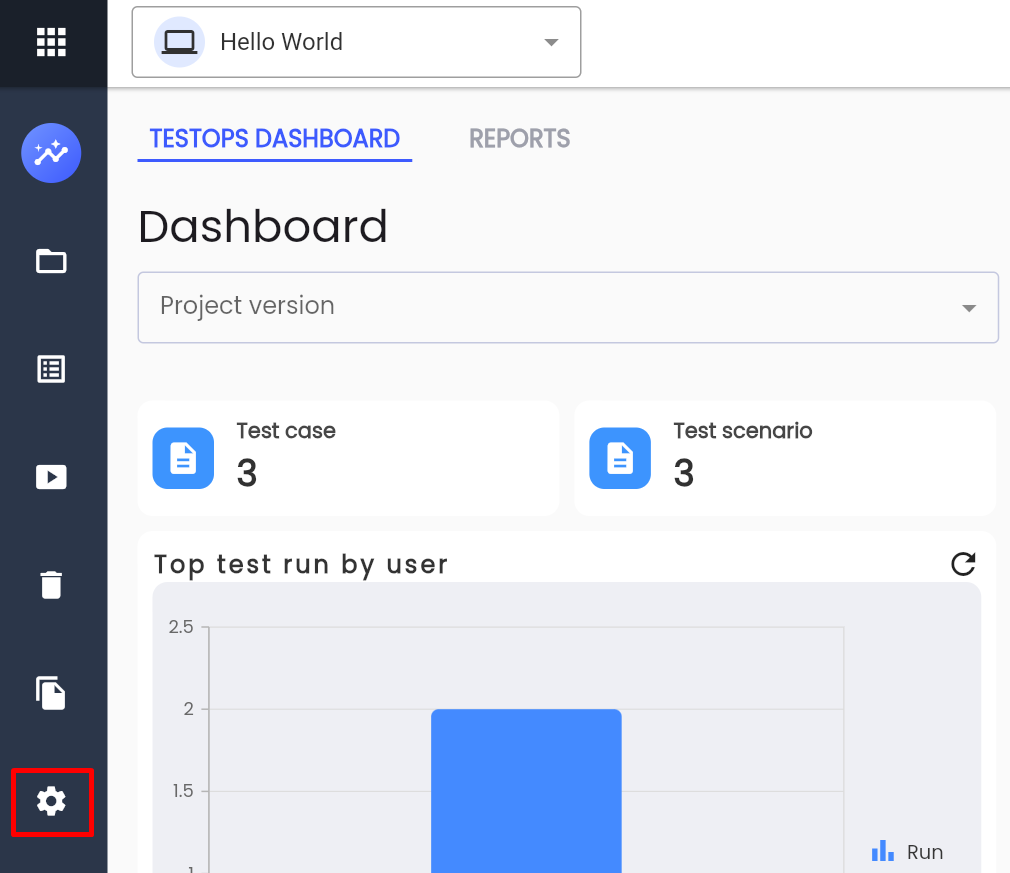
Step 1: Click Setting on the project menu.
Step 2: Click on the TEAMMATE tab
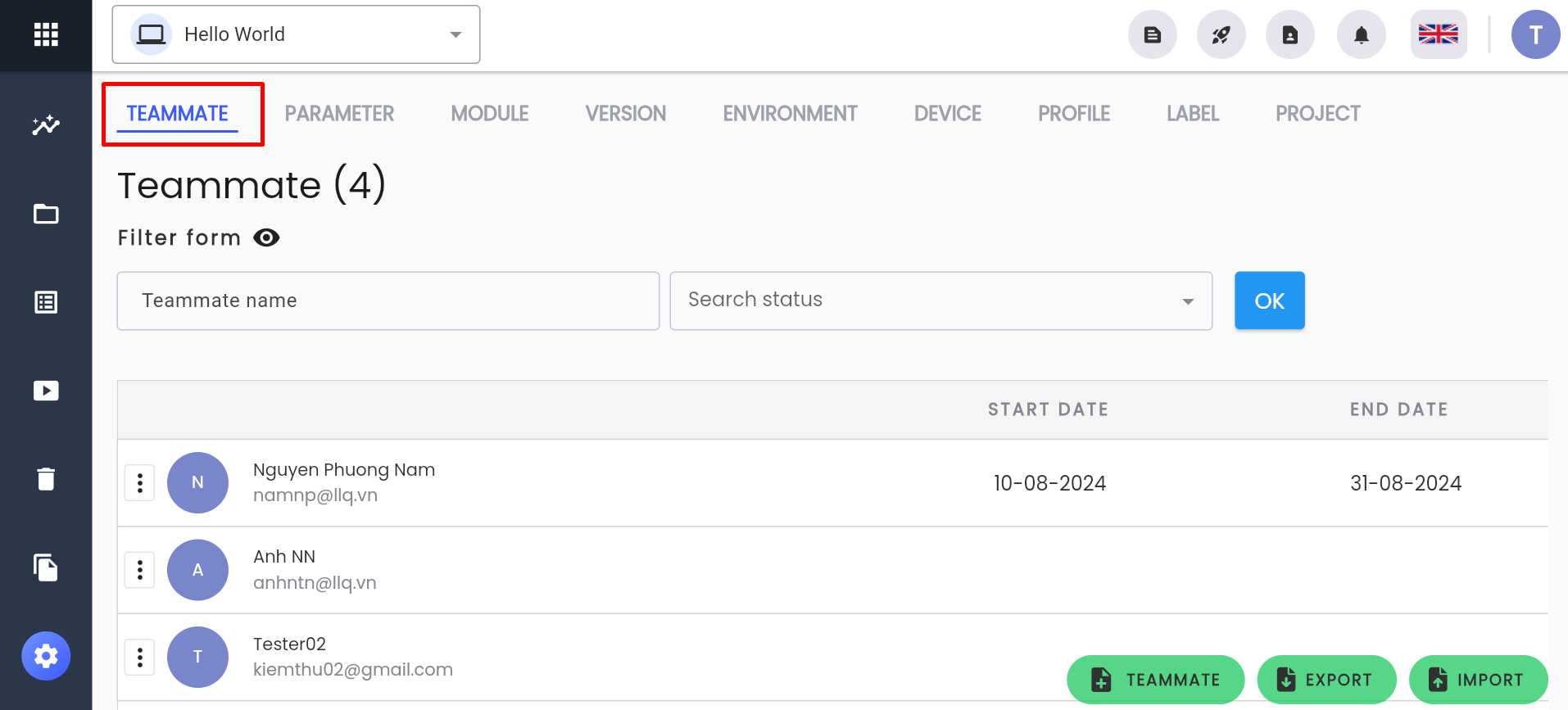
The system displays the list of members in the project.
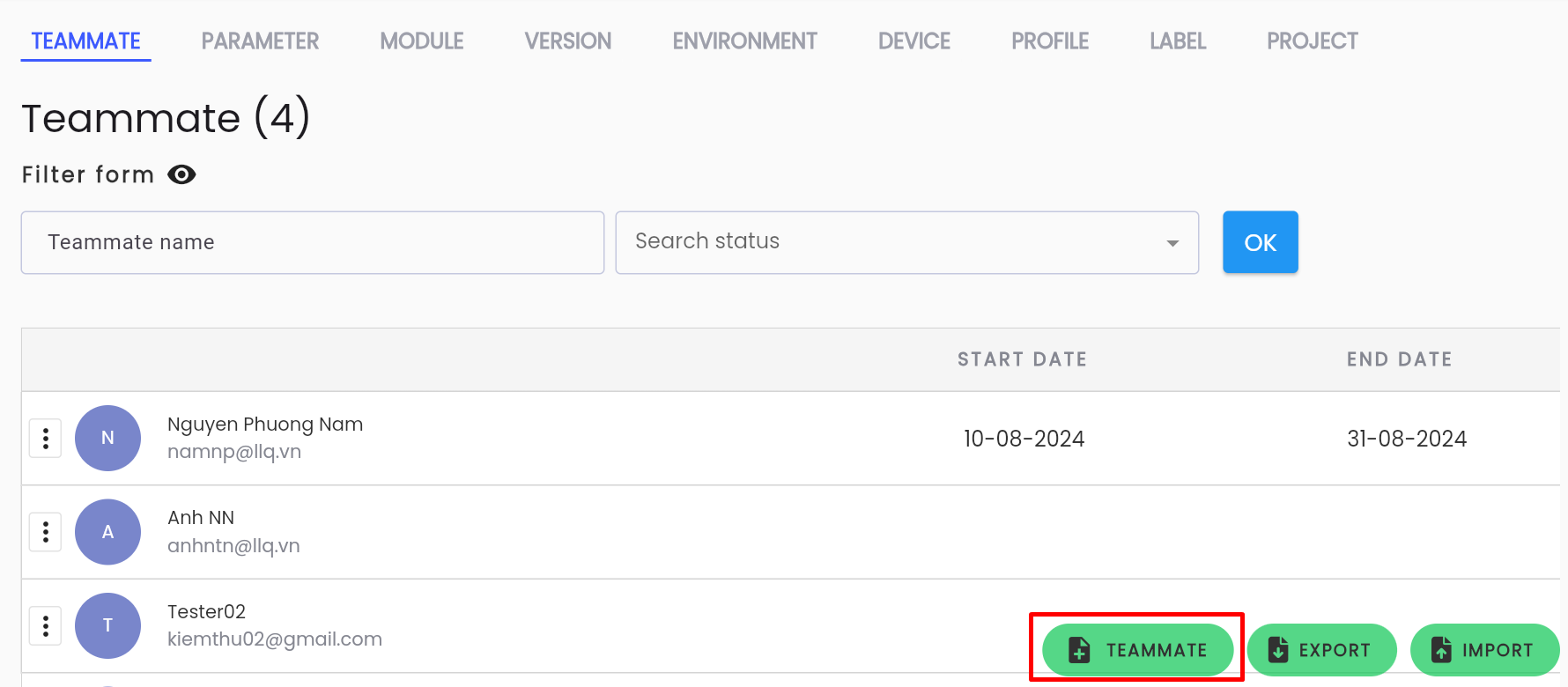
- Step 3: Click TEAMMATE
The system displays the list of all users with an Active status in the system.
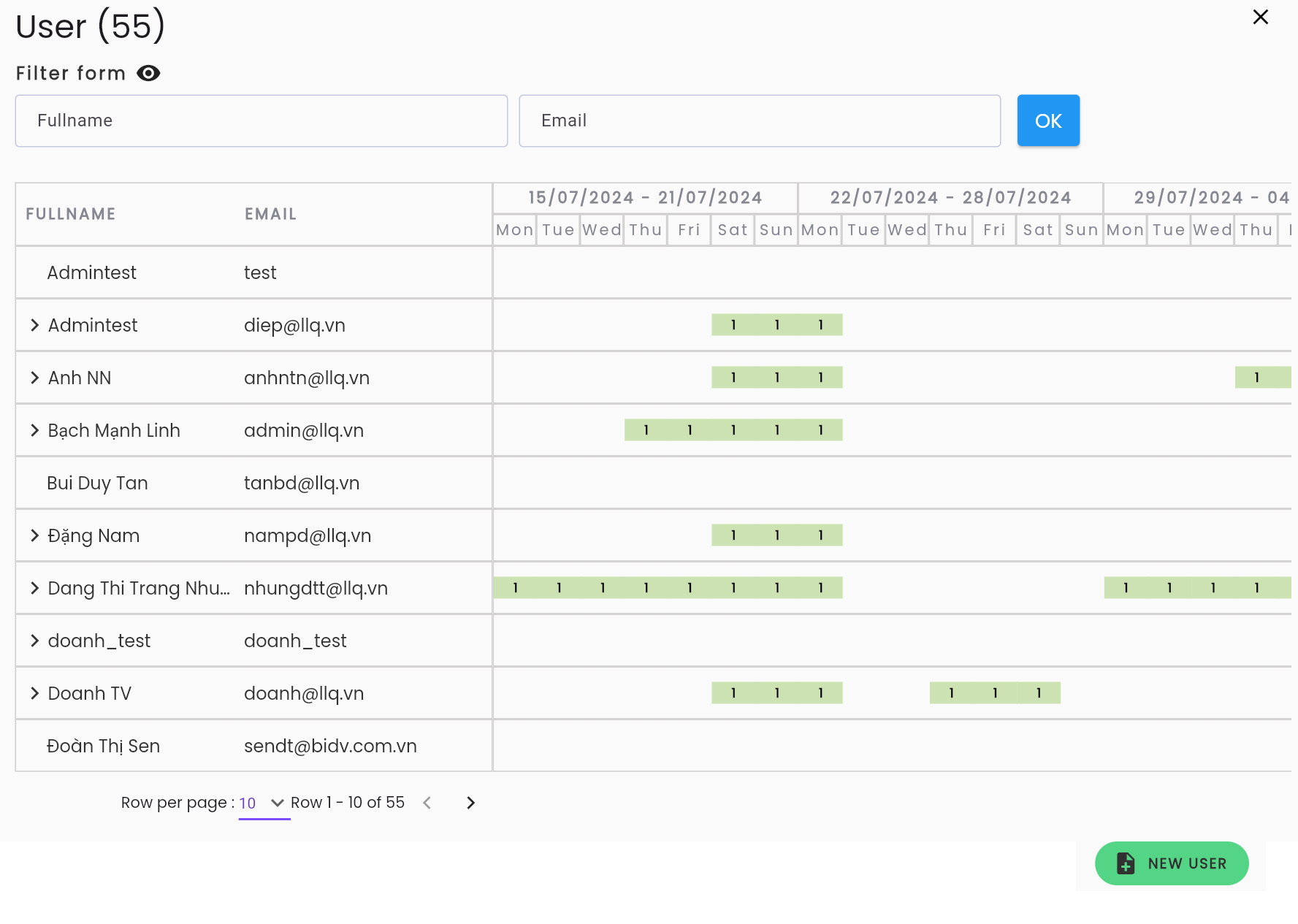
Step 4: Enter the name/email of the member to be added to the project in the corresponding search box, then click OK
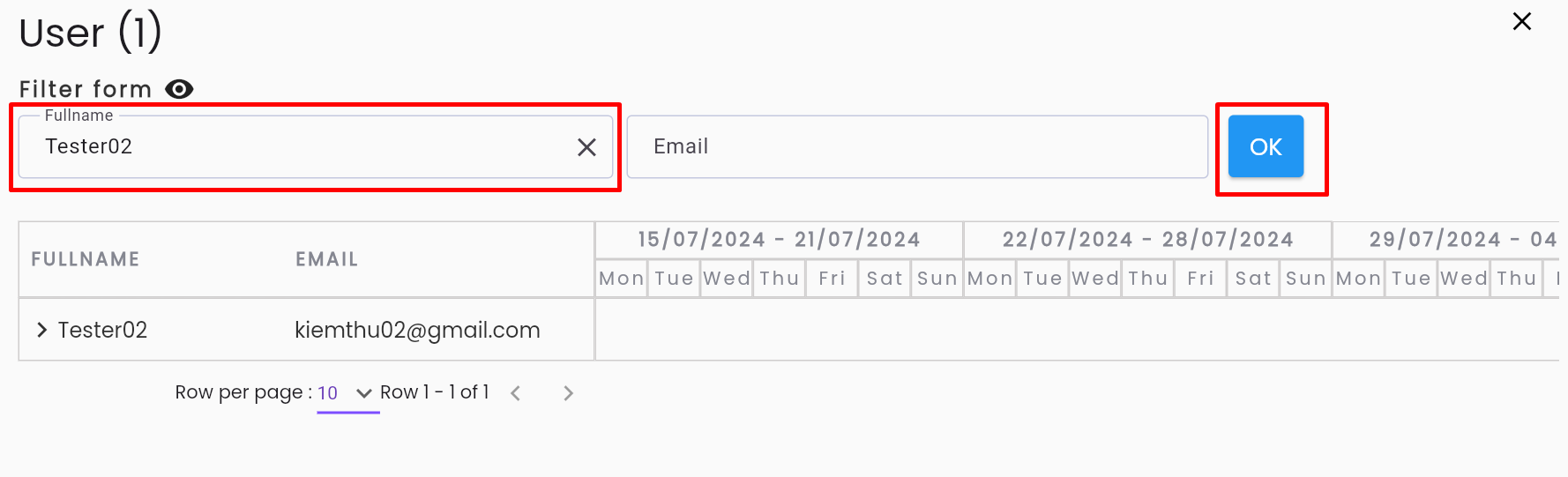
Step 5: Click on the member to be added to the project; the system displays the user's information screen in the project.
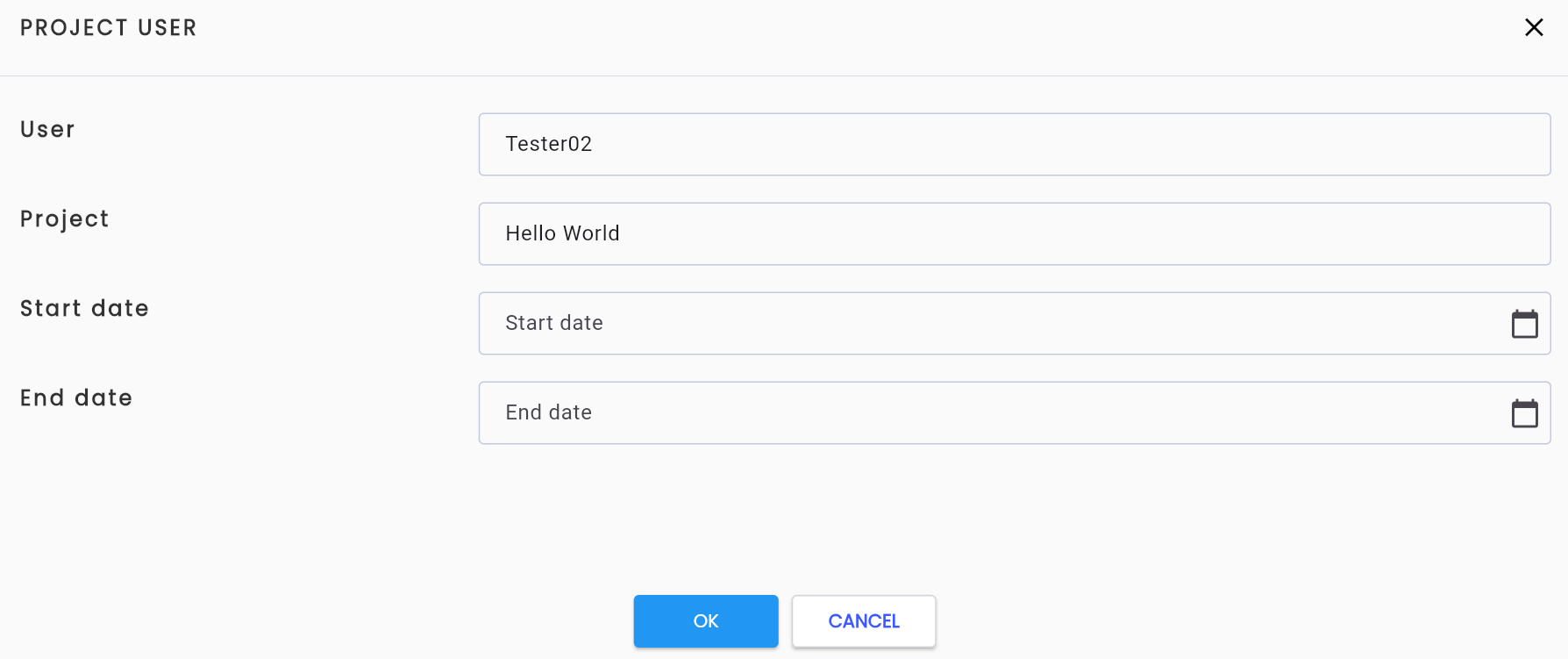
Step 6: Enter the duration of the user's participation in the project in the PROJECT USER form.
Description of the information fields:
| Field Name | Mandatory | Định dạng | Ràng buộc | Mô tả |
|---|---|---|---|---|
| User | Yes | Textbox | Cannot be edited | The name of the selected member |
| Project | Yes | Textbox | Cannot be edited | The name of the project where the member is being added |
| Start date | Yes | Date | The date the member starts participating in the project | |
| End date | Yes | Date | The date the member completes their role in the project |
Step 7: Click the OK button, the system displays the message “Add member successful”
Note: In Step 5, if the member to be added to the project is not already in the system, click NEW USER.
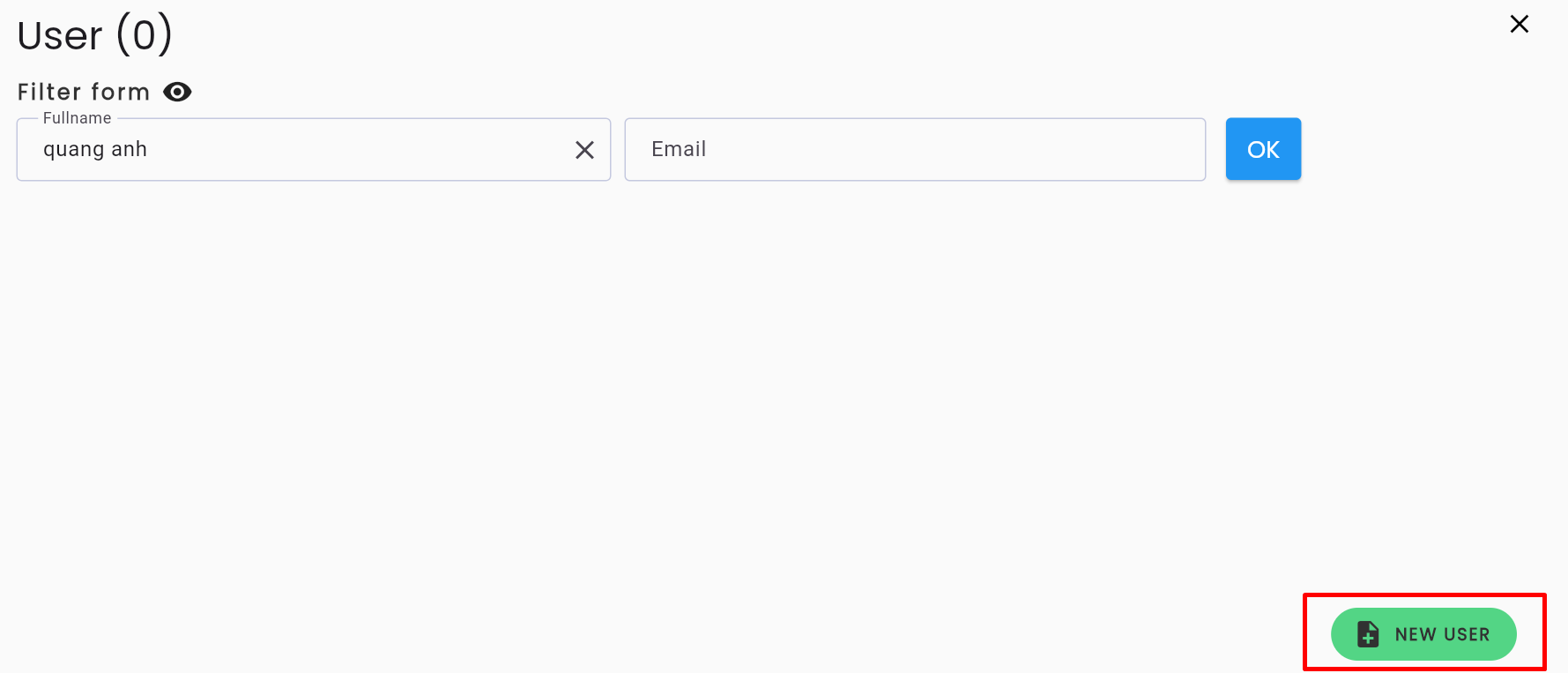
The system displays the CREATE USER screen.
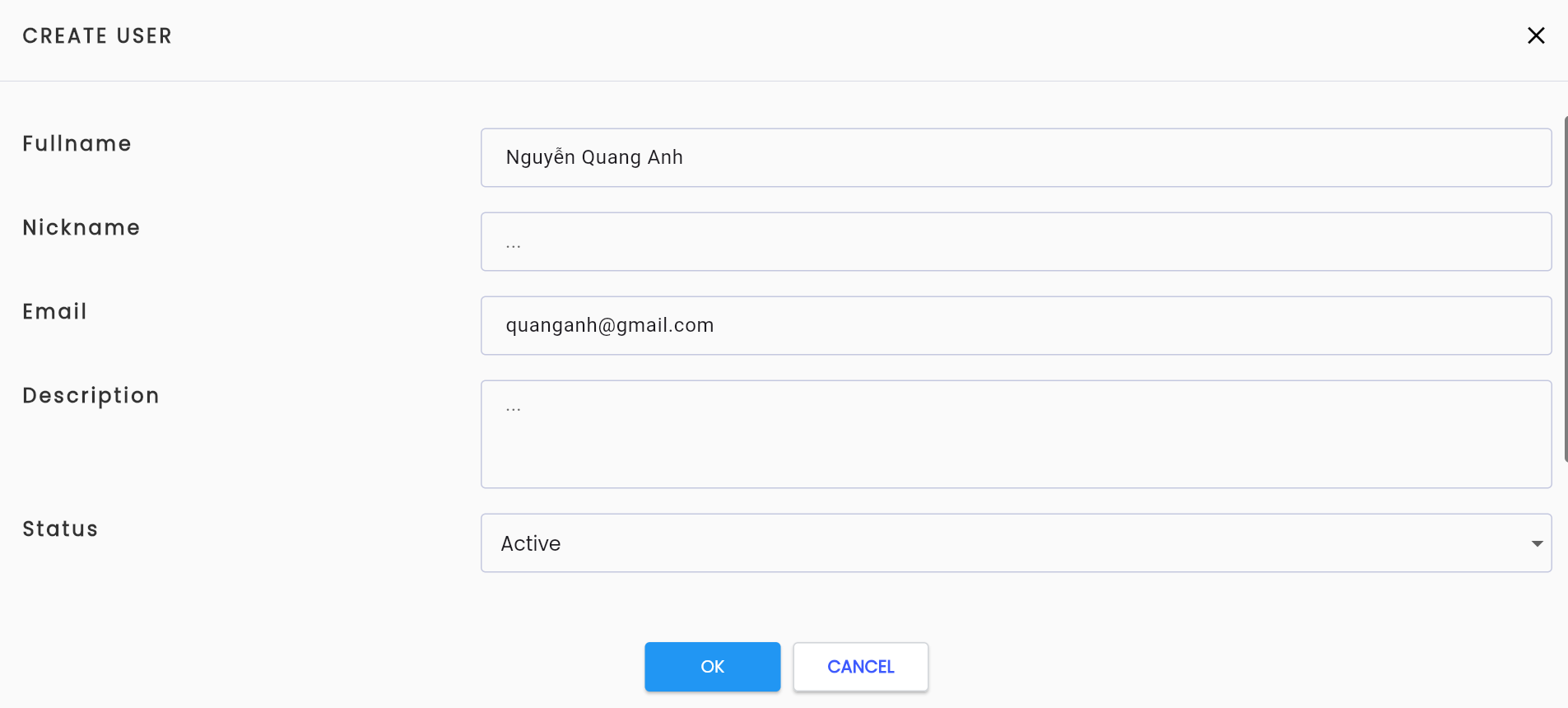
Enter all valid information in the Create user form
Description of the information fields:
| Field Name | Mandatory | Format | Constraints | Description |
|---|---|---|---|---|
| Fullname | Yes | Textbox | The full name of the member | |
| Nickname | Yes | Textbox | The nickname of the member being added to the system | |
| Yes | Text | Must be in the correct email format | The email of the member being added to the system | |
| Description | No | Textarea | A description of the member | |
| Status | Yes | Combobox | Values include: + Active: currently active + Inactive: not active Only one value can be selected |
Click OK, the system displays the message Create successful
Proceed to add members to the project similarly from Step 4.
Update Member Participation Information in the Project
To update the duration of a member's participation in the project, follow these steps:
Step 1: On the TEAMMATE tab select the user you want to view/edit information for, and click the ⋮ button on the left side of the record.
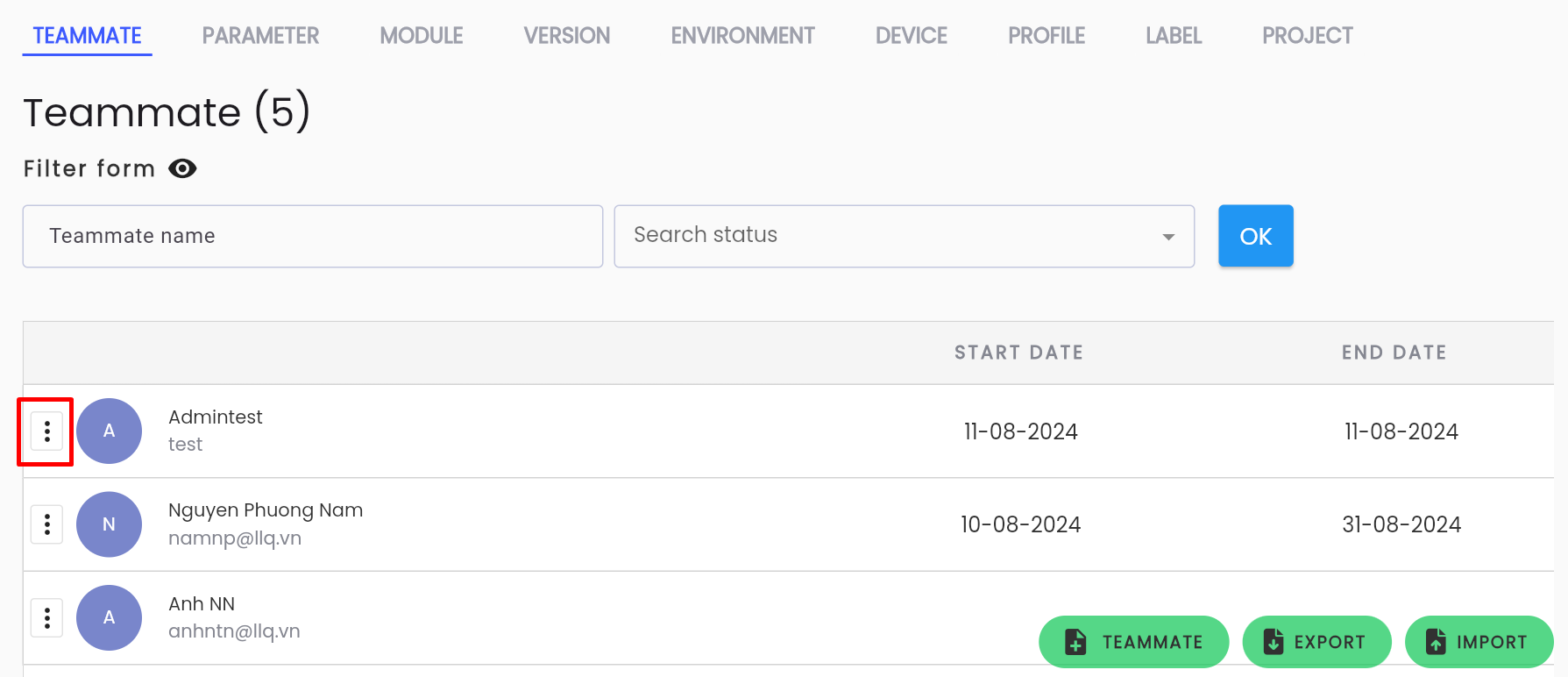
Step 2: Click Edit on the displayed menu or click directly on the user whose information needs updating.
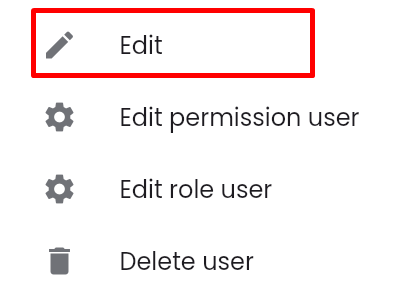
The system displays the PROJECT USER screen.
Step 3: Enter and edit the information as required. Information Fields
Step 4: Click OK. The system displays the message “Update successful”
Update Member Permissions in the Project
To update the permissions for using functions for members in the project, follow these steps:
Step 1: On the TEAMMATE tab, select the user whose permissions you want to update, and click the ⋮ button on the left side of the record.
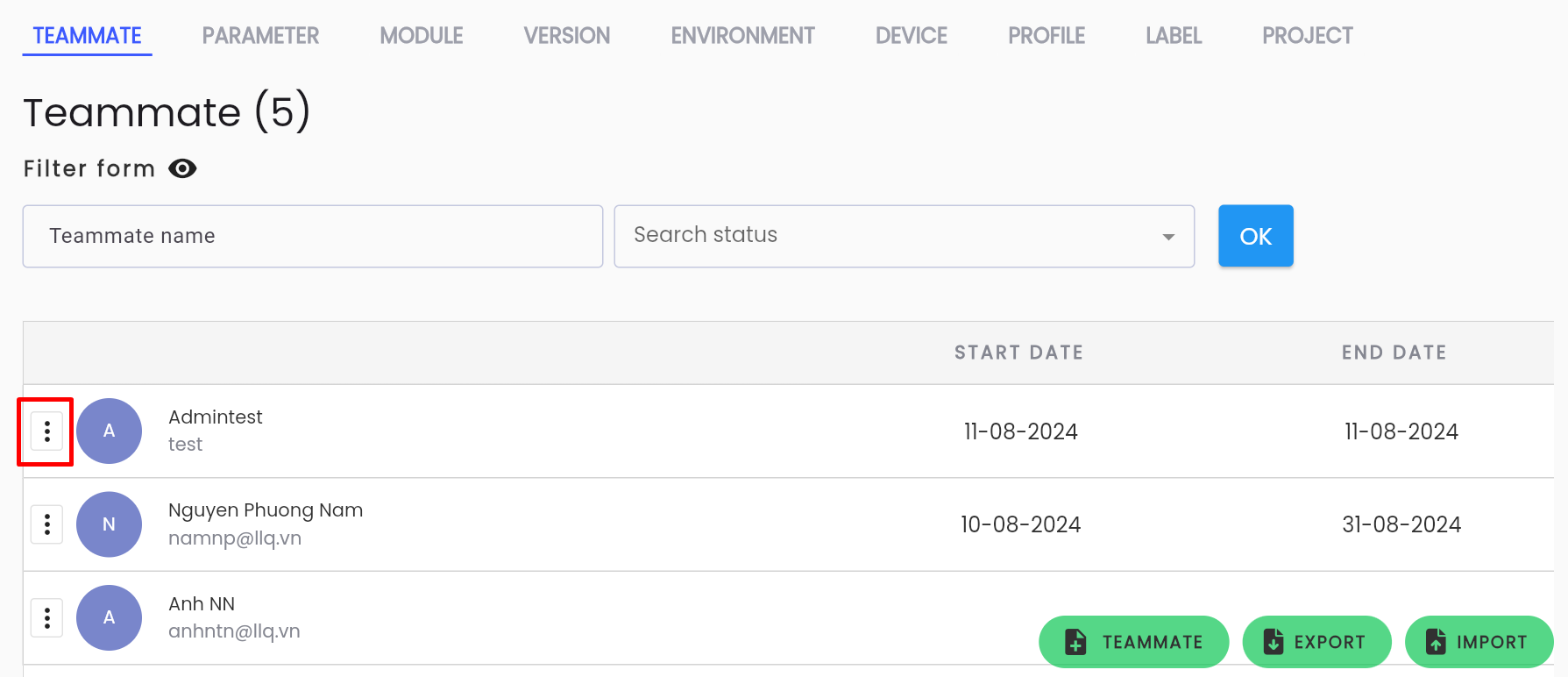
Step 2: Click Edit permission user on the displayed menu.
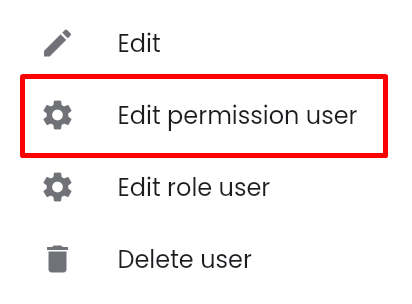
The system displays a list of functions and features in the project.
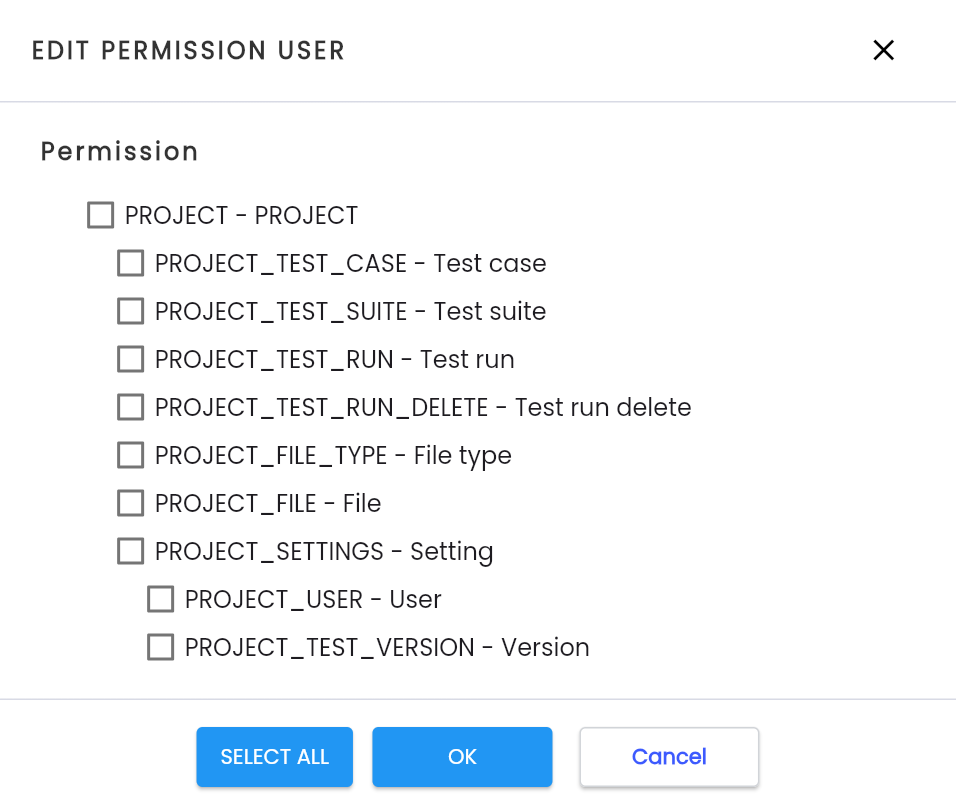
Step 3: Check the appropriate functions and features (to select all, click SELECT ALL), then click OK
The system displays the message “Update successful”
Update Member Roles in the Project
To update the roles for members in the project, follow these steps:
Step 1: On the TEAMMATE tab find the user whose role you want to update, and click the ⋮ button on the left side of the record.
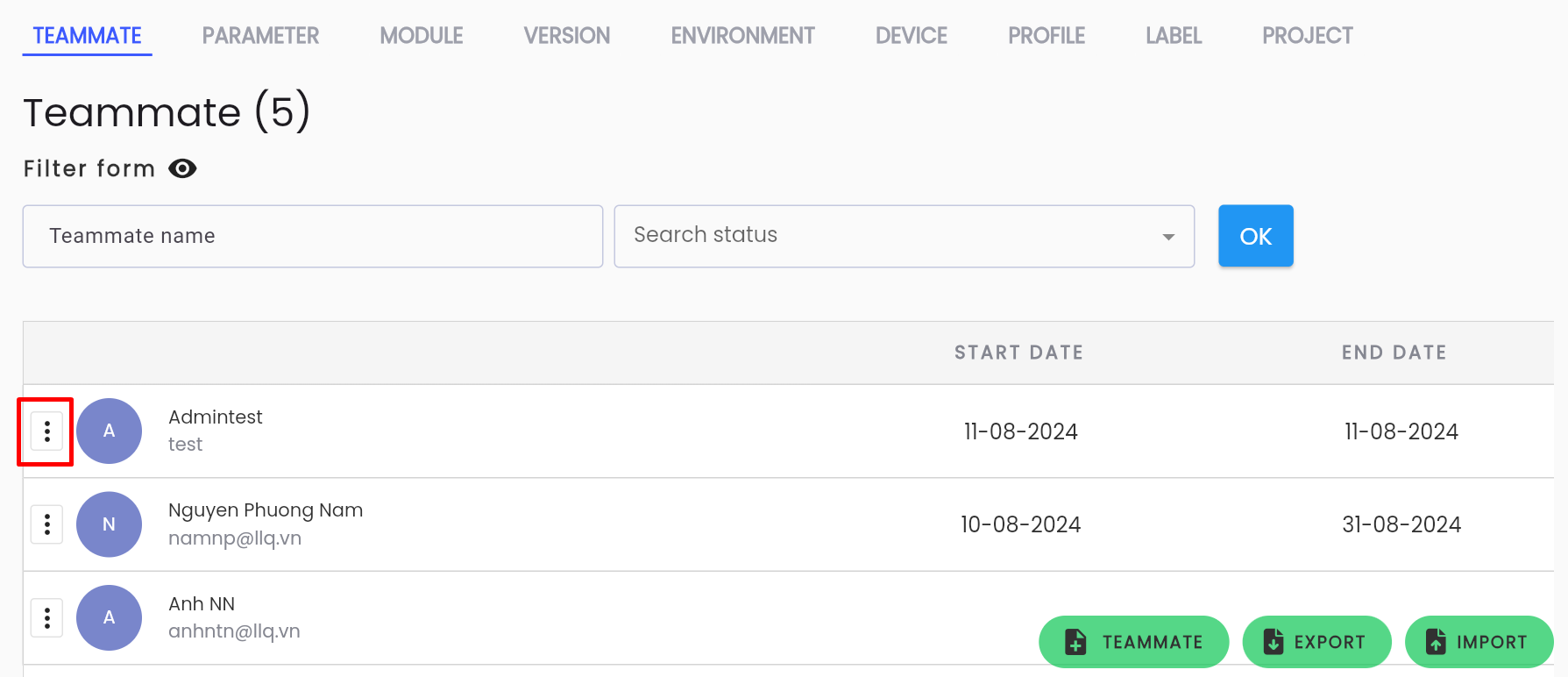
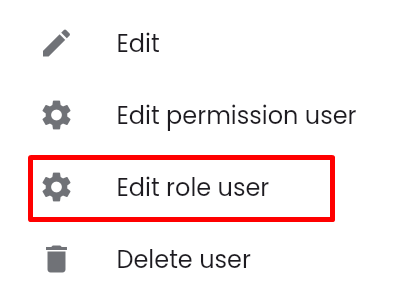
Step 2: Click Edit role user on the displayed menu.
The system displays a list of roles that the user can assume in the project.
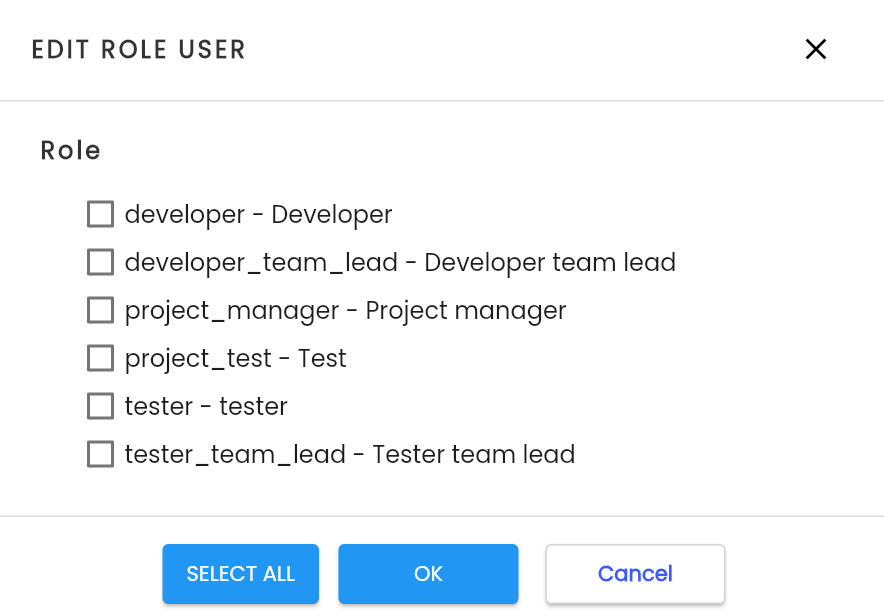
Step 3: Check the appropriate roles for the user; to select all, click SELECT ALL, then click OK
The system displays the message “Update successful”
Delete a Member from the Project
Note: The condition for deleting a member from the project is that the member must not have data constraints (has never been the owner of any project). If they have been used, they cannot be deleted.
To delete a member from the project in the Centralized Automation Testing Suite, follow these steps:
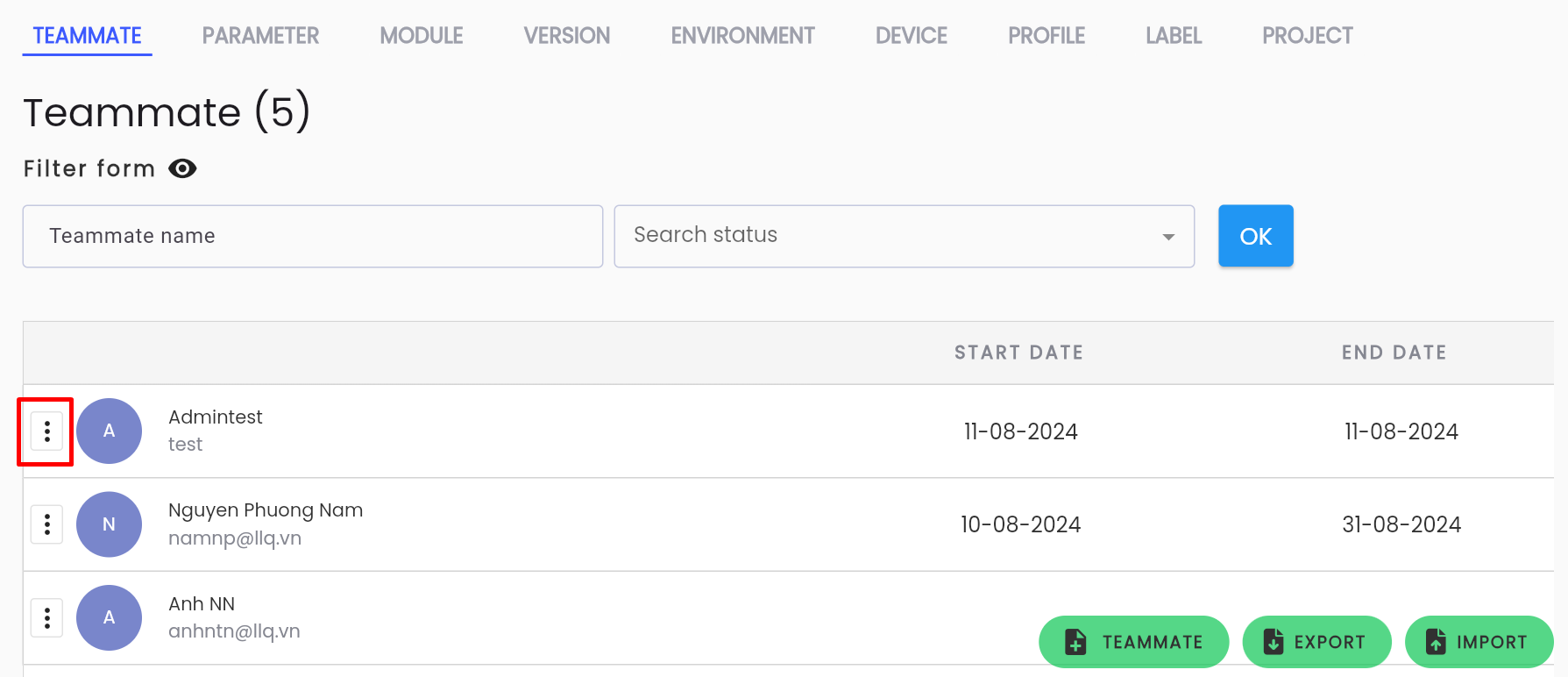
Step 1: On the TEAMMATE tab, find the user you want to delete from the project, and click the ⋮ button on the left side of the record.
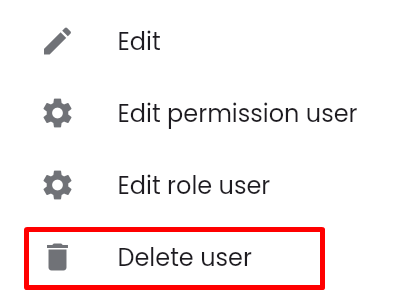
Step 2: Click Delete user on the displayed menu.
Step 3: The system displays a confirmation popup. Click OK to delete the member from the project.
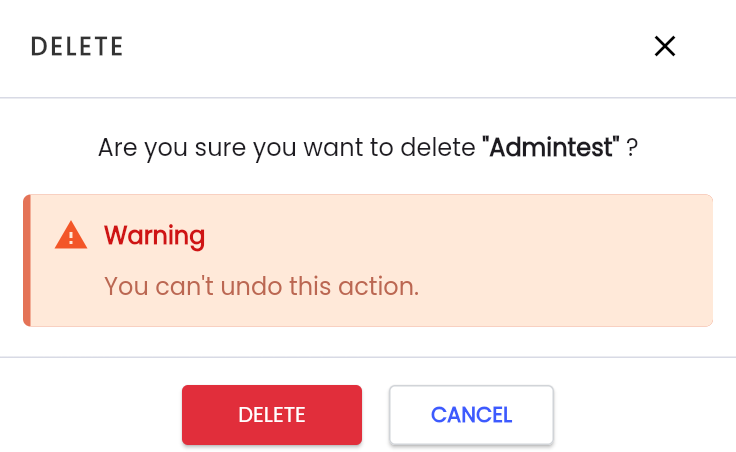
The system displays the message “Delete successful”