Modules
Overview of Components in Centralize Automation Testing Suite
A component (also known as a module) is an individual part of software or an application, designed to perform a specific function.
This section will guide users on how to manage components in the Centralize Automation Testing Suite:
Create a New Component
To create a new component in the Centralize Automation Testing Suite, follow these steps:
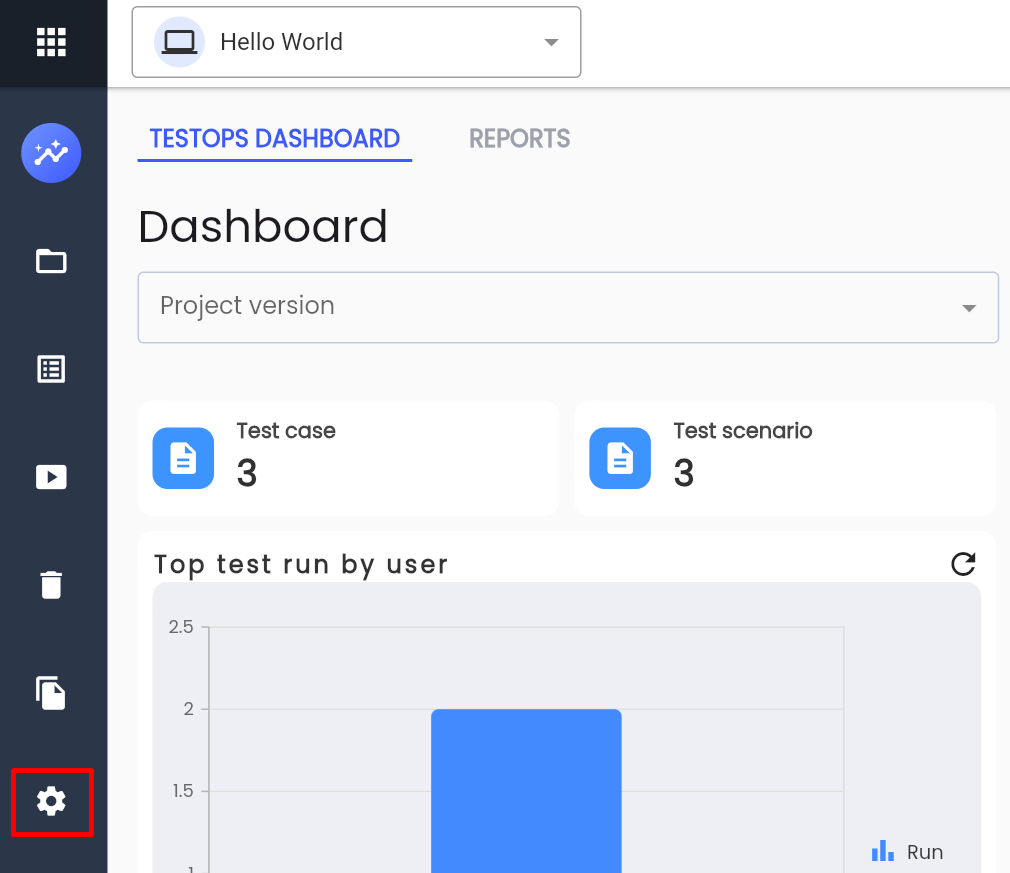
Step 1: Click Setting on the project menu.
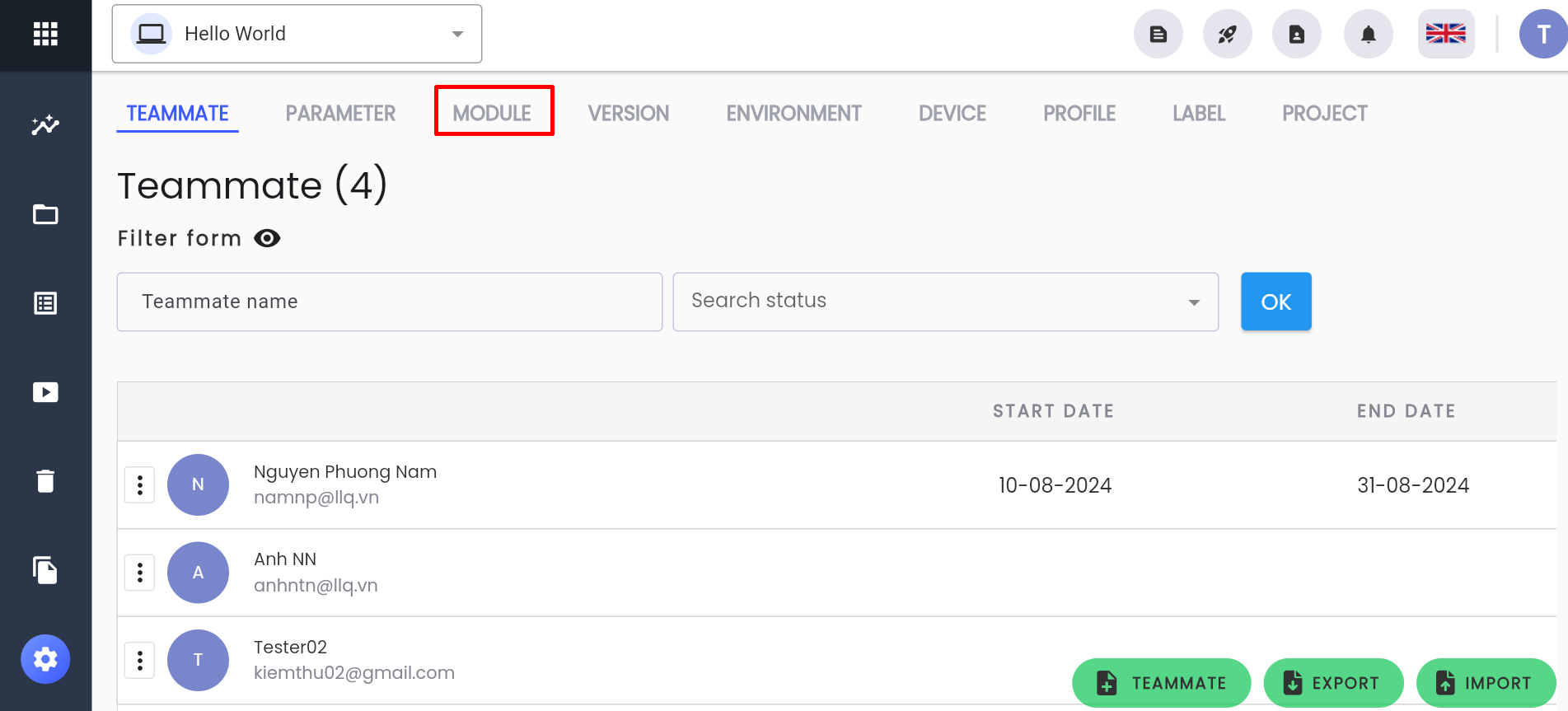
Step 2: Select the MODULE tab
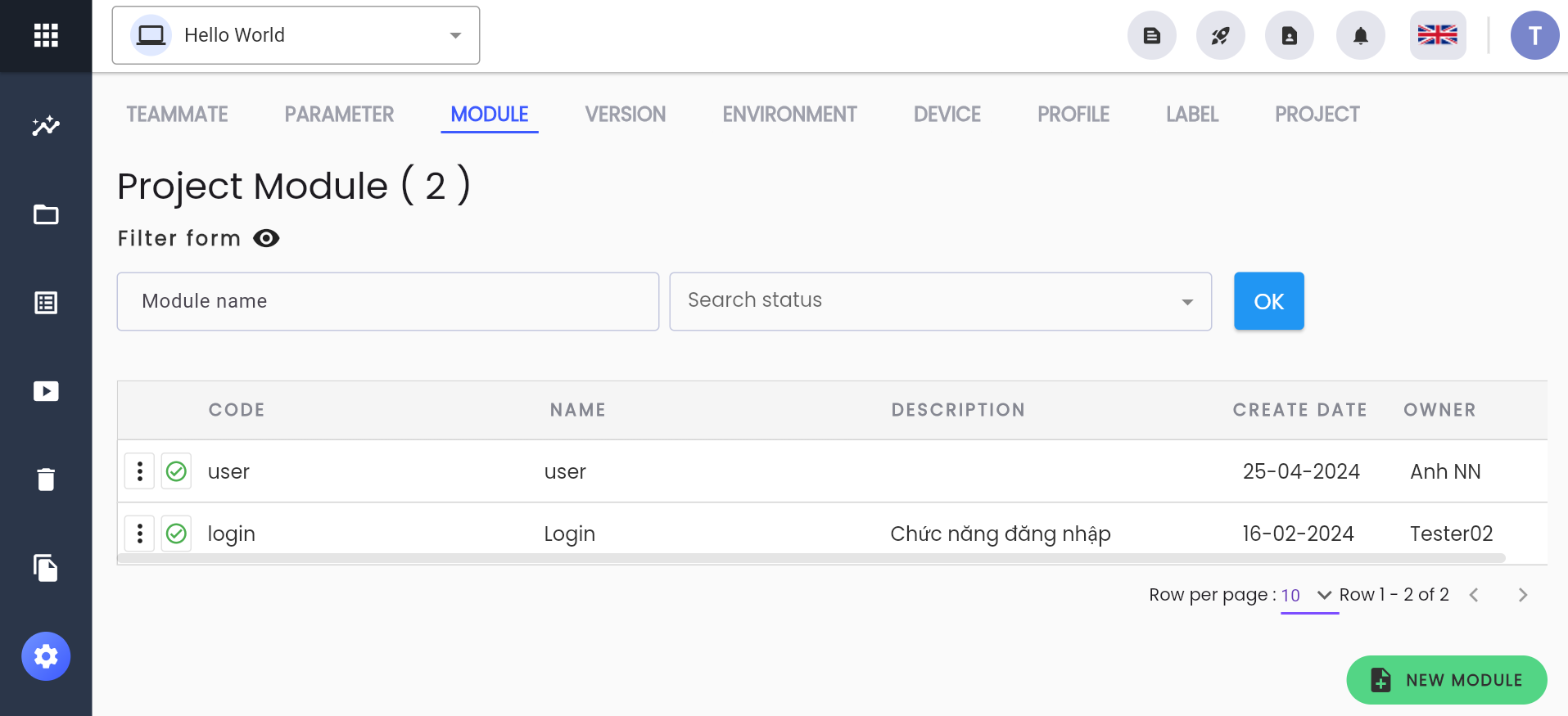
The system displays the project's list of components:
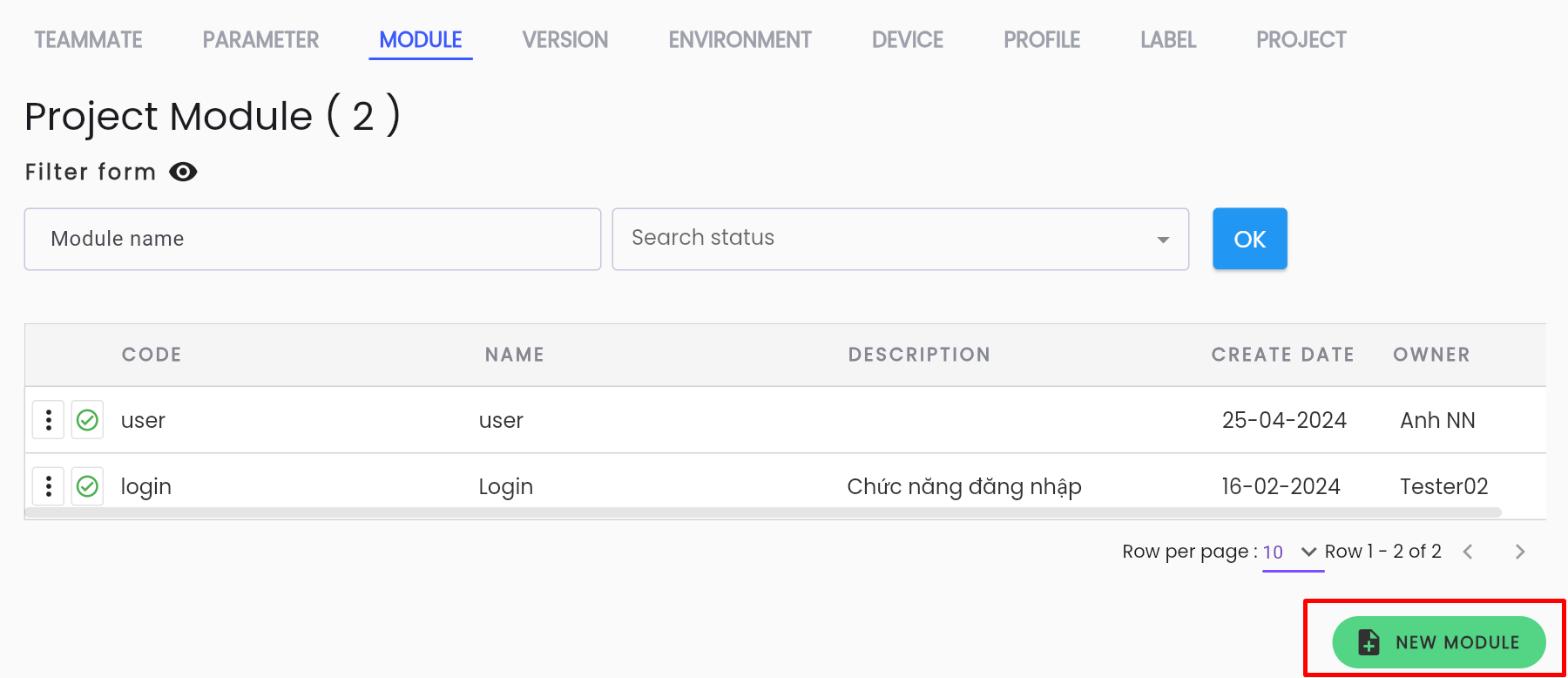
Step 3: Click the NEW MODULE button
Step 4: Enter accurate and complete information in the CREATE PROJECT MODULE
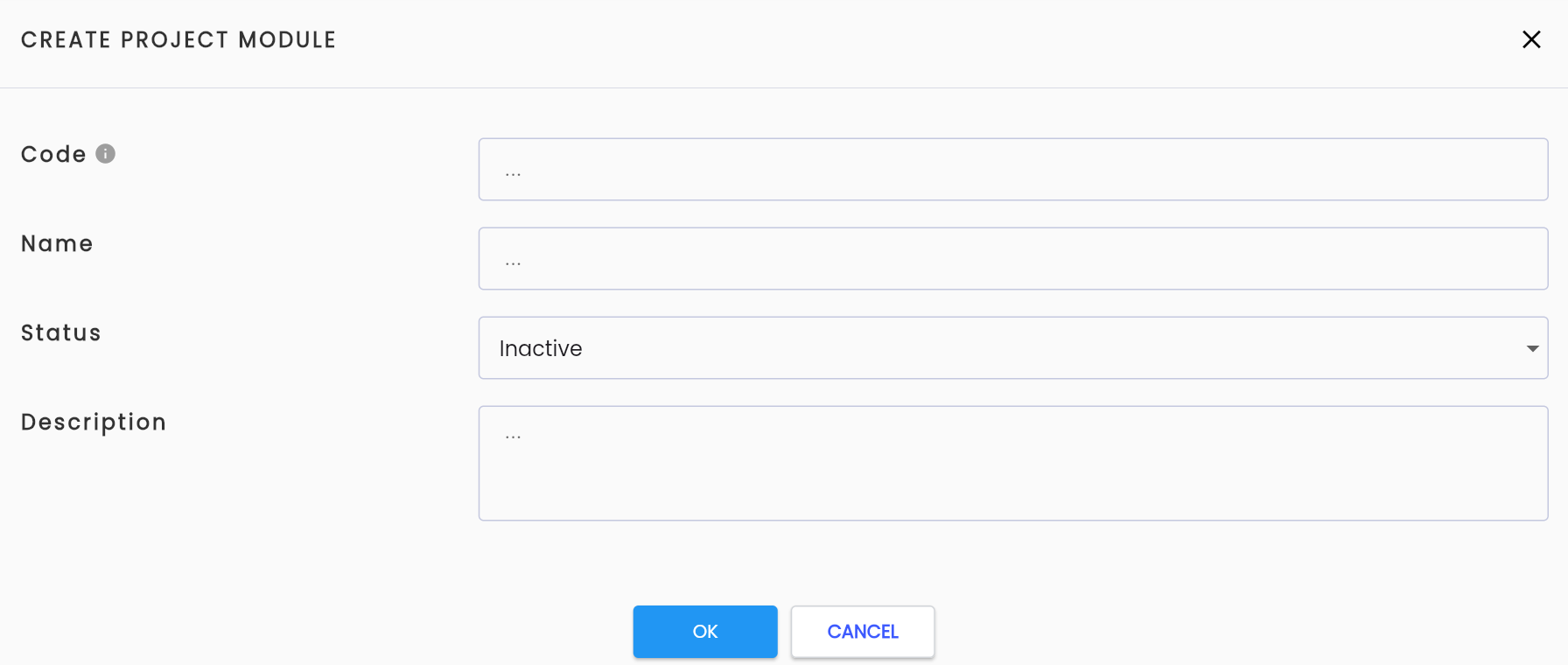
Description of Fields:
| Field Name | Mandatory | Format | Constraints | Description |
|---|---|---|---|---|
| Code | Yes | Textbox | Code must be unique | The code of the component |
| Name | Yes | Textbox | The name of the component | |
| Status | Yes | Combobox | The operational status of the component. Options include: + Active: The component is active + Inactive: The component is inactive | |
| Description | No | Textarea | A description of the component |
Step 5: Click the OK button. The system displays a notification: “Create Successful”
View and Edit Components
To view and edit components in the Centralize Automation Testing Suite, follow these steps:
Step 1: On the MODULE tab, select any component you wish to view/edit and click the ⋮ icon on the left side of the record.
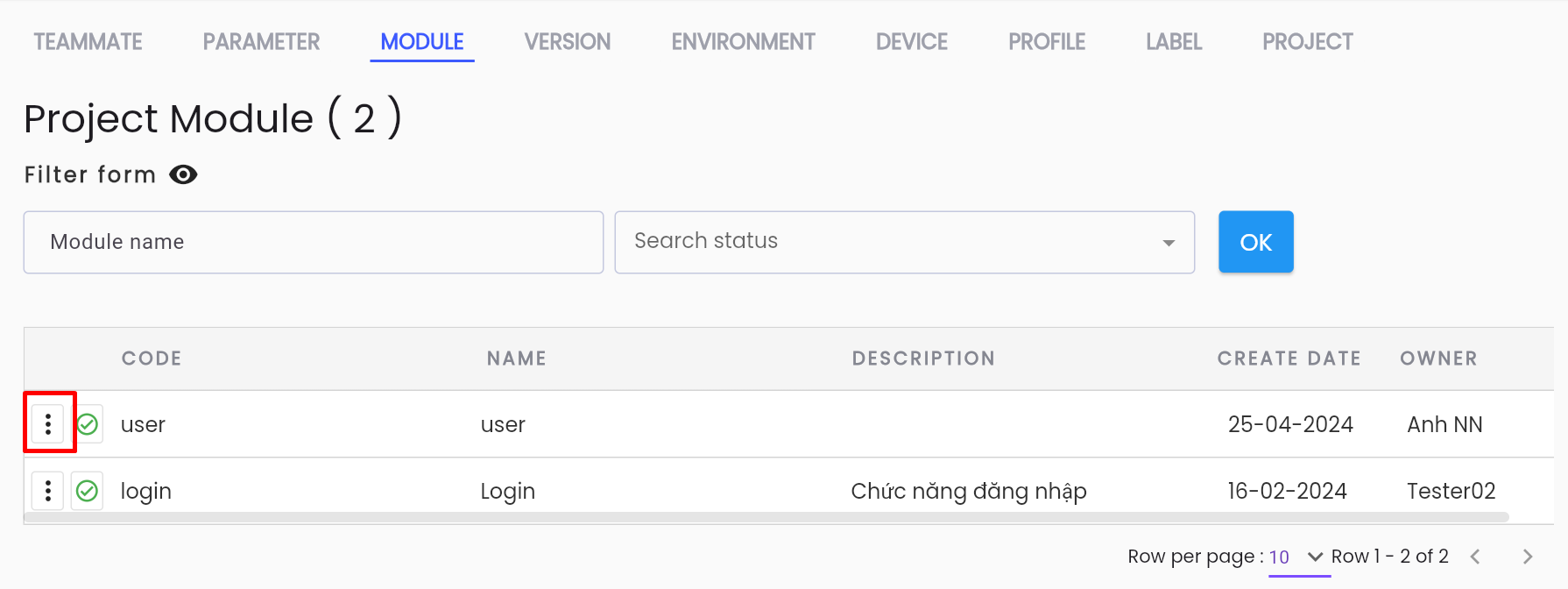
Step 2: Click Edit from the displayed menu or click directly on the record to edit it.

Step 3: View and edit the component details as required. Description of information fields is similar to the new add form.
Delete a Component
Note: A component can only be deleted if it has no data dependencies (i.e., it has not been used). If it has been used, deletion is not allowed.
To delete a component in the Centralize Automation Testing Suite, follow these steps:
Step 1: On the MODULE tab screen, select any component you wish to delete and click the ⋮ icon on the left side of the record.
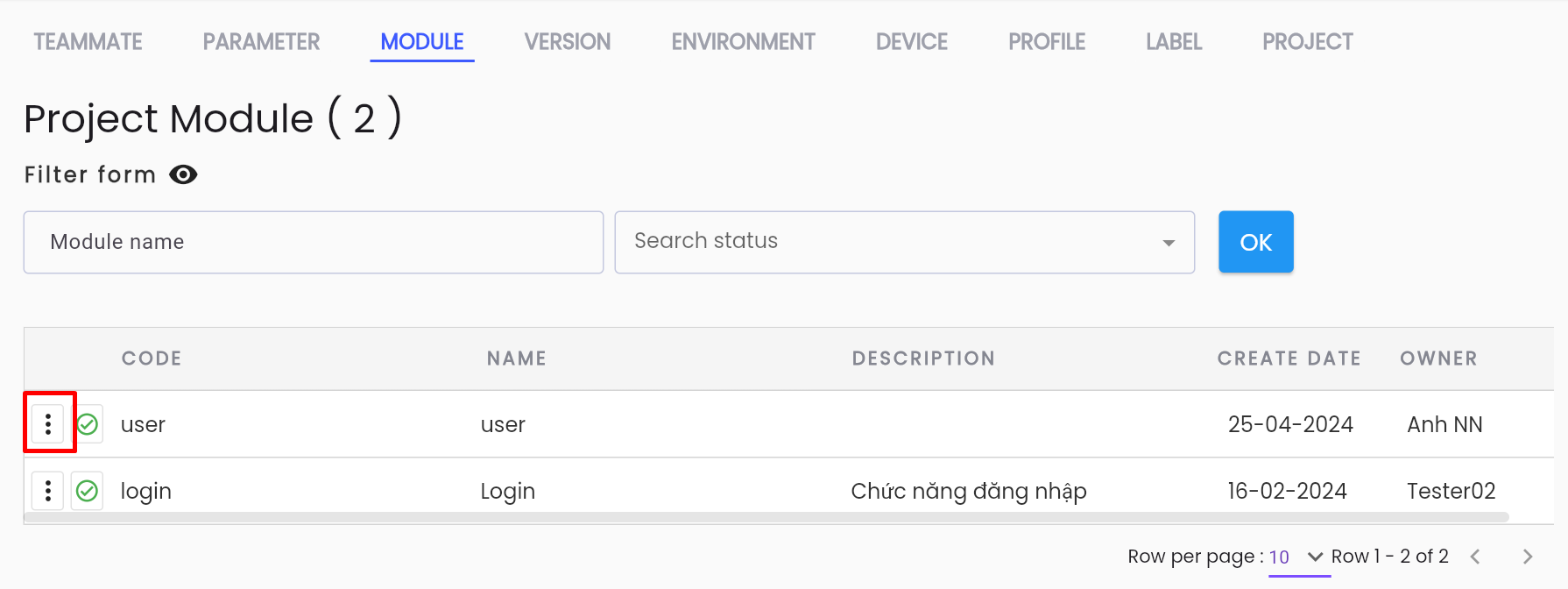
Step 2: Click Delete from the displayed menu.

The system will display a confirmation popup for deletion.
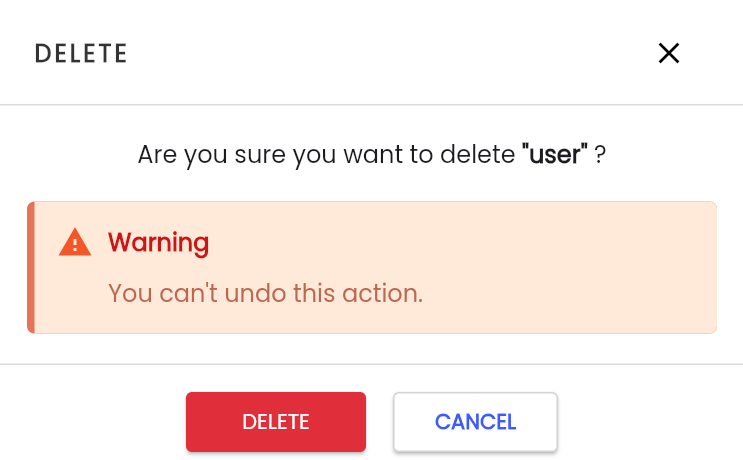
Step 3: Click DELETE to confirm the deletion. The system will display the notification: “Delete successful”