System Introduction QA Platform
Exploring the World of Automated Testing
Welcome to the user guide for the Automation Testing Suite, a product within our LLQ QA Platform!
In the modern software development world, automated testing has become an essential and indispensable part of the development process. To help you save time and boost efficiency in testing, we are proud to introduce this tool—a powerful low-code automated testing tool that utilizes the keyword-driven testing approach, along with many other optimized methodologies.
With this approach, testers do not need extensive programming knowledge. They can simply use predefined keywords to create test scenarios. This reduces training time and costs while providing a simple and effective approach to automated testing.
Additionally, our tool offers a range of powerful features for test case management. From creating, editing, and deleting test cases to tracking and reporting test results, we are committed to delivering a seamless and efficient testing experience.
In this guide, we will walk you through the installation, configuration, and usage of our tool, along with tips and strategies to optimize your testing process.
Let’s get started and explore how to use our Automation Testing Suite to enhance product quality and boost the efficiency of your software development process!
The application interface is designed to be simple, optimized, and very user-friendly. The system includes the following key features:
-
Test Project Setup: Functions applicable to each test project, directly supporting automated test scenario management and execution, as well as member management, version management, profile management, etc.
-
Dashboard/Report: Provides statistical reports on the number of test scenarios in the project by status.
-
Test Case/Test Suite Management: Manages the list of test cases, test scenarios, and test suites that are configured.
-
Test Runs: Lists test case, test suite and test batch executions with execution statistics by status.
-
Delete Test Run Data: Deletes draft executions of test cases, test scenarios, test suites or test batches using filters.
-
Attachment Management: Manages the list of files used during data entry processes.
Create Your First Test Project
The first feature you'll encounter when using the Centralize Automation Testing Suite is the project management module. Start familiarizing yourself with the tool by creating a new test project. Simply click the NEW PROJECT button and fill in the required information to create your own test project.
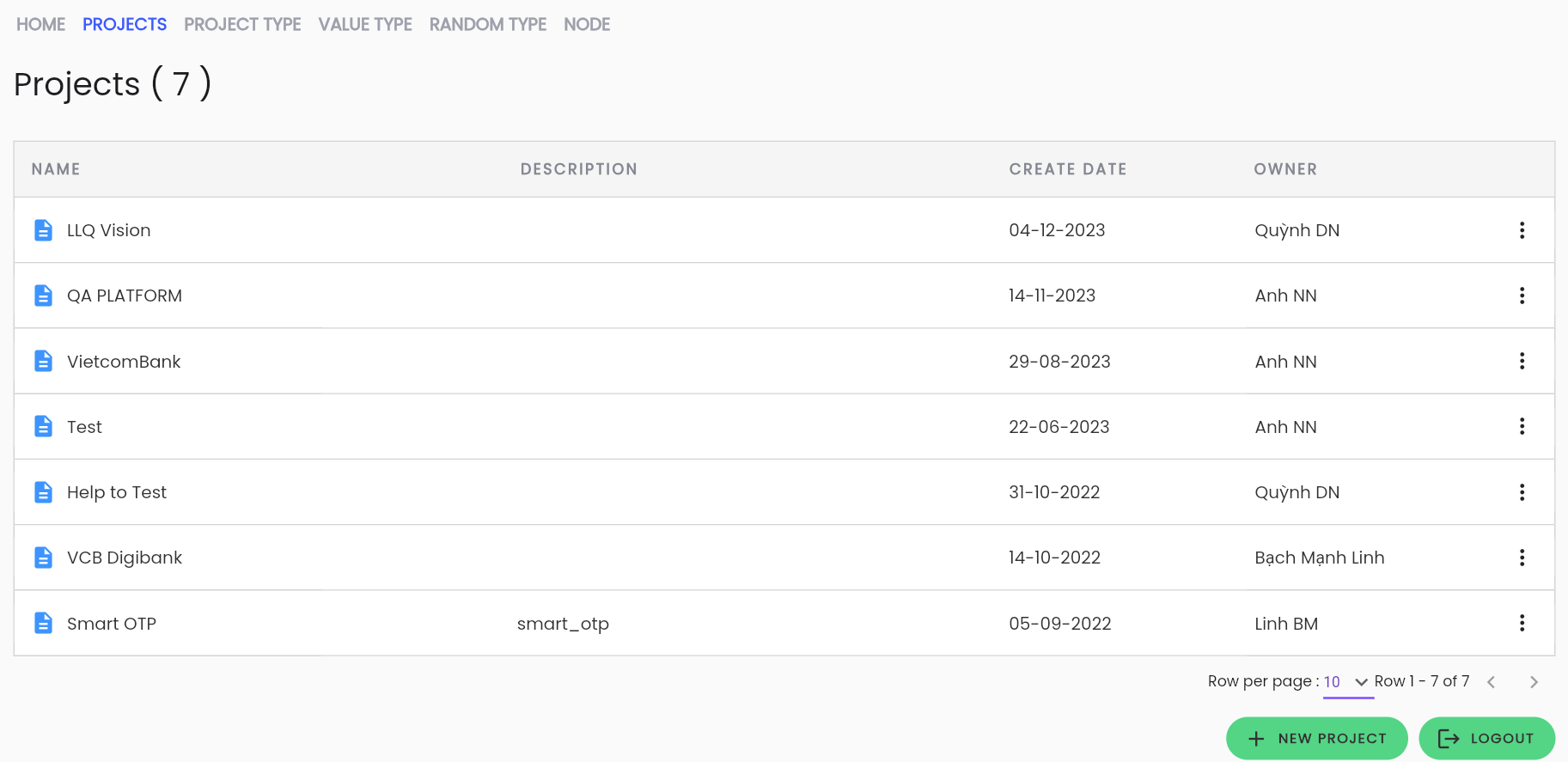
Test Project Setup
By setting up a project, you can create dedicated testing environments, manage development environments and oversee the versions of the testing application.
Getting Familiar with the Configuration for Creating an Automated Test Scenario
To better understand and visualize the configuration process, try creating a test scenario.
Create a New Test Scenario
When you click the NEW SCENARIO button, you will see familiar information that I usually use when writing manual test scenarios, such as: code, name, objective, prerequisites, test steps, test data, expected results and more.
Configure Test Scenario
After creating a new test scenario, you will enter a very user-friendly interface. With just a few simple actions like drag and drop, along with finding and selecting keywords from the pre-existing list in the system, I can create test steps that are clear and easy to understand.
Execute Test Scenario
Once the configuration of an automated test scenario is complete, are you curious to see how the execution steps are structured and how the test scenario operates?
Click the Run button, and the system will take you to an execution screen. Now, select the testing environment and enter the test data.
Manage Results and Reports
The execution results are displayed in a very intuitive and clear manner. The reports are built in great detail, allowing you to assess the quality of the system in the most accurate way possible.
View Execution Results
After execution is complete, review the detailed results of a single execution. You will see an overview screen with all the necessary information such as: test status, execution time, testing environment, and more.
Test Report for the Project
Through the "Export Report" feature, the system automatically generates a detailed report on the testing process for the entire project. This allows you to quickly assess the completeness and current status of the application being tested.
With "Centralize Automation Testing Suite," automated testing becomes an exciting journey of discovery, where you can easily create test scenarios.