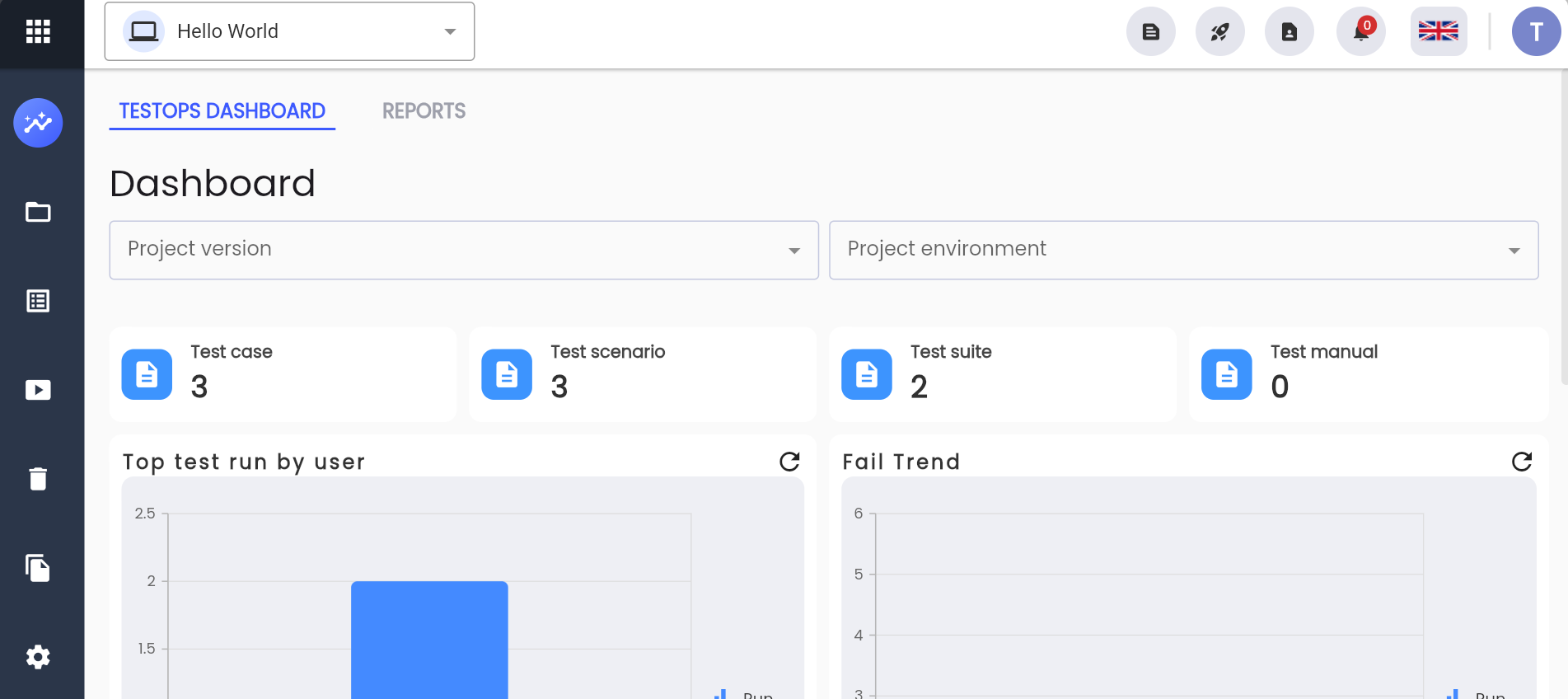
Test Project Management
On the LLQ QA Platform – Testing Center of Excellence screen, click on the Centralize Automation Testing Suite app.
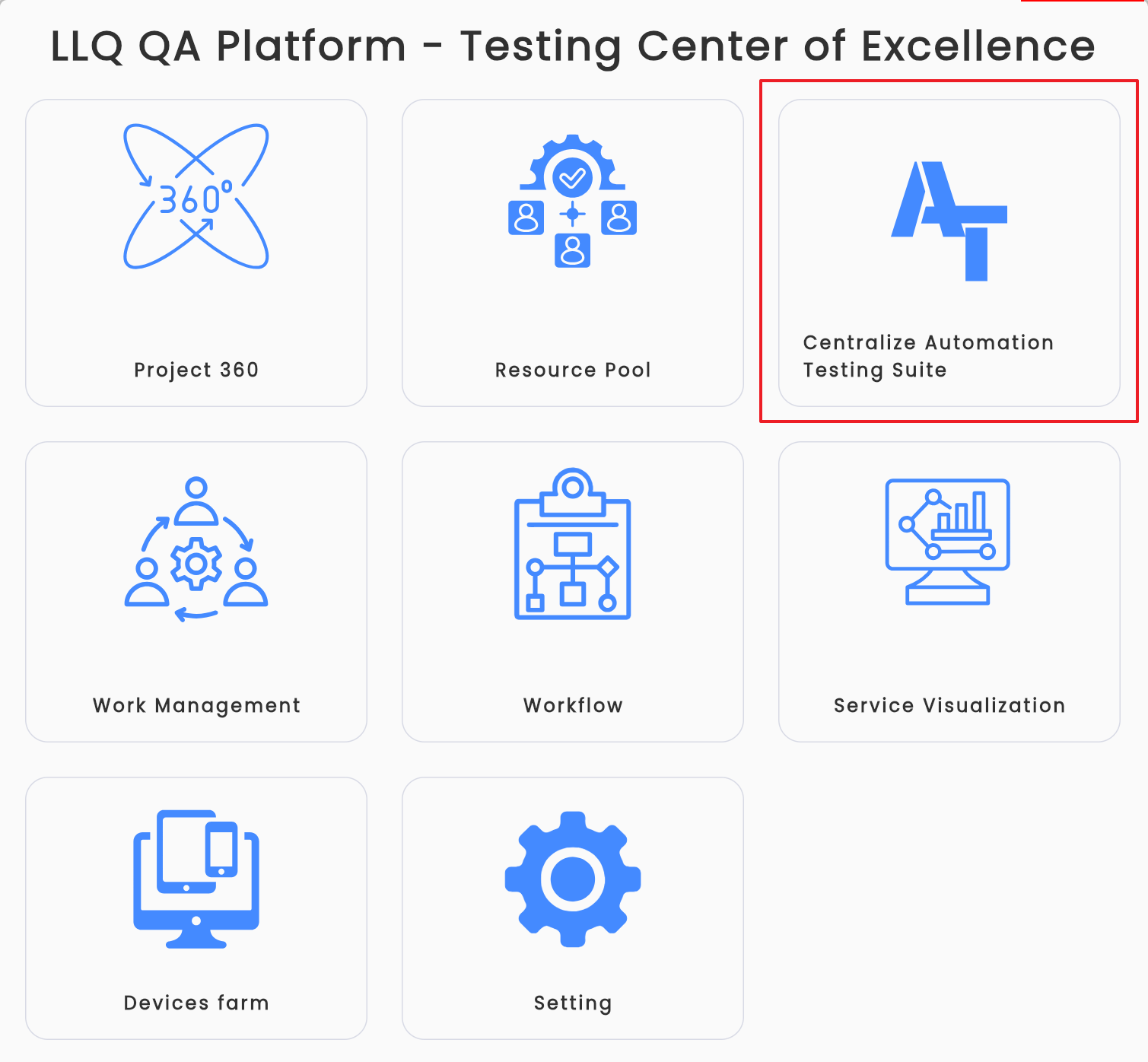
Overview of Test Project Management
This section provides guidance on managing test projects in the Centralize Automation Testing Suite:
- Create a project: Create a test project
- Open a project: Open a test project
Create a test project
To create a test project in the Centralize Automation Testing Suite, follow these steps:
Step 1: Go to the Centralize Automation Testing Suite and select Project.
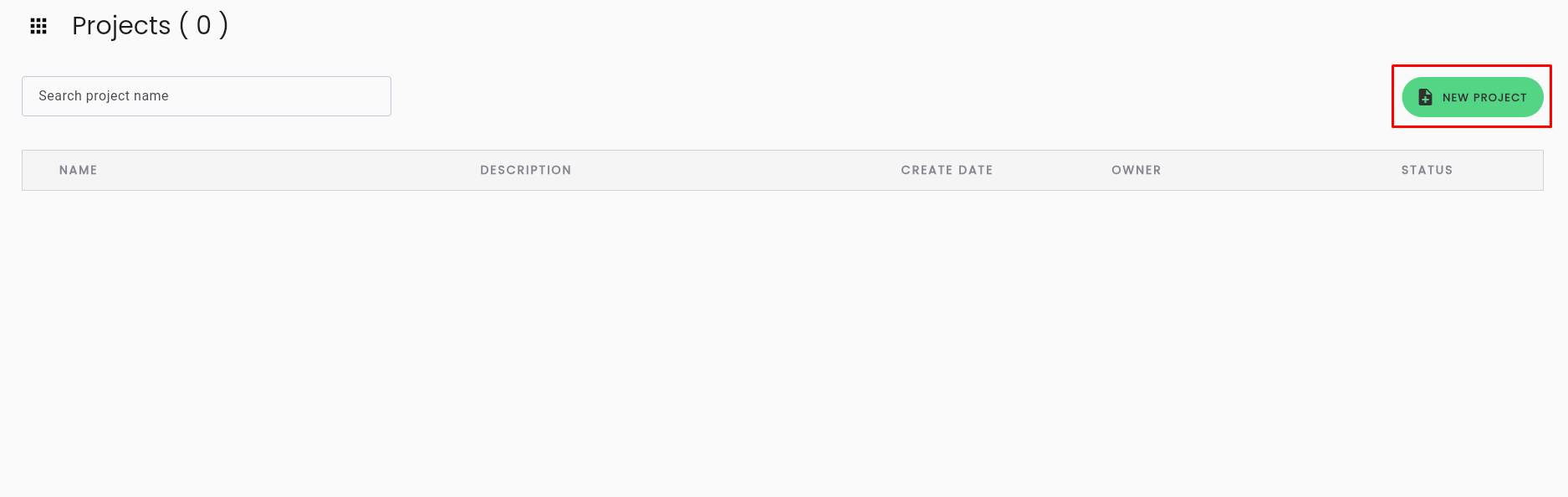
Step 2: In the PROJECTS tab, click the NEW PROJECT button.
Step 3: Fill in the required information in the CREATE PROJECT form.
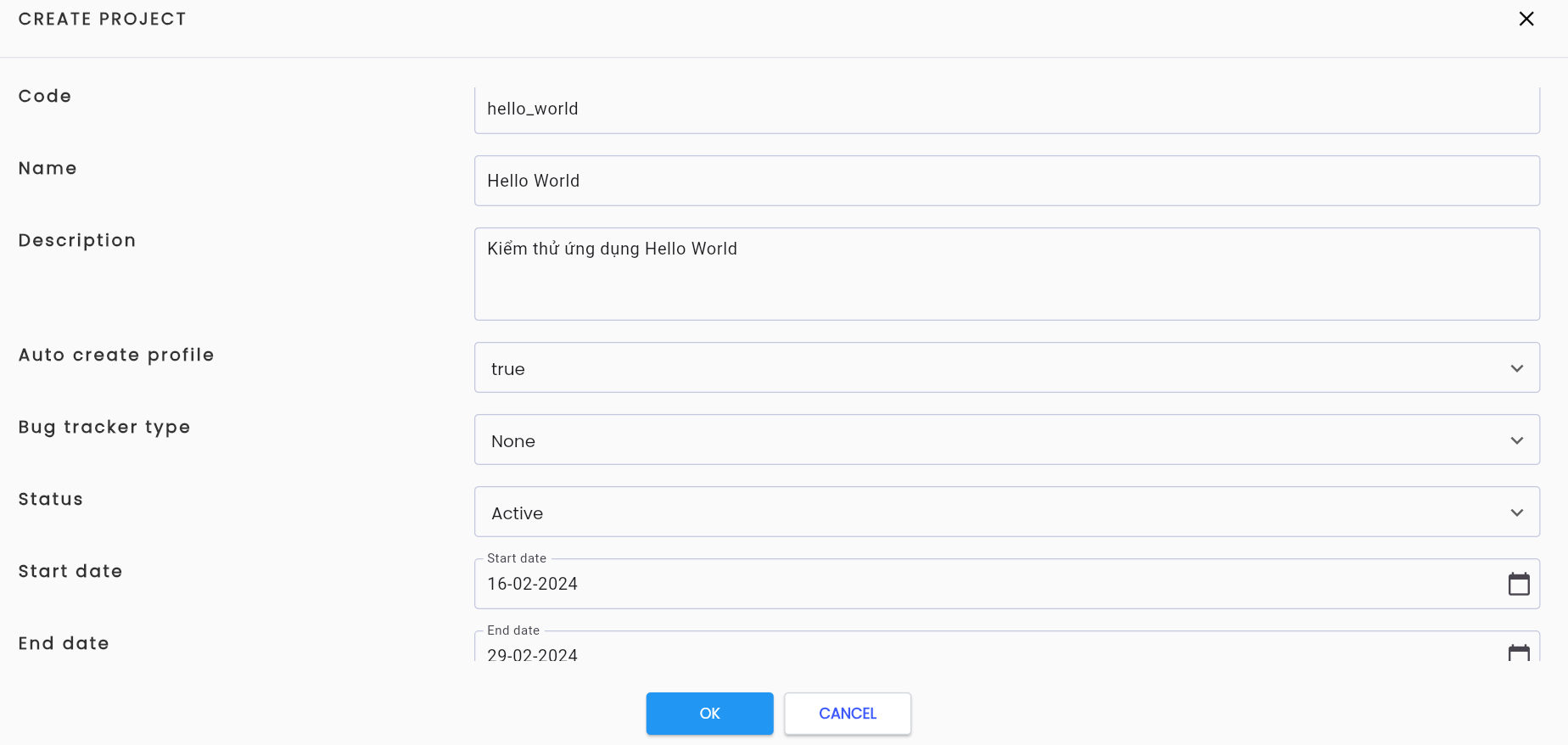
Description of fields:
| Field Name | Mandatory | Format | Constraints | Description |
|---|---|---|---|---|
| Code | Yes | Textbox | Must be unique, start with a letter, and only contain characters from a-z, numbers, and “_” | The project code, used to identify the project in the testing system. |
| Name | Yes | Textbox | The project name. | |
| Description | No | Textarea | A description of the test project. | |
| Auto create profile | Yes | Combobox | Setting to automatically create a profile for the project. Options: + false: Do not create a profile automatically. + true: Create a profile automatically. Only one value can be selected, and the default system value is false. | |
| Status | Yes | Combobox | The project’s operational status in the system. Options: + Active: The project is active. + Inactive: The project is inactive. | |
| Start date | Yes | Date | The project's start date. | |
| End date | Yes | Date | The project's end date. | |
| Bug tracker type | Yes | Combobox | The bug management method for the project. The LLQ QA Platform supports integration with various tools LLQ QA Platform hỗ trợ sử dụng các công cụ tích hợp quản lý. + None: No + LLQ Work Management: Integrates with the Work Management app in the system. + Jira: Integrates with Jira for bug tracking. + Mantis: Integrates with Mantis for bug tracking. |
Open a test project
To open a test project in the Centralize Automation Testing Suite, follow these steps:
Step 1: In the PROJECTS tab, click on any project you want to open.
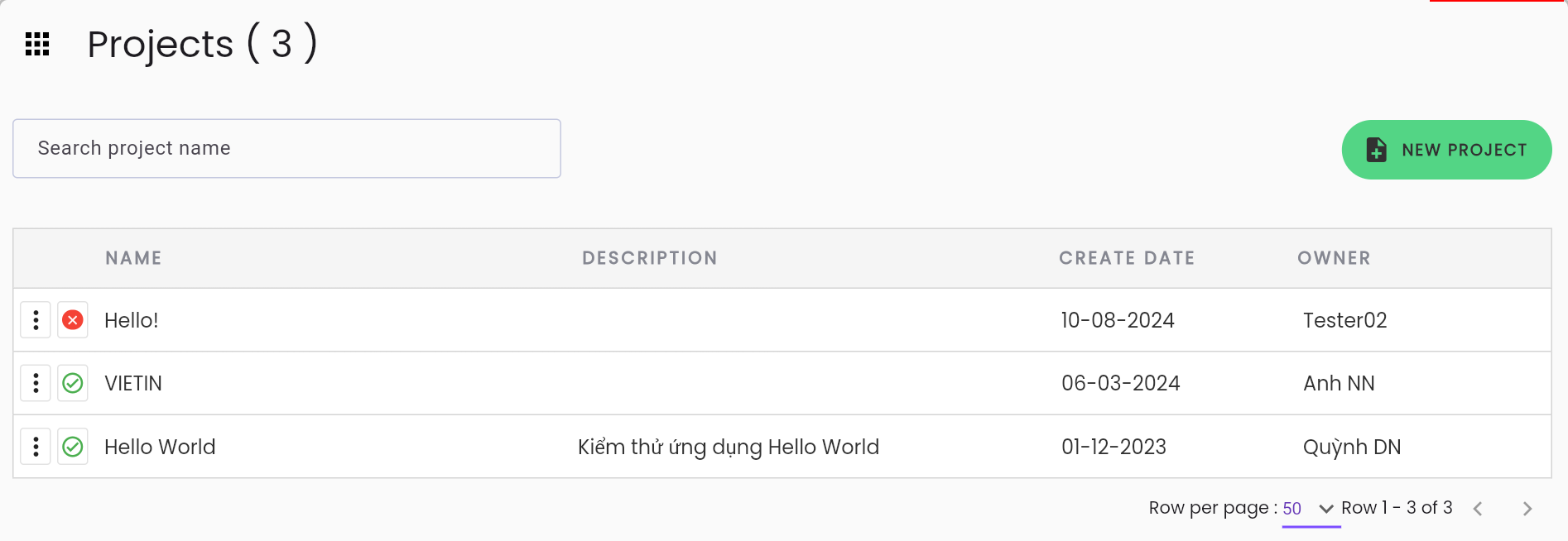
The system will navigate to the project’s Dashboard screen.