Email integration configuration
Overview of Email Account
After executing a test case/scenario/suite or a test batch, if you want the results of that execution to be sent to your email, this section will guide you on how to configure the email account to use for sending the email to you (the email of the user logged into the LLQ QA Platform).
This section will guide users on how to configure an email account in the LLQ QA Platform:
Create a New Email Account
To create a new email account in the LLQ QA Platform, follow these steps:
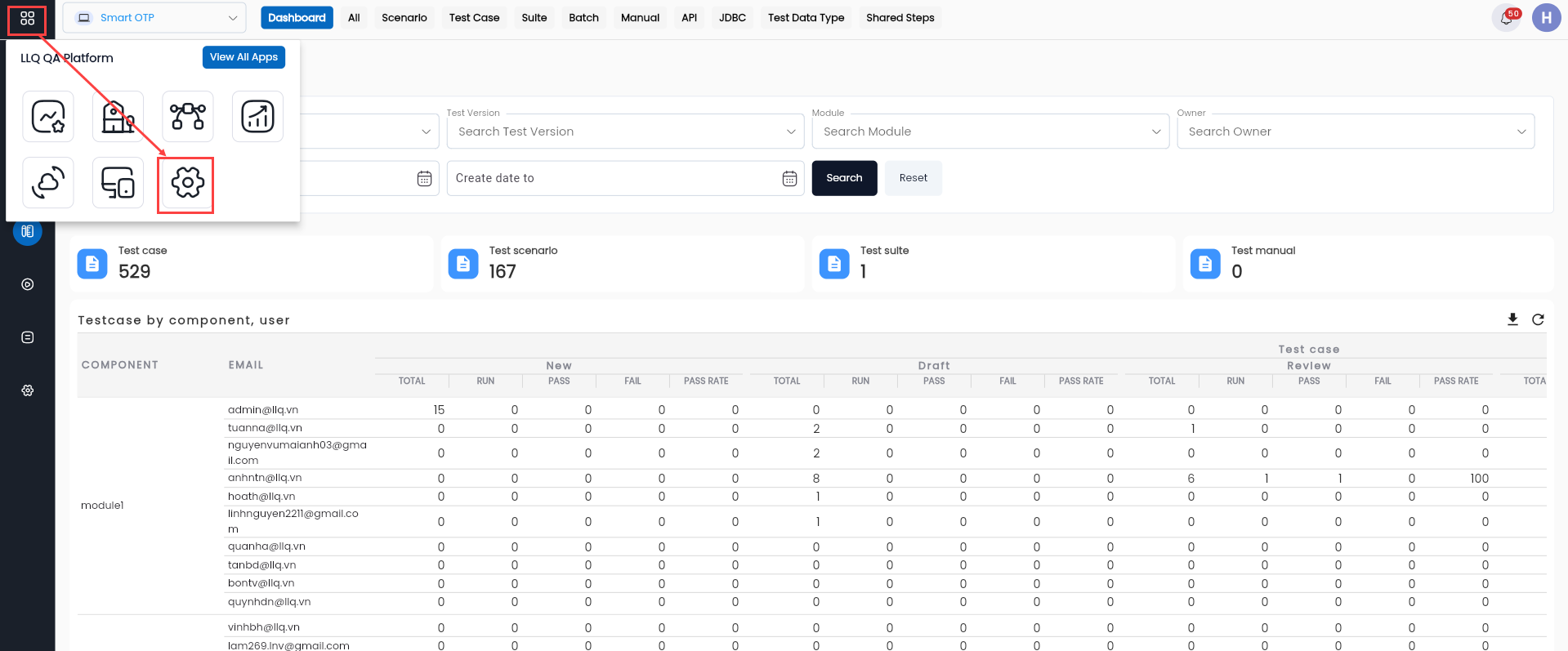
Step 1: On the interface screen, click Settings or the Apps > Settings button in the header.
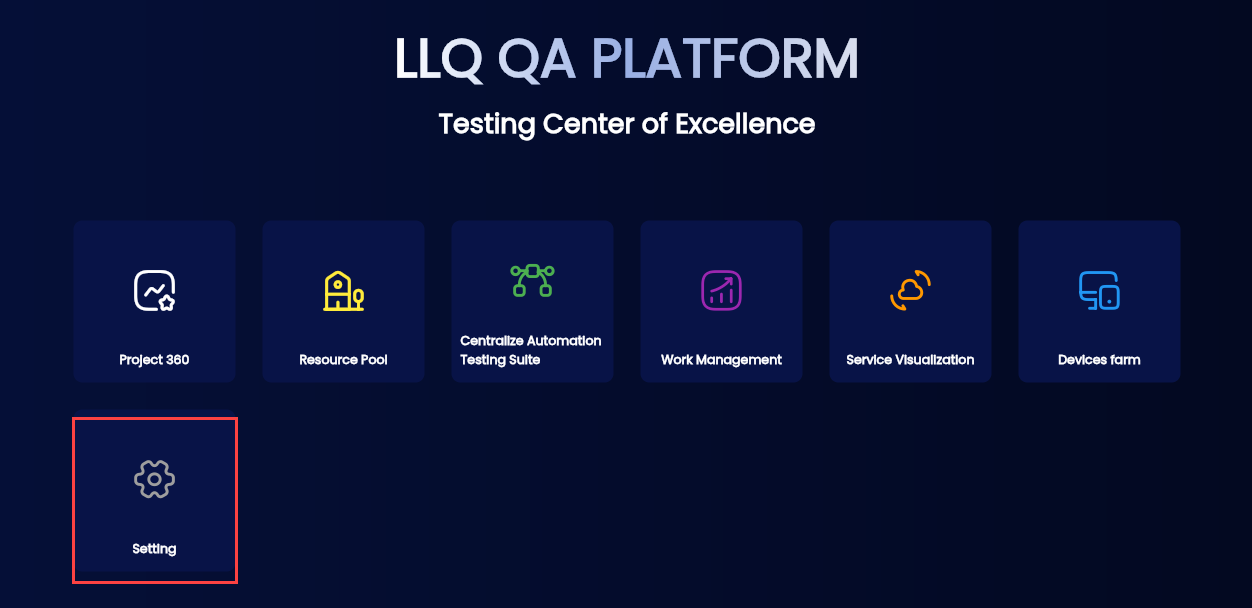
Or
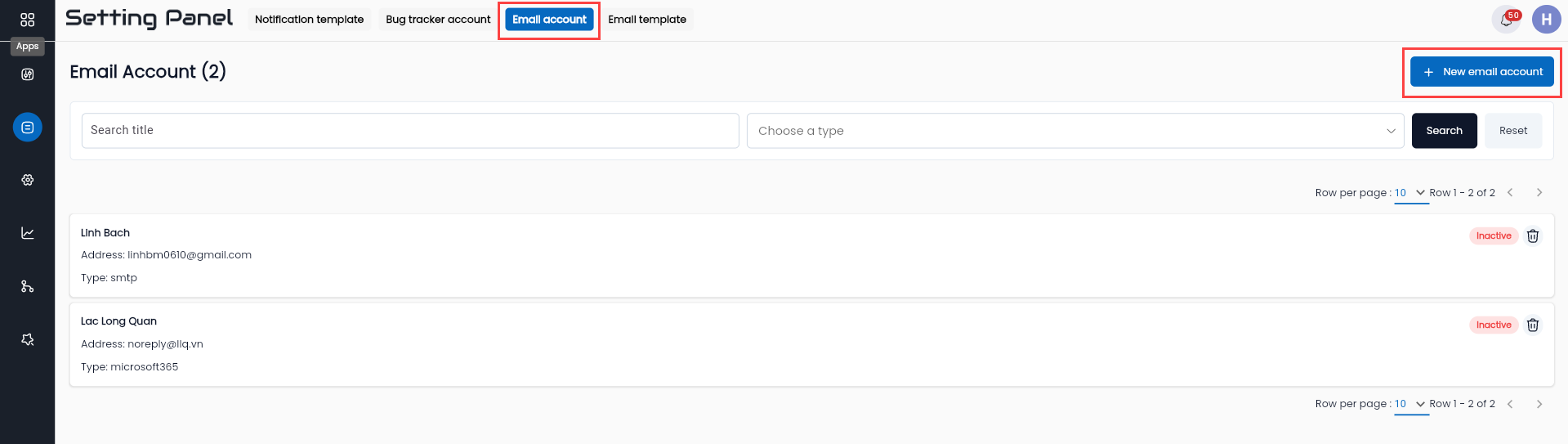
Step 2: Click the EMAIL ACCOUNT tab and select the NEW EMAIL ACCOUNT button
Step 3: Enter the required information into the CREATE EMAIL ACCOUNT form
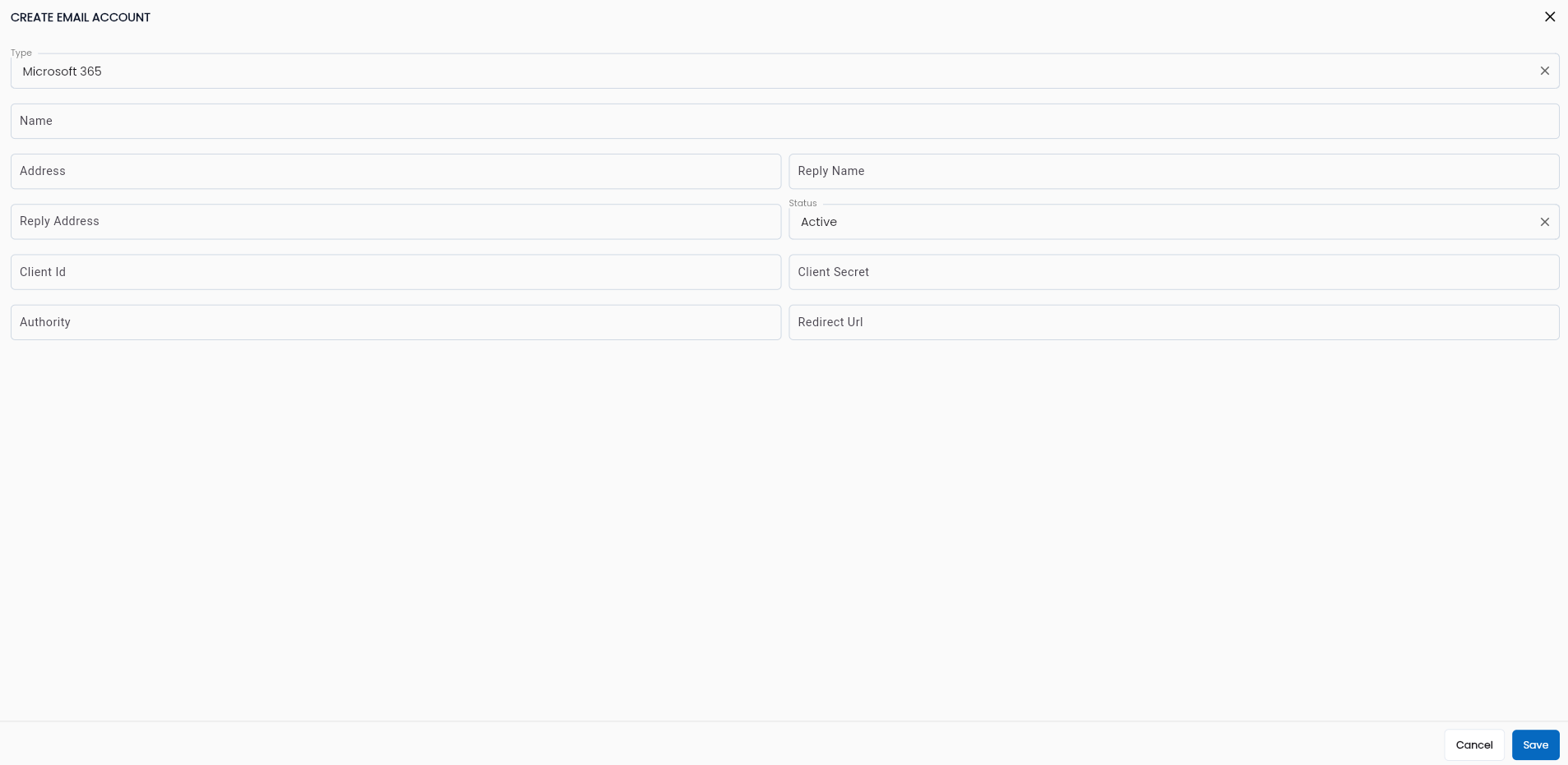
Description of fields:
| Field Name | Mandatory | Format | Constraints | Description |
|---|---|---|---|---|
| Type | Yes | Combobox | Displays a list of email server types: + Microsoft 365: Microsoft 365 email server. + SMTP User selects one value. | |
| Name | Yes | Textbox | Enter the name of the email address | |
| Address | Yes | Textbox | Enter the email address | |
| Reply Name | Yes | Textbox | Enter the reply name for the email address | |
| Reply Address | Yes | Textbox | Enter the reply email address | |
| Status | Yes | Combobox | Displays the status of the Email Account: + Active: active + Inactive: inactive Default status is Inactive when created. | |
| Client Id | Yes | Textbox | Displays only when Type = "Microsoft 365". Information of the Microsoft 365 mail server | |
| Client Secret | Yes | Textbox | ||
| Authority | Yes | Textbox | ||
| Redirect Url | Yes | Textbox | ||
| Server Host | Yes | Textbox | Displays only when Type = "SMTP". Information of the SMTP mail server | |
| Server Port | Yes | Textbox | ||
| Username | Yes | Textbox | ||
| Password | Yes | Textbox | ||
| Property | No | Textbox |
Step 4: Click OK button to create the new email account.
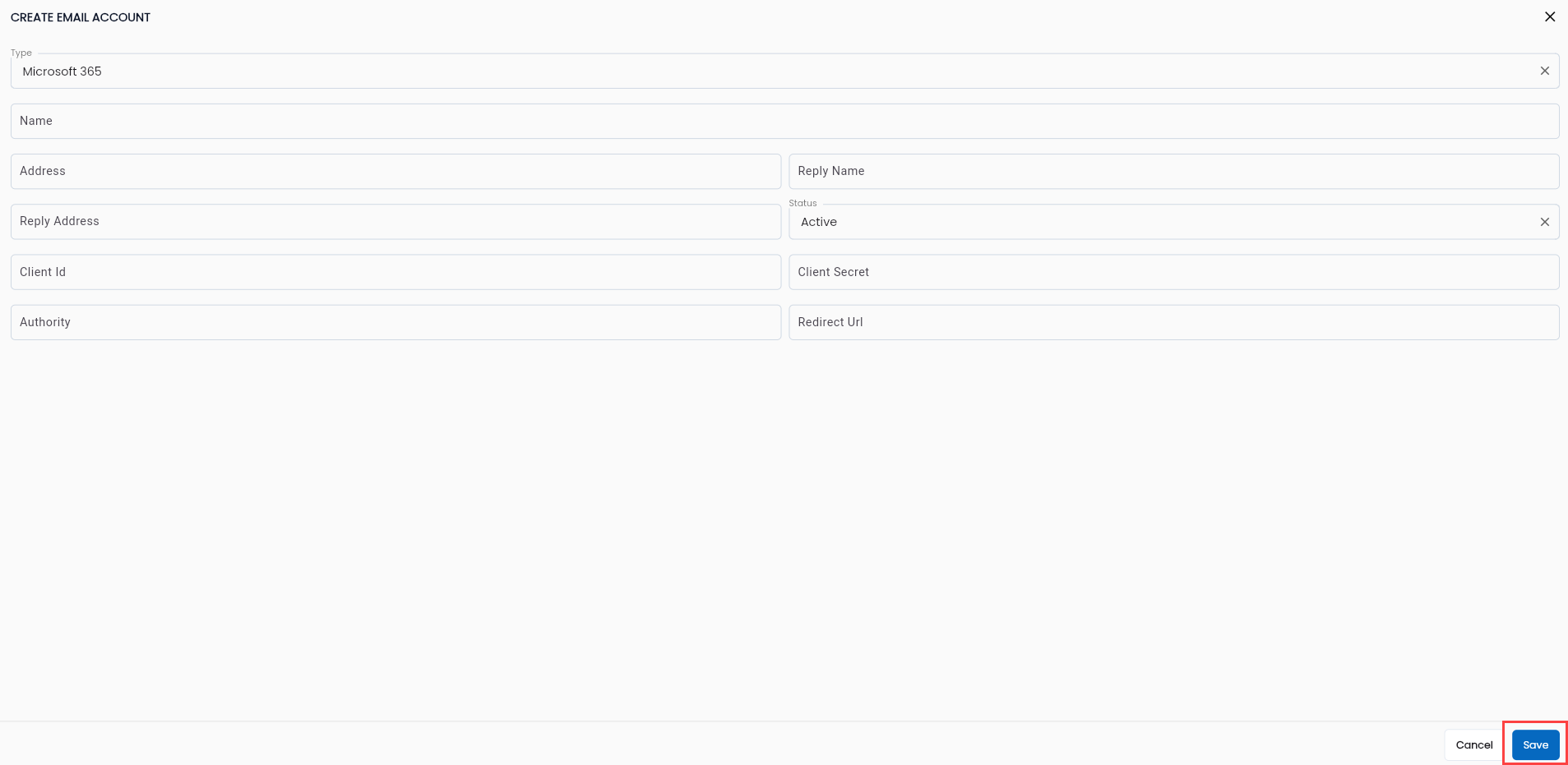
The system will display a message saying Create Successful and show the newly created email account in the data grid.
View and Edit Email Account
To view and edit an email account in the LLQ QA Platform, follow these steps:
Step 1: On the Email Account tab, select the account you want to edit from the list. Click the ⋮ button next to the record and choose Edit
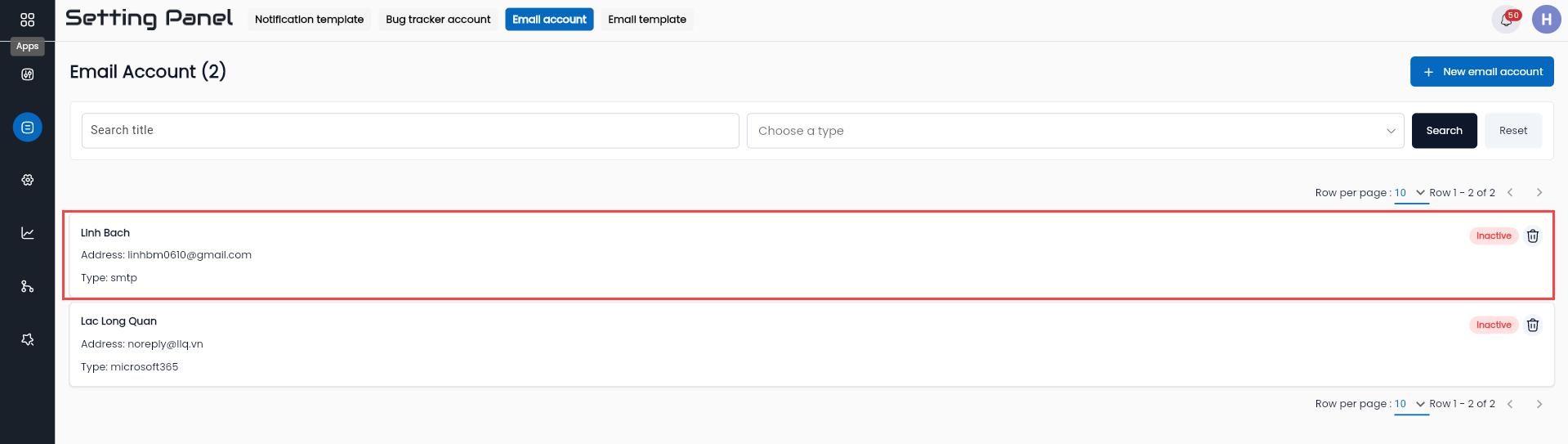
Step 2: View and edit the account information as needed. Description of the information fields common to the new form.
Step 3: Click the OK button. The system will display a message “Update successful”
Delete Email Account
Note: The condition for deleting an email account is that the account must not be used for any data (has never been used). If it has been used, it cannot be deleted.
To delete an email account in the LLQ QA Platform, follow these steps:
Step 1: On the Email Account tab, select the account you want to delete from the list. Click the ⋮ button next to the record and choose Delete
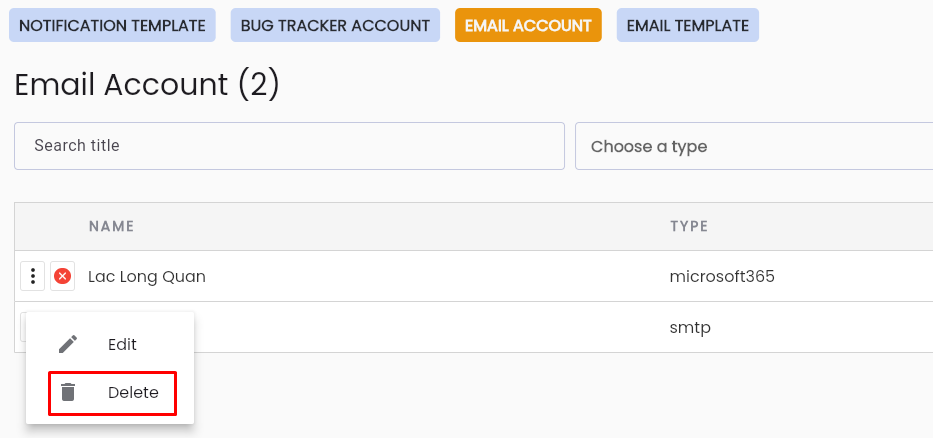
Step 2: The system will display a confirmation popup. Click the DELETE button to delete the account.
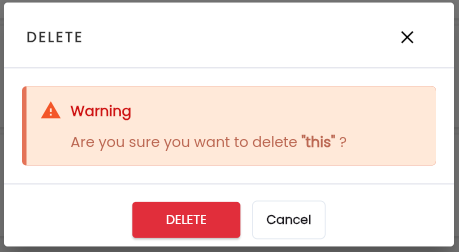
The system will display the message “Delete successful”