Configuring Account for Bug Reporting
Overview of Bug Tracker Account
To report bugs to integrated bug management systems via the LLQ QA Platform, users must configure accounts to handle bug reporting.
This section guides users on configuring accounts for reporting bugs in various bug management systems on the LLQ QA Platform:
Create a Bug Tracker Account
To configure a Bug Tracker Account in the LLQ QA Platform, follow these steps:
Step 1: On the tools list interface, click Settings or the Apps > Settings button located on the header.
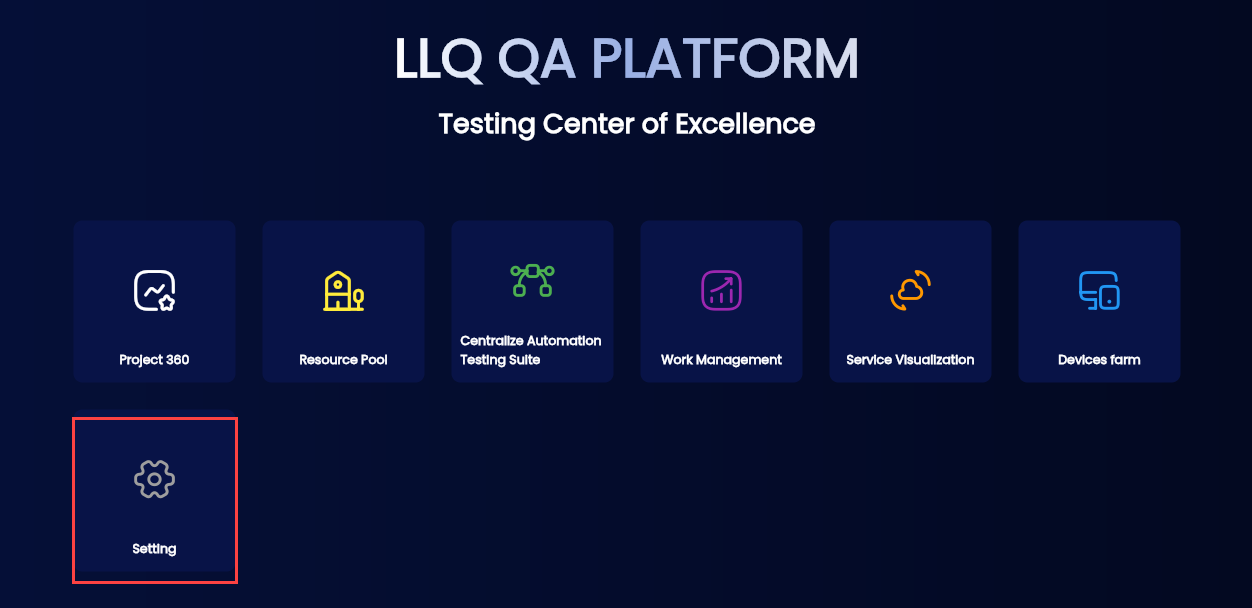
Or
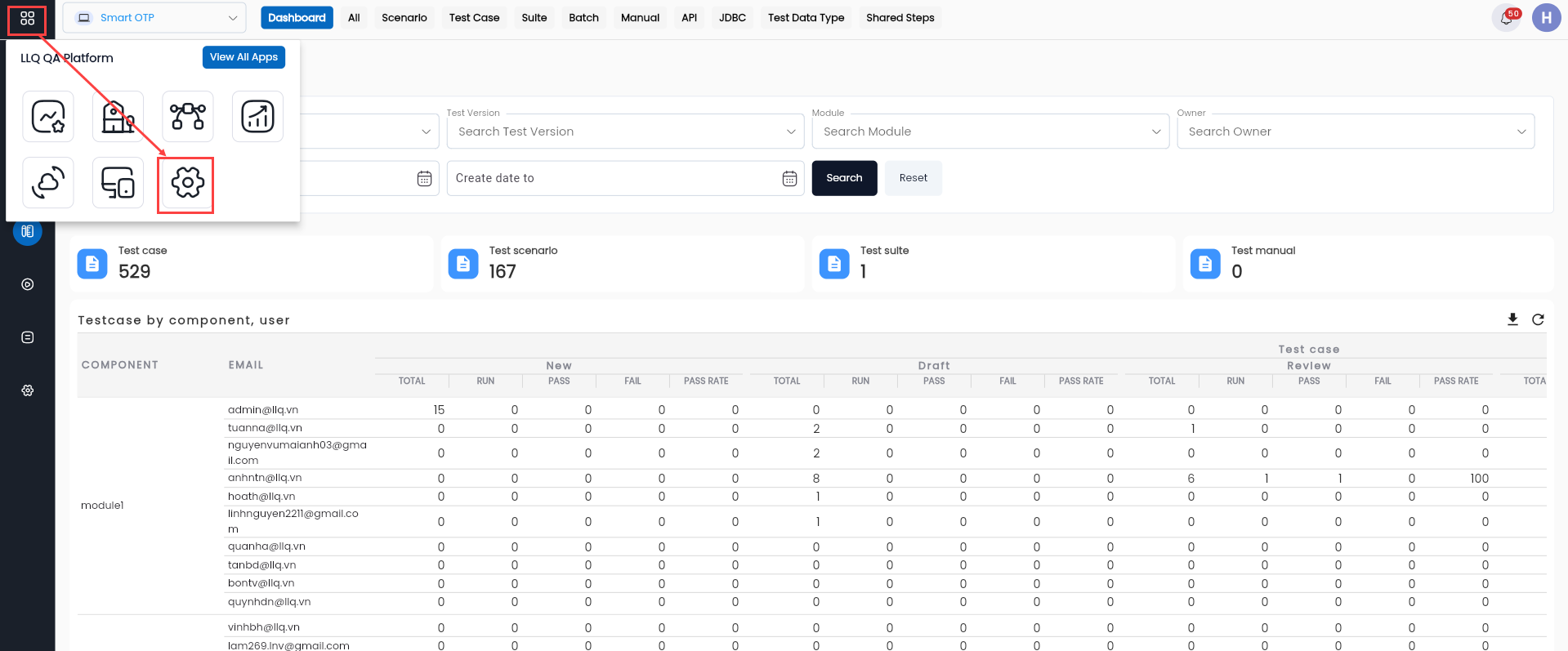
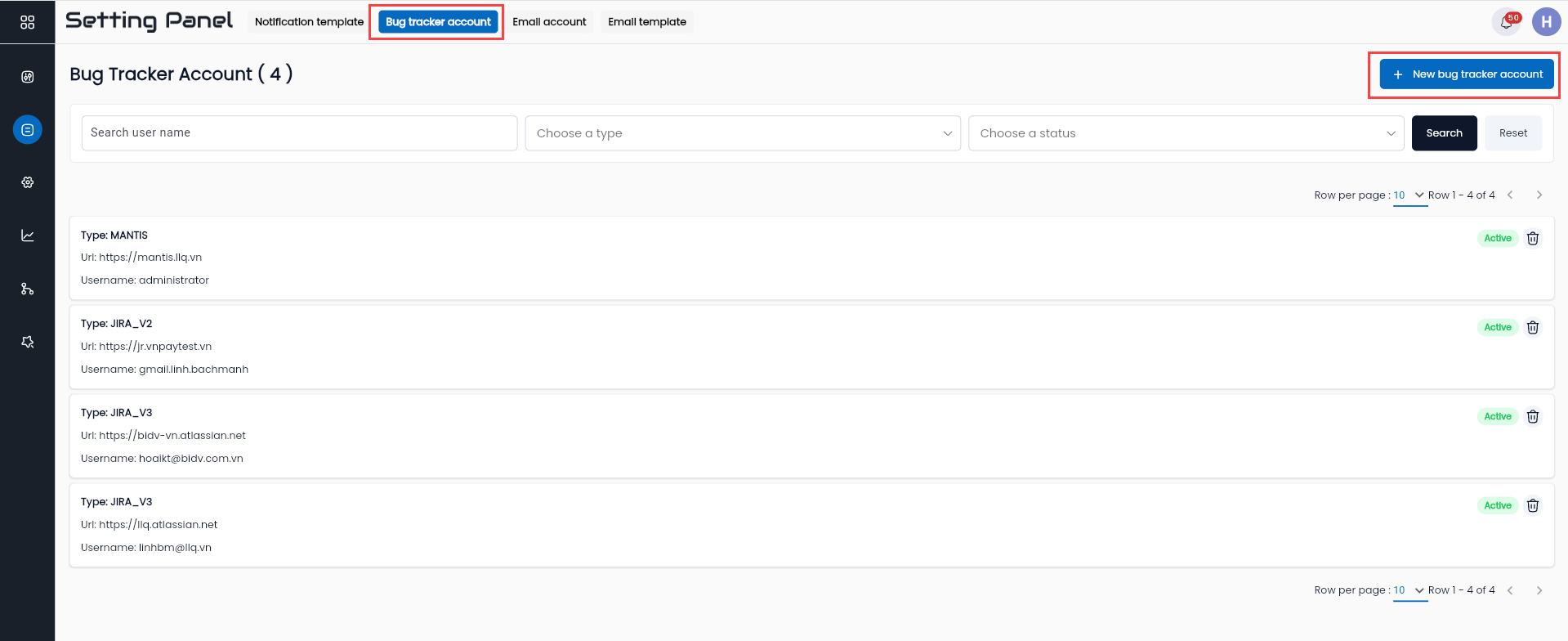
Step 2: Click the BUG TRACKER ACCOUNT tab and select NEW BUG TRACKER ACCOUNT.
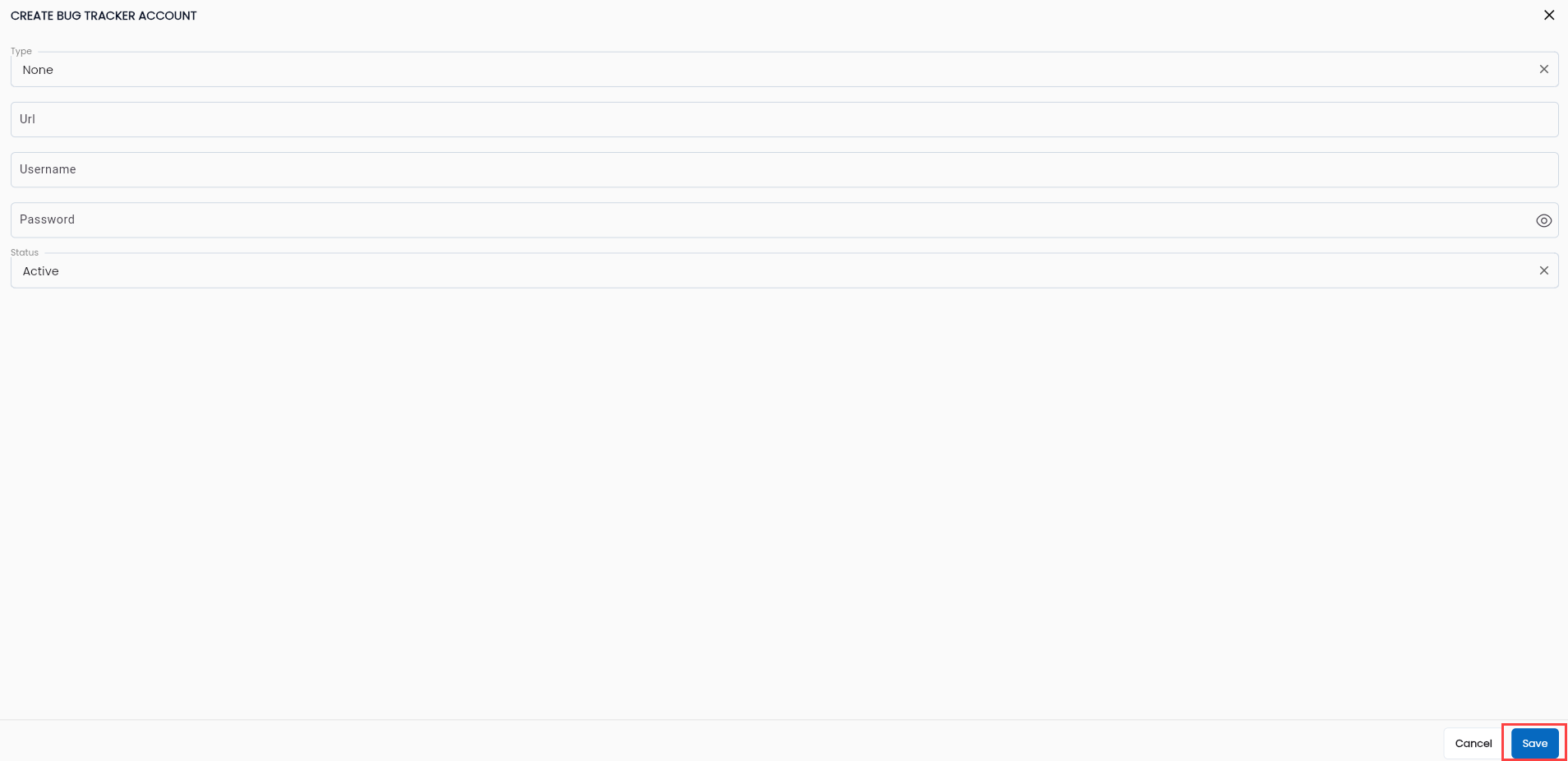
Step 3: Enter the required information into the CREATE BUG TRACKER ACCOUNT form.
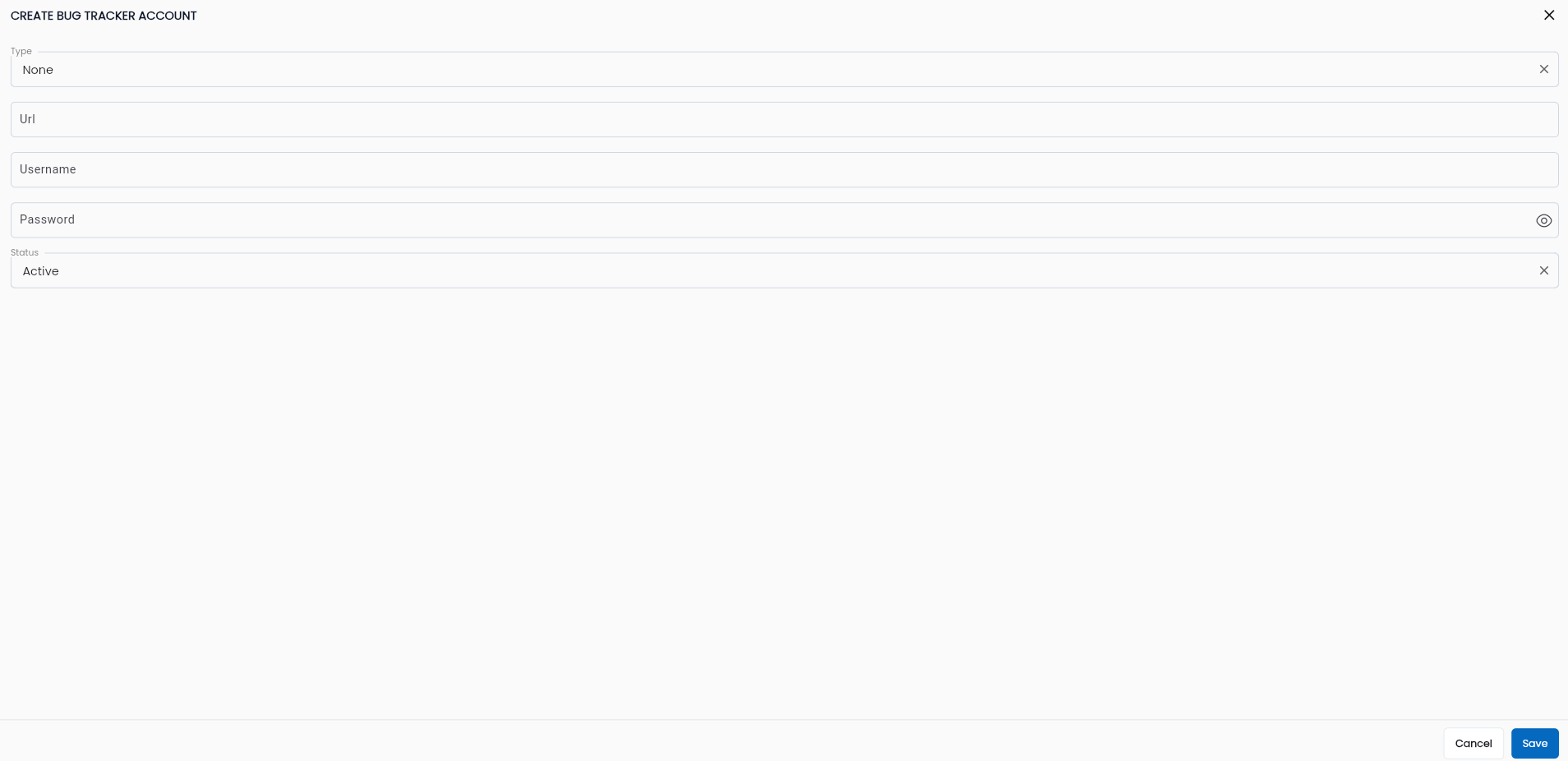
Field Descriptions:
| Field Name | Mandatory | Format | Constraints | Description |
|---|---|---|---|---|
| Type | Yes | Combobox | Select a bug management tool: + LLQ Work management + Jira+ Mantis | |
| Url | Yes | Textbox | Enter the URL of the bug management tool. | |
| Username | Yes | Textbox | Enter the username of the account used for bug reporting. | |
| Password | Yes | Textbox | Enter the password of the account used for bug reporting. | |
| Status | Yes | Combobox | Choose one of the following values: + Active: Bug Tracker Account is active + Inactive: Bug Tracker Account is inactive |
Step 4: Click the OK button to complete the account configuration.
The system will display the message Create Successful and show the newly created Bug Tracker Account on the data grid.
Example Configuring a Bug Tracker Account
Configuring a Bug Tracker Account on Jira
| Field Name | Data |
|---|---|
| Type | Jira |
| Url | https://llq.atlassian.net |
| Username | abc@llq.vn |
| Password | 4niasHUIhigfnxu8ydfhLN |
| Status | Active |
Illustration

View and Edit a Bug Tracker Account
To view or edit a Bug Tracker Account in the LLQ QA Platform, follow these steps:
Step 1: On the Bug Tracker Account tab, select an account to edit from the displayed list. Click the ⋮ button on the left side of the record and select Edit
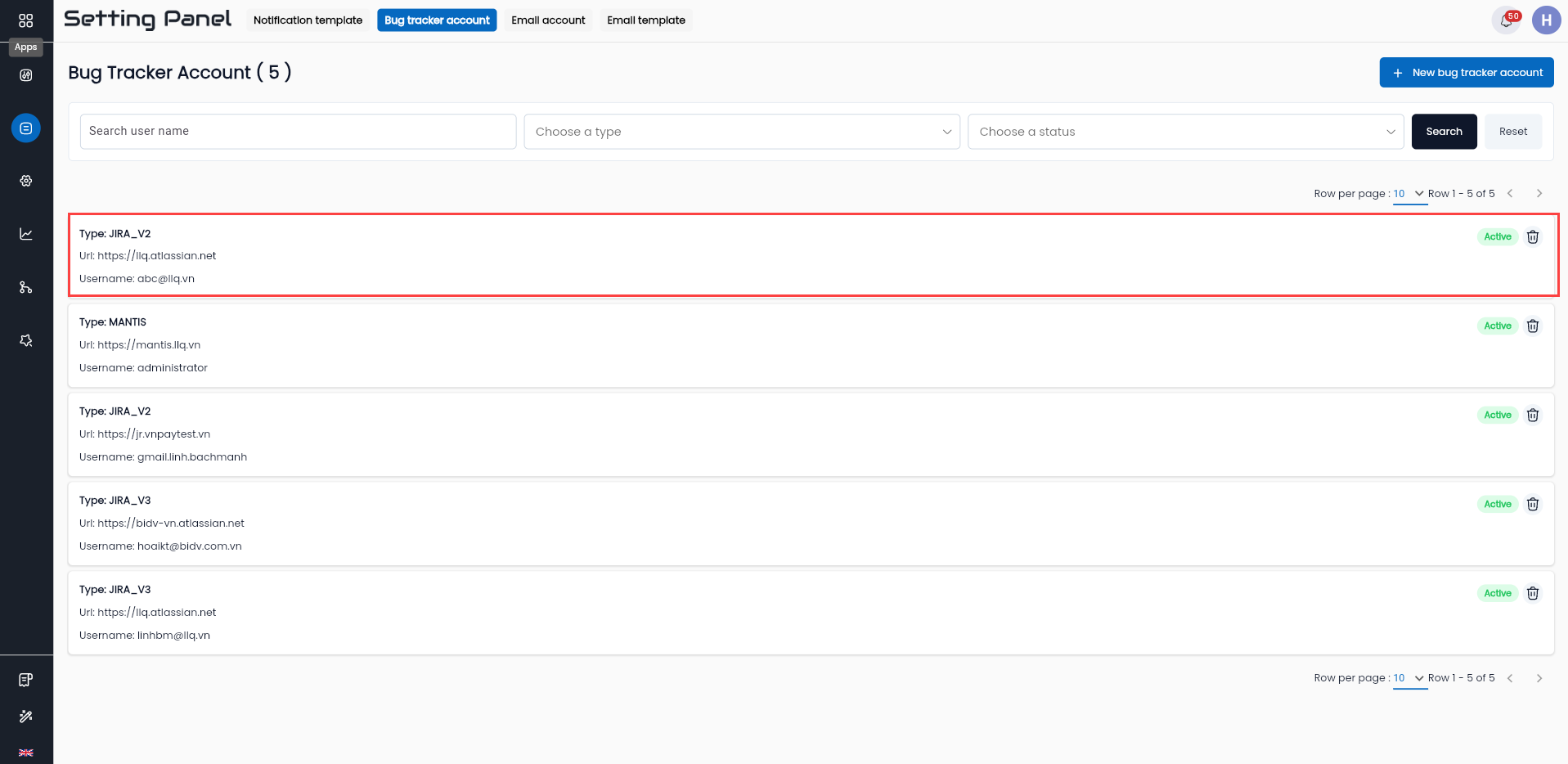
Step 2: View and modify the account details as needed. The fields are the same as those in the Description of the information fields common to the new form.
Step 3: Click the OKbutton. The system will display the message “Update successful”
Delete a Bug Tracker Account
Note: An account can only be deleted if it has no data dependencies (i.e., it has not been used). If the account has been used, deletion is not allowed.
To delete an account in the LLQ QA Platform, follow these steps:
Step 1: On the Bug Tracker Account tab, select an account to delete from the displayed list. Click the ⋮ button on the right side of the record.
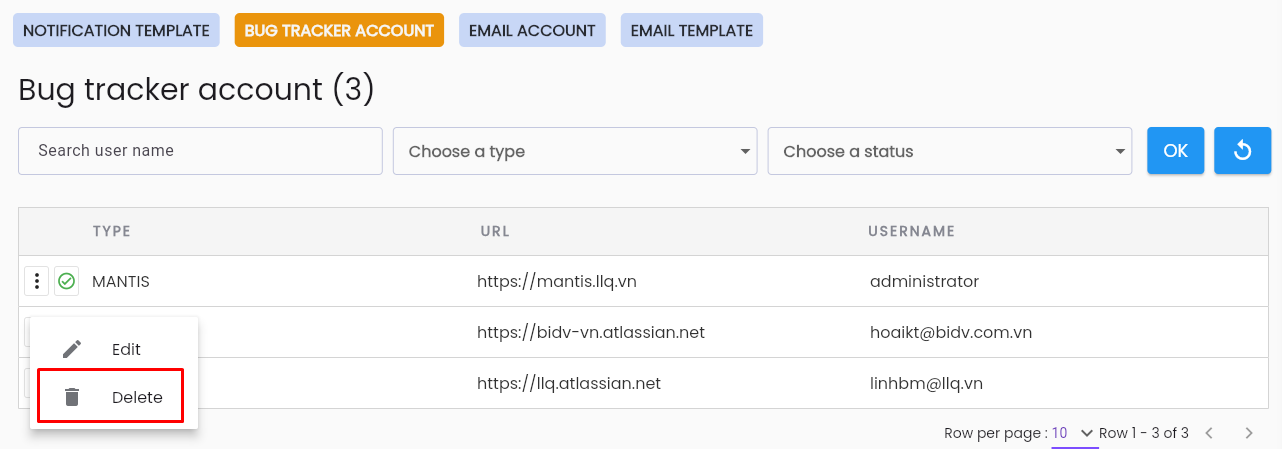
Step 2: The system displays a confirmation popup. Click the DELETE button to remove the account.
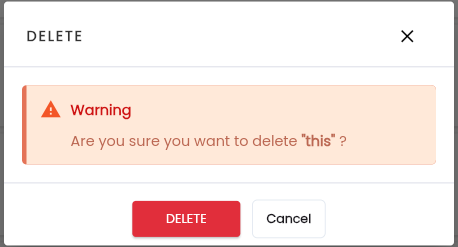
The system will display the message “Delete successful”