Notification configuration
Overview of Notification Template
Want system notifications in the following cases:
- Complete execution of a test case/test scenario/test suite
- Finished executing a test batch
- Have members comment on test scenario/suite
- A member mentioned your name in a test scenario/suite
-> Requires configuration to create notification template.
This section will guide users on how to manage notification templates on LLQ QA Platform:
Create New Notification Template
To create a new notification template in the LLQ QA Platform, follow these steps:
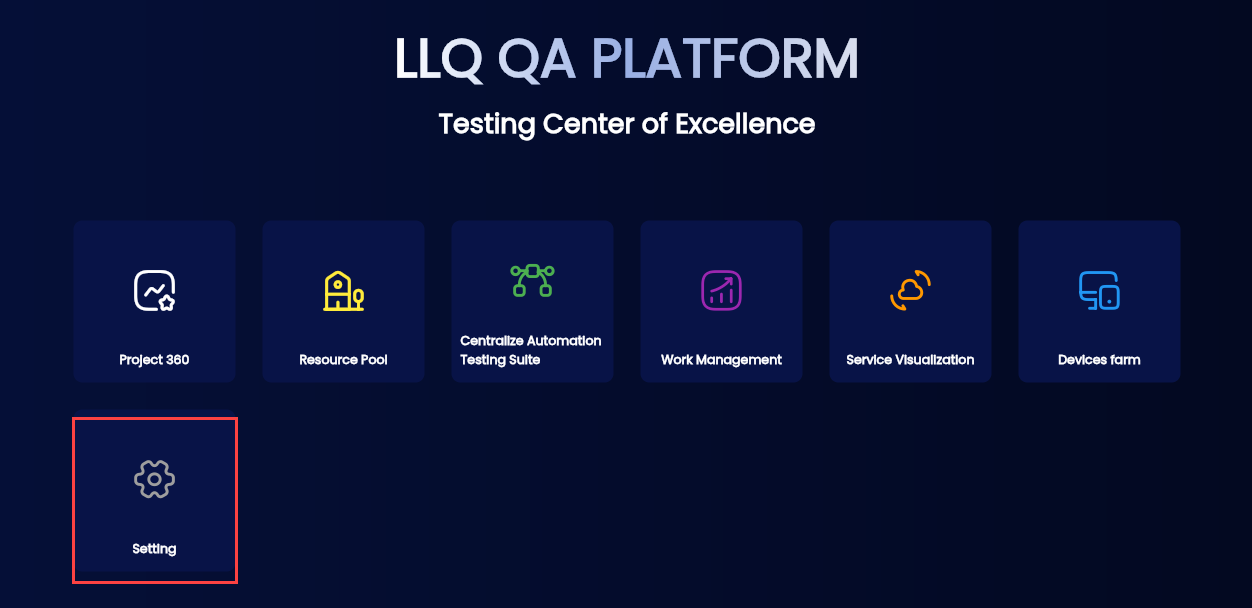
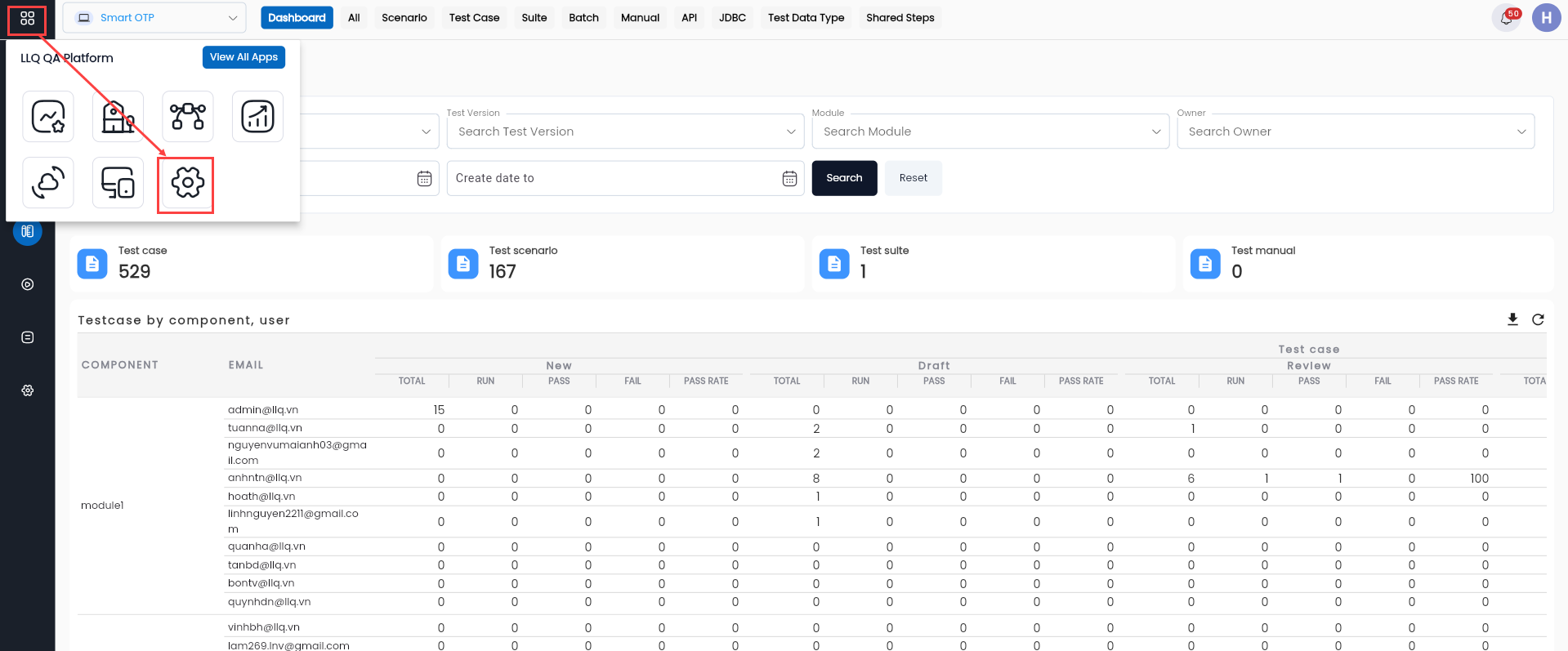
Step 1: On the tool list interface, click Settings or the Apps > Settings button located on the header.
Or
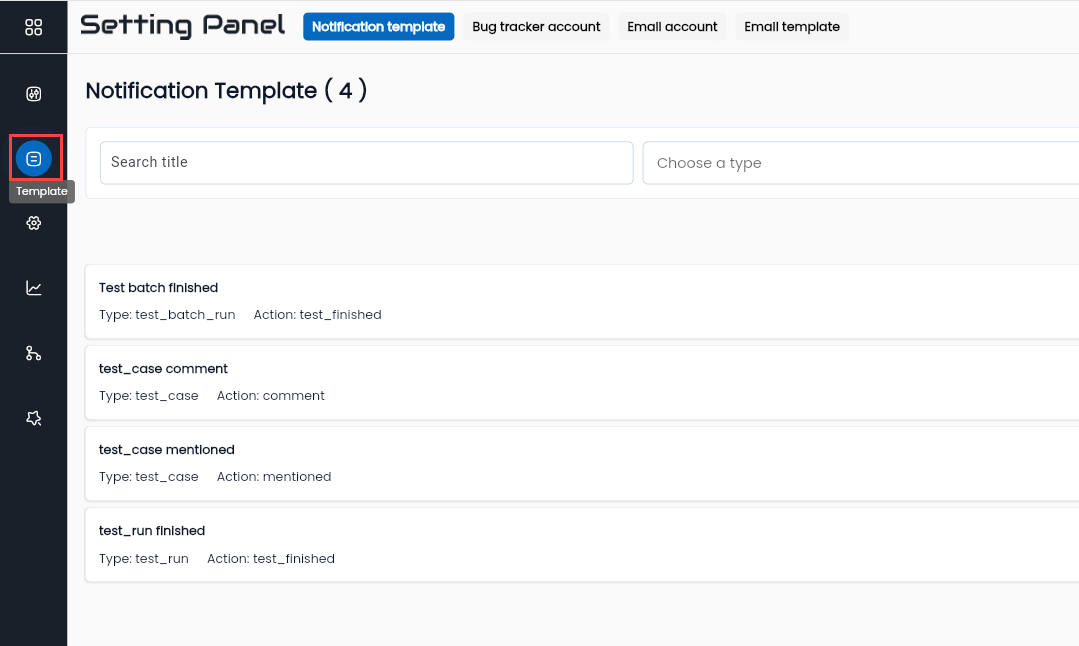
Step 2: Select the Template tab.
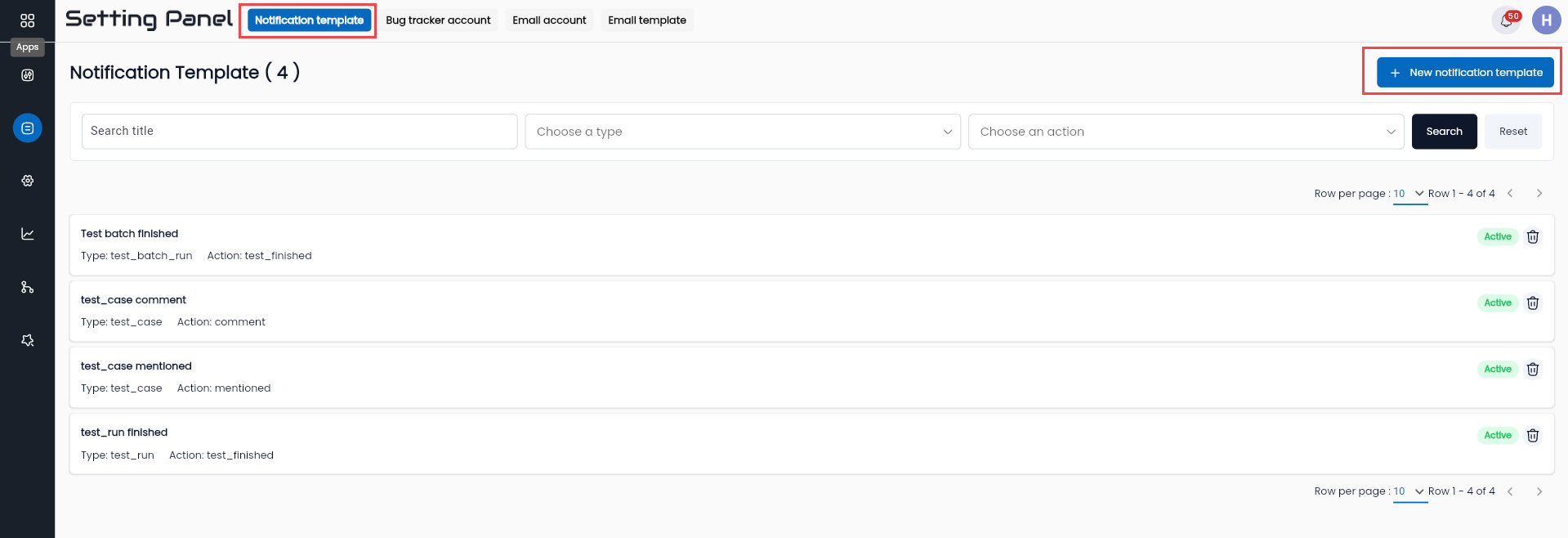
Step 3: Click the New Notification Template button.
Step 4: Fill in all the information in the CREATE NOTIFICATION TEMPLATE form.
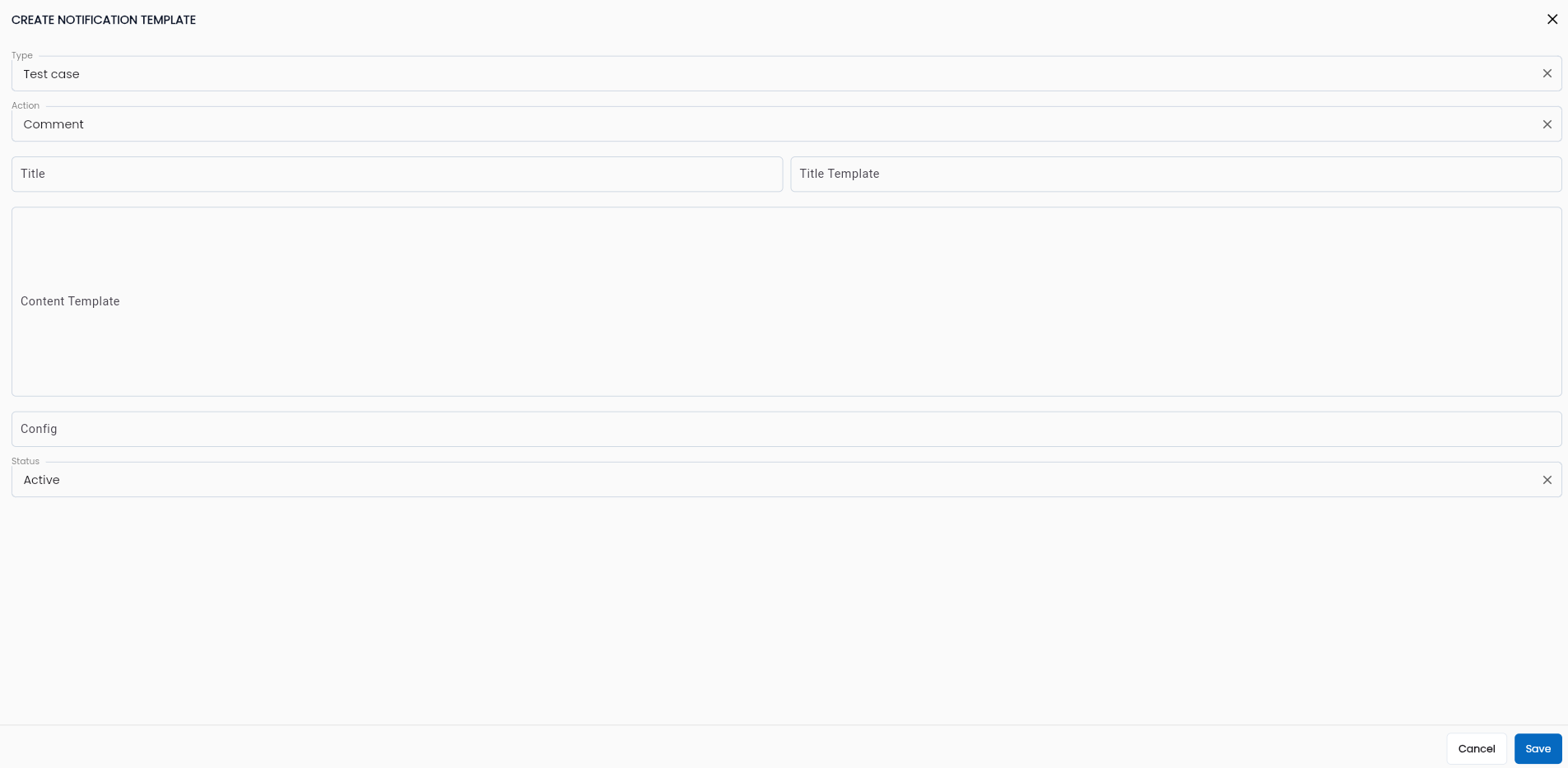
Description of the fields:
| Field Name | Mandatory | Format | Constraints | Description |
|---|---|---|---|---|
| Type | Yes | Combobox | Select the type of object to send notification: + Test case + Test run + Test batch run User can select 1 value. | |
| Action | Yes | Combobox | Select the type of action to configure: + Comment + Mentioned + Test finished User can select 1 value. | |
| Title | Yes | Textbox | Enter the title of the notification. | |
| Title Template | Yes | Textbox | Enter the configuration for the title that will display when there is a notification. | |
| Content Template | Yes | Textarea | Enter the configuration for the content of the notification display. | |
| Config | Yes | Textbox | Enter config = {}. | |
| Status | Yes | Combobox | Select 1 of 2 values: + Active: The type of notification is active + Inactive: The type of notification is inactive. |
Step 5: Click the OK button to create a new notification template.
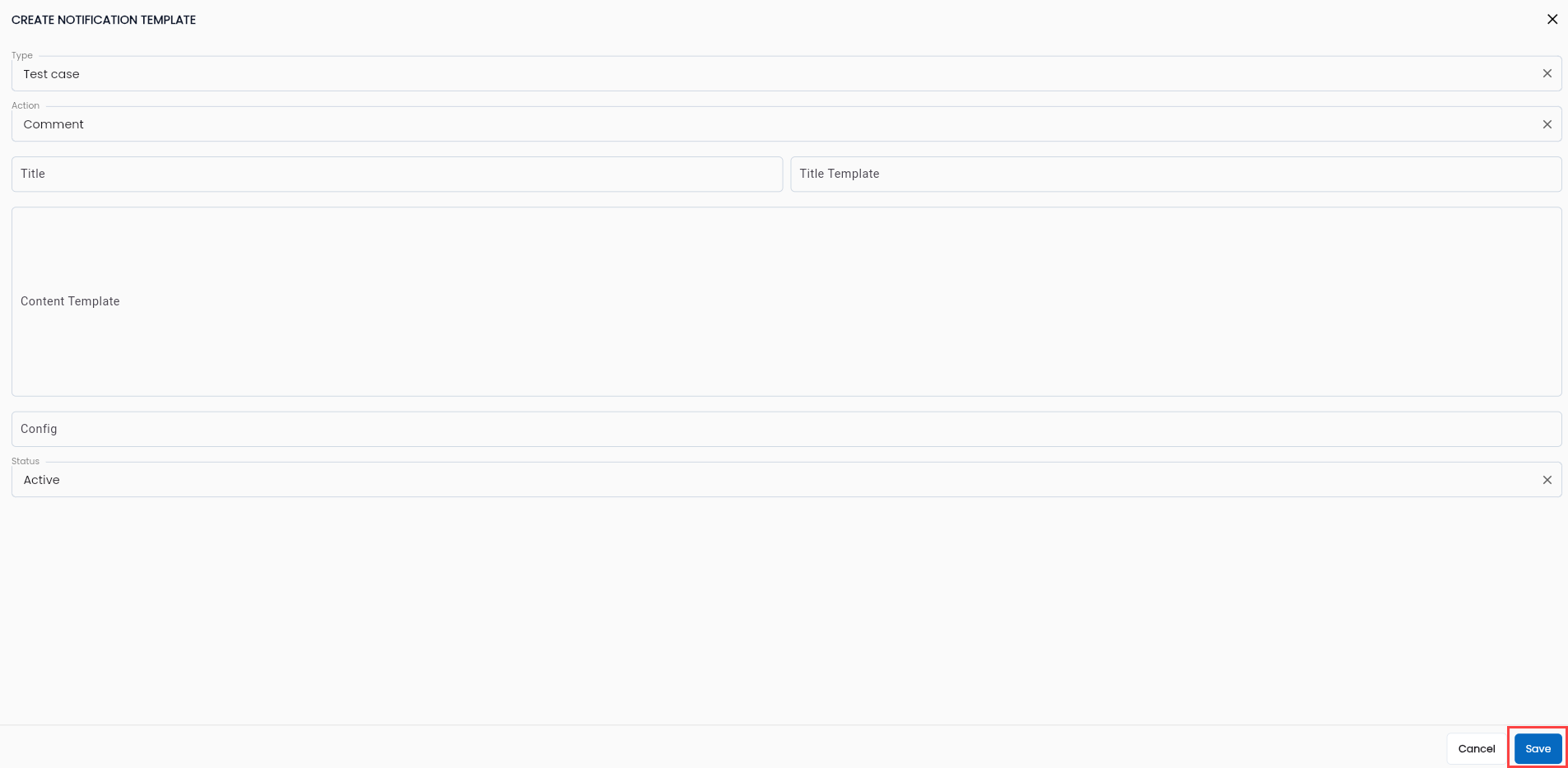
The system will display a message Create Successful and show the newly created notification template on the data grid.
Some Sample Notifications for Reference
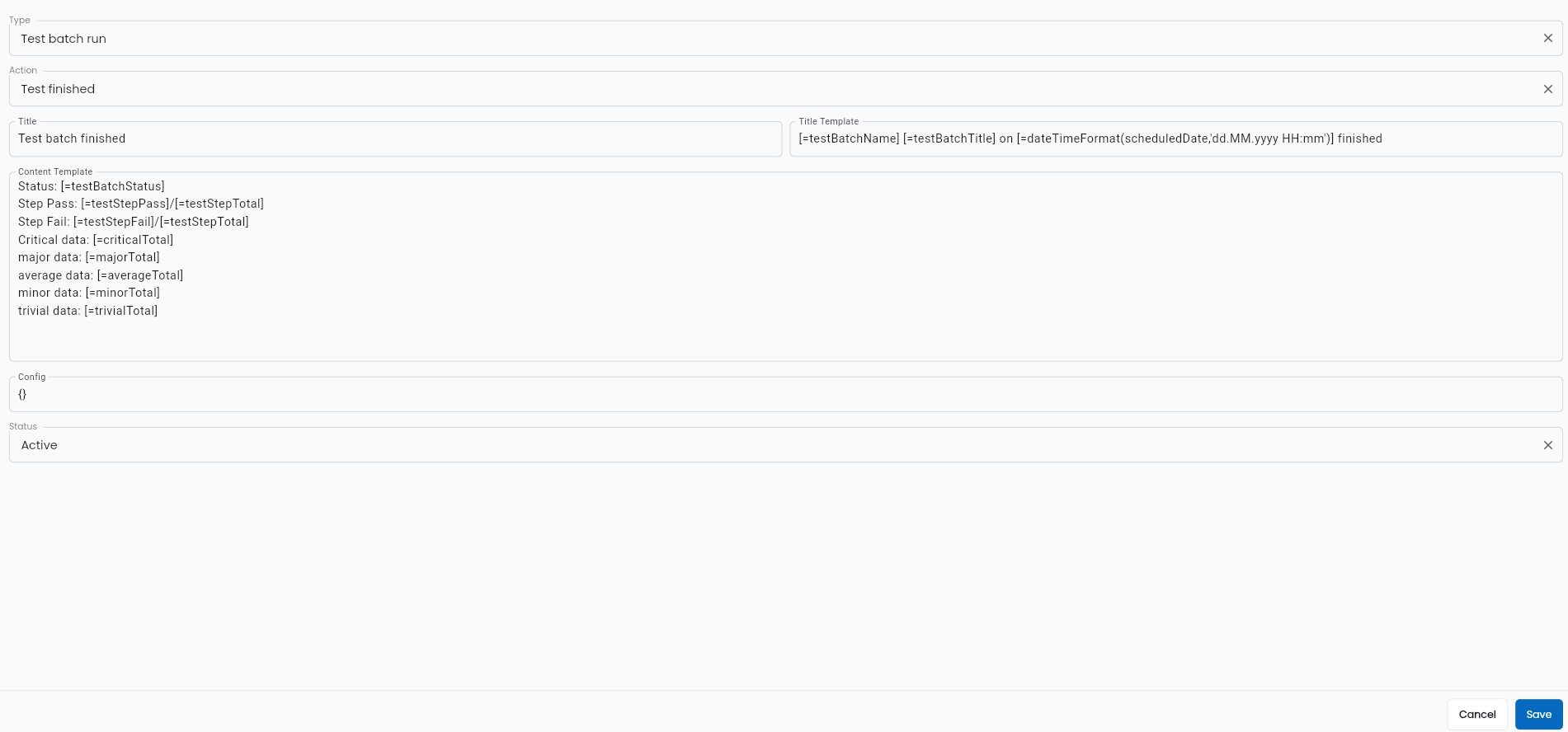
Test batch finished
Configuration for notification after executing a test batch.
| Field Name | Data |
|---|---|
| Type | Test batch run |
| Action | Test finished |
| Title | Test batch finished |
| Title Template | [=testBatchName] [=testBatchTitle] on [=dateTimeFormat(scheduledDate,'dd.MM.yyyy HH:mm')] finished |
| Content | Status: [=testBatchStatus] Step Pass: [=testStepPass]/[=testStepTotal] Step Fail: [=testStepFail]/[=testStepTotal] Critical data: [=criticalTotal] major data: [=majorTotal] average data: [=averageTotal] minor data: [=minorTotal] trivial data: [=trivialTotal] |
| Config | {} |
| Status | Active |
Illustration
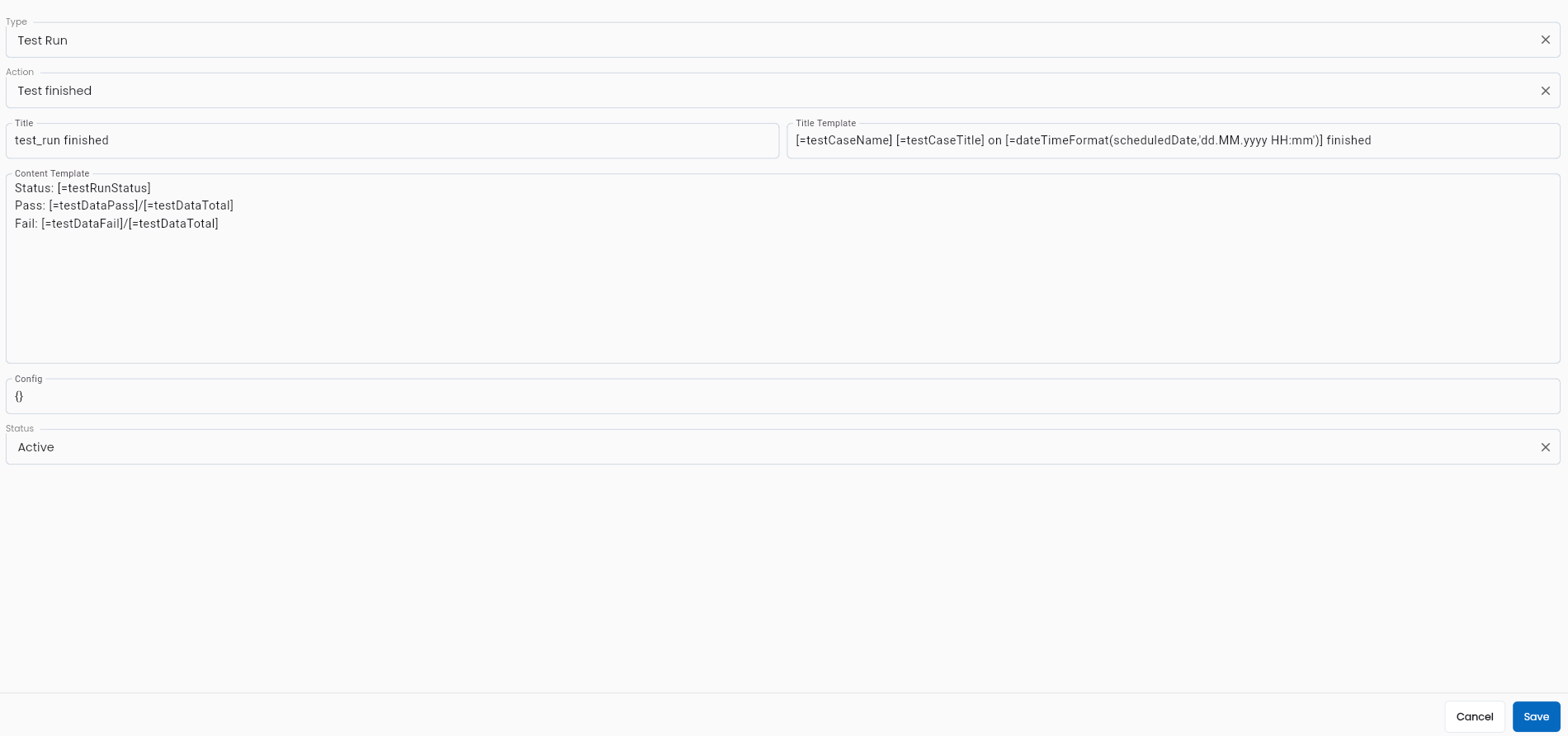
Test run finished
Configuration for notification after executing a test case/scenario/suite.
| Field Name | Data |
|---|---|
| Type | Test Run |
| Action | Test finished |
| Title | Test run finished |
| Title Template | [=testCaseName] [=testCaseTitle] on [=dateTimeFormat(scheduledDate,'dd.MM.yyyy HH:mm')] finished |
| Content | Status: [=testRunStatus] Pass: [=testDataPass]/[=testDataTotal] Fail: [=testDataFail]/[=testDataTotal] |
| Config | {} |
| Status | Active |
Illustration
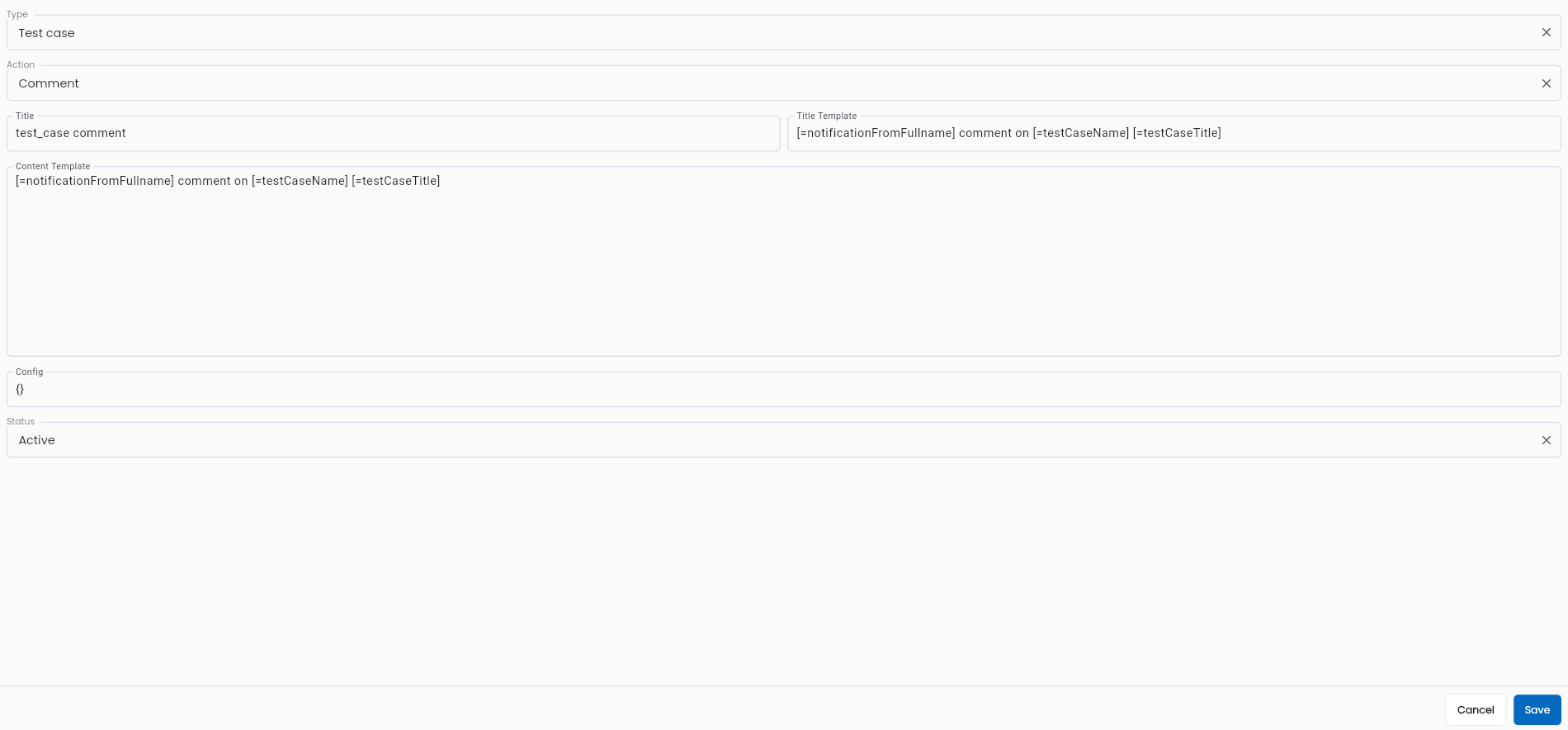
Test case comment
Configuration for notification when someone comments on your test case.
| Field Name | Data |
|---|---|
| Type | Test case |
| Action | Comment |
| Title | New comment on test case [=testCaseName] |
| Title Template | New comment on test case [=testCaseName] [=dateTimeFormat(commentDate,'dd.MM.yyyy HH:mm')] |
| Content | Comment: [=commentText] By: [=commentAuthor] |
| Config | {} |
| Status | Active |
Illustration
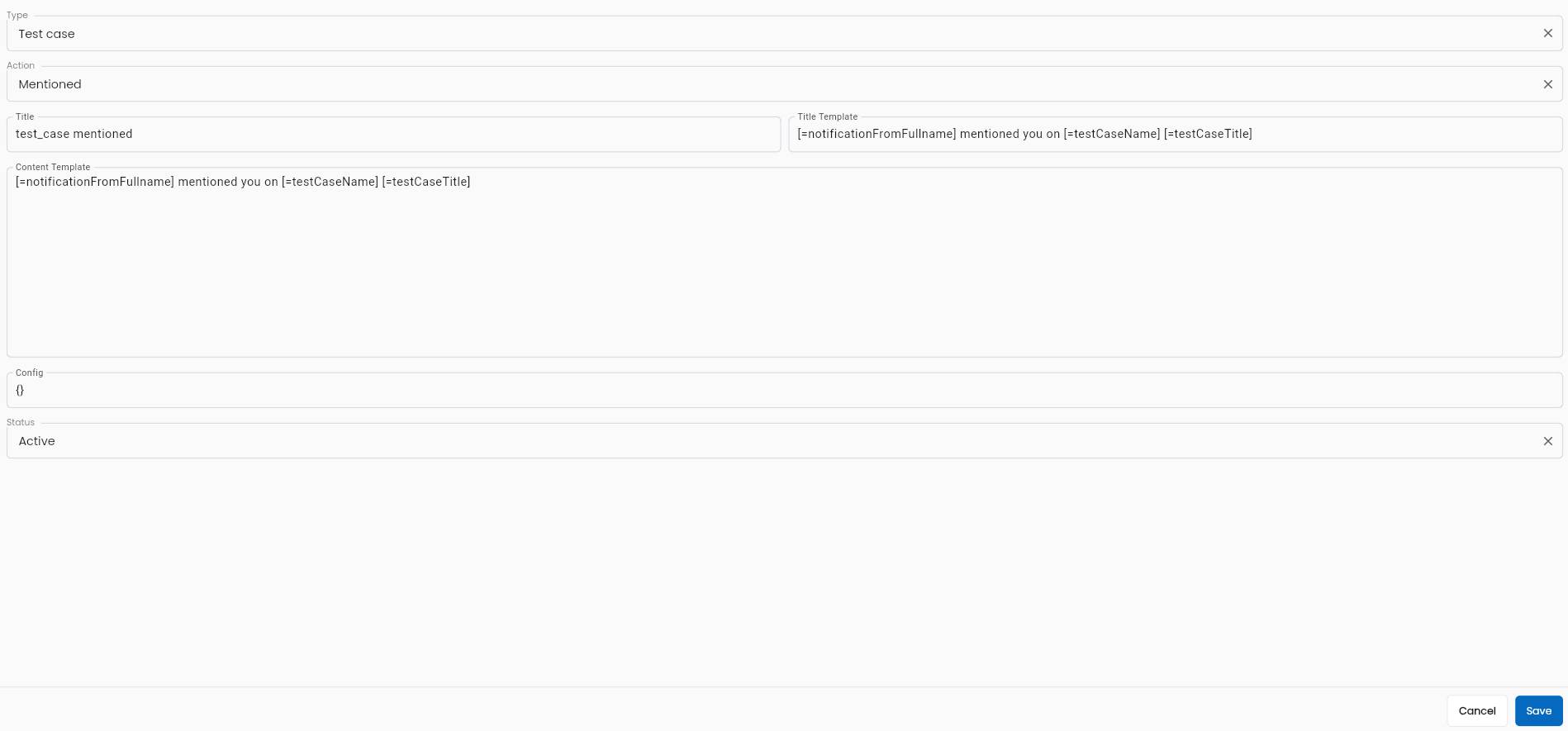
Test case mentioned
| Field Name | Data |
|---|---|
| Type | Test case |
| Action | Mentioned |
| Title | You were mentioned in test case [=testCaseName] |
| Title Template | You were mentioned in test case [=testCaseName] [=dateTimeFormat(mentionDate,'dd.MM.yyyy HH:mm')] |
| Content | Comment: [=commentText] By: [=commentAuthor] |
| Config | {} |
| Status | Active |
Illustration
View and Edit Notification Template
To view and edit a notification template in the LLQ QA Platform, follow these steps:
Step 1: On the Notification template tab, select a template that the user wants to edit from the displayed list. Click the ⋮ button on the left of the record and select Edit.
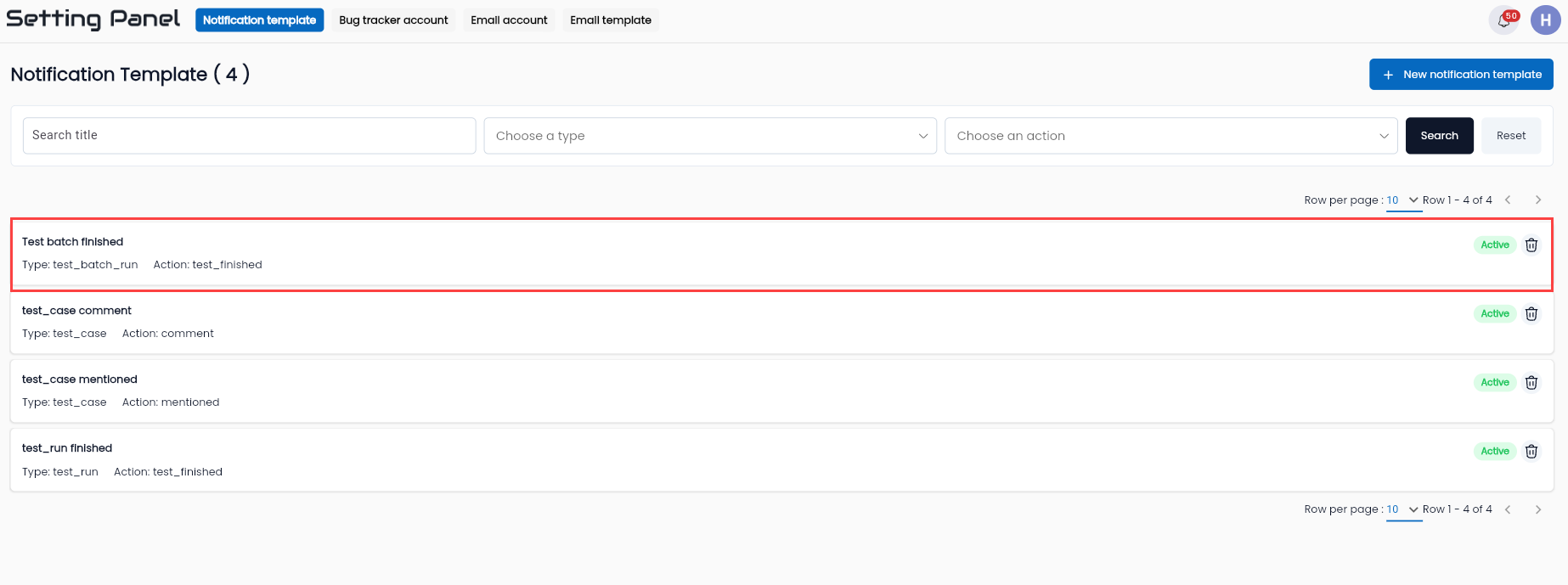
Step 2: Review and edit the information of the template as required. Description of the information fields common to the new form
Step 3: Click the OK button. The system displays the message “Update successful”.
Delete Notification Template
Note: The condition to delete a template is that the template has no data constraints (has never been used). If it has been used, it cannot be deleted.
To delete a notification template in the LLQ QA Platform, follow these steps:
Step 1: On the Notification template tab, select a template that the user wants to delete from the displayed list. Click the ⋮ button on the left of the record and select Delete.
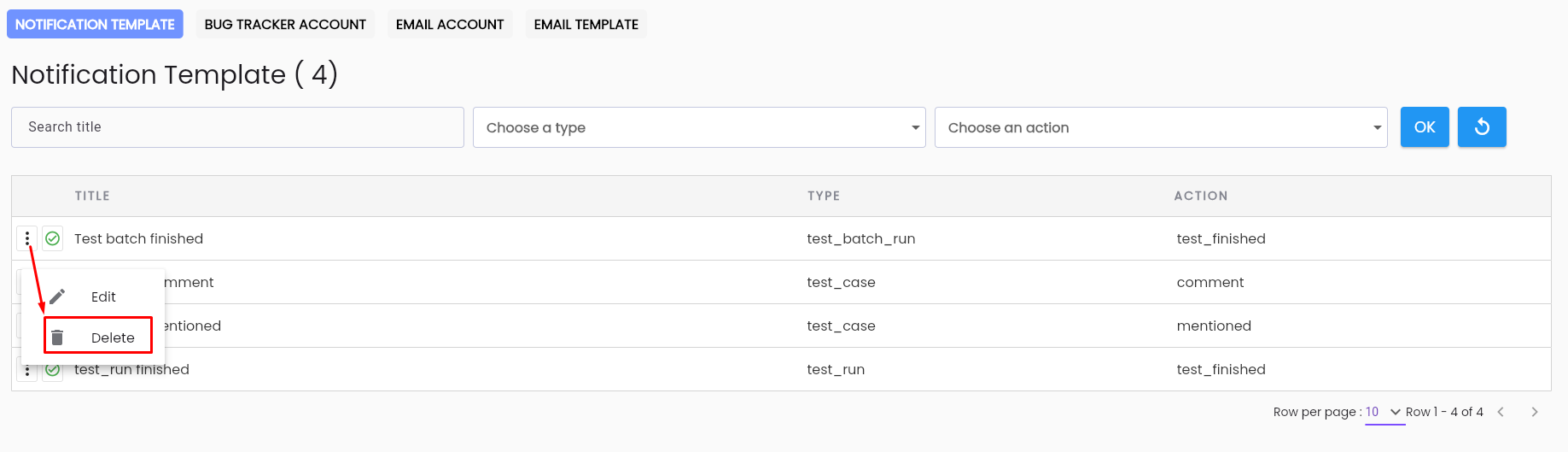
Step 2: The system displays a confirmation popup. Click the DELETE button to delete the template.
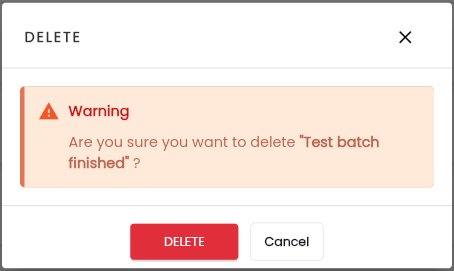
The system displays the message “Delete successful”