Permission management
Overview of Permission Management
Permission management is the allocation of rights to a member/group of members regarding what they can and cannot do. With the LLQ QA Platform, permissions will determine which system-wide functions that member group can use.
This section will guide users on how to manage permissions on the LLQ QA Platform:
Create New Permission
To create a new permission in the LLQ QA Platform, follow these steps:
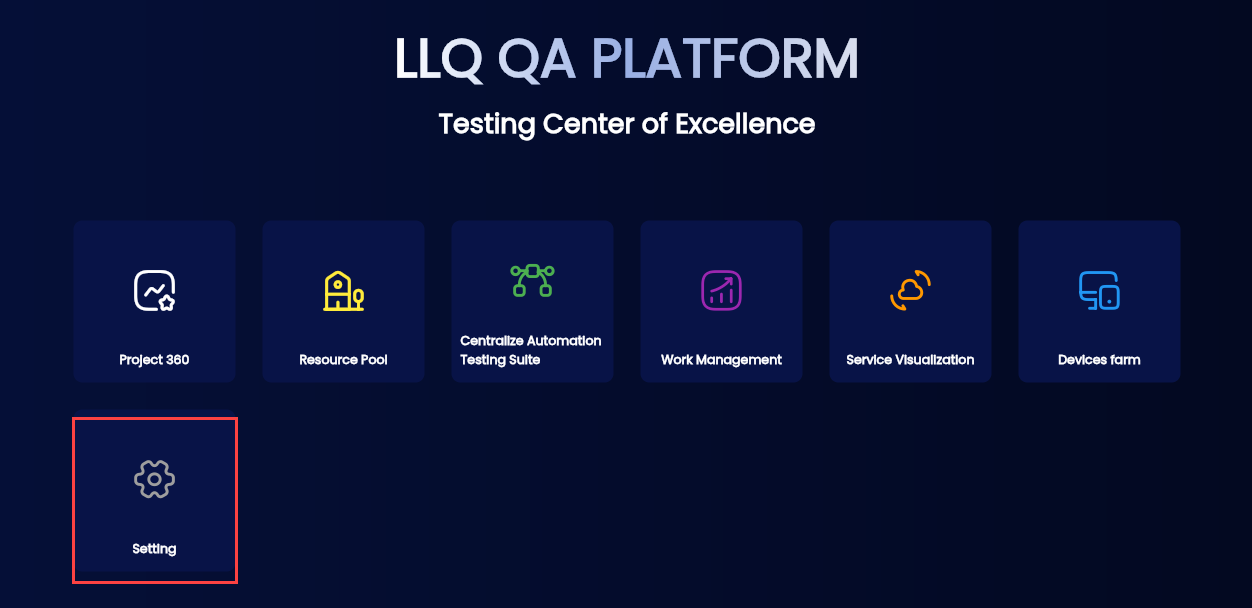
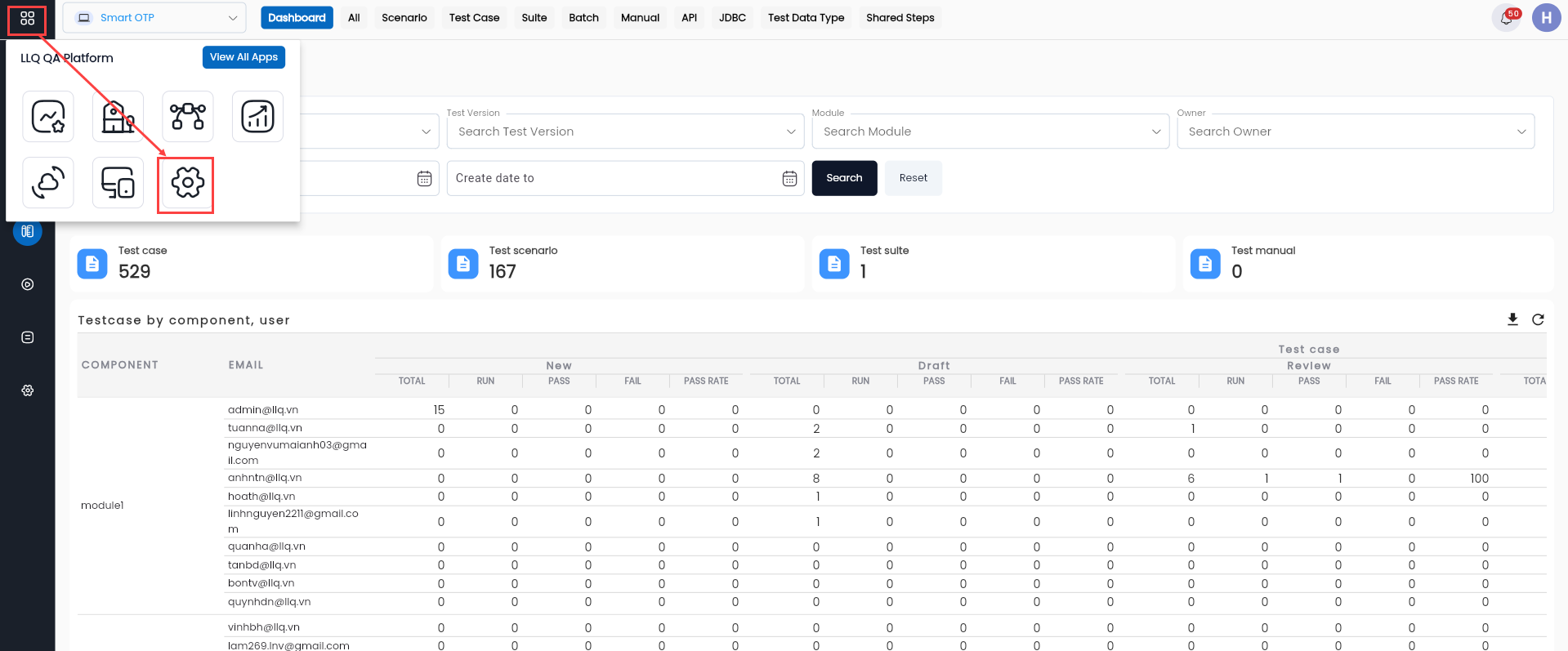
Step 1: On the tool list interface, click Settings or the Apps > Settings button located on the header.
Or
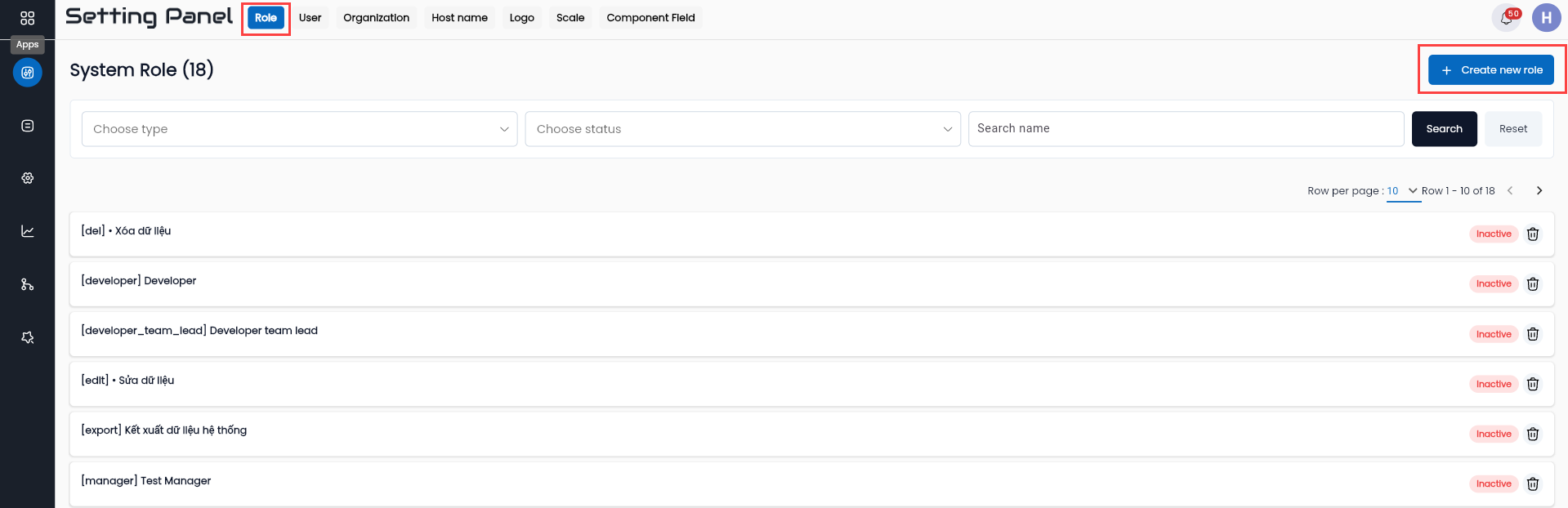
Step 2: In the ROLE tab, click the NEW ORGANIZATION ROLE button.
Step 3: Fill in all the information in the CREATE ROLE form.
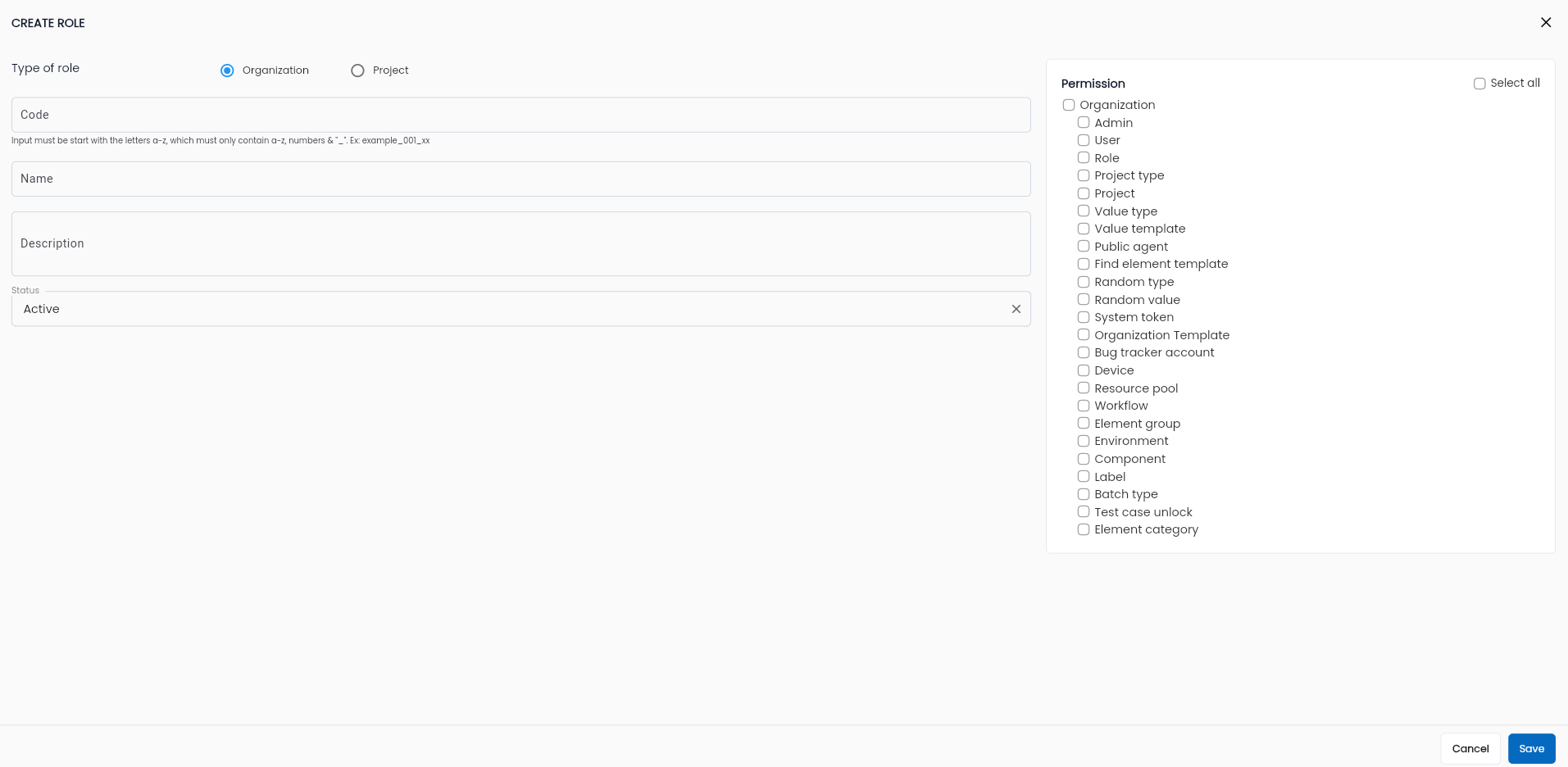
Description of the fields:
| Field Name | Mandatory | Format | Constraints | Description |
|---|---|---|---|---|
| Type | Yes | Combobox | The system displays a list by permission type, the user can select 1 value: + Organization: Permission on the system + Project: Permission on the project | |
| Code | Yes | Textbox | Displays a list of permission statuses, the user can select 1 value: + Active: Permission is active + Inactive: Permission is inactive | Enter the permission code |
| Name | Yes | Textbox | Enter the permission name | |
| Status | Yes | Combobox | Displays a list of permission statuses, the user can select 1 value: + Active: Permission is active + Inactive: Permission is inactive | |
| Description | No | Textarea | Enter a description of the permission | |
| Permission | No | Checkbox | The list of permission is displayed in a tree format depending on Type Role, the user can click checkboxes for the permissions they want to add to the permission group. |
Note: If allowing the permission group to have all permissions, you can select the Select All checkbox or check all the permission checkboxes in the list. The first checkbox is the name Type of the permission group and does not affect the full permission setting for the permission group.
Step 4: Click the OK button to create the new permission.
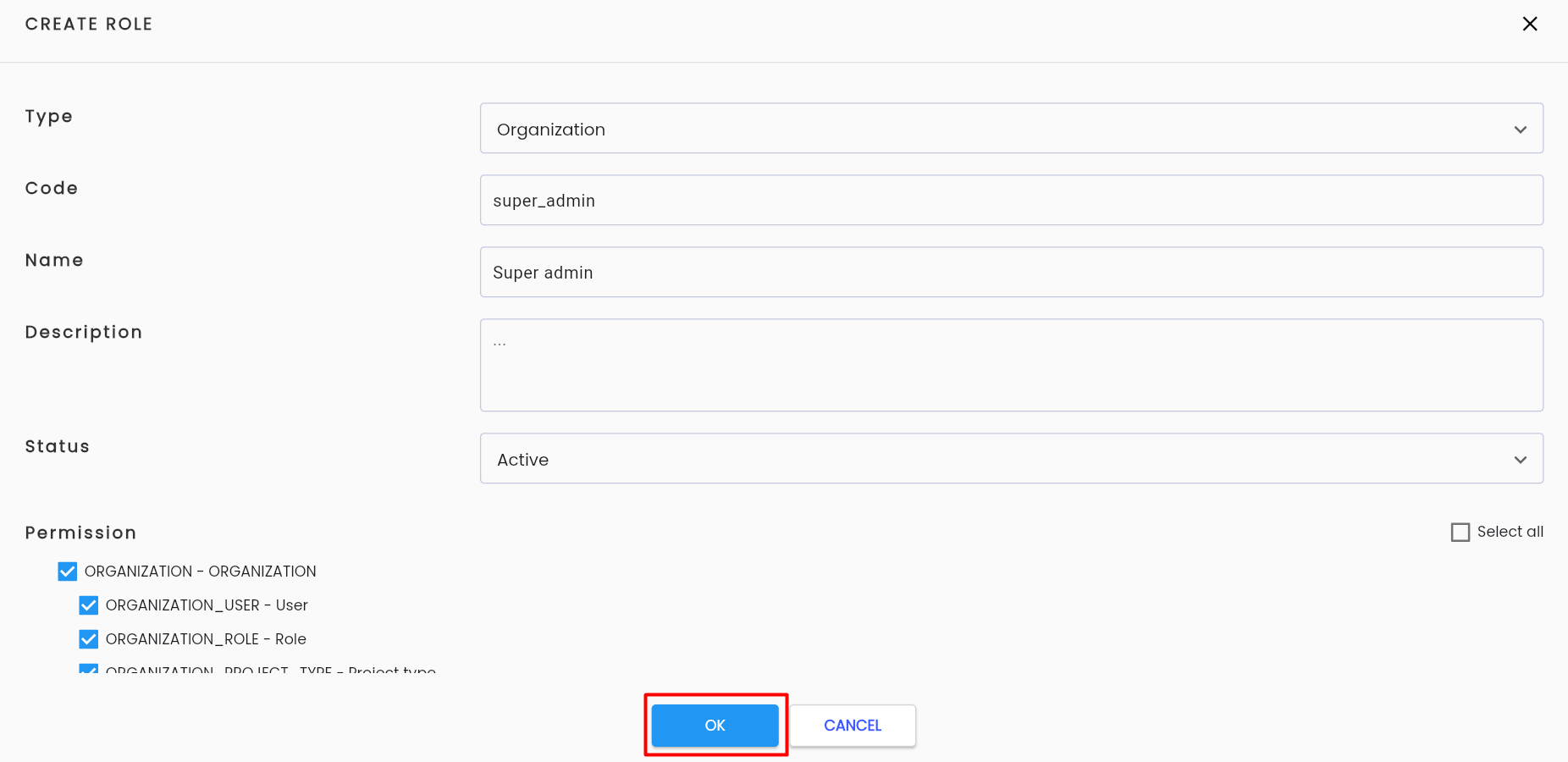
The system will display a message Create Successful and show the newly created permission in the data grid.
View and Edit Permission
To view and edit a permission in the LLQ QA Platform, follow these steps:
Step 1: On the Role tab, select a permission that the user wants to edit from the displayed list. Click the ⋮ button on the left of the record and select Edit.
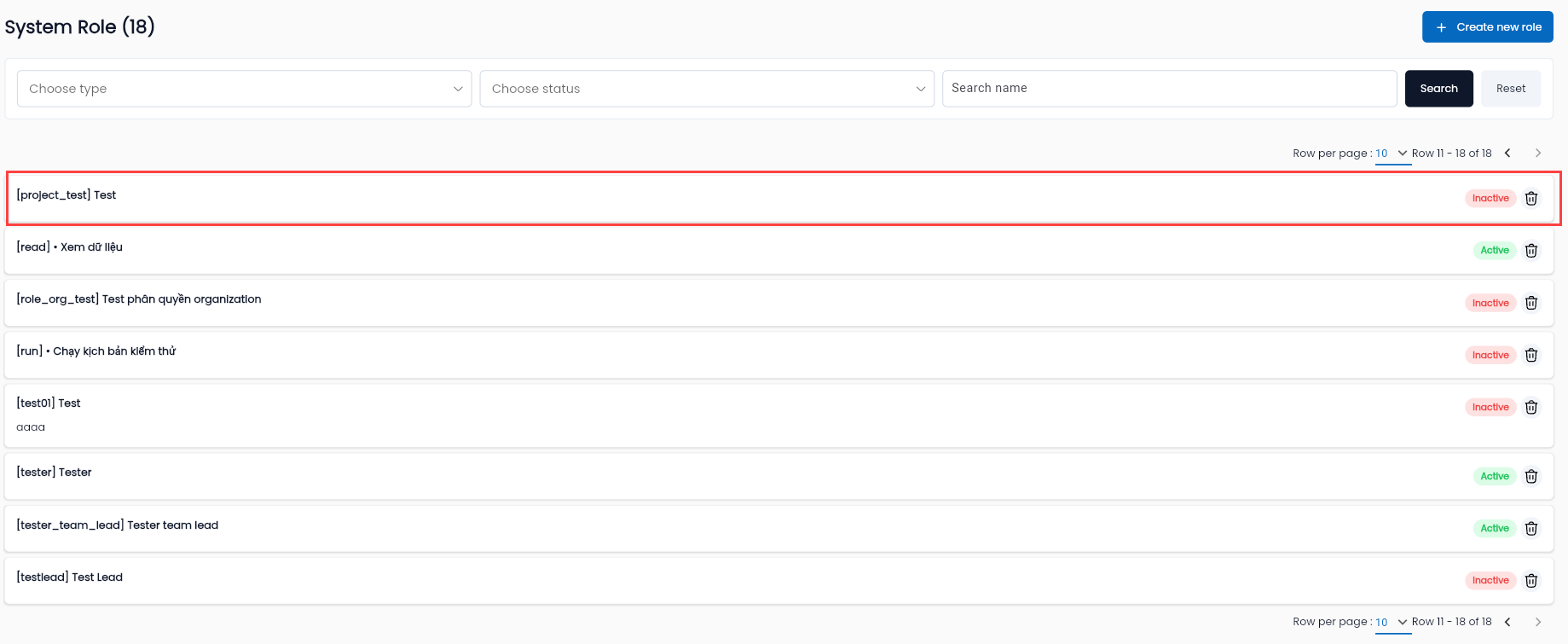
Step 2: Review and edit the information of the permission as required. Description of the information fields common to the new form
Step 3: Click the OK button. The system displays the message Update successful.
Note: The Code cannot be edited.
Delete Permission
Note: The condition to delete a permission is that the permission has no data constraints (has never been used). If it has been used, it cannot be deleted.
To delete a permission in the LLQ QA Platform, follow these steps:
Step 1: On the Role tab, select a permission that the user wants to delete from the displayed list. Click the ⋮ button on the left of the record and select Delete.

Step 2: The system displays a confirmation popup: Xác nhận. Click the OK button to delete the permission.
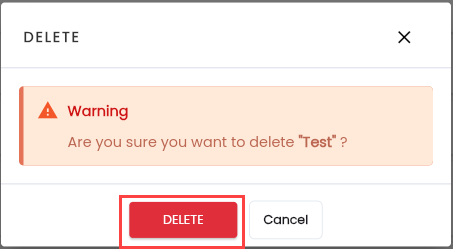
The system displays the message Delete successful