Organization configuration
Organization is used to manage configurations for the unit.
Organization Configurations
Step 1: On the interface screen, click Settings or the Apps > Settings button in the header.
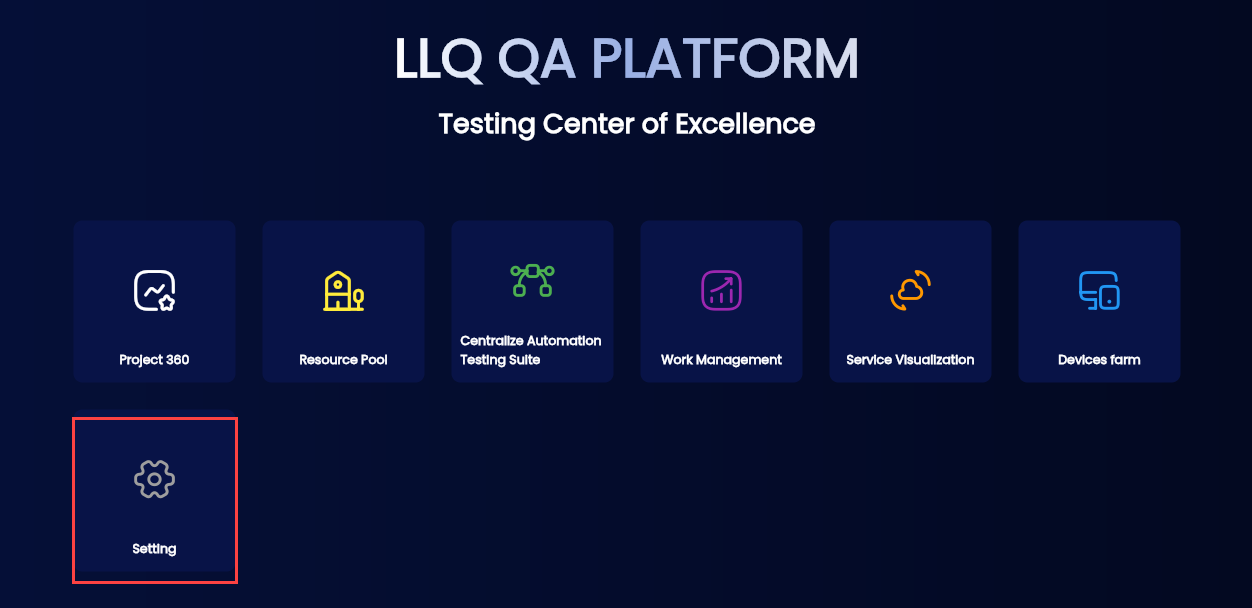
Or
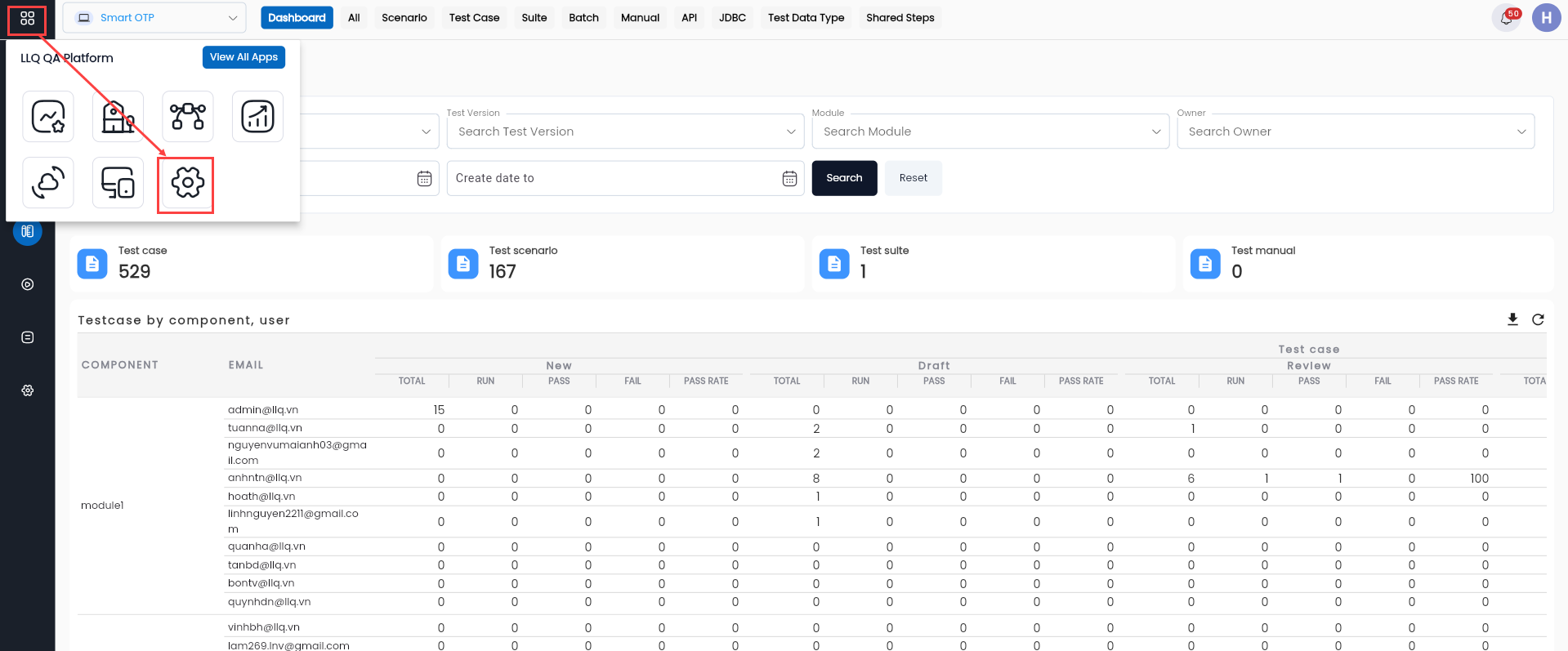
Step 2: Click the ORGANIZATION tab and fill in the information in the Organization: root.
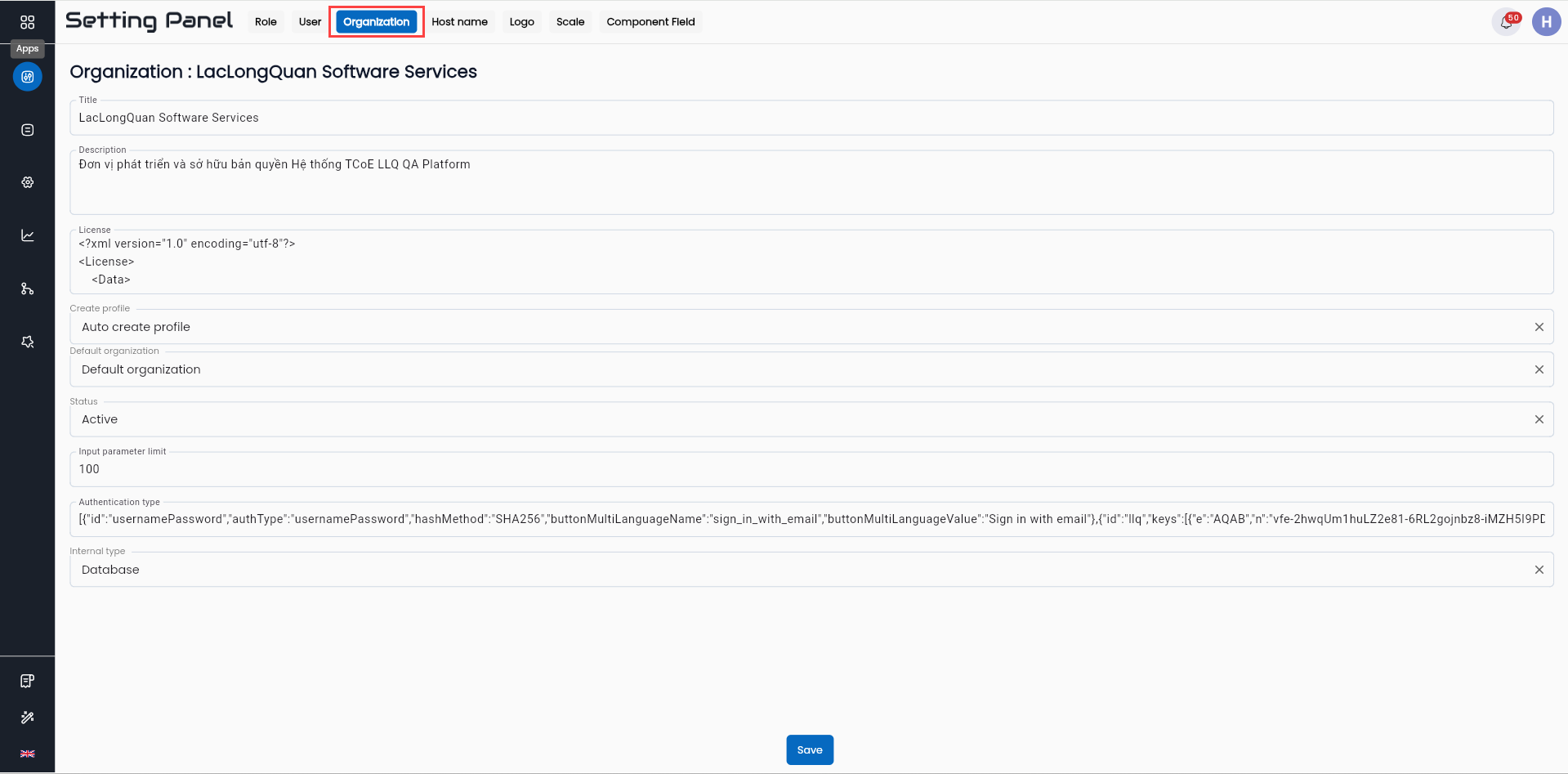
Description of fields:
| Field Name | Mandatory | Format | Constraints | Description |
|---|---|---|---|---|
| Title | Yes | Textbox | Enter the title for the Organization. | |
| Description | Yes | Textbox | Enter the description for the Organization. | |
| License | Yes | Textbox | Enter the license for the Organization. | |
| Create profile | Yes | Combobox | Select one of the two values: + Auto create profile + Manual create profile | |
| Default organization | Yes | Combobox | Select one of the two values: + Default organization + Not default organization | |
| Status | Yes | Combobox | Select one of the two values: + Active: Organization is active + Inactive: Organization is inactive | |
| Internal type | Yes | Combobox | Select one of the two values: + Database + Ldap |
Step 3: Click the OK button to create the new host name.
The system will display a message saying Update Successful and show the newly created host name in the data grid.