Email content configuration
Overview of Email Templates
The content of the email sent out will be configured in this section. Users can add additional content or modify the email's style.
This section guides you on how to manage and configure email content on LLQ QA Platform:
Configure an Email Template
To configure an email template on the LLQ QA Platform, follow these steps:
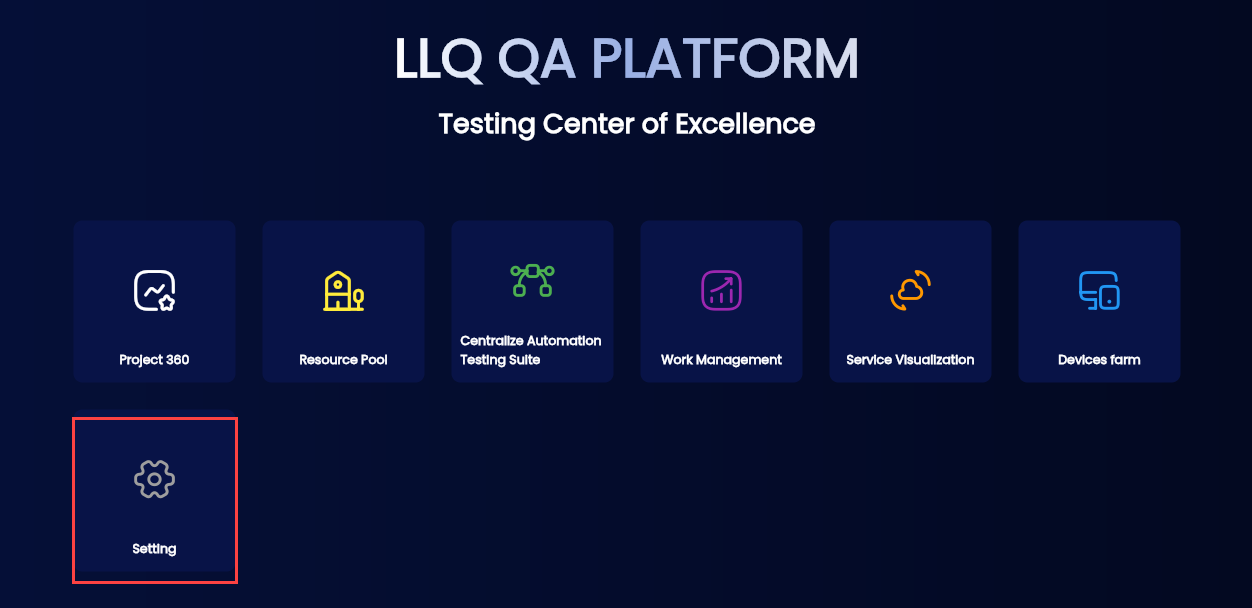
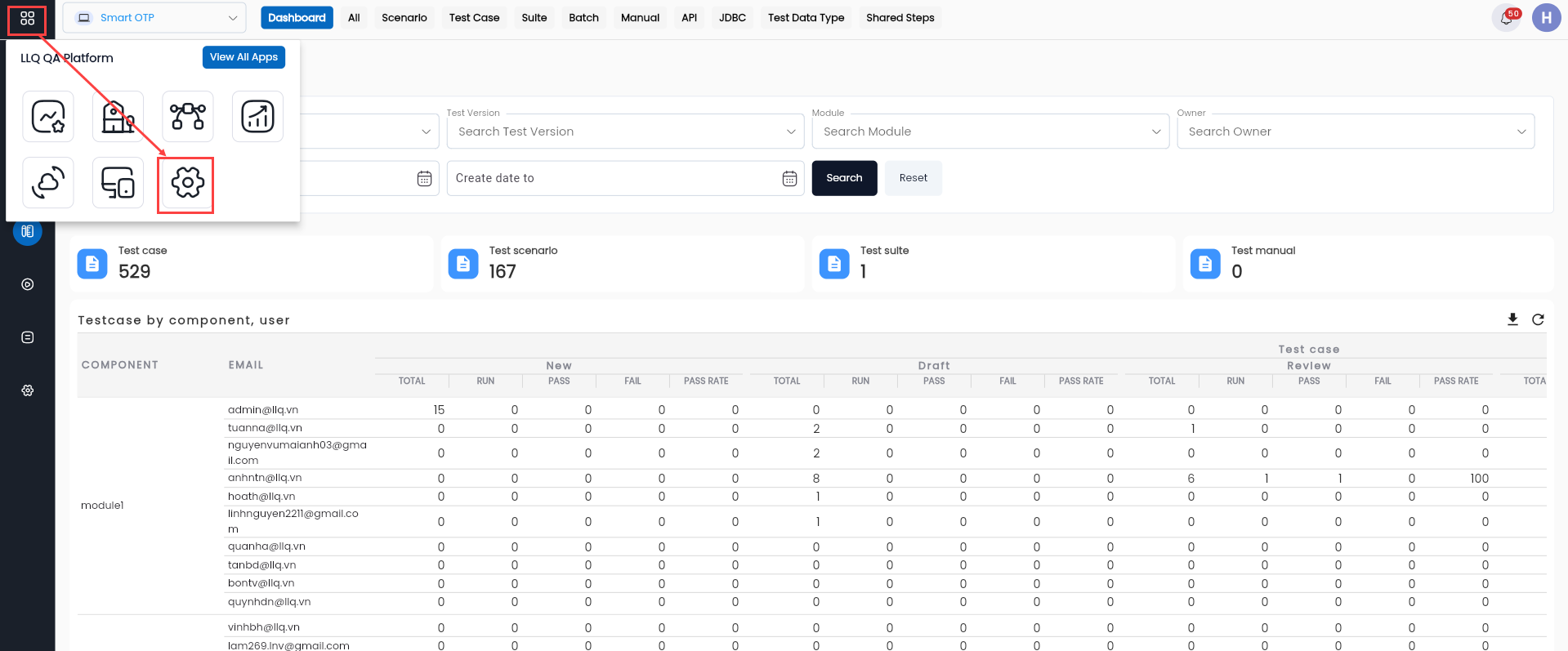
Step 1: From the tool list interface, click Settings or the Apps > Settings button on the header.
Or
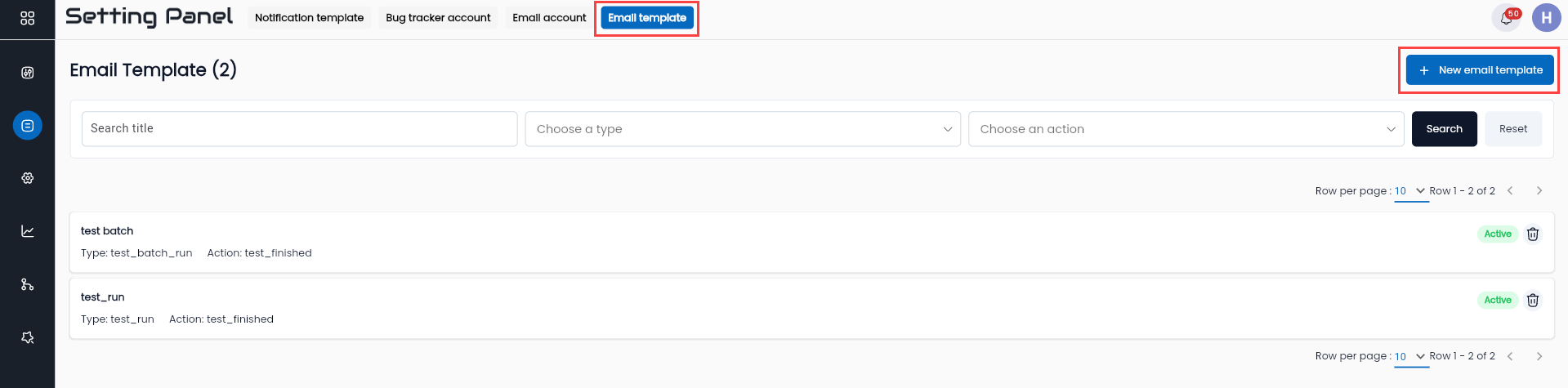
Step 2: Click on the EMAIL TEMPLATE tab and select NEW EMAIL TEMPLATE
Step 3: Fill in all required information in the CREATE EMAIL TEMPLATE
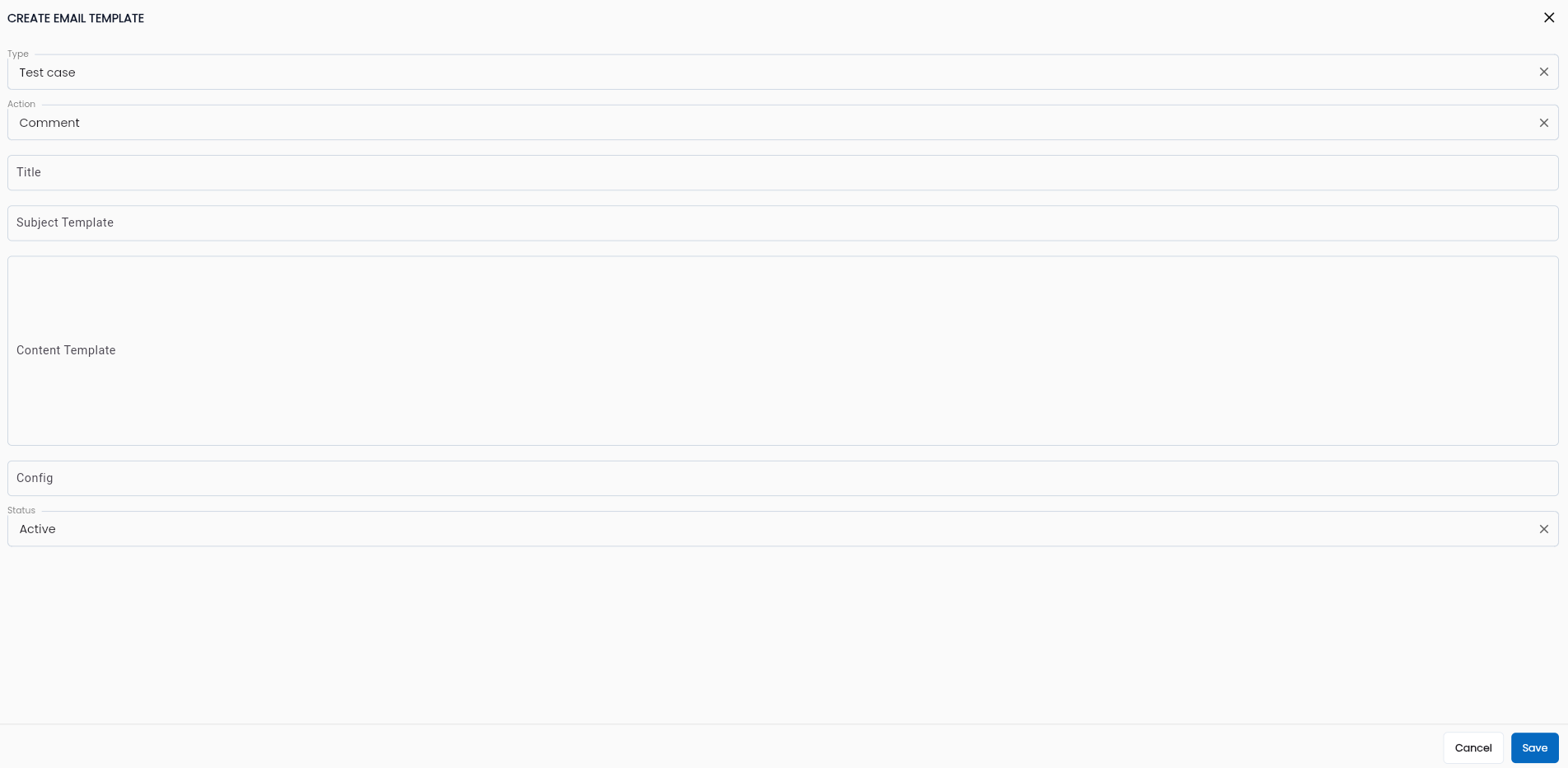
Field descriptions:
| Field Name | Mandatory | Format | Constraints | Description |
|---|---|---|---|---|
| Email account | Yes | Combobox | Displays the list of email accounts configured in the Email Account section. Select an email account | |
| Type | Yes | Combobox | Select the type of email recipient: + Test case + Test run + Test batch run | |
| Action | Yes | Combobox | Select the type of action to configure: + Comment + Mentioned + Test finished | |
| Title | Yes | Textbox | The title of the email template. | |
| Subject Template | Yes | Textbox | Configure the subject line of the email. | |
| Content Template | No | Textbox | Configure the email's content | |
| Config | Yes | Textbox | Enter the default value: {} | |
| Status | Yes | Checkbox | Email Template statuses: + Active: Email template is active. + Inactive: Email template is inactive. Users can select one value. |
Step 4: Click the OK button to create a new email template.
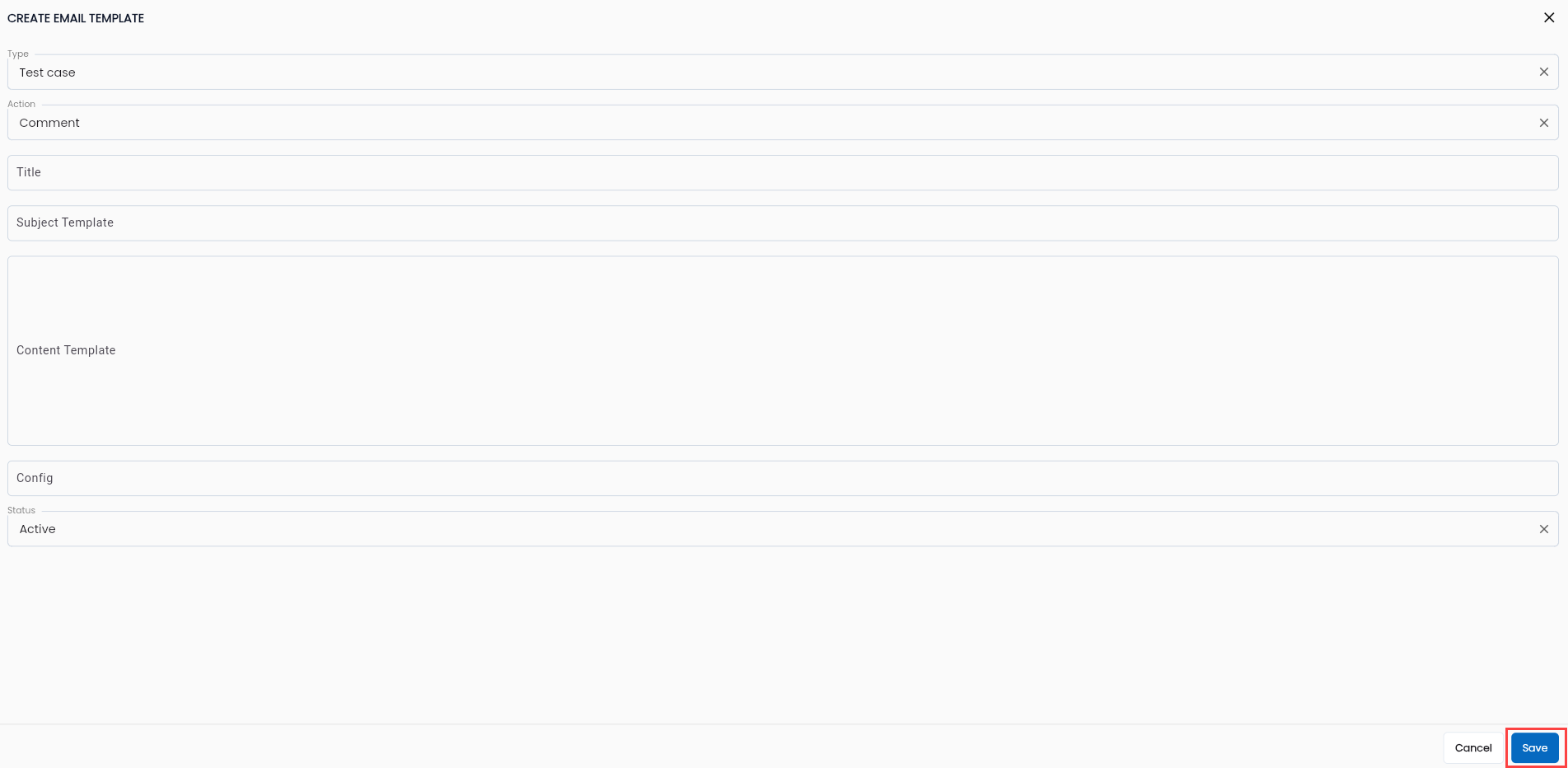
The system will display a Create Successful notification and show the newly created email template in the data grid.
Some Email Template Examples
Email Template for Test Batch
Configuration of the email sent after completing a test batch execution.
| Field Name | Data |
|---|---|
| Email account | Lạc Long Quân |
| Type | Test batch run |
| Action | Test finished |
| Title | Test Batch |
| Subject Template | [=testBatchName] [=testBatchTitle] on [=dateTimeFormat(scheduledDate,'dd.MM.yyyy HH:mm')] finished |
| Content Template | <style> .wrap-table { font-family: OpenSans-Regular; font-size: 16px; font-weight: 400; line-height: 1.5; color: #212529; } .table__name { text-align: center; margin-bottom: 10px; } .table__header { height: 60px; background: #99ccff; } .table__header > th { font-size: 18px; line-height: 1.2; font-weight: unset; } table > tbody > tr { height: 50px; font-size: 17px; line-height: 1.2; font-weight: unset; } table > tbody > tr > td { padding: 5px; } </style> <div class="wrap-table"> <h4 class="table__name">[=testBatchName] [=testBatchTitle]</h4> <table style="width: 100%; border-collapse: collapse" border="1"> <thead> <tr class="table__header"> <th style="width: 25%"><strong> Total </strong></th> <th style="width: 25%"><strong> PASS </strong></th> <th style="width: 25%"><strong> FAIL </strong></th> <th style="width: 25%"><strong> Status </strong></th> </tr> </thead> <tbody> <tr> <td style="width: 25%; text-align: right">[=testStepTotal]</td> <td style="width: 25%; text-align: right">[=testStepPass]</td> <td style="width: 25%; text-align: right">[=testStepFail]</td> <td style="width: 25%">[=testBatchStatus]</td> </tr> </tbody> </table> </div> |
| Config | |
| Status | Active |
Illustration:
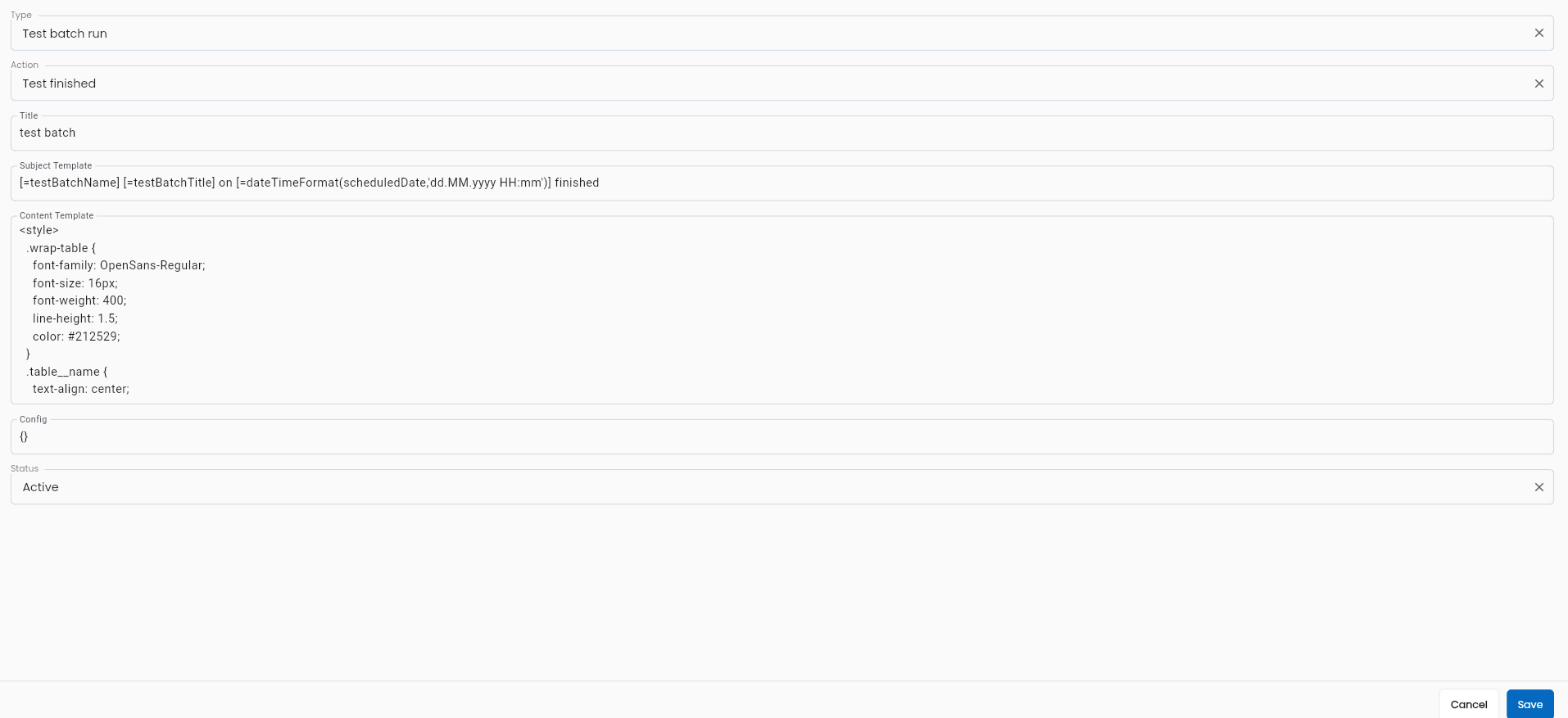
Email template for test run
Configuration of the email sent after completing a test case/scenario/suite execution.
Email template cho test run
| Field Name | Data |
|---|---|
| Email account | Lạc Long Quân |
| Type | Test run |
| Action | Test finished |
| Title | Test Run |
| Subject Template | [=testCaseName] [=testCaseTitle] finished |
| Content Template | <style> .wrap-table {font-family: OpenSans-Regular; font-size: 16px; font-weight: 400; line-height: 1.5; color: #212529;} .table__name {text-align: center; margin-bottom: 10px;} .table__header {height: 60px; background: #99ccff;} .table__header > th {font-size: 18px; line-height: 1.2; font-weight: unset;} table > tbody > tr {height: 50px; font-size: 17px; line-height: 1.2; font-weight: unset;} table > tbody > tr > td {padding: 5px;} </style> <div class="wrap-table"> <h4 class="table__name">[=testBatchName] [=testBatchTitle]</h4> <table style="width: 100%; border-collapse: collapse" border="1"> <thead> <tr class="table__header"> <th style="width: 25%"><strong> Total </strong></th> <th style="width: 25%"><strong> PASS </strong></th> <th style="width: 25%"><strong> FAIL </strong></th> <th style="width: 25%"><strong> Status </strong></th> </tr> </thead> <tbody> <tr> <td style="width: 25%; text-align: right">[=testStepTotal]</td> <td style="width: 25%; text-align: right">[=testStepPass]</td> <td style="width: 25%; text-align: right">[=testStepFail]</td> <td style="width: 25%">[=testBatchStatus]</td> </tr> </tbody> </table> </div> |
| Config | |
| Status | Active |
Illustration:
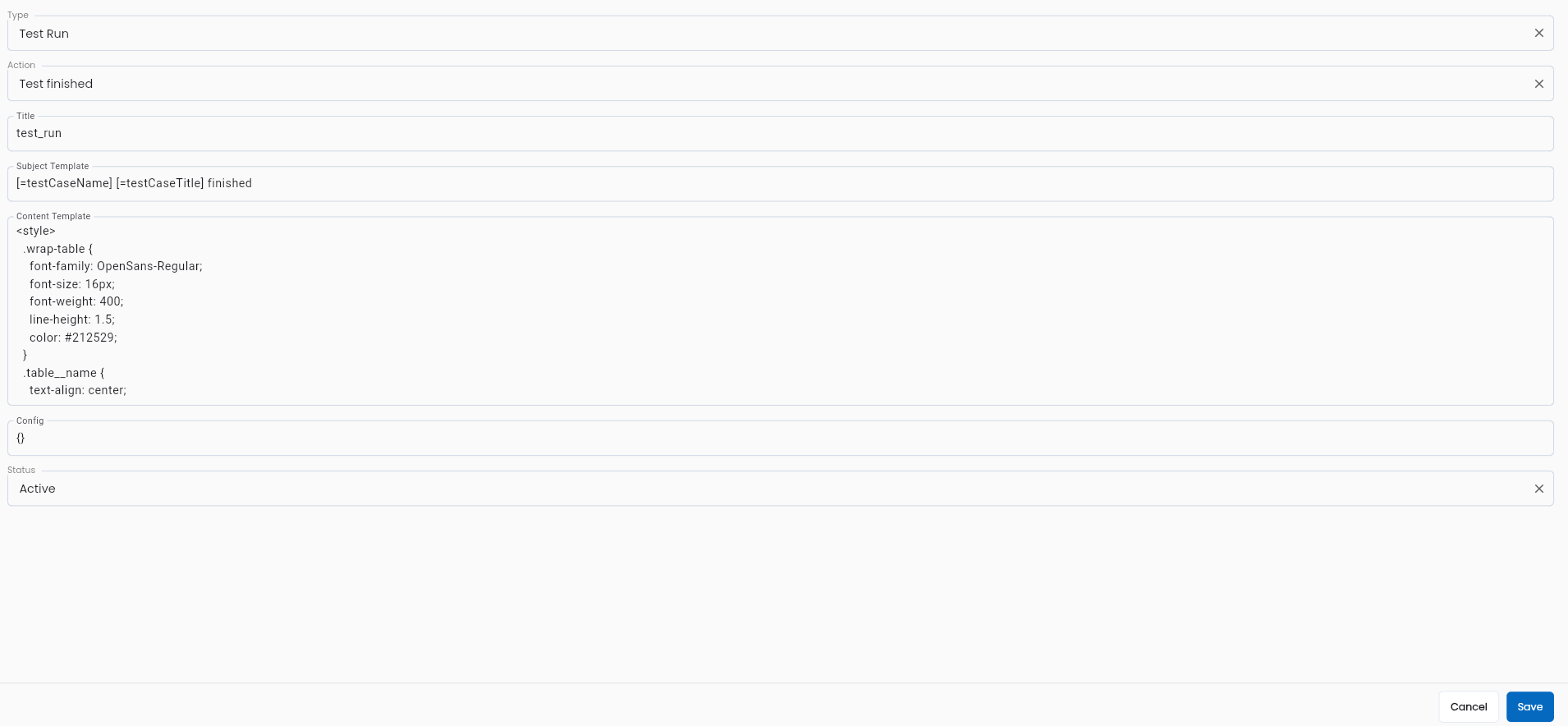
View and Edit Email Templates
To view and edit email templates in LLQ QA Platform, follow these steps:
Step 1: On the Email Template tab, select the desired email template from the list. Click the ⋮ button next to the record and choose Edit
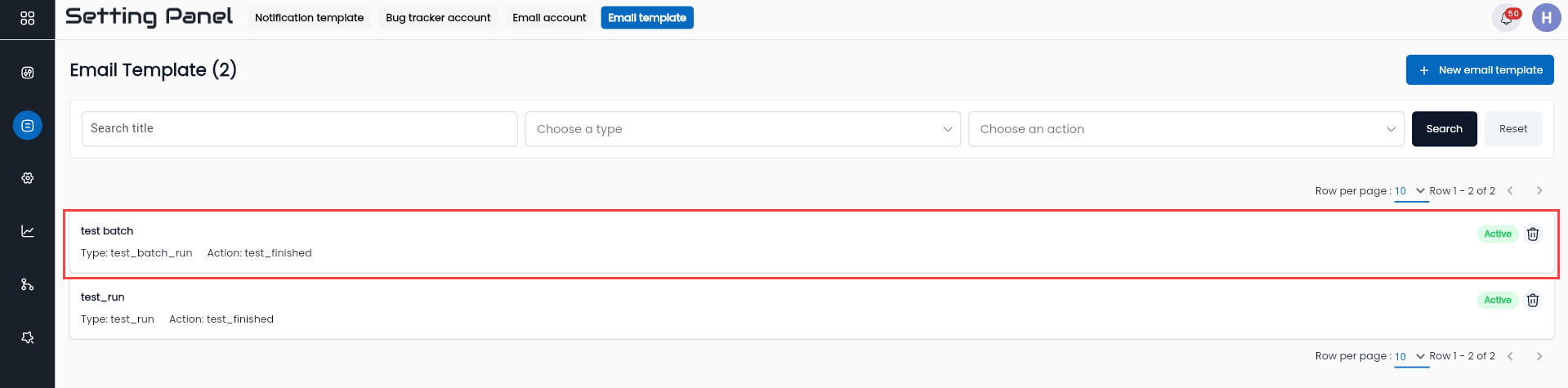
Step 2: View and edit the email template details as required. The fields are similar to the creation form.
Step 3: Click OK. The system will display an "Update successful" notification.
Delete Email Templates
Note: The condition to delete an email template is that it must not be associated with any data (i.e., it has not been used). Used templates cannot be deleted.
To delete an email template in LLQ QA Platform, do the following:
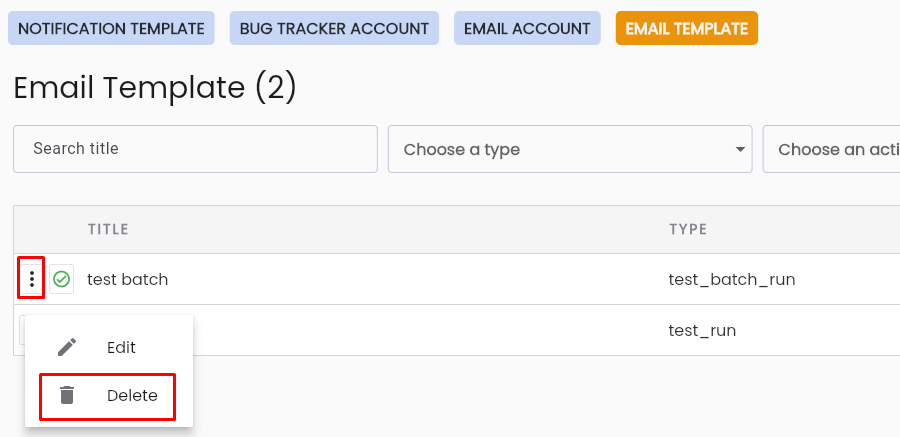
Step 1: On the Email Template tab, select the template you want to delete from the list. Click the ⋮ button next to the record and choose Delete
Step 2: A confirmation popup will appear. Click OK to delete the template.
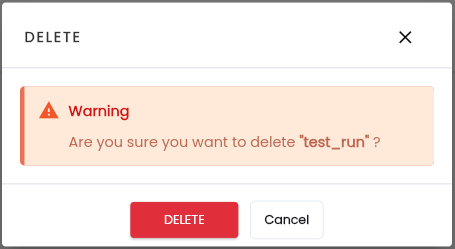
The system will display a “Delete successful” notification.