Some other supporting features
Comment
During the review of test scenarios, users can leave comments for suggestions to timely adjust configurations. It also allows tagging the accounts of team members in the comments.
To comment and tag team members in the comments, follow these steps:
Step 1: On the configuration interface, click the Open Comment icon.
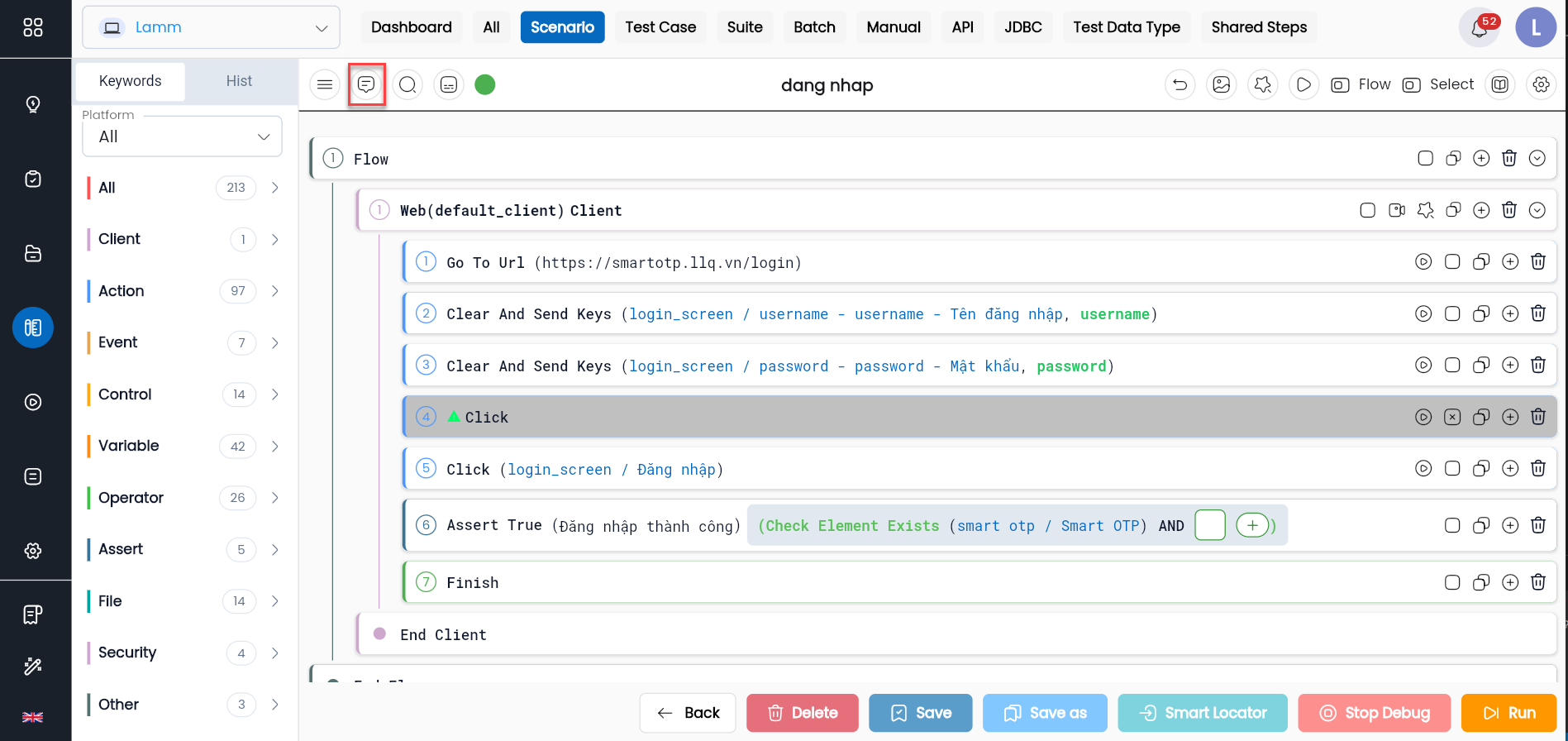
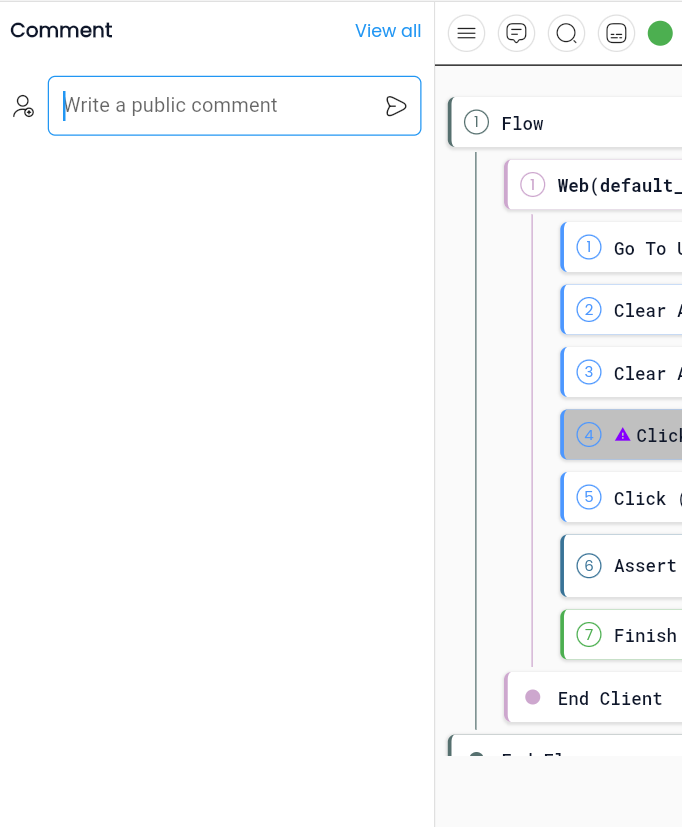
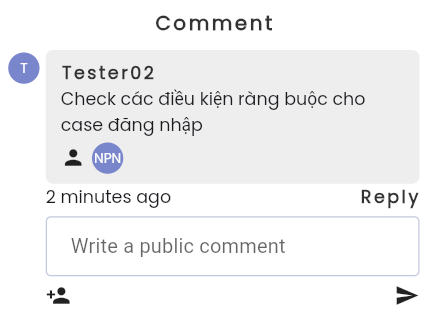
Step 2: Enter the comment content and click the send button.
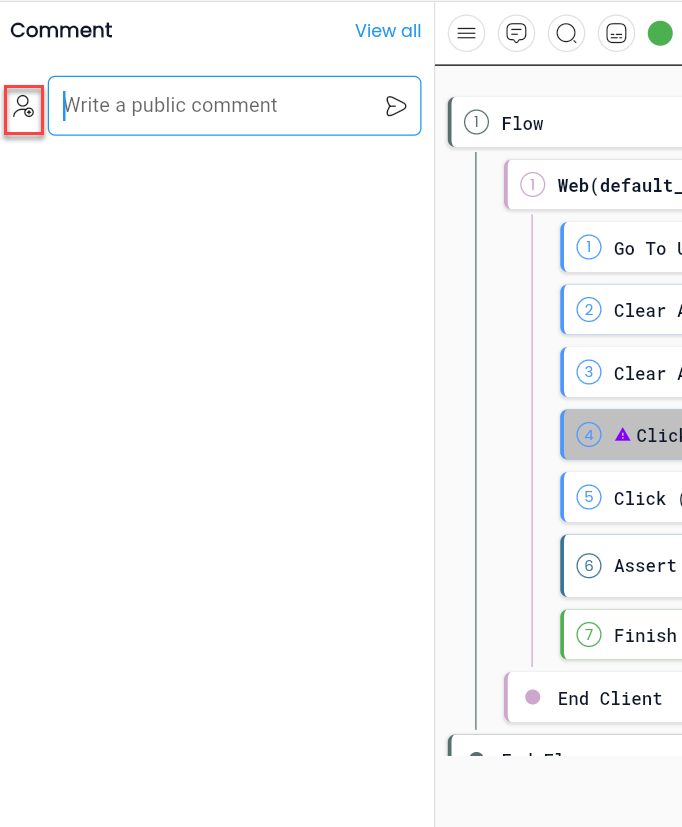
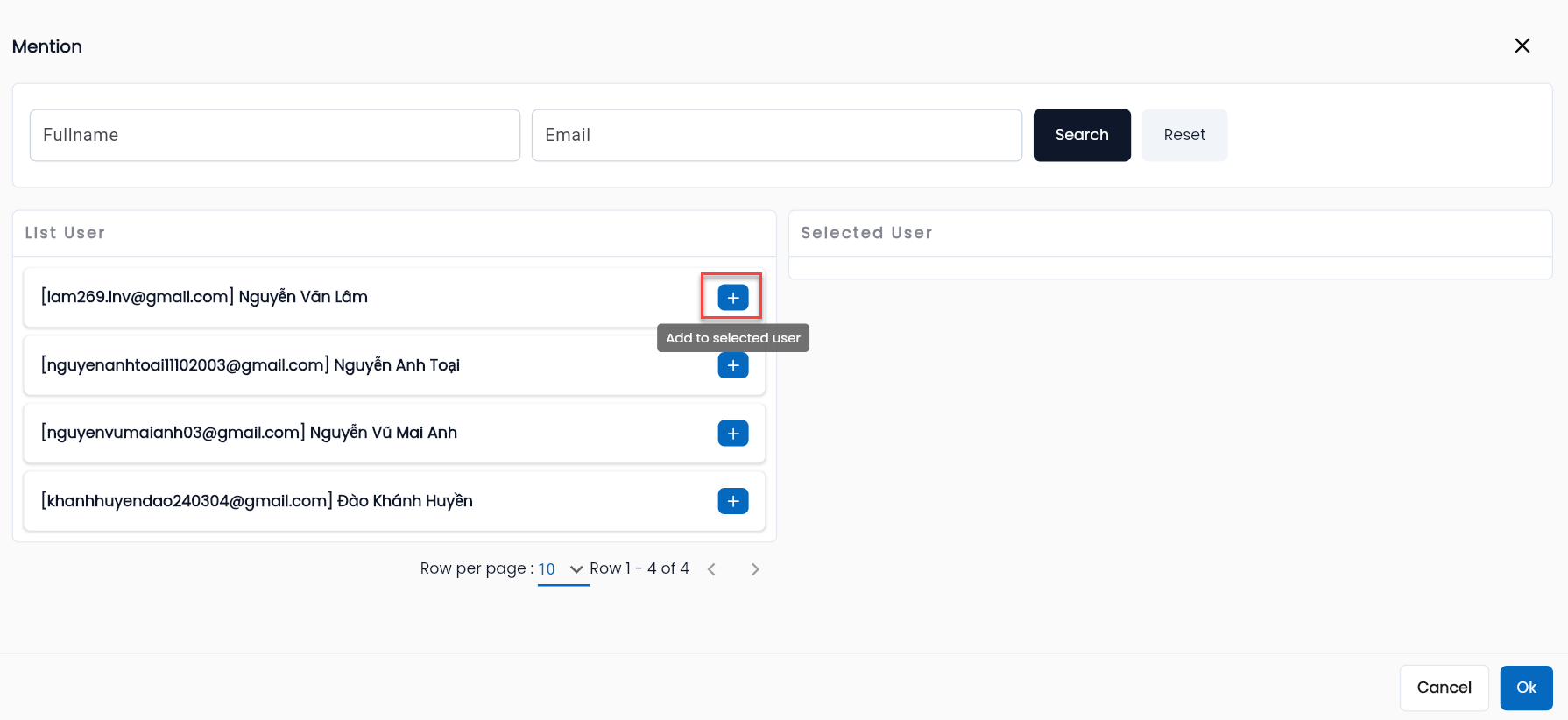
Step 3: If you want to tag a member in the comment, click the icon at the bottom left corner of the screen.
Step 4: Click “+” next to the member you want to mention and click OK.
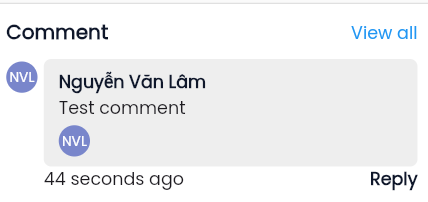
After sending the comment, the system displays the comment along with the mentioned members as shown in the image.
Step 5: Users can select the Reply button to respond to others' comments.
Search for a Configuration Step
In a large testing scenario, to quickly and easily find a configuration step, follow these steps:
Step 1: On the configuration interface, click the Open search button.
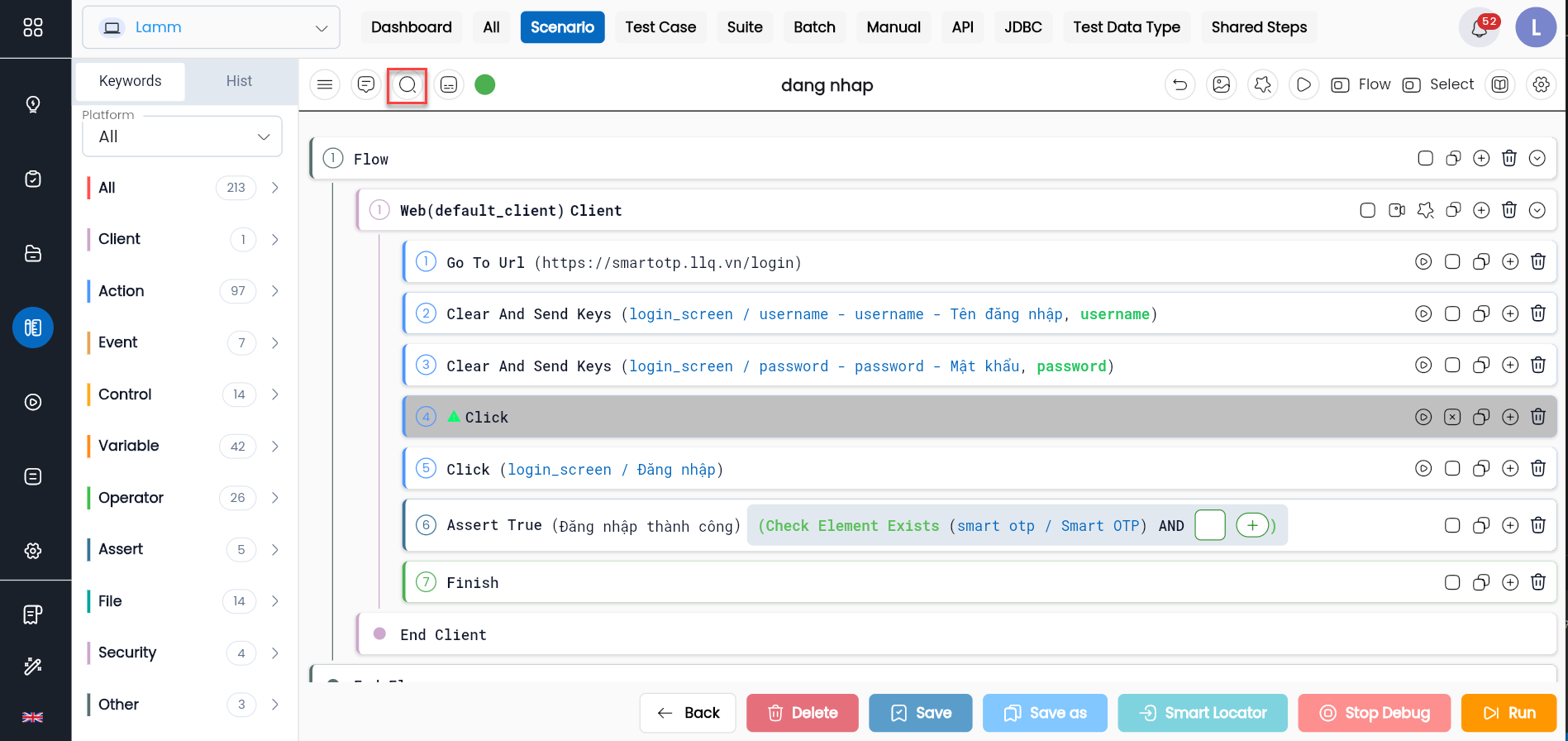
Step 2: Find and select the keyword of the configuration step you want to find.
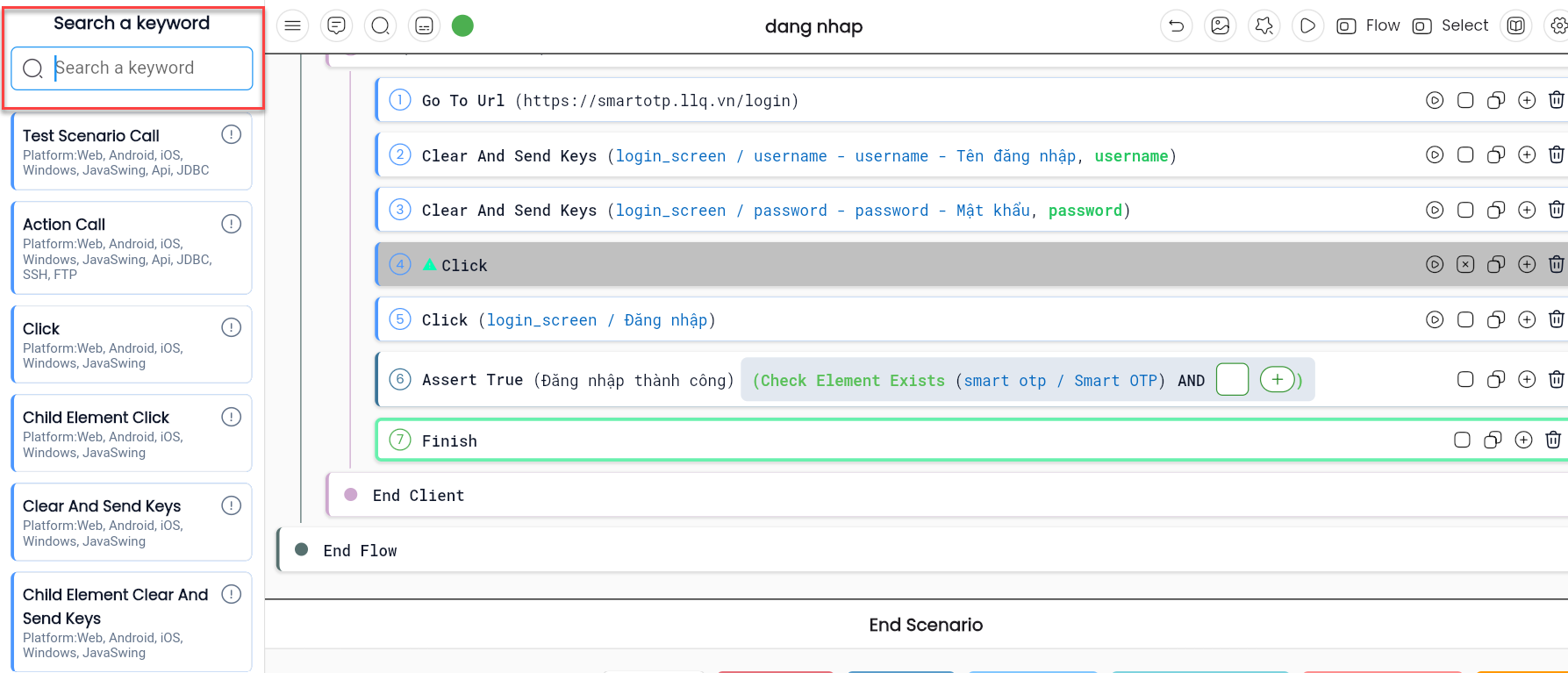
Step 3: The system will display a list of configuration steps using that keyword along with complete information for each step.
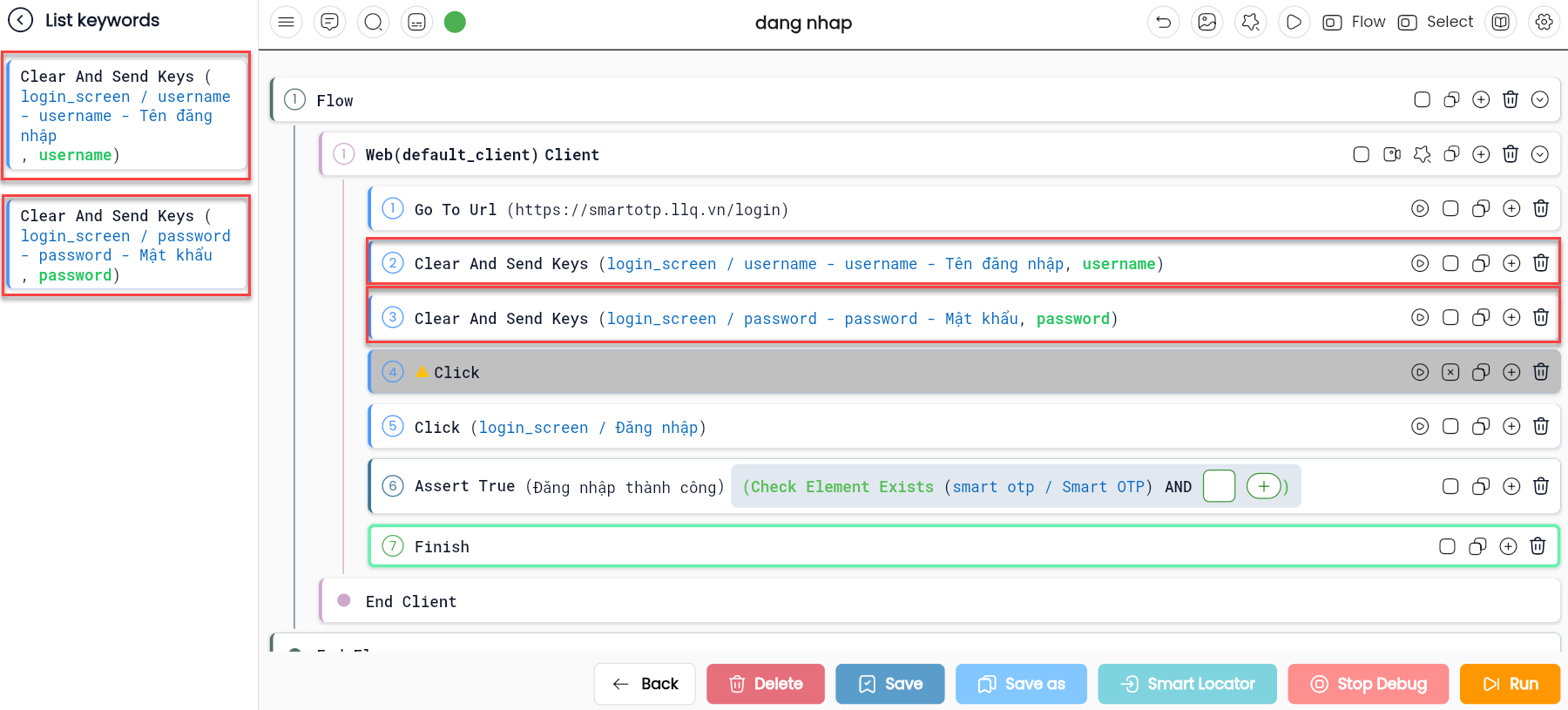
Step 4: Click on the configuration step you want to find. The system will navigate to the selected configuration step.
History & Rollback
Each time a configuration is updated or modified, the history is saved, allowing users to revert to a previous version of the configuration.
Note: After editing, users must save to create a history.
To rollback to the configuration before editing, follow these steps:
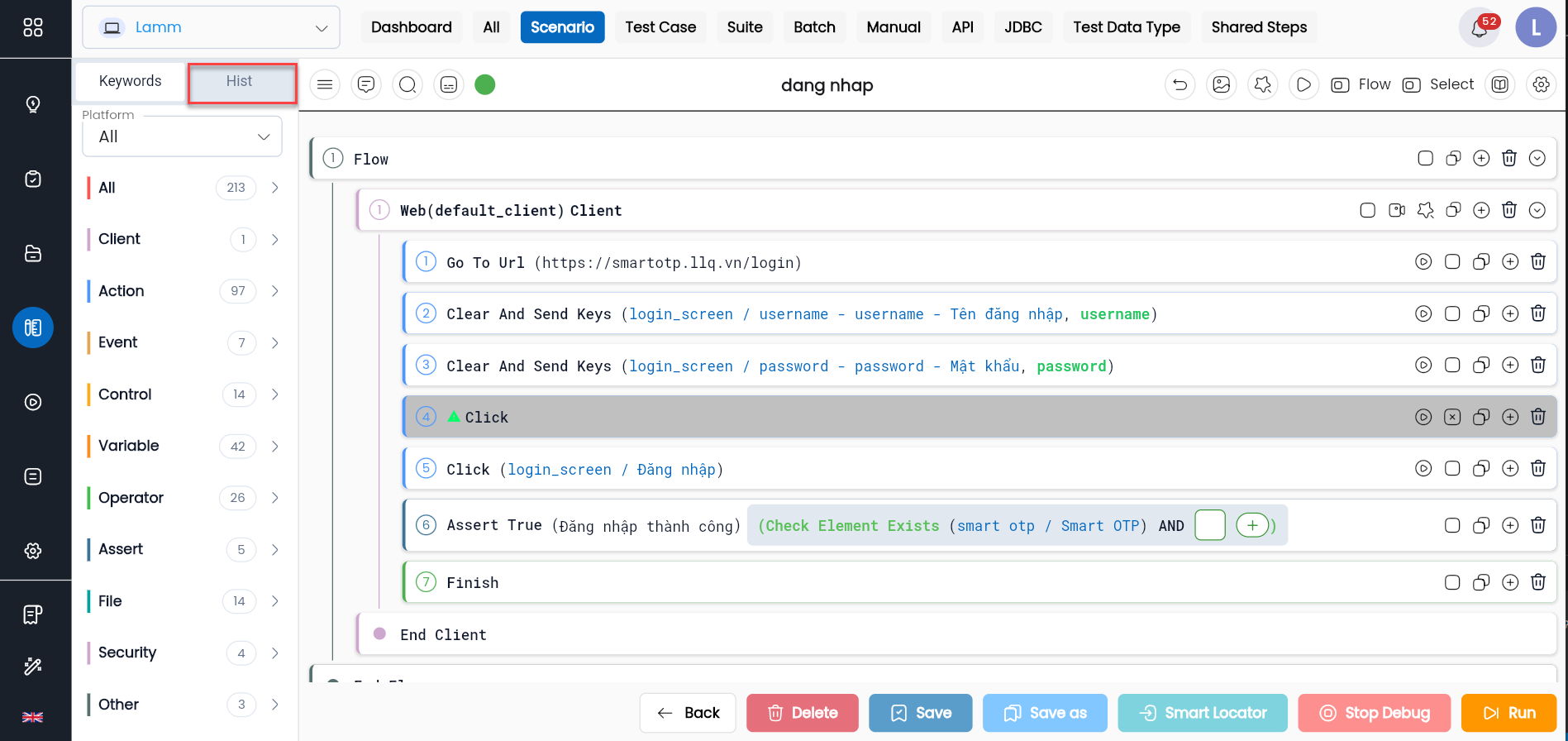
Step 1: On the configuration interface, click the HISTORY tab.
Step 2: Select and click on any edit you want to rollback. The system highlights the selected version and displays the configuration steps of that version in the config frame.
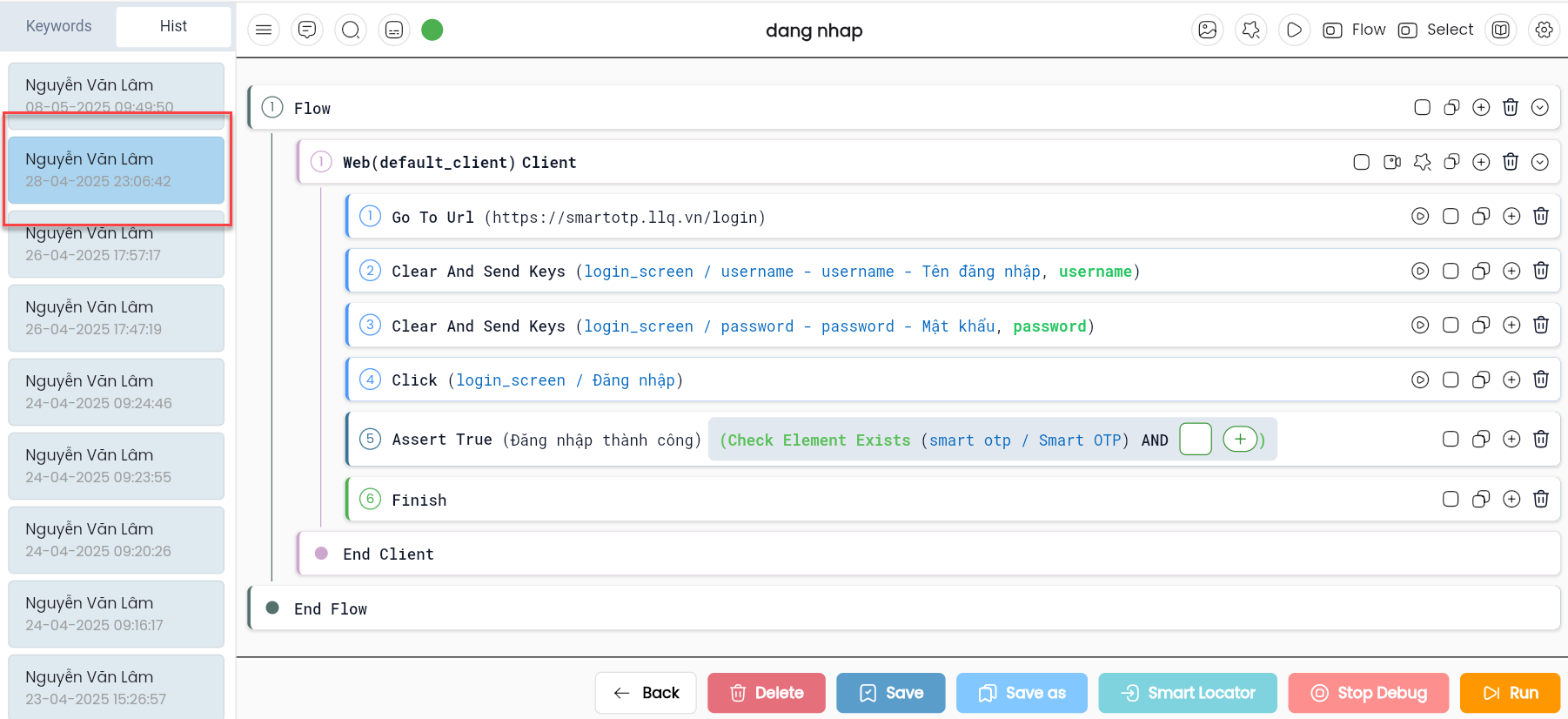
Note: The saved history is unlimited. Any past edit that users want to rollback can be accommodated.
Mode Flow
Flow mode is a mode that only displays the keyword as Flow, while all other configuration steps will be hidden when this mode is activated.
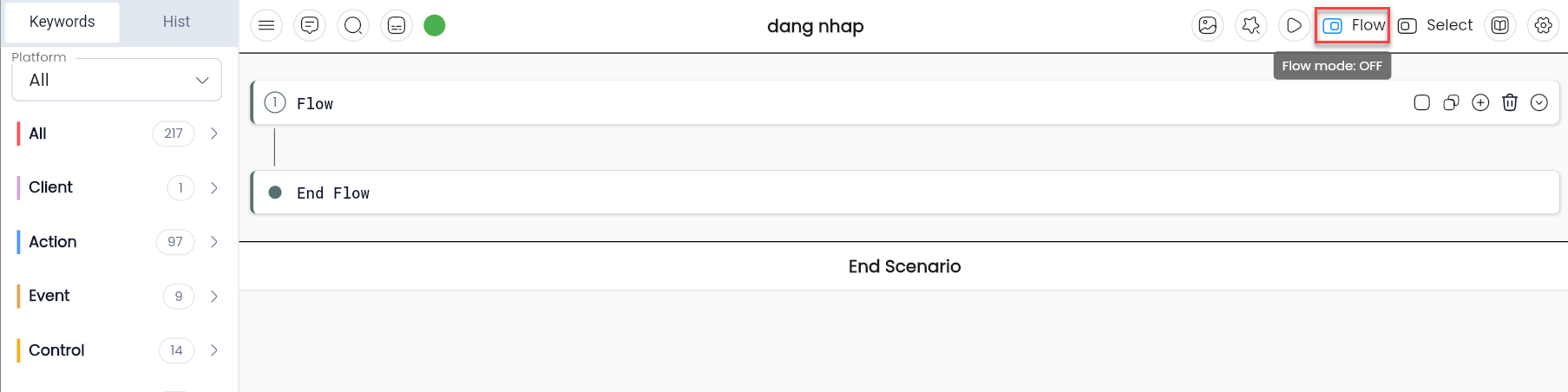
Flow mode is typically used when users want to input the execution flow for the testing scenario first. The member responsible for the configuration will look at the flow information to determine how to configure the testing scenario correctly and accurately.
To activate the Flow display mode, do the following:
On the configuration interface, toggle the switch from left to right.

Copying One or a Group of Configuration Steps
Users can copy/paste one or a group of configuration steps from one location to another within a test scenario or from one test scenario to another. Copying/pasting significantly reduces the time spent configuring repeated steps.
Step 1: On the configuration interface, click the Copy icon at the configuration step you want to copy.
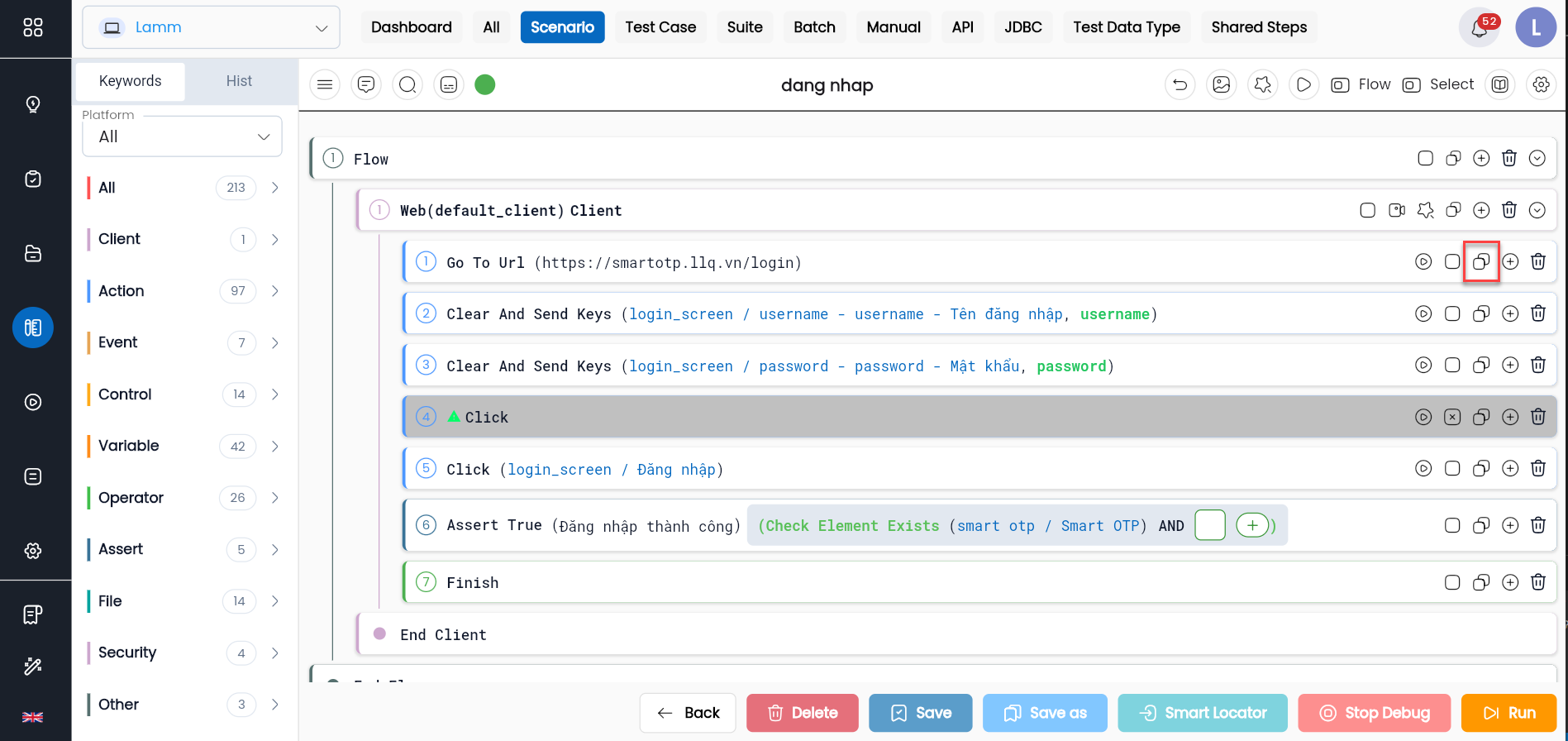
Step 2: After copying, the Drag to paste button will appear.

Step 3: Drag and drop the copied step/group of steps to the appropriate position. Drag from the Drag to paste button.
Quickly Duplicating a Keyword
In cases where multiple consecutive steps use the same keyword, the system provides a quick Duplicate feature for a keyword, allowing users to quickly add a keyword without needing to find and drag it from the keyword list.
On the configuration interface, click the Duplicate button at the keyword you want to add.
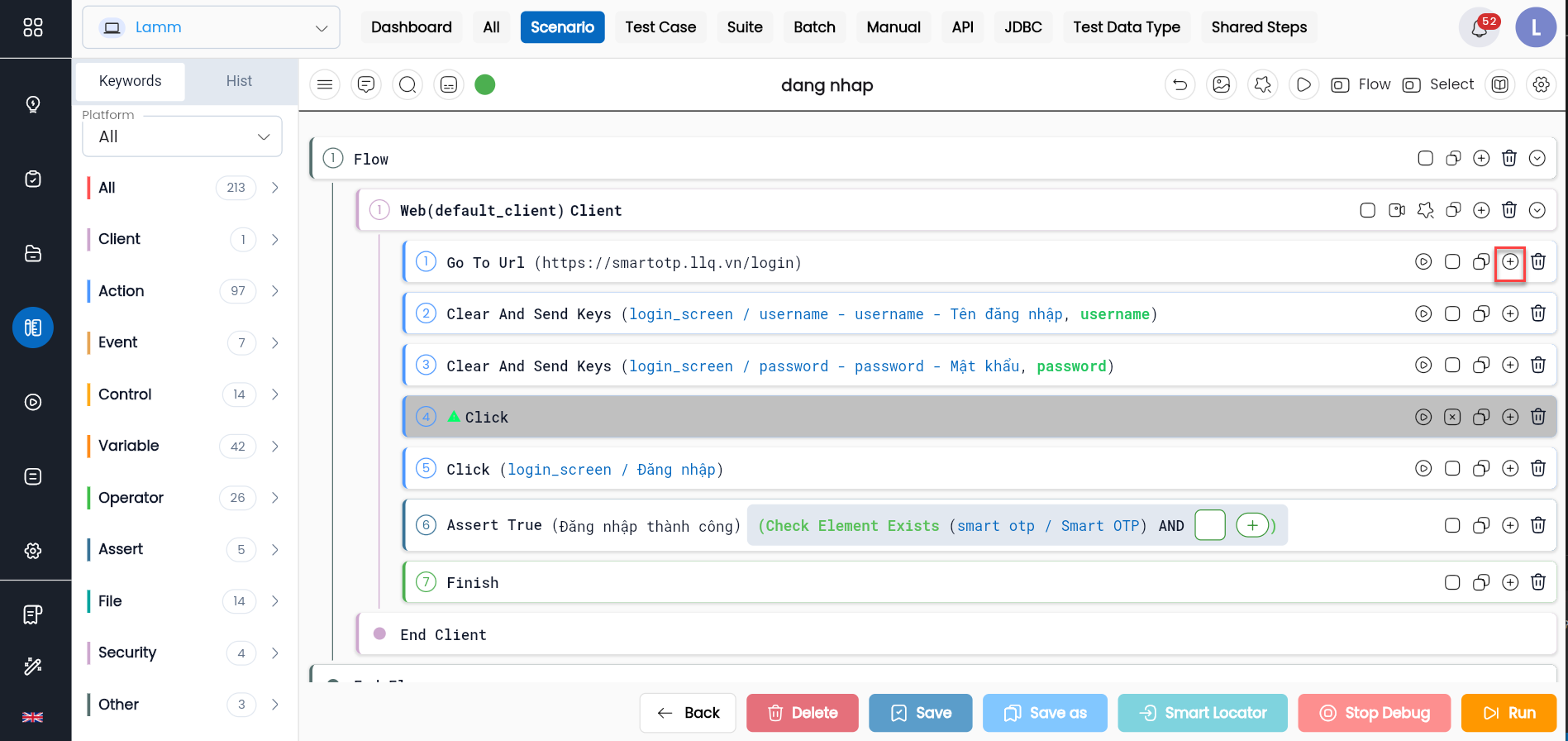
After clicking, the keyword will be added right below the step you just duplicated.
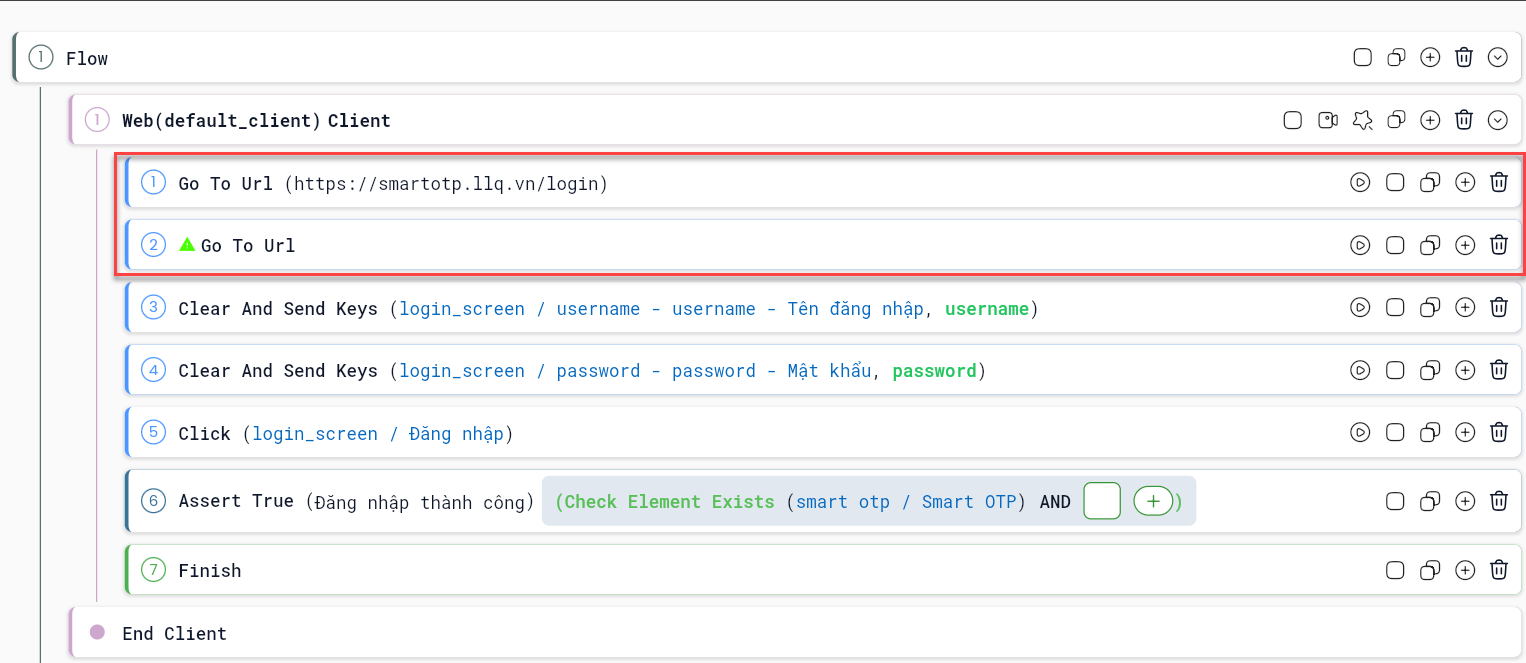
Disabling a Keyword in Configuration
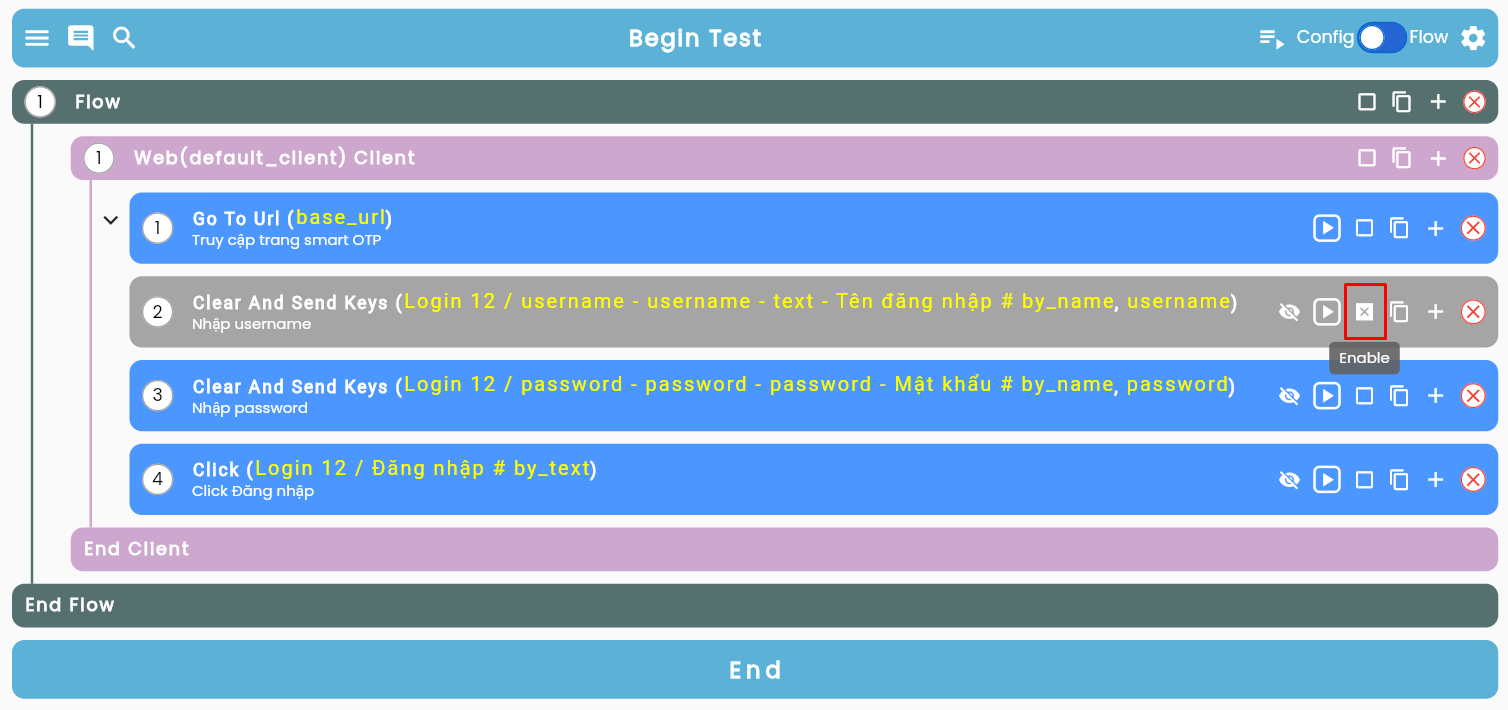
In the configuration of the testing scenario, there are steps that users want to exclude during execution, but are not sure about it. The system has a Disable tool that allows users to temporarily disable a keyword without needing to delete it from the configuration.
On the configuration screen of the testing scenario, click the Disable icon corresponding to the step you want to disable.
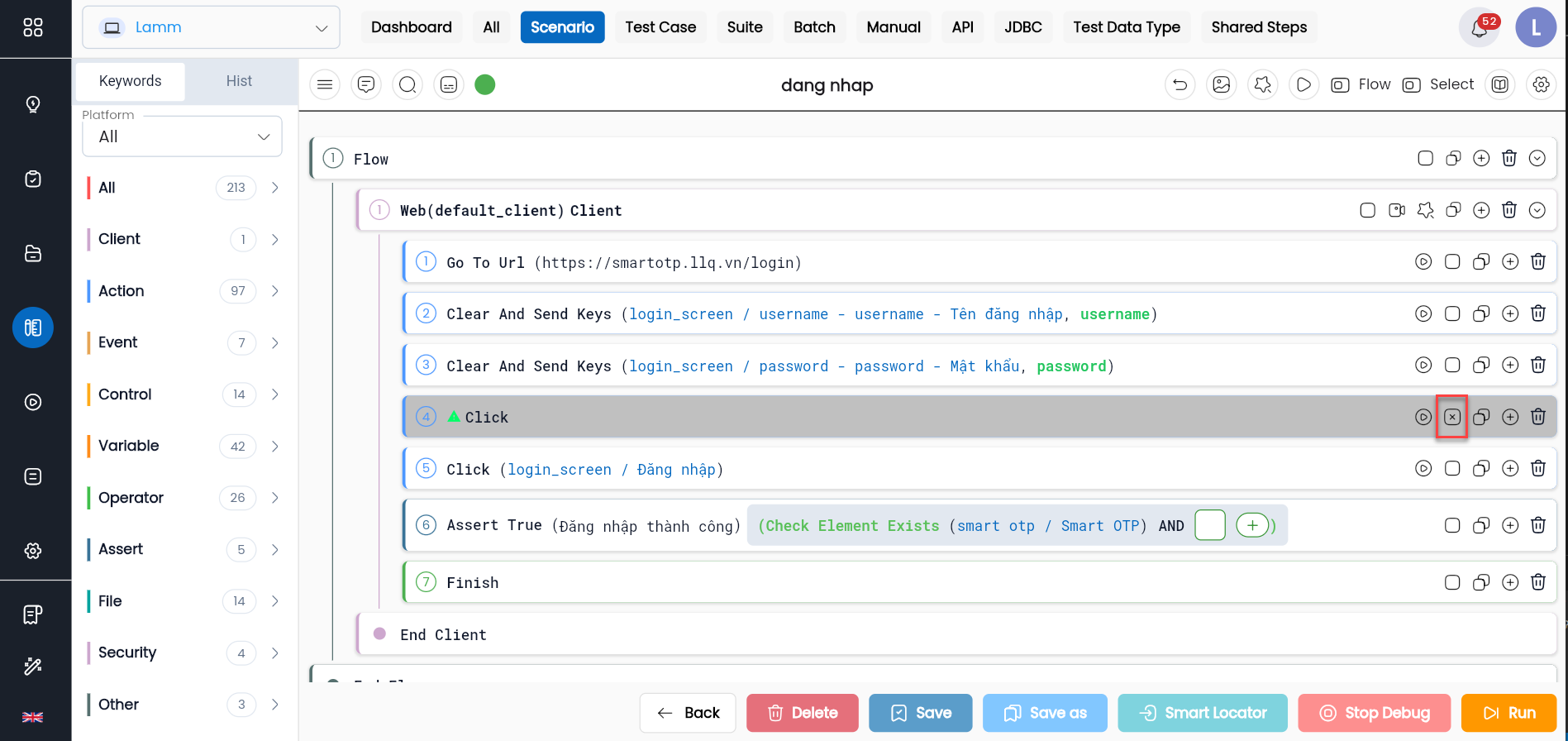
The system will change the color of the disabled step. To reactivate a step that has been disabled, users click the Enable icon.