Test Execution
Overview of Test Execution
This section guides how to execute tests in the Centralized Automation Testing Suite. Users can execute test cases, test suites, or batch test executions. Users can also choose to execute test cases in parallel or sequential execution mode.
The supported testing environments in the Centralized Automation Testing Suite are:
-
Browsers:
- Chrome
- Firefox
- Microsoft Edge
- Safari
- Internet Explorer
-
Headless browsers: Test the functionality of the website without a GUI
- Chrome (headless)
- Firefox (headless)
- Microsoft Edge (headless)
- Learn about headless browser execution
-
Mobile:
- Android
- iOS
Ensure that Developer mode on the phone is enabled. Select the Android and iOS platforms before starting the Agent to launch the connected devices. If the device cannot be launched, reconnect the cable until you receive a prompt asking to accept/trust this device.
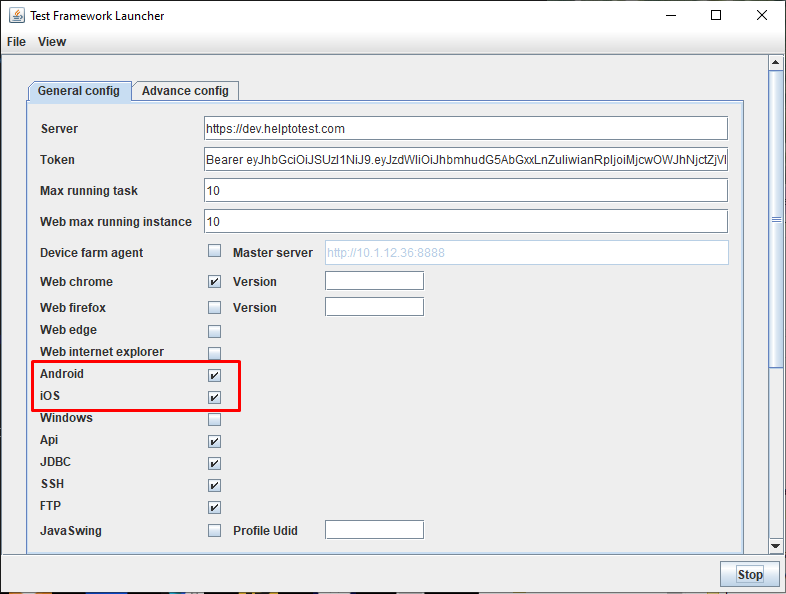
Before executing on mobile devices, check if the environment is set up for mobile execution on Windows or macOS.
- Windows: Ensure that Developer mode on the computer is enabled. Select the Windows platform before starting the Agent.
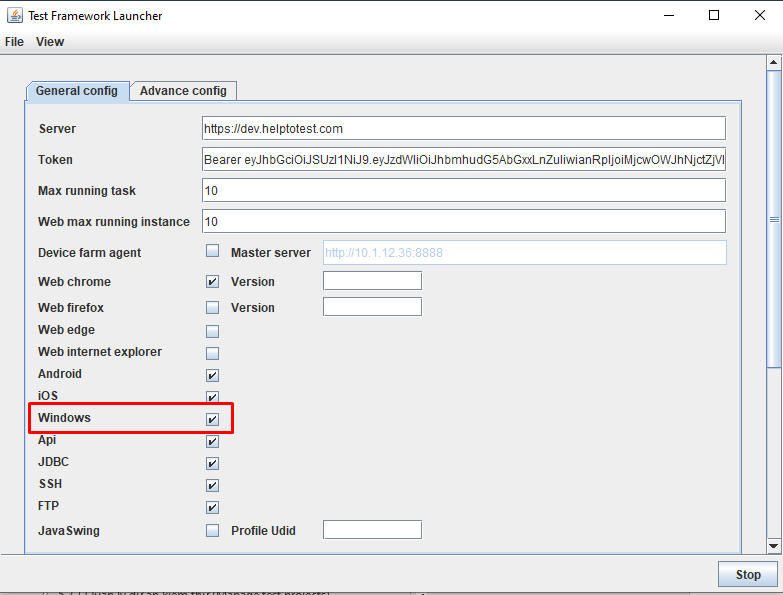
Executing Test Scenarios
To execute a test scenario, follow these steps:
Step 1: Select a test scenario from the list, click the ⋮ icon on the left of the test scenario you want to execute.
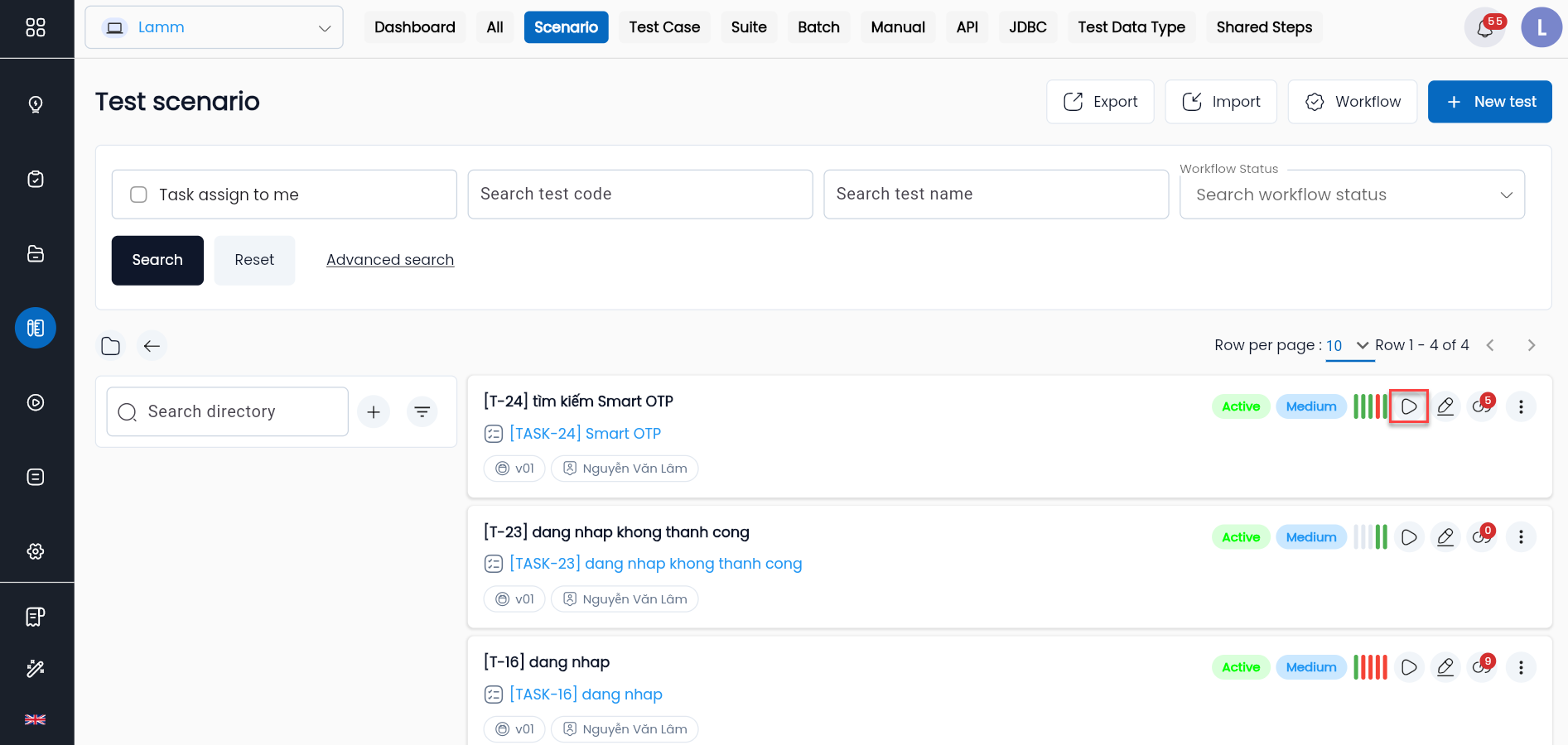
Step 2: Click Run on the displayed menu.
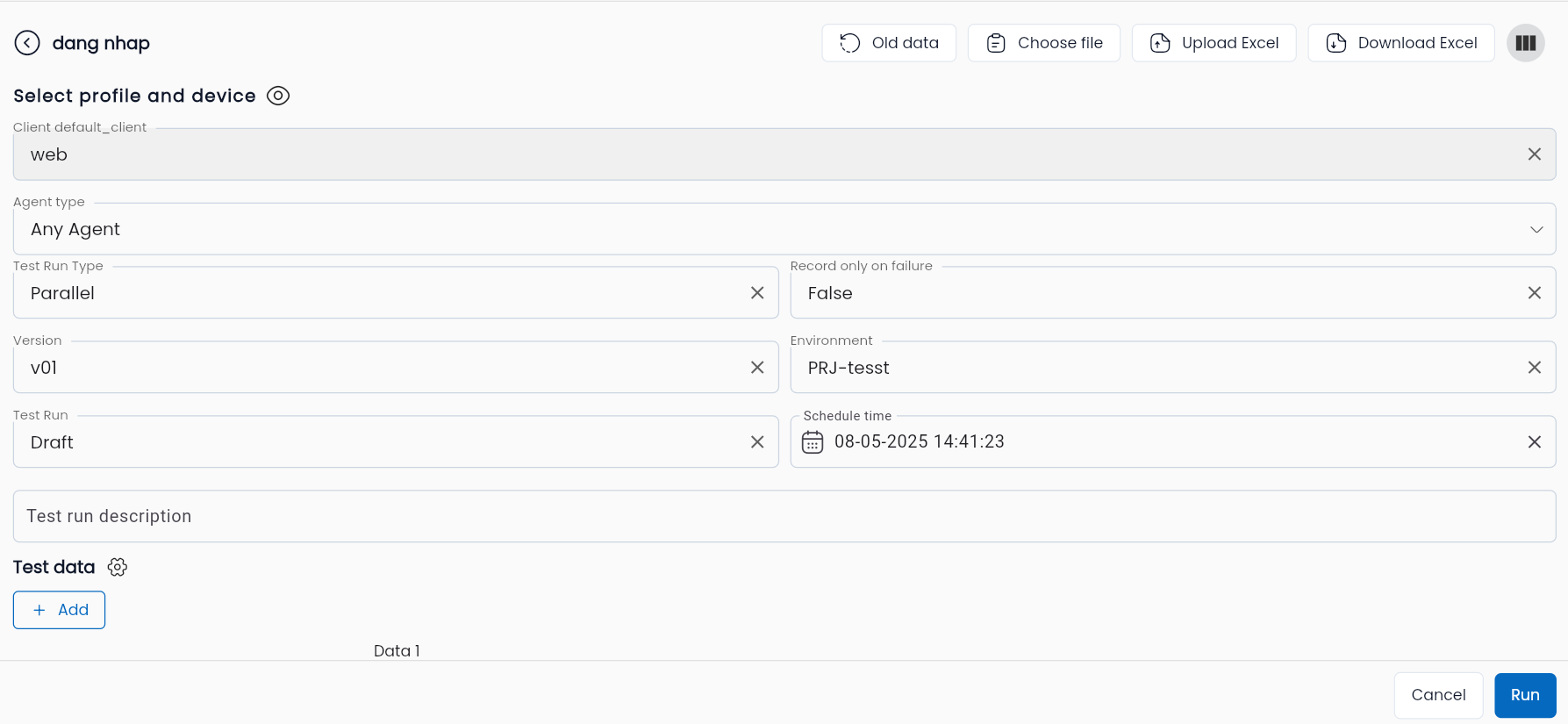
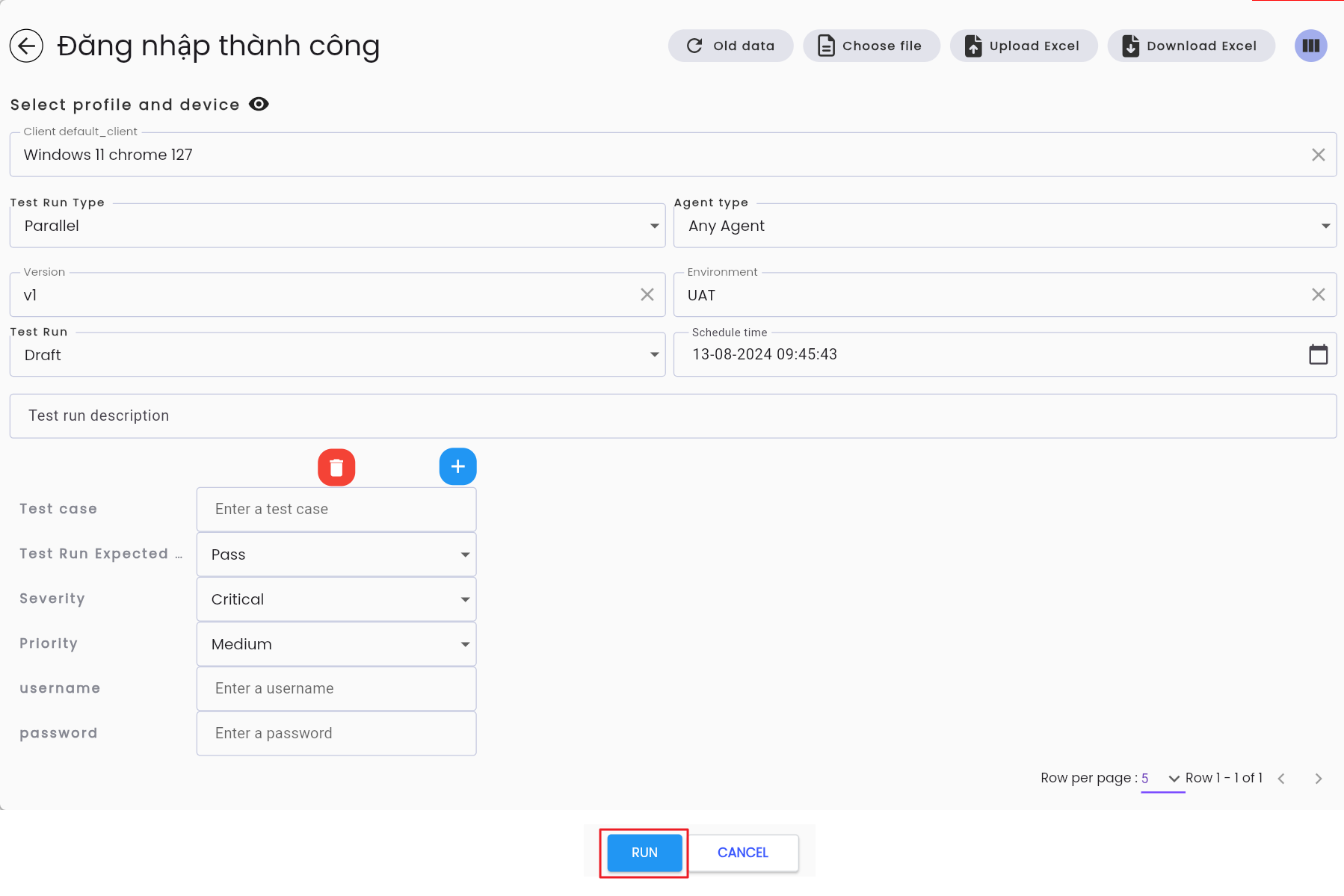
Step 3: Select the testing environment, type of Agent used, version, development environment, and whether the test run is Draft or Complete, and the device (if testing mobile) to execute.
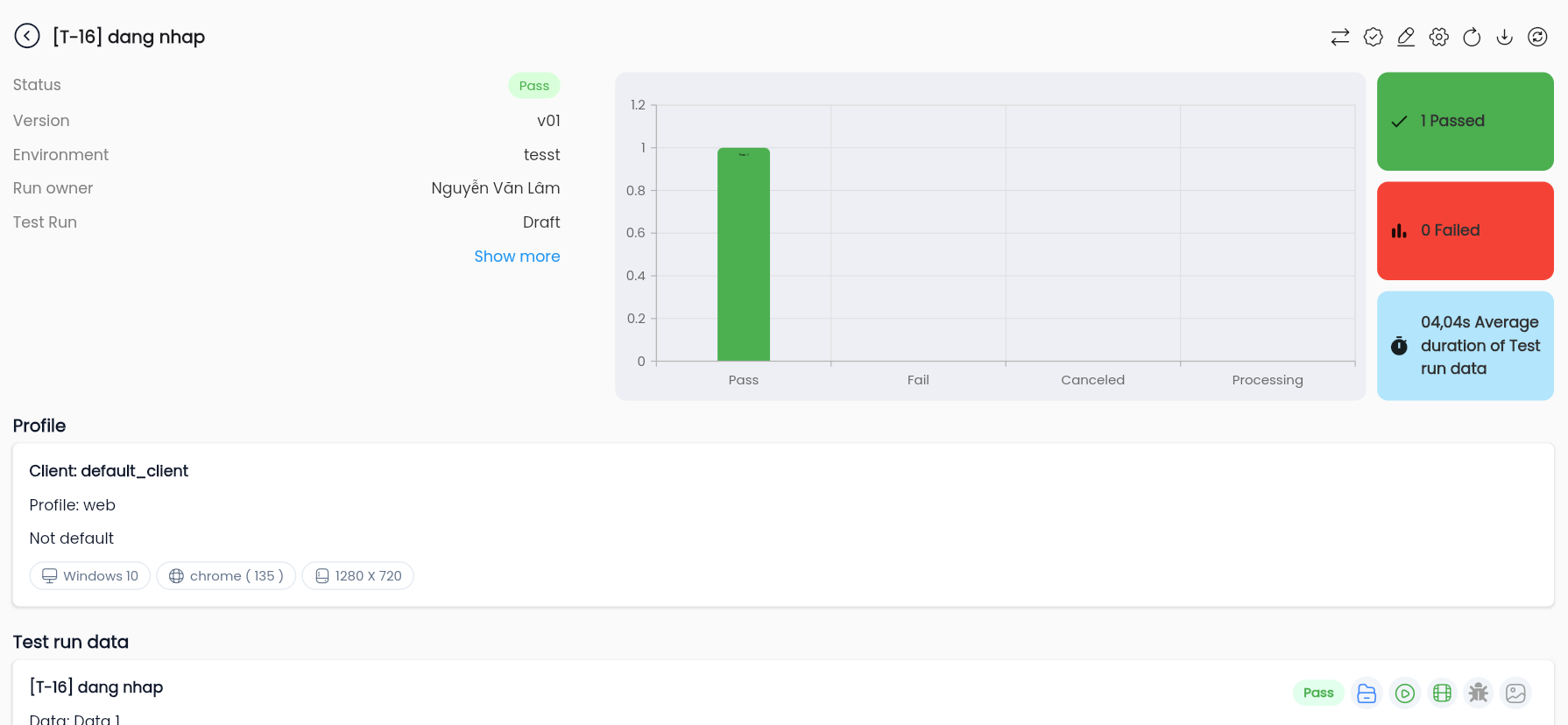
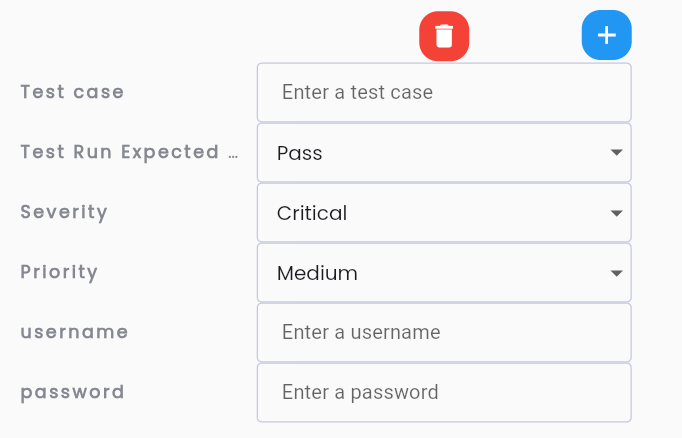
Step 4: Enter test data including the following information:
- Test case: the input data corresponds to which test case
- Test Run: Expected Result: Expected result is pass or fail
- Severity: the severity level of the error if the final result is fail
- Priority: the priority level of the error
- Parameters of the test scenario
Step 5: Click Run and wait to see the results
Data-driven testing
Data-driven testing is executing a test scenario with multiple lines of different data. The Centralized Automation Testing Suite allows users to perform data-driven testing at all levels, including: test cases, test scenarios, and test suites.
Step 1: Select a test scenario from the list, click the "⋮" icon at the bottom left of the test scenario you want to execute.

Step 2: Click Run on the displayed menu.
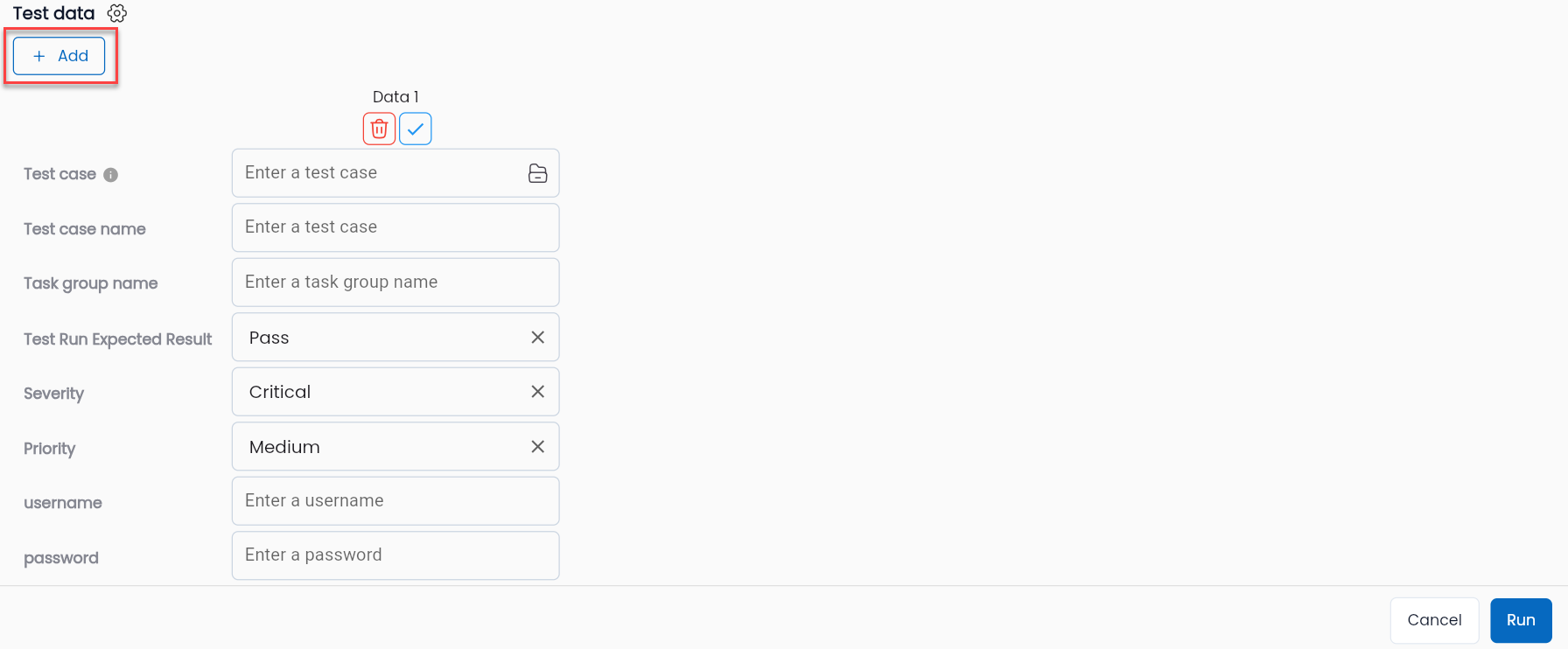
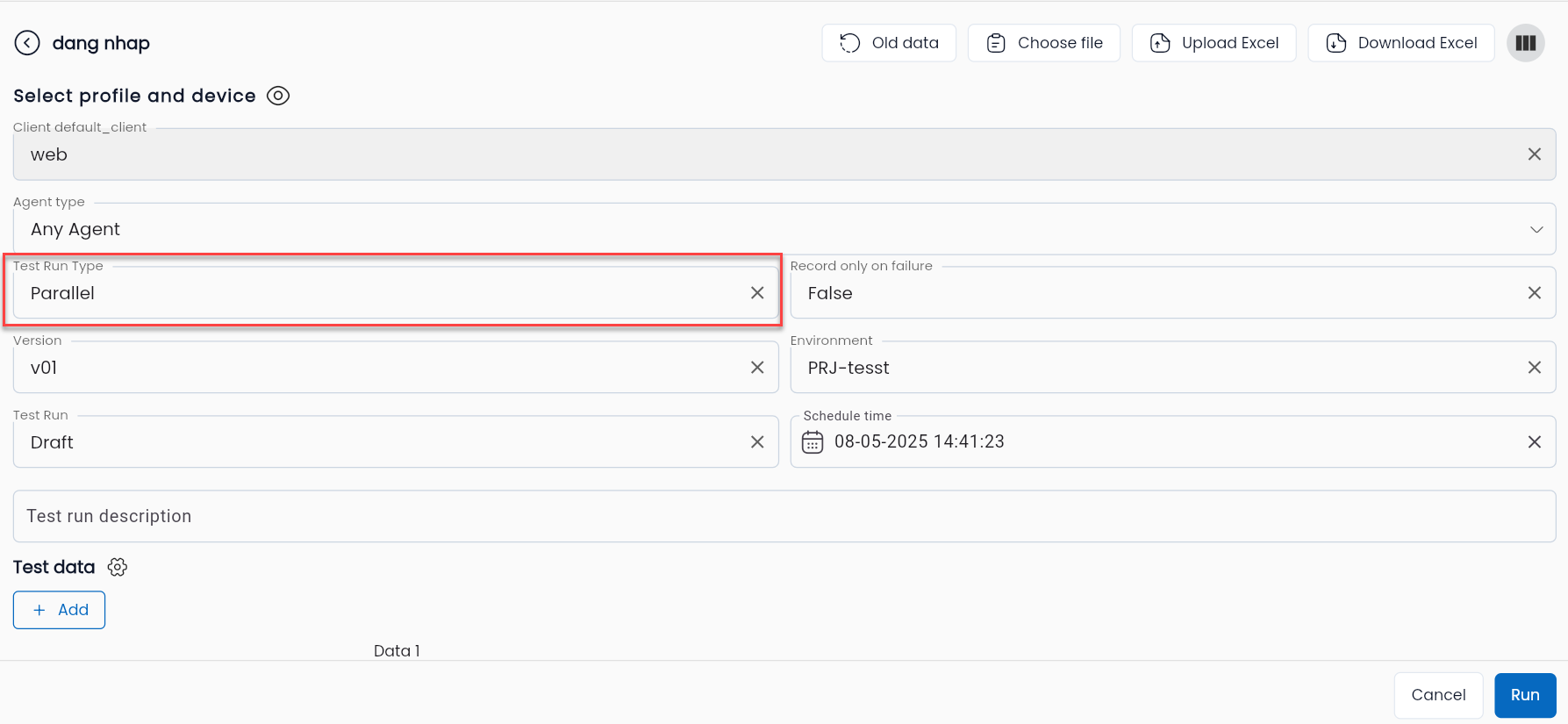
Step 3: Select the environment, type of Agent used, version, development environment to execute, device (if testing device), and select the execution mode as parallel (select Test run type as Parallel)
Step 4: Click the Add button to add input data lines or Upload an Excel file with data.
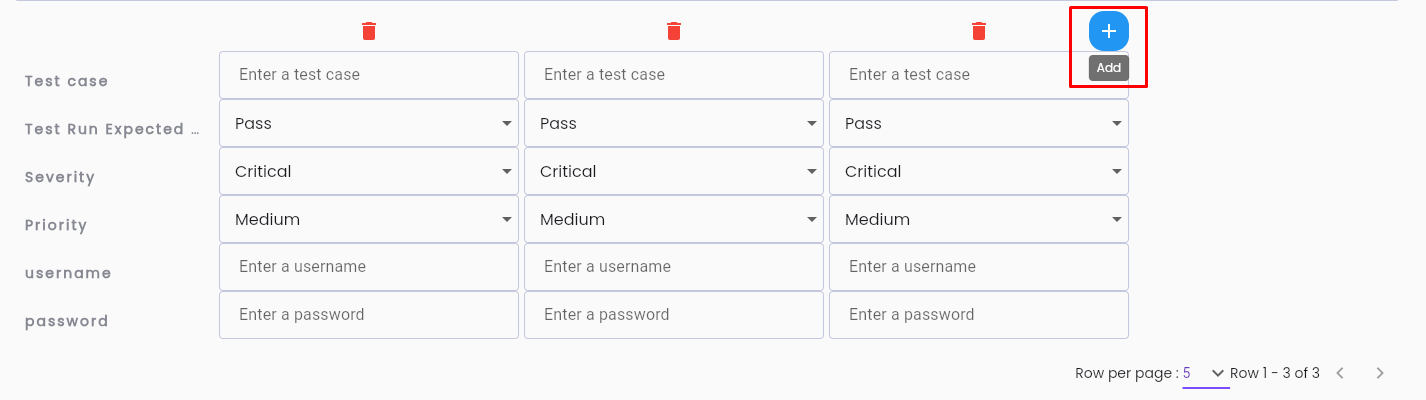
Step 5: Enter test data including the following information:
- Test case: the input data corresponds to which test case
- Test Run Expected Result: Expected result is pass or fail
- Severity: the severity level of the error if the final result is fail
- Priority: the priority level of the error
- Parameters of the test scenario
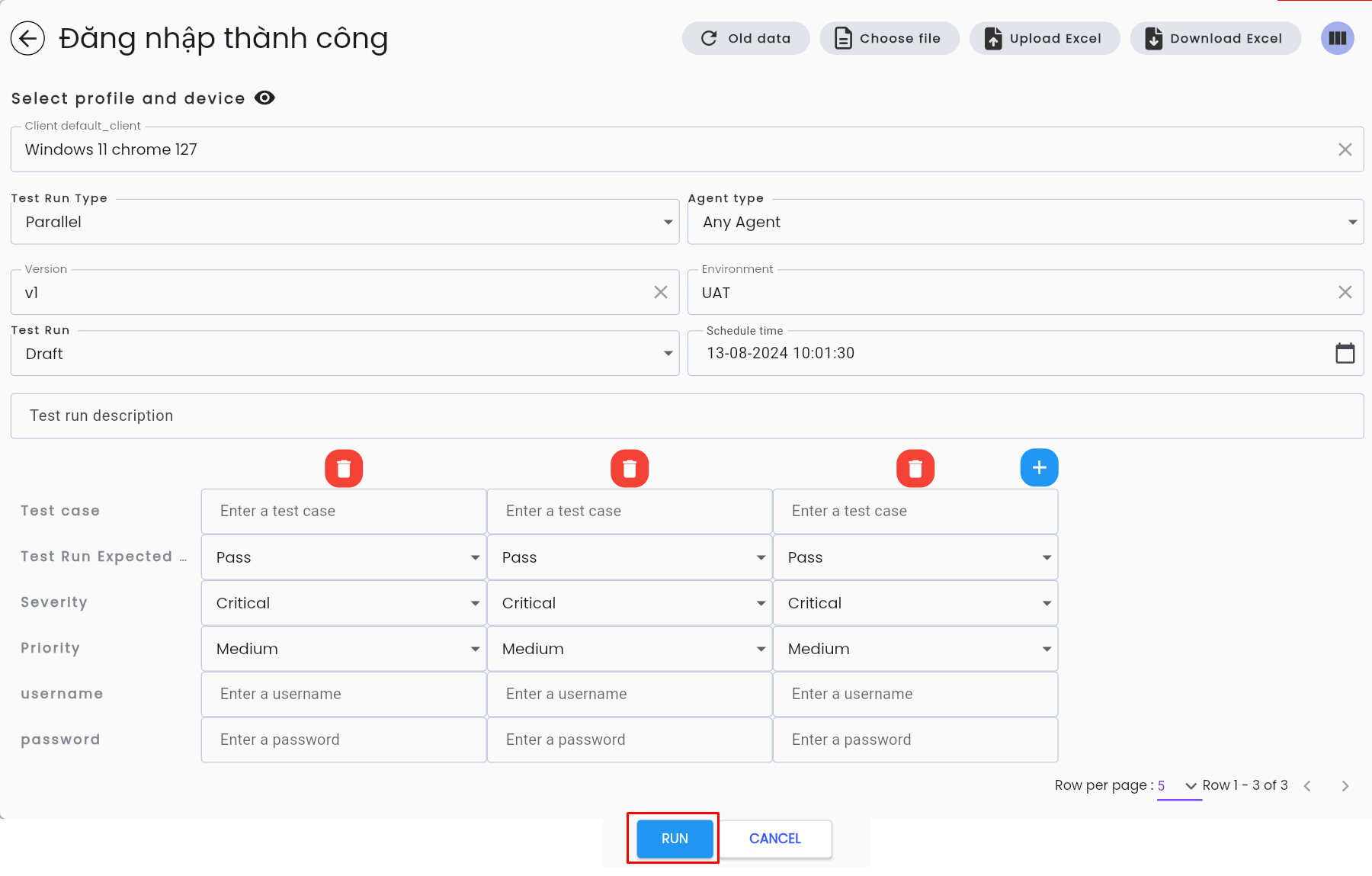
Step 6 : Click Run and wait to see the results.
Executing Headless Browsers
Headless browsers are web browsers without a graphical user interface (GUI).
The main advantage of using headless browsers is faster execution speed compared to using real browsers. The Centralized Automation Testing Suite supports execution on headless browsers for Chrome, Firefox, and Microsoft Edge.
Executing tests using headless browsers is similar to executing with other types of browsers; users just need to select the correct profile that has been configured for headless browsers.
How to configure a web browser as a headless browser:
Step 1: Go to Setting > Profile
Step 2: Create a new or edit an existing profile
Step 3: In the Headless field, select TRUE to switch the browser to headless mode.
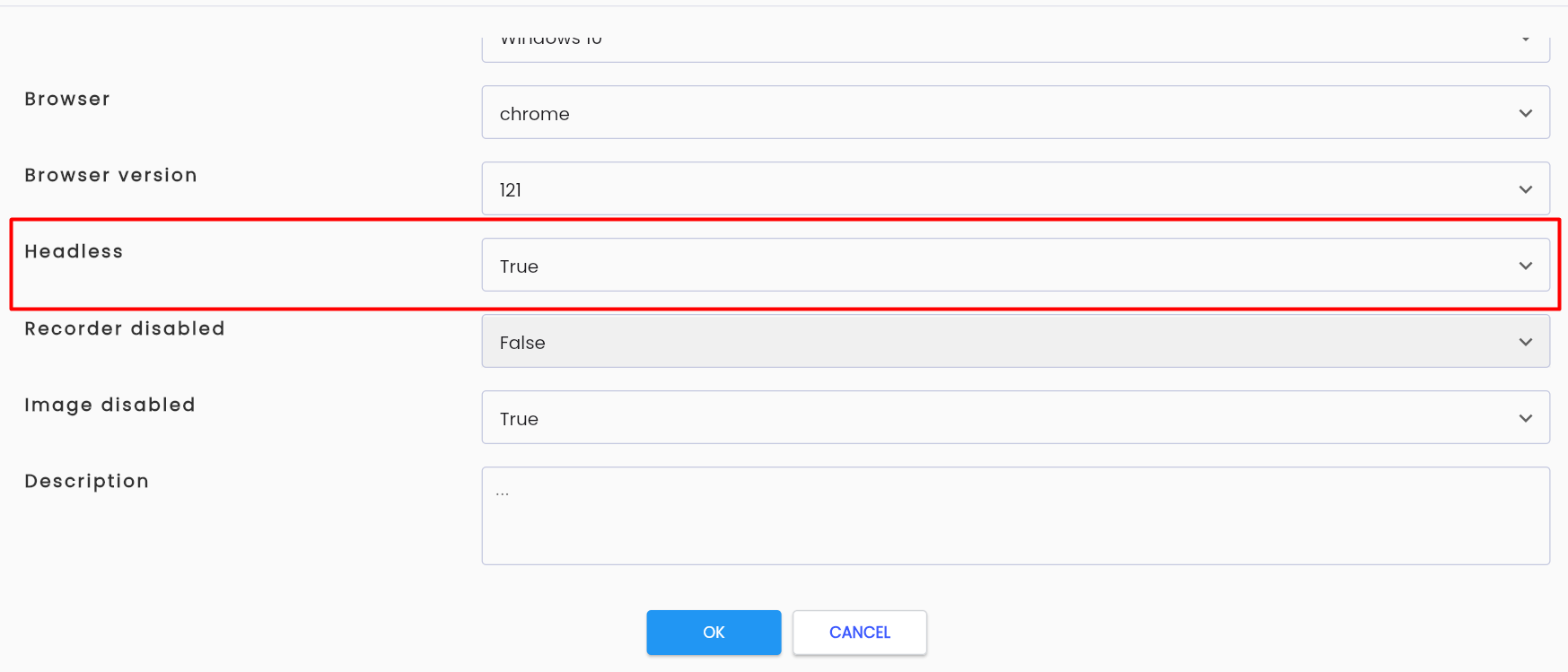
Step 4: Click OK to complete.
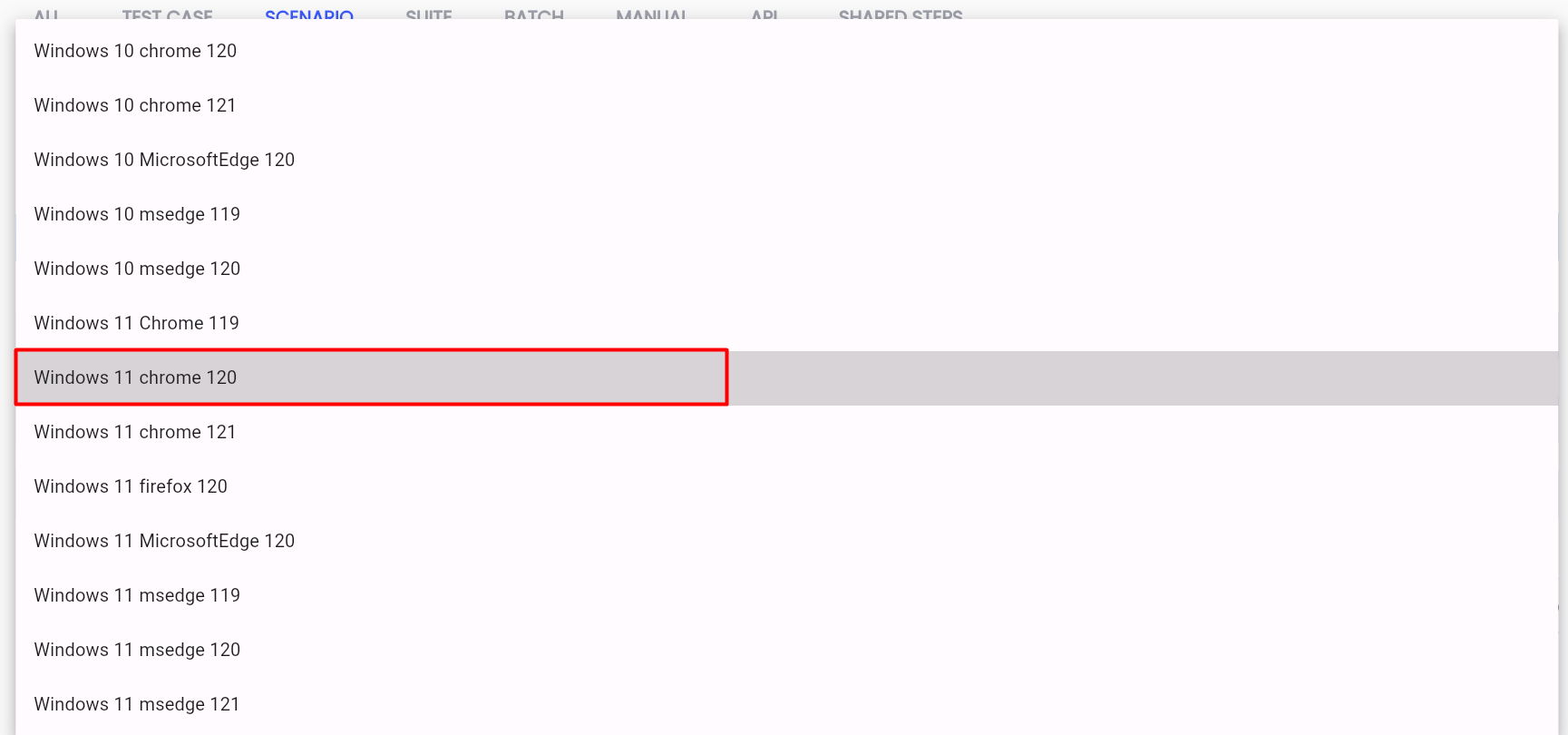
- How to execute using headless browsers On the execution screen, users select the testing environment (Profile) as the profile that has been switched to headless mode.
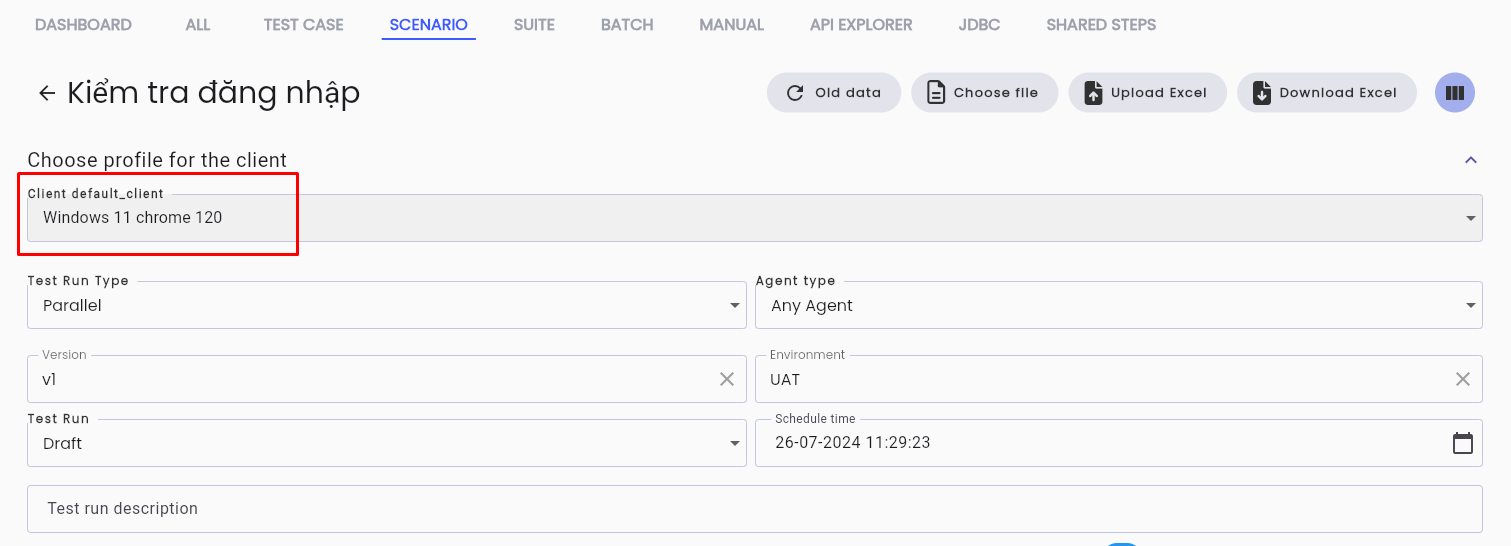
For example: Profile Windows 11 chrome 120 is a profile in headless mode; when executing, users will select that profile to execute tests using headless browsers.
Executing Batch Tests
Batch testing is simultaneously executing a group or all test scenarios as requested by the user to assess the risk of the application system before publishing a new version.
The Centralized Automation Testing Suite has developed the Test batch feature to facilitate batch testing. Learn more about test batch
Unlike executing individual test cases or test scenarios, when executing batch tests, users only need to select the test batch and click run. In a batch test, all data must be entered when adding to the test batch.
The default execution mode for batch testing is parallel.
To execute batch tests, follow these steps:
Step 1: Go to Test Lib > Batch
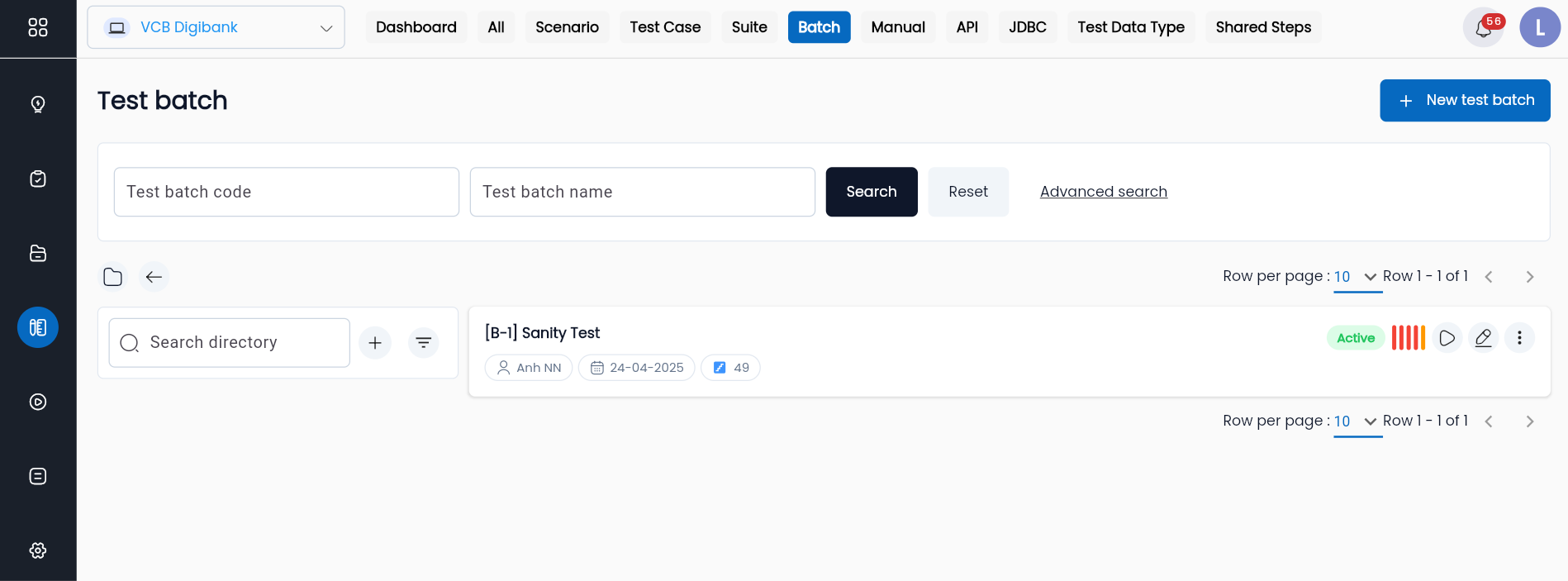
Step 2: Select a test batch from the list, click the ⋮ icon at the bottom left of the batch.
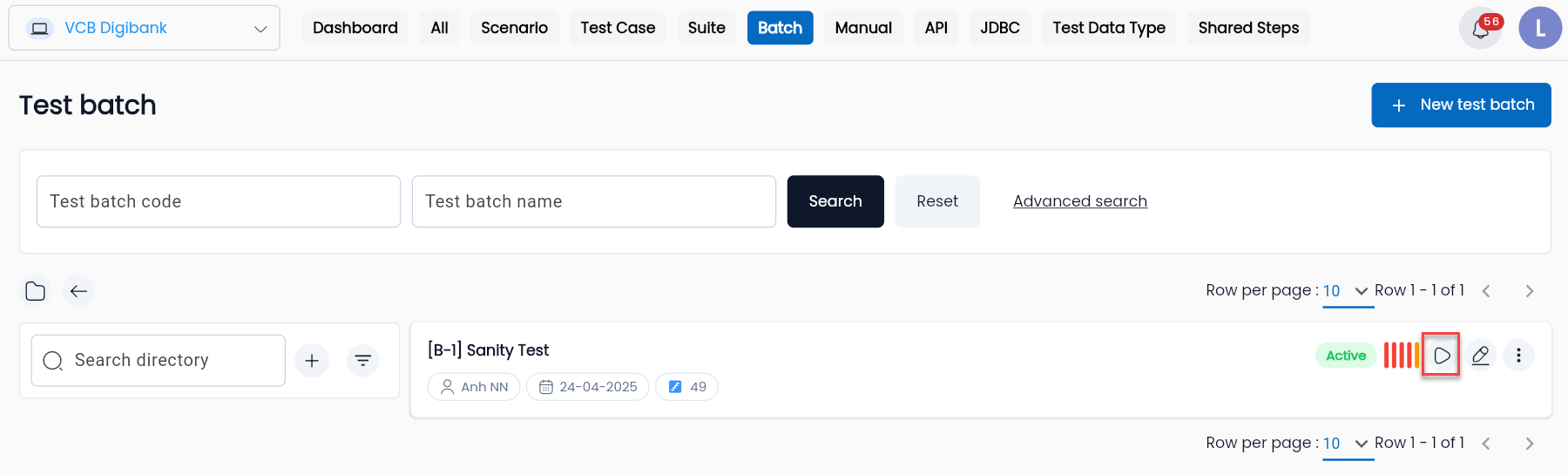
Step 3: Click Run on the displayed menu.
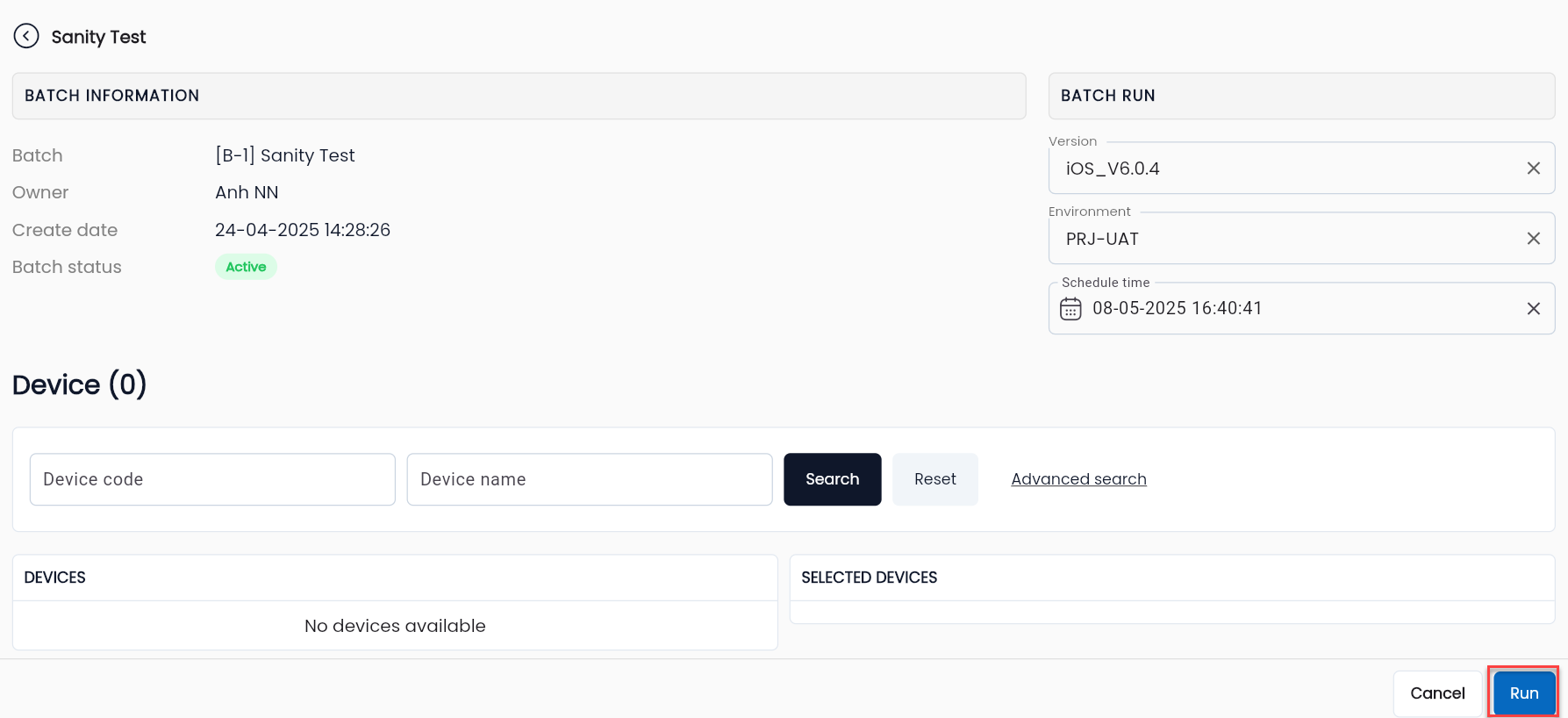
Step 4: Select Version and Environment for the batch.
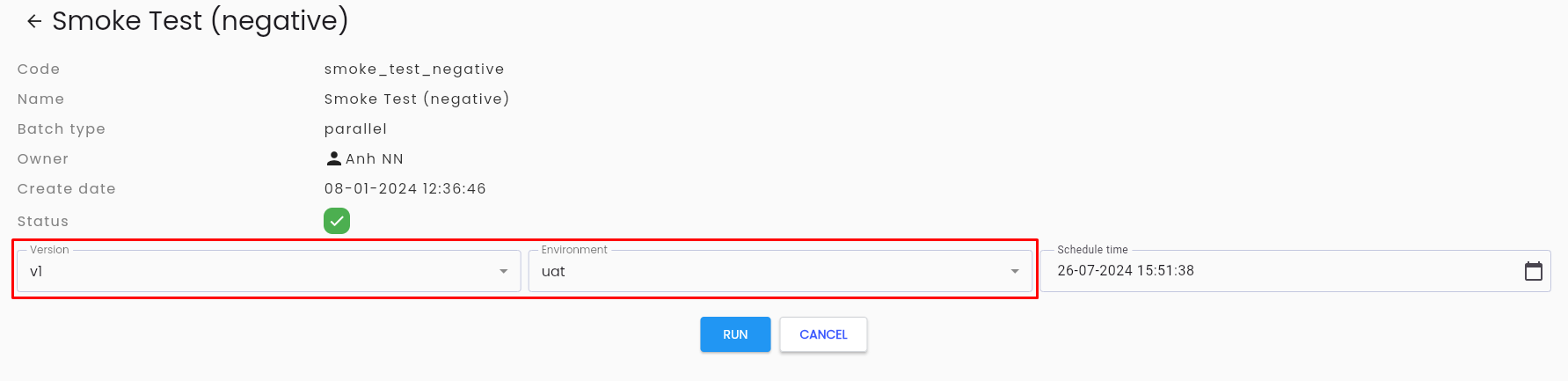
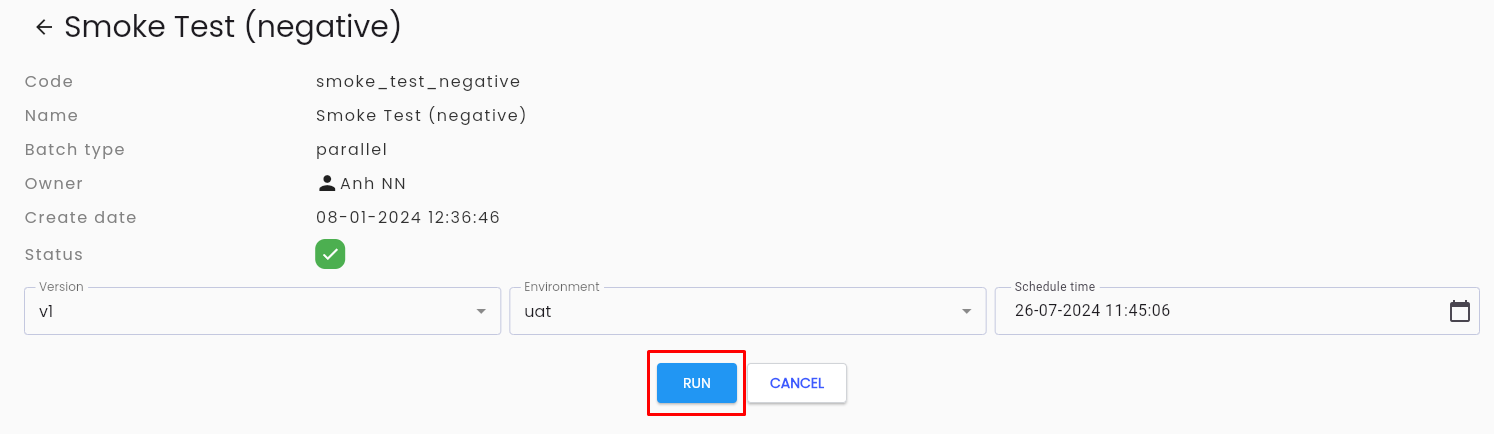
Step 5: Click Run on the screen to execute the test batch and wait for the results.
Scheduling Test Execution
Users can schedule test executions according to a predetermined schedule. After scheduling and running, the system will execute at the time the user has scheduled.
How to schedule test execution:
Step 1: On the execution screen of all types of tests, select the time you want to schedule through the Schedule time field.
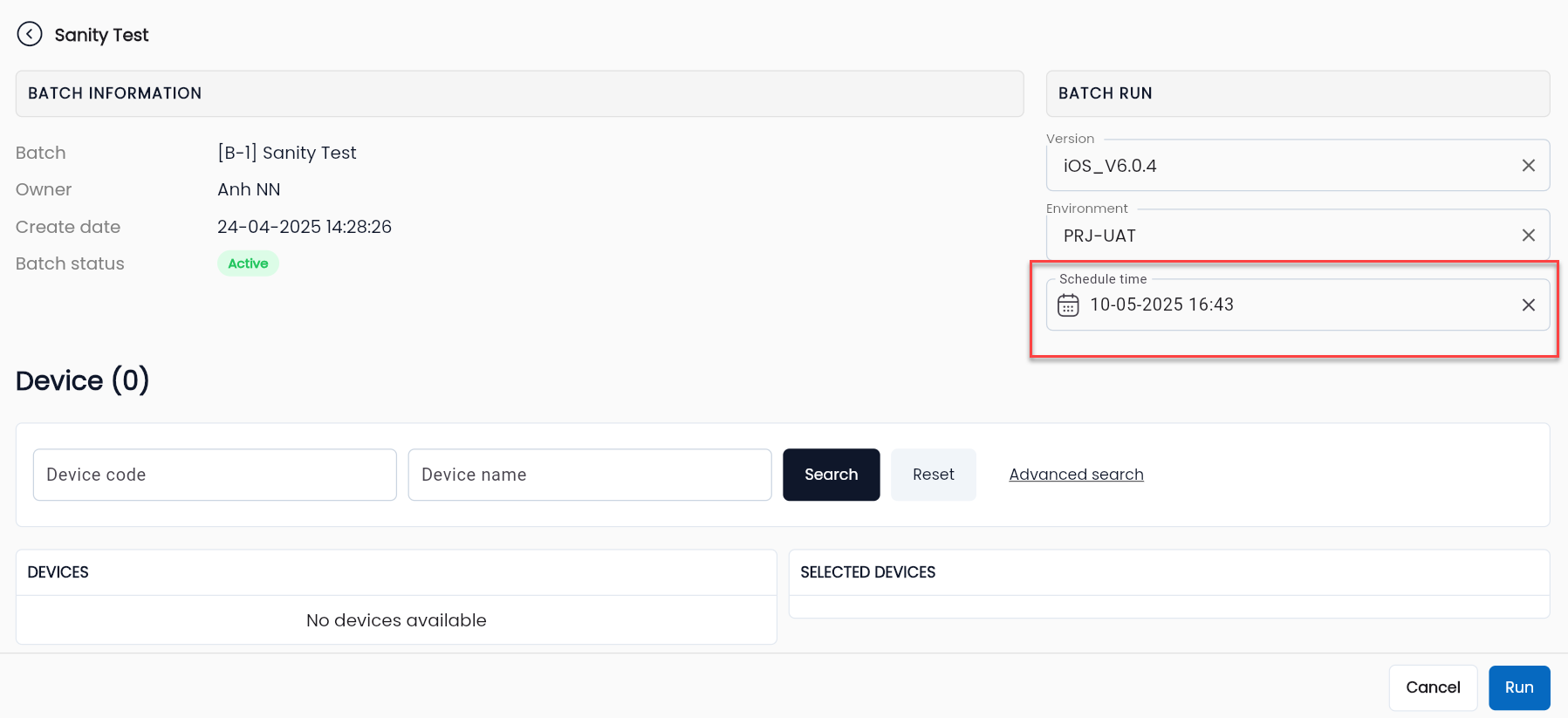
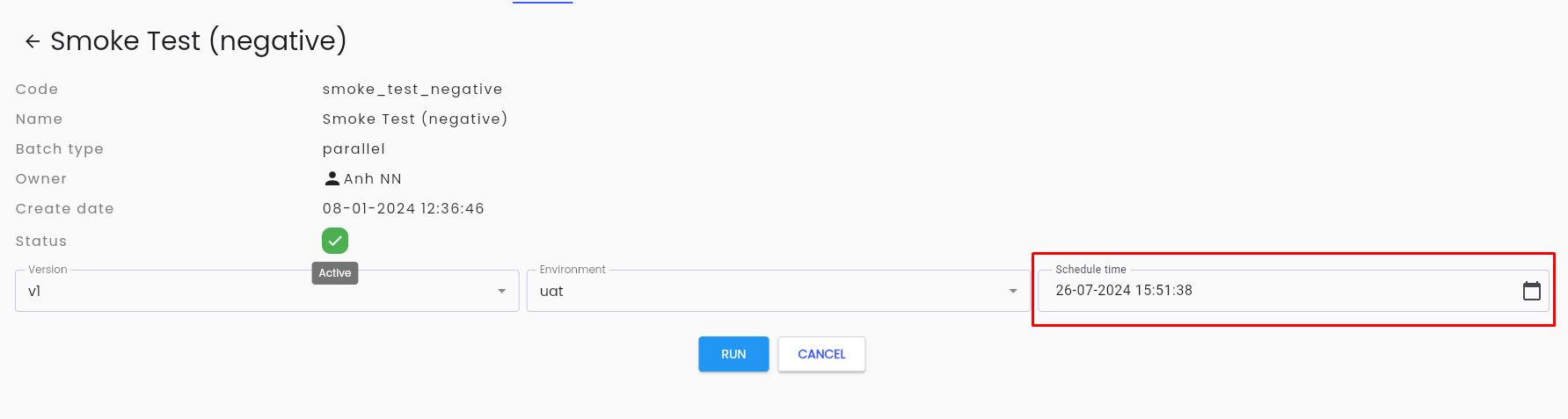
Step 2: Click Run, and at the scheduled time, the system will automatically execute the test.
Note: During the scheduled time, the Agent must always be in an Active state.
Data Entry Methods
In addition to manual data entry (directly entering data into the system), the Centralized Automation Testing Suite also has the following utilities to help speed up the data entry process:
- Data entry using Excel files
- Reusing old data from previous executions
- Selecting data files from the file management feature
Data Entry Using Excel Files
Step 1: On the execution screen, click the Download Excel button to download a sample file containing all parameters to your computer.
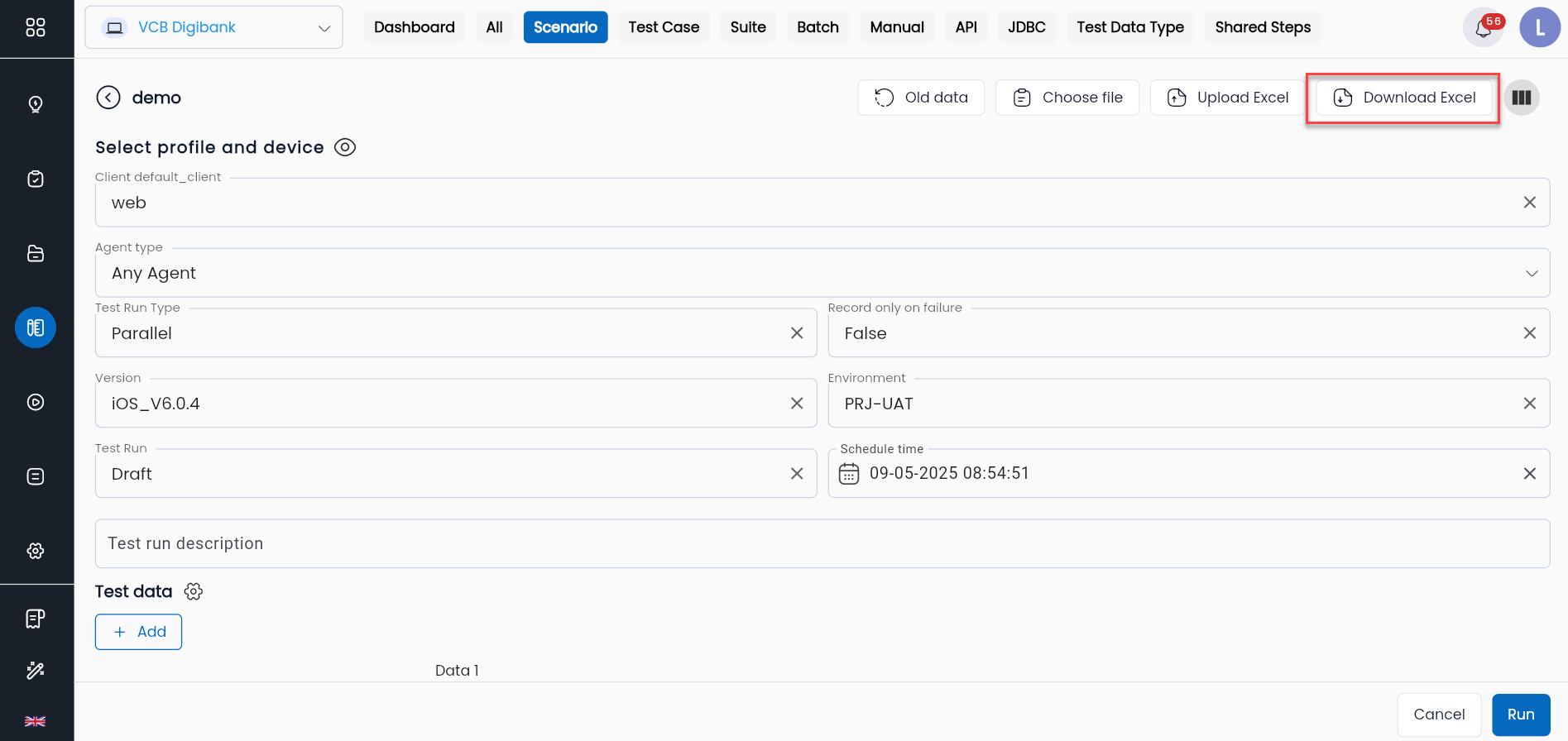
Step 2: Enter data into the downloaded Excel file.
Step 3: Click the Upload Excel button and select the Excel file you just entered data into. The data will be filled into the system. The number of rows in the Excel file will be pushed into the system.
Reusing Old Data from Previous Executions
Step 1: On the execution screen, click the Old data button.
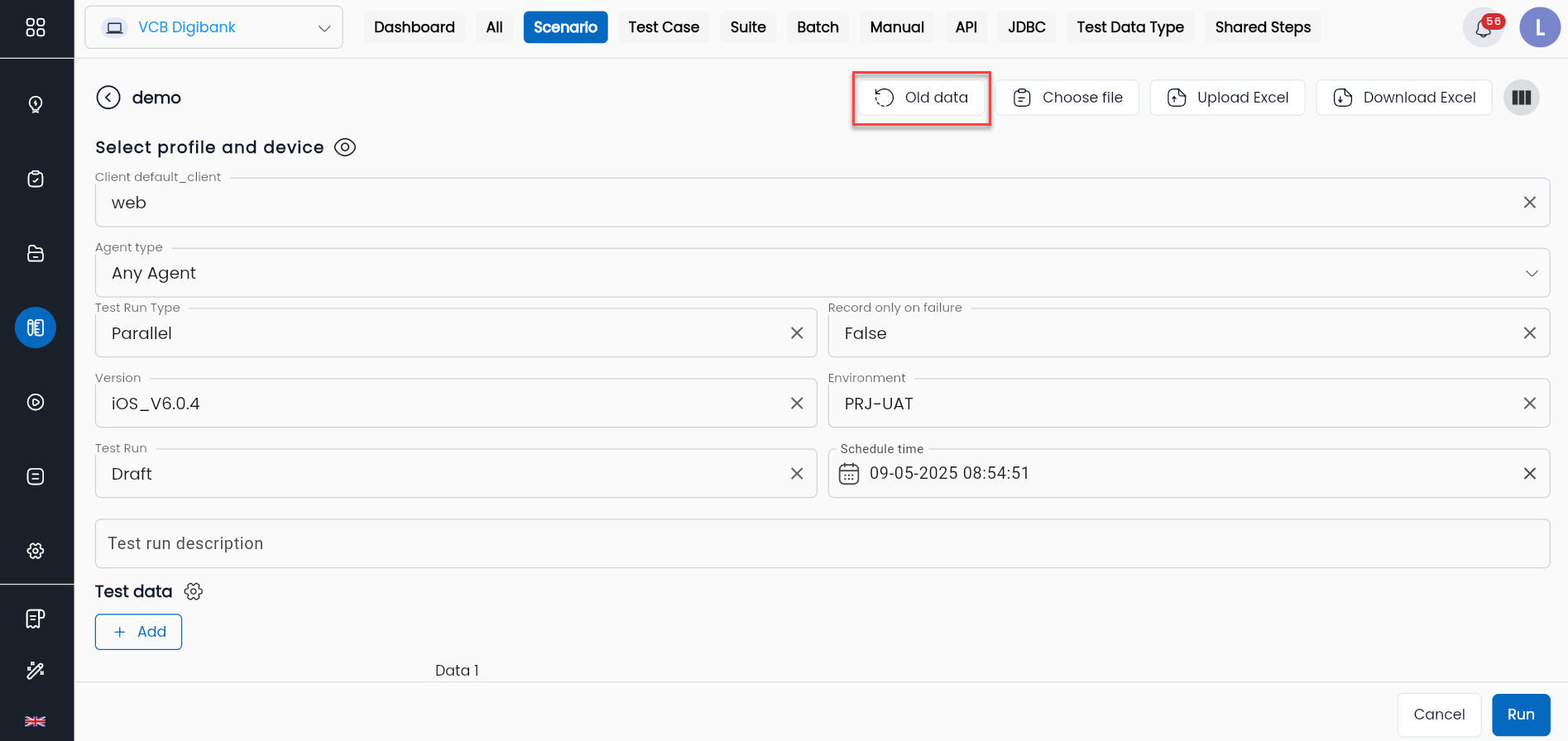
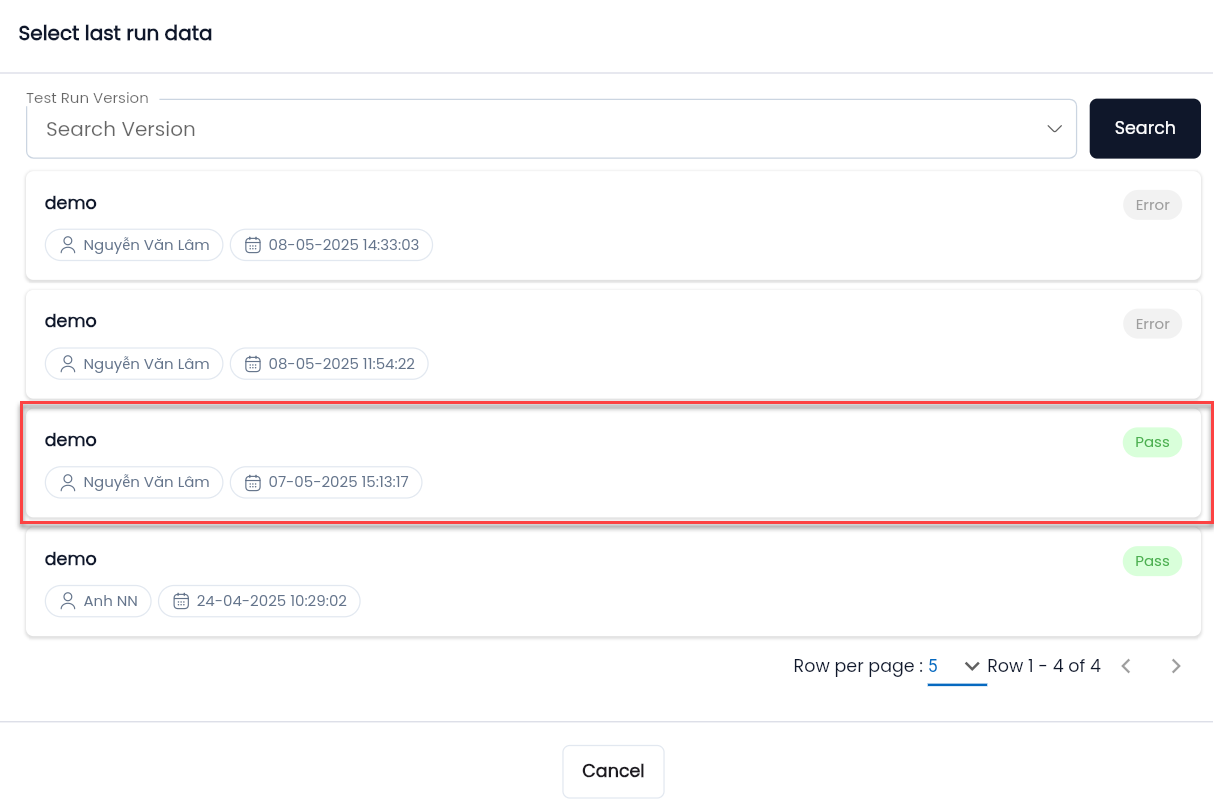
Step 2: The system displays a list of previous executions. Users find and select the execution they want to reuse the data from.
Selecting Data Files from the File Management Feature
Step 1: On the execution screen, click the Choose file button. (The image will be added) The system displays a list of available files. (The image will be added) Step 2: Select the appropriate data file. The data from the file will be filled into the system. The number of rows in the file will generate that many rows in the system.