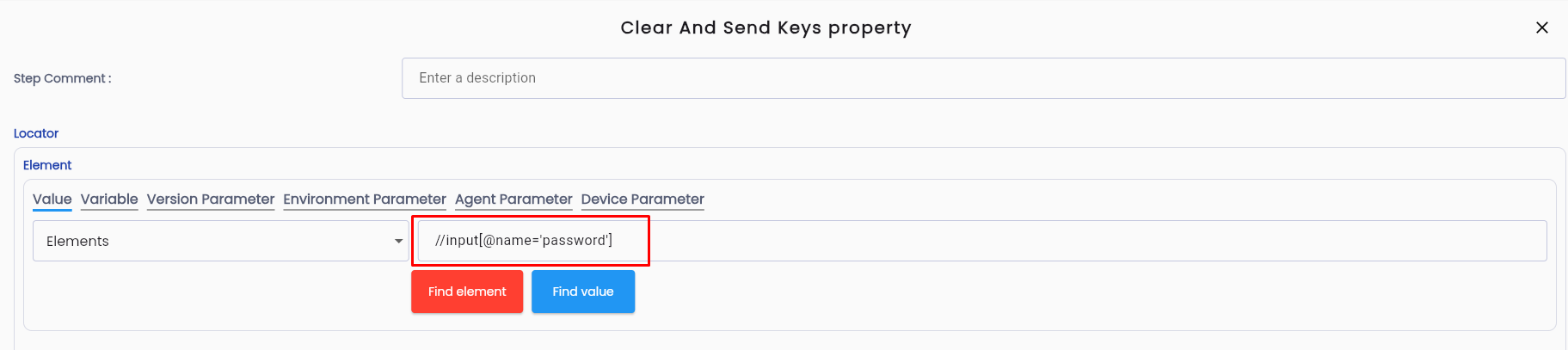
Identify the elements on the application screen that need to be tested
Using the Element Repository (Recommended)
Using elements stored in the repository for configuration minimizes the need for extensive updates when the ID or name of an element changes in the future. Instead of updating all test scenarios that use the element, you only need to edit the element in the repository. Test scenarios using that element will automatically update based on the changes, reducing the chance of configuration errors.
Steps to Use the Element Repository:
Step 1: Click on the keyword you have dragged and dropped onto the screen.
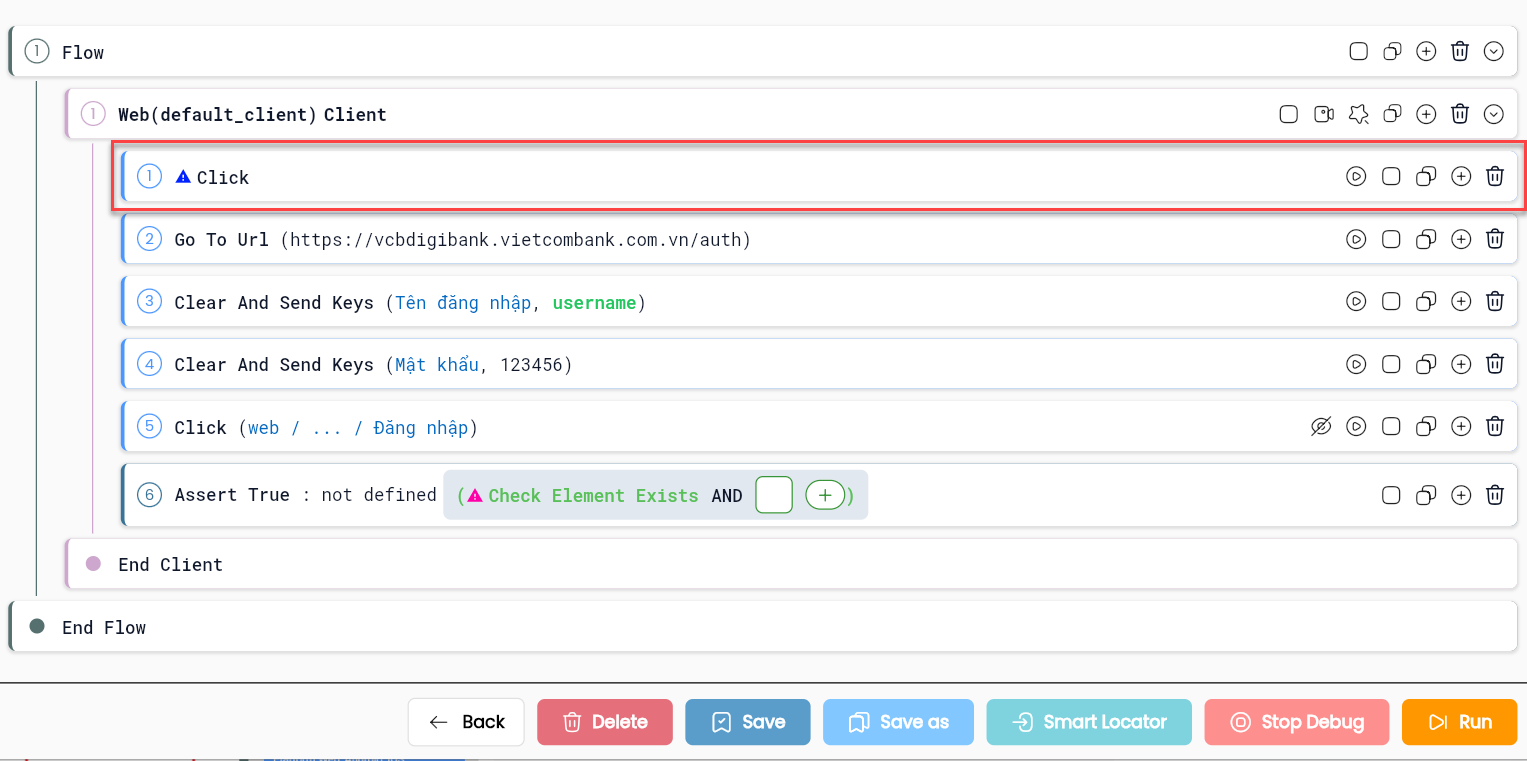
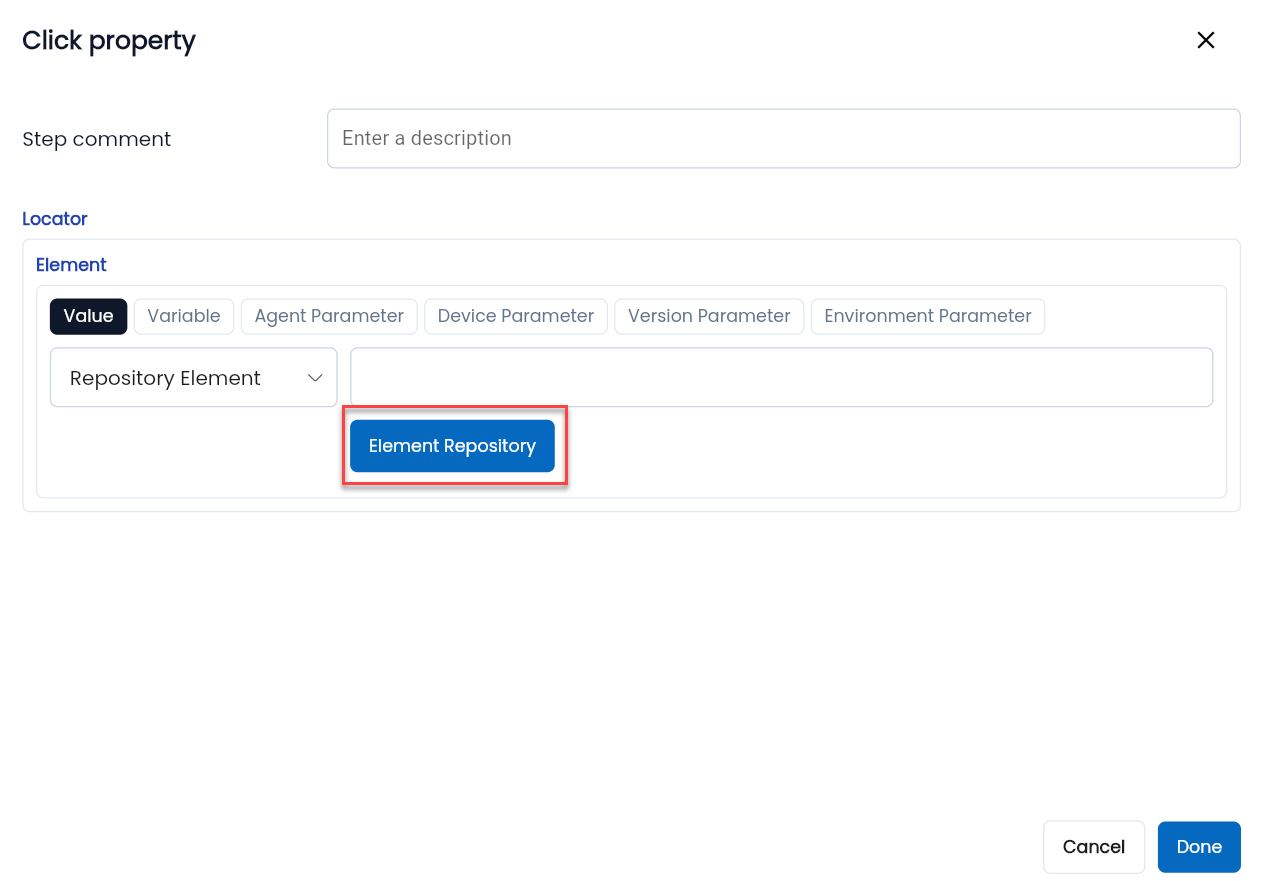
Step 2: In the Locator block, the system defaults the element locator value type to Value and the data type to Repository Element, Click on Element Repository.
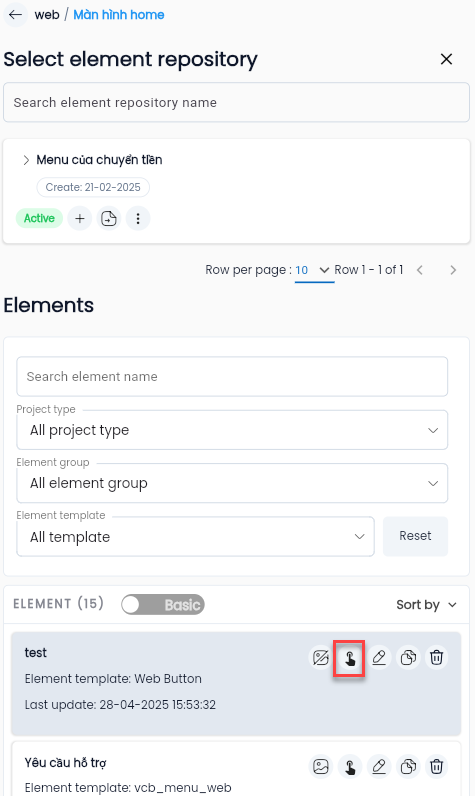
The system displays a list of active repositories for the project.
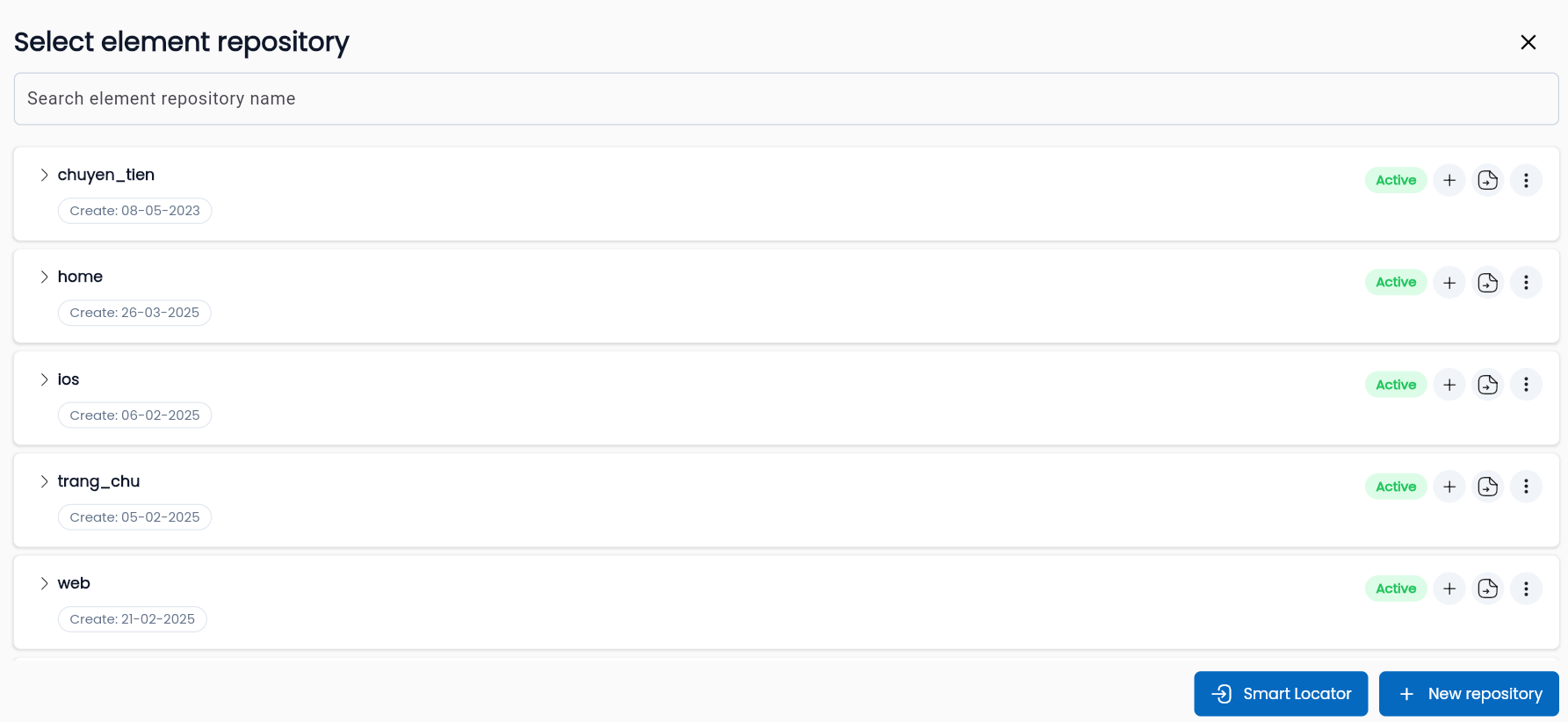
Step 3: Select the repository containing the element you want to use.
Step 4: The system shows a list of elements. Click the Select element basic button for the element you want to select.
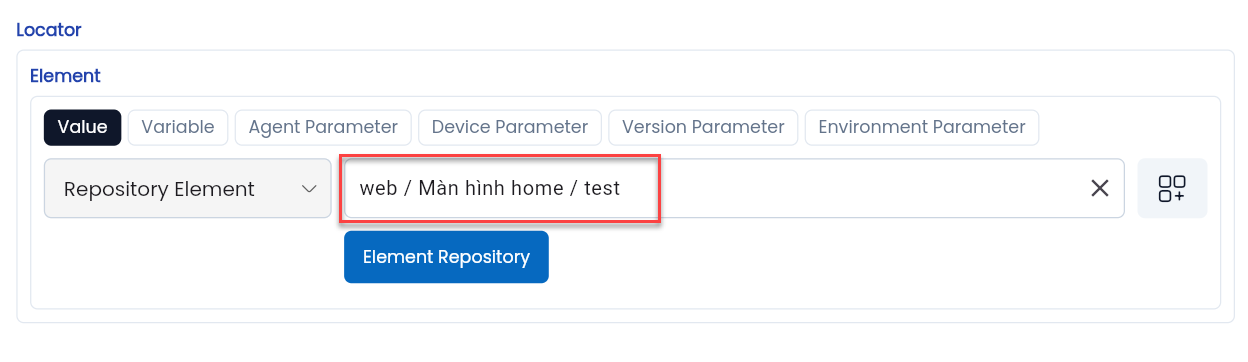
After selecting the element, the syntax displayed will be: Tên kho lưu trữ/Tên element.
Using Find Element
Unlike the Element Repository, where pre-stored elements are used, Find Element allows you to directly search for and use elements during configuration.
Note: To use Find Element, you must start debugging, and the Agent browser must display the screen containing the element you want to interact with.
Steps to Use Find Element for Configuration:
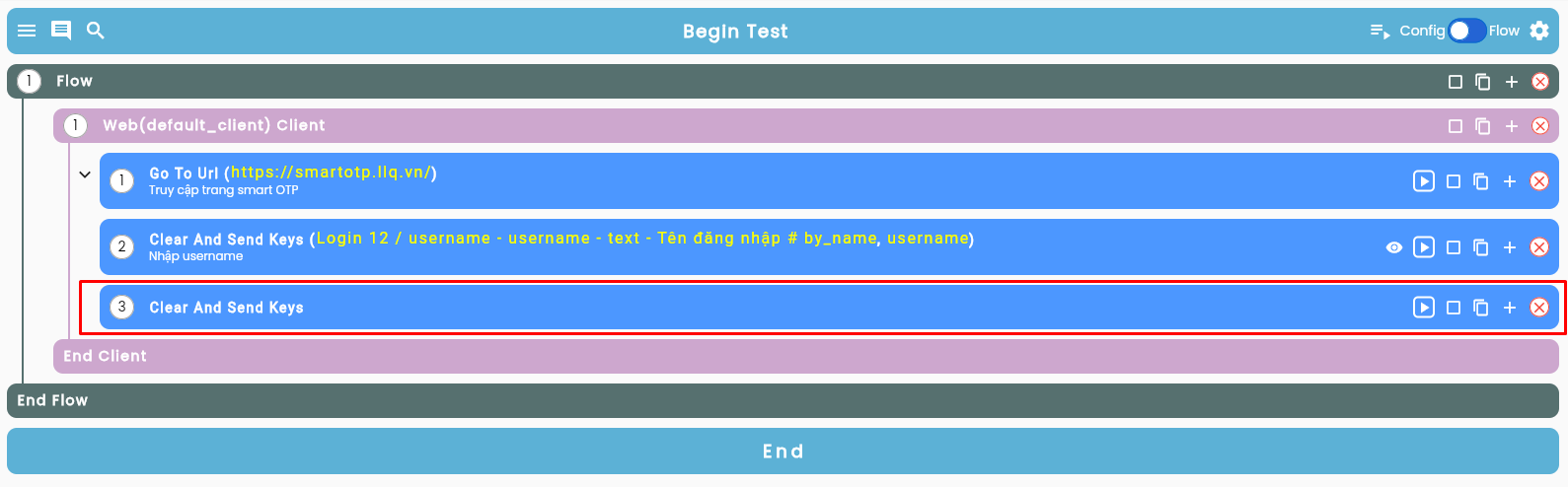
Step 1: Click on the keyword you have dragged and dropped onto the screen.
Step 2: In the Locator block, select the data type Elements, and the system will display the Find Element button.
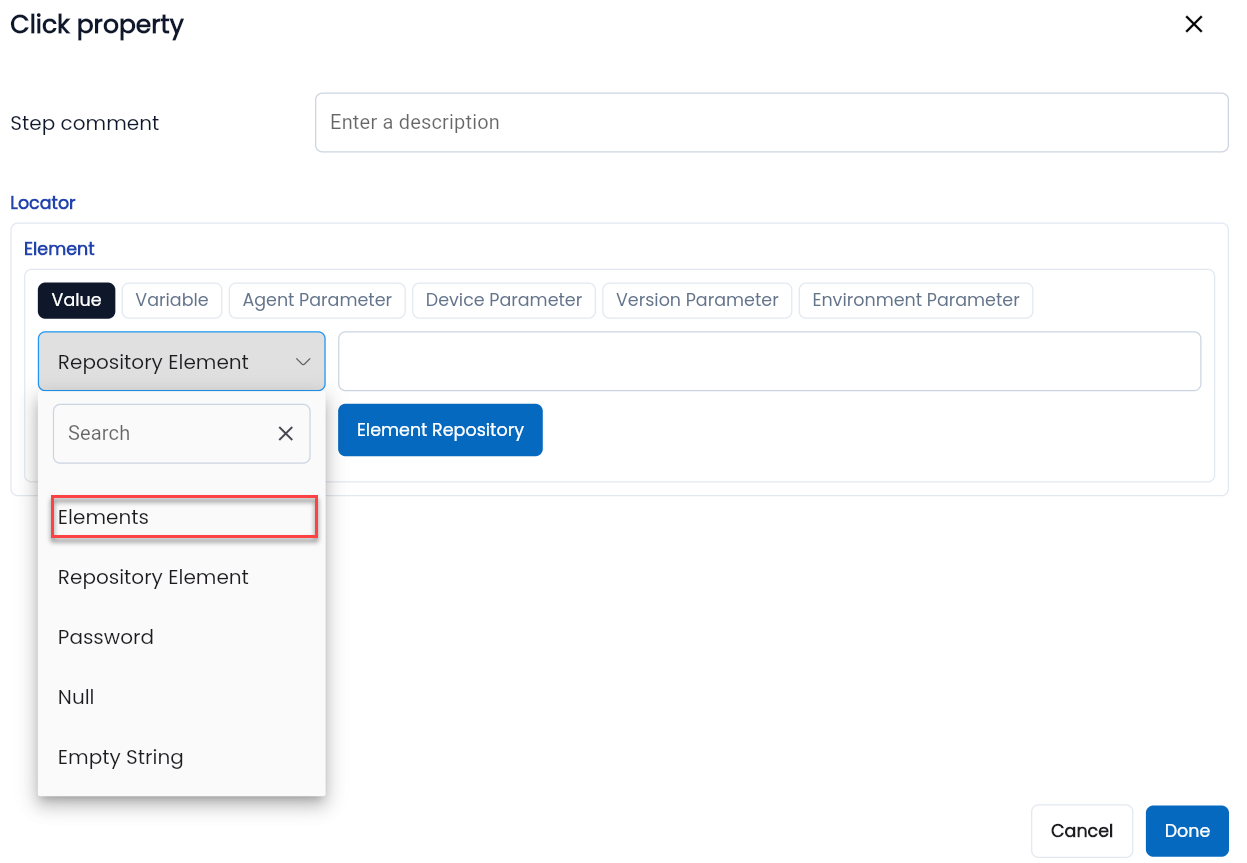
Step 3: Click on Find Element.
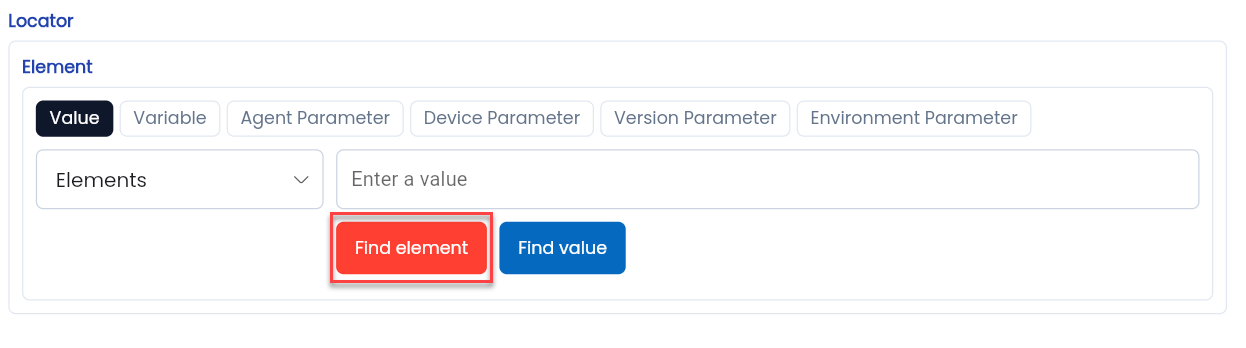
The system displays the Find Element Property screen.
Step 4: Select the Project Type.
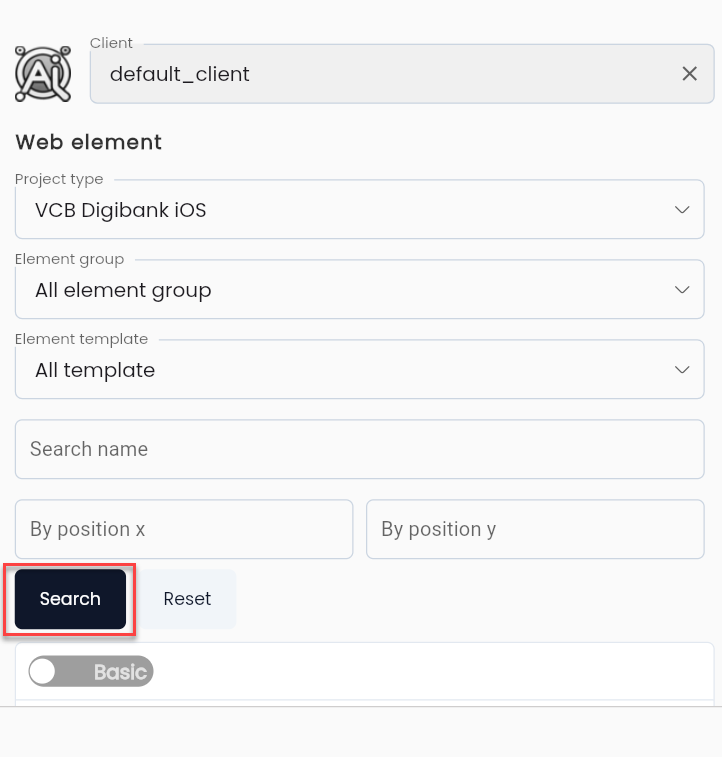
Step 5: Choose the type of element you want to locate.
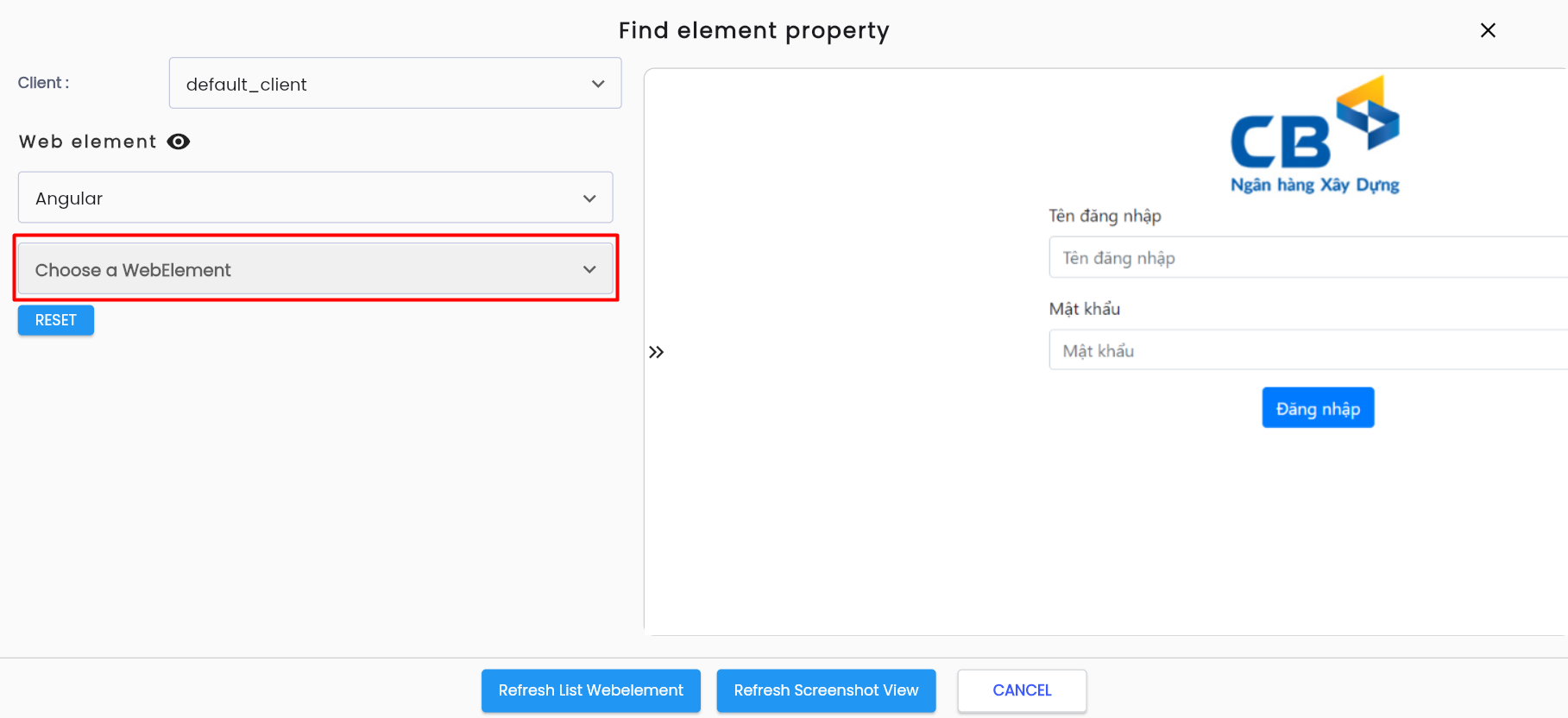
Step 6: The system displays a list of elements. Select the desired element and click the Select element basic button for that element.
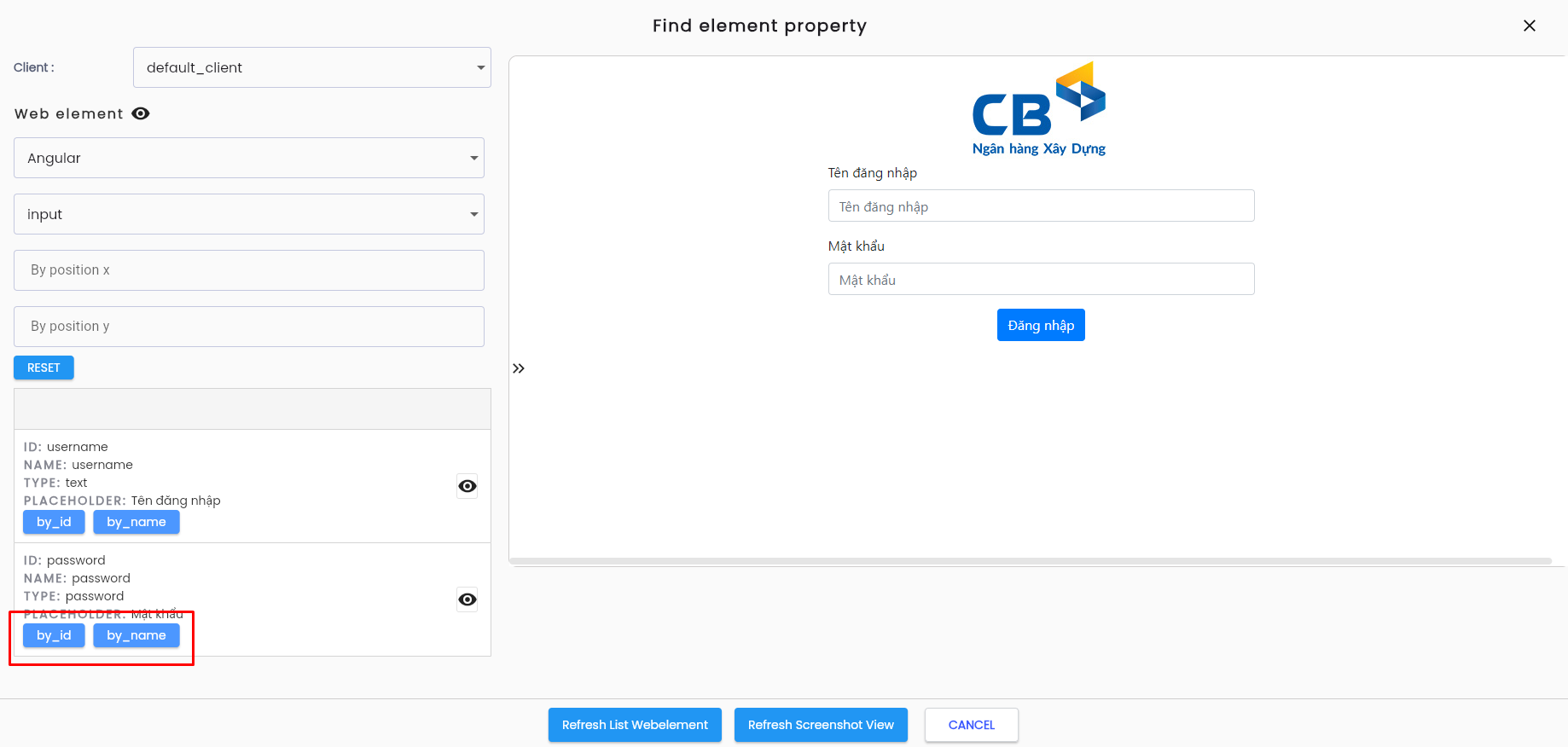
After selecting an element, the displayed information will include the element's name and its attribute details.