Debug
During the process of building a test scenario, there will often be multiple adjustments. When a test scenario fails to execute successfully, users may need to make specific changes to the configuration and often rerun the entire test scenario to ensure the configuration flow matches the expected outcome.
To save time and avoid repeating unnecessary configuration steps, as well as to provide users with faster and more convenient configuration, the Centralize Automation Testing Suite offers the following tools:
- Play: Test a single configuration step.
- Run Debug: Test one or a group of consecutive configuration steps.
- List Options: Test a single configuration step.
Play
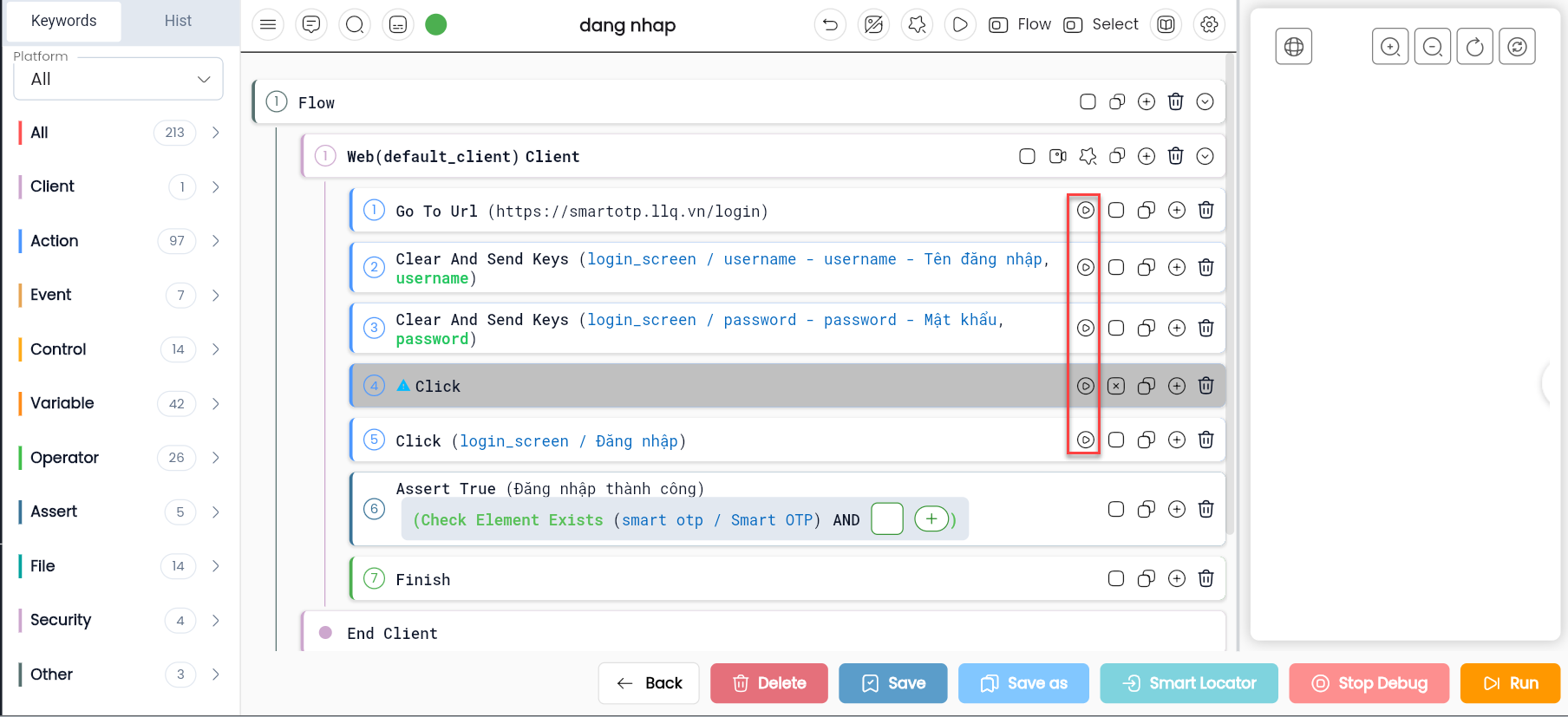
The Play feature allows users to test a single configuration step directly while configuring. Here’s how to test a single step:
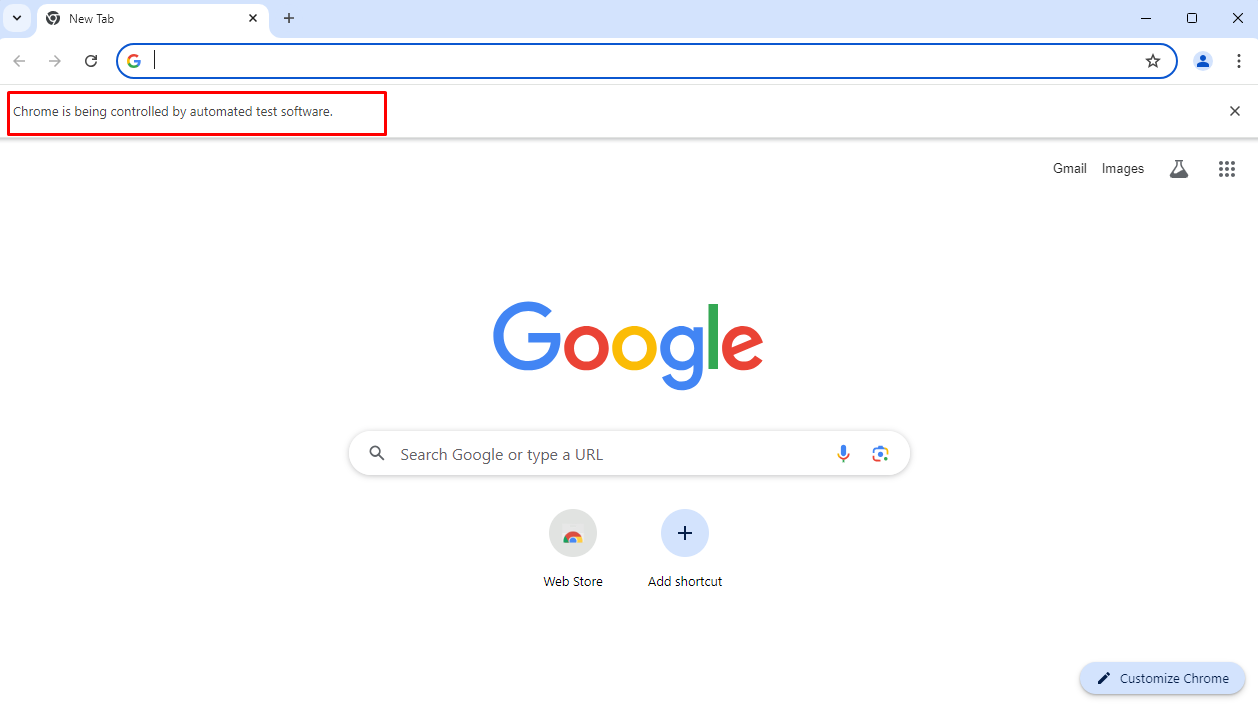
Step 1: Start debug to launch the Agent browser or ensure the Agent browser is already running.
Step 2: In the configuration interface, click the Play button at the end of the configuration step you want to test.
Step 3: Depending on the selected step, the system will display a popup containing the configured information for that step.

Step 4: Enter data if the configuration step requires input.
Step 5: Click OK and wait for the message “[Keyword] success” to appear.
Notes:
- To perform the Play action, the Agent browser must be on the screen containing the element to interact with.
- Use View Screenshot to verify or check the Agent browser to ensure the step was executed successfully.
Run Debug
Similar to Play, but with Run Debug, users can test a group of consecutive configuration steps. Here’s how to test a group of steps:
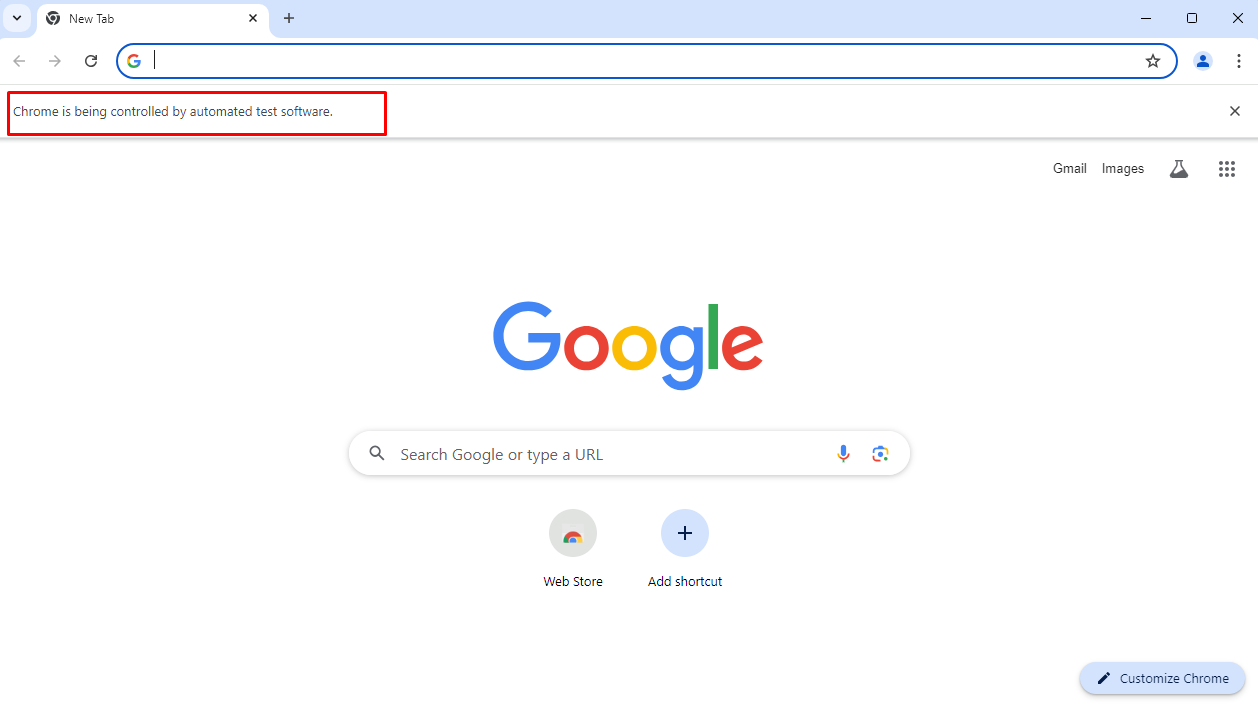
Step 1: Start debug để khởi động trình duyệt Agent hoặc trình duyệt Agent phải đang chạy.
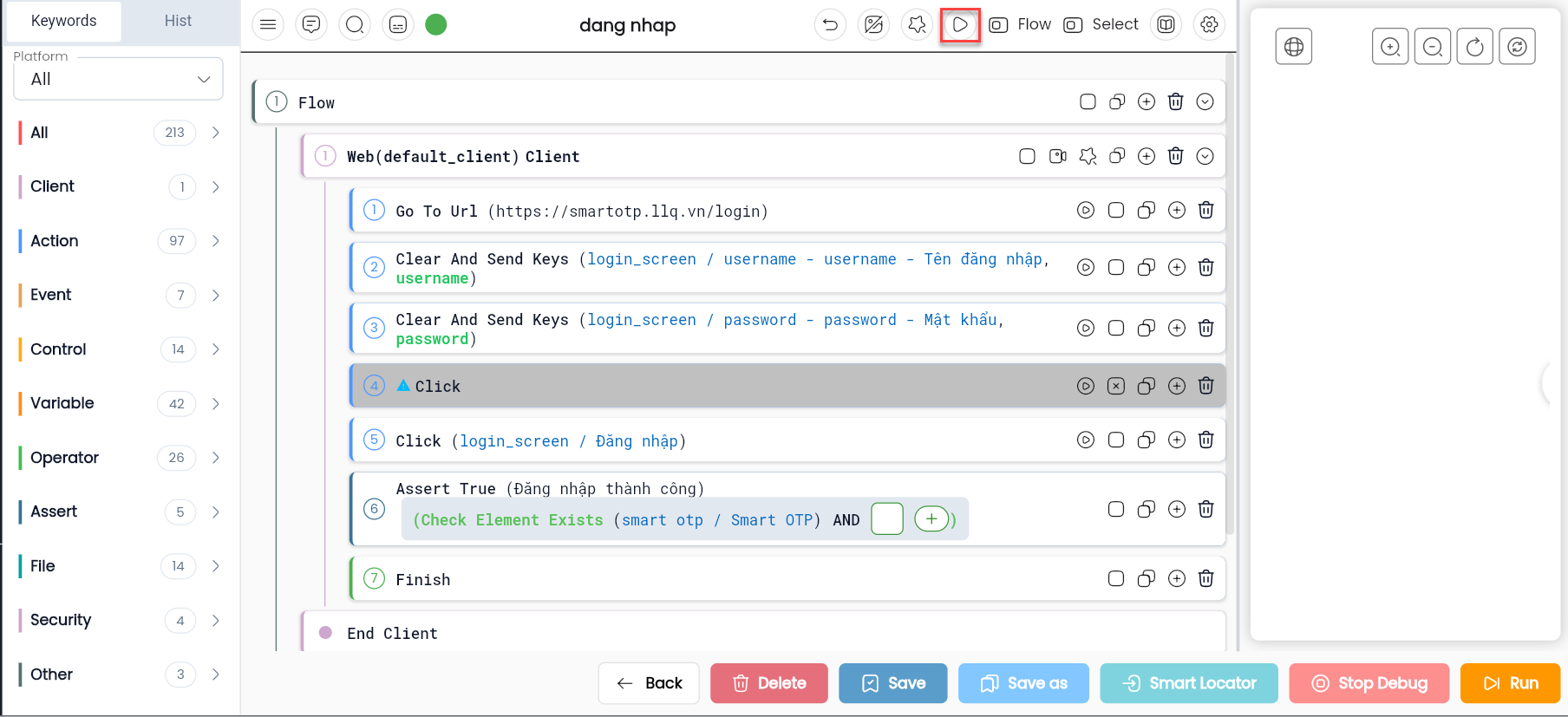
Step 2: In the configuration interface, click the Run Debug button on the Begin toolbar.
Step 3: Select the configuration steps you want to test.
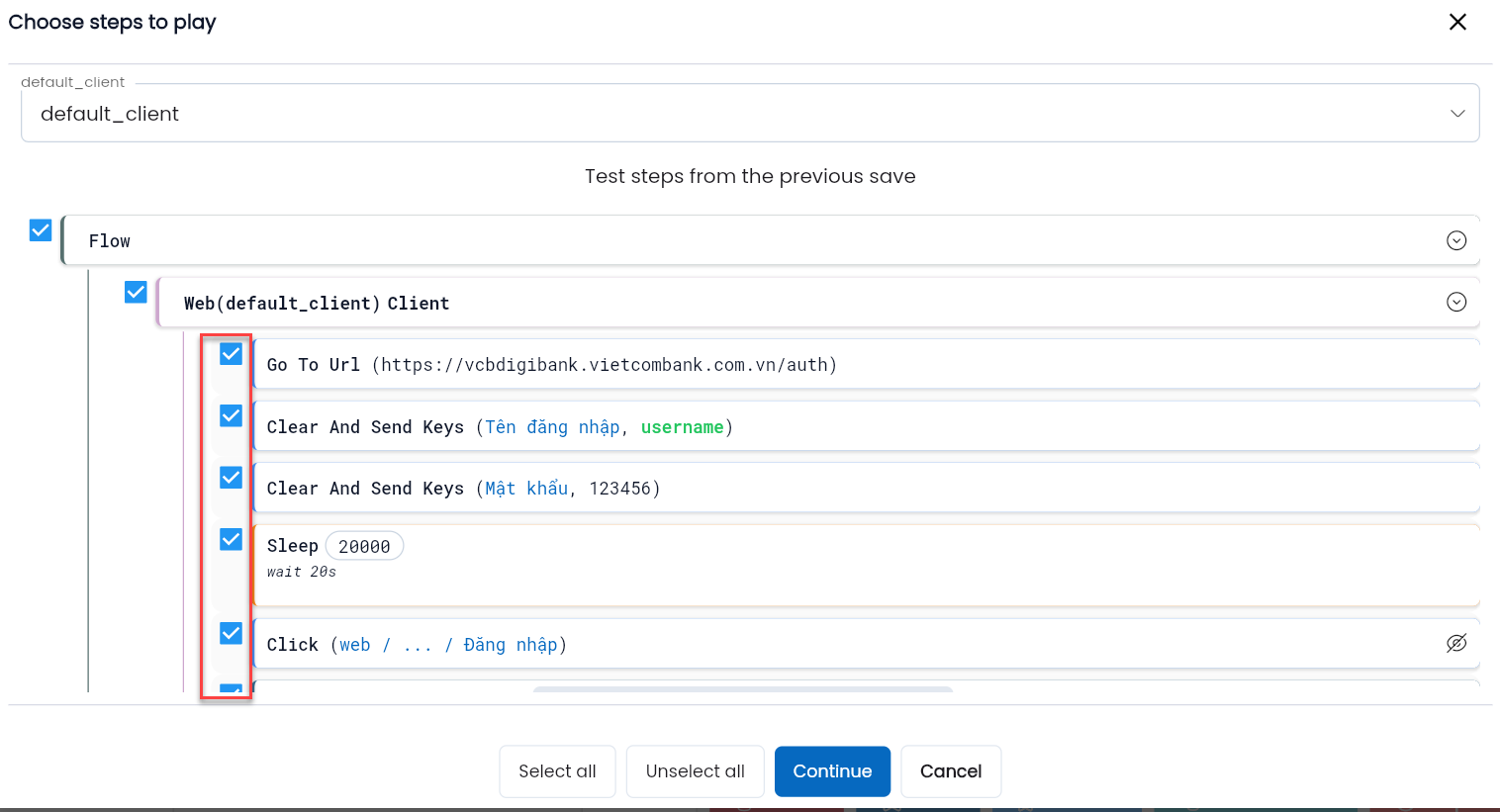
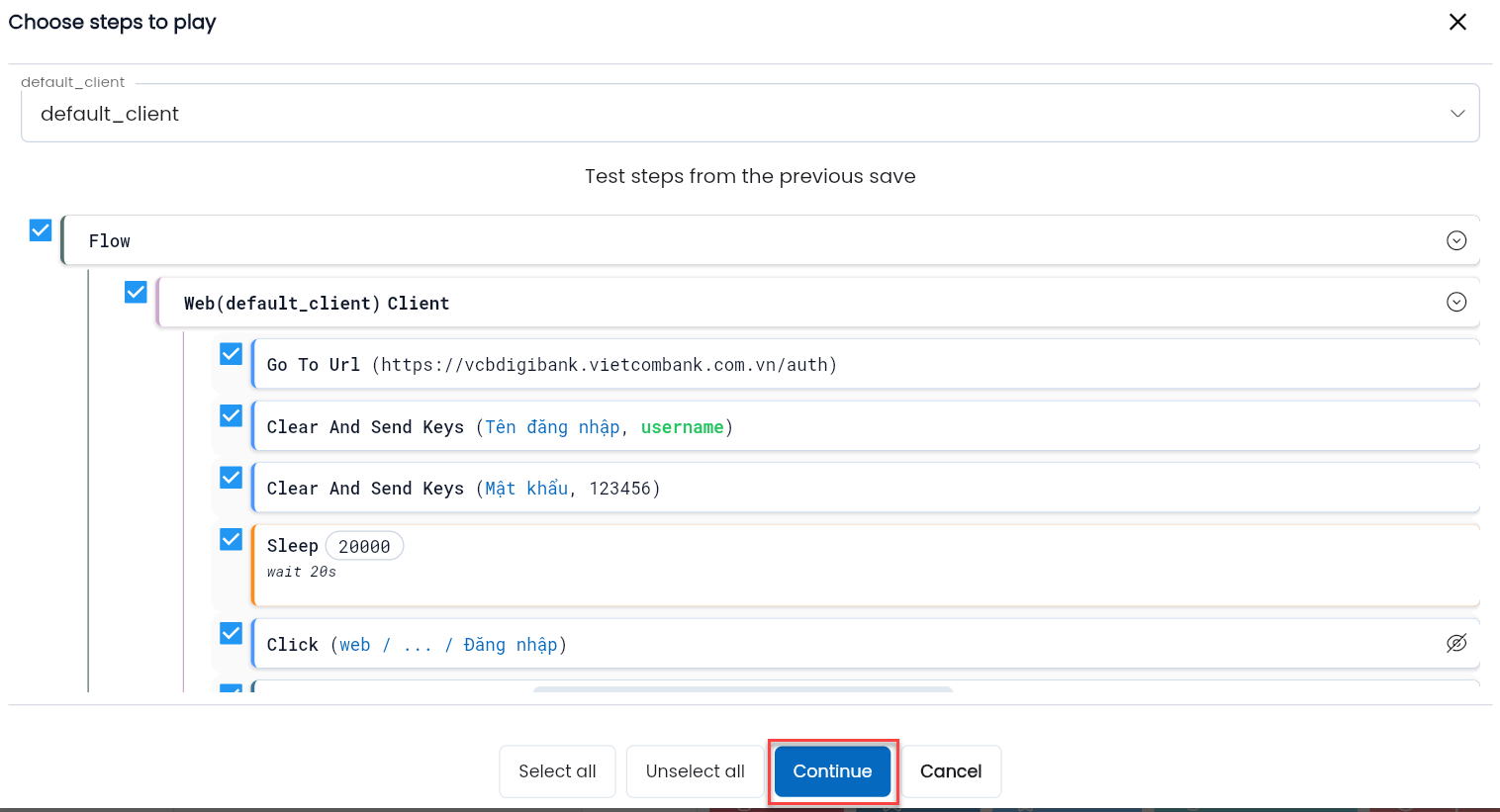
Step 4: Click Continue.
Step 5: Enter data if the configuration steps require input.
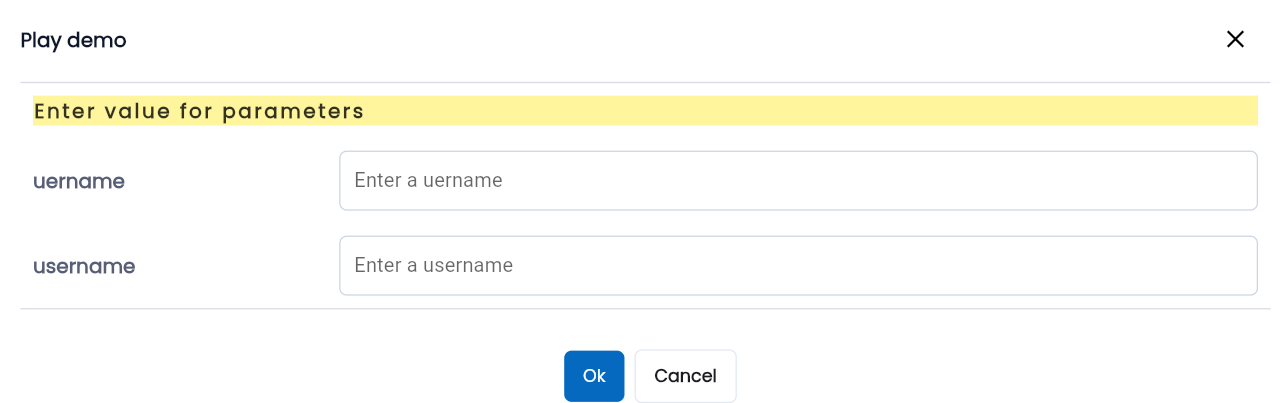
Step 6: Click OK and wait for the message “[Tên test scenario] success” to appear.
Notes: Use View Screenshot to verify or check the Agent browser to ensure the configuration steps were executed successfully.
List Options
List Options is similar to Play in that it only tests a single configuration step. However, with List Options, the user selects a keyword from the list options and must re-enter configuration information, such as the element to interact with and input data, before running the test. Here’s how to proceed:
Step 1: Start debug to launch the Agent browser or ensure the Agent browser is already running.
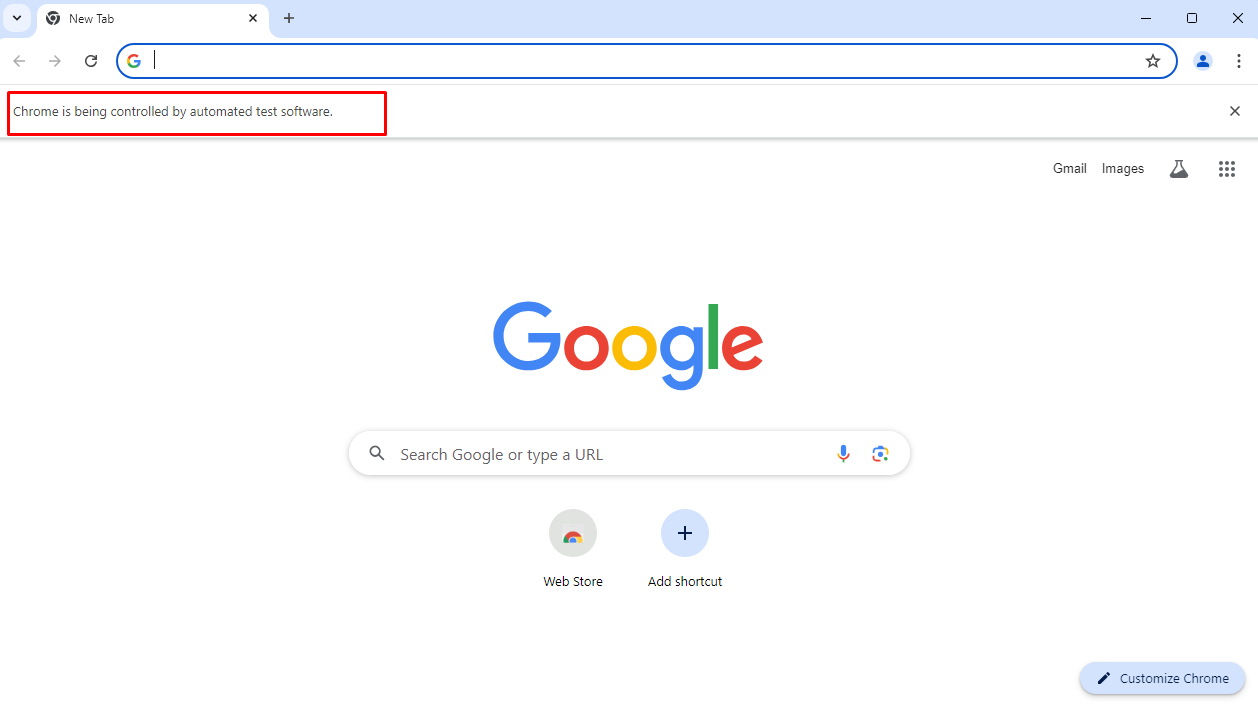
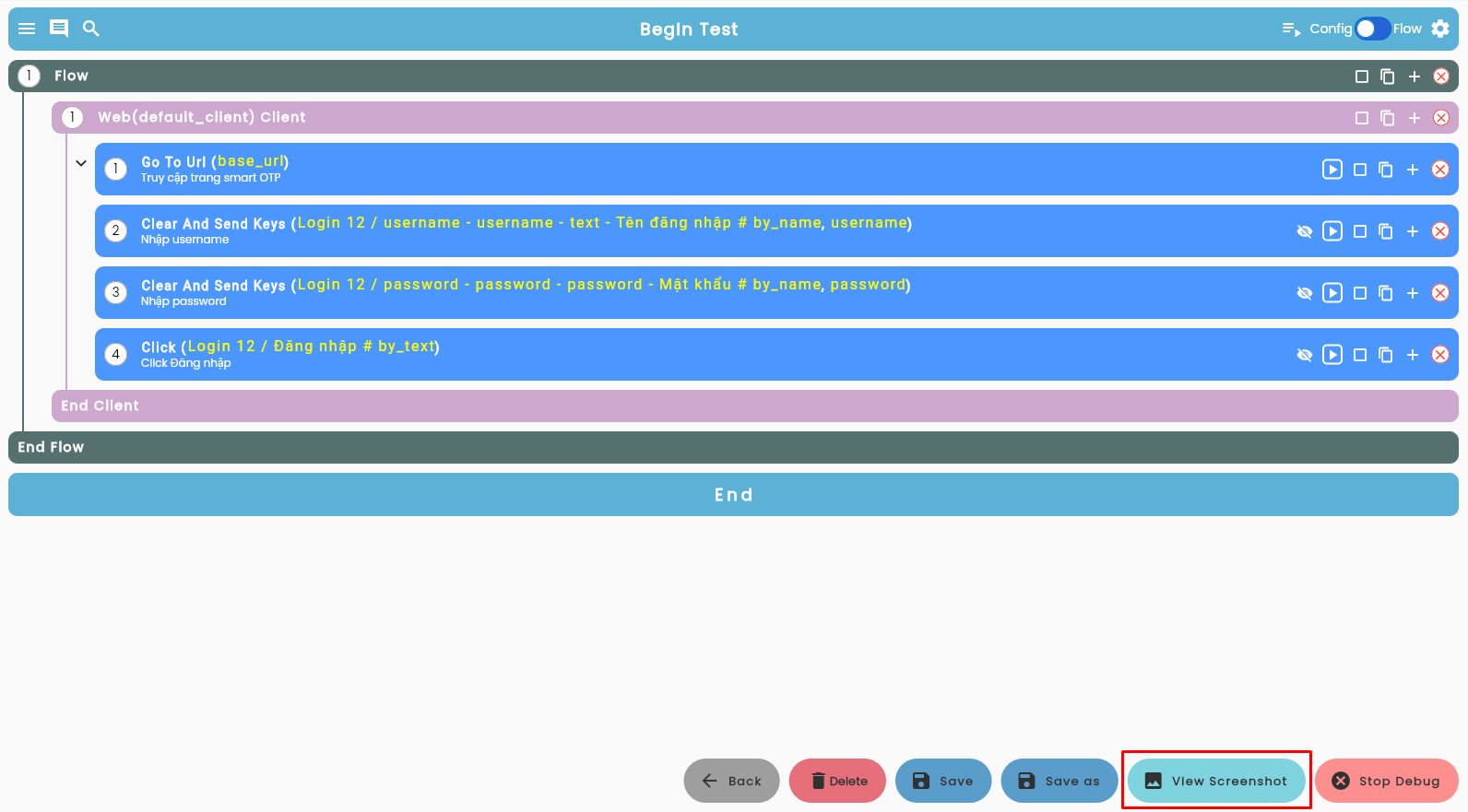
Step 2: In the configuration interface, click the View Screenshot button.
Step 3: Select a keyword you want to test.
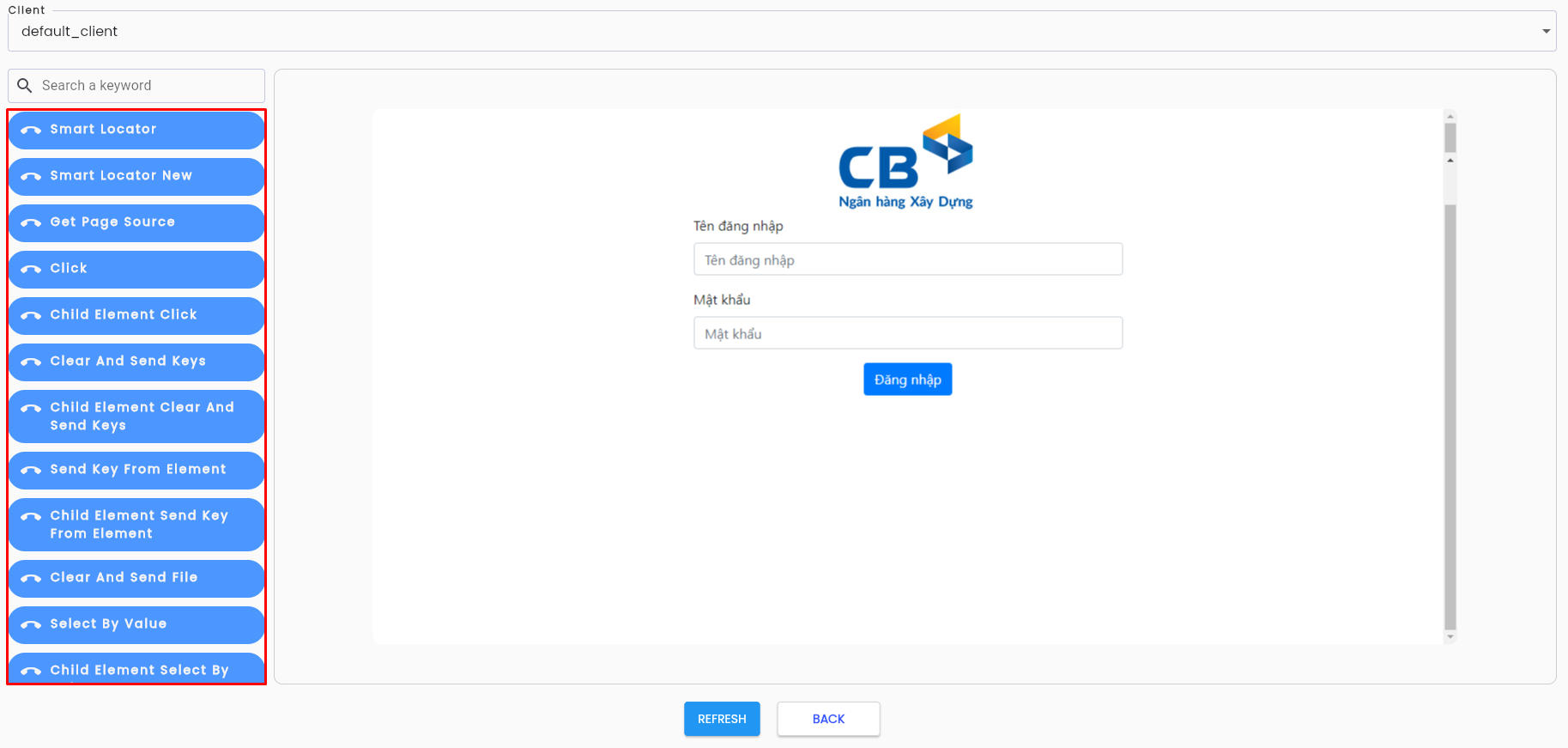
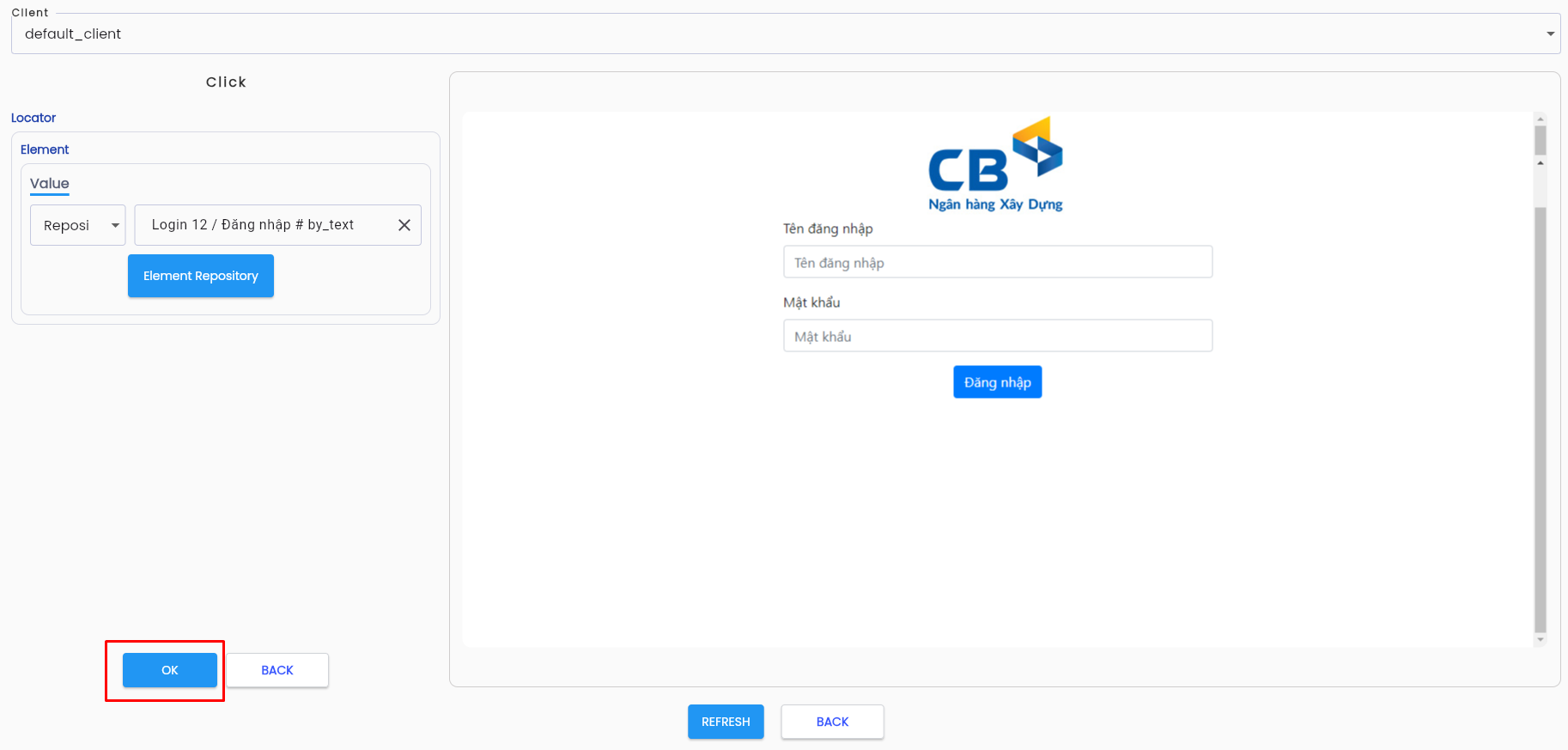
Step 4: Depending on the selected keyword, the system will display a popup with the attributes of that keyword.

Step 5: Select the element to interact with and enter data if the step requires input.
Step 6: Click OK and wait for the message “[Keyword] success” to appear.
Notes: Use View Screenshot to verify or check directly on the Agent browser to ensure the step was executed successfully.