Overview
Advanced Endpoints allow you to configure additional settings beyond those available in Basic Endpoints, such as Variables and Scenarios.
Quick Guide
This section explains how to manage Advanced Endpoints in LLQ Service Visualization:
Create a new Advanced Endpoint
Step 1: On the Project screen, click the New Endpoint button.
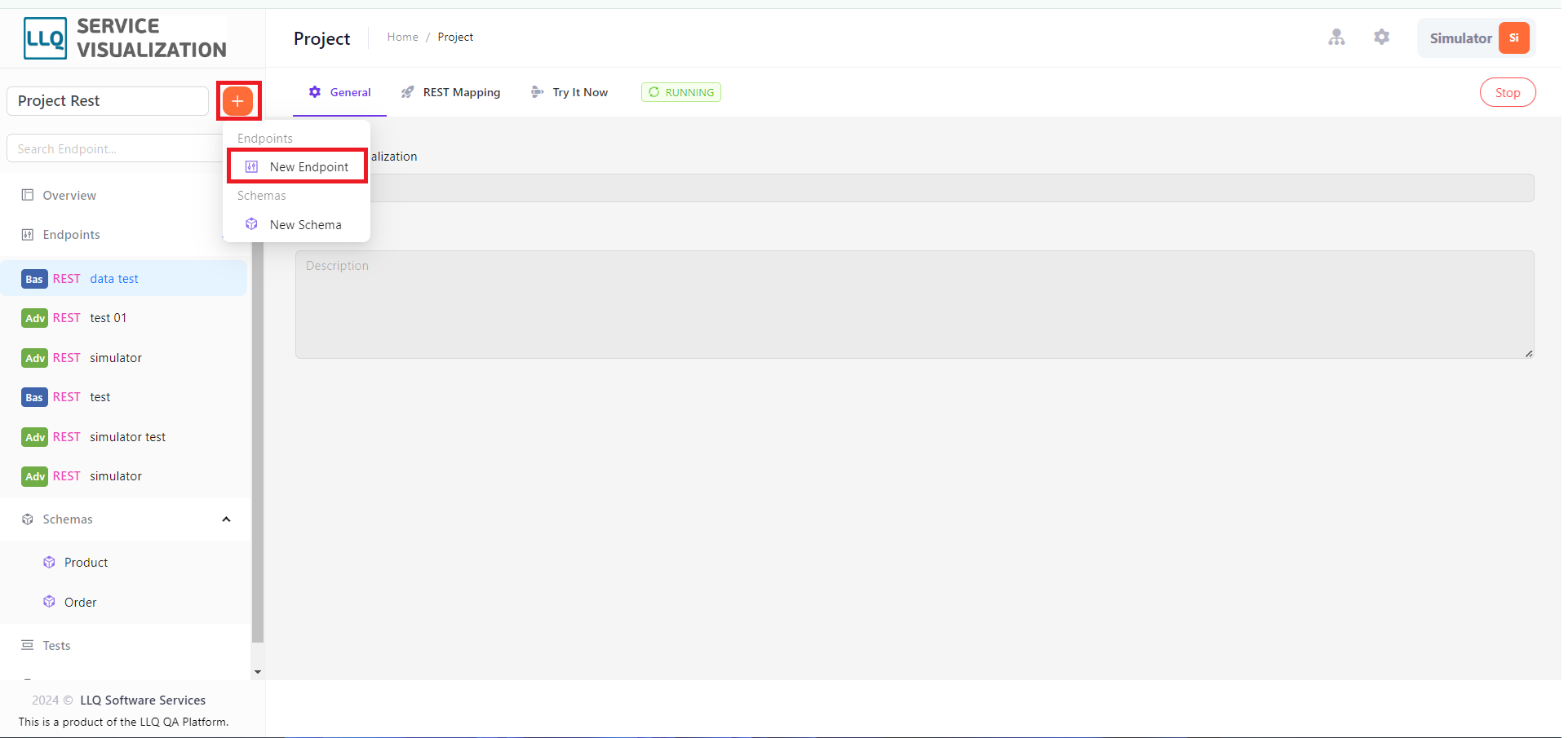
Step 2: A popup appears for creating a new endpoint. Enter all required information, set the Configuration mode to Advanced and click Create. The Advanced Endpoint will be added to the list of created endpoints.
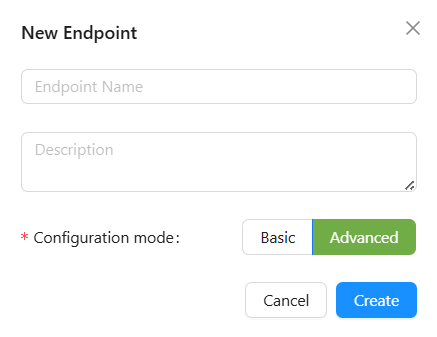
Field Descriptions:
| Field Name | Mandatory | Format | Constraints | Description |
|---|---|---|---|---|
| Endpoint name | Yes | Textbox | Must be unique | Display name in the endpoint list |
| Description | No | Textbox | Detailed description of the endpoint |
Variable:
When editing endpoint documentation, developers often need to input the same parameter names, descriptions, and other details multiple times for request parameters and response fields.
Manually re-entering this data can be inefficient and prone to errors. To streamline this process, LLQ Service Visualization provides the Variable feature, allowing you to predefine input and output variables quickly.
To learn how to use Variable, check out the following article: Understanding Variables
Scenario
An endpoint typically involves multiple steps to produce a result, which can make it challenging for developers to fully understand its behavior.
With Scenario, developers can:
- Visualize and effectively communicate endpoint behavior.
- Understand technical details and data flow processes without reading source code directly.
- Easily identify incomplete parts, structural issues, or redundant elements, reducing errors and optimizing design before implementation.
To learn how to use Scenario, check out the following article: Understanding Scenarios