Flow
Flow usually refers to the steps and processing sequence from when a request is sent until a response is returned. Use the endpoints created in the project to appropriately process the flow for the project.
This guide will show you how to manage flows for your project:
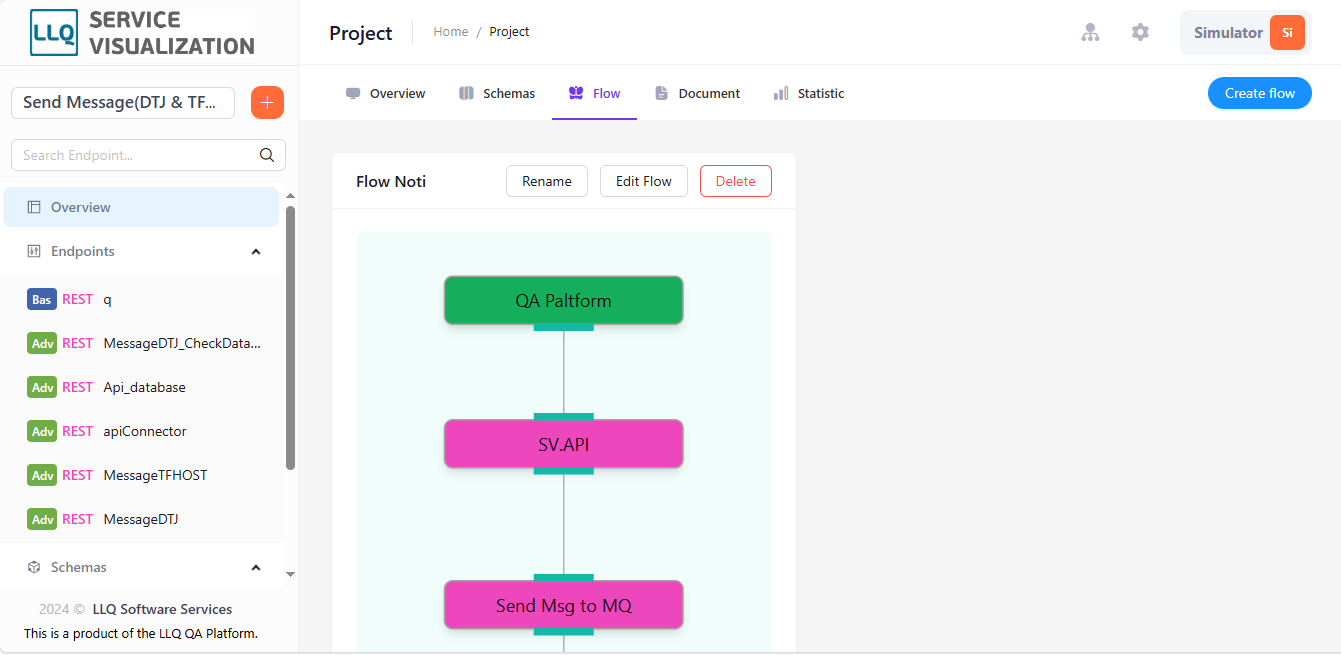
Create Flow
Step 1: Click the "Create flow" button on the right side of the menu.

Step 2: The system will display the "New" screen.

Step 3: Enter information for the fields.
Field Description
| Field Name | Mandatory | Format | Constraints | Description |
|---|---|---|---|---|
| NAME | Yes | Textbox | The name of the flow | |
| DESCRIPTION | No | Textbox | Description of the flow |
Step 4: Click the "Create" button to create the project flow.
Edit Flow
Step 1: Click the "Create flow" button on the right side of the menu.

Step 2: The system will display the flow update screen.
The screen shows the endpoints already present in the project. Communication methods are clearly distinguished by colors.
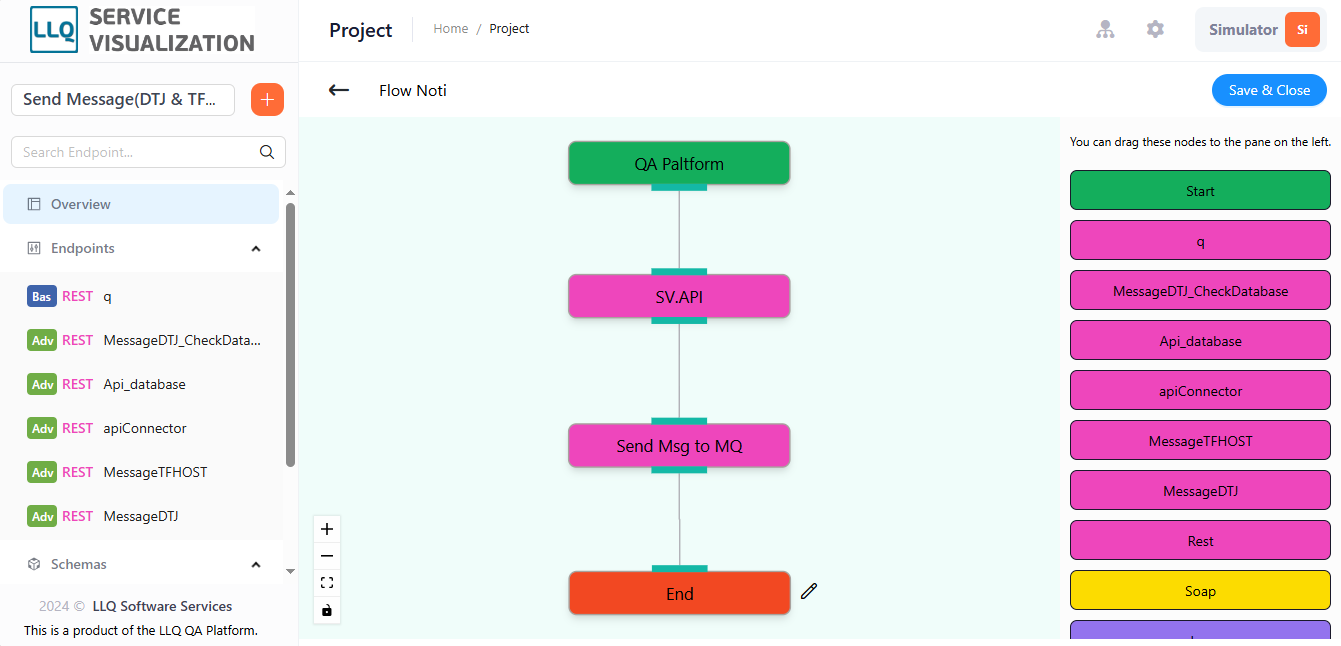
Step 3: Edit the names of the endpoints. Click the "" button to edit.
Step 4: Click the "Save & Close" button at the top left of the screen to update the project flow.
Rename Flow
Step 1: Click the "Rename" button on the right side of the menu.

Step 2: The system will display the "Update" screen.

Step 3: Enter information for the fields you want to update.
Field Description
| Field Name | Mandatory | Format | Constraints | Description |
|---|---|---|---|---|
| NAME | Yes | Textbox | The name of the flow | |
| DESCRIPTION | No | Textbox | Description of the flow |
Step 4: Click the "Update" button to change the project flow name.
Delete Flow
Step 1: Click the "Delete" button on the right side of the menu.

Step 2: The system will display a confirmation screen.

Step 3: Click the "Yes" button to delete the flow.