Document
The Document section stores project-related documentation and guides. These documents are written in Markdown format.
This guide explains how to manage documents for your project:
Create markdown
Step 1: Click the "Create markdown" button on the right side of the menu bar.
 Step 2: The system will display the "New" screen.
 Step 3: Enter the required information in the form.
Field Descriptions:
| Field Name | Mandatory | Format | Constraints | Description |
|---|---|---|---|---|
| NAME | Yes | Textbox | The name of the document | |
| DESCRIPTION | No | Textbox | Detailed description of the document |
Step 4: Click the "Create" button to create the document.
Edit markdown
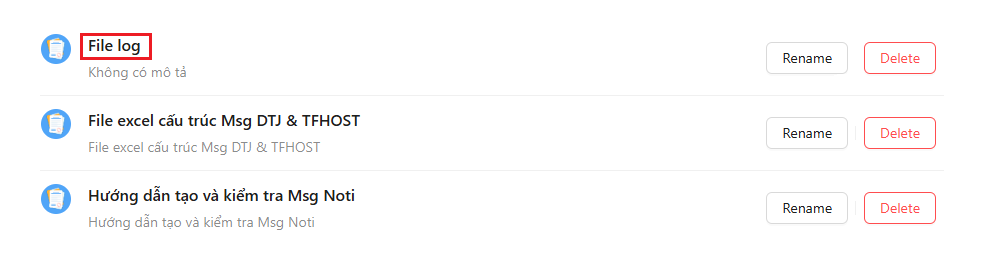
Step 1: Click the name of the markdown document you want to update.
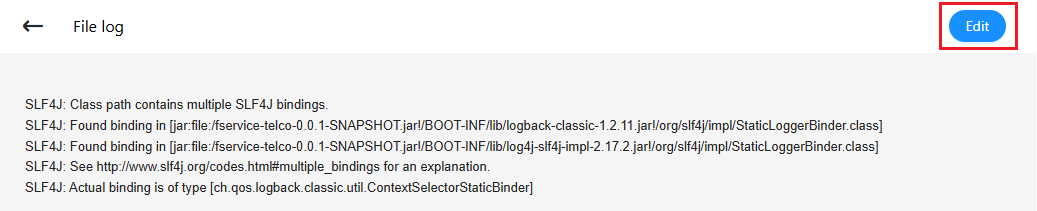
 Step 2: The system will display the document content and the Edit button.
 Step 3: Click the Edit button, and the system will display two sections:
- The editable content
- The preview of how it appears in the browser
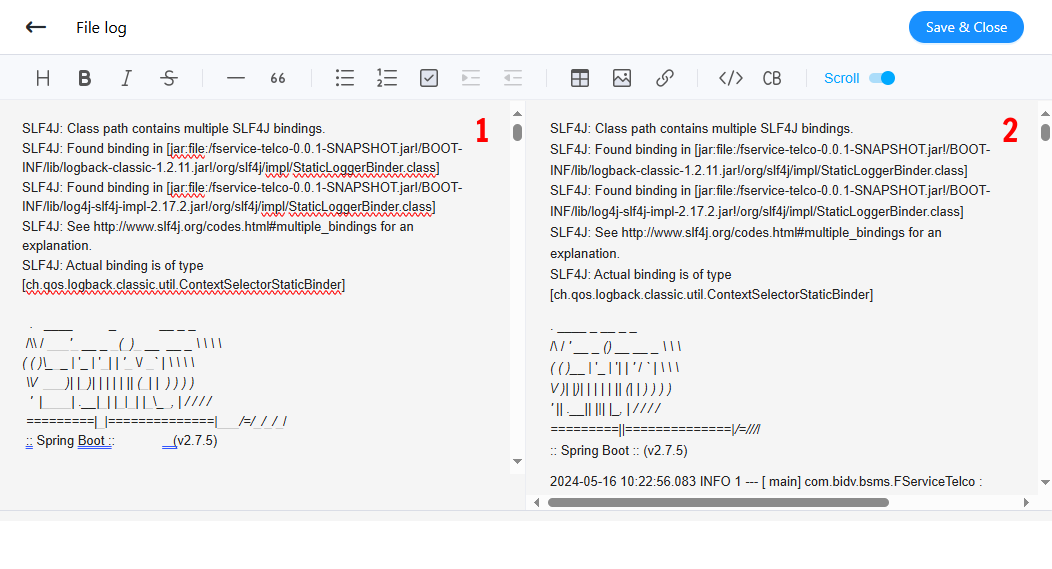 Step 4: Click the "Save & Close" button to update the content.
Rename
Step 1: Click the "Rename" button in a row.
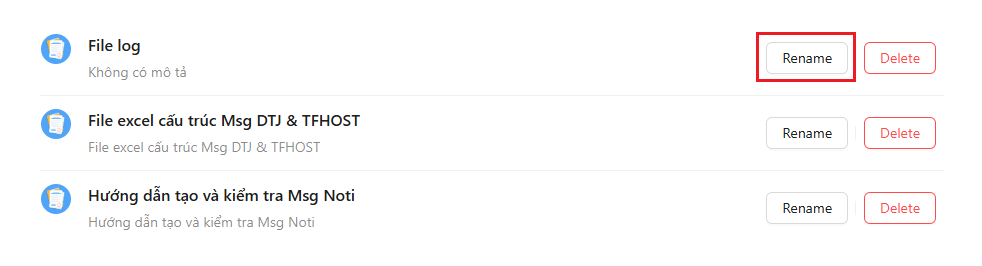 Step 2: The system will display the "Update" screen.
 Step 3: Enter the updated information in the form.
Field Descriptions:
| Field Name | Mandatory | Format | Constraints | Description |
|---|---|---|---|---|
| NAME | Yes | Textbox | The name of the document | |
| DESCRIPTION | No | Textbox | Document description |
Step 4: Click the "Update" button to save the new document name.
Delete markdown
Step 1: Click the "Delete" button in a row.
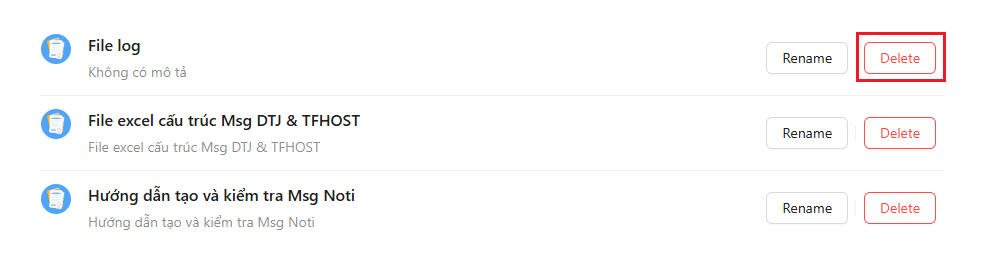 Step 2: The system will display a confirmation dialog.
 Step 3: Click the "Yes" button to delete the document.