Schemas
Schemas are mainly used for return response and body parameters (JSON/XML format) in API design. The data schema can be reused in different APIs
Displays the number of schemas being used in the created endpoints. Any endponits can use the schemas included in the project. Makes creating requests or responses easier.
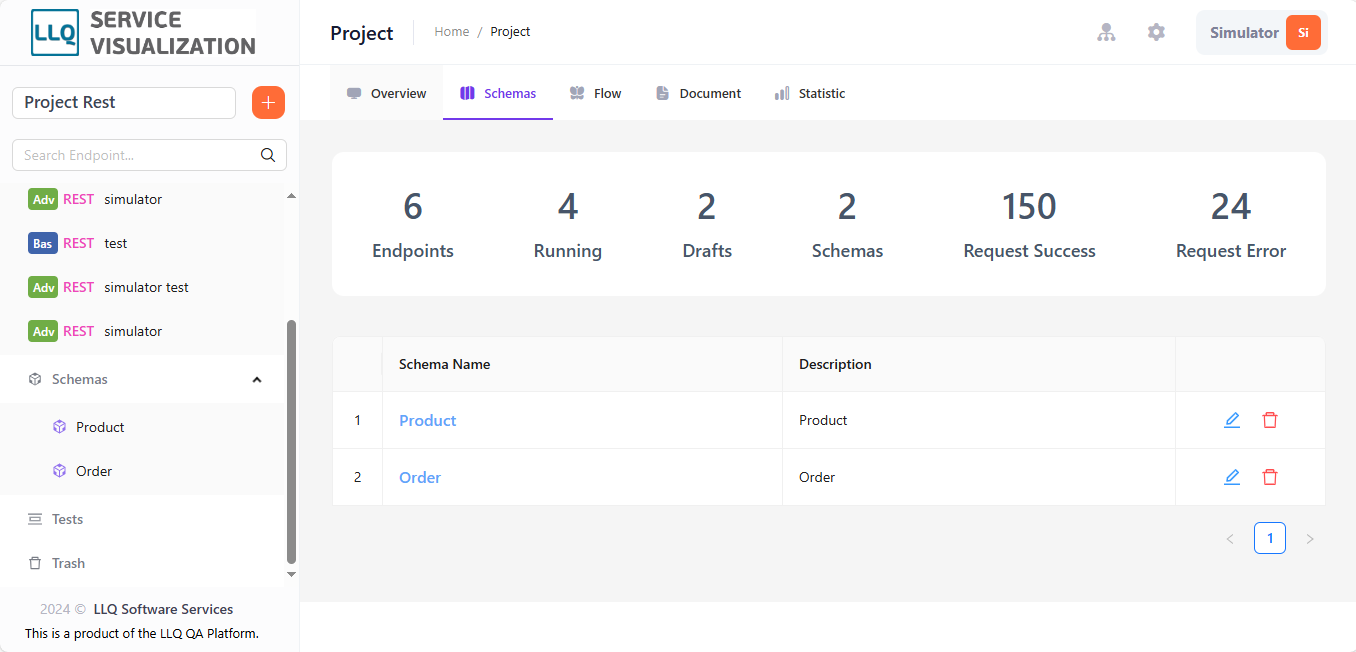
Description of the fields in the table:
| Field Name | Mandatory | Format | Constraints | Description |
|---|---|---|---|---|
| NAME | Yes | Textbox | Schema name | |
| DESCRIPTION | No | Textbox | Description content of the schema |
Creating a Schema
Step 1: To create schemas, click the "" > "New Schema".
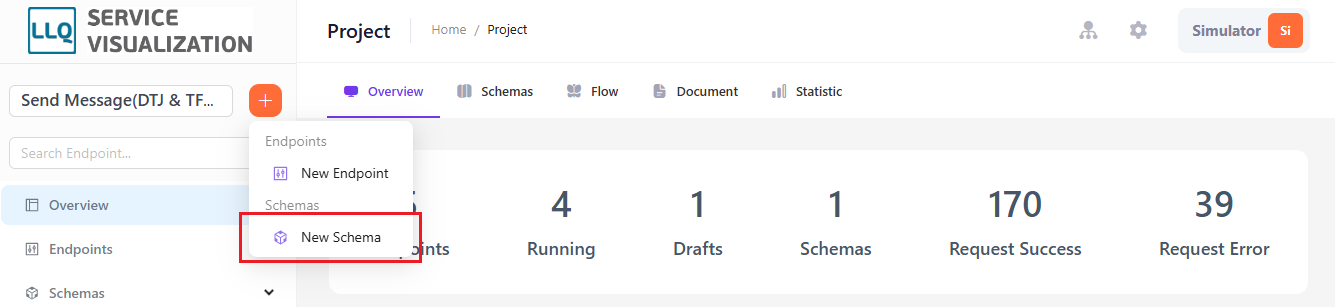
Step 2: The system will display the "New Schema" screen.

Step 3: Enter information for the fields.
Description of the fields:
| Field Name | Mandatory | Format | Constraints | Description |
|---|---|---|---|---|
| NAME | Yes | Textbox | The name of the schema | |
| DESCRIPTION | No | Textbox | Description content of the schema |
Step 4: Click the "Create" button to create the schema.
Updating a Schema
Step 1: Click the "Edit" icon on a row.
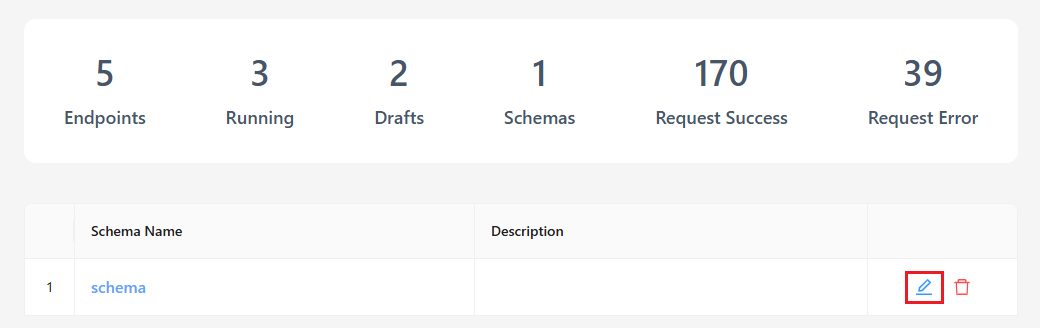
Step 2: The system will display the screen:
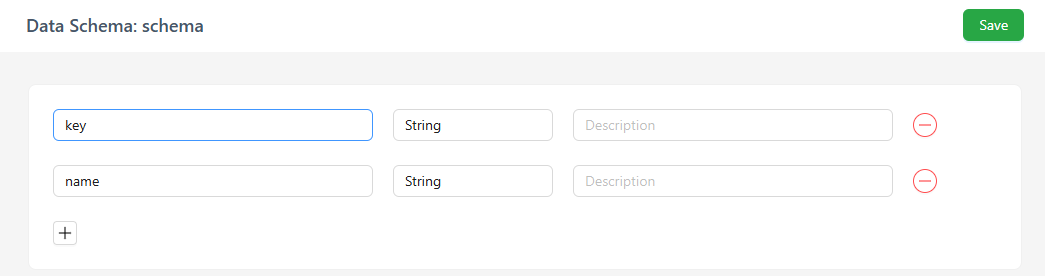
Description of the fields in the table:
| Field Name | Mandatory | Format | Constraints | Description |
|---|---|---|---|---|
| NAME | Yes | Textbox | The name of the schema | |
| TYPE | Yes | Textbox | Data type | |
| DESCRIPTION | No | Textbox | Description content of the schema |
Step 3: Click the "" icon to add attribute fields for the schema.
Step 4: Click the "" icon to delete the attribute field.
Step 5: Click the "Save" button to save the updated information.

Delete a Schema
Step 1: Click the "Delete" icon on a row.
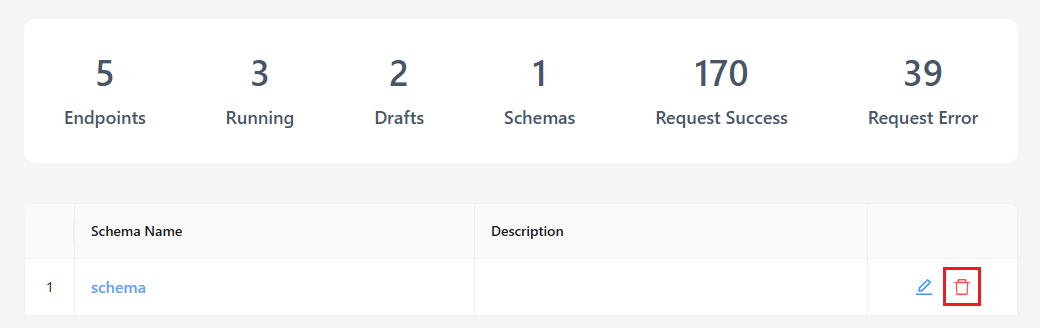
Step 2: The system will display a notification screen.

Step 3: Click the "Yes" button to delete the schema.