Create and configure a JDBC test
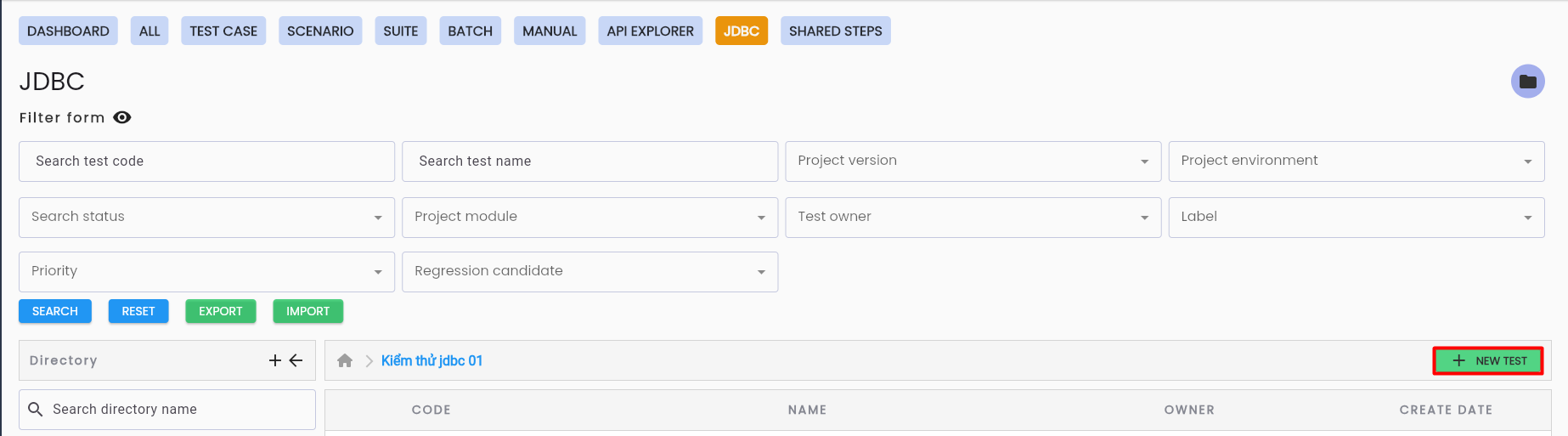
Step 1: On the JDBC tab screen, click the “NEW TEST” buttonThe system will display the JDBC metadata screen.
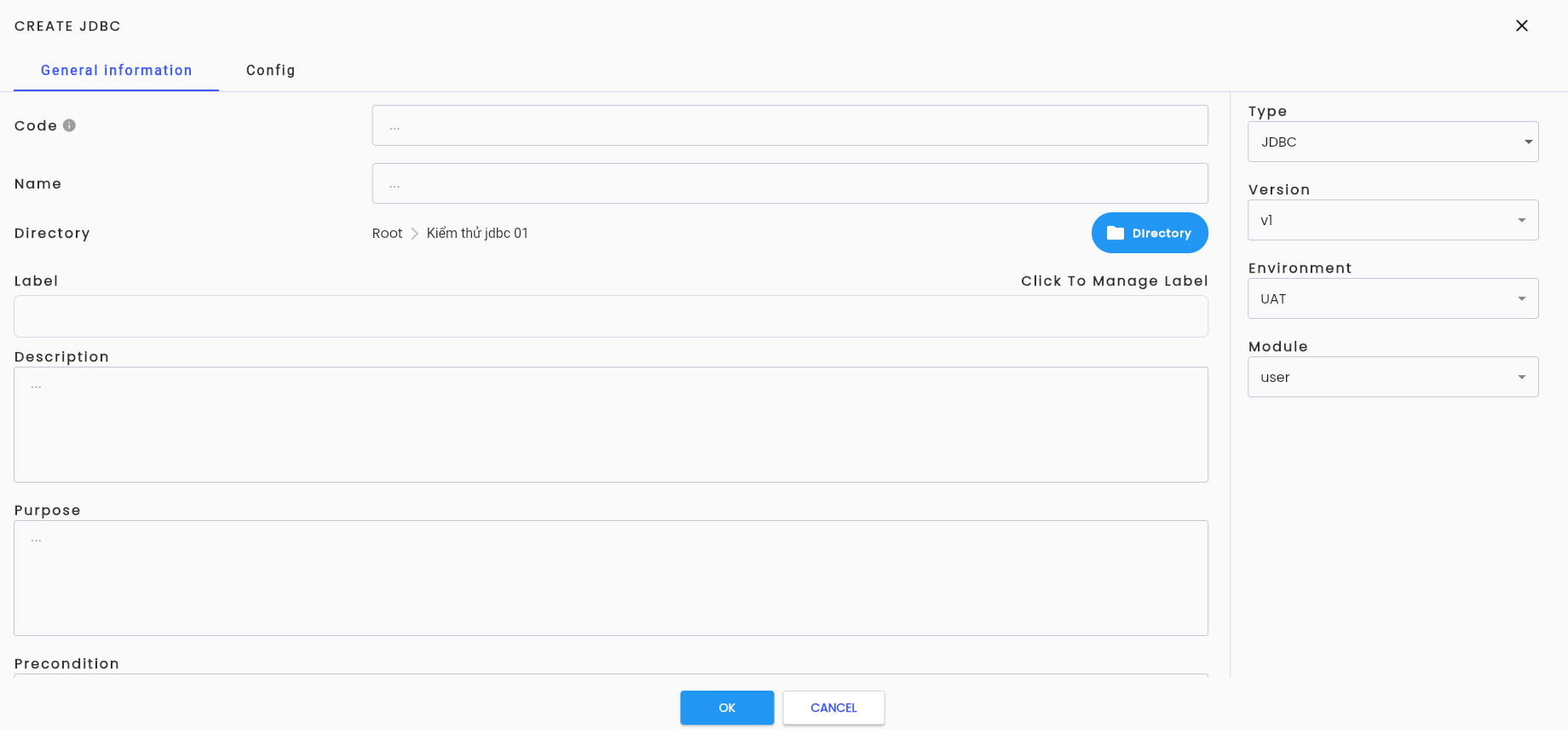
Step 2: Enter complete and valid information for the fields:
Tab Config Stores the configuration for interacting with the database of the test JDBC.
| Field Name | Mandatory | Format | Constraints | Description |
|---|---|---|---|---|
| Tab General information General information for a test JDBC, similar to a Test Scenario. Refer to [Create a new test scenario] | ||||
| Tab Config Stores the configuration for interacting with the database of the test JDBC. | ||||
| Type | Yes | Combobox | Allows users to select one of two values: + Query + Execute Update | |
| Sql Type | Yes | Combobox | Allows users to select one of two values: + SQL + Query Builder | |
| Sql | Yes | Text | Sql Type = “Sql” | Contains the SQL statement to interact with the database. |
 | Yes | Combobox | Displayed only when SQL Type = "Query Builder" | Clicking the button displays the Edit Query Builder screen, supporting the creation of an SQL statement to interact with the database. |
Parameter list Store Parameters to serve running a JDBC test
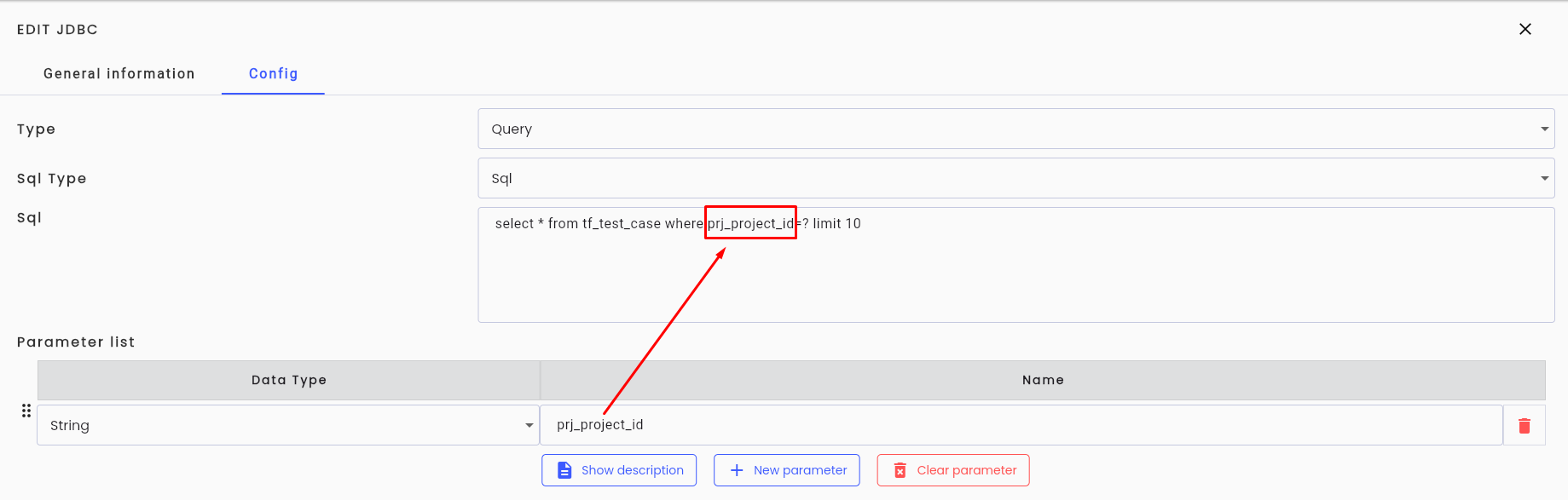
| Field Name | Mandatory | Format | Constraints | Description |
|---|---|---|---|---|
| Show description | - | Button | Allows users to toggle the visibility of the "Description" field for a parameter in the test JDBC. | |
| New parameter | - | Button | Clicking the button allows users to create a new parameter for the test JDBC. | |
| Clear parameter | - | Button | Clicking the button allows users to delete all parameters declared for the test JDBC. | |
 | - | Button | Clicking the button allows users to delete a specific parameter declared for the test JDBC. | |
| Data Type | Yes | Combobox | The data type of a parameter. When a new parameter is created, the system defaults it to "String." | |
| Name | Yes | Text | Must start with a letter, include numbers, and must not contain special characters except “_”. | The name of a parameter. |
| Description | - | Text | The description field for a parameter. |
Output Stores the outputs containing the values returned by a test JDBC. This section is only displayed when Type = “Query.”

| Field Name | Mandatory | Format | Constraints | Description |
|---|---|---|---|---|
| Add | - | Button | Allows users to create an output field for the test JDBC. | |
| - | Button | Clicking the button allows users to delete a specific output field declared for the test JDBC. | |
| Data Type | Yes | Combobox | The data type of an output field. When a new output field is created, the system defaults it to "String." | |
| Name | Yes | Text | Must start with a letter, include numbers, and must not contain special characters except “_”. | The name of an output field in the system. |
| Column name | Yes | Text | The name of a field in the output that the JDBC returns to the system. |
Note: The "name" and "columnName" fields are different:
- Name: The parameter name in the system, used solely to identify the output variable in the system.
- Column Name: The name of a column in the result returned by a JDBC test query.
Step 3: Click “OK” to create the test JDBC, The system will display the message “Create successful”.
If the user decides not to proceed with creating the test JDBC at Step 3, they can click “CANCEL”
SQL
The structure of a basic SQL statement includes:
- For Type Query
- SELECT: Specifies the columns to query.
- FROM: Indicates the data table to query.
- WHERE: Query condition (Optional).
- GROUP BY: Groups data based on one or more columns (Optional).
- ORDER BY: Sorts the results (Optional).
- LIMIT: Limits the number of results returned (Optional).
- OFFSET: Skips a specified number of rows before returning results (Optional).
- For Type Execute Update
- UPDATE: Specifies the columns to update.
- SET: Defines the columns and new values for data changes.
- WHERE: Filters the records to be updated (Optional).
Notes:
- An SQL statement must include all required components; optional components may be included depending on the user's purpose.
- The system does not validate the user's SQL statement. If the JDBC test scenario fails, it may be due to errors in the SQL statement.
Query Builder
Note: The Query Builder currently only supports Type Query
Edit query Builder
Step 1: Click button  , and the system will display the “EDIT QUERY BUILDER” screen.
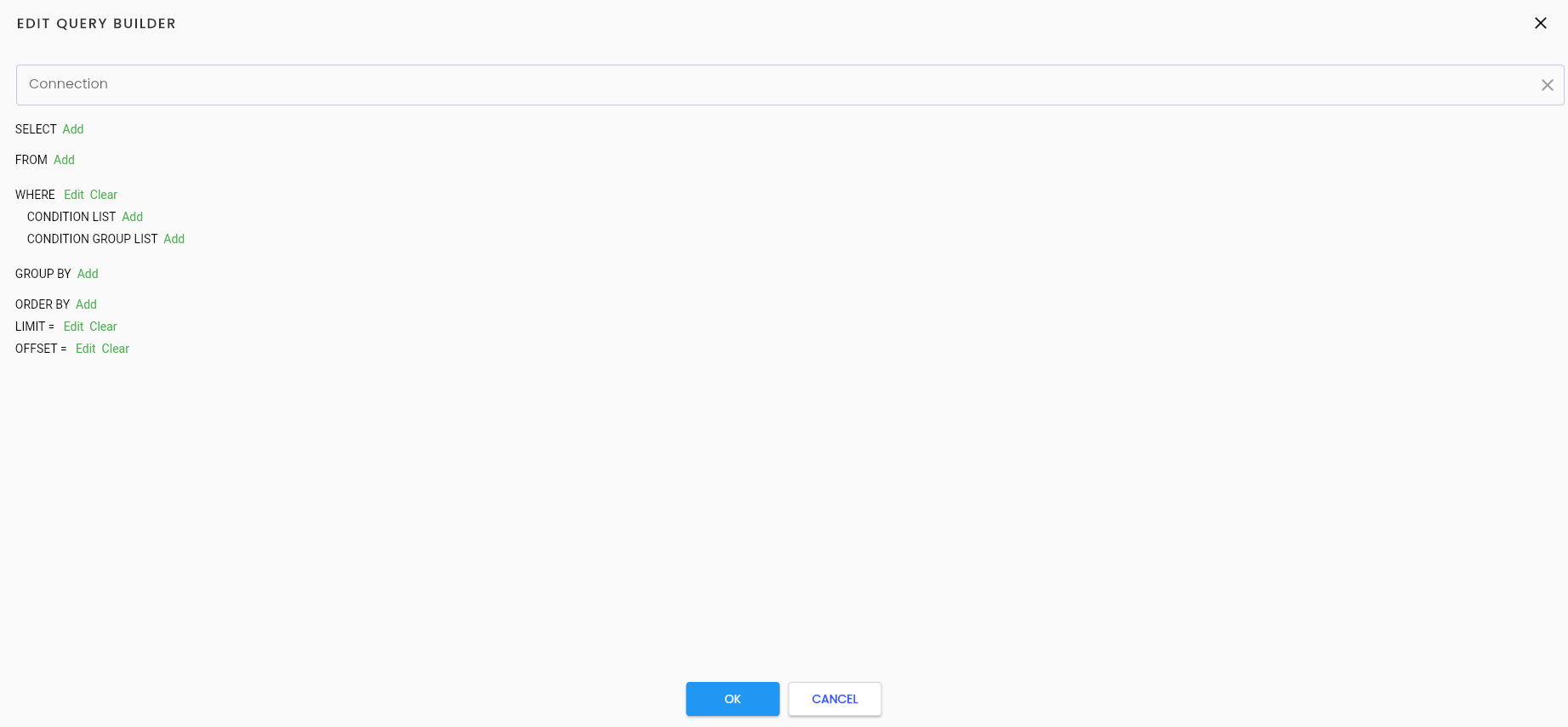
Description of the information field
| Field Name | Mandatory | Format | Constraints | Description |
|---|---|---|---|---|
| Connection | Yes | Combobox | The user selects a connection from the list of JDBC Profile Platforms previously declared in the Tạo mới một Profile JDBC | |
| Add | - | Button | Add configuration | |
| Edit | - | Button | Edit configuration | |
| Clear | - | Button | Delete all configurations from the current row where the "Clear" button is clicked. | |
| Delete | - | Button | Delete a specific configuration |
Step 2: Select a connection from the list of JDBC profile platforms that have been declared beforehand.
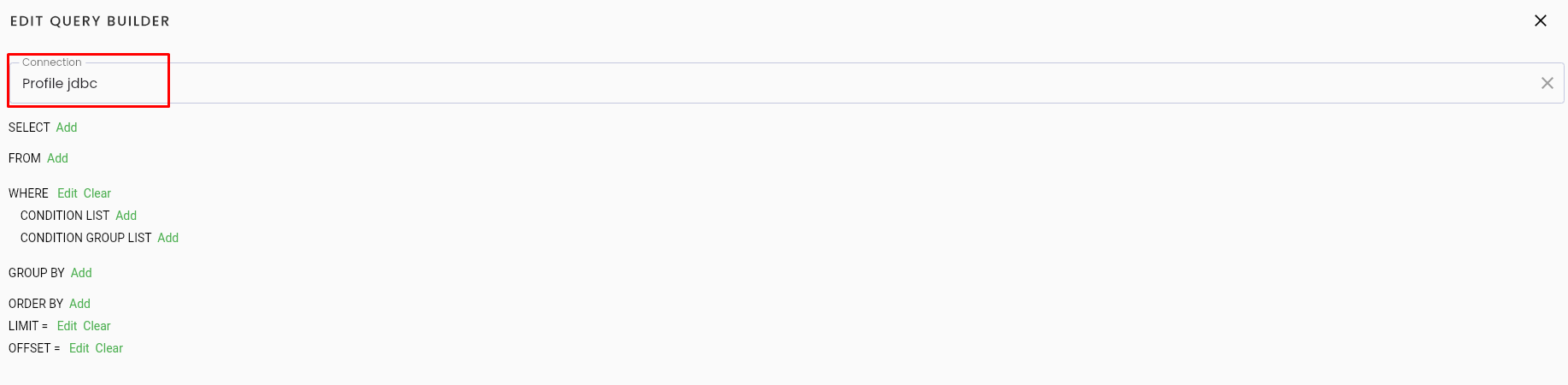
Step 3: Proceed to configure a complete query.
Note: It is recommended to start configuring the query builder from the FROM section to identify the data tables that will be used.
SELECT
Step 1: Click the add button in the SELECT row to create output information for the JDBC. The system will add a new entry to the “SELECT” list.

Step 2: Click the Edit button on the row you want to edit. The system will display the information screen.
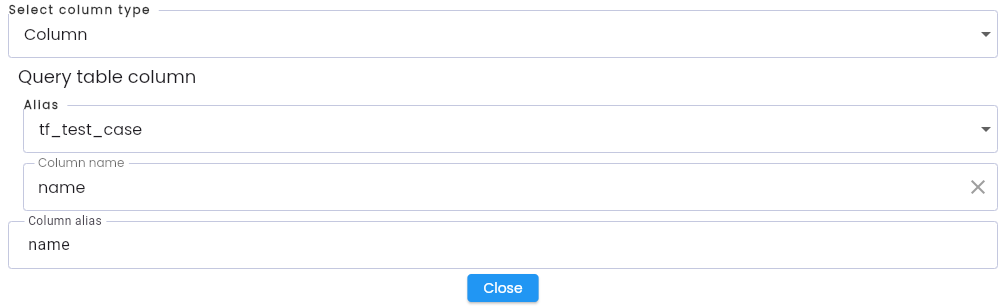
In this: The output information depends on the “Select column type”
Select column types include
- Min, max, avg, sum, count, countOne: Aggregate functions that perform calculations on a set of values and return a single value.
- Truncate: Function for handling Date.
- Case: Conditional expression (CASE).
- Column: Function for retrieving data from a specific field.
- QuerySelect: Function for retrieving data from a subquery block inside the SELECT.
The output information is assigned to the Column alias and is mapped to the Outputs declared in the Config tab.
FROM
Step 1: Click the Add button in the FROM row to create information about the table to use. The system will add a new entry for table name as in the "From" list.
FROM
Bước 1: Click nút Add tại dòng FROM để tạo thông tin bảng sử dụng, hệ thống tạo mới 1 dòng thông tin table name as trong list “From”.

Step 2: Click the Edit button on the table you want to edit. The system will display the information screen for the selected table.
In this: Type query is the query type used to determine how the table will be used in JDBC. There are 3 types:
- Query Table: Uses a single independent table.
- Query Join: Uses data from multiple tables.
- Query Select: Uses data from multiple tables.
Query Table
Custom screen queryTable
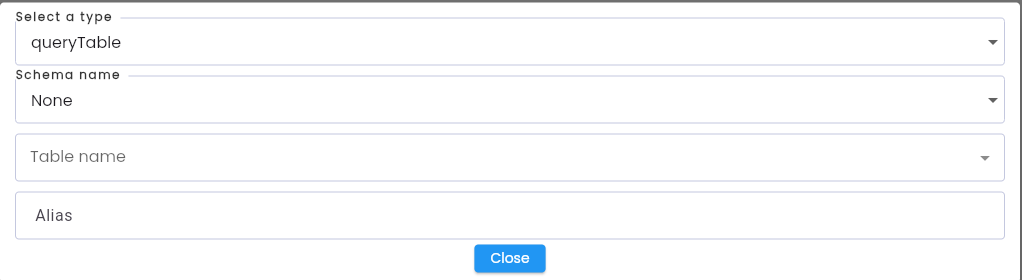
| Field Name | Mandatory | Format | Constraints | Description |
|---|---|---|---|---|
| Schema name | Có | Combobox | The user selects the schema that contains the table they want to use. | |
| Table name | Có | Combobox | The user selects the table name to be used. | |
| Alias | Có | Text | A temporary name for the table, used in other parts of the query to shorten the table name. The system will auto-generate an alias from the table name, but users can edit it. |
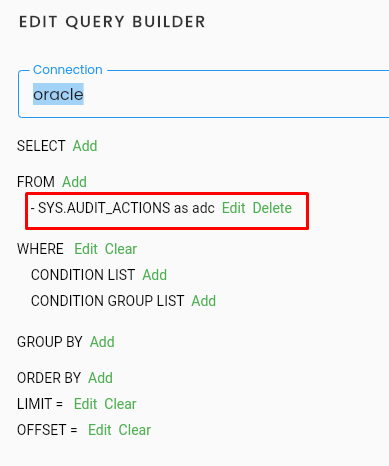
Example: Configure the query as Select … from SYS.AUDIT_ACTIONS as adc
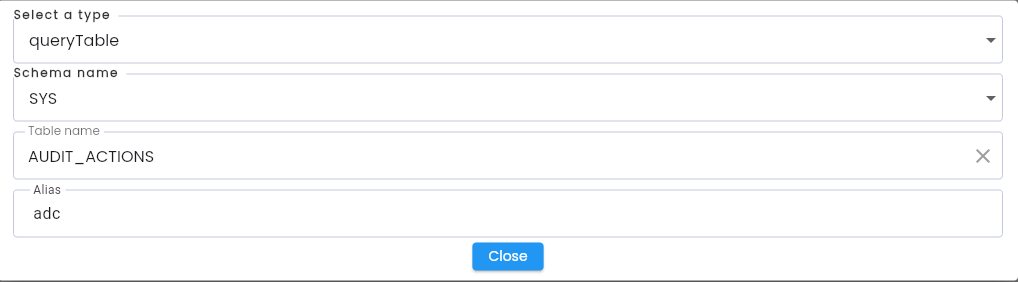
After selecting the components, the user clicks Close, and the query configured in FROM will be updated.
Query Join
Custom screen queryJoin
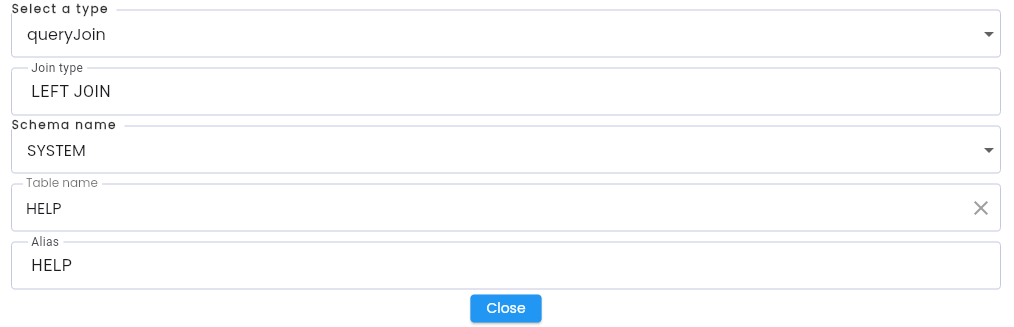
The query now connects at least two tables together.
- Join type includes all join types allowed in the connection driver selected, such as “LEFT JOIN”, “RIGHT JOIN”, “INNER JOIN”, …
The fields of the joined table are selected similarly to an independent table in queryTable.
Once Close is clicked, the system will update the query in the FROM list.
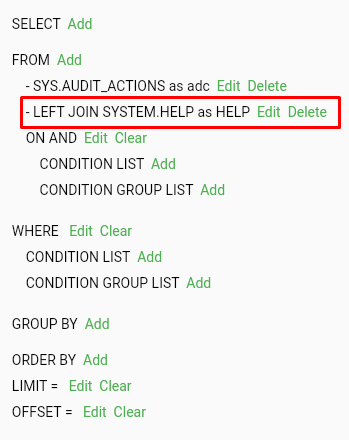
To configure the connection between two tables, Button Edit button in the ON row is used to control the join condition between the tables, either using “AND” hoặc “OR”.

The steps to configure the CONDITION section are similar to those in the WHERE section.
Query Select
Custom screen querySelect

When Closeis clicked, the system will automatically generate a new subquery block in the selected table row.
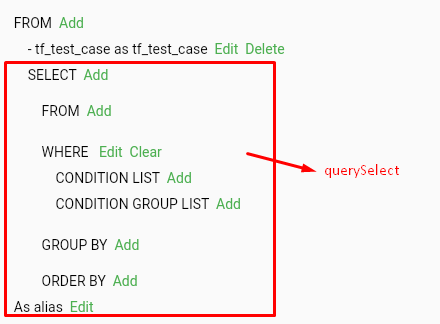
The operation and fields are similar to the configuration of the initial query block.
Data returned from the subquery block will be assigned to a temporary table and can be used throughout the query builder.
WHERE
In each condition, there are two components:
- Condition List: Contains the conditions for filtering data.
- Condition Group List: Contains a condition at the same level as the Condition List, connected by “AND” hoặc “OR”.
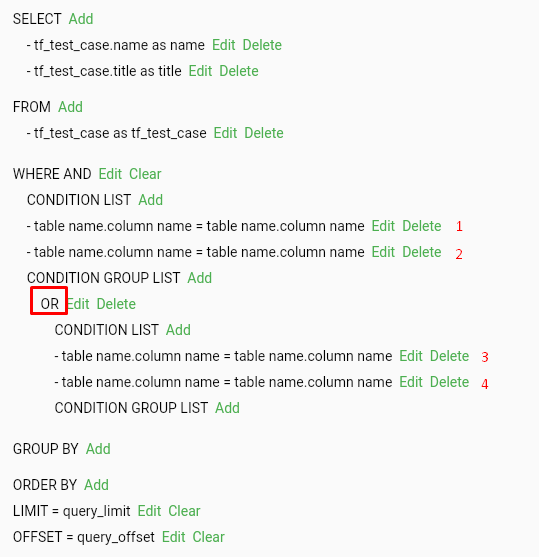
In the illustration, the query looks for records where condition (1) and (2) are true, or (3) and (4) are true.
Edit CONDITION
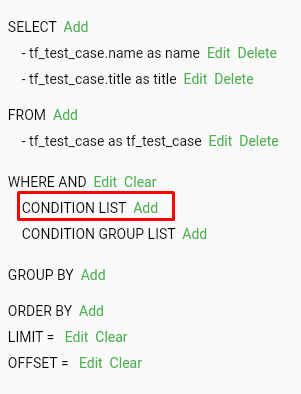
Step 1: In the CONDITION LISTrow, click the Add button. The system will add a new condition.
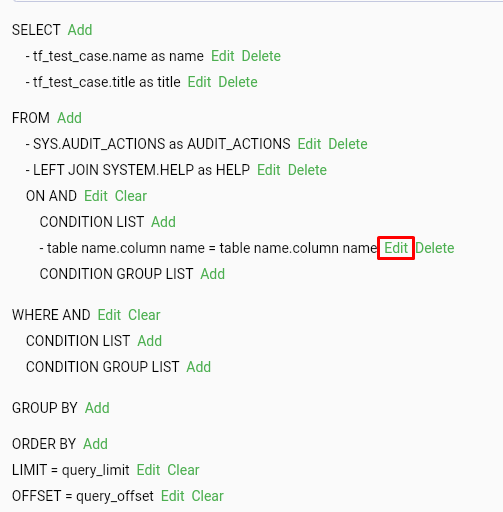
Step 2: In the rows of conditions under CONDITION LIST, click the Edit button to display the configuration screen for the condition.
Step 3: Enter the appropriate information for the condition to be used.
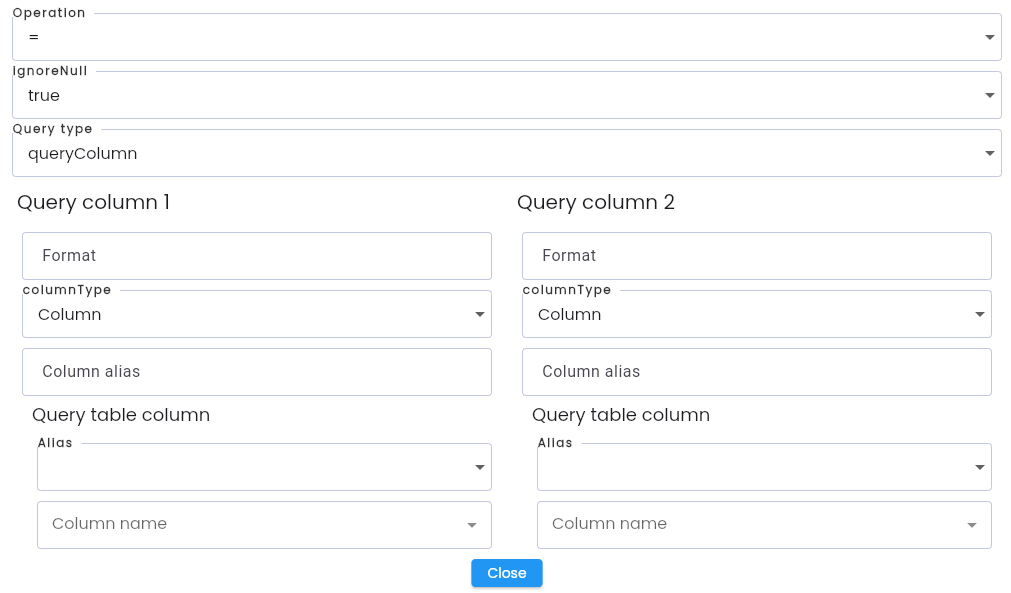
In this:
| Field Name | Mandatory | Format | Constraints | Description |
|---|---|---|---|---|
| Operation | Yes | Combobox | Displays the list of condition operators allowed in the selected Connection driver. The user selects an operator. | |
| IgnoreNull | Yes | Combobox | Displays two options to control: + True: if the condition can be null + False: if the condition cannot be null | |
| Query Type | Yes | Combobox | Displays two options for query type: + queryColumn: Perform a query between two data columns + querySelect: Write a subquery to retrieve data for the condition. The user selects one. | |
QueryColumn 1 QueryColumn 2 Only visible when queryType = “queryColumn” | ||||
| Format | Text | Only used for conditions related to Date type data | Date format of the data VD: dd/MM/yyyy | |
| ColumnType | Yes | Combobox | Displays options for the user to select: + Column: Use data from a column in JDBC. + Value: Use data passed from the system | |
| Column alias | Yes | Combobox | Displays values to allow the user to select one: + Column: Use data from a column in JDBC. + Value: Use data passed from the system | |
| Alias | Yes | Combobox | Only visible when ColumnType = “Column”. | Displays the alias values of the tables declared in the Edit Query Builder configuration phase. The user can select one. |
| Column name | Yes | Combobox | Only visible when ColumnType = “Column”. | Displays the column names from the selected table alias. The user can select one. |
| Type | Yes | Combobox | Only visible when ColumnType = “Value” | Displays the value options: + Value: Data is directly passed into the configuration + parameterName: Data is passed when calling JDBC in test scenarios |
| Value | Yes | Text | Only visible when Type = “Value”. | The value of the column for comparison. |
| isList | Yes | Combobox | Only visible when ColumnType = “Value”. | Displays a Boolean value: + True: The data passed in is a List. + False: The data passed in is not a List. |
| isNull | Yes | Combobox | Only visible when ColumnType = “Value”. | Displays a Boolean value: + True: The data passed in will be null. + False: The data passed in will not be null. |
| ValueType | Yes | Combobox | Only visible when ColumnType = “Value”. | Displays the data types of the value. The system defaults to "String" when creating a new entry. |
| IgnoreNull (Value) | Yes | Combobox | Only visible when ColumnType = “Value”. | Displays two options to control: + True: If the value can be null + False: If the value cannot be null. |
| ParameterName | Yes | Text | Only visible when ColumnType = “parameterName”. | Enter the parameter that has been initialized in the params List under the Config tab. |
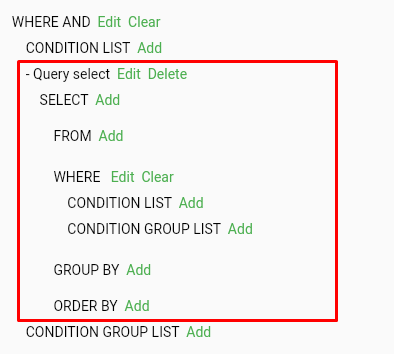
When queryType = “querySelect”, the system will automatically generate a new subquery block in the edited CONDITION row.
GROUP BY
Step 1: Click the Add button on the GROUP BY row to create the grouping information for JDBC, and the system will create a new entry in the “GROUP BY” list.

Step 2: Click the Edit button on the row you want to edit, and the system will display the information screen.

Fields:
| Field Name | Mandatory | Format | Constraints | Description |
|---|---|---|---|---|
| Alias | Yes | Combobox | Displays the temporary name of the table declared in the FROM section. The user can select one. | |
| Column name | Yes | Button | Displays the columns of the selected table alias. The user can select one. |
After clicking Close, the system updates the query in the GROUP BY list.
ORDER BY
Step 1: Click the Add button on the ORDER BY row to create the grouping information for JDBC, the system will create a new entry in the “ORDER BY” list.

Step 2: Click the Edit button on the row you want to edit, and the system will display the information screen.
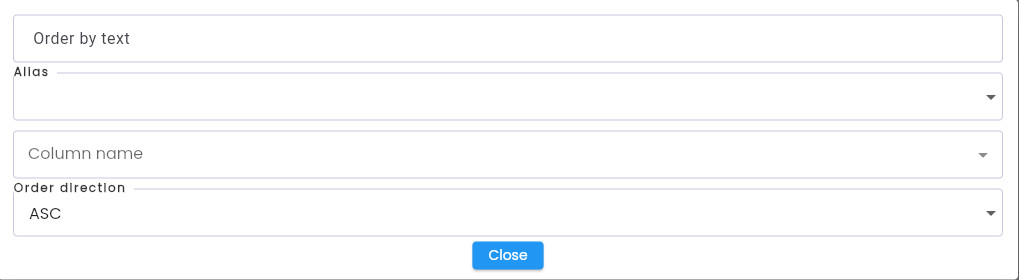
Fields:
| Field Name | Mandatory | Format | Constraints | Description |
|---|---|---|---|---|
| Alias | Yes | Combobox | Displays the temporary name of the table declared in the FROMsection. The user can select one. | |
| Column name | Yes | Button | Displays the columns of the selected table alias. The user can select one. | |
| Order Direction | Yes | Combobox | Displays sorting options allowed in the selected Connection driver: + ASC: Ascending + DESC: Descending. Users are allowed to choose 1. |
After clicking Close, the system updates the query in the ORDER BY list.
LIMIT
Step 1: Click the Edit button on the LIMIT row to create the information for the output result quantity of JDBC.

Step 2: The system will display the information screen, and the user will enter the relevant values.
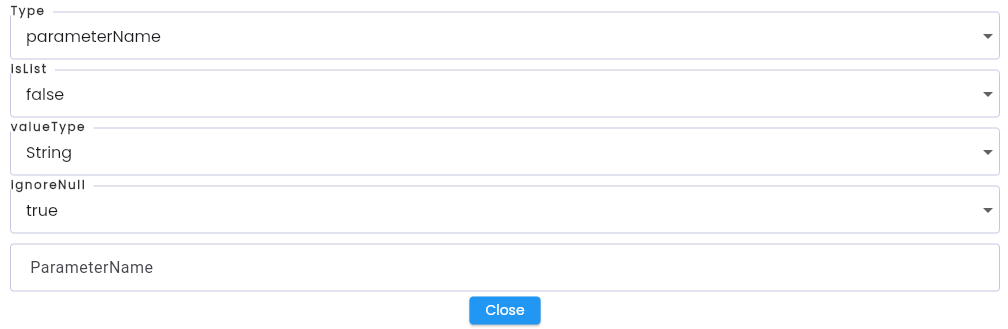
Fields:
| Field Name | Mandatory | Format | Constraints | Description |
|---|---|---|---|---|
| Type | Yes | Combobox | Displays the value options: + Value: Directly passed data in the configuration + parameterName: Data passed during JDBC calls in test scenarios. Users are allowed to choose 1. | |
| Value | Yes | Text | Visible only when Type = “Value” | The comparison value for the column. |
| isList | Yes | Combobox | Displays a Boolean value: + True: Data passed is a List. + False: Data passed is not a List. Users are allowed to choose 1. | |
| isNull | Yes | Combobox | Visible only when ColumnType = “Value” | Displays a Boolean value: + True: Data will be null. + False: Data will not be null. Users are allowed to choose 1. |
| ValueType | Yes | Combobox | Displays the data types for the value. The system defaults to "String" when creating a new entry. Users are allowed to choose 1. | |
| IgnoreNull | Yes | Combobox | Displays two options for control: + True: Condition can be null + False: Condition cannot be null. Users are allowed to choose 1. | |
| ParameterName | Yes | Text | Visible only when ColumnType = “parameterName” | Enter the parameter initialized in the params List under the Config tab. |
| isNull | Yes | Combobox | Visible only when ColumnType = “Value” | Displays a Boolean value: + True: Data passed will be null. + False: Data will not be null. Users are allowed to choose 1. |
After clicking “Close”, the system updates the query in the "LIMIT" row.

OFFSET
The fields and operations for "OFFSET" are the same as those for “LIMIT”