File
This function serves as a data storage for test scenarios that have input data and for parameters in file format.
Filtering File
The screen for the File function:
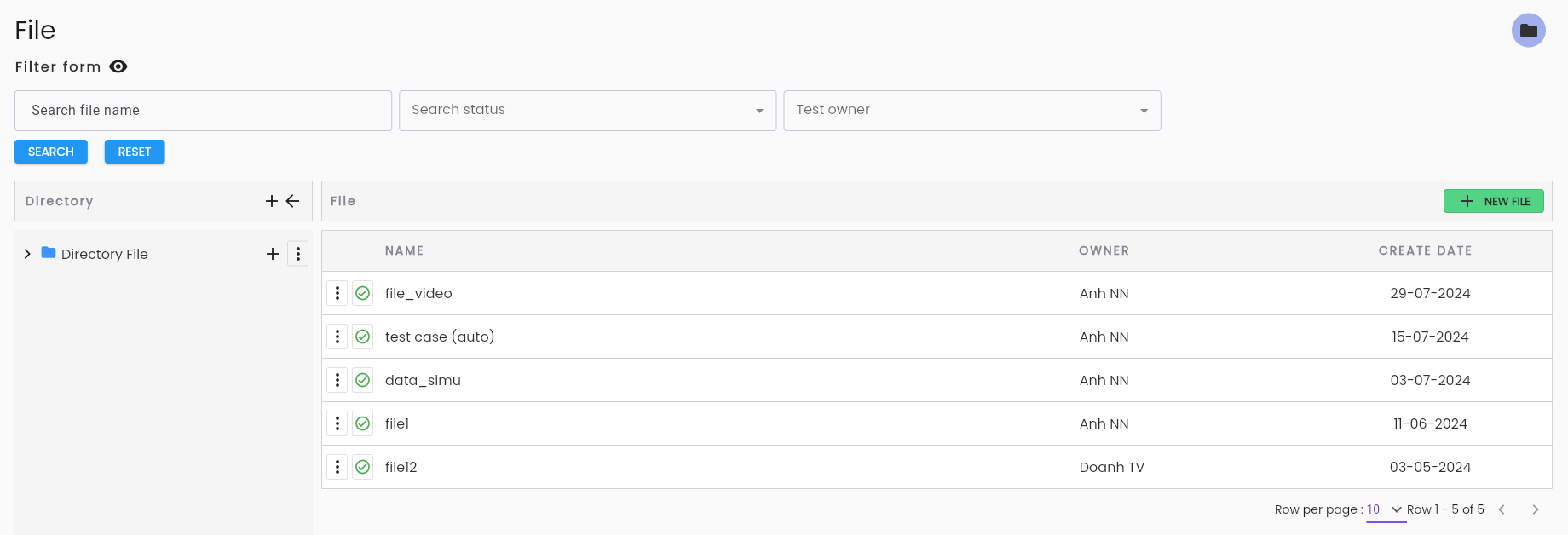
To filter, users enter the desired information fields in the search area, including:
| Information Field | Mandatory | Format | Constraints | Description |
|---|---|---|---|---|
 | - | - | - | Click button  to hide/show the search filter function to hide/show the search filter function |
| File Name | - | Text | - | Field for searching by name |
| Test status | - | Text | - | Field for searching by status, including: + Active + Inactive |
| Test owner | - | Combobox | - | Field for searching by the creator of the scenario |
 | - | Button | - | Click the button to search for test execution results based on the entered filter conditions |
 | - | Button | - | Click the button to clear the previous filter conditions |
The result list of test scenarios in the project:
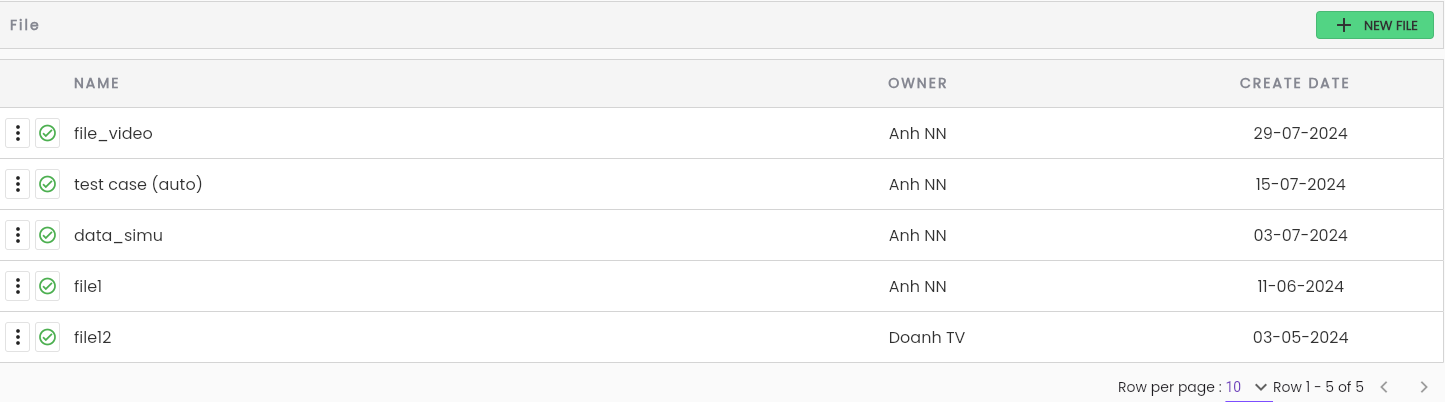
In this:
| Information Field | Description |
|---|---|
 | Click the button to add a new file to the system |
| NAME | File name |
| OWNER | Name of the person who uploaded the file |
| CREATE DATE | Upload time |
Upload file
Step 1: On the File library screen, click “New file”.
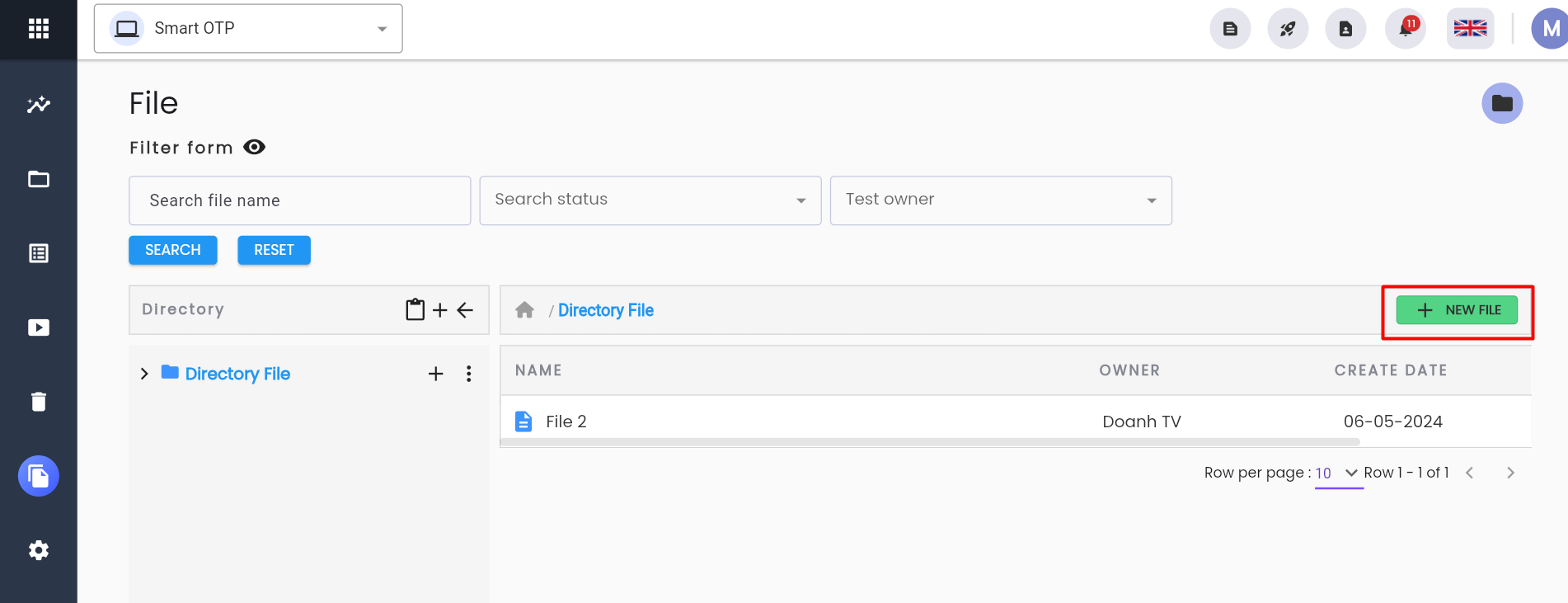
The system displays the New file screen.
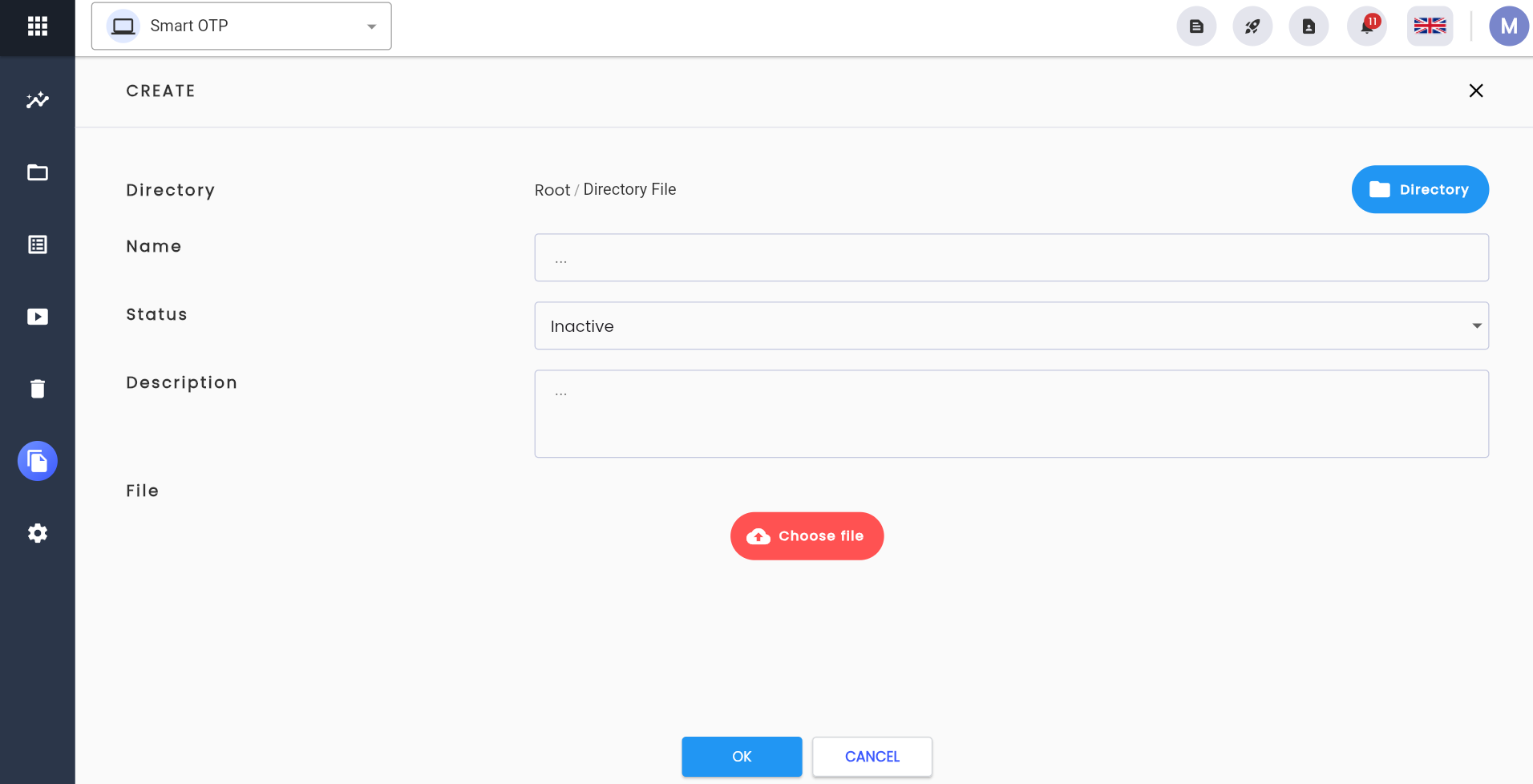
Step 2: Enter all required and valid information for the fields, including:
| Information Field | Mandatory | Format | Constraints | Description |
|---|---|---|---|---|
 | - | Button | - | Click the button to select the directory to store the file |
 | - | Button | - | Click the button to select the file to upload to the system |
 | - | Button | Click the button to download the file from the system | |
| OK | - | Button | - | Click “OK” to upload the file to the system |
| CANCEL | - | Button | - | Click “CANCEL” to cancel the file upload operation |
| Directory | - | AutoComplete | - | Information about the directory to store the file |
| Name | Yes | Text | - | Enter the name of the file |
| Status | Yes | Combobox | - | Displays the status of the file, users can select one value: + Active + Inactive |
| Description | - | Textarea | - | Enter a description for the file |
| File | Yes | File | - | The file to be uploaded to the system. Click “Choose file” to select the file to upload |
Step 3: Click “Choose file”, select the file to upload.
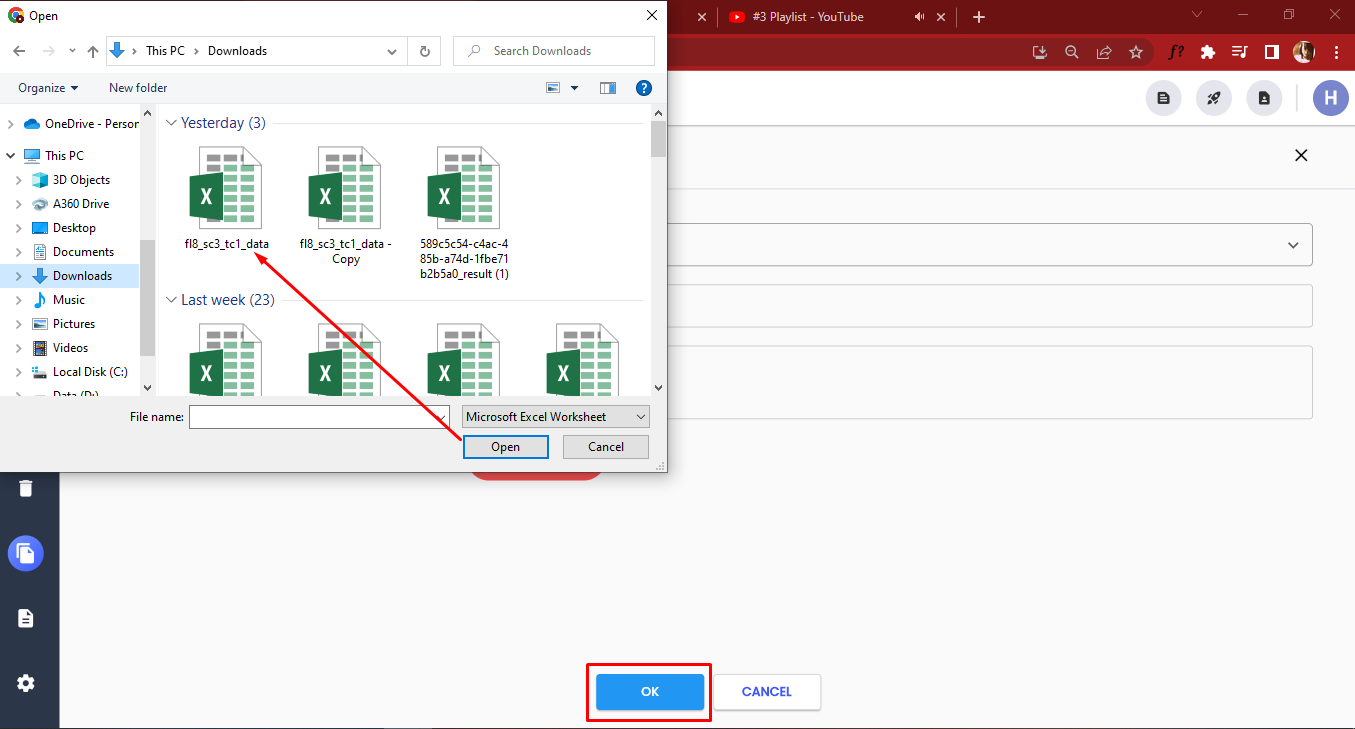
Step 4: Click Open
Step 5: Click “OK”, the system notifies “Create Successful”
Edit File Information
Step 1: On the data grid, click  on the file you want to edit, then select “Edit”
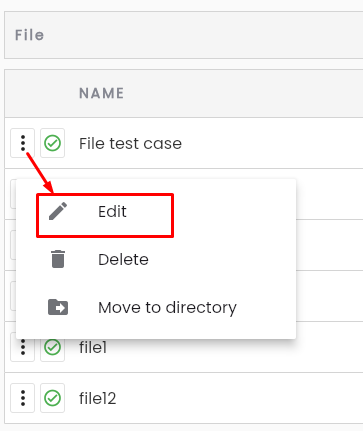
The system displays the Edit file screen.
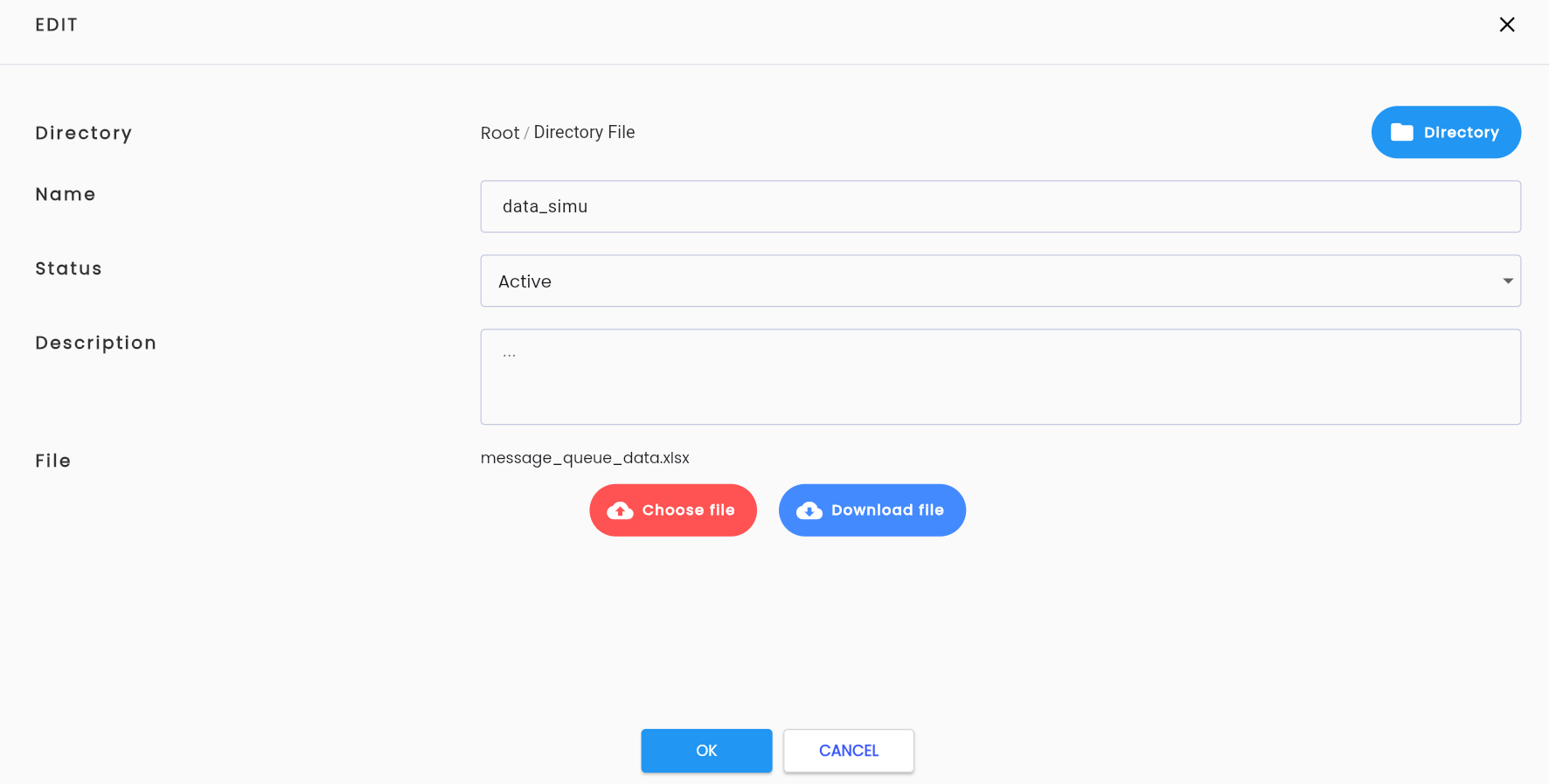
Step 2: Enter the information similarly to when uploading a file.
Step 3: Click “OK”, the system notifies “Edit successful”
Delete File
Step 1: On the data grid, click “ ” on the file you want to delete, then select “Delete”
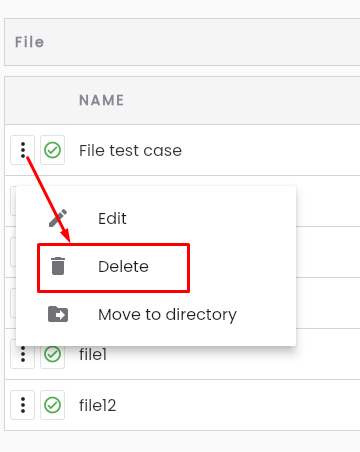
The system displays a confirmation popup for deletion.
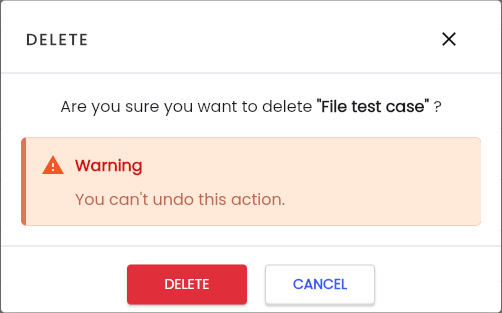
Step 2: Click Delete on the popup to confirm deletion. The system displays the notification “Delete Successful”