Filtering Test Lib
Filtering in the Dashboard Tab
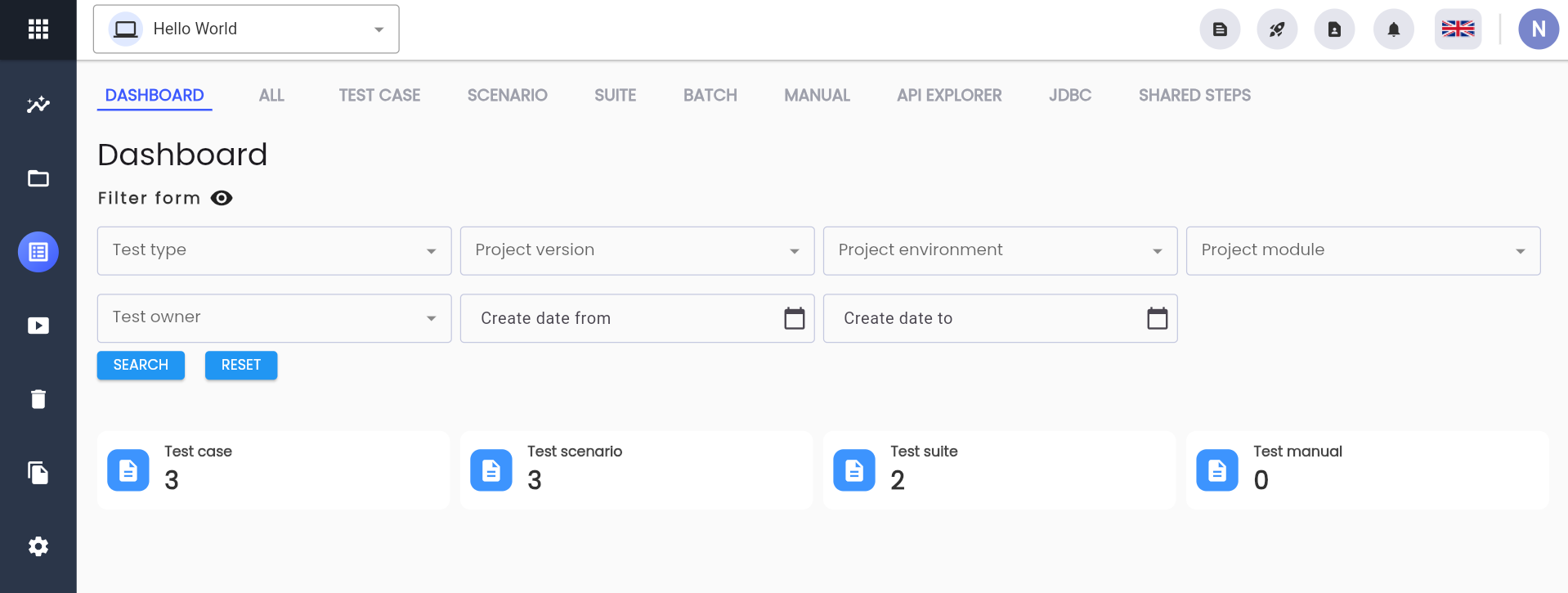
To filter in the Dashboard tab, the user can enter the necessary information in the search area, as follows:
| Field | Mandatory | Format | Constraints | Description |
|---|---|---|---|---|
| Icon | - | Icon | - | Click to show/hide the search filter function |
| Test Type | - | Combobox | - | Search by test type, with values: + Test case + Test Scenario + Test Suite + Test API + Test JDBC + Test Manual + Shared Steps |
| Project Version | - | Combobox | - | Search for test scripts by the project version available in the system |
| Project environment | - | Combobox | - | Search for test scripts by the development environment of the product |
| Project module | - | Combobox | - | Search for test scripts by the project module |
| Test owner | - | Combobox | - | Search for test scripts by the owner of the test |
| Create date from | - | Date | - | Search by creation date from a specific date |
| Create date to | - | Date | - | Search by creation date up to a specific date |
| Image | - | Button | - | Click button “Search” to find test scripts based on the filter criteria entered earlier |
| Image | - | Button | - | Click “RESET” to clear all previous filter criteria |
The search results will display the number of test scripts by each type in the project.

In this:
| Field | Description |
|---|---|
| TYPE | Type of test scenario |
| AMOUNT | Number of test scenarios for each type of test scenario |
Filtering in the Test Function Tabs
Filtering for the Test Case, Scenario, Suite, Manual, API Explorer, JDBC, and Shared Steps tabs works similarly.
Filtering at the Test case function screen
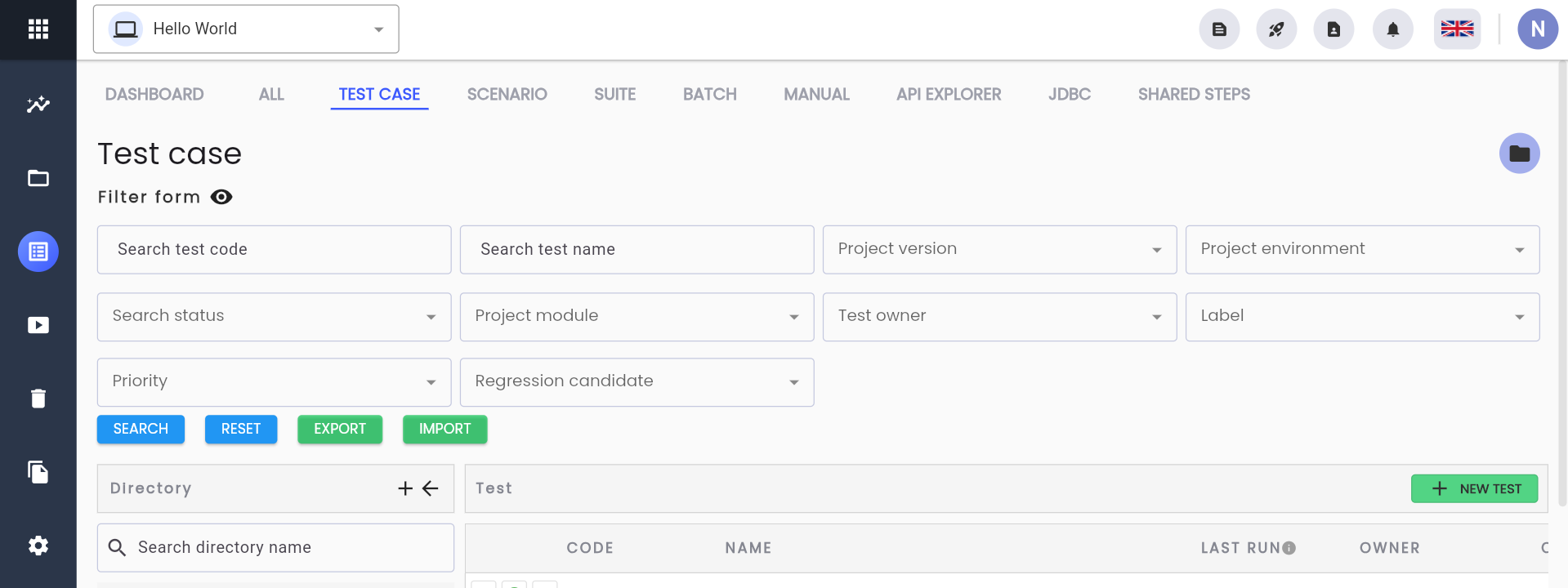
To perform filtering, users enter the desired information fields into the search area, including:
| Field | Mandatory | Format | Constraints | Description |
|---|---|---|---|---|
 | - | Icon | - | Click icon  to show/hide the search filter function to show/hide the search filter function |
| Test code | - | Text | - | Search for test scripts by code |
| Test name | - | Text | - | Search for test scripts by name |
| Project version | - | Combobox | - | Search for test scripts by the project version |
| Project environment | - | Combobox | - | Search for test scripts by the development environment of the product |
| Status | - | Combobox | - | Search for test scripts by status (Draft, Active, Review) |
| Project module | - | Combobox | - | Search for test scripts by the project module |
| Test owner | - | Combobox | - | Search for test scripts by the owner of the test |
| Label | - | Combobox | - | Search for test scripts by label |
| Priority | - | Combobox | - | Search for test scripts by priority + High + Medium + Low |
| Regression candidate | - | Combobox | - | Search by the system's auto-calculated regression index based on the last 10 runs + None + Primary + Secondary + Tertiary |
 | - | Button | - | Click button “SEARCH” to find test scripts based on the filter criteria entered earlier |
 | - | Button | - | Click “RESET” to clear all previous filter criteria |
 | - | Button | - | Click “EXPORT” to download an Excel file containing metadata of test scripts based on the filtered conditions |
 | - | Button | The values of the information fields Test type, Test Owner, Project Module, Project environment, Project version, Status must belong to the values of the corresponding information fields in the project. | Click “IMPORT” to upload an Excel file containing test scripts based on the existing template |
 | - | Button | - | Click “NEW TEST” to create a new test script |
Result of list of test scenarios included in the project:
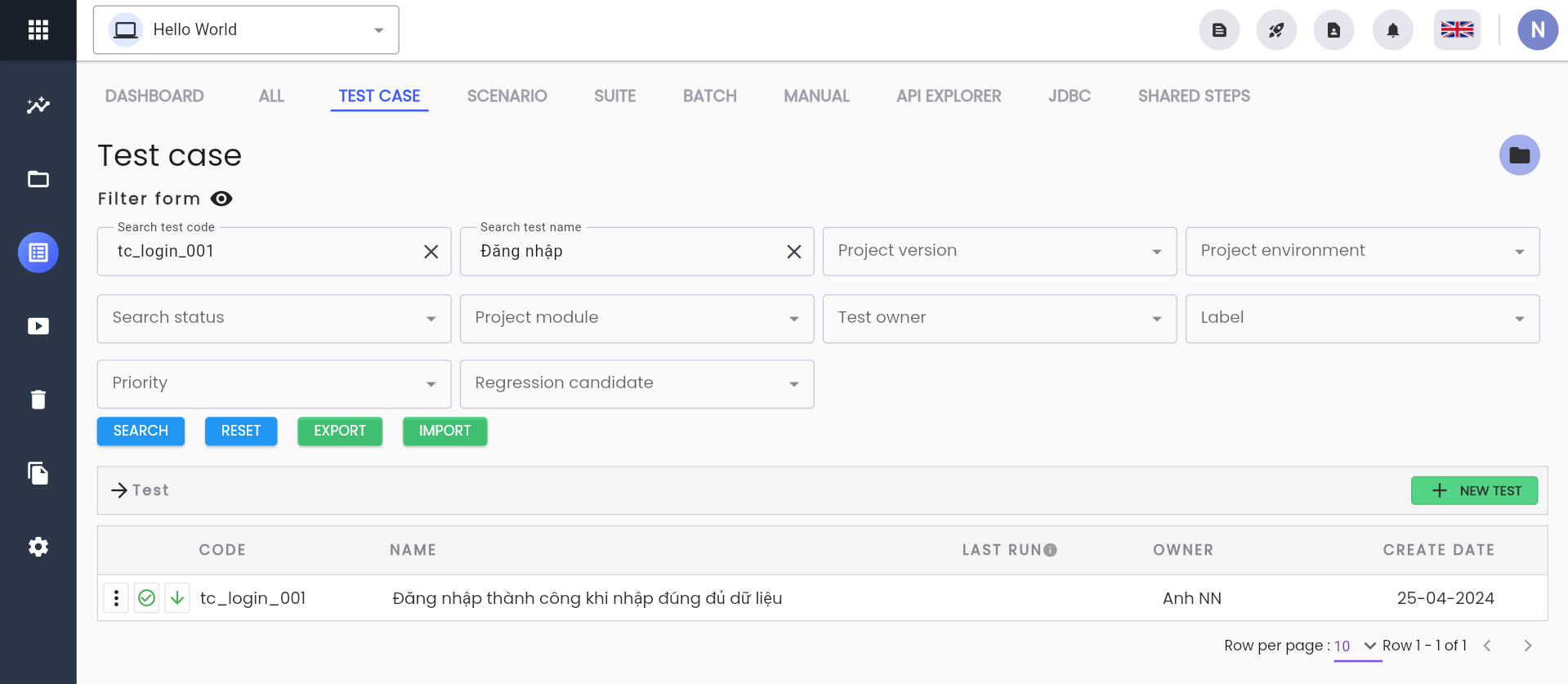
In this:
| Field | Description |
|---|---|
 | Click button “⋮”, display a menu with options for the user corresponding to the test type of the test script |
 | Hover over the Status element to display one of the three test case statuses: + Active: Active status + Draft: Draft status + Review: Status under review |
 | Hover over the Priority element to display one of the three priority levels of the test case: + High: High priority + Medium: Medium priority + Low: Low priority |
| CODE | Code of the test script |
| NAME | Name of the test script |
| LAST RUN | Displays the results of the last 10 executions of the test, including the number of executions by status: + Error: Error + Failed: Failure + Pass: Success |
| OWNER | Owner of the test script |
| CREATE DATE | Creation date of the test script |
Filtering in the All Tab
Filtering in the All tab is similar to the filtering functionality in the Test tabs.
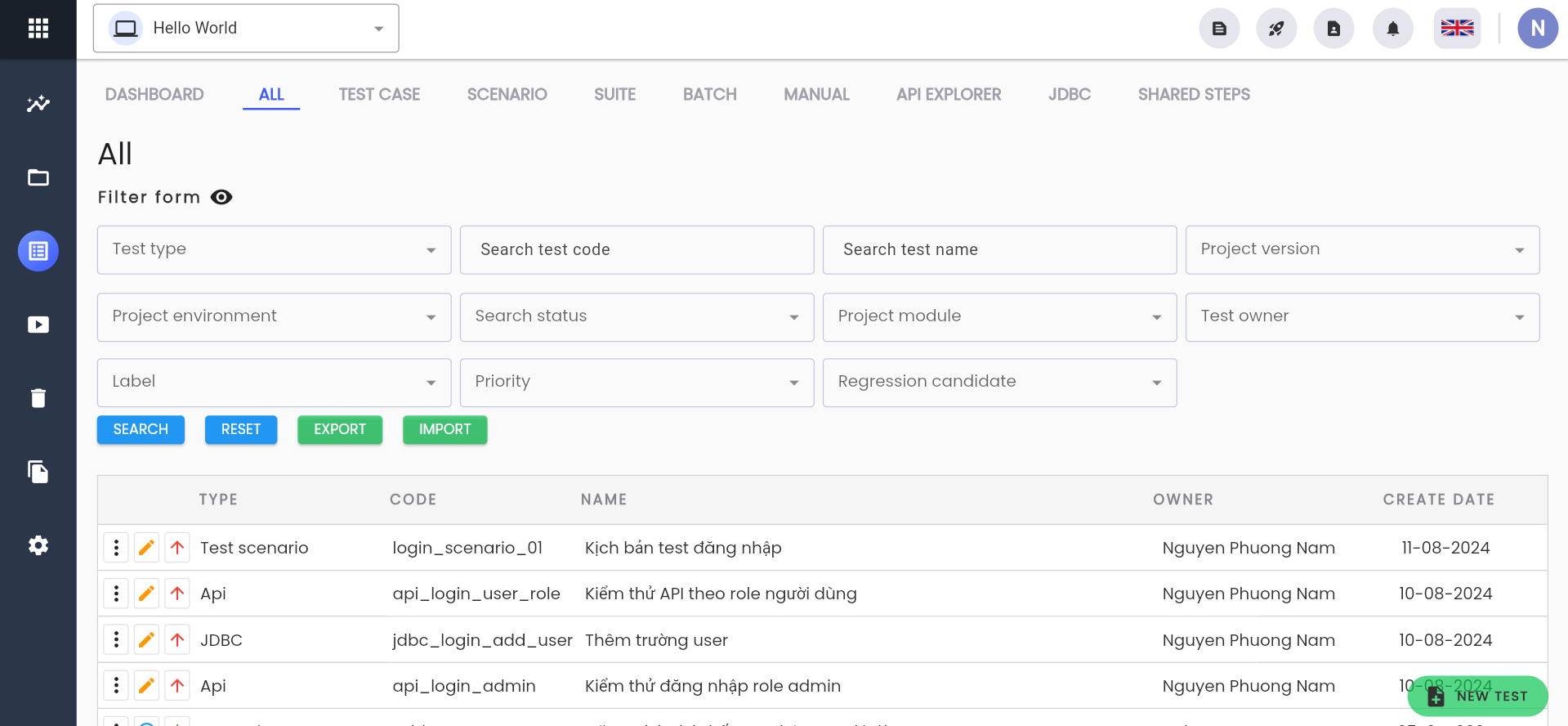
To perform filtering, users can enter the desired information in the search area, where:
| Field | Mandatory | Format | Constraints | Description |
|---|---|---|---|---|
| Reference to the section Filtering in the all tabs | ||||
| Test Type | - | Combobox | - | Search by test type, with the following values: + Test case + Test Scenario + Test Suite + Test API + Test JDBC + Test Manual + Shared Steps Users can select 1 value |
A project may have many test scripts for various modules and stages of the project. Therefore, to make management easier, the Centralized Automation Testing Suite helps users manage test scripts through Directory.