Device
The device in the Centralized Automation Testing Suite manages the devices used in the project, including device names and usage time.
To access the Device function, follow these steps:
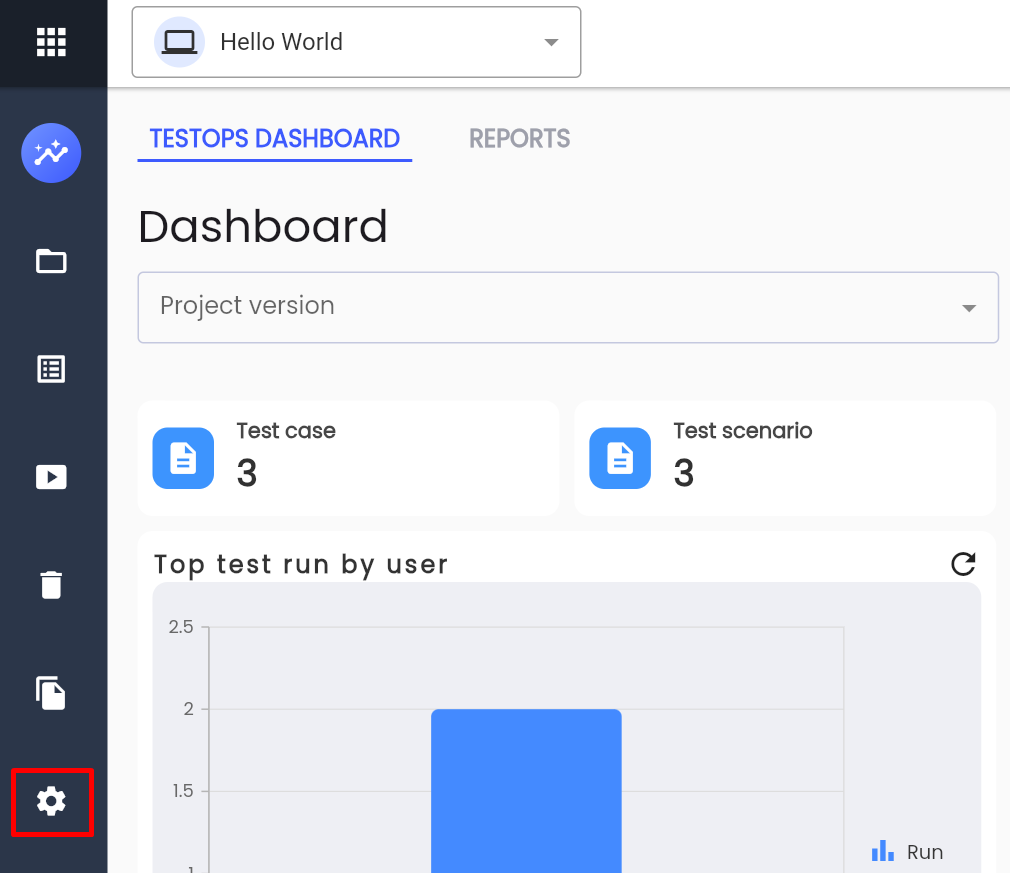
Step 1: Click on the Setting menu on the screen.
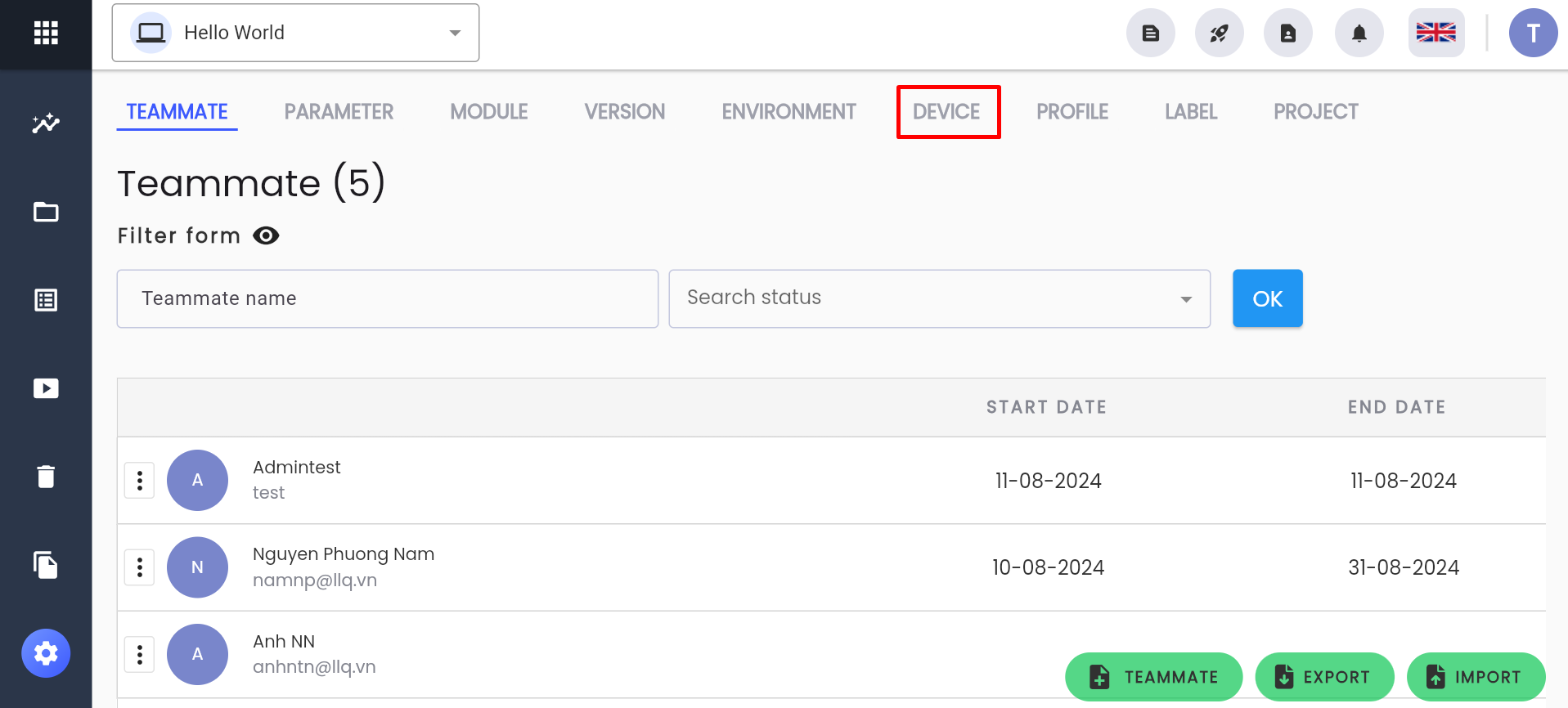
Step 2: Click on the DEVICE tab
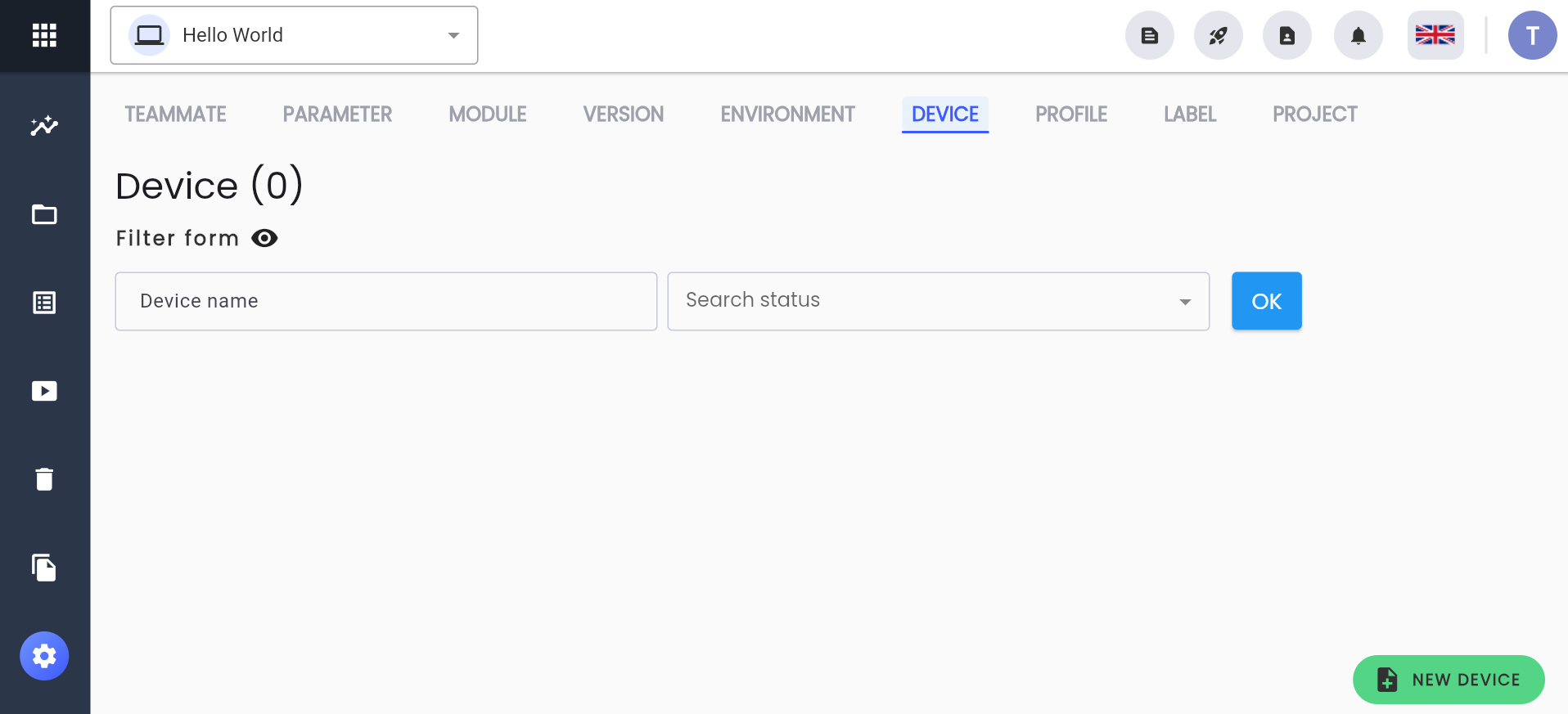
The system displays a list of devices that have been used in the project.
Overview of Device Management
This section will guide users on how to manage devices in the Centralized Automation Testing Suite:
- Add devices to the project
- Update equipment usage information in the project
- Delete the device from the project
- Initialize device parameters (Device variable)
- Configure values for device parameters
Add a Device to the Project
Device Already in the System
Step 1: On the DEVICE tab, click NEW DEVICE
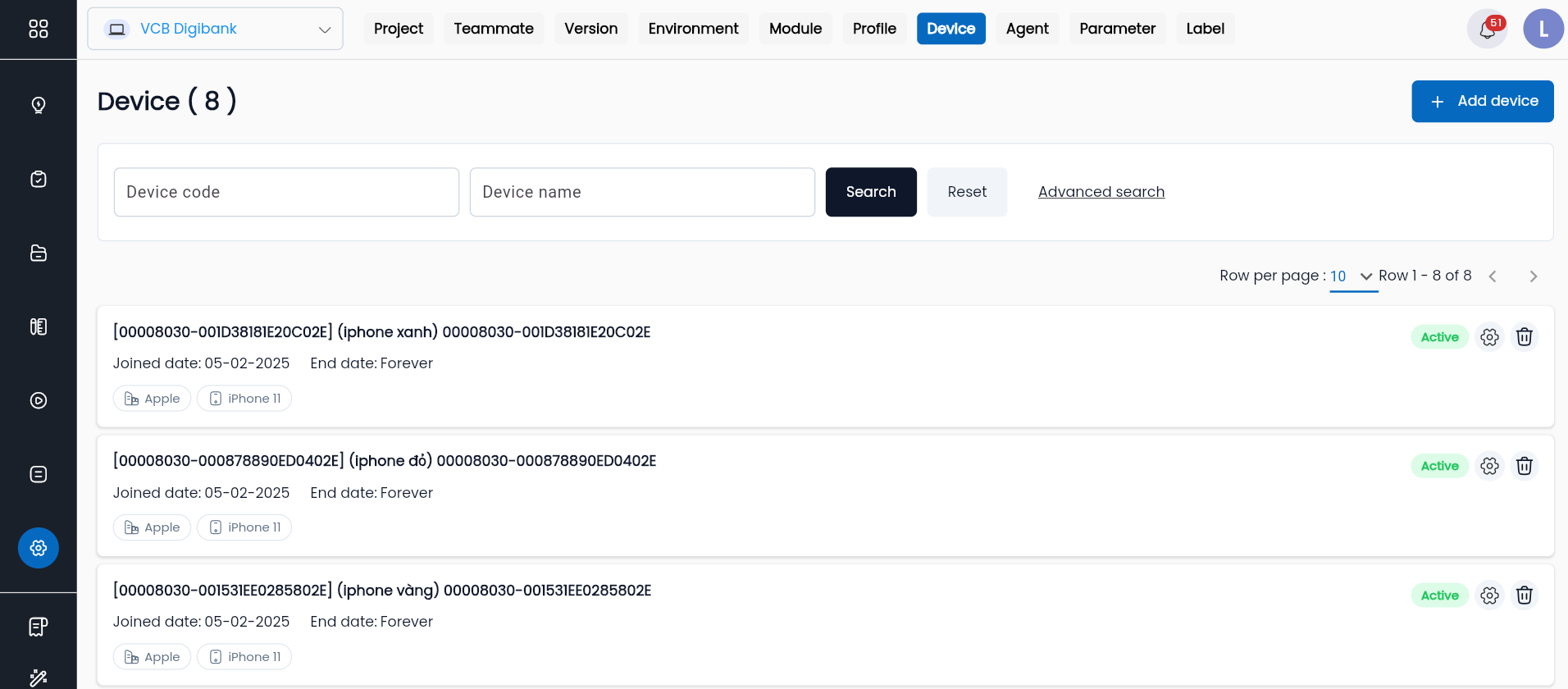
The system displays a list of devices already in the system along with their corresponding usage times.
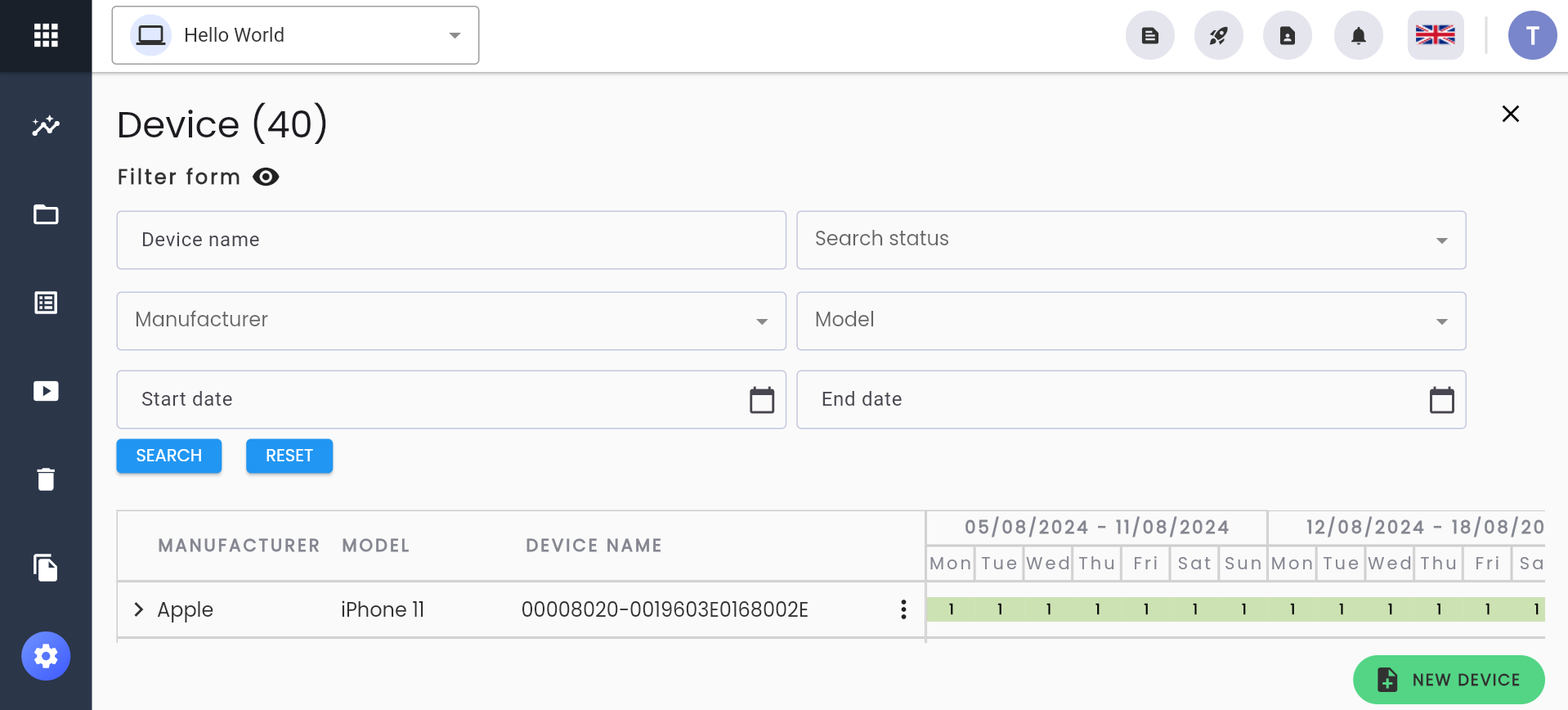
Step 2: Enter the device name, status, model, etc., into the corresponding search box to find the device.
Description of the information fields:
| Field Name | Mandatory | Format | Constraints | Description |
|---|---|---|---|---|
| Device name | No | Textbox | The name of the device, generated when adding the device to the system. | |
| Status | No | Combobox | The operational status of the device in the system. Values include: + Active: currently operational + Inactive: not operational. Only one value can be selected. | |
| Manufacturer | No | Combobox | The brand of the device. Only one value can be selected. | |
| Model | No | Combobox | The model of the device belonging to the selected brand. Only one value can be selected. | |
| Start date | No | Date | Filter the usage timeline of the device starting from this date. | |
| End date | No | Date | Filter the usage timeline of the device until this date. |
Click SEARCH, and the system displays a list of devices that match the search criteria.
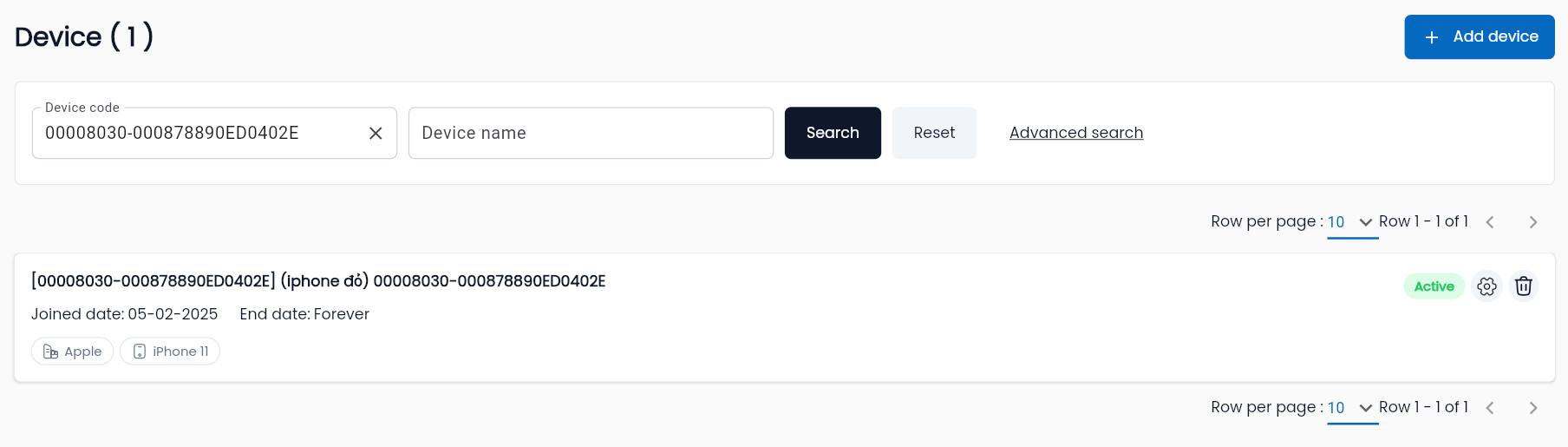
Step 3: Click on the device record you need to use, and the system displays the device information screen.
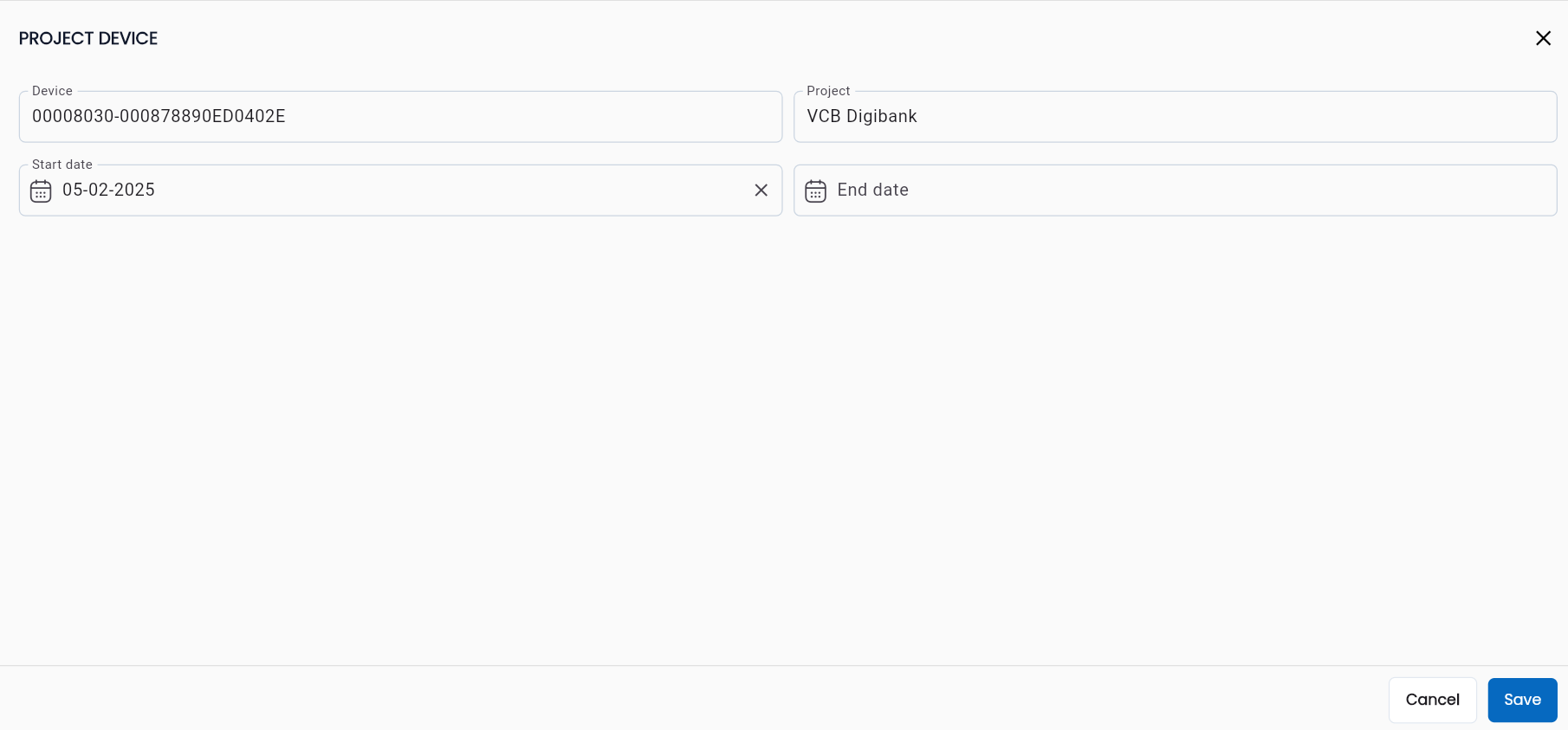
Step 4: Enter all valid information into the PROJECT DEVICE form.
Description of the information fields:
| Field Name | Mandatory | Format | Constraints | Description |
|---|---|---|---|---|
| Device | - | Textbox | The name of the device, generated when adding the device to the system. Cannot be edited. | |
| Project | - | Combobox | The name of the project currently adding the device. Cannot be edited. | |
| Start date | Yes | Date | The start time for using the device in the project. | |
| End date | Yes | Date | The end time for using the device in the project. |
- Step 5: Click OK, and the system displays the message “Create successful”
Device Not in the System
Note: Manual addition of devices is not encouraged.
Step 1: On the DEVICE tab, click NEW DEVICE
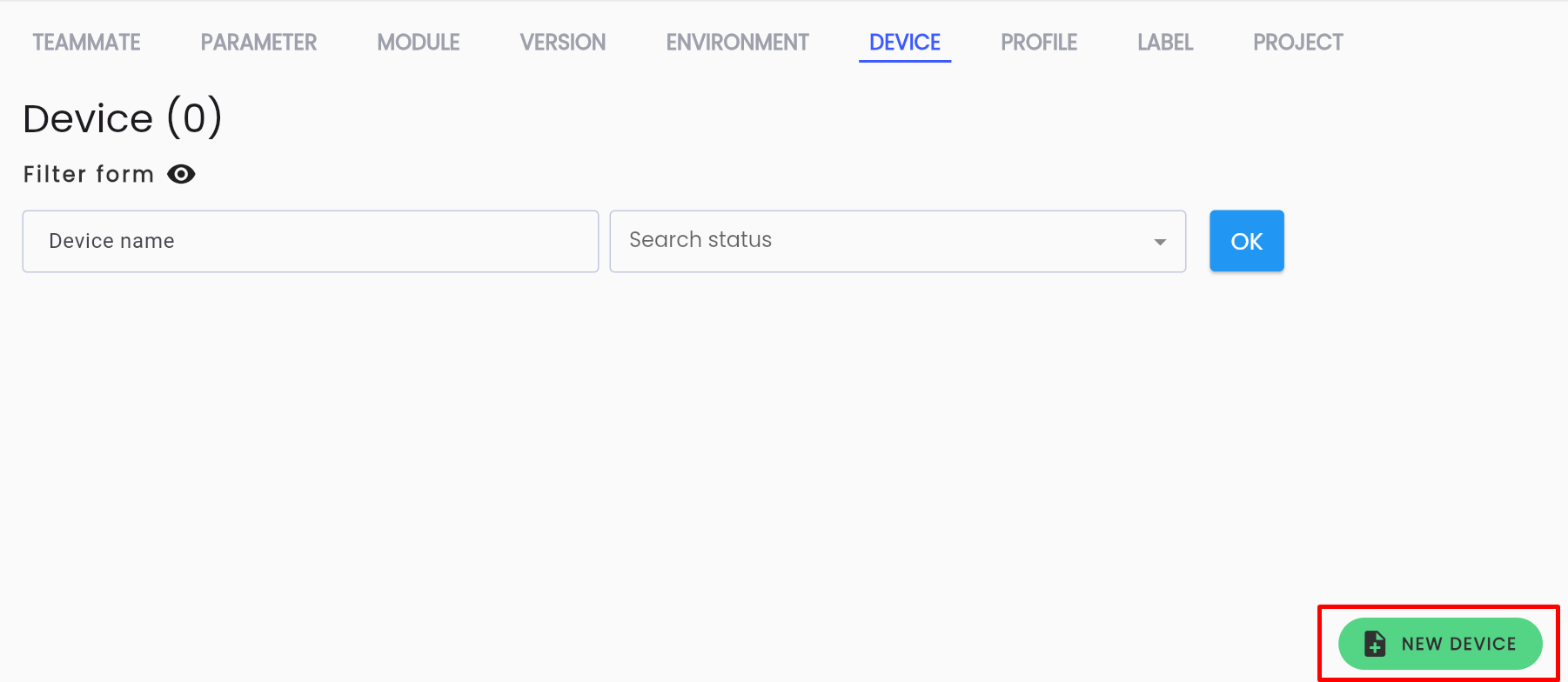
The system displays a list of devices already in the system along with their corresponding usage times.
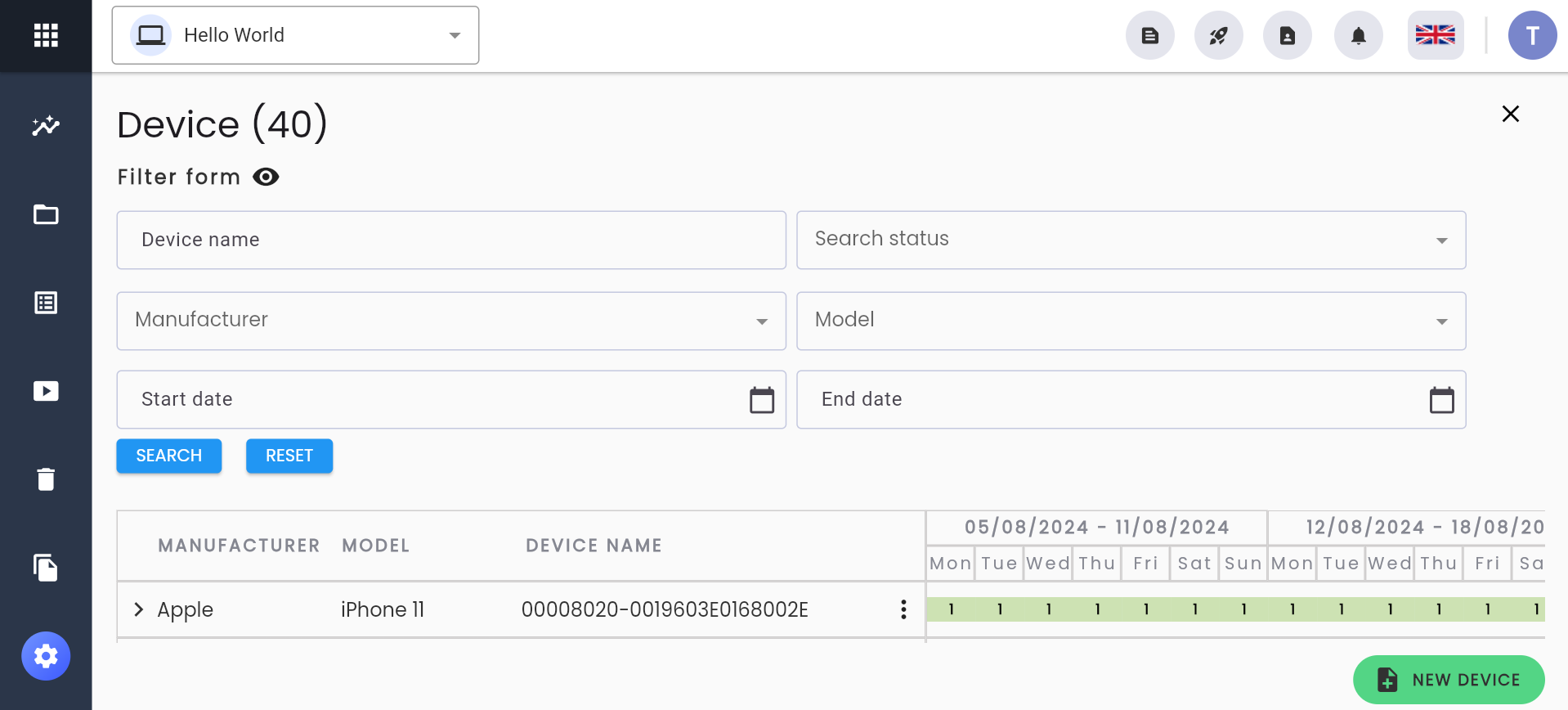
Step 2: Click NEW DEVICE, and the system displays the CREATE PROJECT DEVICE screen.
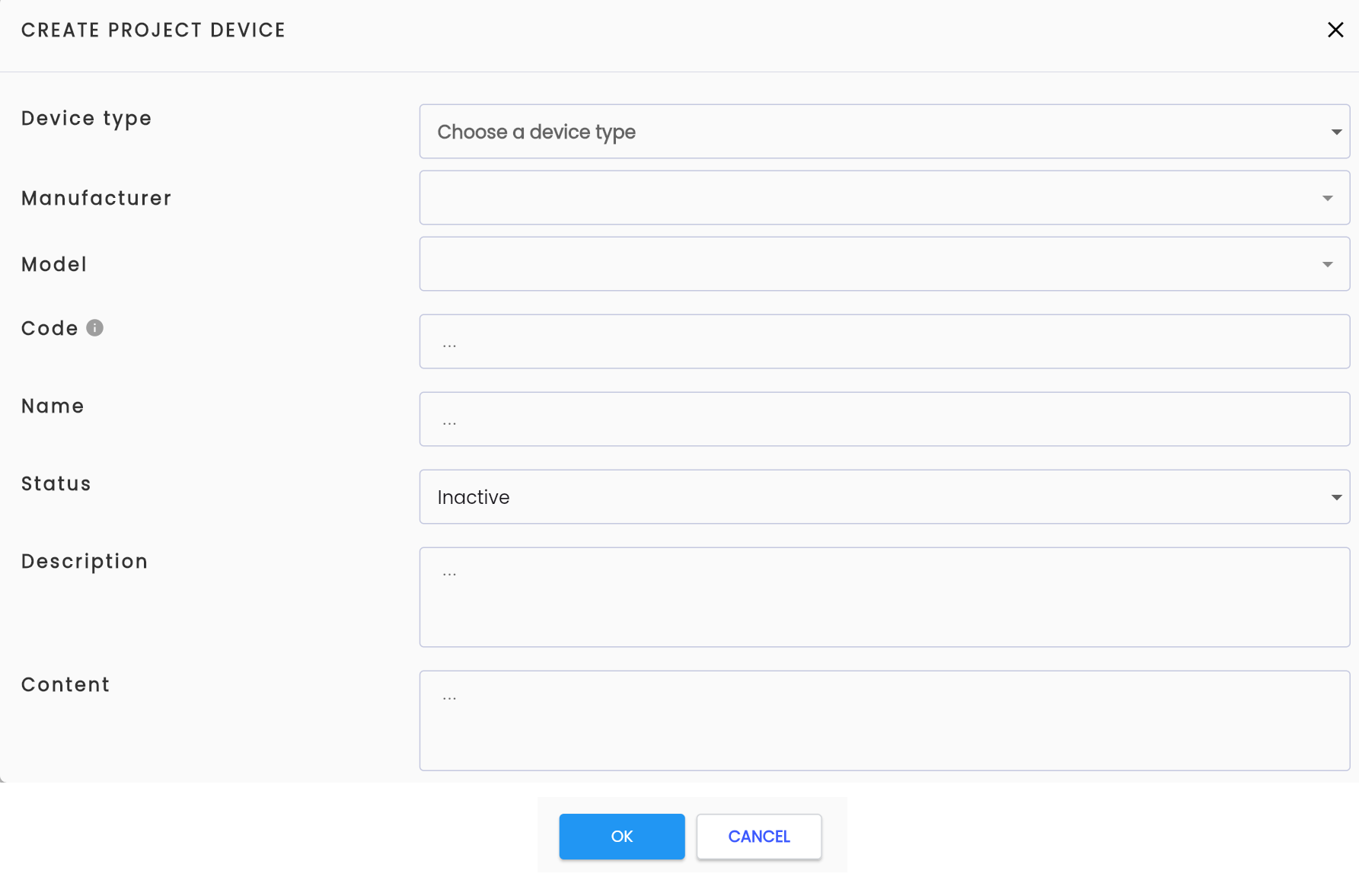
Step 3: Enter all valid information in the fields.
Description of the information fields:
| Field Name | Mandatory | Format | Constraints | Description |
|---|---|---|---|---|
| DEVICE TYPE | Yes | Combobox | The type of device. | |
| MANUFACTURER | Yes | Combobox | The brand of the device. | |
| MODEL | Yes | Combobox | The model of the device. | |
| CODE | Yes | Textbox | The code of the device. | |
| NAME | Yes | Textbox | The name of the device. | |
| STATUS | Yes | Combobox | The operational status of the device in the project, selectable values include: + ACTIVE: currently operational + INACTIVE: not operational. | |
| DESCRIPTION | No | Textarea | A detailed description of the device. | |
| CONTENT | No | Textarea | The configuration parameters of the device. |
Step 4: Click OK, and the system displays the message CREATE SUCCESSFUL
Update Device Usage Information in the Project
To update the usage time of a device in the project, do the following:
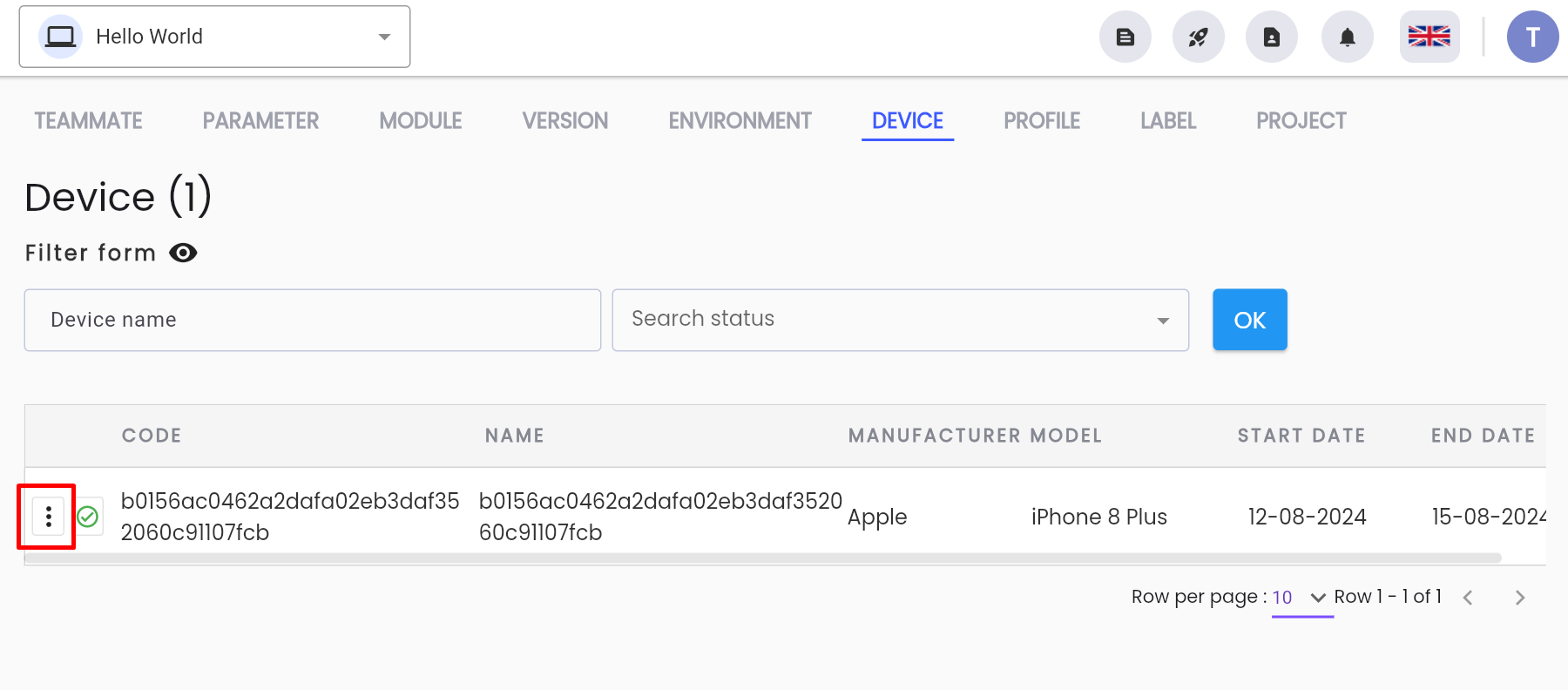
Step 1: On the DEVICE tab, find the device that needs to be updated, click the ⋮ on the left side of the record.
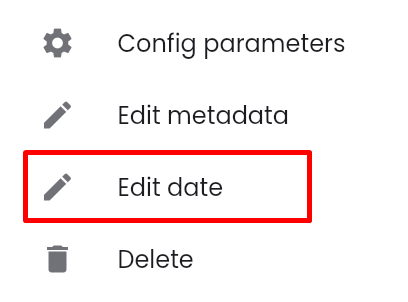
Step 2: Click on EDIT DATE
The system displays the PROJECT DEVICE screen.
Step 3: Enter and edit the information as required by the user. Description of information fields is similar to the new add form.
Step 4: Click OK. The system displays the message “UPDATE SUCCESSFUL”
Update Device Information
To update device information, do the following:
Step 1: On the DEVICE tab, find the device that needs to be updated, click the ⋮ on the left side of the record.
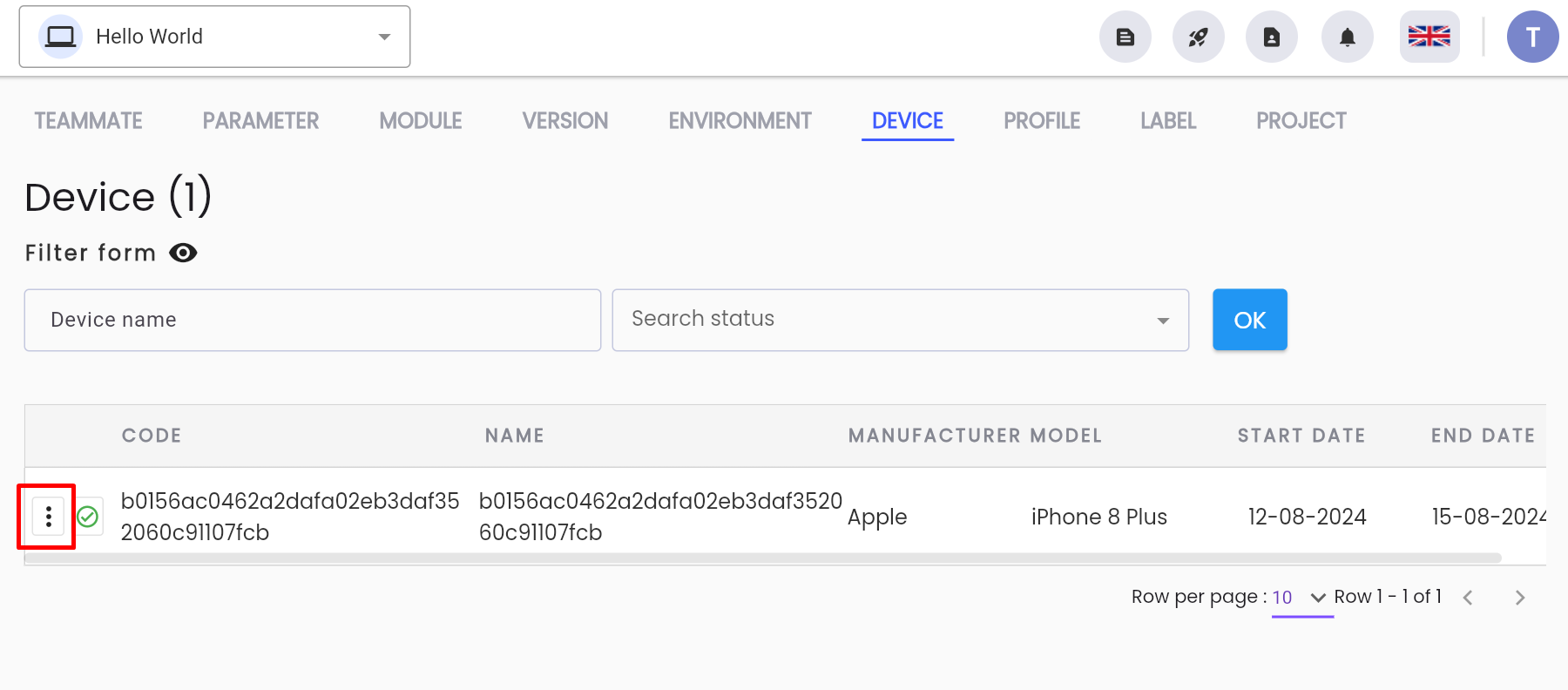
Step 2: Click on EDIT METADATA or click directly on the device that needs to be updated.
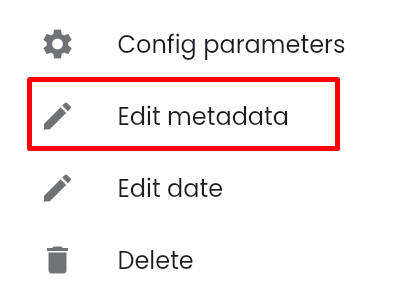
The system displays the EDIT PROJECT DEVICE screen.
Step 3: Enter and edit the information as required by the user. Description of information fields is similar to the new add form.
Step 4: Click OK. The system displays the message “UPDATE SUCCESSFUL”
Initialize Device Parameters
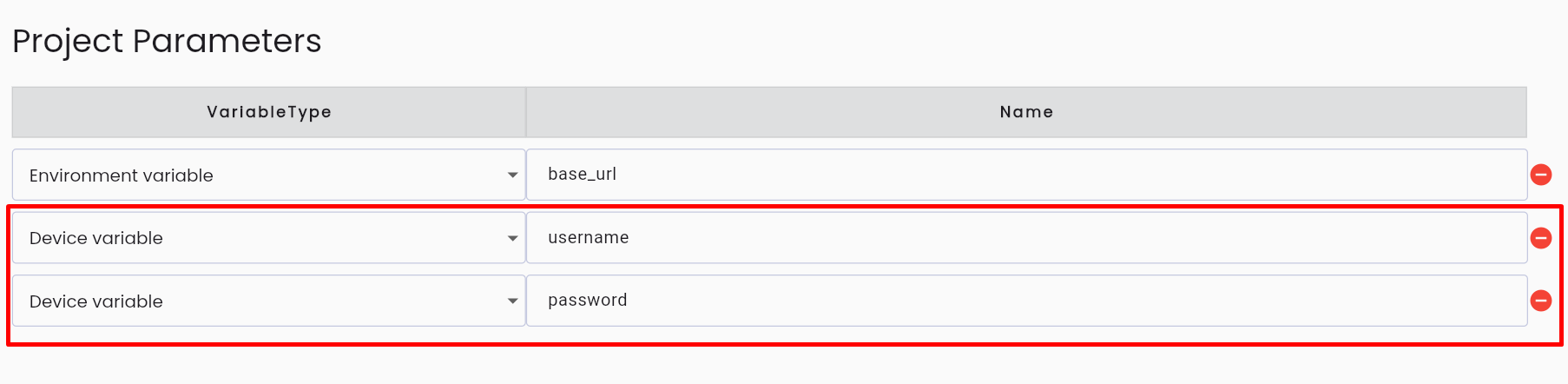
Device parameters are consistent operational parameters across devices executing software testing scripts. The values of these parameters on each device are fixed.
For example: USERNAME and PASSWORD on each testing device do not change. You can set USERNAME and PASSWORD as device parameters.
Why are device parameters needed?
Similar to environment parameters, using device parameters during the configuration of test scenarios helps limit the need to change information; the values of the parameters will be flexible depending on the device the user selects during test execution.
To initialize device parameters in the Centralized Automation Testing Suite, do the following:
Step 1: Click SETTING on the project menu.
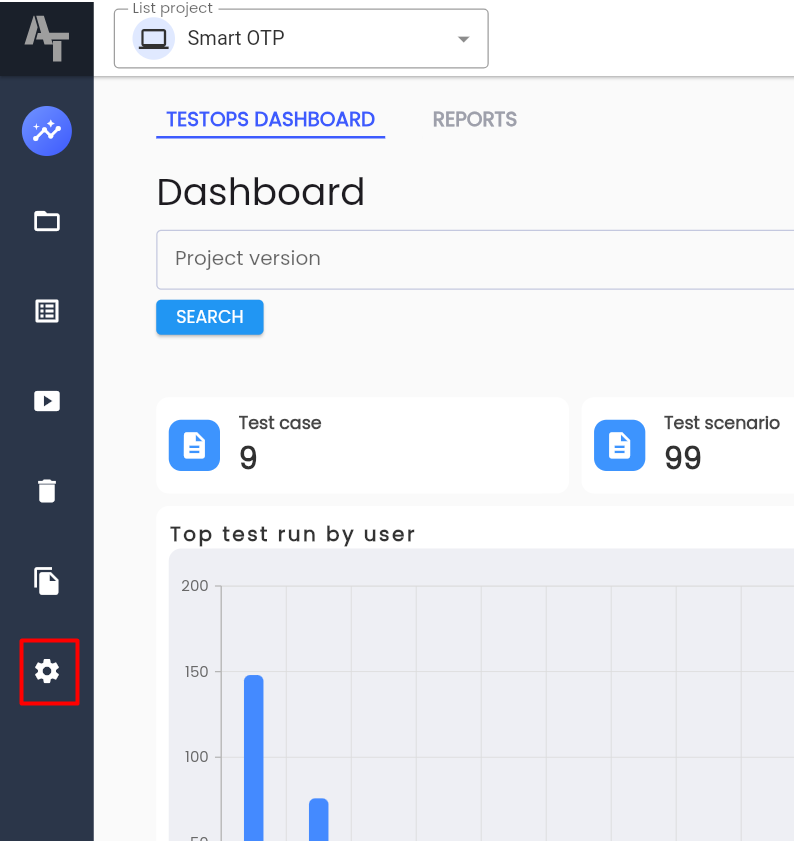
Step 2: Click on the PARAMETER tab.
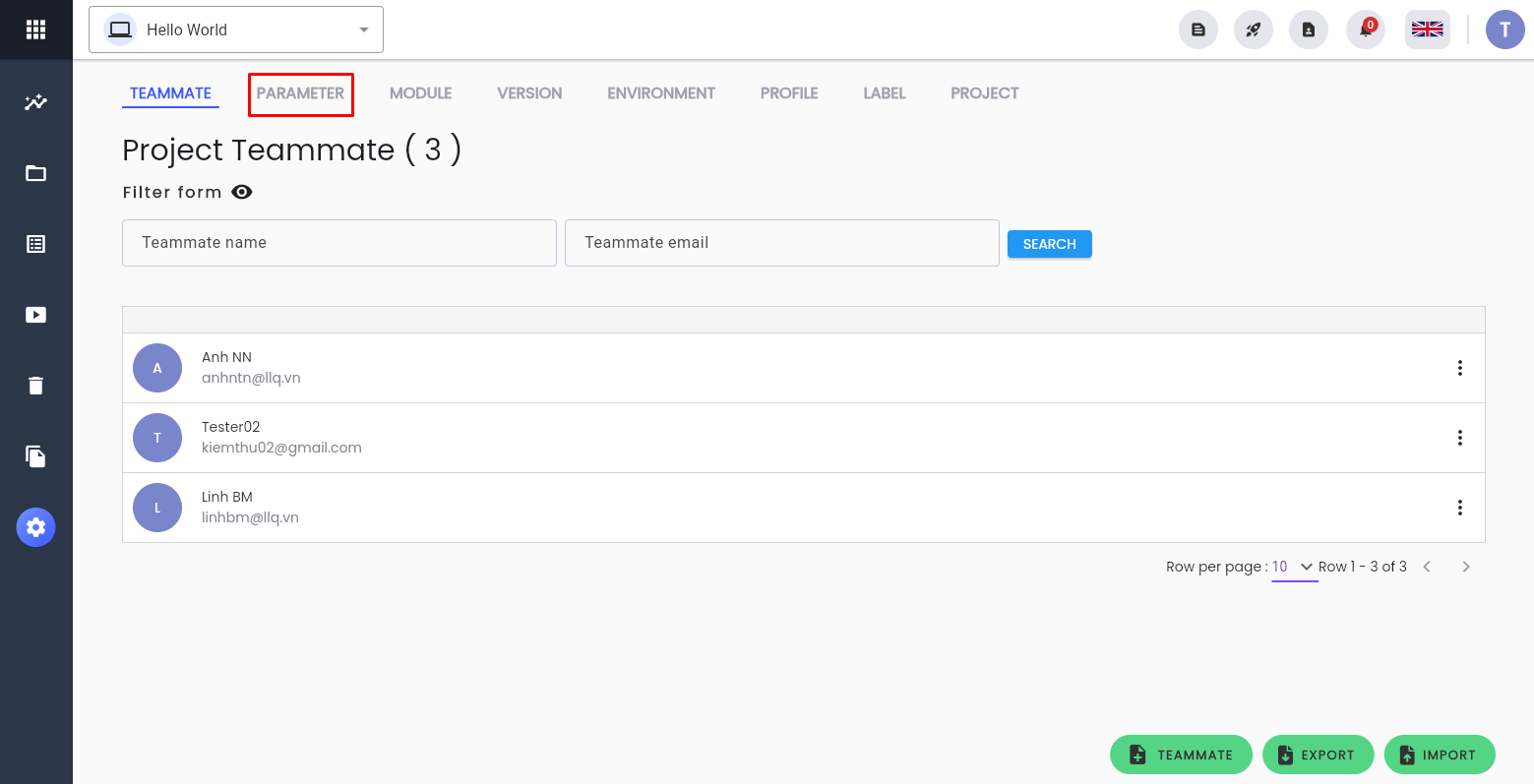
Step 3: Click the NEW PARAMETER button to create additional parameters. There is no limit to the number of parameters created at once.
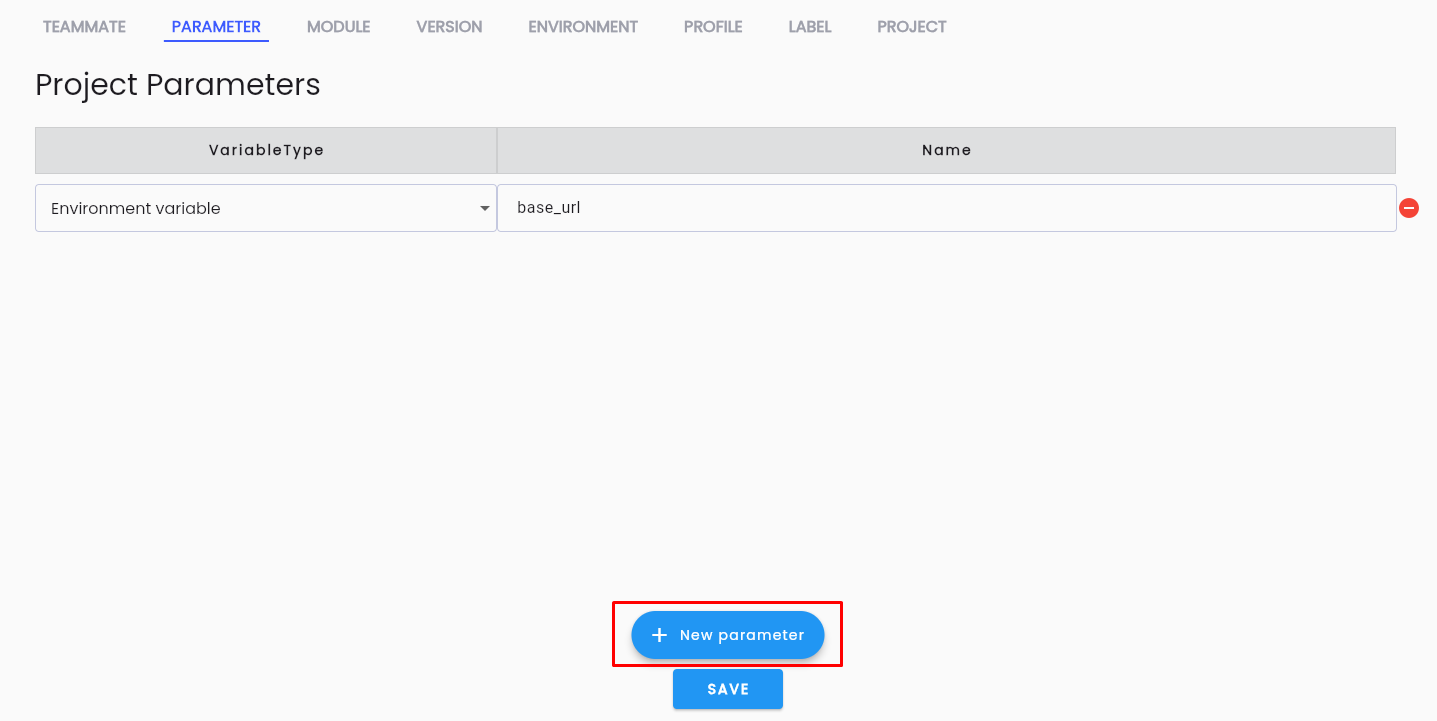
Step 4: The system displays information to configure the parameter.
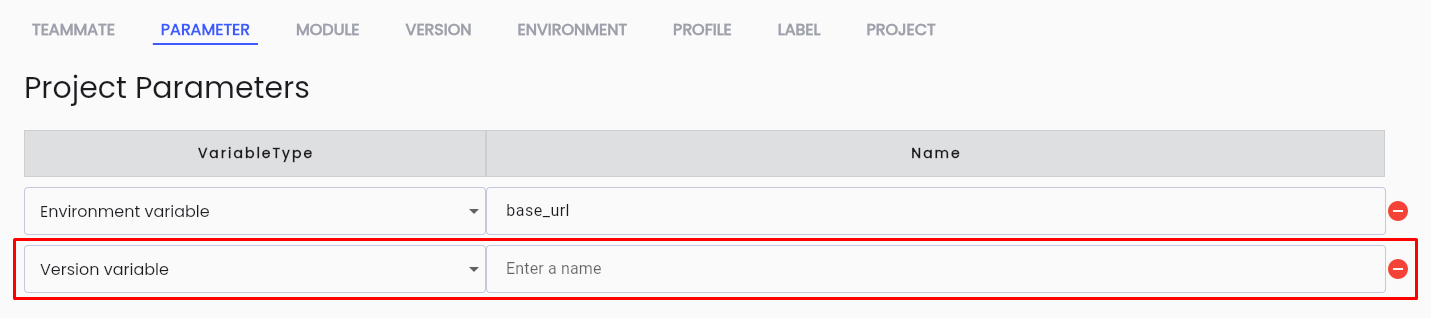
Description of the information fields:
| Field Name | Mandatory | Format | Constraints | Description |
|---|---|---|---|---|
| VARIABLE TYPE | Yes | Combobox | Select DEVICE VARIABLE | The user selects the type of device parameter. |
| NAME | Yes | Textbox | NAME must be unique, start with a letter, and contain only lowercase letters, numbers, and “_” | The user enters the name of the device parameter. |
Step 5: After entering the correct and complete information, click the SAVE button to save the created device parameters. The system displays the message “CREATE SUCCESSFUL”
Configure Values for Device Parameters
To configure environment parameter values in the Centralized Automation Testing Suite, do the following:
Step 1: On the DEVICE tab, select any device for which the user needs to configure parameter values, click the ⋮ on the left side of the record.
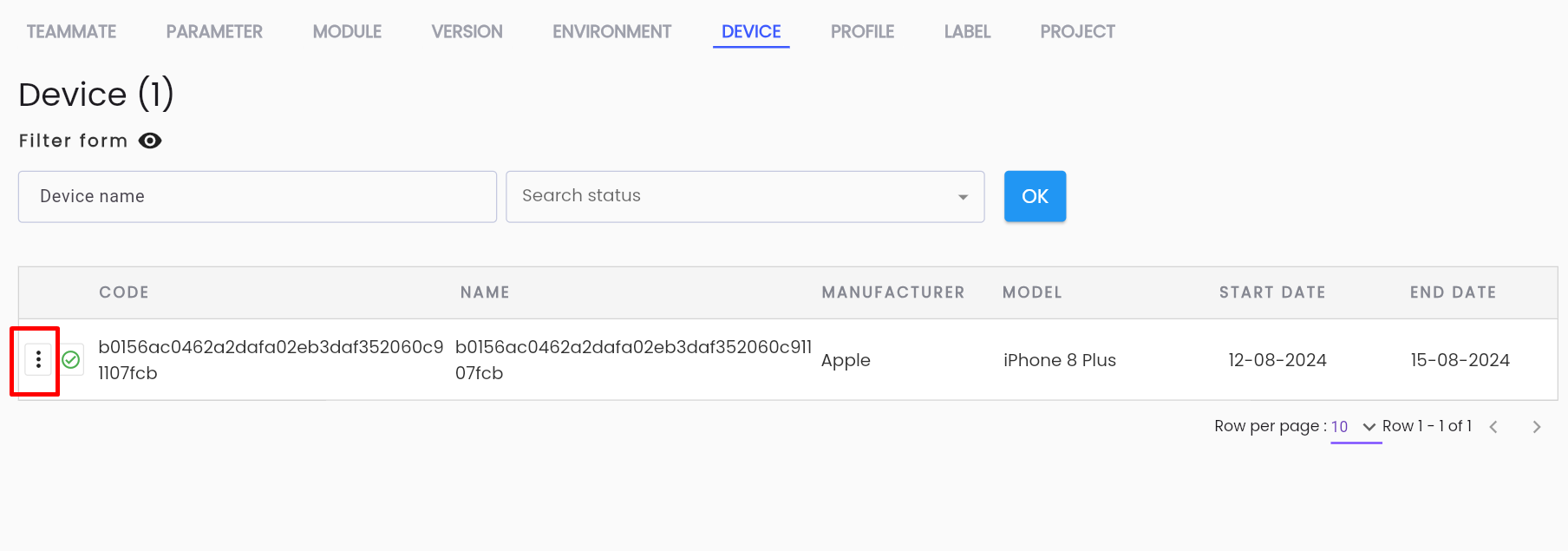
Step 2: Click on Config Parameter

The system displays the screen for updating device parameter values:
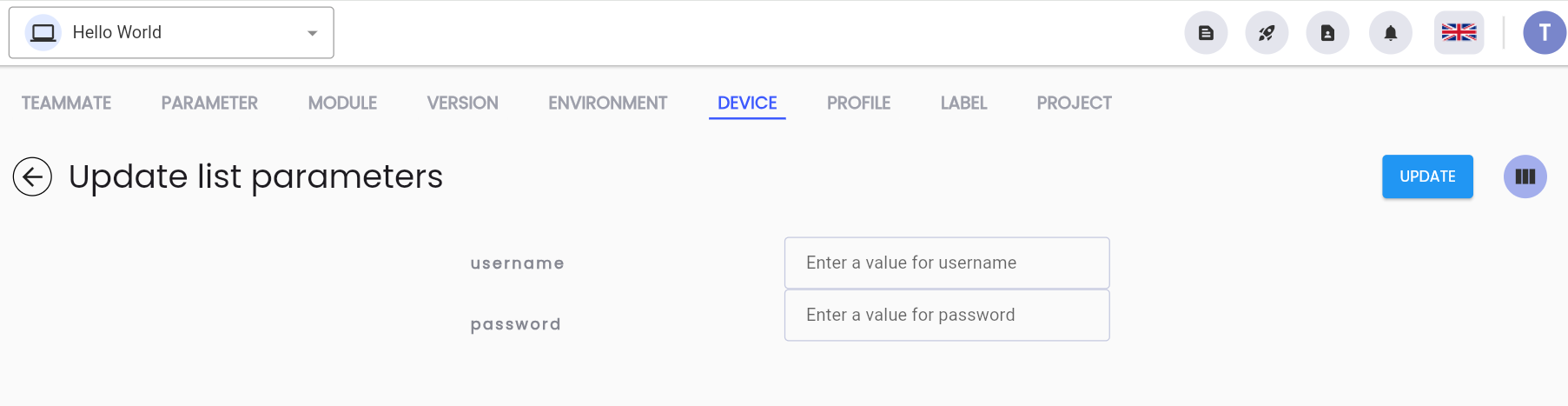
Step 3: Enter values for the corresponding parameters of the device, click UPDATE to update the parameter values. The system displays the message “UPDATE SUCCESSFUL”
Delete Device
Note: The condition for deleting a device from the project is that the device must not have data constraints (no device parameters are being used). If it has already been used, it cannot be deleted.
To delete a device from the project in the Centralized Automation Testing Suite, do the following:
Step 1: On the DEVICE tab, find the device that needs to be deleted from the project, click the ⋮ on the left side of the record.
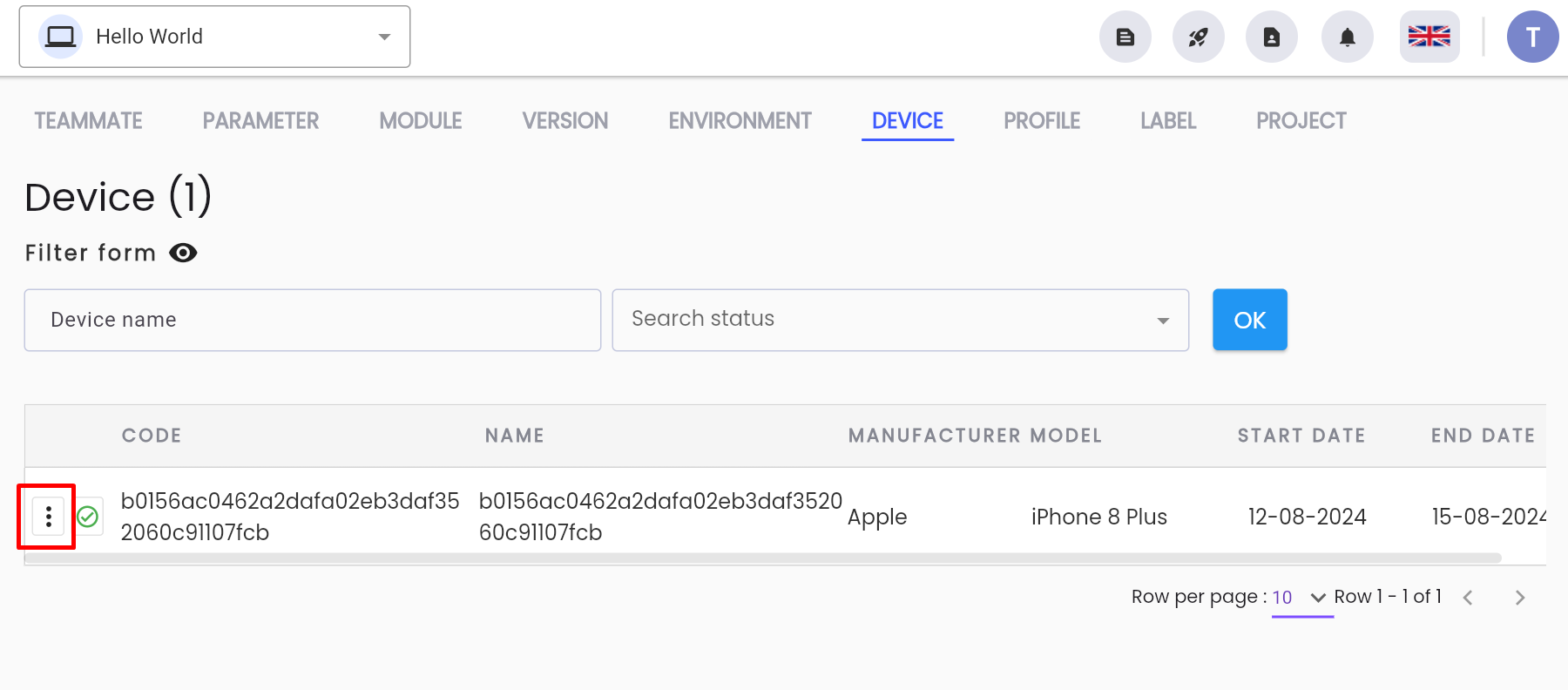
Step 2: Click on DELETE USER in the displayed menu.

Step 3: The system displays a confirmation to delete, click DELETE to remove the device from the project.
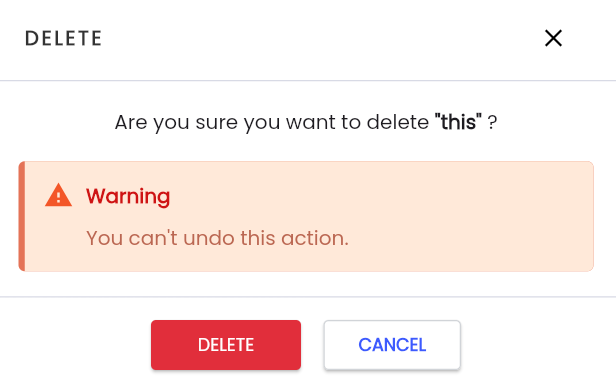
The system displays the message “DELETE SUCCESSFUL”