Perform Test Scenario Configuration
Start Debug
Start Debug is the action of launching the operating system/browser of the Agent, enabling users to navigate the application/system under test.
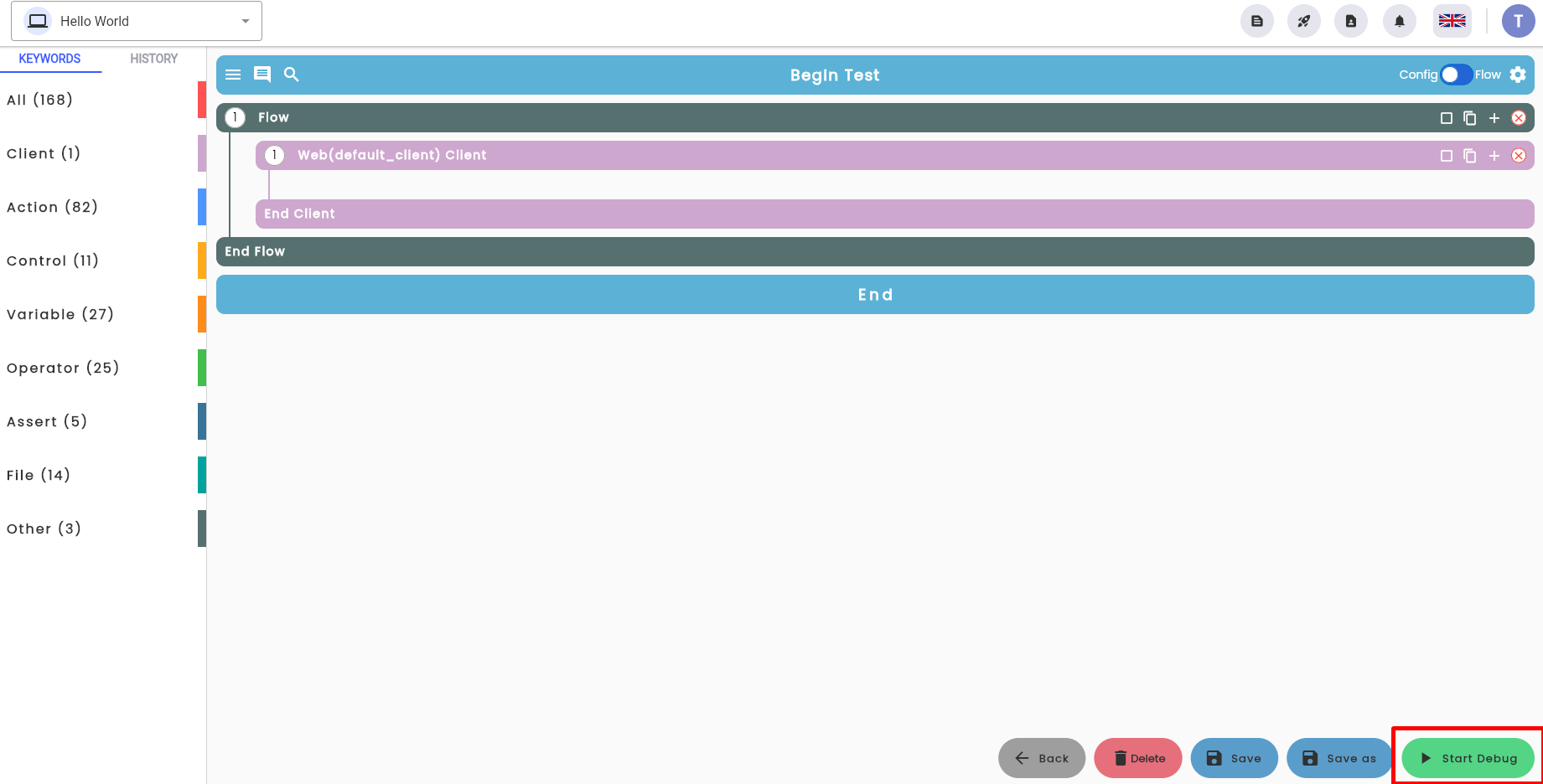
Step 1: On the configuration interface, click Start Debug
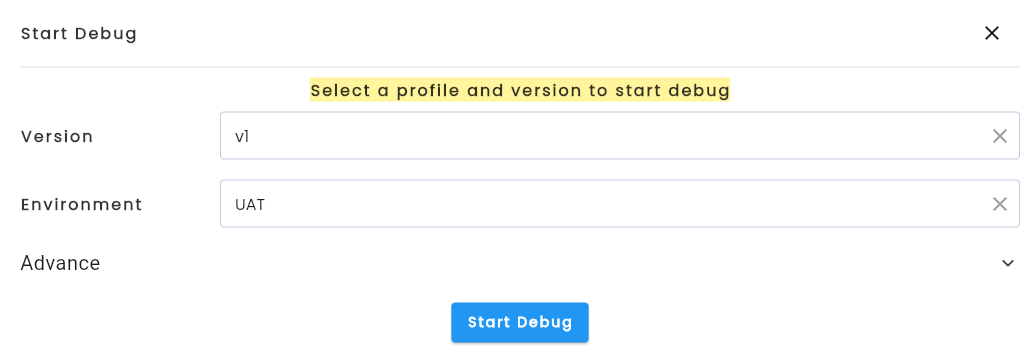
Step 2: Select the version and environment of the system. (The default version and environment will be pre-selected.)
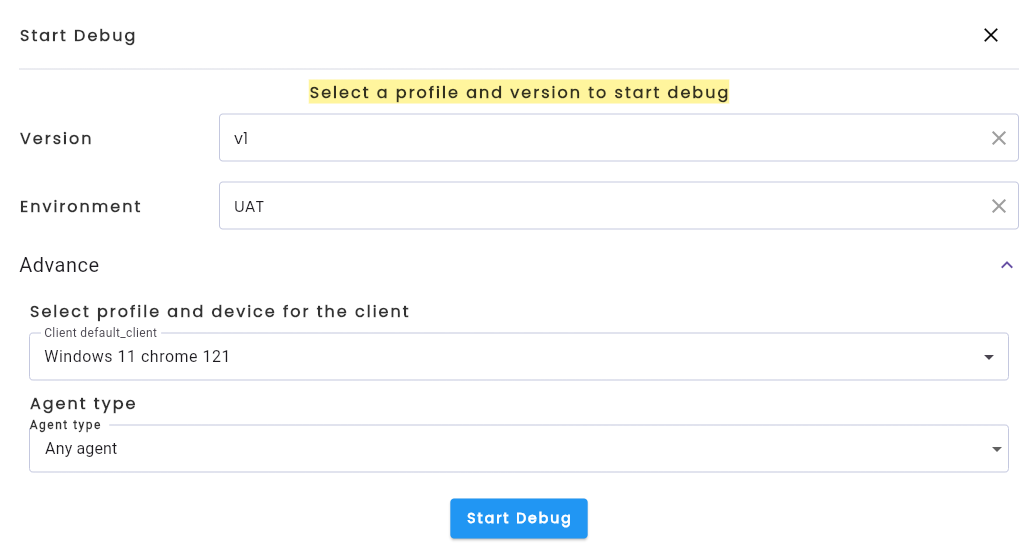
Step 3: In the Advance section, choose the Profile, Agent type, and Device to use (if configuring tests for mobile). If using the default settings, skip to Step 4.
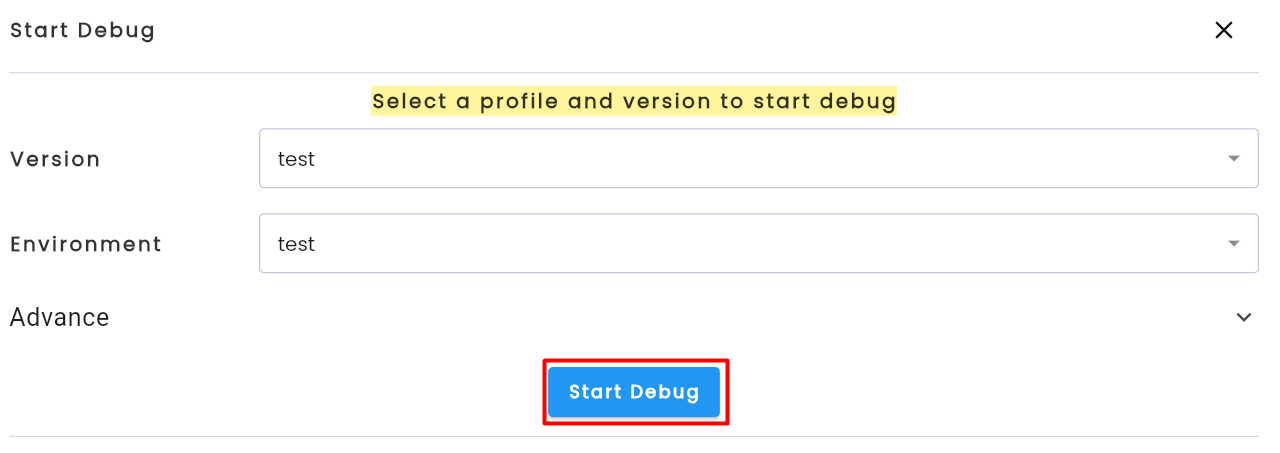
Step 4: Click the Start Debug button.
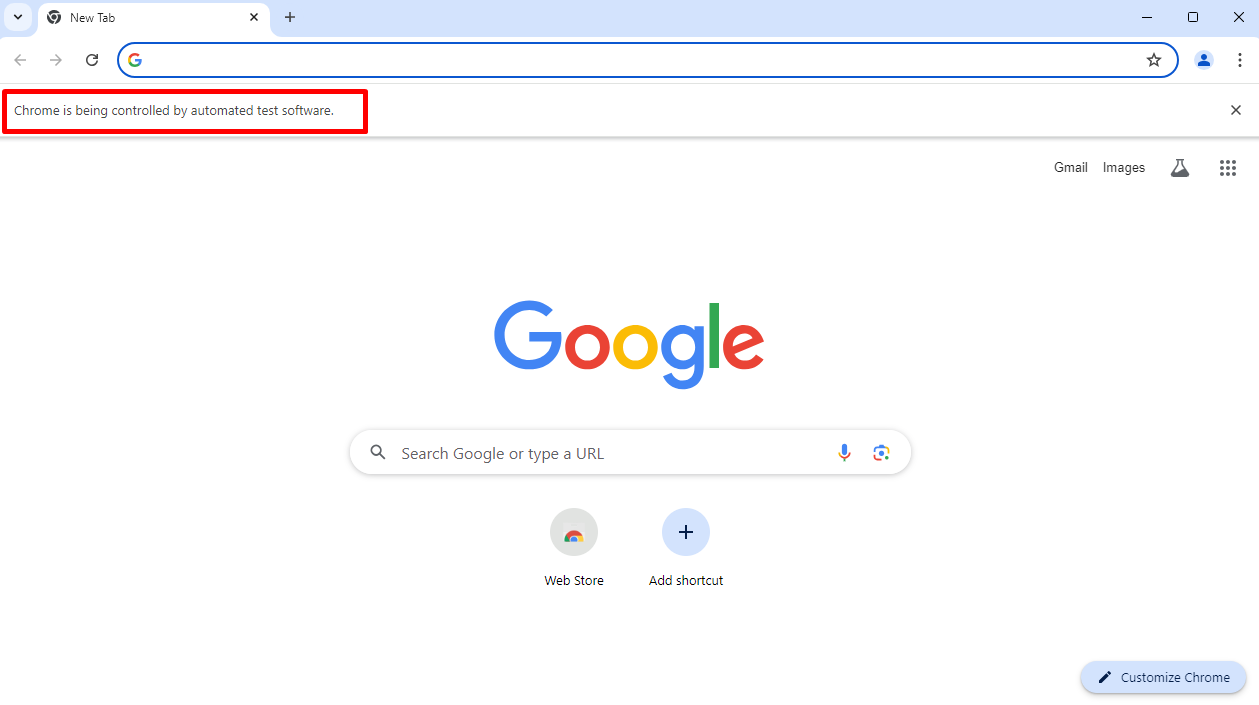
The system will display a Start debug successnotification. The browser of the Agent will open, indicating a successful start.
Note: The Agent browser will display according to the browser selected in the profile. Additionally, the Agent browser will show the text: “… is being controlled by automated test software”
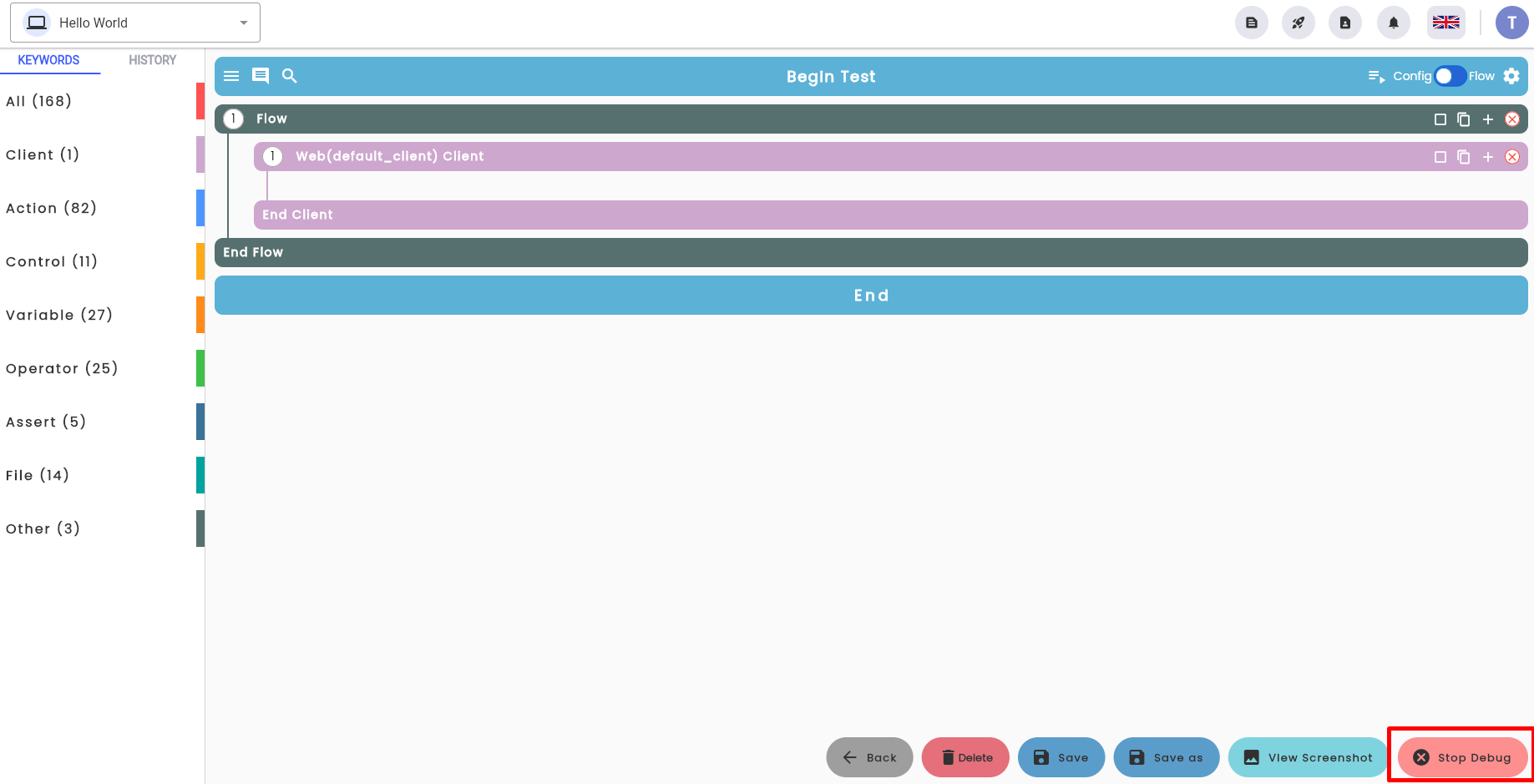
The test scenario configuration screen will display a “Stop debug” button.
Configuration
The configuration uses a keyword-based approach, where keywords represent user actions on the application under test. Keywords are designed based on the blockbase concept, so users do not need to memorize them. Instead, they can search for and use them, including selecting parameters if needed. To configure, the user determines what keyword to use, which element the keyword interacts with, and the source of the data.
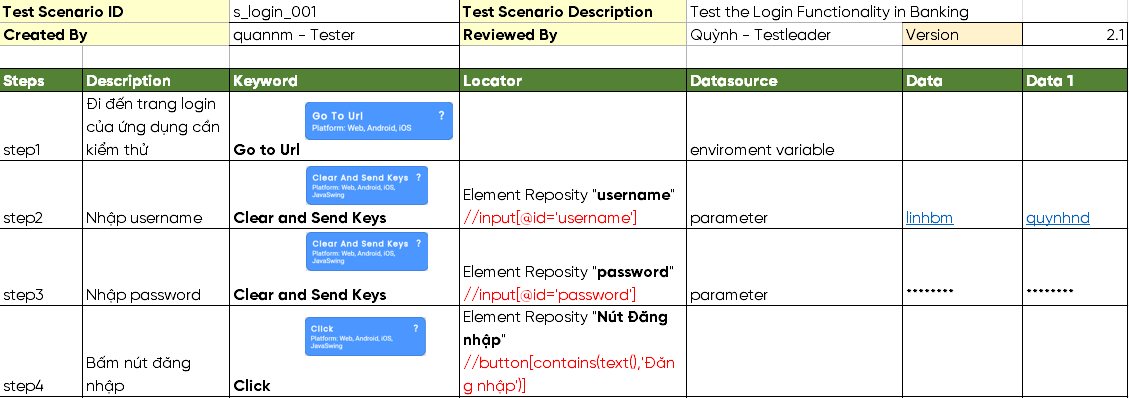
Step 1: After successfully creating a test scenario, the system will default to using the Client keyword for the user, with the platform set to Web.
Step 2: Select the appropriate keyword and drag it into the client. Đọc thêm hướng dẫn sử dụng keyword
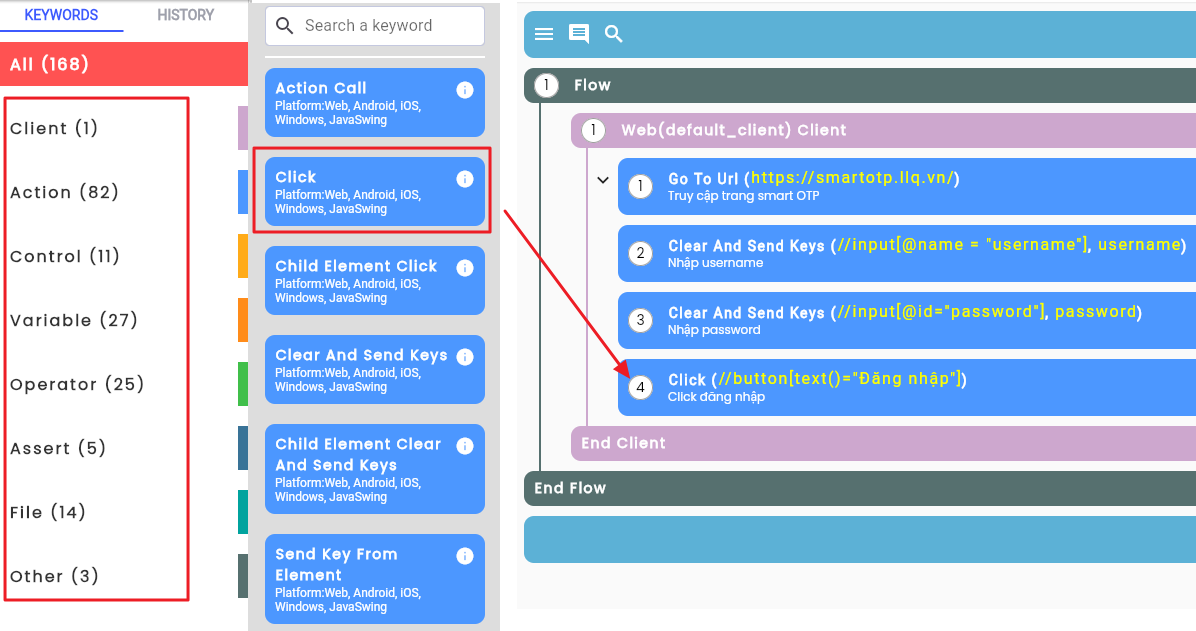
Step 3: Drag and drop the keyword into the appropriate position in the configuration interface.
Step 4: Select the element to interact with. See the guide on Cách tìm phần tử
Step 5: Create input data parameters to provide data during test execution (if applicable). See the guide on Cách tạo tham số dữ liệu đầu vào