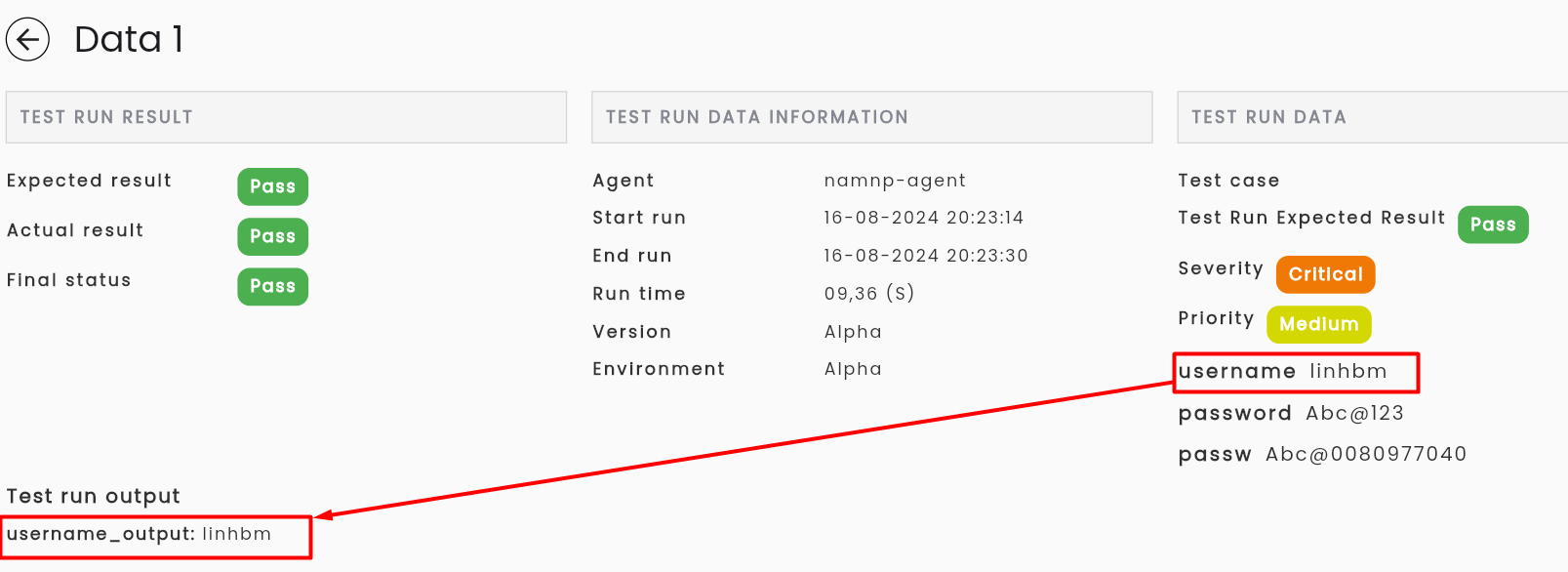
Output
Output is the output result of a test script, the return value corresponding to the actual result.
Create new output
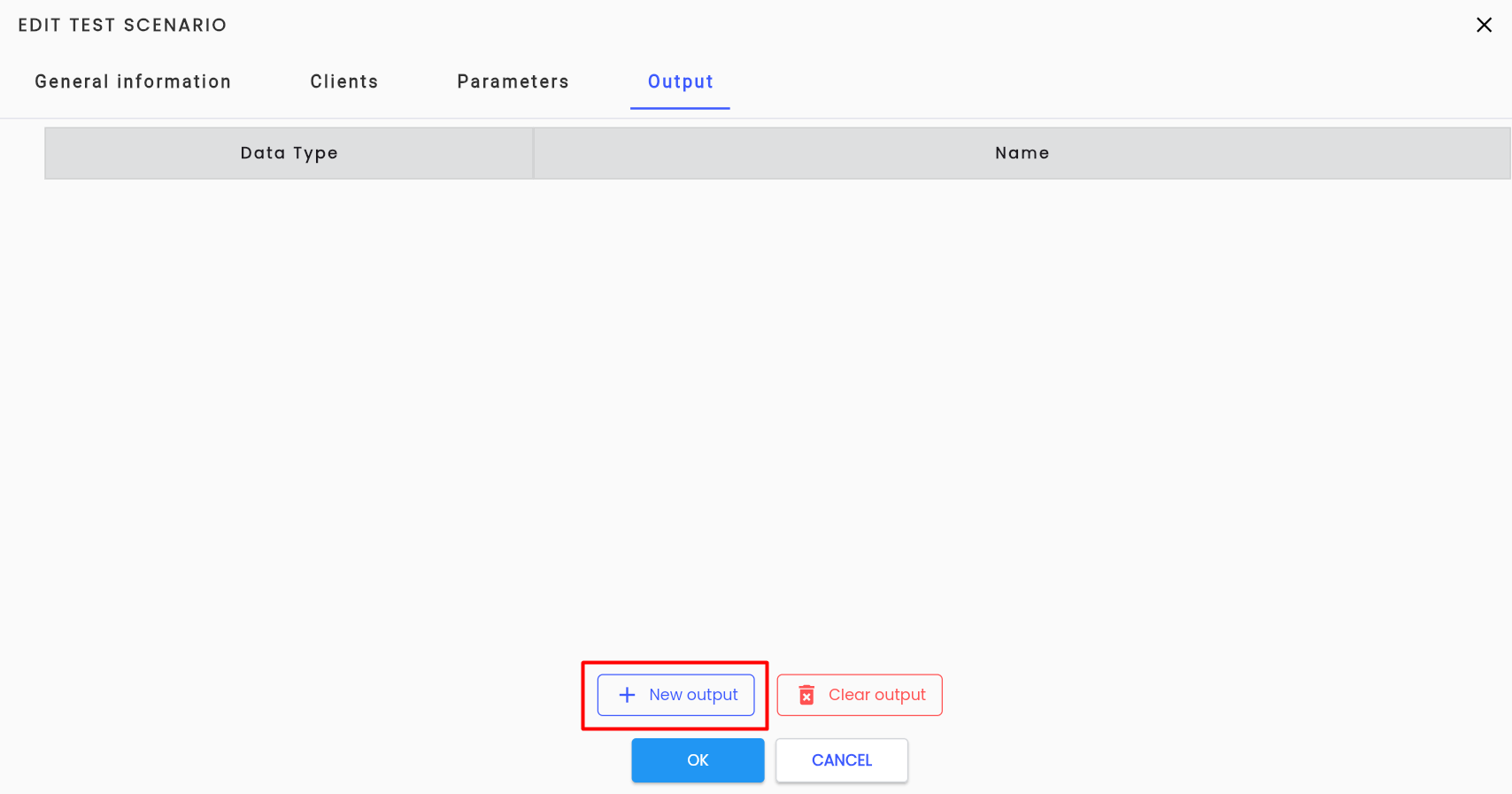
Step 1: On the tab Output of meta-data screen test script (scenario, suite) click “New output”
Step 2: The system displays the parameter output line
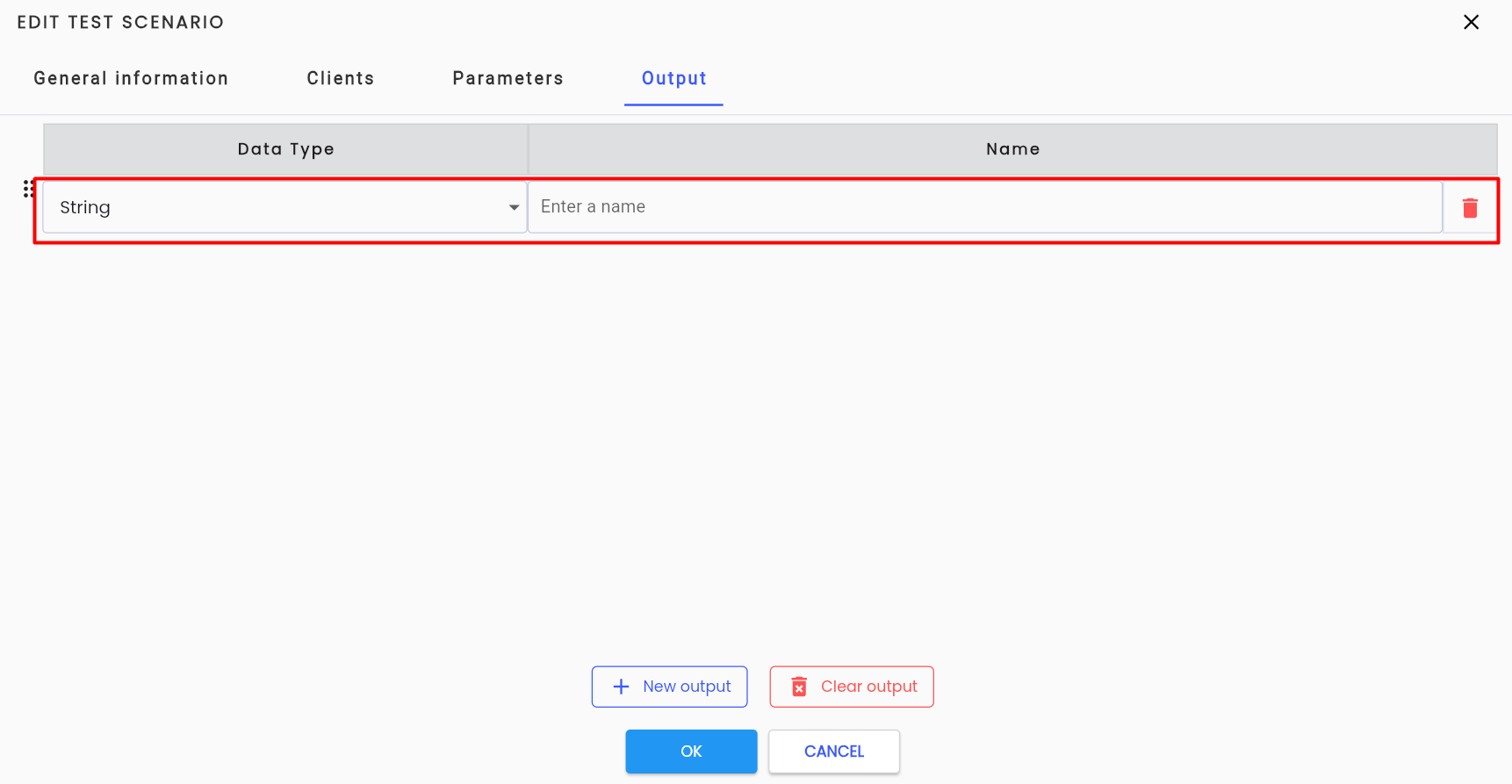
The information fields:
| Field Name | Mandatory | Format | Contraints | Description |
|---|---|---|---|---|
| Data Type | Yes | Combobox | - | Displays the data type of a parameter. The user is allowed to select 1 value. When creating a new parameter, the system defaults to "String". |
| Name | Yes | Text | Is unique, does not overlap with any parameters/variables that have been initialized in the script. Include only lowercase characters, numbers and “_”. | Enter a name for the output. You should name the parameter according to the purpose of the parameter to make it easy to distinguish, for example: "username" |
 | - | Button | - | Click the delete button to delete an output |
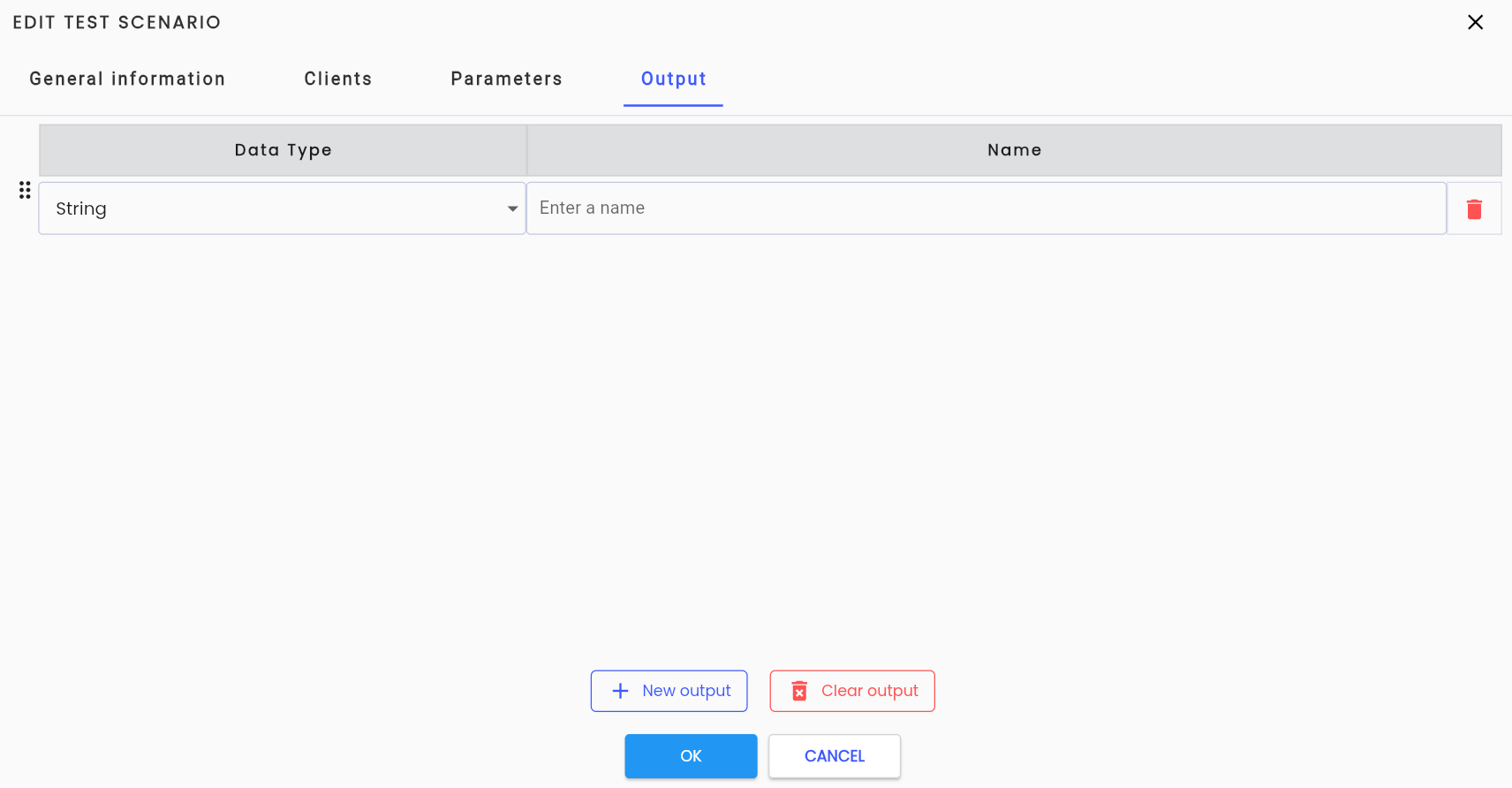
Step 3: Click “OK” to save the output. The system will notify “Create successful”.
Step 4: Click “Save” to save the output. The system will notify “Test has been update”.
Using Output
Since the output is the result returned after the test script performs an action and the user wants to display it in the execution results, the value of the output cannot be entered by the user.
Typically, the value of the output will be taken from a keyword with the “Output” property or assigned a value according to a parameter of the test script based on certain conditions occurring during execution.
Getting Output Value from a Keyword with “Output” Property
Use this when the user needs to display the result of an action in the test script.
Keywords with the “Output” property suitable for using output as a variable include: get Text, get attribute, get URL, Child Element get text, Child Element get attribute, get alert text, get window handle. These are all keywords that retrieve values based on the properties of elements, commonly Get text, get alert text (retrieve the text string of the element).
Step 1: Create an output variable for the test script following the instructions in the section Create New Output.

Step 2: After successfully creating it, return to the low-code screen and select a keyword with the “Output” property.
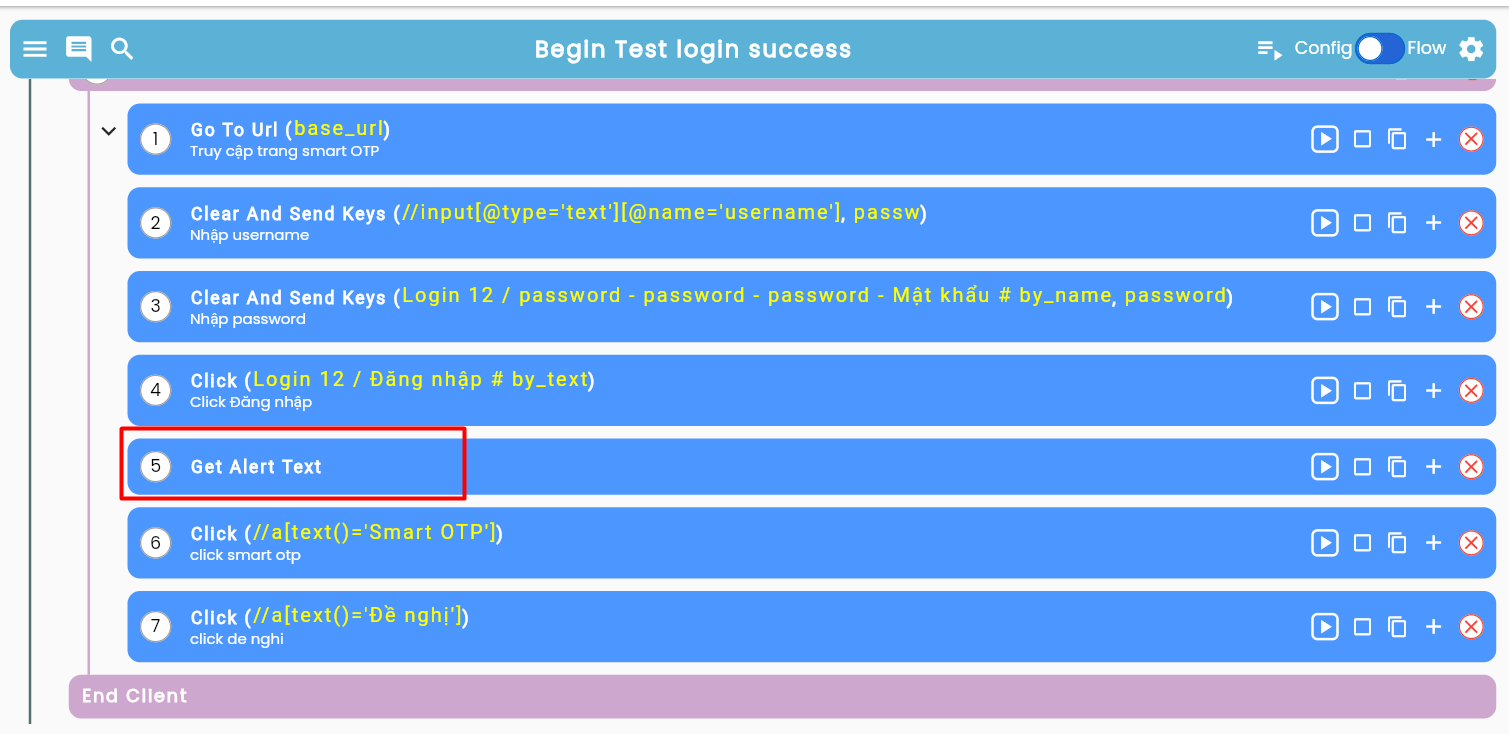
Step 3: The system displays the keyword property screen, select the type of the “Output” property as variable and enter the name for the variable as the name of an output that has been created earlier for the test script.
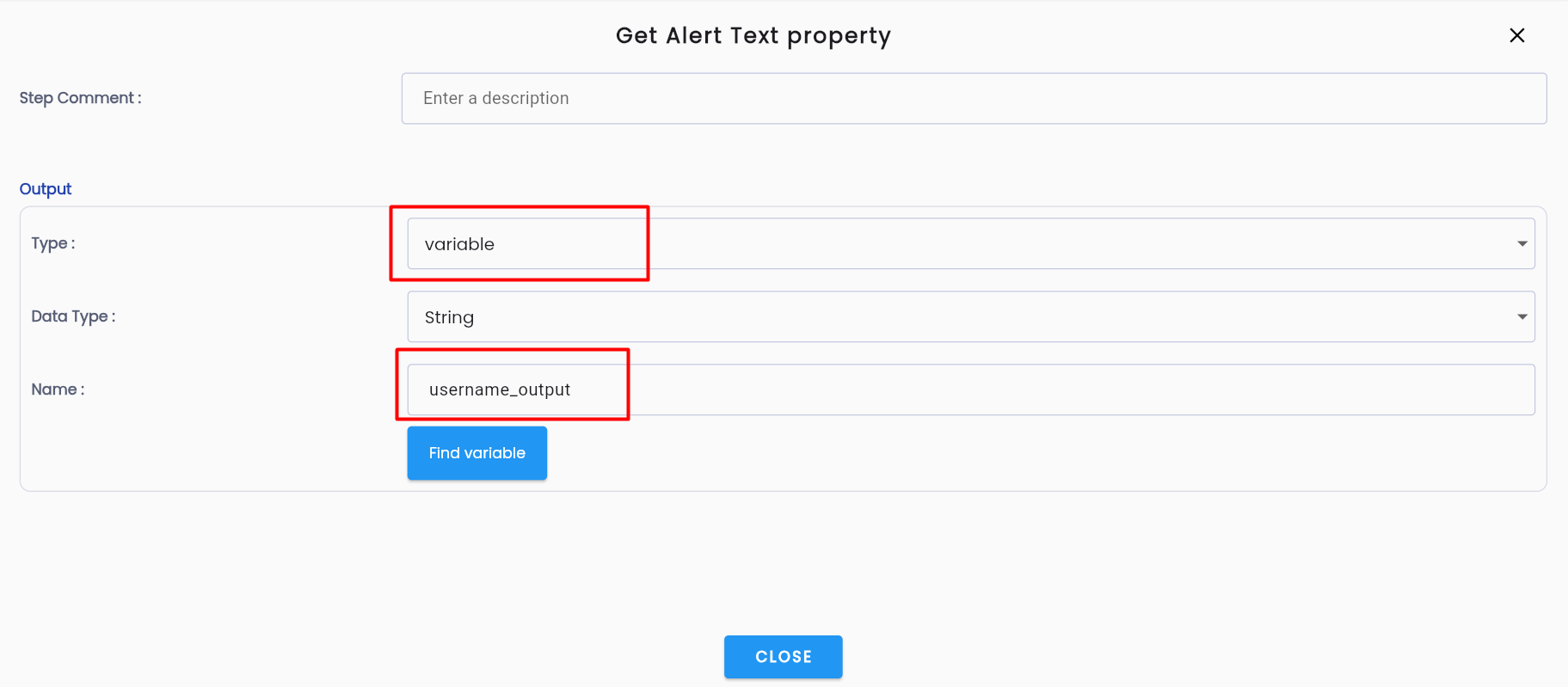
DataType is the data type of the variable, usually String.
To minimize errors during data entry, users should use Find Variable to select the output.
Using Variable
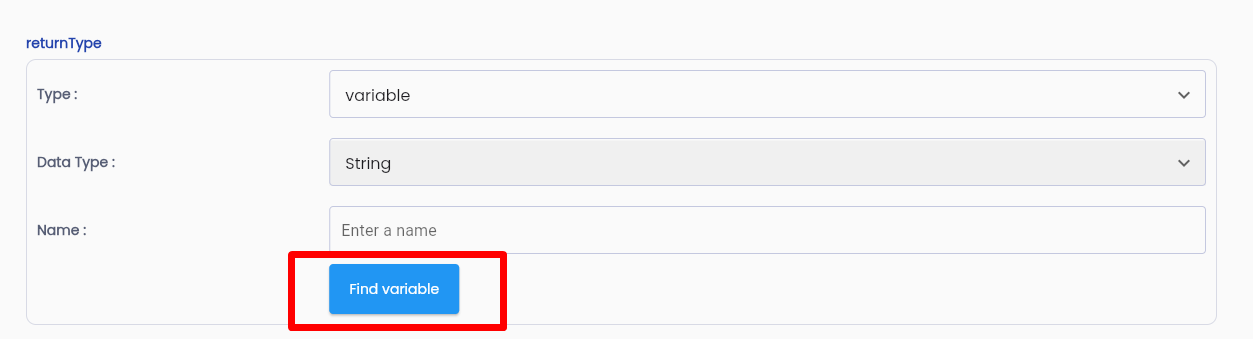
Click “Find Variable”, the system displays a list of variables of the test script, including variables, input parameters, and outputs.
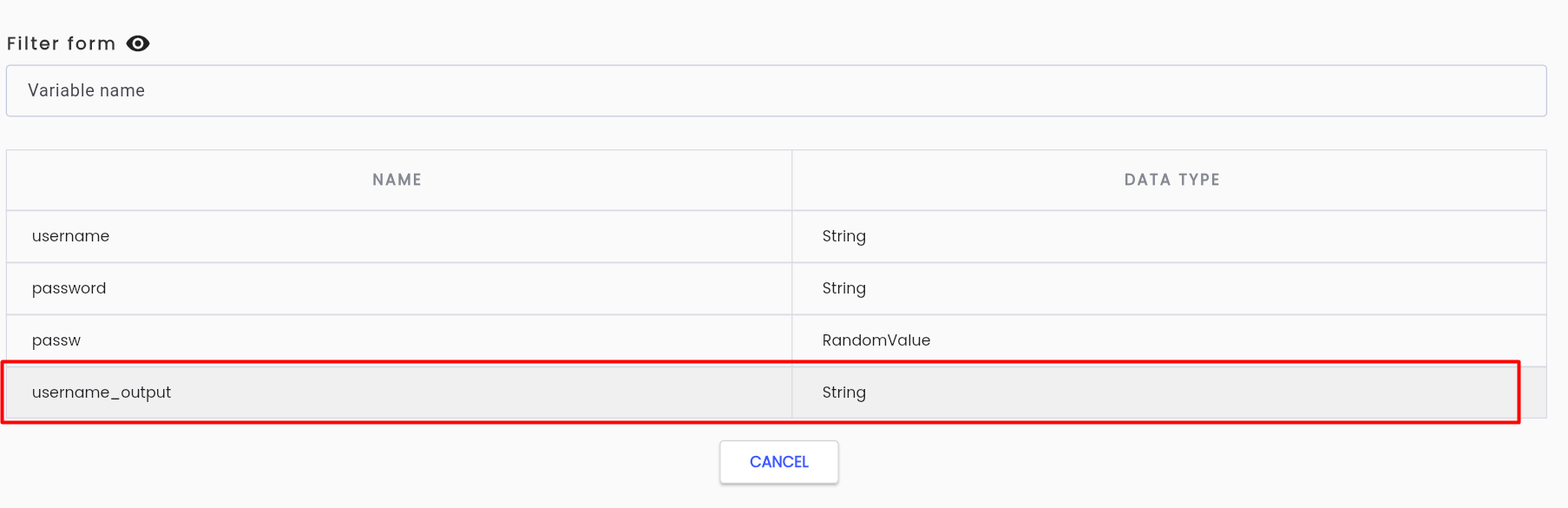
The list of variables is sorted from top to bottom in the order:
- Variable (output newVariable), parameter, output.
- Parameters created earlier.
To select the correct output, users scroll down the list to find the variable to assign a value and click to select that output. Ensure that the keyword has been fully and correctly entered, then click Save.
Assigning Value to Output Based on Conditions Occurring in the Test Script
This is usually used for cases where the output result changes depending on specific conditions in the test script.
To assign a value to the output, keywords like Assign Value can be used.

An assignment operation consists of 2 steps: Entering the variable and entering the value to be assigned to the variable.
To enter the variable receiving the value, the user clicks on the empty space (1).
Step 1: On the Property Value screen of the keyword, enter all the information for the keyword, where the name is the name of the output that has been initialized.
Step 2: On the Assign Value property screen, enter the value to be assigned to the output.
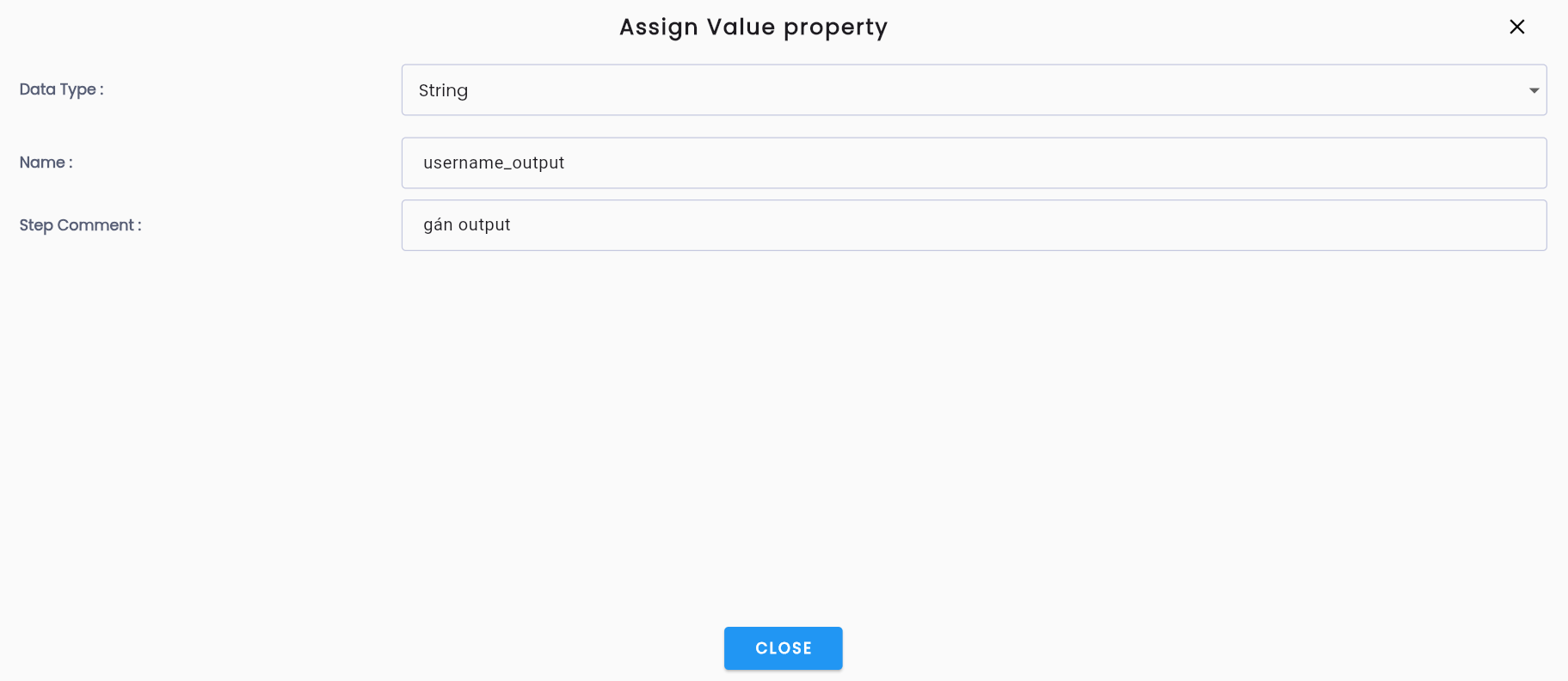
To enter the value assigned to the variable, the user clicks on the empty space (2).
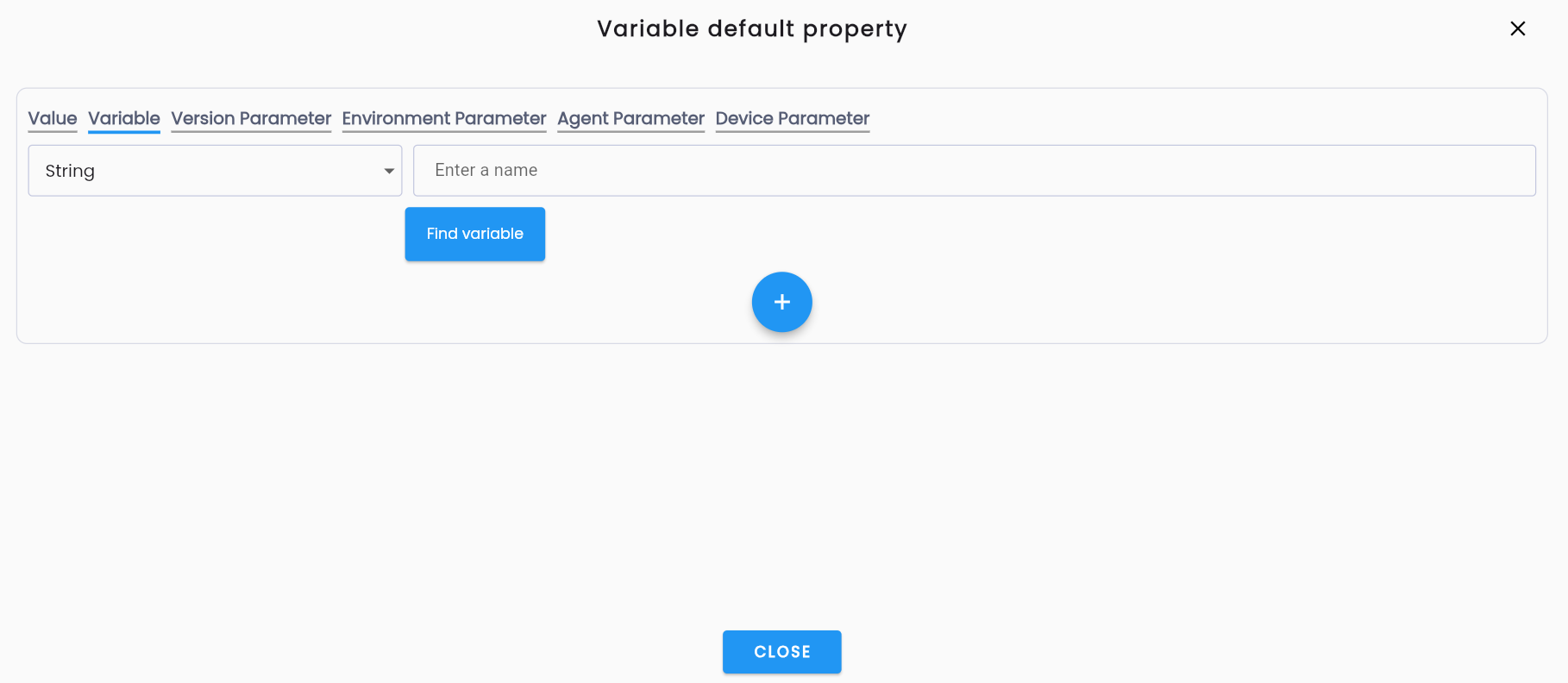
-
If the value of the output is the value of an existing variable in the test script:
- Type: Variable
- Name: Use Find Variable to select that parameter.
-
If the value of the output is a fixed value when a condition occurs:
- Type: Value
- Value: Enter the value.
-
Click Close.
The correct configuration result for assigning the variable “username” to the output “username_output”.
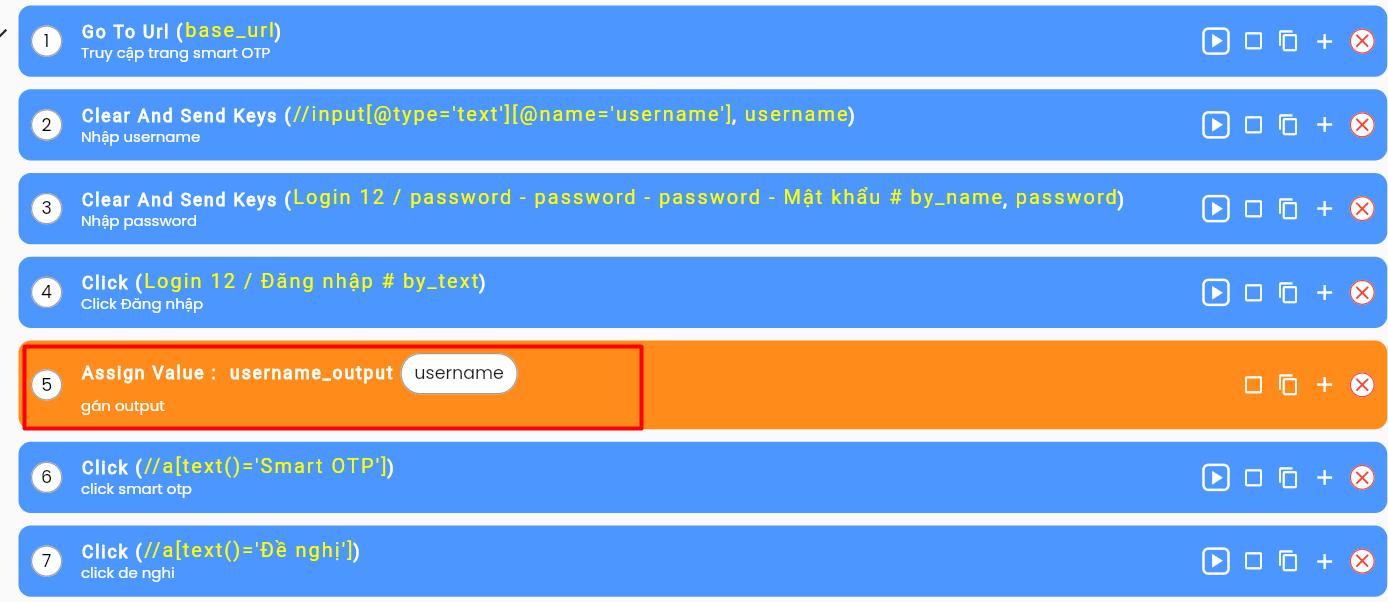
Viewing Output Values During Test Script Execution
On the Test Run Data screen of the test script, the output is displayed in the test run output. The returned output result is accurate according to the test script.