Manage Elements by Repository
Build an element repository for the Testing Project
The number of elements stored for use in the project is substantial. To facilitate usage and maintain automated testing scripts, the element repository should be appropriately structured for each testing project. The repository should be organized based on the user/tester's experience with each function, progressing from the outer layers to the inner ones. Screens that are repeatedly used across different functions should either be categorized alongside those functions or placed at a higher level to enable easier sharing with project teammates.
The element repository is structured hierarchically based on functions/screens, progressing from outer layers to inner layers.
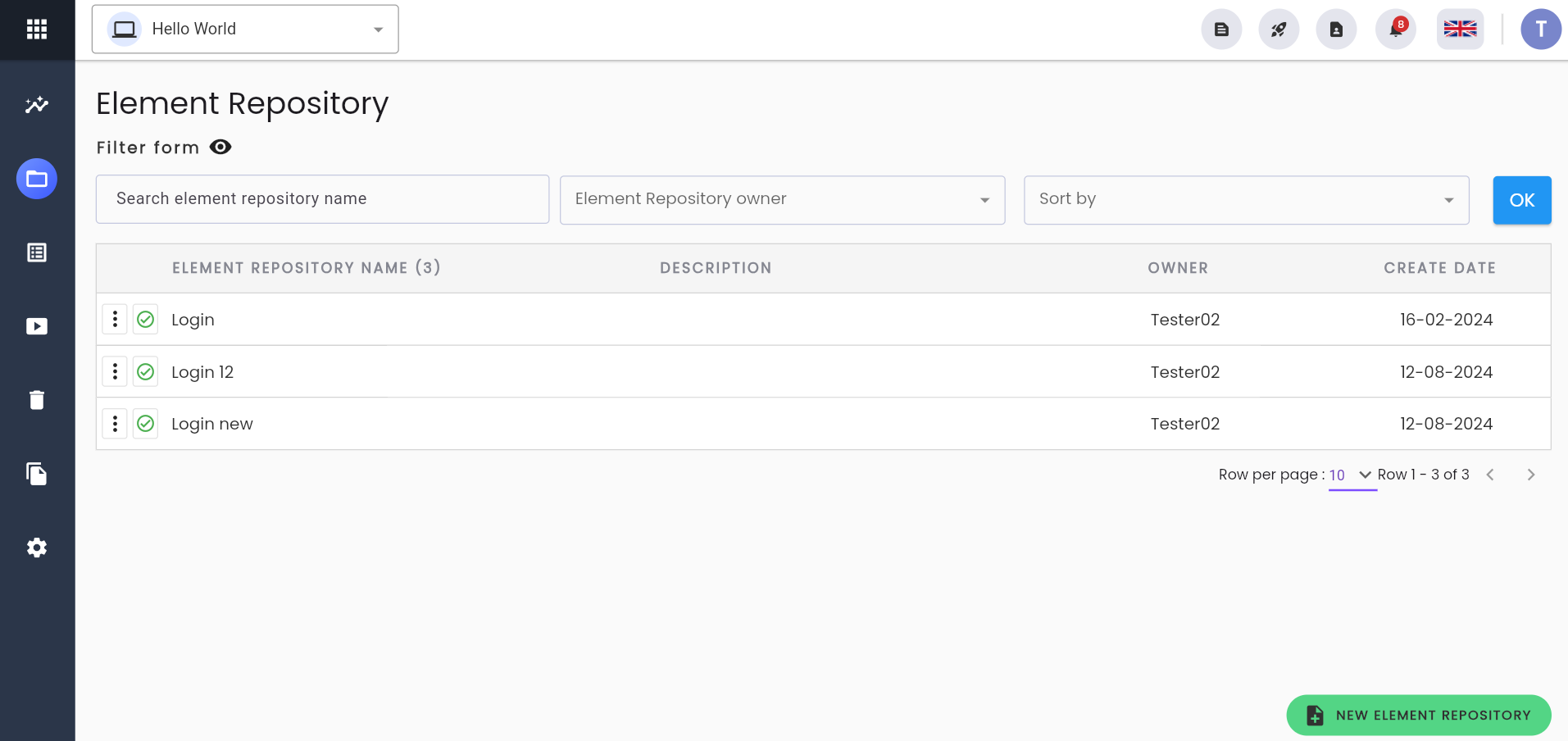
For testing projects deployed across multiple platforms, the element repository should be structured with a Parent Repository as a directory named after the platform, such as ANDROID, iOS, WEB, etc. The level of hierarchy within the repository should be determined based on the user experience of the application/system under test, with varying levels of detail depending on the context In addition to the repository for individual screens, the project should also include a shared element repository. This repository will store elements that appear across multiple screens and functions, such as popups, "Continue" buttons, "Back" buttons, etc. The shared repository simplifies the process of updating and maintaining these common elements. On the Centralize Automation Testing Suite interface, when users click on the Element Repository function, the system displays the Element Repository Library screen.
Meanings of elements on the screen:
| Label | Function |
|---|---|
| Filter form | Used to display/hide the filter and search tools for the element repository. |
| Search element repository name | Search by name of element repository folder. |
| Element Repository owner | Search by element repository creator. |
| Sort by | Sort folders by creation time. |
| CREATE DATE | Directory creation date. |
 | The status of the Element Repository Directory: Active. The element repository can only be used when the status is Active. |
 | The status of the Element Repository Directory: Inactive |
| New Repository: Create a child repository for the corresponding repository |
| Move repository: Move the corresponding repository to become a child repository of another repository |
 | The selected operations - Edit: edit directory information - Delete: edit directory information - Delete all element: edit directory information |
 | Create new Element Repository |
How to create an Element Repository
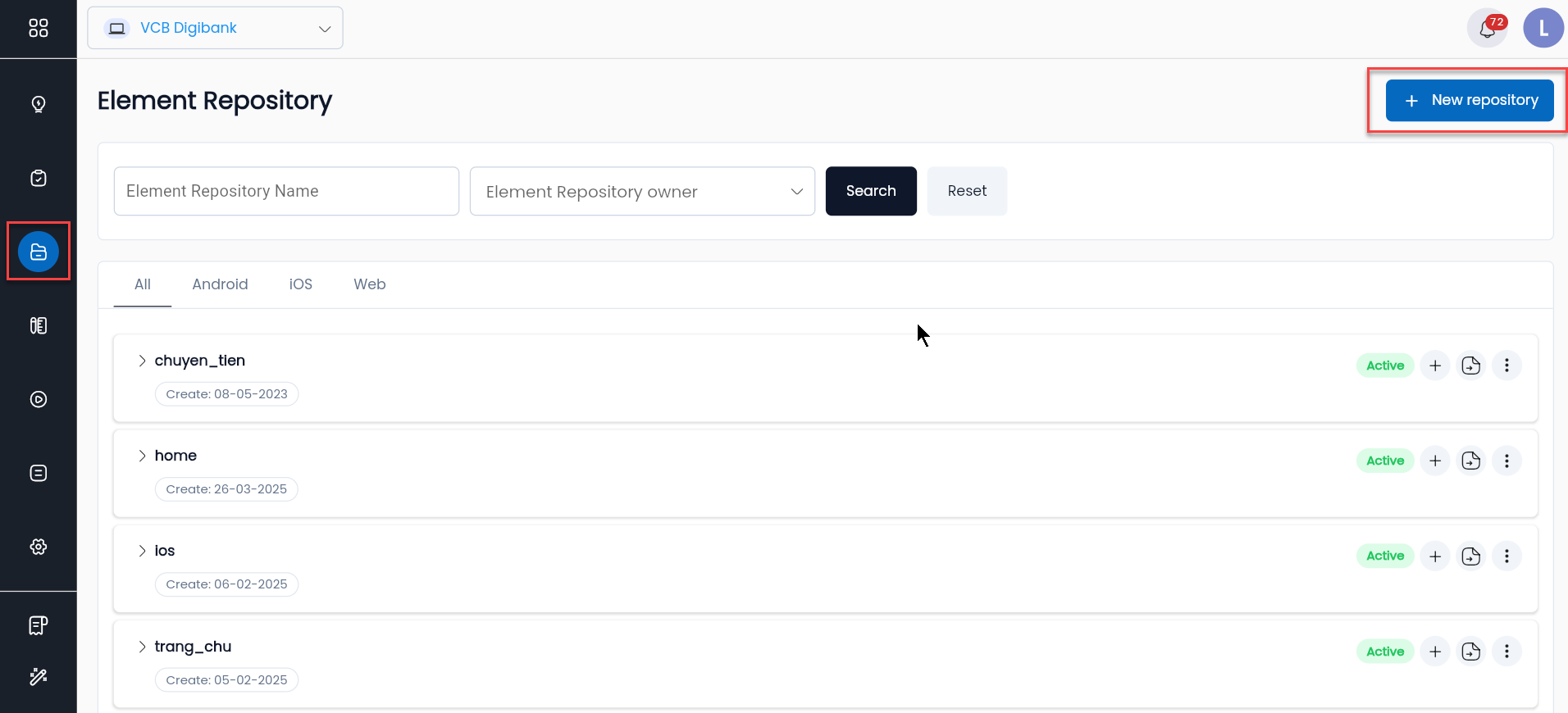
Step 1: On the Element Repository Library screen, click NEW REPOSITORY, and the system will display the Create Element Repository screen.
Step 2: The user enters all required information for the Repository, including:
| Information field | Mandatory | Format | Constraints | Description |
|---|---|---|---|---|
| Name | Yes | Text | - | The name of the Repository can be set according to the steps of the scenario or the specific screen in the business process flow, in order to facilitate use and avoid data repository duplication. |
| Description | - | Textarea | - | The description of the Repository helps users better understand the content of that Repository. |
| Status | Yes | Combobox | - | It is the status of the Repository, with selectable values including: + Active (Currently active), + Inactive (Not active). To use the Element Repository, the status must be set to Active. |
Step 3: Click SAVE to save the newly created Repository. The system will display a Create Successful message and return to the Element Repository Library screen.
To cancel the creation of the Repository, the user clicks CANCEL.
Edit Element Repository
On the Element Repository Library screen, click the Option icon to the left of the corresponding Repository.

Step 1: Click Edit, the system will display the screen Edit Element Repository.
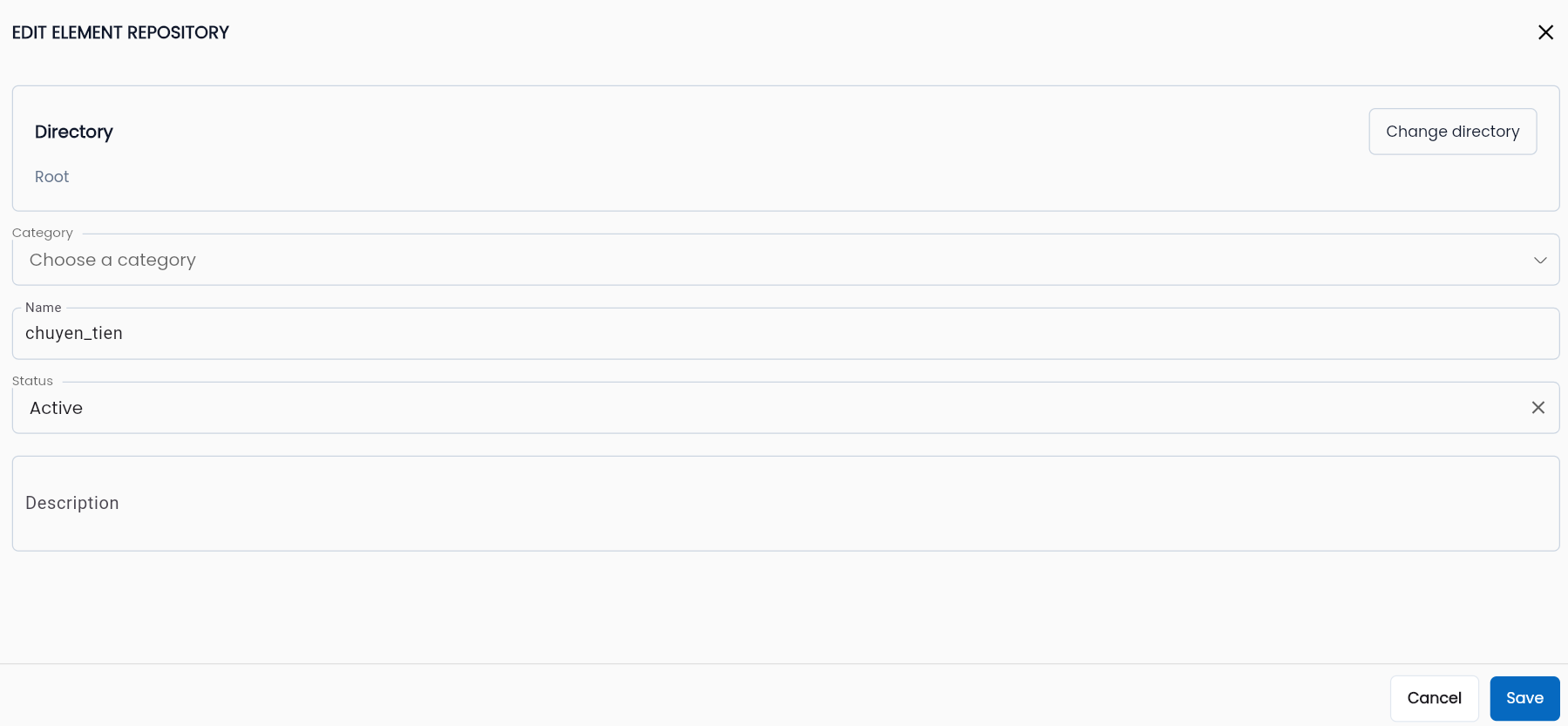
Step 2: Edit the Repository information.
Step 3: Click OK, the system will display a Update successful message, return to the Repository Library screen and update the edited information in the list.
Delete Element Repository
Step 1: On the Element Repository Library screen, click the Option ⋮ icon to the left of the corresponding Repository, then select Delete.

Step 2: The system will prompt the user for confirmation. click DELETE to confirm the deletion.
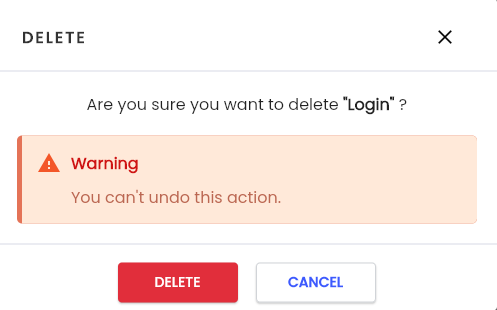
Step 3: The system will display a message Delete successful
Note:
- If the Repository contains Elements, the system will display a message like the following, and the deletion action will not be successful.
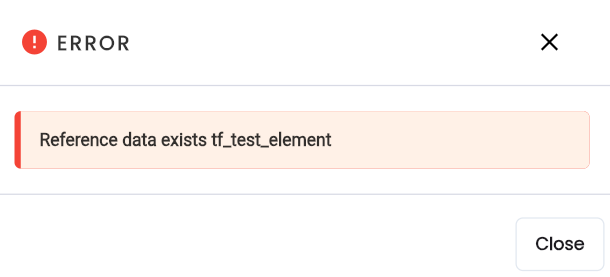
- If the Repository does not contain any Elements, the system will display a Delete successful message, navigate back to the Repository Library screen, and the deleted Repository will no longer appear in the list.
To delete an Element Repository that contains Elements, at step 2, the user clicks Repository cleanup to remove all elements within the Repository. The system will display a popup to confirm the deletion of all elements in the repository.
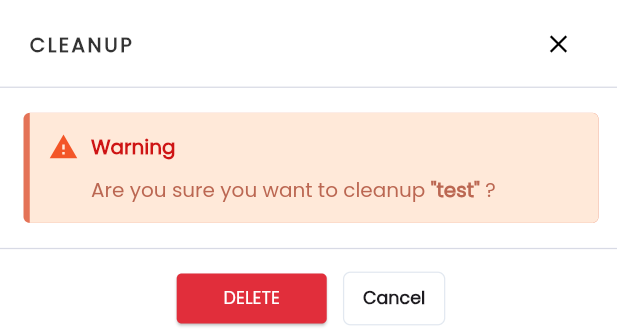
Click DELETE, the system will display a Delete successful message. In the Repository list, the repository that was just processed will remain, but the elements within that repository will be deleted. The elements in child repositories will remain unchanged.
The next steps for deleting a Repository are performed as follows, following the steps previously outlined.
Manage Elements using Child Element Repository
After adding a new Element Repository, you can add a Child Repository to that Element Repository or directly add new Elements, depending on how the element storage is organized in the project.
A Child Element Repository is essentially a subfolder contained within an existing Repository, and it functions similarly to the Repository itself.
The Child Element Repository helps to break down folders, making it easier for users to manage the elements declared in the system.
Click on the Repository you want to work with, and the system will display the Element Repository Library screen along with the elements created in the library.
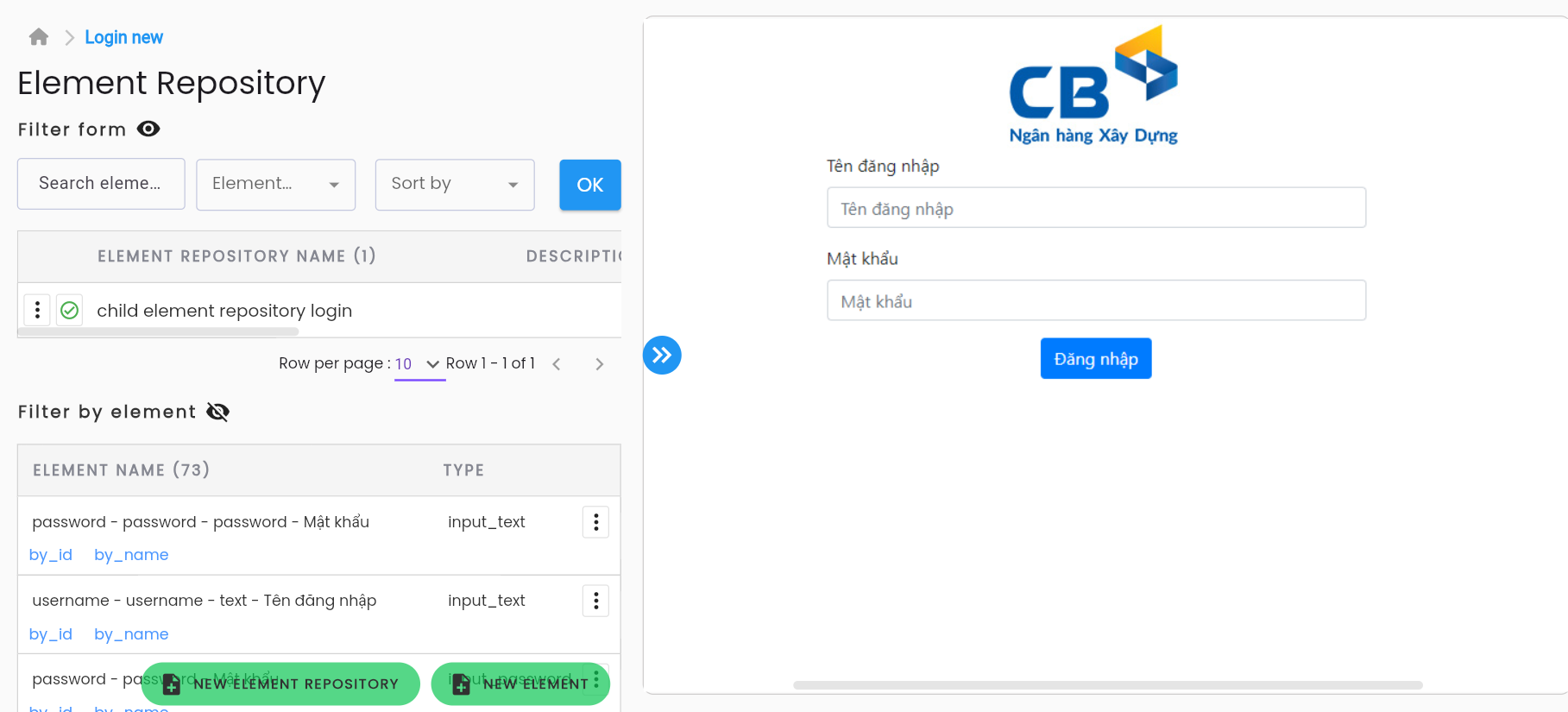
Description of the fields
| Label | Function |
|---|---|
 | The path from the Element Repository library to the Repositories and Child Repositories, which is the screen the user is operating on |
| ELEMENT REPOSITORY NAME | The name of the subfolder of the Repository. |
| DESCRIPTION | The description of the subfolder. |
 | The status of the Child Element Repository: Active – Currently active; Element Repository can only be used when the status is Active. |
 | The status of the Child Element Repository: Inactive – Not active |
| CREATE DATE | The creation date of the subfolder. |
| The edit/delete menu for the subfolder. |
| Show filter form | Click on the icon  to hide/show the Element search filter function. to hide/show the Element search filter function. |
To perform an element search, the user clicks on the Show filter form icon, and the system will display:
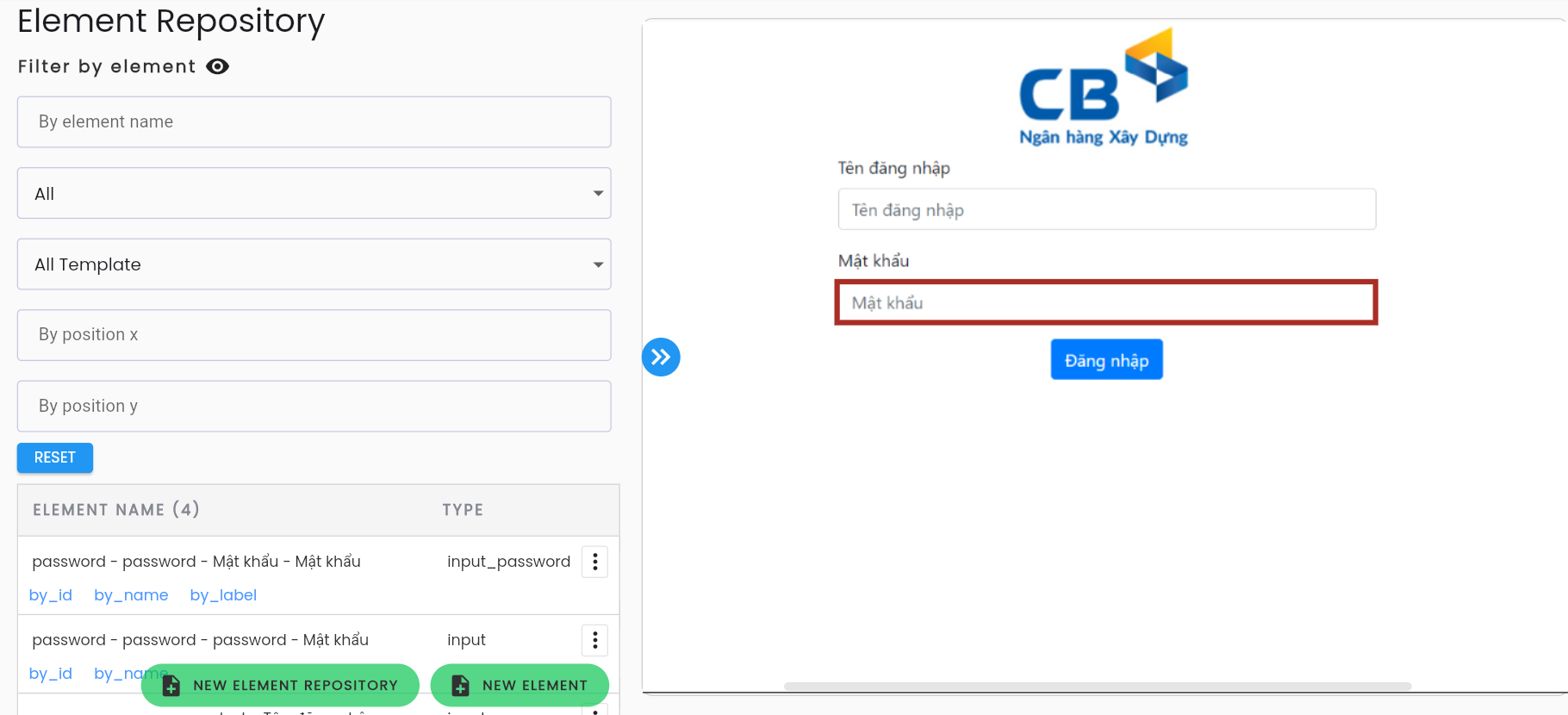
Description of the fields
| Field information | Mandatory | Format | Constraints | Description |
|---|---|---|---|---|
| By element name | - | Textbox | Search by the name of the Element. | |
| Project type | - | Combobox | The selectable values are the active project types available in the system. | Select a Project type to search for elements defined according to the template of that project type. |
| Element template | - | Combobox | The selectable values are the element templates defined within the selected project type. | Template of the searched element. |
| RESET | Button | Clear the selected filter conditions. | ||
| Element name | - | Name of the element. | ||
| TYPE | - | Template of the element. |
To create, edit, or delete a Child Element Repository, the user selects an Element Repository that contains or will contain the Child Element Repository, and performs the actions in the same way as creating, editing, or deleting an Element Repository.
Move Repository
On the Element Repository Library screen, click the Move repository icon on the right side of the corresponding Repository.
Step 1: Click Move repository, the system will display a popup to select the parent repository.
Step 2: Select the repository to move the currently active element repository to.
Step 3: Click OK, The system will display a notification Update successfully
Create Element
Stored elements can be managed within Child Element Repositories or directly within the Element Repository. However, for large directories containing many elements, users should group them into Child Repositories for easier management and search during use.
The ways to create an Element for a Repository in the Centralize Automation Testing Suite are as follows:
- Quickly create Smart Locator tool (recommended use)
- Create element using the New Element function.
- Use Find Element
- Create Elements with Duplicate
Create an element using Smart Locator
Smart Locator is a powerful tool that helps scan and search for all elements on the screen that the user is interacting with, automatically creating and saving multiple elements into the Repository without the need to manually enter the XPath.
When using Smart Locator:
- Elements are created in bulk according to the selected template, saving time when building automated test scenarios.
- When the "Capture image of each element" mode is on, each element stored will have a screenshot and highlight its position on the application/system interface being tested, helping to identify elements for configuration and scenario maintenance.
- Use update healing to update elements in bulk when changes occur to previously saved elements.
To use Smart Locator, the user needs to ensure that the Agent is started and the Agent's browser is directed to the screen that needs interaction.
Step 1: On the Config Scenario screen, click “View Screenshot”.
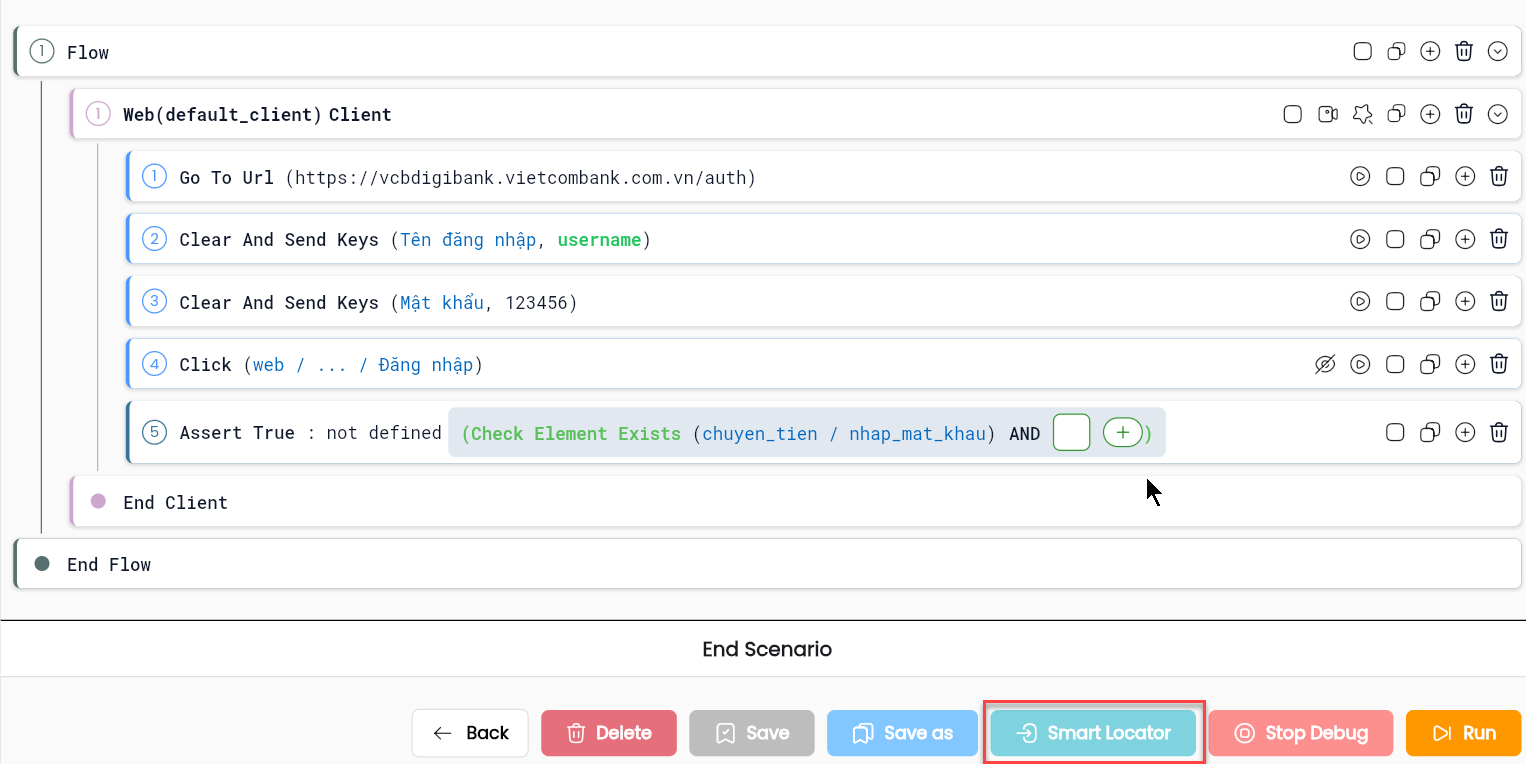
The system will display the “View Screenshot” screen along with the list of options.The system will display the “View Screenshot” screen along with the list of options.
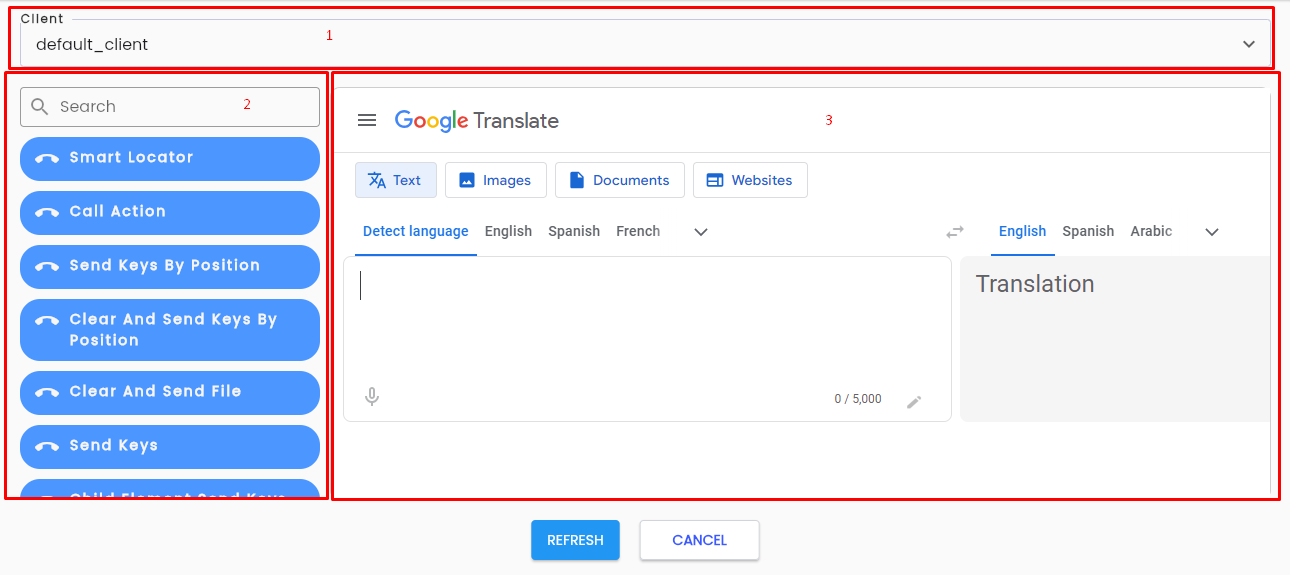
Area 1: Client: This is the client being used in the test scenario. For scenarios with more than one client, reselect the client to identify the platform/screen that needs to be scanned using Smart Locator
Area 2: List Option
Area 3: The screenshot of the screen currently displayed for the selected client.
Step 2: Click “Smart Locator” from the List Option, and the system will display the Smart Locator screen.
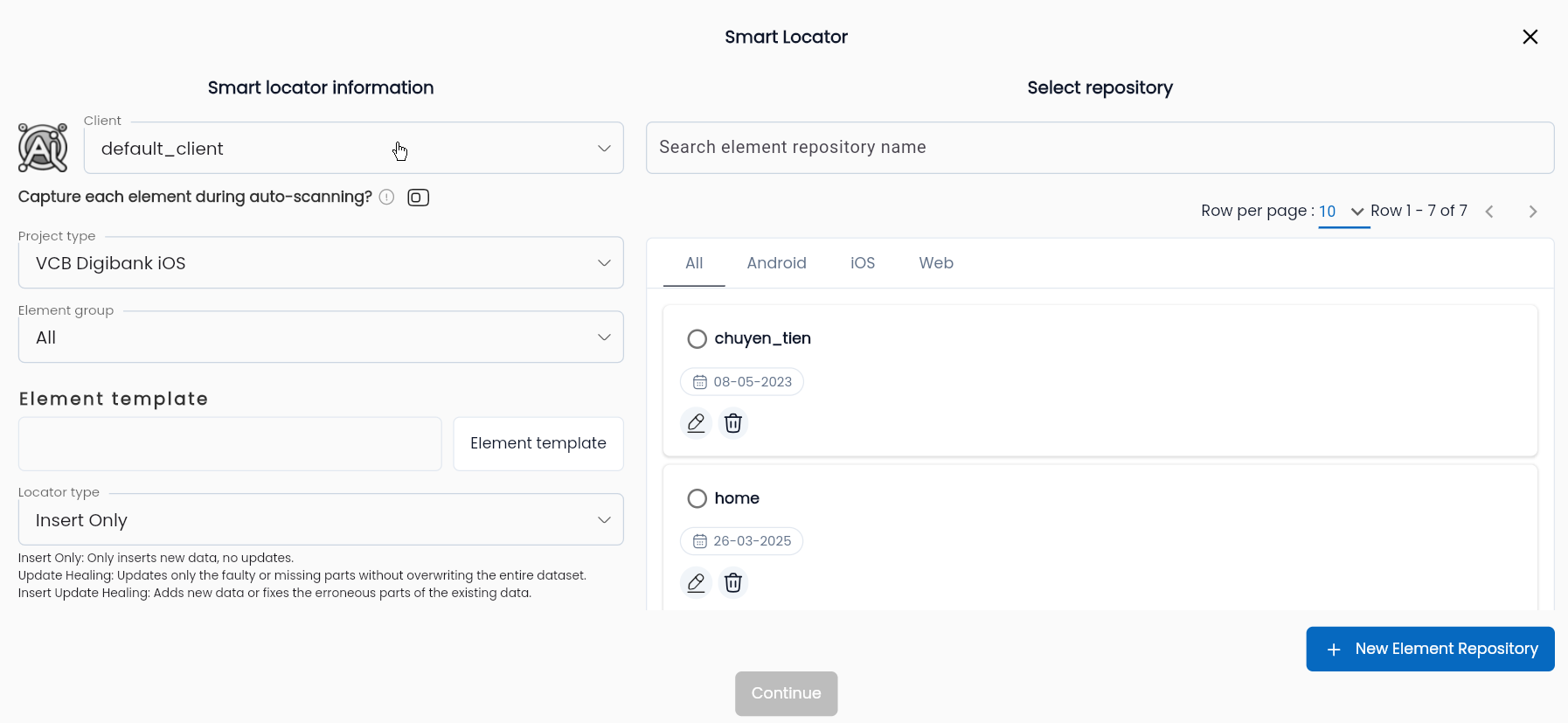
Step 3: Select the information for the Element to be created:
Among those:
| Field information | Mandatory | Format | Constraints | Description |
|---|---|---|---|---|
| Client | Yes | Combobox | Only the list of clients available in the scenario will be displayed. | It refers to the client being used to scan with Smart Locator. |
| Project Type | Yes | Combobox | It is the project type that contains the template of the element. | |
| Locator type | Yes | Combobox | It is the method for saving elements scanned by Smart Locator. The values include: - Insert Only: Save all scanned elements (create elements). - Update Healing: Find and update existing elements in the Repository if there are changes in attributes or XPath - Insert Update Healing: Find and update existing elements in the Repository if there are changes in attributes or XPath, and simultaneously save new elements that are not yet in the Repository. | |
| Element group | Yes | Combobox | Display the list of element groups that have been declared and have an active status. | It is a group of element templates that share similar characteristics or meanings, helping testers easily identify the element template to use when performing Smart Locator or Find Element. |
| Capture image of each element | Yes | Switch button | It is the setting that determines whether to take a screenshot during the element search on the interface? + Off: No screenshot will be taken + On: A screenshot will be taken | |
| Element template | - | - | Only displays a list of active elements in the previously selected element group | Select the element template that may appear on the screen or is the template of the element to be searched for in order to perform the Smart Locator scan. |
| Search element repository name | - | Text | The system has at least 1 Repository | Search for the Repository that will contain the element created by the name of the repository. |
| Select repository | Yes | Radio button | The system has at least 1 Repository | Select the Repository that will contain the element created by Smart Locator. |
| NEW ELEMENT REPOSITORY | - | Button | If the desired folder is not available in the list of repositories for the project, click the “NEW ELEMENT REPOSITORY” button to create a new repository. The process is similar to the previous section How to create an element repository |
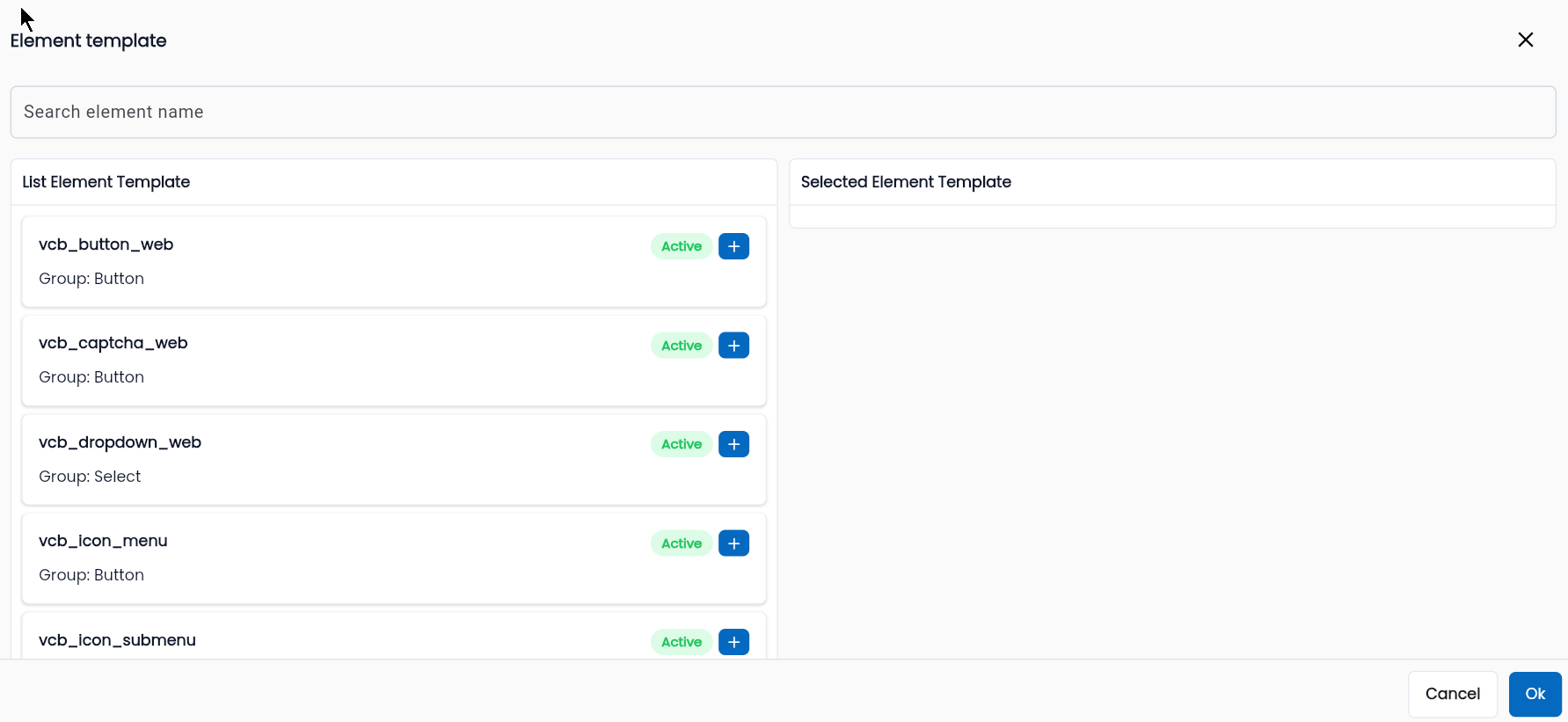
To select the element template for the elements to be scanned on the interface, the user follows these steps:
-
1.Click on the Element template tab
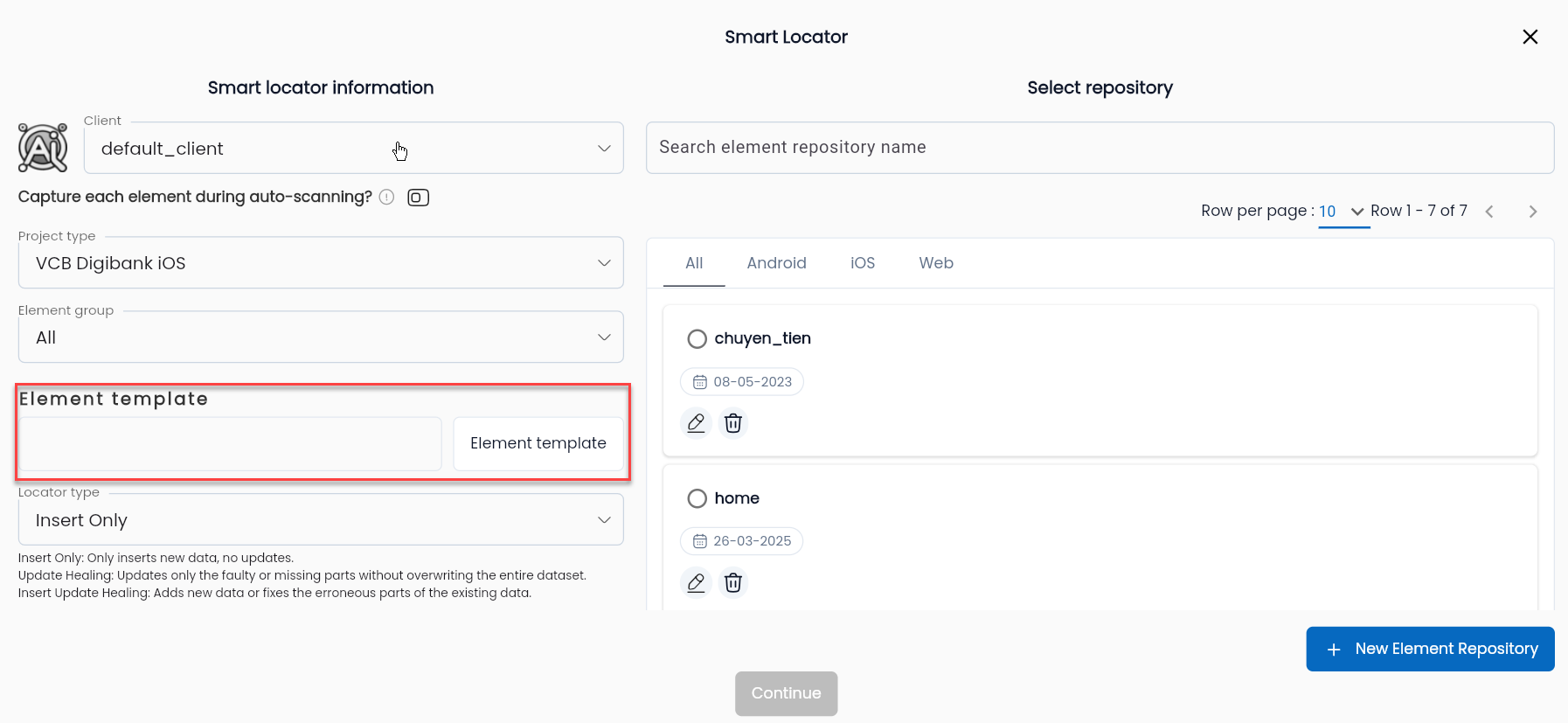
The system displays the element template screen
-
2.Click “+” to add the element templates you need to use, then click OK.
If the user wants to create an element in a subfolder of the repository, they should click directly on the line containing the Repository, instead of clicking the radio button as shown below.
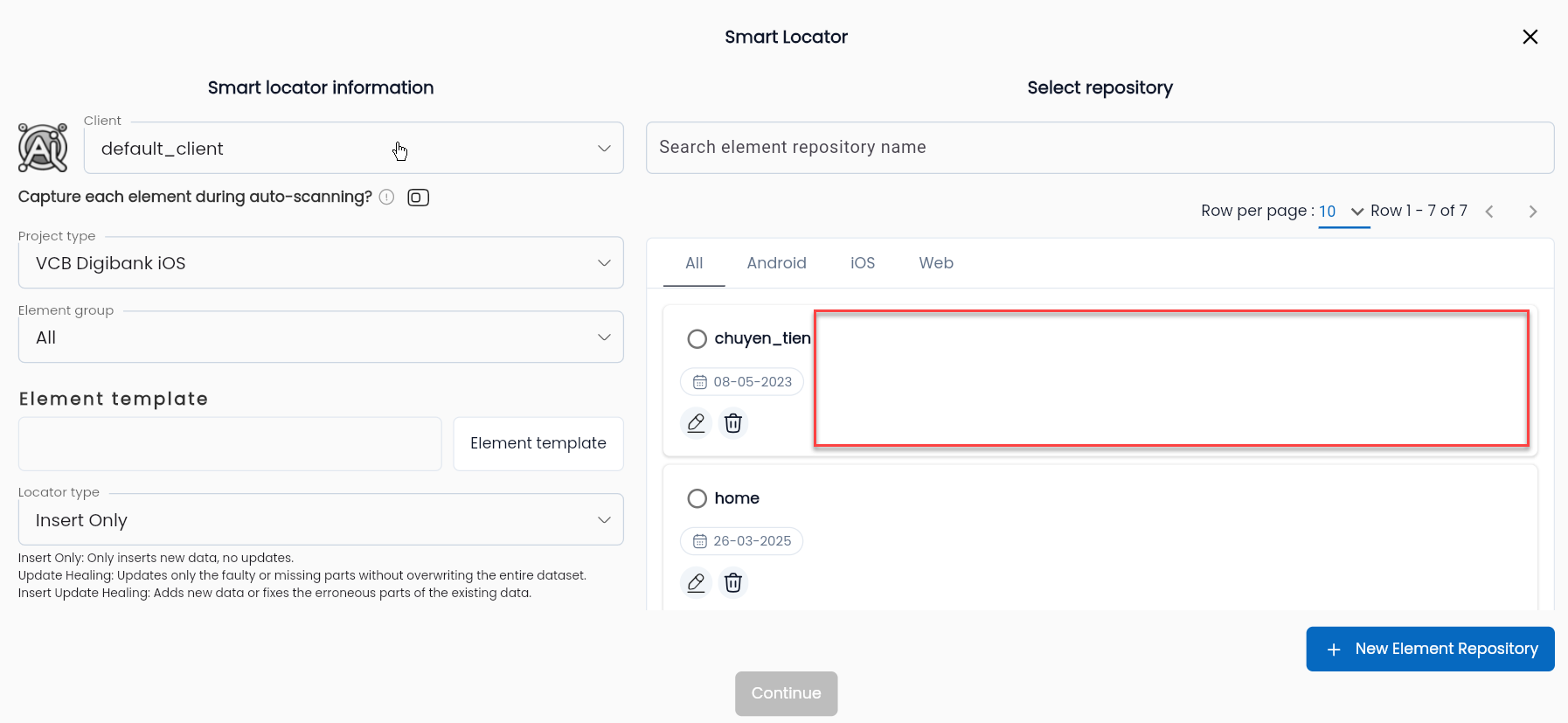
The system will display the screen showing the list of subfolders within the repository.
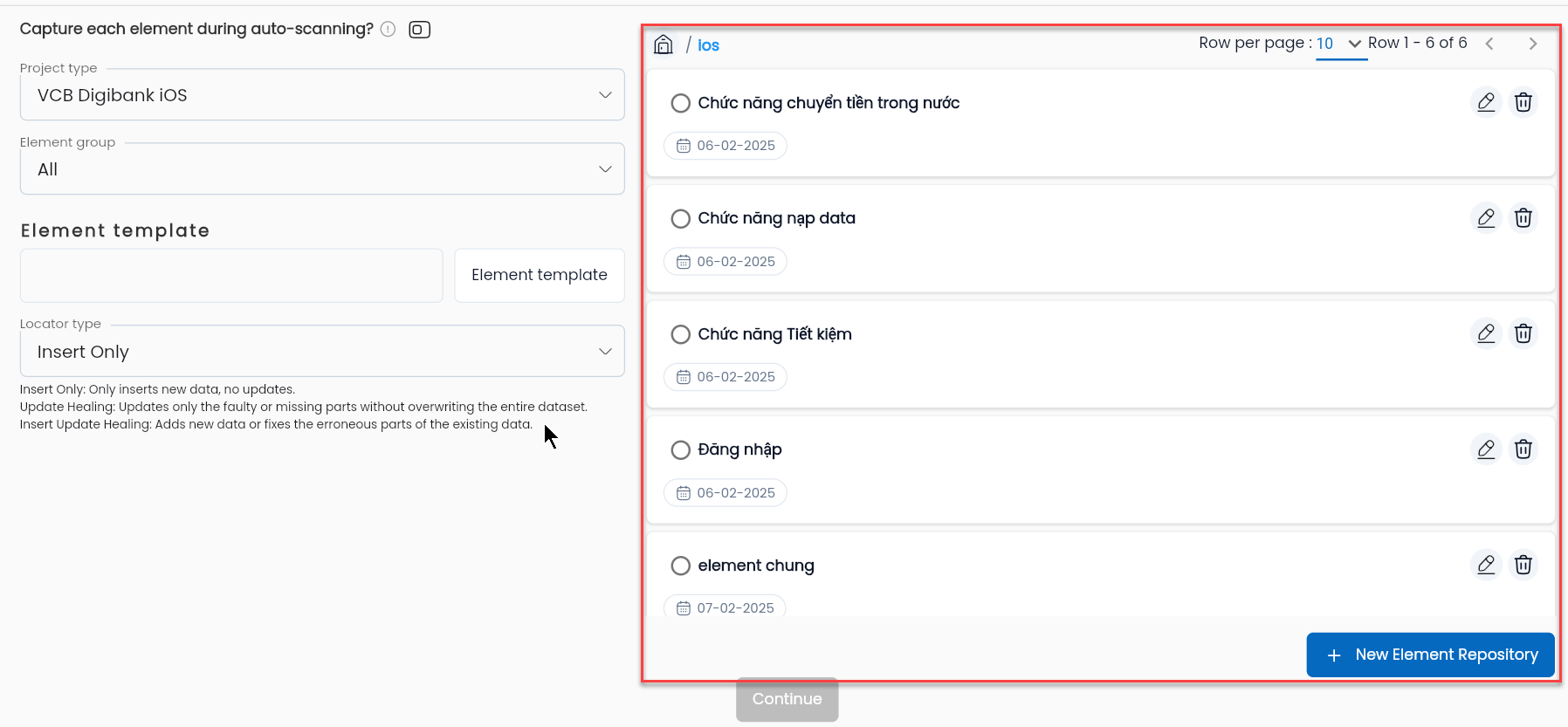
Description of the fields
| Field information | Required | Format | Constraints | Description |
|---|---|---|---|---|
 | - | Icon | Click icon Home icon to return to the previous screen showing the list of repositories. | |
 | - | Link | The name of the Repository that the user just clicked on. |
To create a new Child Repository, the user clicks on “+ NEW ELEMENT REPOSITORY” and follows the same steps as for creating a Repository.
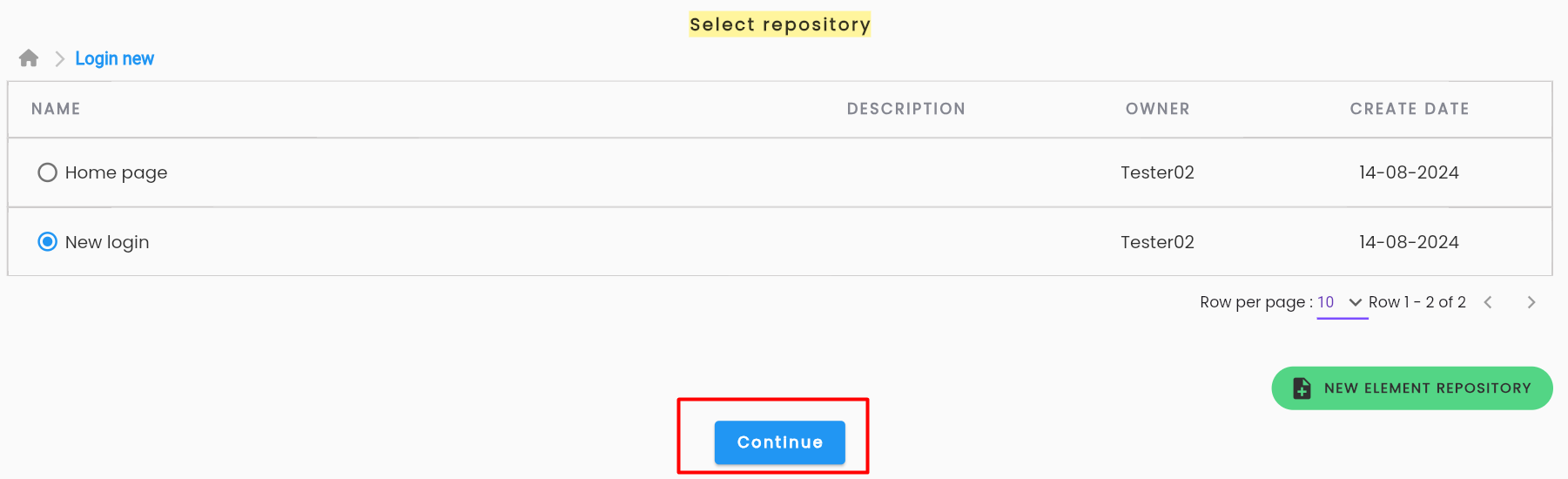
Step 4: Click Continue, the system will display a Monitoring Processing popup, showing the process and the results of the element search.
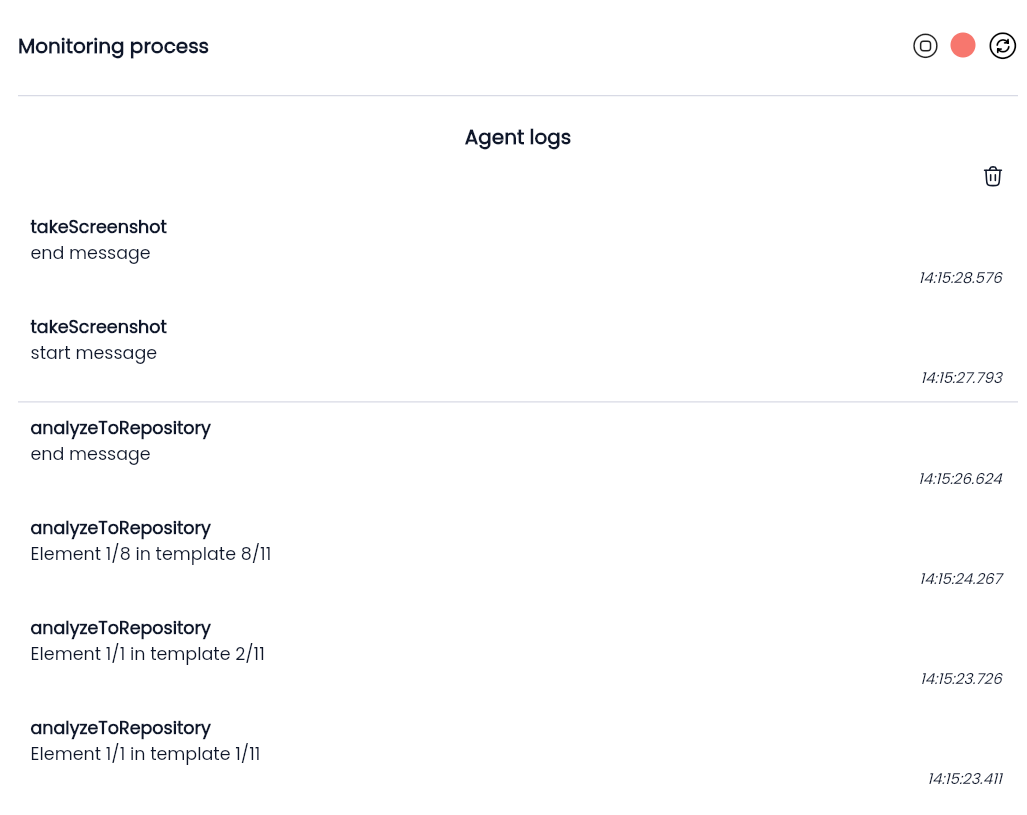
After the search is completed, the system will display a Smart Locator success message and navigate to the repository that was selected for the Smart Locator, showing the list of created elements.
Click on the desired element, and the system will display a screen with the elements in the repository, along with screenshots of the elements (if "Capture image of each element" is enabled)
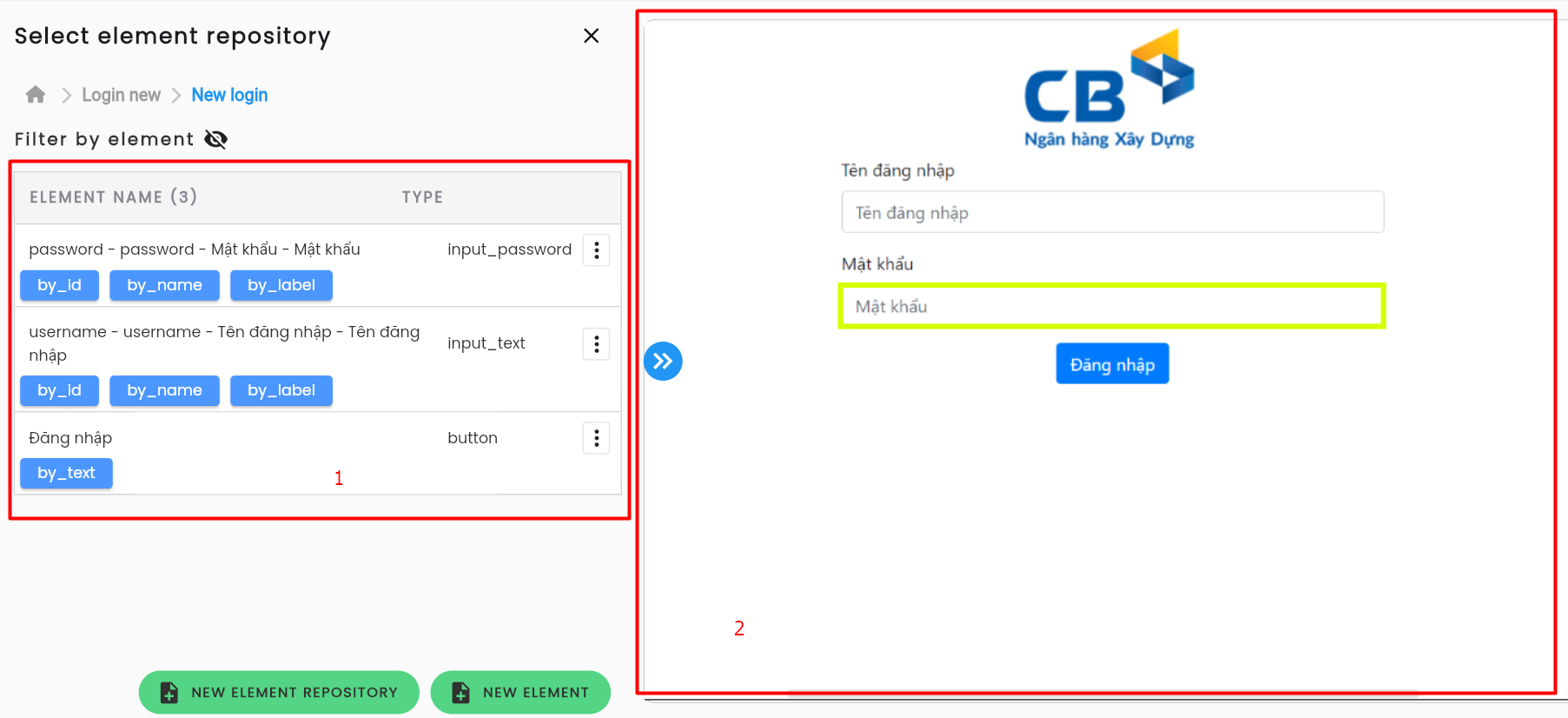
Description of the fields
| Field information | Mandatory | Format | Constraints | Description |
|---|---|---|---|---|
 | - | Link | The address leading to the repository/child repository that the user is viewing. | |
| Show filter form | - | Icon | The user clicks the  to hide/show filter to find elements based on conditions to hide/show filter to find elements based on conditions | |
| By element name | - | Text | Search for the element by name, either the name the user assigned or the name automatically generated by Smart Locator when the element was created. | |
| Project type | - | Combobox | The project type that contains the element template the user needs to find. | |
| Element group | - | Combobox | The group that contains the element template the user needs to find. | |
| Element template | - | Combobox | The list of values depends on the selected project type and element group. If the project type is “All,” the items in the combobox will include all element templates available in the system. | The user selects the type of element to search for, according to the format defined in the selected Project type (e.g., Button, Input). |
| Area 1 | - | Table | The list of elements within the repository/child repository. | |
| Area 2 | - | Image | Screenshot of the screen where Smart Locator just performed the element search. | |
 | - | Icon | Display of elements with screenshots. | |
 | - | Icon | The user clicks this icon to edit the element. | |
| - | Icon | The user clicks this icon to duplicate the element. | |
| - | Icon | The user clicks the Delete icon to remove the element. | |
 | - | Button | Click the “SMART LOCATOR” button to perform Smart Locator scanning with the repository already selected as the active repository. | |
| - | Button | The user clicks the “NEW ELEMENT REPOSITORY” button to create a new child element repository. | |
 | - | Button | The user clicks the “NEW ELEMENT” button to manually create an element within the repository. |
Manually Creating an Element
In some cases, users may manually create elements for test scenarios, typically when:
- The number of elements is very small: When only a few elements are needed on a screen among many existing elements, creating them manually helps avoid unnecessary elements. These elements can be created using the Find Element function or by writing the XPath manually.
- The element has a complex XPath structure and does not frequently appear in the application/system being tested. In this case, manually creating the element will reduce the effort needed by testers to create element templates for special cases. Testers are required to have knowledge of XPath and be able to write the XPath manually.
- Only individual elements can be created at a time. Manual creation of elements in the Element Repository library has some characteristics: • Users manually input the element details. • No screenshot is captured for the element.
Advantages: Users have control and can quickly create elements with complex structures or those that are rarely used in the application/system being tested.
Disadvantages: The position of the element on the application's user interface cannot be identified when reviewing elements.
Using Find Element
Find Element is a tool that helps users quickly locate elements during the test scenario configuration process, based on predefined templates.
To use Find Element, the user must ensure that the Agent has started and debugging is active in the test scenario. The Locator property of the keyword must have a value type of Value and the data type should be Elements.
Step 1: On the Locator box of the keyword property, click Find element
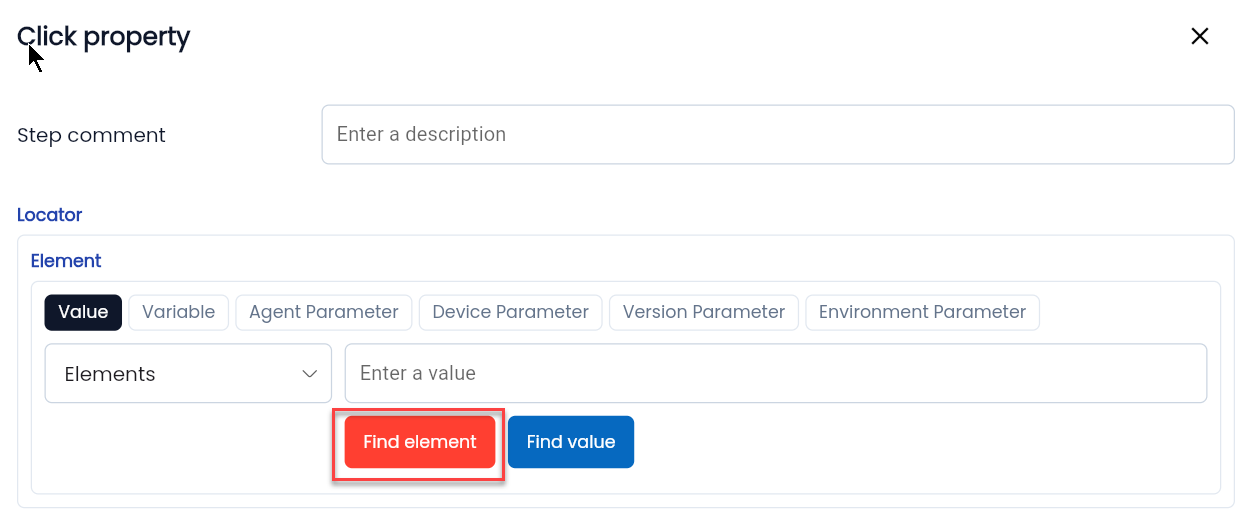
The system will display the Find element property screen.
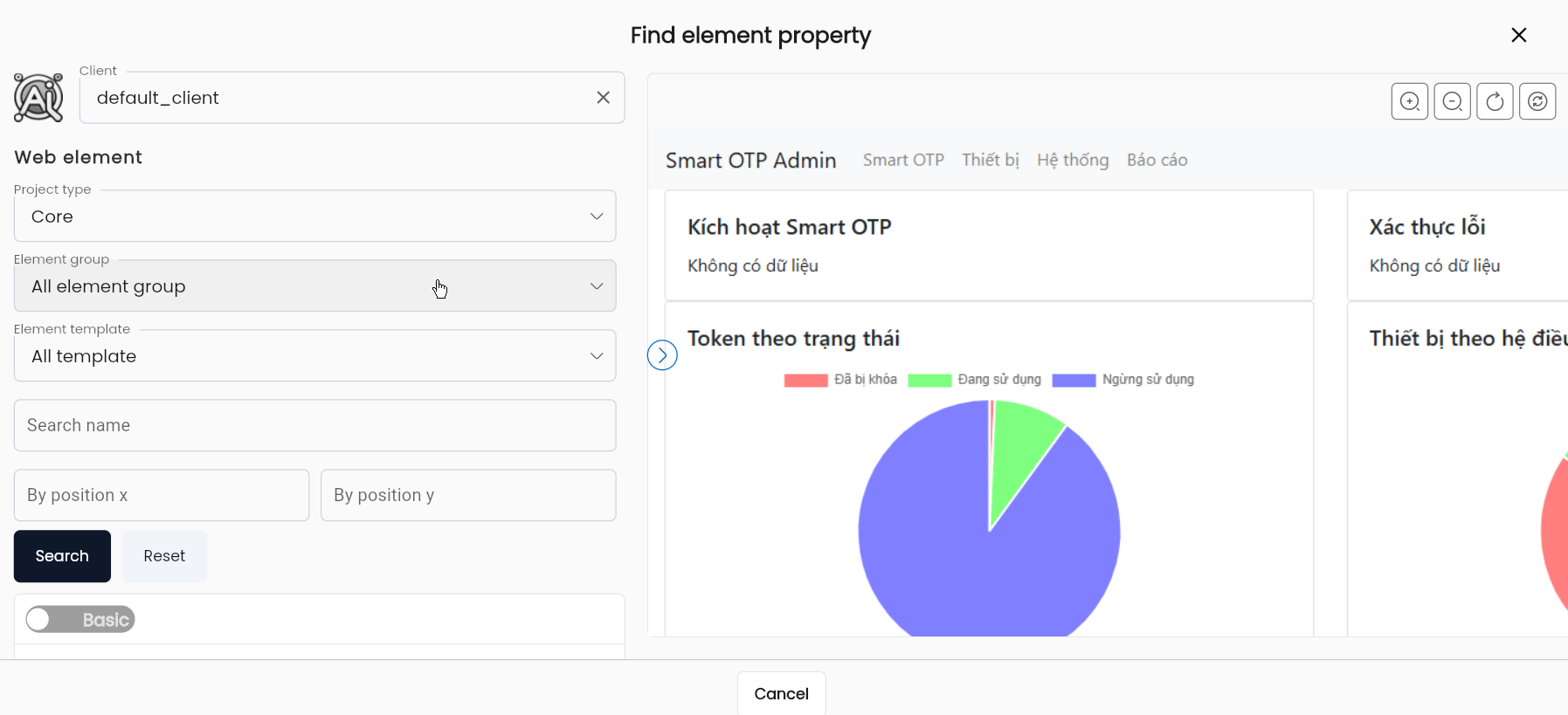
Step 2: Select the appropriate Project type, Element group, and Element template according to the user's needs. Click the “SEARCH” button
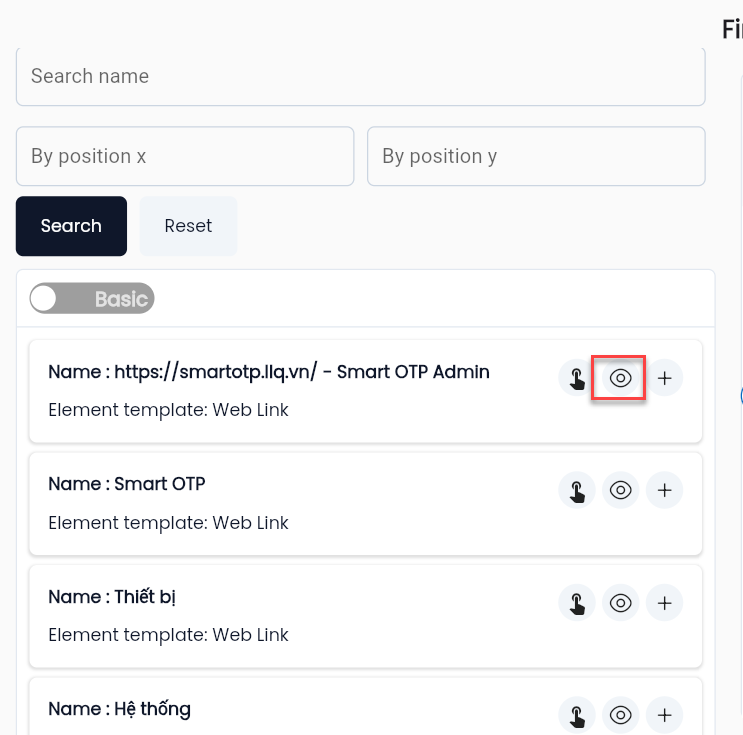
After scanning for elements with the matching template format on the screen, the results will be displayed by default in Basic mode.
In the element search box, the user can click the View position icon to verify the location of the element.
Step 3: Click the “Select element” icon corresponding to the element you want to choose.
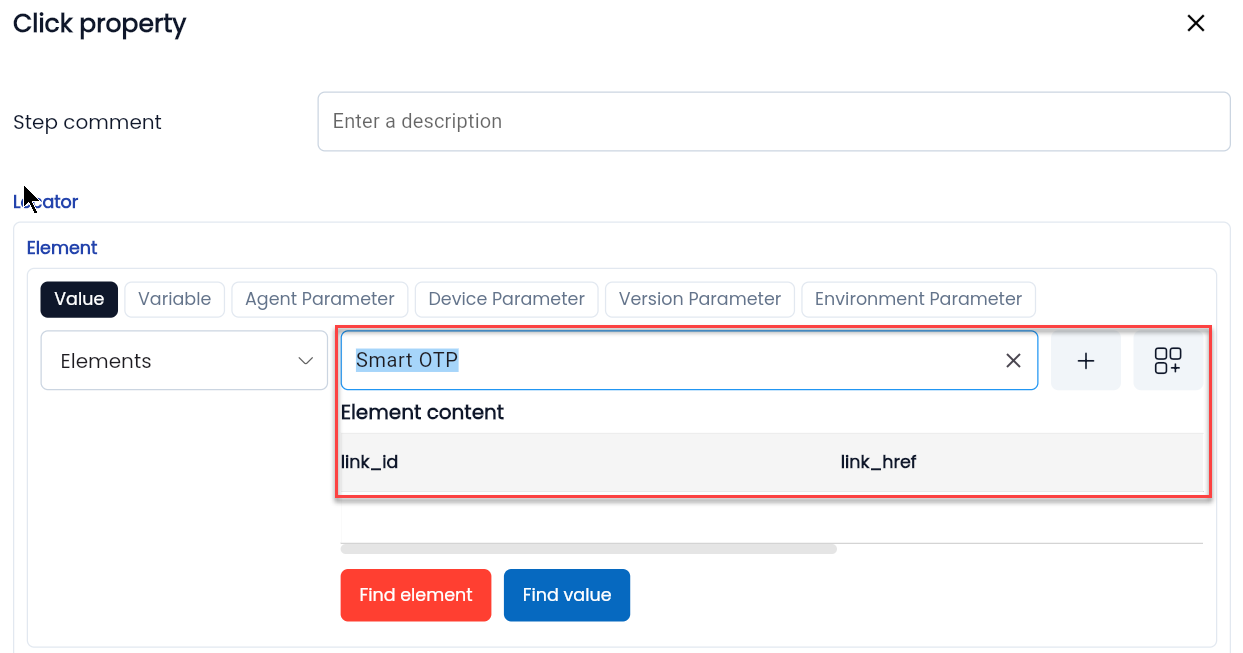
Step 4: Click button Add element.
The system will display the Repository screen.
Step 5: Select the Repository or Child Repository as the storage folder according to the user's needs.
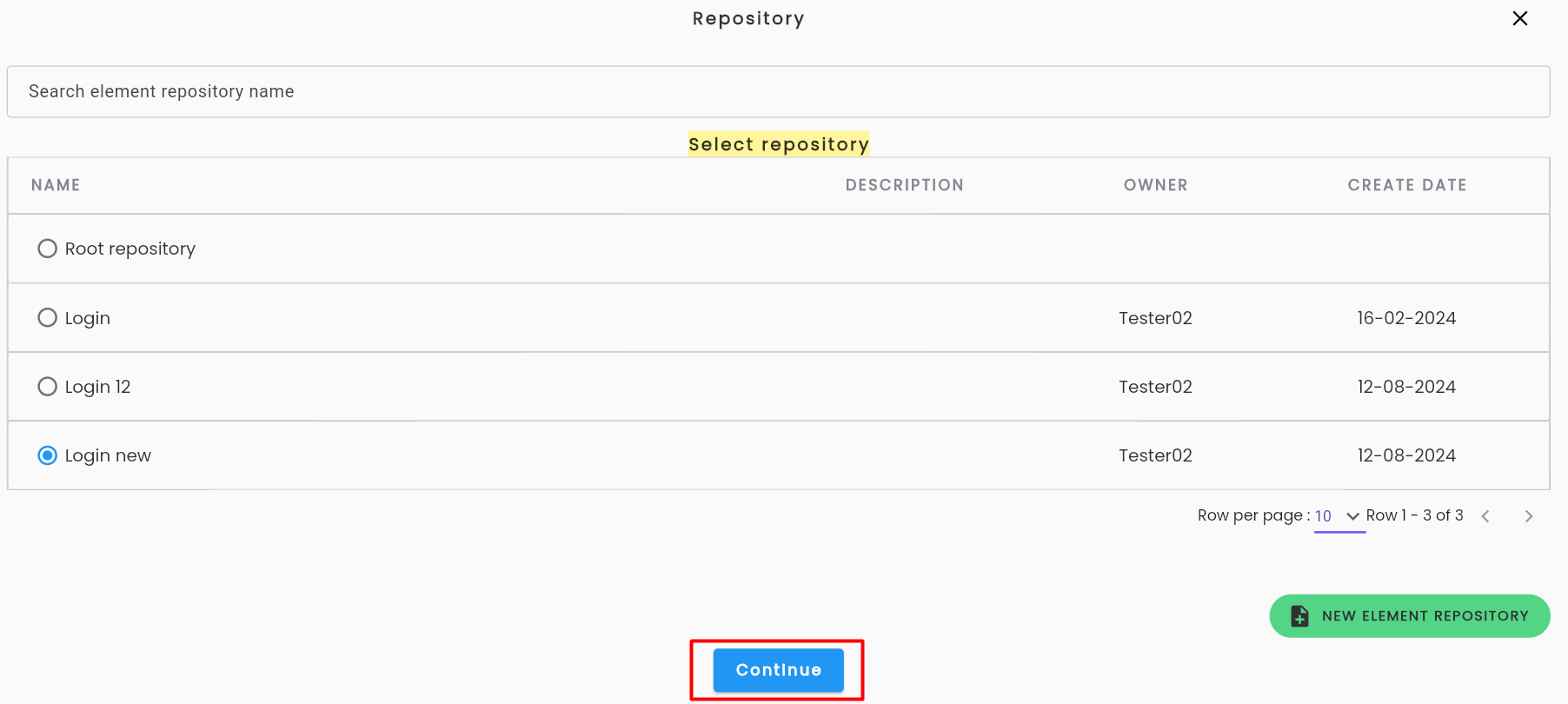
Step 6: Click Continue,The system will display a Create successful message,and the element just created can be found in the repository folder selected in Step 5.
Note: After completing Step 2, to select the element for use in the scenario:
- In Basic mode: click the “Select element basic” icon
- In Advanced mode: Switch to Advanced mode by clicking the switch button, then click on the element's property.
The system will display the keyword property screen with the Value XPath automatically filled in correctly.

Click the New Element “+” button, and the system will display the Repository screen.
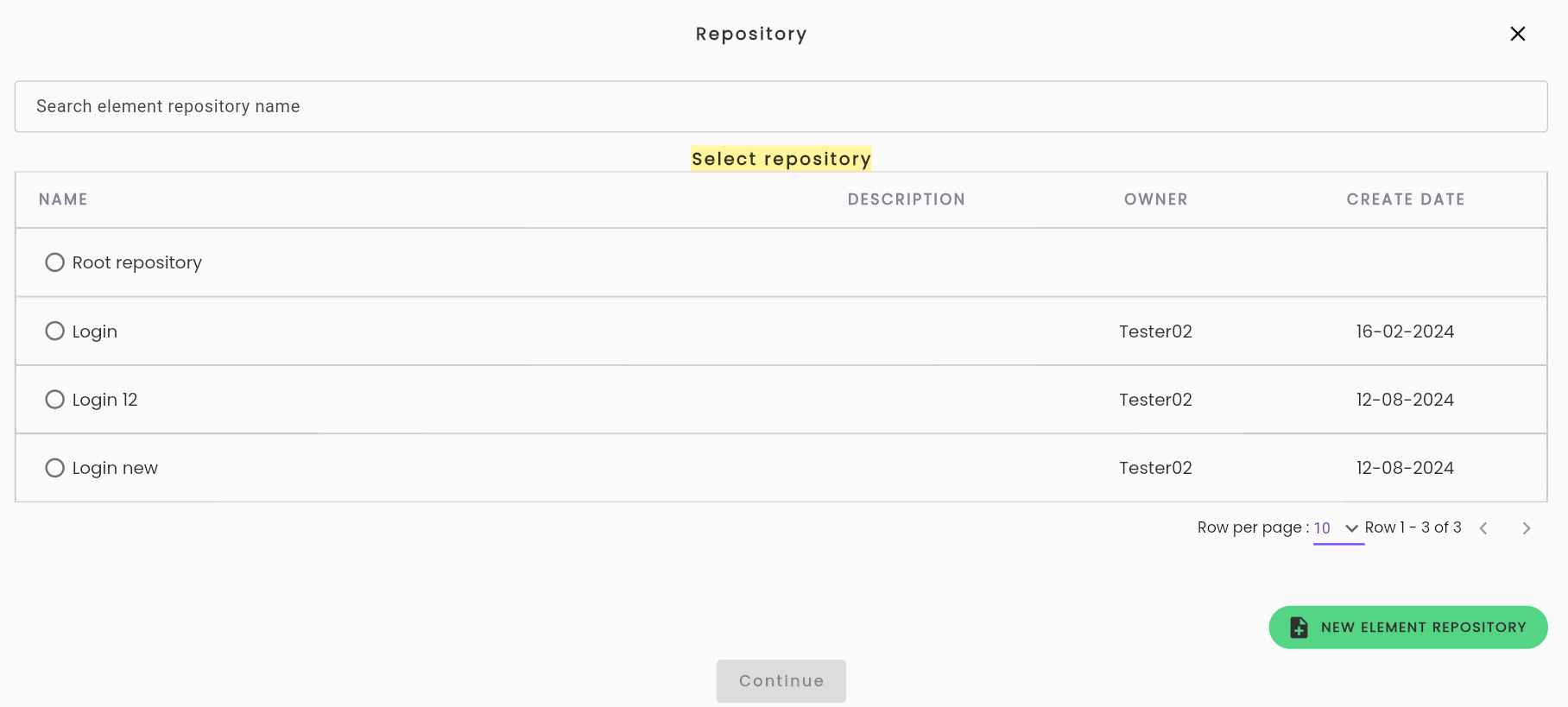
Follow the same steps as Step 5 and Step 6 to save the element into the repository.
Create an element using the New Element function
Step 1: On the Repository Library screen, click NEW ELEMENT, and the system will display the CREATE ELEMENT screen.
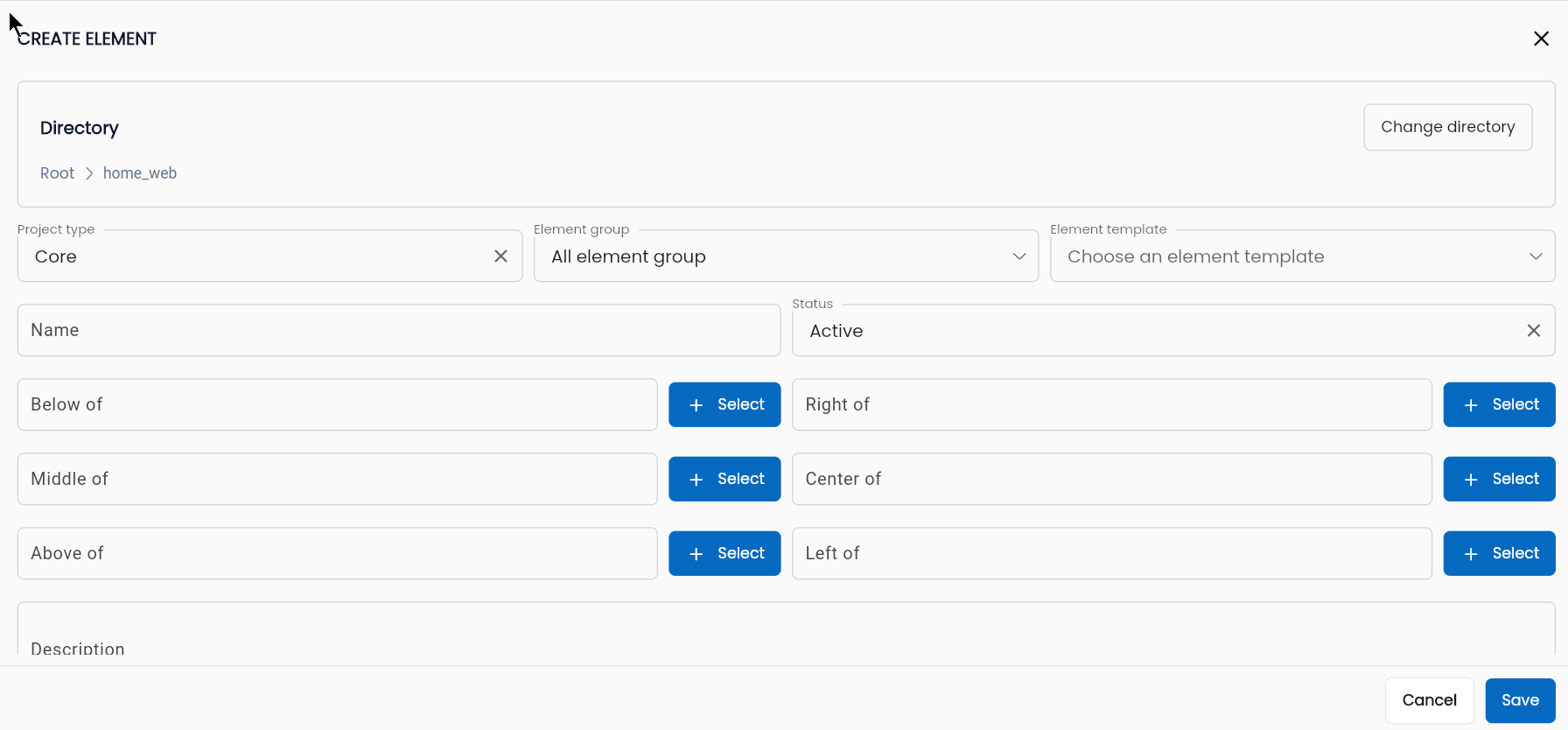
Step 2: Enter the necessary information for the Element, including:
| Field information | Mandatory | Format | Constraints | Description |
|---|---|---|---|---|
| Repository | - | Button | Click the Repository button to select or change the repository for the element. | |
| Project Type | Yes | Combobox | The project type that contains the template for the element. | |
| Element group | Yes | Combobox | A group of element templates that share similar characteristics. | |
| Element Template | Yes | Combobox | The selection value is the template defined in the chosen Project Type. | The type of element the user will interact with, such as button, input, select, etc., depending on the templates defined by the user when configuring the element template. |
| Name | Yes | Text | The name of the element. The user should name it based on the function or the display name of the element in the system/application being tested, for easy searching when configuring the test scenario. | |
| id, name, text, placeholder... | - | Text | It is the type of element that the user will interact with, such as button, input, select, etc., depending on the templates defined by the user when configuring the element template. | These are the properties of the element. |
| Below of | - | Text | The element has the correct XPath defined. | The user enters the XPath of an element that is located on top of the element being created. |
| Middle of | - | Text | The element has the correct XPath defined. | The user enters the XPath of an element that is located in the middle of the element being created. |
| Above of | - | Text | The element has the correct XPath defined. | The user enters the XPath of an element that is located below the element being created. |
| Right of | - | Text | The element has the correct XPath defined. | The user enters the XPath of an element that is located to the left of the element being created. |
| Center of | - | Text | The element has the correct XPath defined. | The user enters the XPath of an element that is located in the middle of the element being created. |
| Left of | - | Text | The element has the correct XPath defined. | The user enters the XPath of an element that is located to the right of the element being created. |
| Select | - | Button | The user clicks the Select button to search for and select an existing element from the Repository to define its position relative to the element being created (e.g., Below of, Above of, Middle of, Left of, Right of, Center of), instead of entering the XPath manually. | |
| Description | - | Textarea | Description of the element being created. | |
| Status | Có | Combobox | Element status - Active: Active - Inactive: Not active Choose Active to enable the use of this element. | |
| Test Element Name | Có | Text | The name of the element is automatically determined by the system based on the selected attributes list when configuring the template. | |
| Enter a Name | Có | Text | The criteria name used by the user to obtain the XPath for the element, e.g., by_id, by_name, etc. | |
| Enter a xpath | Có | Text | XPath exactly | The XPath of the element being created. |
| New xpath | - | Button | Click “+New xpath” to add a new criteria for obtaining the XPath for the element. Depending on the element type, the user can obtain the XPath using one or more criteria. | |
| Delete | - | Button | Click this button to delete an XPath criteria corresponding to the element. | |
| Find Element | - | Button | It is displayed only when the user has started the debug and accesses the New Element function from the Config screen. | Use Find Element to automatically search for the element to be created on the screen. |
Note: If using Find element to fill in the XPath information for an element, after clicking Find Element:
- Select the element template to search for.
- Click search if no specific template is selected, the system will search based on all templates filtered by element group.
- Click to select the XPath result based on the desired criteria in Advance mode, the system will automatically fill in the XPath and corresponding attribute values of the element.
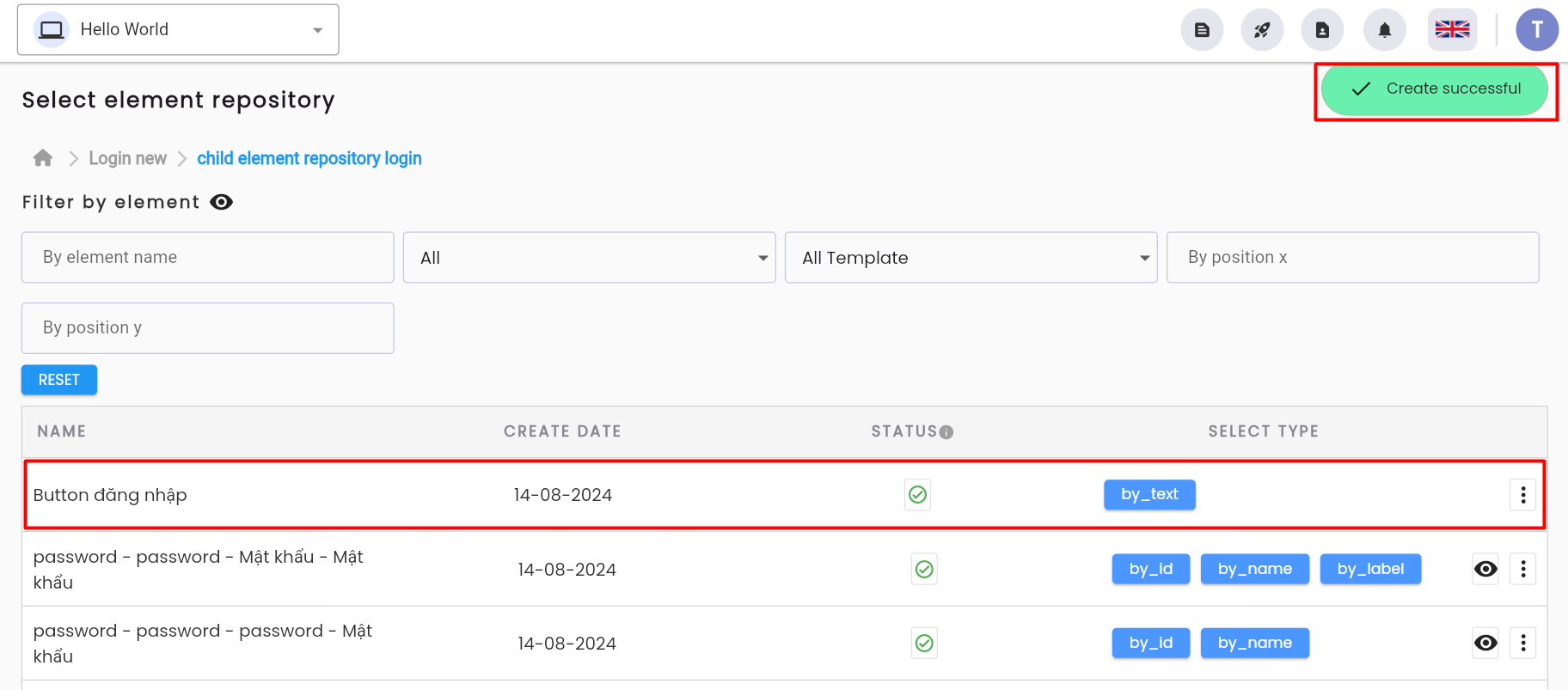
Step 3: To save the element, click SAVE button, the system will be display Create successful message and return to the Element Repository library screen, where the newly created Element has been added.
To cancel the creation of an element in the repository, click CANCEL.
Create Element by Duplicate
Step 1: Select the folder containing the Element you want to duplicate.
Step 2: Click the "Duplicate" icon next to the element you want to duplicate.
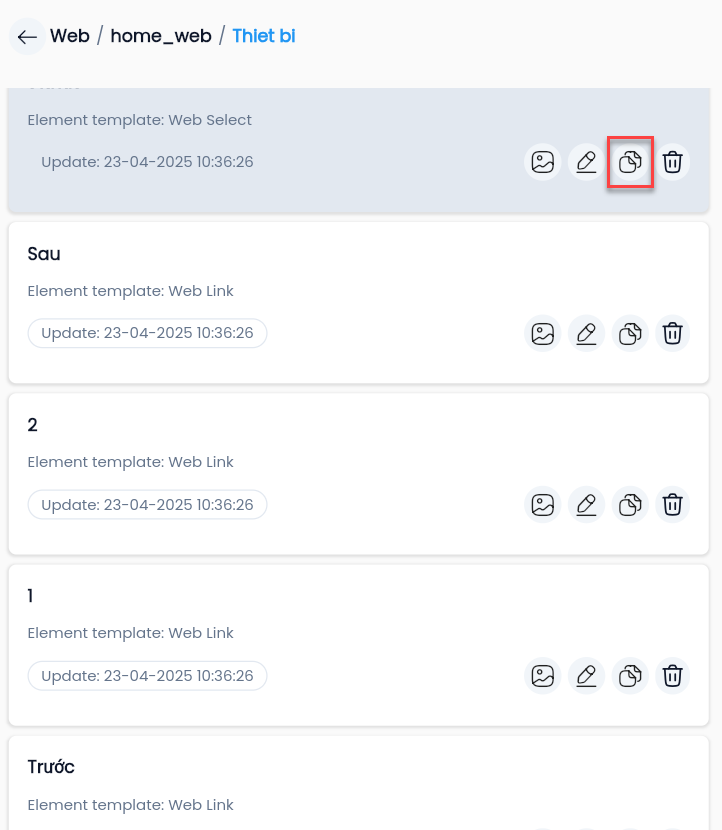
The system will display the Duplicate element screen.
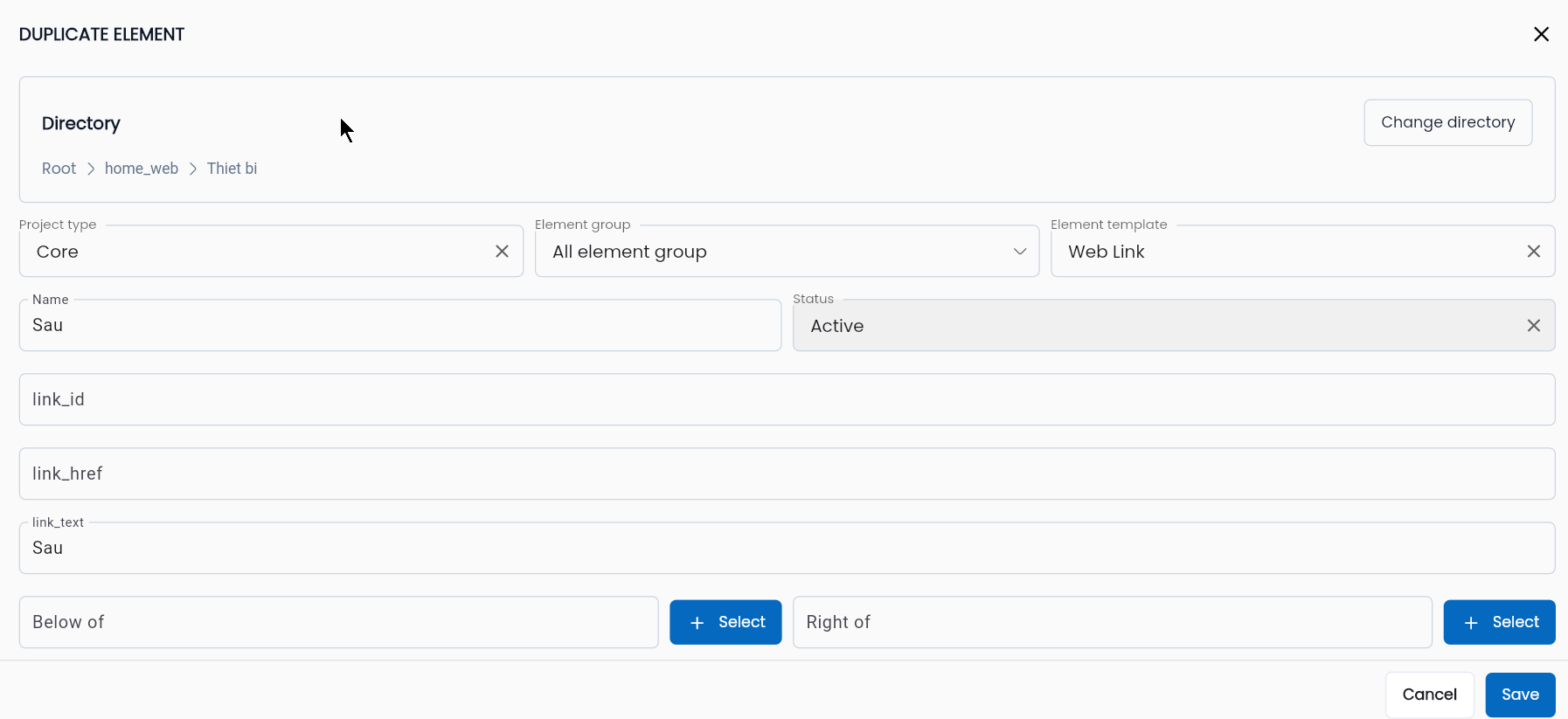
Step 3: Edit the required fields as needed.
The fields here are similar to those in the Create element screen, but Project type,Element group and Element template cannot be changed.
Step 4: Click SAVE to save the element, The system will display the message Duplicate successful and store the element in the folder selected in Step 3.
Update Element in Repository
Step 1: Click to select the Repository containing the element that needs to be updated
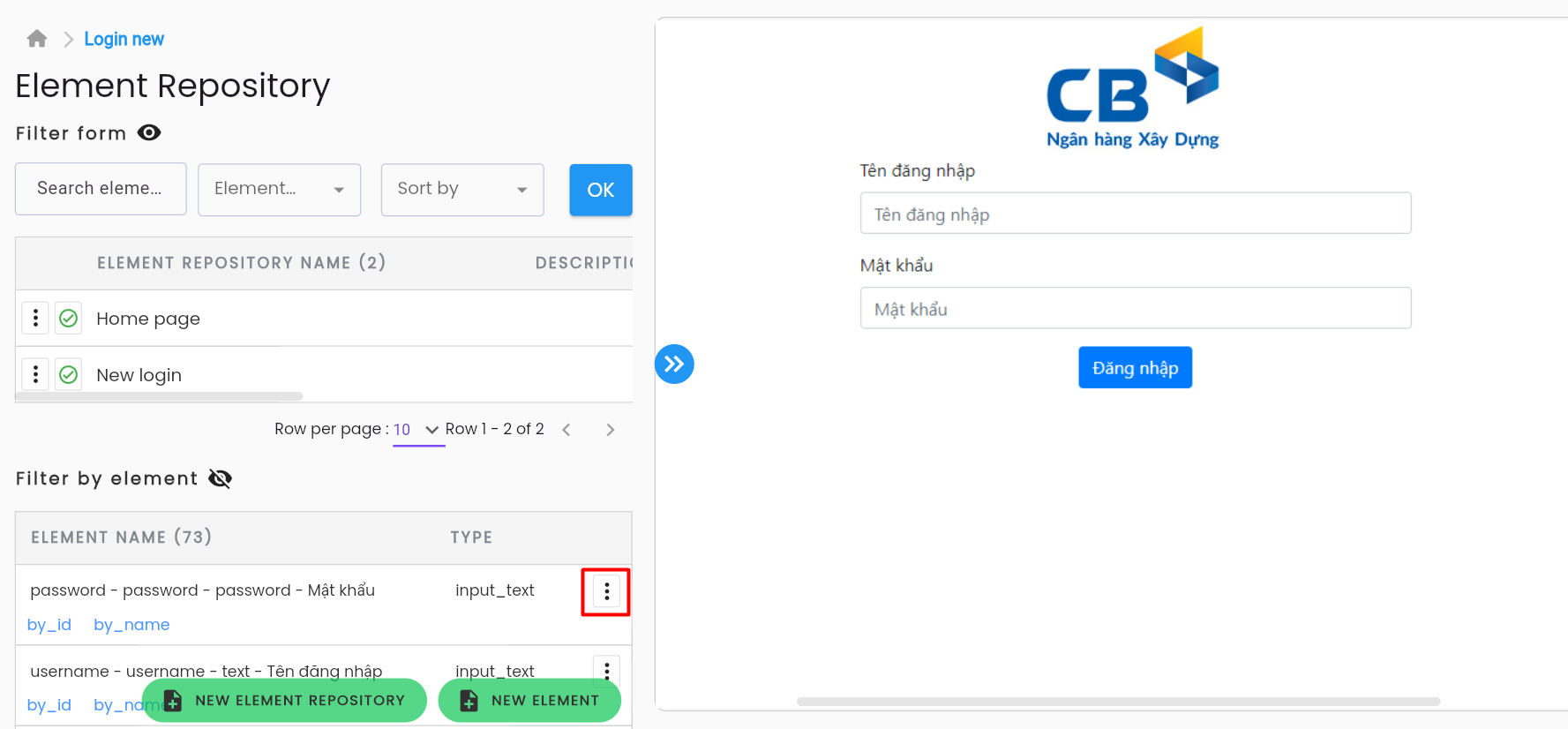
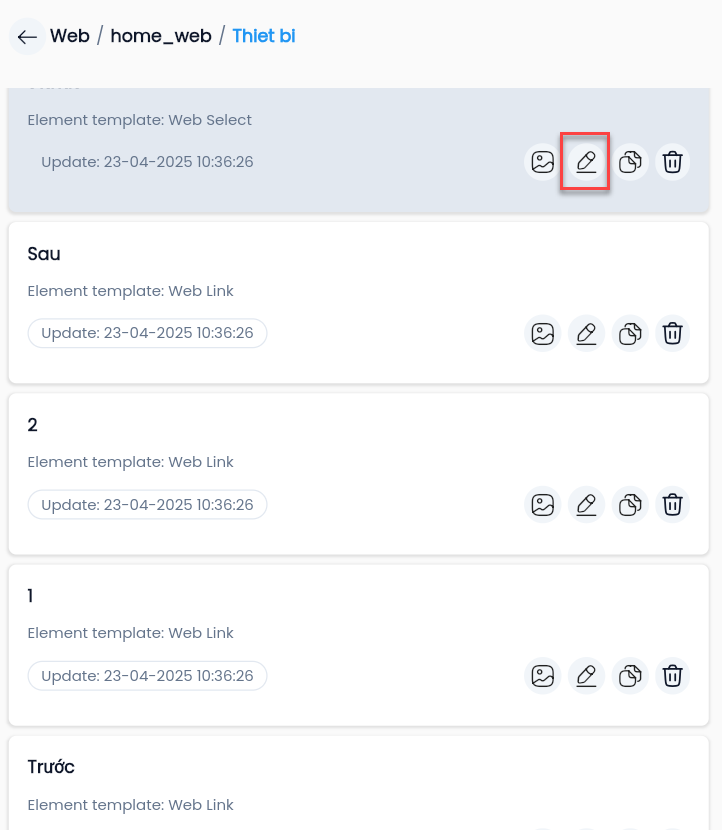
Step 2: Click the Edit icon corresponding to the element whose information needs to be updated
The system displays the “Edit element” screen
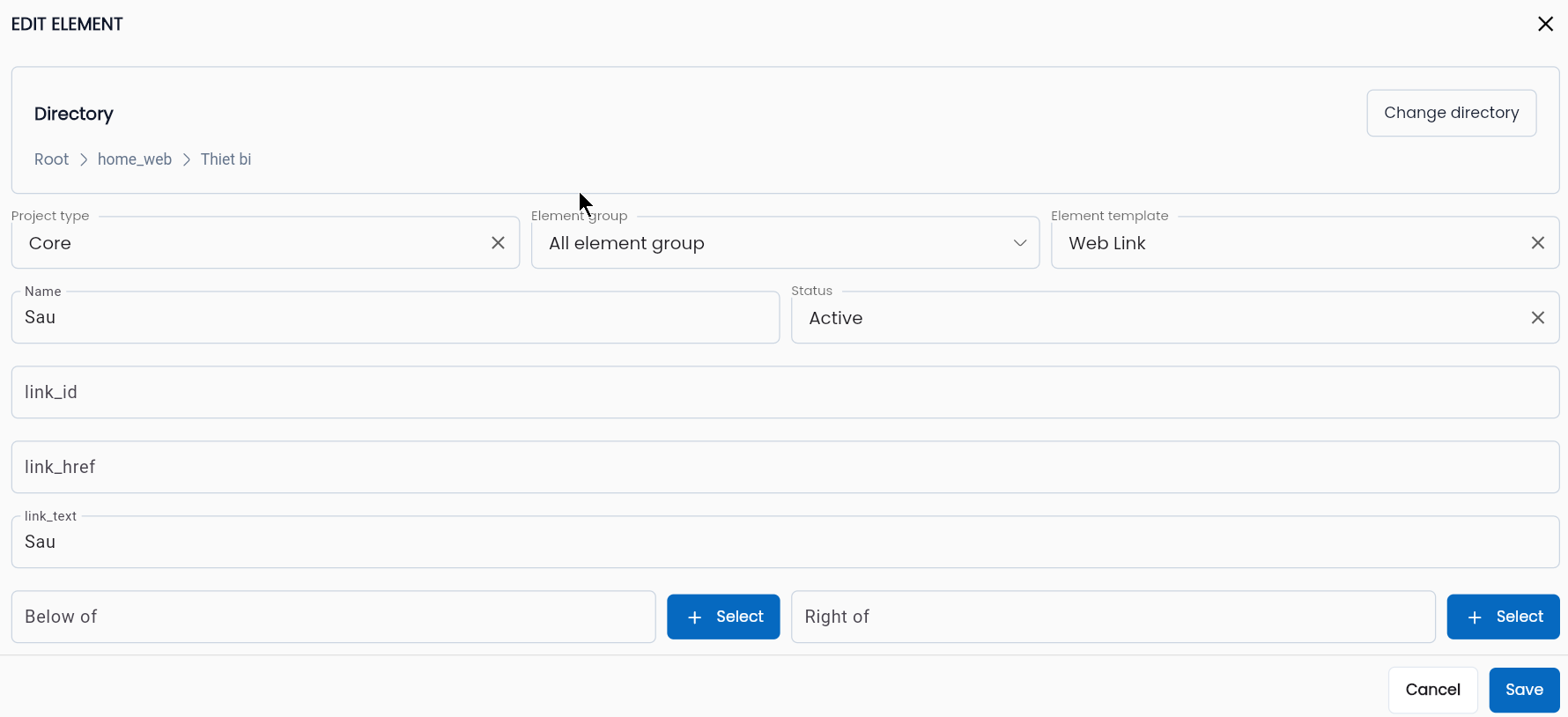
Step 3: Enter the information to be edited in the corresponding information field
Information fields have the same role as in the screen Create element, but Project type, Element group và Element template cannot be changed.
Step 4: Click SAVE to save the edited information, the system displays the message Update successful and updates test scenarios containing this element.
To cancel updating information, click “CANCEL”.
Delete Element in Repository
In the process of creating and using the Element repository, there will be elements that are not used. To make management easier, users tend to delete unnecessary elements.
Elements that have been used cannot be deleted.
Step 1: On the repository folder containing the element to be deleted, click the Delete icon next to the element you want to remove.
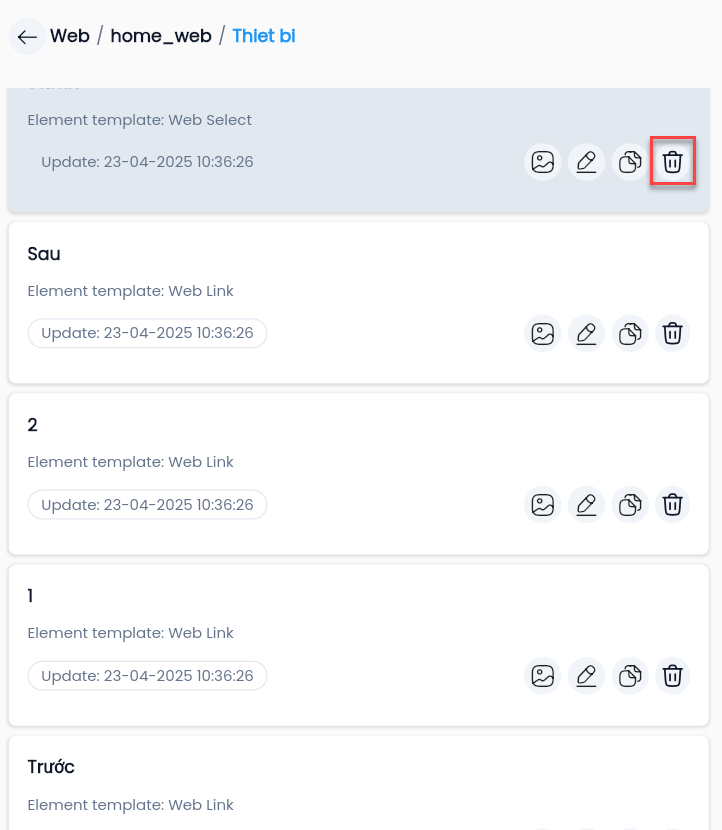
The system will display a confirmation popup.
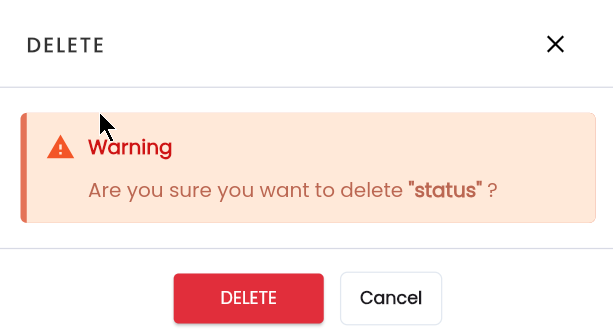
Step 2: Click DELETE to delete the element, The system will show a message “Delete successful” and remove the element from the folder's element list.
To cancel the deletion, at step 2, click “CANCEL”.