Configure Test Scenario
When configuring test scenarios, users may encounter logic, data type, or other errors that lead to failures or even errors during debugging or test execution.
In this section, the LLQ QA Platform highlights common errors in test scenario configuration and provides guidance for resolution.
Element not found
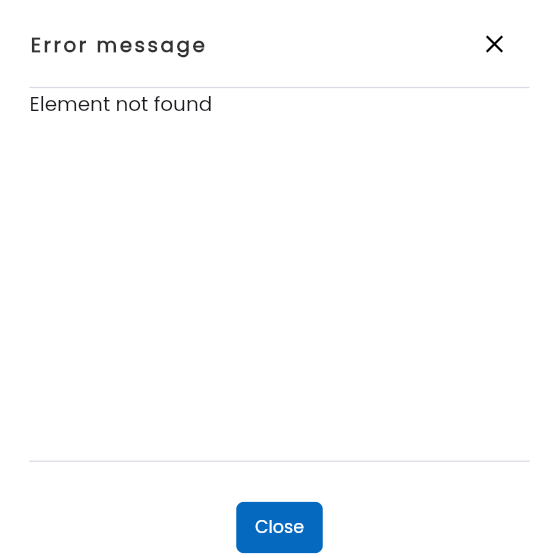
Error Notification: “Element not found” when playing a keyword or debugging a list action.
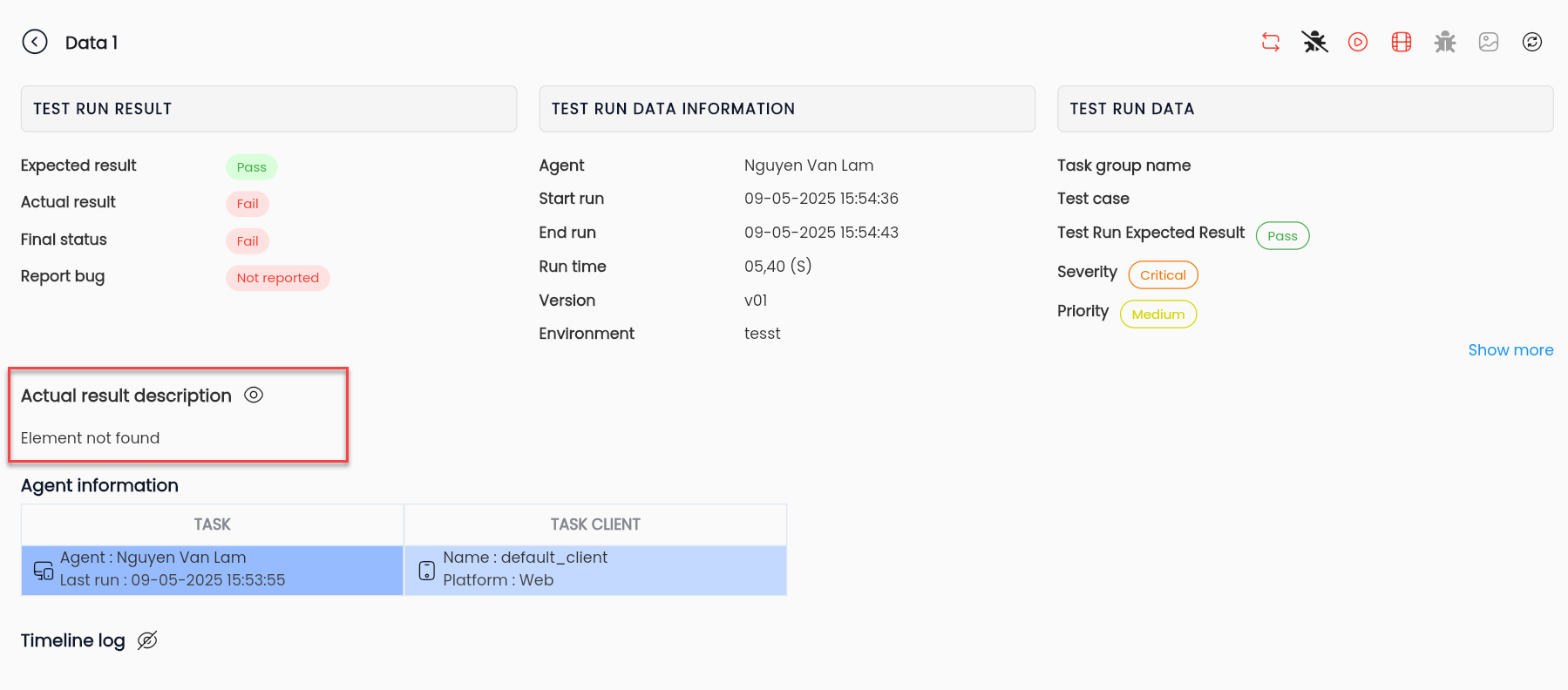
Error Description: “Element not found” appears in the test scenario run results.
“Element not found” that the system could not locate the element for interaction on the user interface. Several possible causes are listed below:
| Cause | Description | Solution |
|---|---|---|
| Incorrect or insufficient element XPath address | If the XPath is incorrect, the system cannot find the element on the user interface. | Use the Repository Element data type for the element's value locator. Analyze the application screen, categorize elements, and identify attributes for special elements. Configure multiple attributes in the XPath formula to distinguish between elements. For special elements, manually configure the XPath following the structure: //Element[@tag attribute='value']. |
| Incorrect element selected for action | When using the element repository or the "find element" function to determine the element's XPath, the wrong element is selected for the corresponding action type (e.g., using a "select" action on an input element). | Verify the element format and ensure the chosen action is appropriate for interaction in the scenario. |
| Input value does not exist (select keywords) | When using a select keyword for a combobox element (e.g., select by value or visible text), the input parameter does not match any value in the combobox. | Ensure the input value is correct, matching case sensitivity and spacing with the combobox value. |
| Element does not exist | This occurs when the scenario steps are not in the correct sequence, or the element's appearance depends on a condition that was not met. | Review the scenario and ensure the steps are logically correct and complete, especially for conditional keywords like If-Else. |
| Unable to interact with the element | - The element is inside one or more iframes, and interaction is impossible without a "Switch to Frame" action.- The element is in another browser tab, making interaction impossible without "Switch to Window/Next/Previous Window" actions.. | Determine the element's location and execute "Switch to Frame/Window" actions as needed. After completing steps within an iframe, use "Switch to Default Content" to reset the context. |
| Excessive wait time | When performing an action, system performance issues may cause excessive loading time. If the default timeout is exceeded, the system cannot locate the element. | Configure sleep times or use "Wait for Element Exist/Disappear" to increase the timeout for actions. |
Error: "No suitable method found for…"

Error Notification: Error: “No suitable method found for clearAndSendKeys” when debugging a list action.
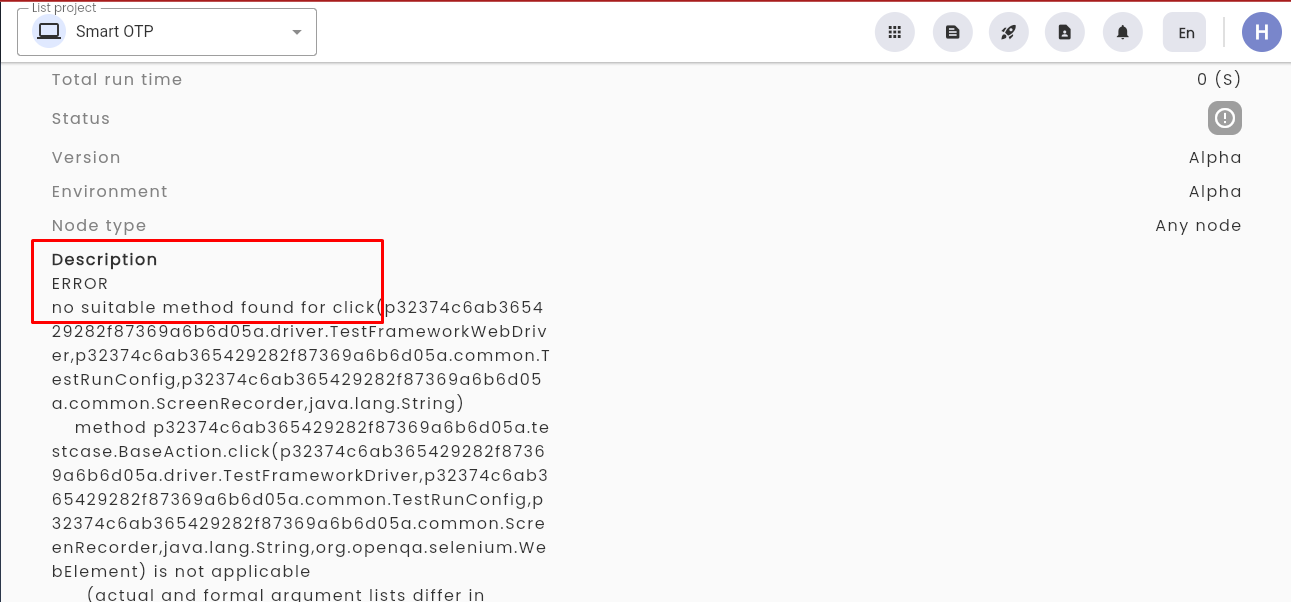
Error Notification: "No suitable method found for click" when running a test scenario.
“No suitable method found for…” + action name is the problem of not finding a suitable method for the action.
Cause: This error occurs when an action in the test scenario is missing values for its attributes.
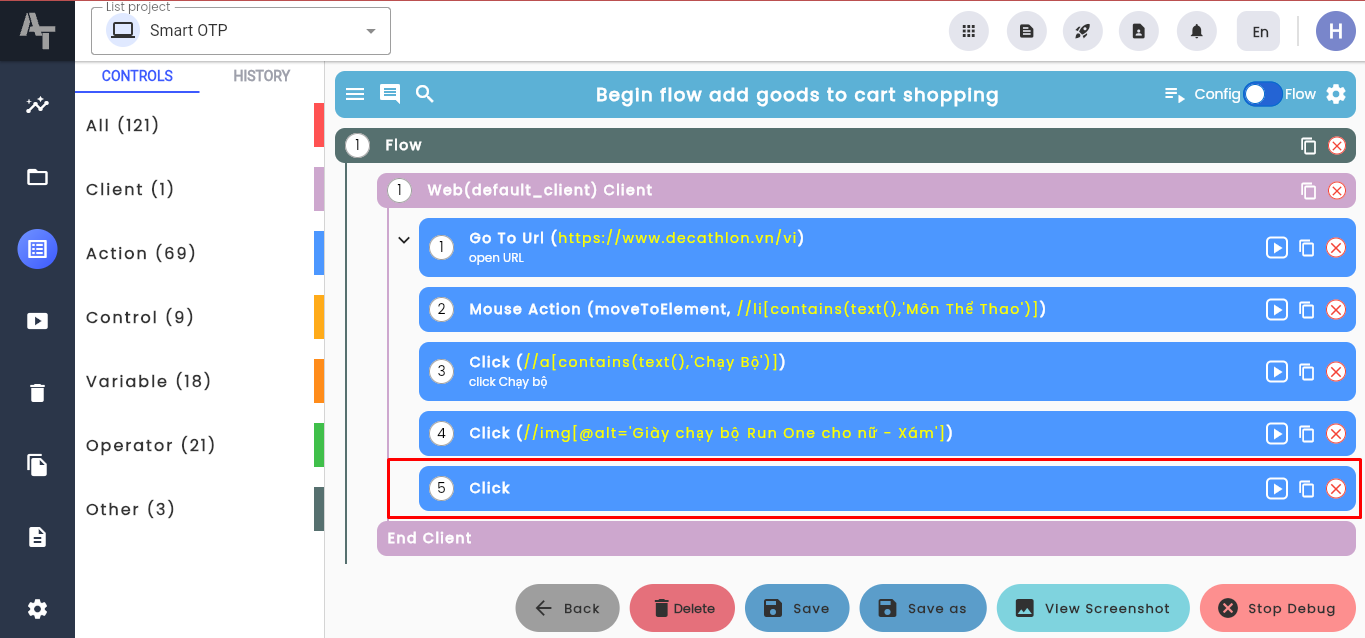
Solution: Before debugging a list action or running the test scenario, check the entire scenario to ensure no action is missing attribute values.
The system cannot find the file specified

Error Notification: “The system cannot find the file specified” when debugging a list action.
Error Description: “The system cannot find the file specified” is a system error that the specified file cannot be found.
Cause: Similar to the error “no suitable method found for…”, this problem arises when the test scenario contains the keyword Variable/keywords If-else, while, foreach… that have not been filled in information for the fields. keyword attribute.
Solution: Review all keywords in the scenario and ensure no keyword is missing information.
Error “Cannot find Symbol”
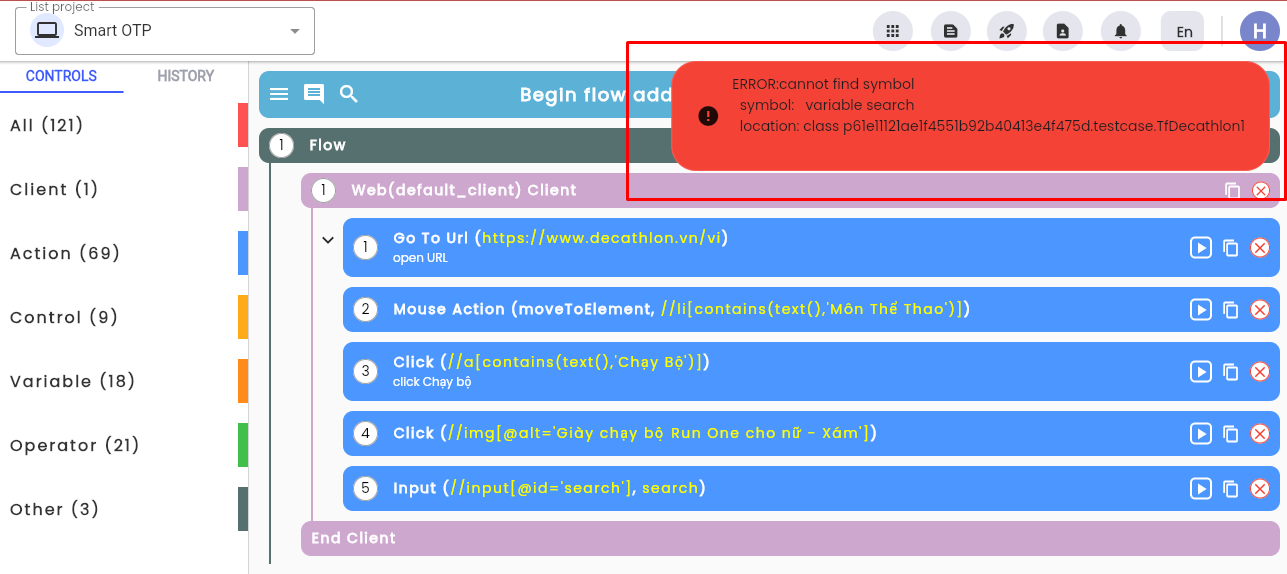
Error Notification: “Cannot find symbol” when debugging a list action.
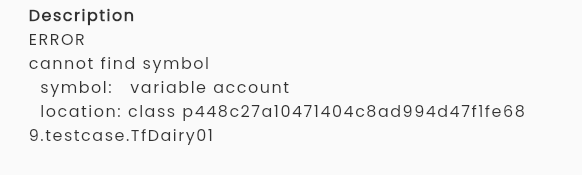
Error Description: “cannot find symbol” khi run scenario
“Cannot find symbol” is the problem of not finding parameters of action, shared steps or the called test scenario is not in active state.
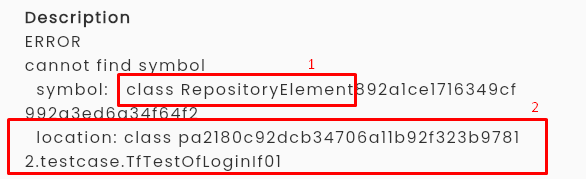
- 1: The symbol not found, in this example, is an Element Repository tag.
- 2: The error's location.
Causes of the Cannot find symbol problem:
| Cause | Description | Solution |
|---|---|---|
| Deleted parameter | During scenario/suite editing, a necessary parameter is accidentally deleted, or an action is left without its associated parameter. | Identify the error location using the missing symbol's name in the description. - If the action is still in use: Add the parameter by selecting the action and clicking save. - If the action is no longer needed: Remove the action. |
| Parameter not created during configuration | When configuring actions with a returnType attribute (e.g., "get text"), selecting "Variable" type and entering a parameter name that does not exist in the scenario/suite causes this issue. | For actions with a returnType attribute: - Select "NewVariable" if the parameter name does not exist in the variable list. - Click “Find variable” to select an existing variable when choosing "Variable", type, avoiding manual entry to prevent typos. |
| Duplicating a test scenario from another project | If a test scenario uses elements or shared steps from a repository that does not exist in the new project, and users fail to review and replace or remove null references, errors occur. | Review the test scenario and replace or remove null references. |
| Deleted repository | An action in the scenario uses an element from a repository that was deleted. | Update the element's XPath. |
| Inactive test scenario/shared steps | A referenced test scenario/shared step is not in an active state. | Change the status of the test scenario/shared step to active. |
Variable … is already defined in method

Error Notification: “variable search is already defined in method” when debugging a list action.
Error Description: “Variable … is already defined in method” is an error in a certain parameter defined in the scenario.
In the automated testing system, variable names must be unique within each test. Defining the same parameter more than once causes this error.
| Cause | Description | Solution |
|---|---|---|
| Creating the same parameter twice (including input and output parameters) | Users may accidentally create duplicate parameters through copy-drag actions or by failing to manage parameter names properly. | Rename the parameter in the keyword and save it. Remove any duplicate parameters from the scenario's metadata. |
| Variable name conflicts with a parameter | For actions with a returnType attribute, the action's variable is not considered a parameter. If the variable is deleted or renamed, the old name remains in the variable list, leading to conflicts.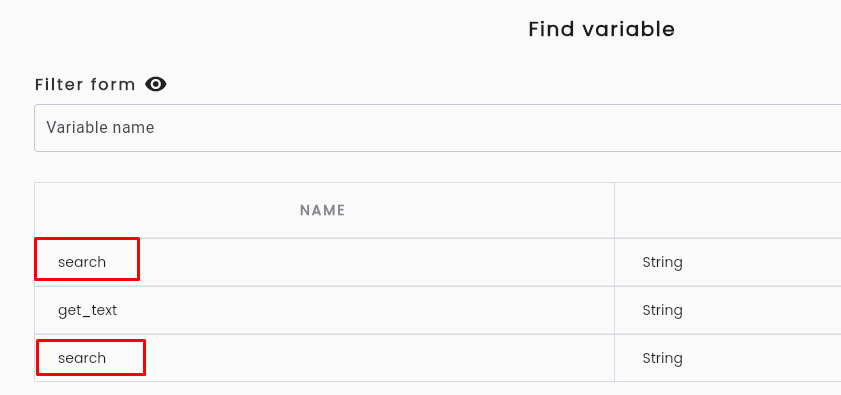 - When returnType has type variable and the user clicks “Find variable”, and a user selects a variable with the same name as an existing parameter. - ReturnType with type newVariable: Enter the same name as an existing variable (can be a parameter or not). Note: If the variable has the same name as the parameter but is not used, no error will occur. | The list of variables is arranged in order from top to bottom as follows: - Variable (created when returnType) - Parameter (input) - Output In variable ( Input/Output) system is arranged in order from oldest to newest. Based on that, choose the right variable for the keyword. In case the parameter (input/output) is not used, delete it in the test's metadata. |