Value type
This function manages a group of value types defined by users in the system, serving the configuration process of test scenarios.
Create New Value Type
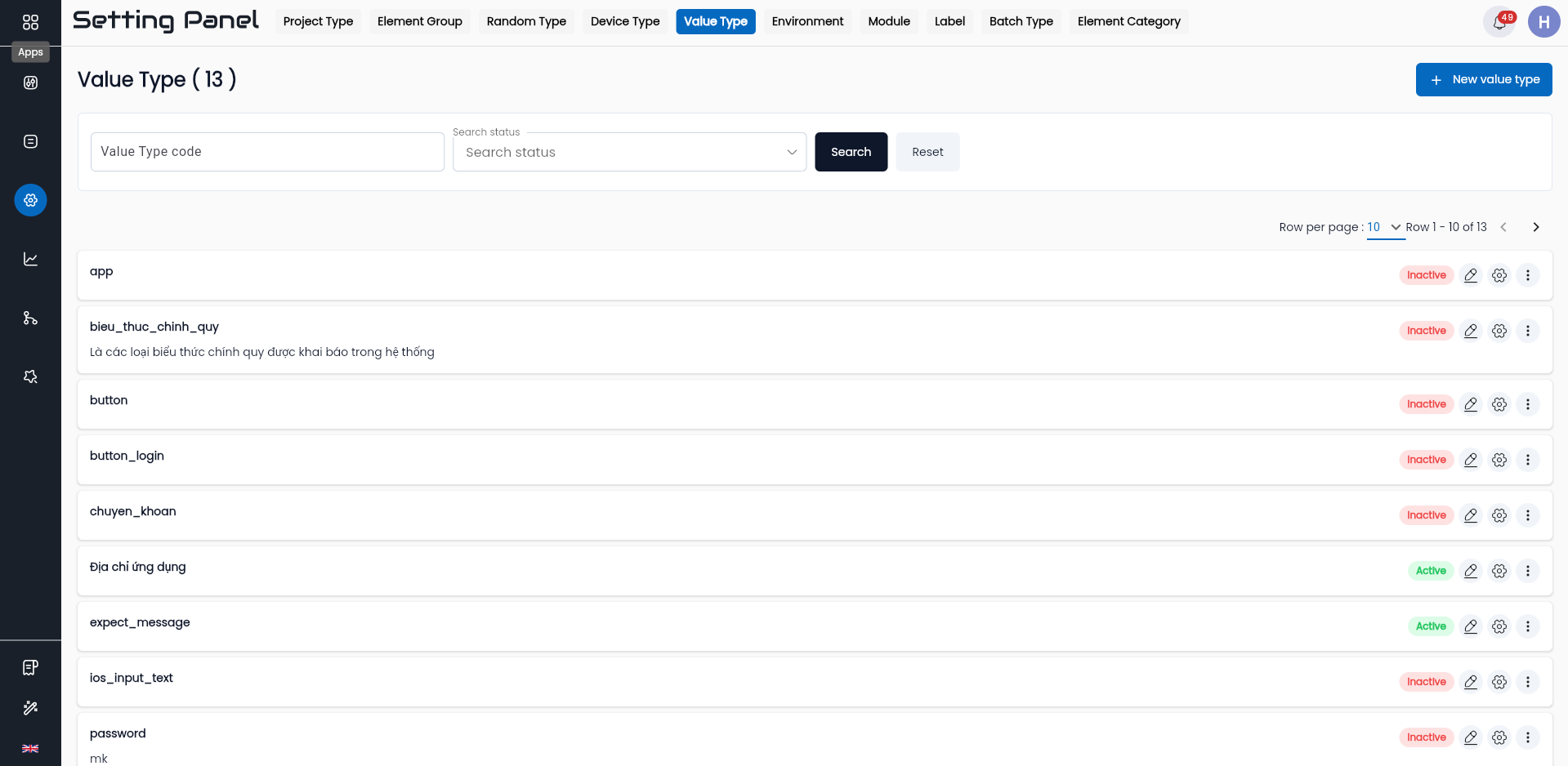
Step 1: Click on the Settings application. Go to Automation Test > Value Type
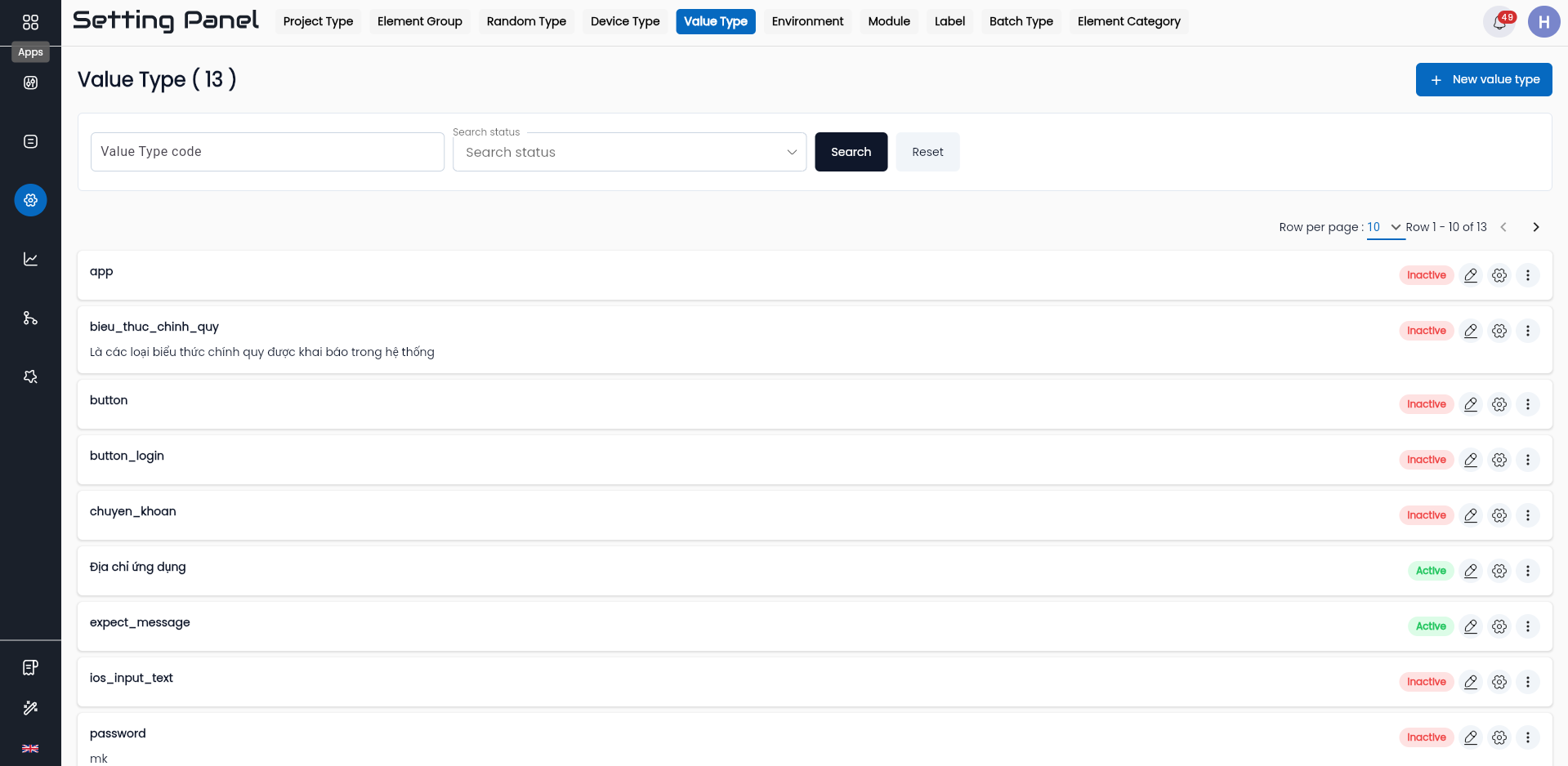
Step 2: On the Value Type screen, click “NEW VALUE TYPE”
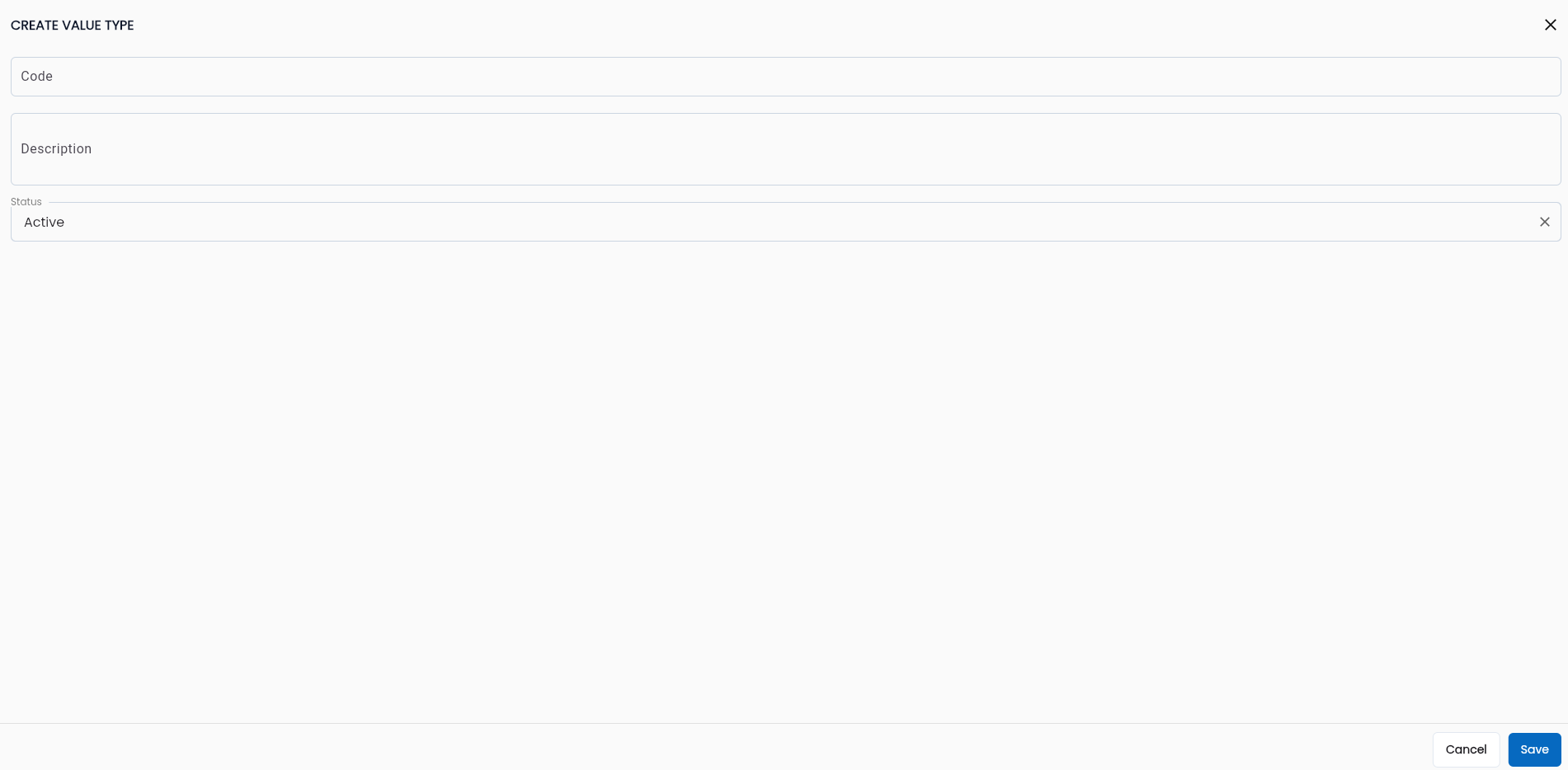
Step 3: On the Create Value Type screen, enter the information for the value type, including:
| Field Name | Mandatory | Format | Constraints | Description |
|---|---|---|---|---|
| Code | Yes | Text | Must be unique, cannot be edited, cannot contain special characters except for “_” | Identifier code distinguishing different value types |
| Description | - | Textarea | - | Enter a description for the Value Type |
| Status | Yes | Combobox | - | Choose the status of the Value Type: - Active: Active- Inactive: Inactive To use the Value Type, the status must be active |
| OK | - | Button | - | Click OK to save the Value Type |
| CANCEL | - | Button | - | Click CANCEL to cancel |
Step 4: Click “OK”, and the system confirms the successful creation.
Edit Value Type
Step 1: On the Value Type list screen, click the icon  corresponding to the value type you want to edit, then select Edit

Step 2: On the Edit Value Type screen, the information fields are similar to those on the Create Value Type screen. Additionally, the code cannot be edited.
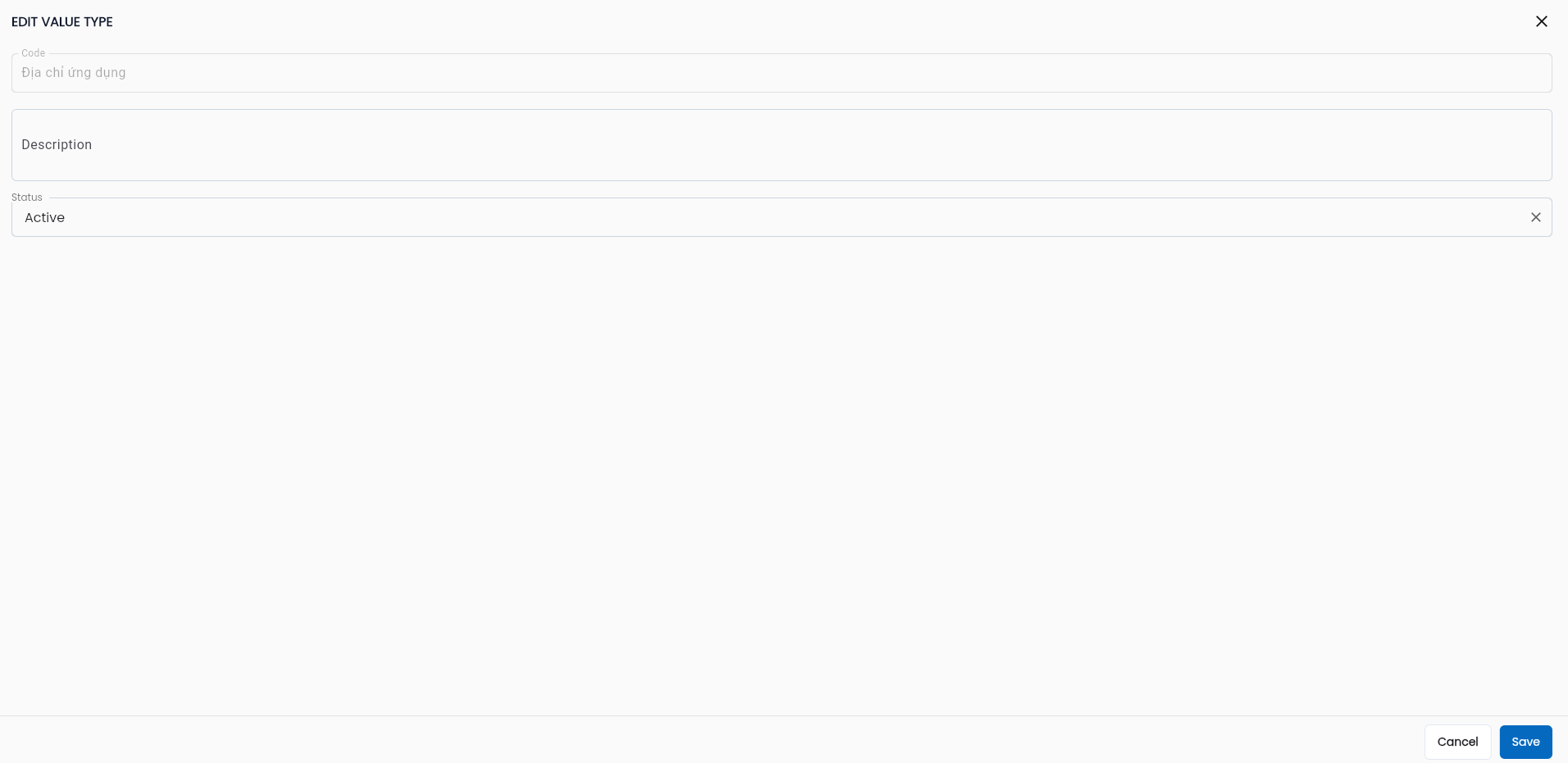
Step 3: Click “OK”, and the system confirms the successful edit.
Delete Value Type
Step 1: On the Value Type list screen, click the button corresponding to the value type you want to delete, then select “Delete”

The system displays a confirmation popup for deletion.
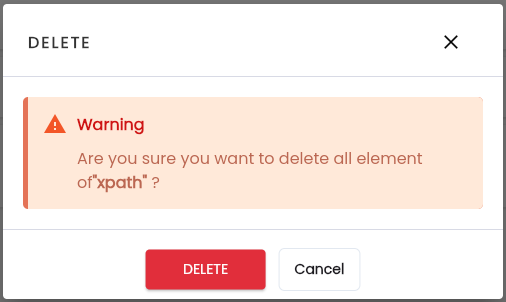
Step 2: Click “Delete”, the system notifies “Delete successful”
Note: You cannot delete a Value Type that has been used; the system will display a notification.
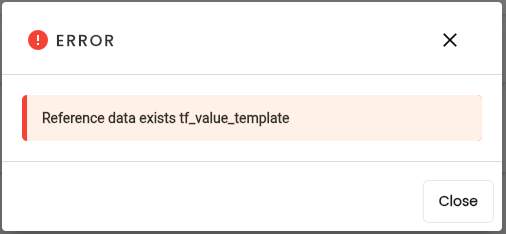
Delete All Value Templates
Step 1: On the Value Type screen, click the button corresponding to the value type you want to delete, then select “Delete all template”

The system displays a confirmation popup for deletion.
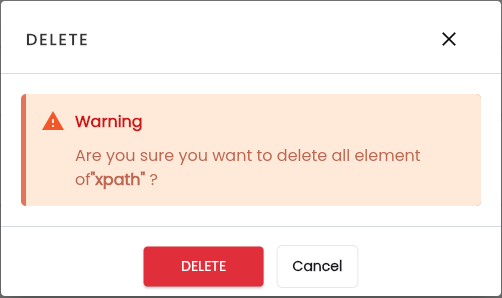
Step 2: Click Delete, the system notifies “Delete successful”
Value Template
Used when users want to define values that share a common template but are not fixed, such as row and column elements in a table or fixed values like username, password, etc.
Setting up Value Templates serves the Find Value feature, allowing users to select appropriate values without manually re-entering them during the test scenario construction process.
Step 1: On the Value Type screen, click the button corresponding to the value type you want to create a template for, then select “Value template”.
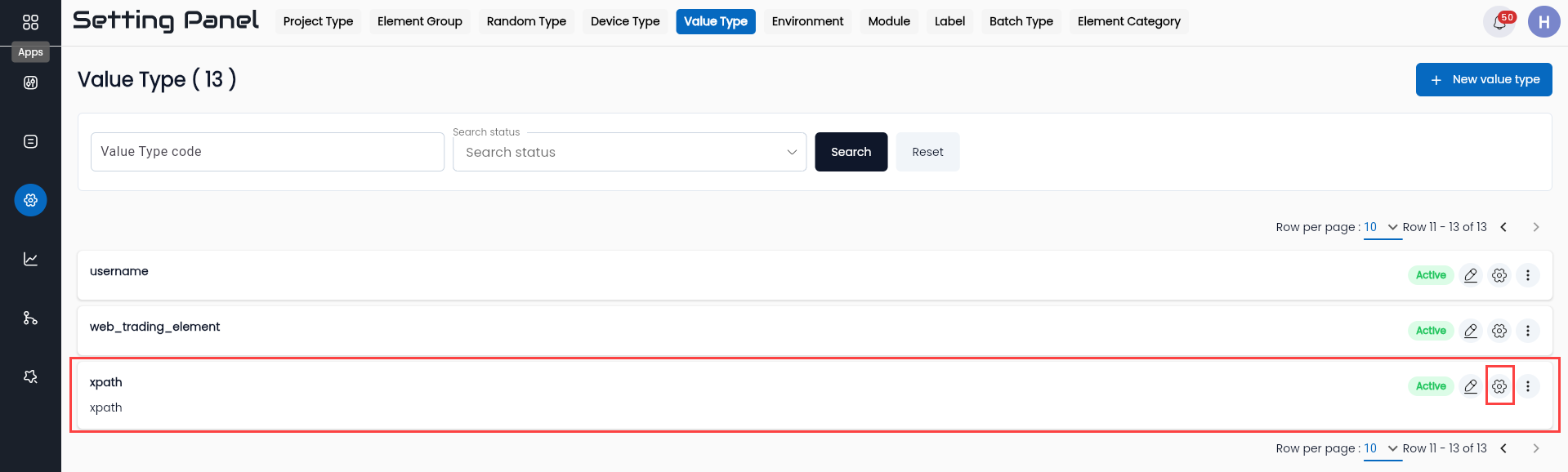
The system displays the Value Template list screen.
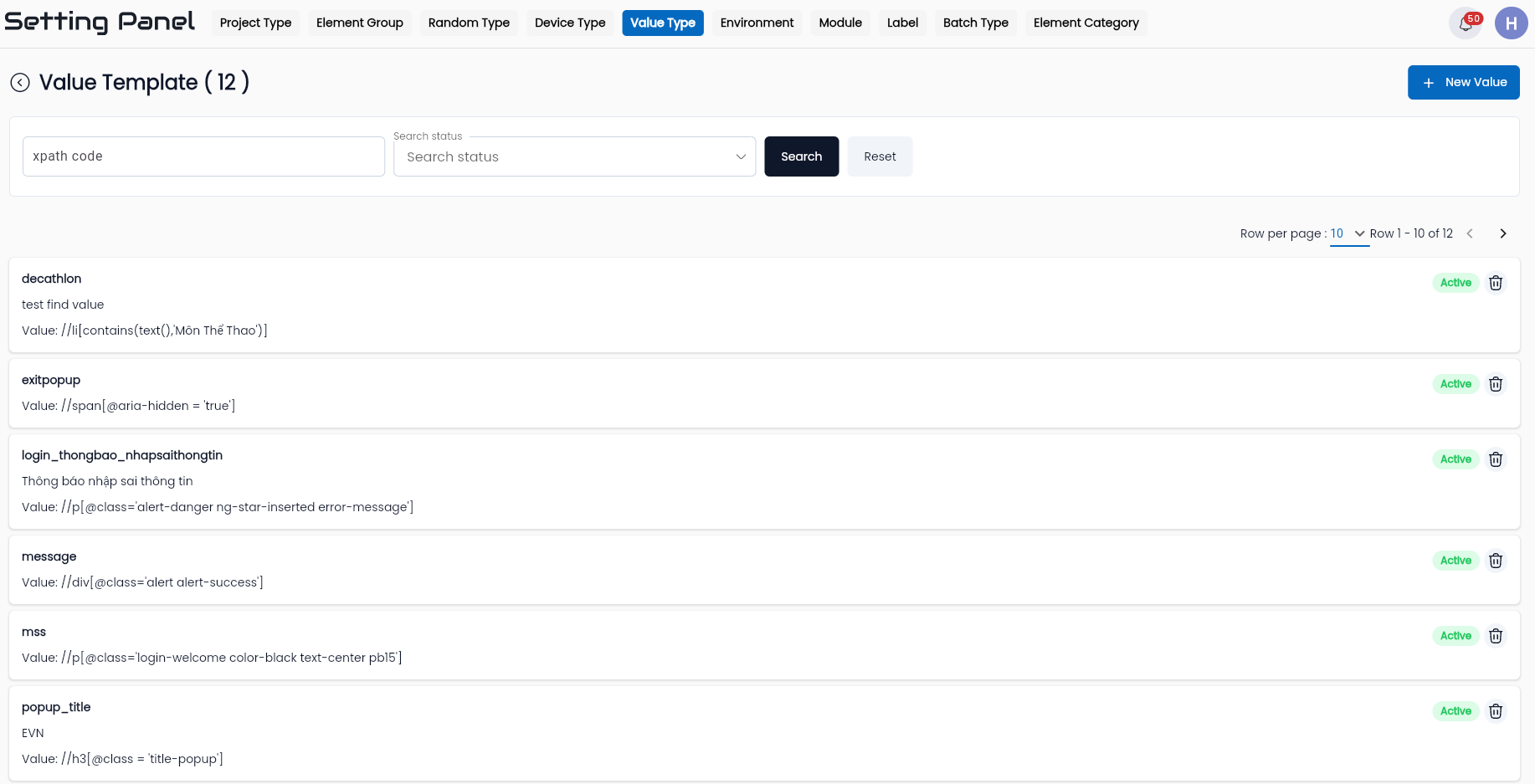
| Field Name | Description |
|---|---|
 | Click the button to create a new Value Template |
| CODE | Code of the Value Template |
| DESCRIPTION | Description of the Value Template |
| VALUE | Value of the Value Template |
Create New Value Template
Step 1: On the Value Template list screen, click button “NEW VALUE TEMPLATE”,
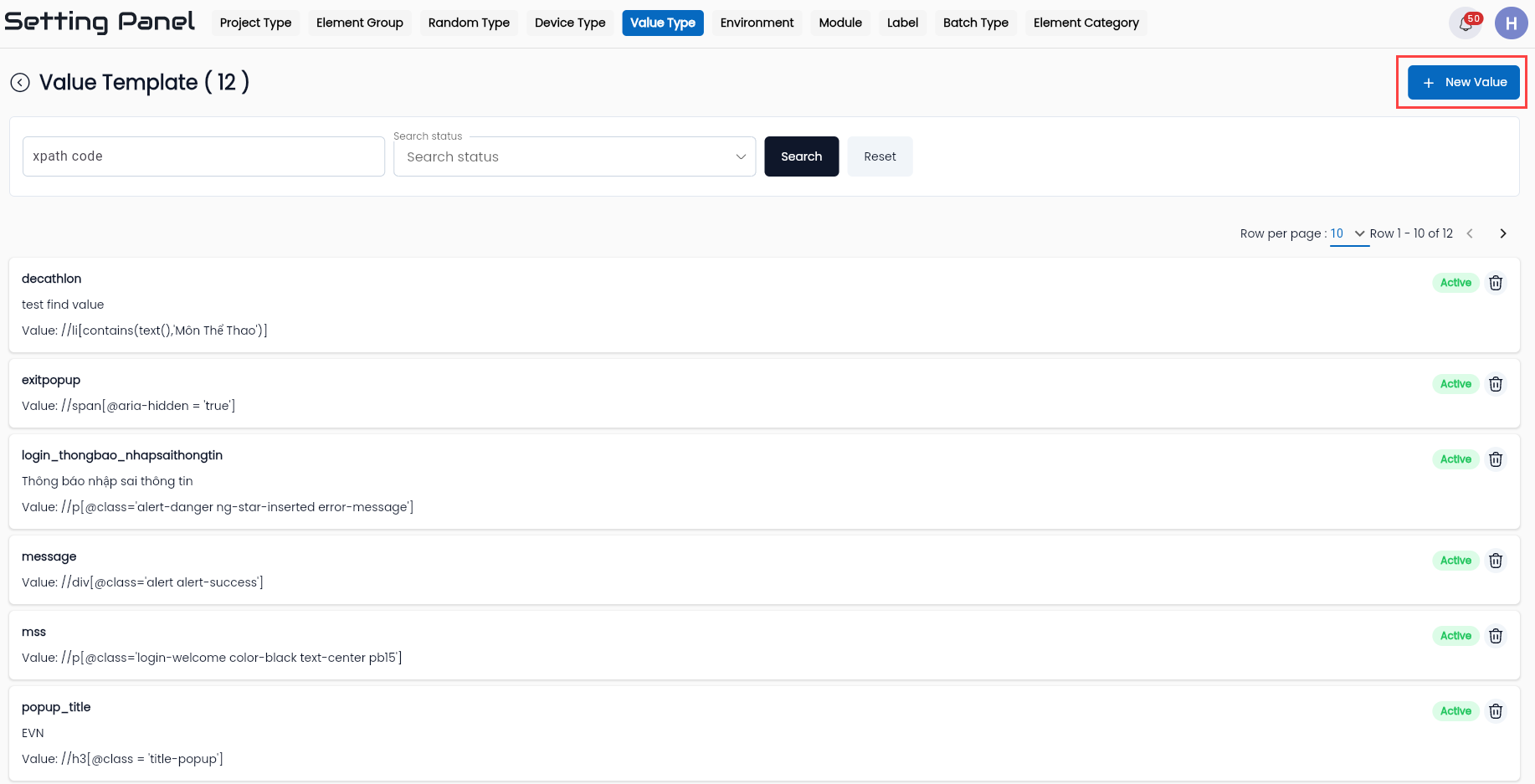
The system displays the Create Value Template screen.
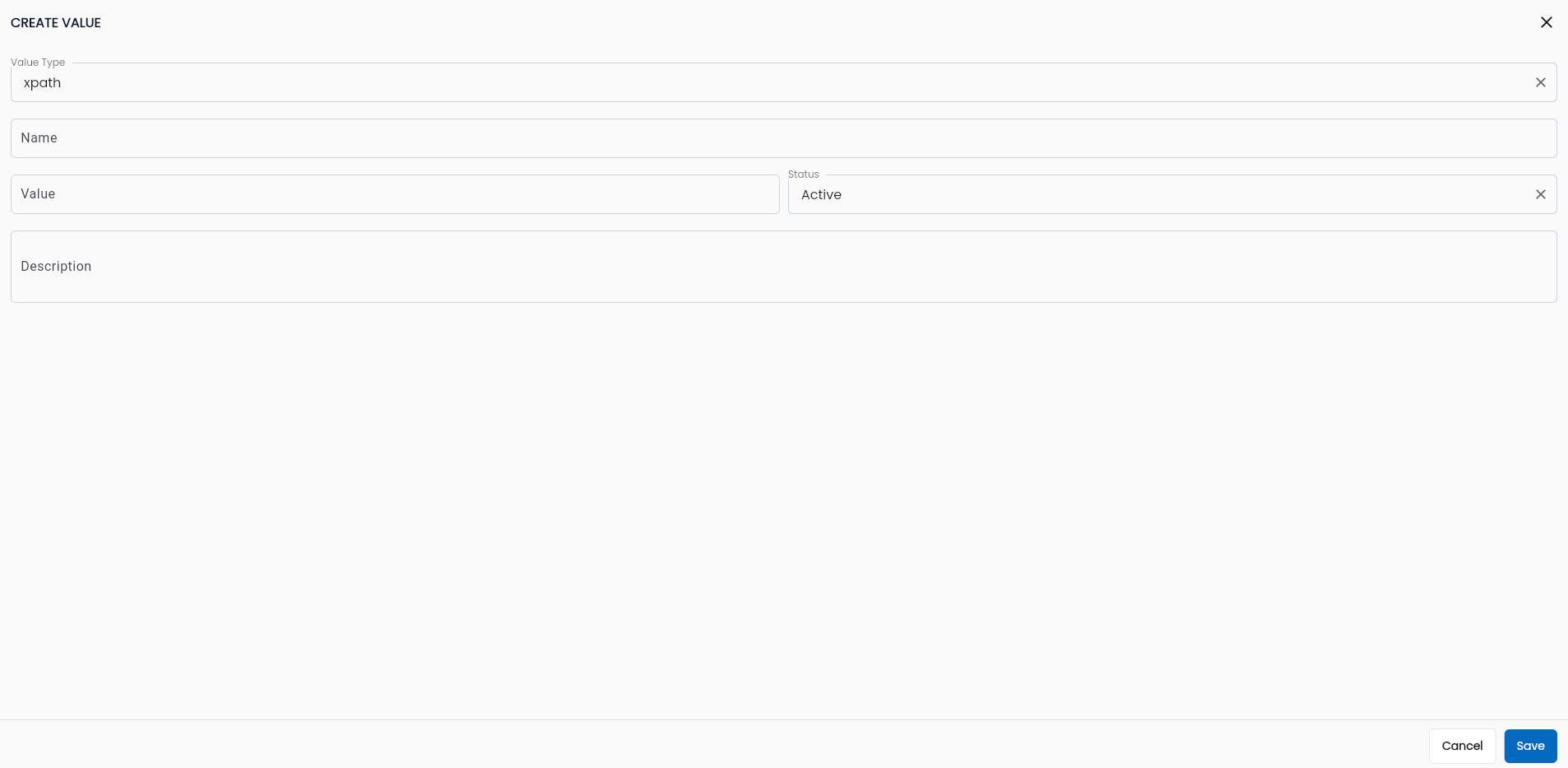
Step 2: Enter the necessary information for the Value Template, including:
| Field Name | Mandatory | Format | Constraints | Description |
|---|---|---|---|---|
| Value type | Yes | Combobox | - | Displays a list of initialized value types. Users can select one value |
| Code | Yes | Text | Must be unique, cannot be edited, cannot contain special characters except for “_” | Identifier code distinguishing different Value Templates |
| Value | Yes | Text | - | Value of the Value Template |
| Description | - | Textarea | - | Enter a description for the Value Template |
| Status | Yes | Combobox | - | Choose the status of the Value Template: - Active: Active - Inactive: Inactive To use the Value Template, the status must be active |
| OK | - | Button | - | Click OK to save the Value Template |
| CANCEL | - | Button | - | Click CANCEL to cancel |
Step 3: Click OK, the system notifies “Create successful”.
Edit Value Template
Step 1: On the Value Template list screen, click the button corresponding to the template you want to edit, then select “Edit”. The system displays the Edit Value Template screen
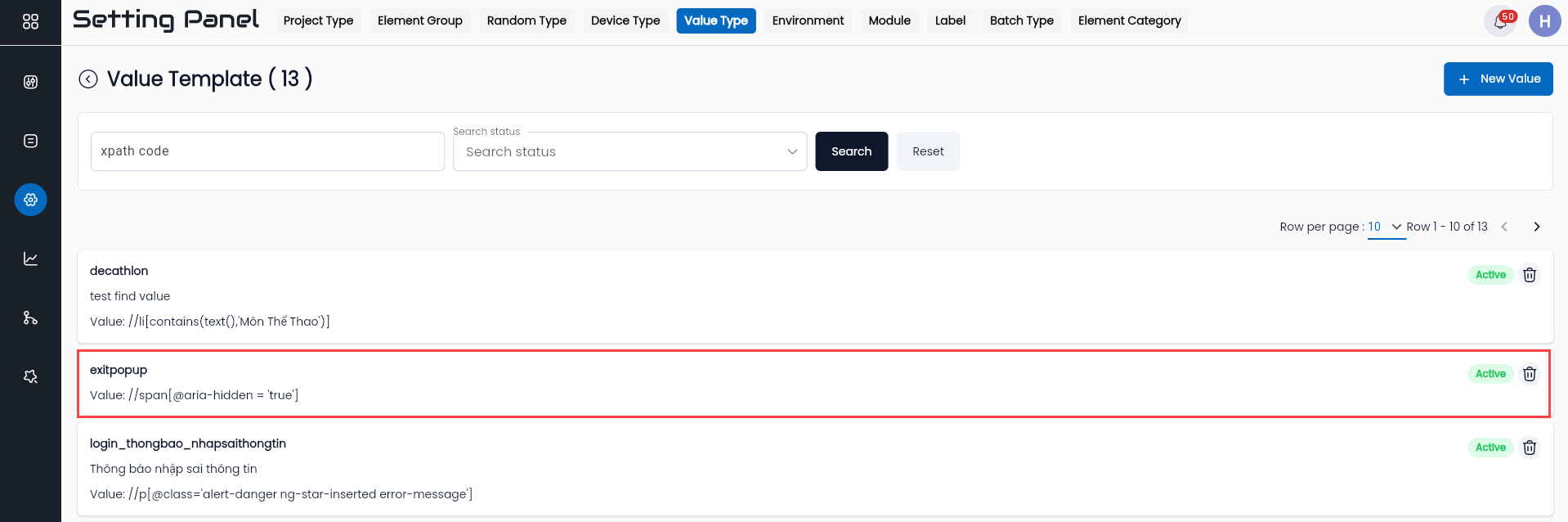
Step 2: Enter the information to be edited for the Template. The information fields on the Edit Value Template screen are similar to those on the Create Value Template screen, except the “Code” field cannot be changed.
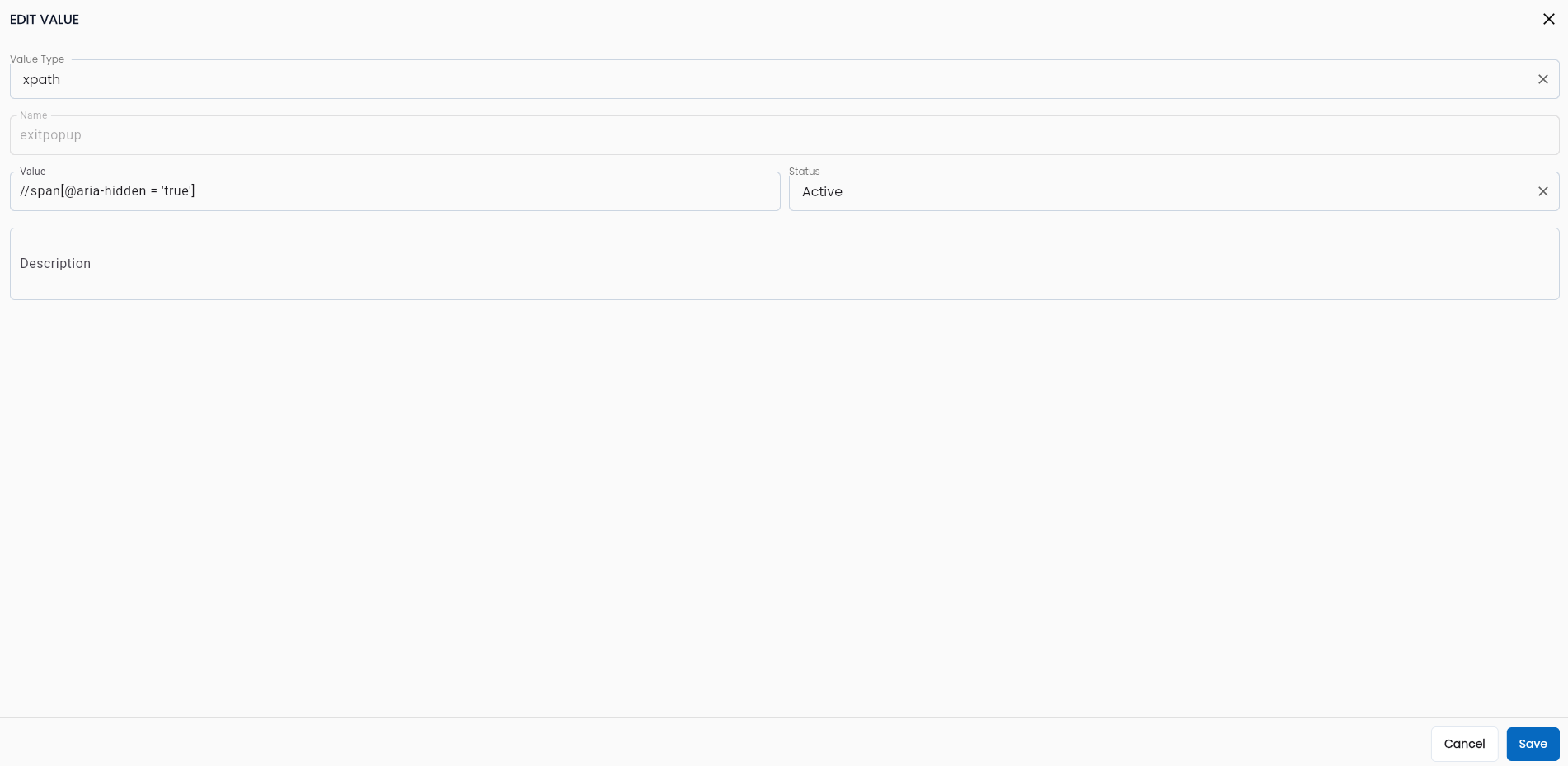
Step 3: Click “OK”, the system confirms the successful edit.
Delete Value Template
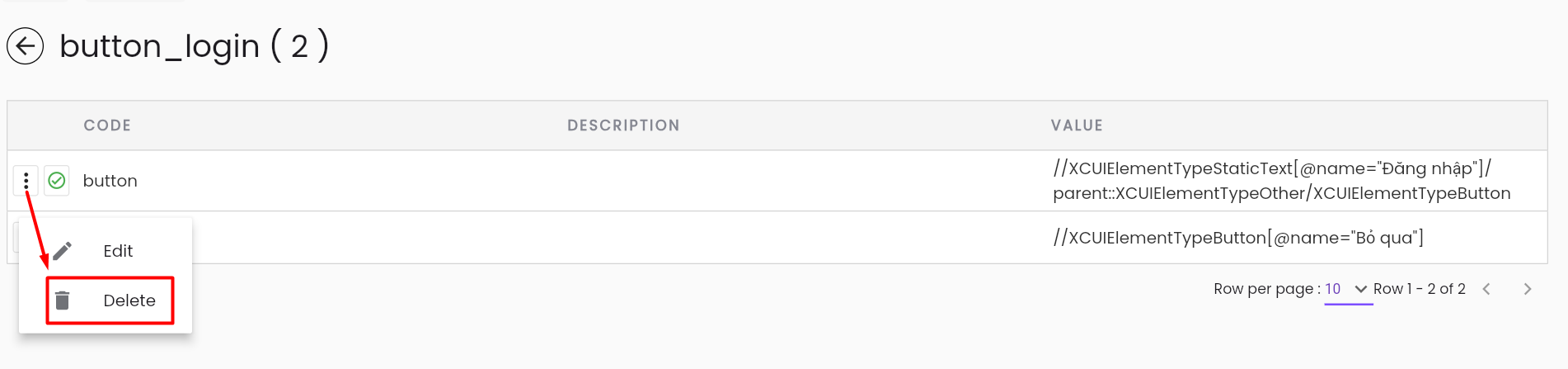
Step 1: On the Value Template list screen, click the button corresponding to the template you want to delete, then select “Delete”
The system displays a confirmation popup for deletion.
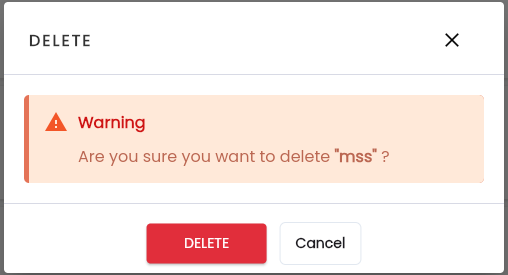
Step 2: Click “Delete”, the system notifies “Delete successful”.
Apply Value Type in Test Scenario Configuration
Find Value Tool in Low-Code
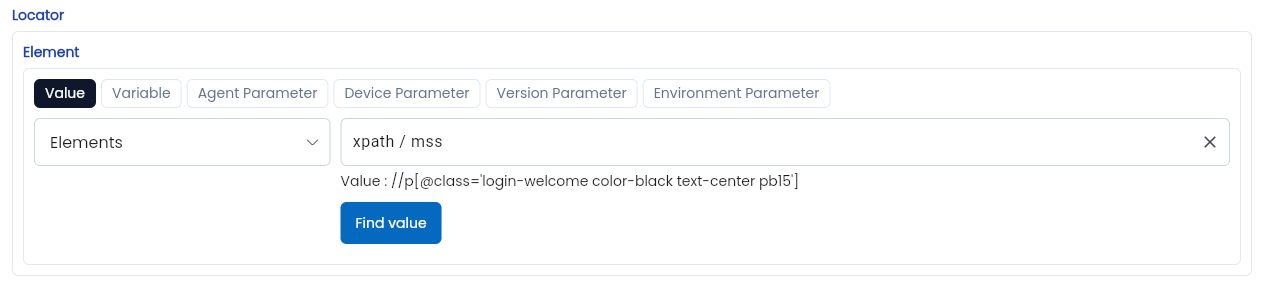
Find Value is a tool that allows users to select a sample value defined in the Value Template of the Value Type, with the output being a specific value. Therefore, Find Value can be used for most properties of keywords in the low-code function, specifically for locator properties, value expression properties (variable path, regular expressions, etc.).
With the Endkey property, the output of the keyword does not represent a specific value, so Find Value cannot be used.
Using Find Value
Step 1: On the scenario/suite config screen, click on the keyword that needs to use the available sample value. The system displays the Property screen of the keyword.
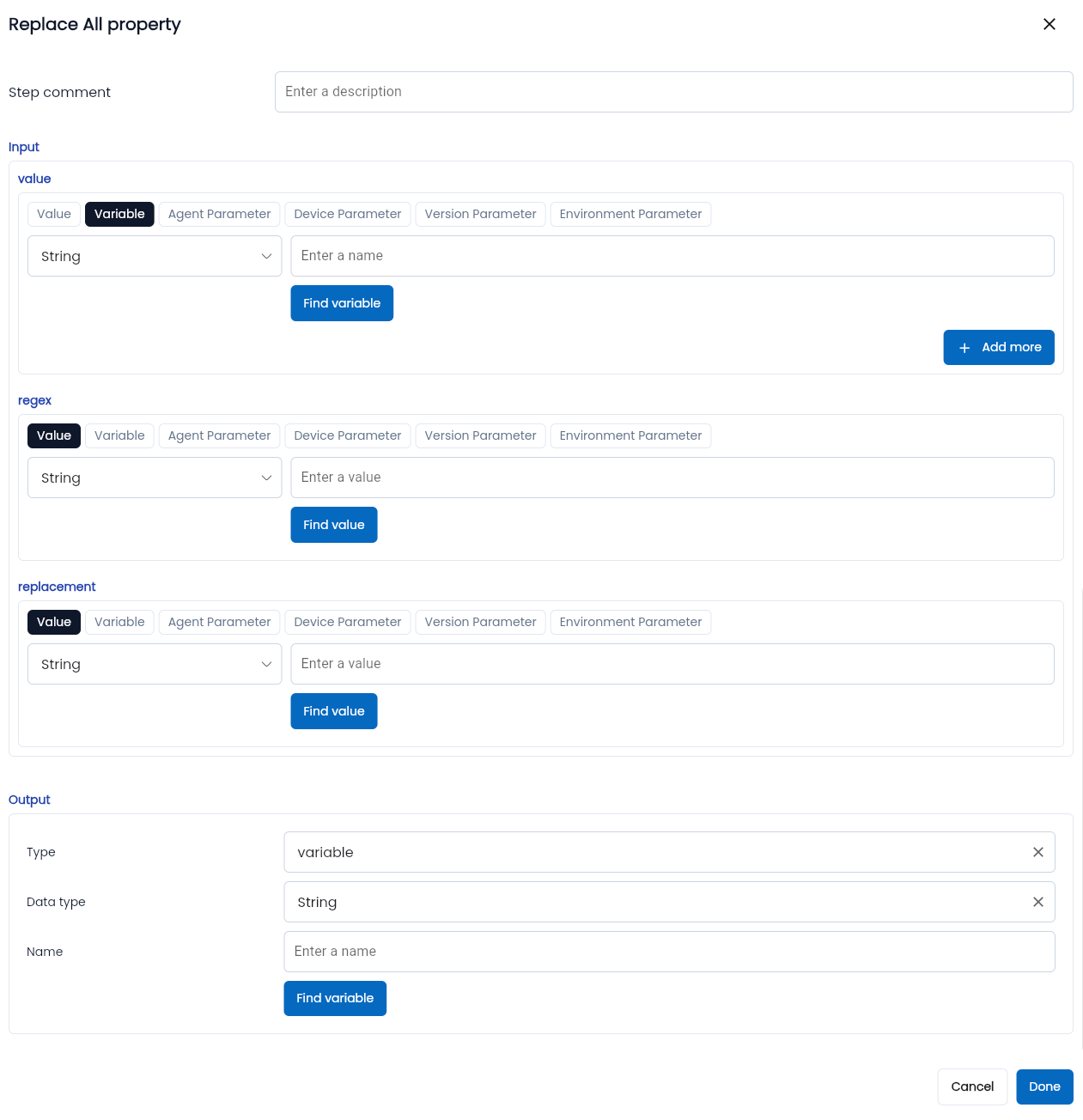
Among the value types, only Value returns a specific value and is not a parameter, so select the type as Value.
Locator properties (value is xpath) are automatically retrieved by the system according to the repository. If using Find Value for this case, the data type of the value must be “Element.”
Step 2: On the Property screen of the keyword, click Find Value, and the system displays the Find Value property screen.
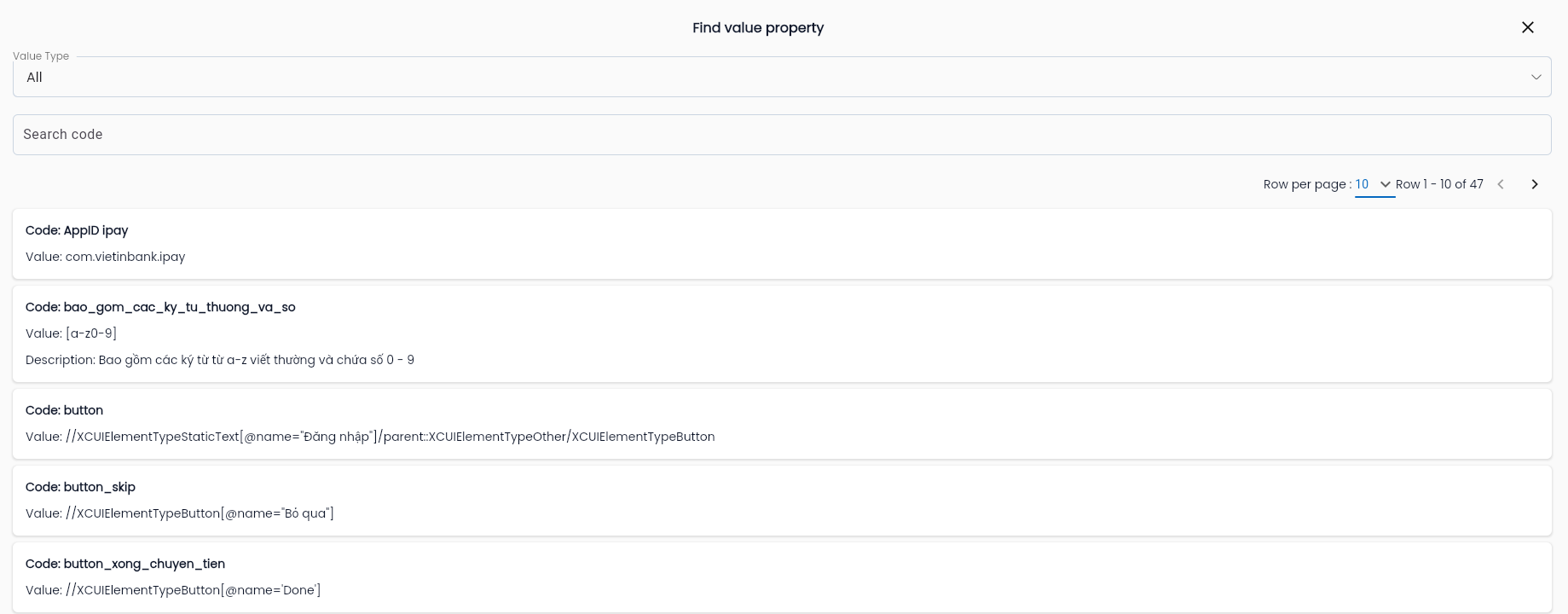
Step 3: Filter and search for the sample value by entering the information fields in the filter form, including:
| Field Name | Mandatory | Format | Constraints | Description |
|---|---|---|---|---|
| Choose a template type | - | Combobox | - | Displays a list of active value types in the system. Users select the value type containing the sample value needed |
| Enter a template name | - | Text | - | Enter the name of the value template to search for the sample value by name |
| Search | - | Button | - | Click Search, and the system displays the list of value templates based on the filtered conditions |
| Name | - | Label | - | Name of the value template |
| Value | - | Label | - | Defined value of the value template |
| Description | - | Label | - | Description to clarify the information of the value template |
Step 4: Select the sample value to use, and the system returns to the keyword property screen, while the value of the property is auto-completed with the value of the selected value template.