Project type
Manage the XPath setup for a group of elements with the same format across different operating systems.
XPath is the address or locator of an element on the interface of the application/system that needs to be tested.
A project can use the template of all project types available in the system.
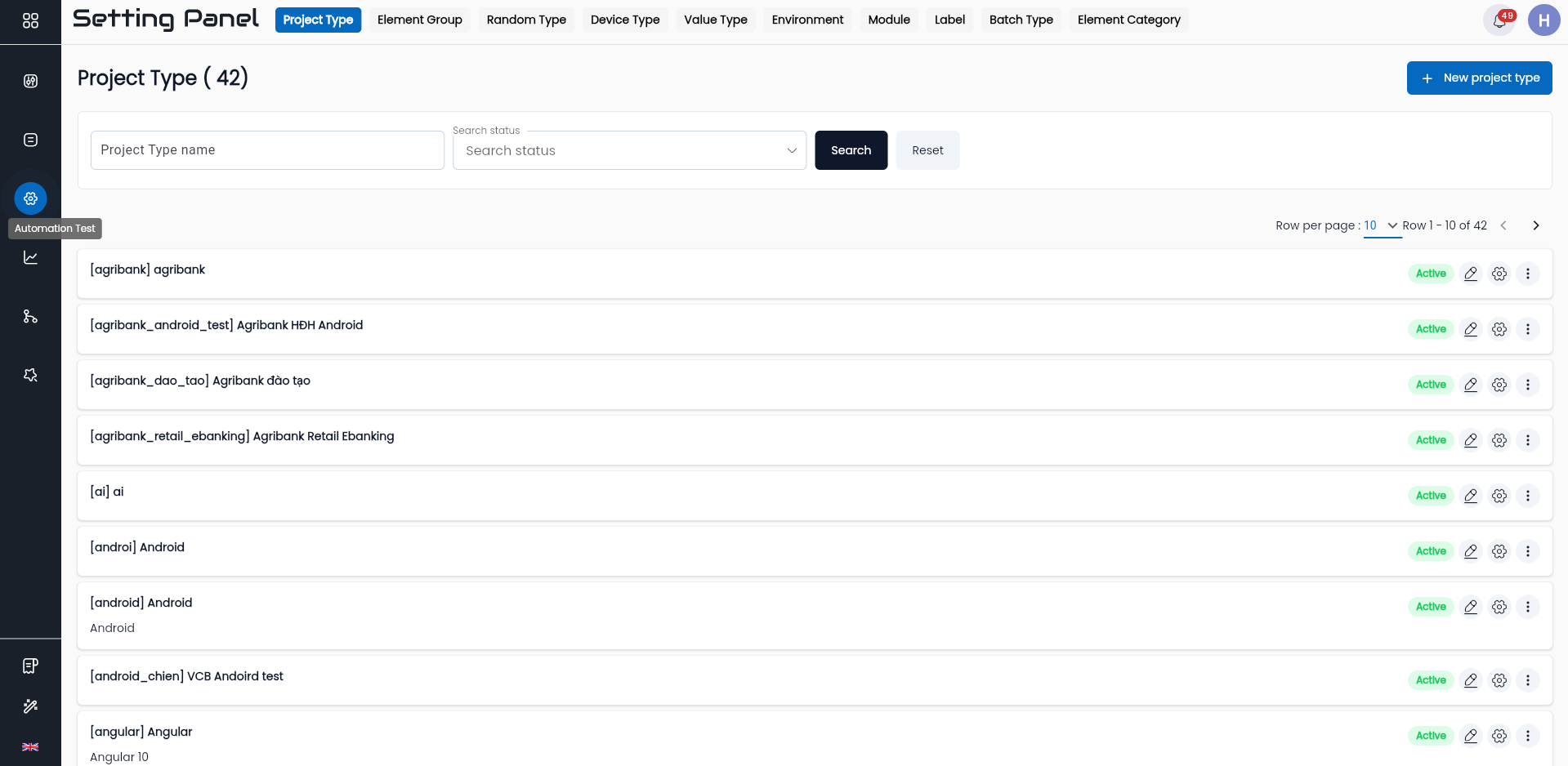
Create New Project Type
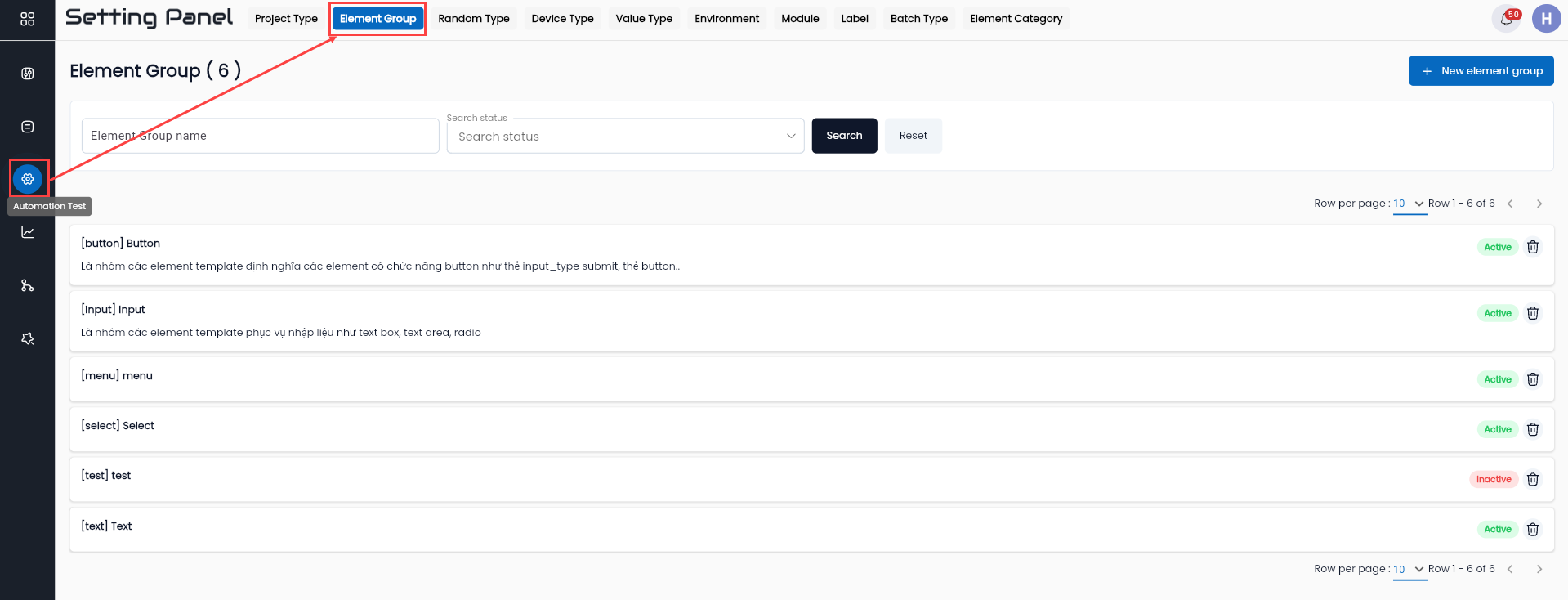
Step 1: Click on the Settings application. Go to Automation Test > Project Type
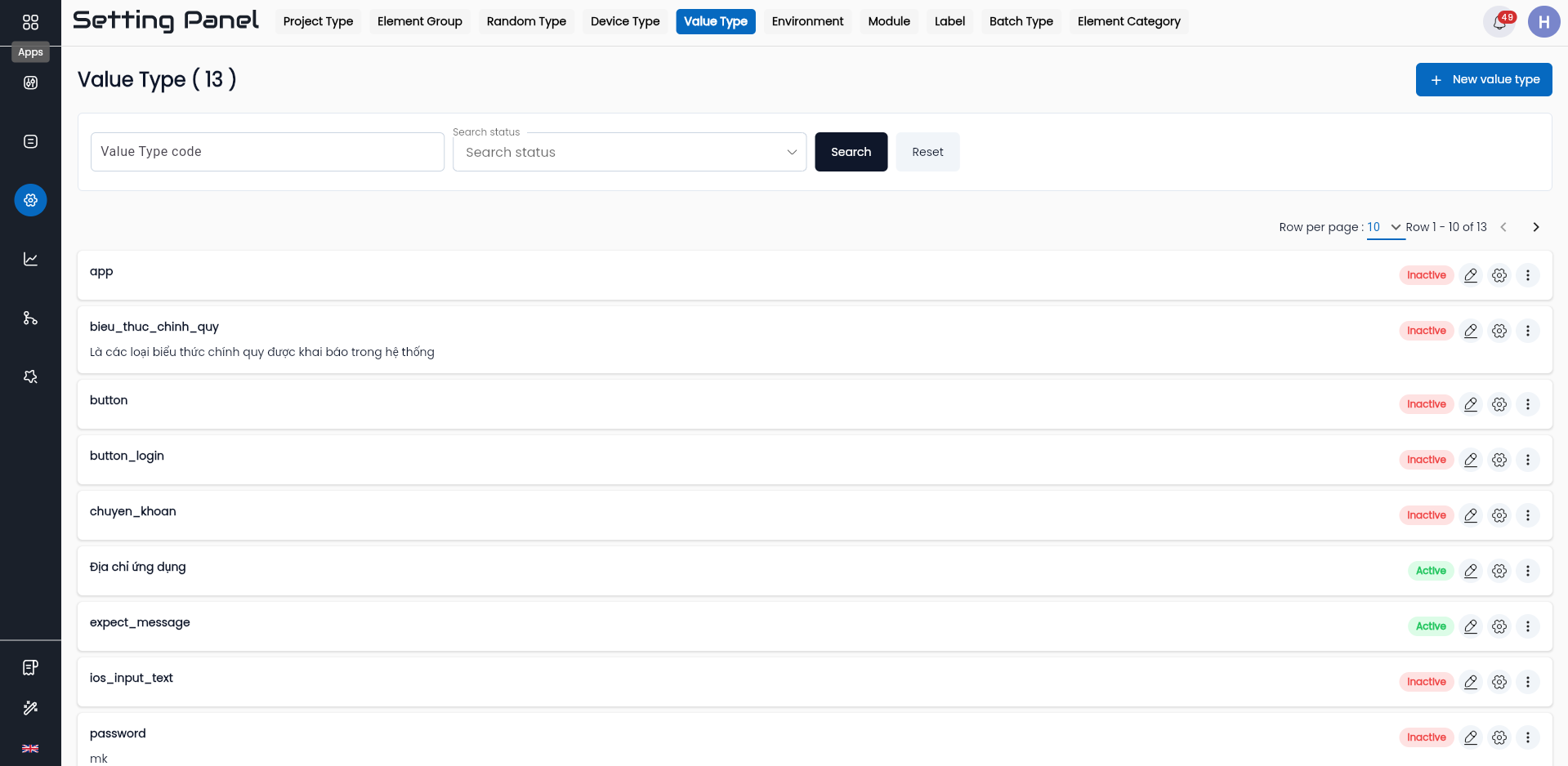
Step 2: Click NEW PROJECT TYPE, the system displays the Create Project Type screen.
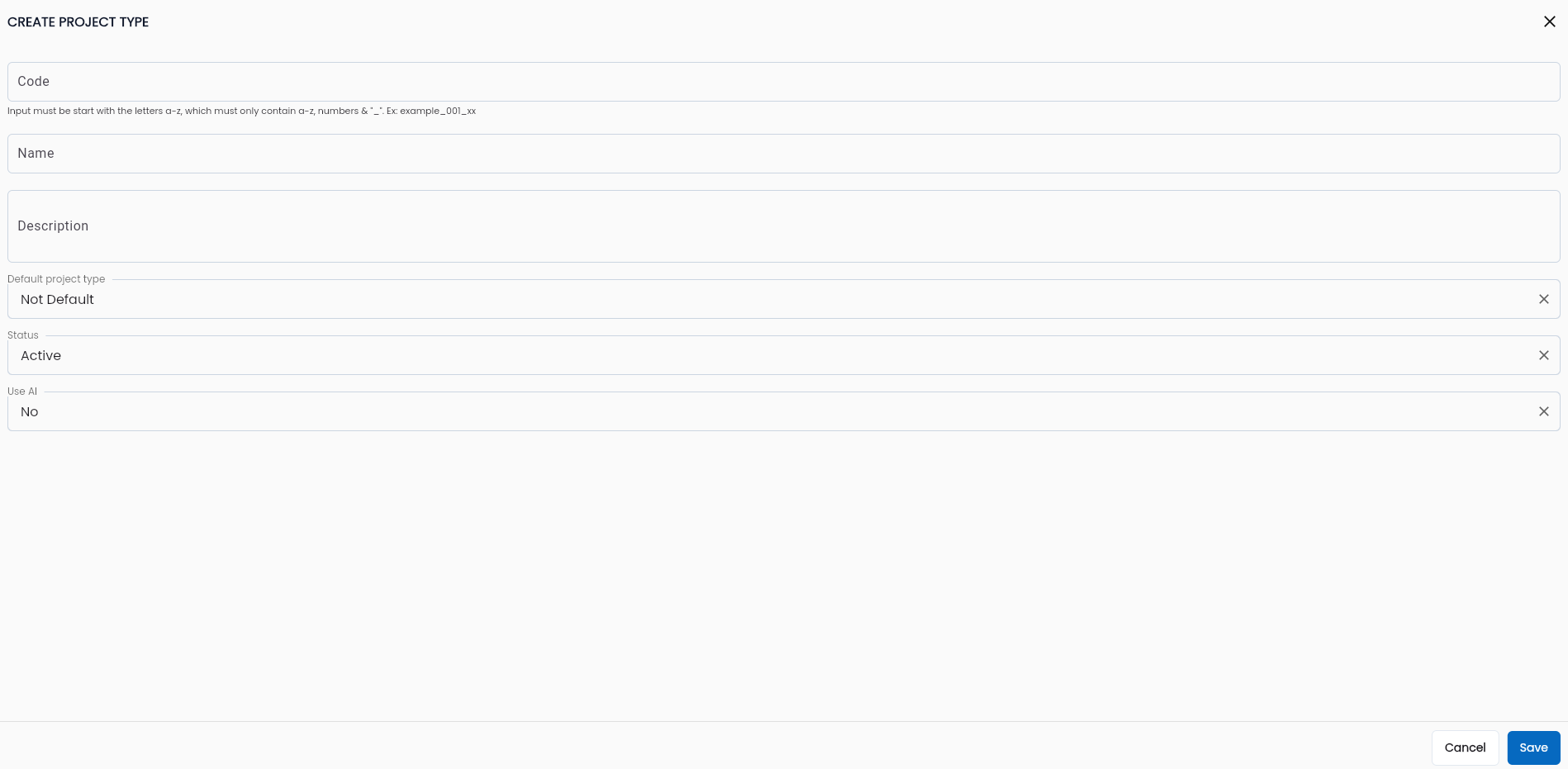
Step 3: On the Create Project Type screen, fill in the necessary information, including:
| Field Name | Mandatory | Format | Constraints | Description |
|---|---|---|---|---|
| Code | Yes | Text | Must be unique, cannot be edited, cannot contain special characters except for “_” | Identifier code distinguishing different project types |
| Name | Yes | Text | Enter the name of the project type | |
| Description | - | Textarea | Enter a description for the project type | |
| Default project type | Yes | Combobox | If the project type is used in functions, the default project type will be pre-selected on the screen | |
| Status | Yes | Combobox | Choose the status of the project type: + Active: ACtive + Inactive: Inactive To use the project type, the status must be active | |
| OK | - | Button | Click OK to save the project type | |
| CANCEL | - | Button | Click CANCEL to cancel |
Step 4: Click OK, the system notifies “Create successful”.
Edit Project Type
Step 1: There are two ways to access the EDIT PROJECT TYPE screen:
Method 1: On the Project type screen, click the ⋮ button corresponding to the project type you want to edit and select Edit.

Method 2: Click on the row of data for the project type you want to edit.

The system displays the Edit Project Type screen.
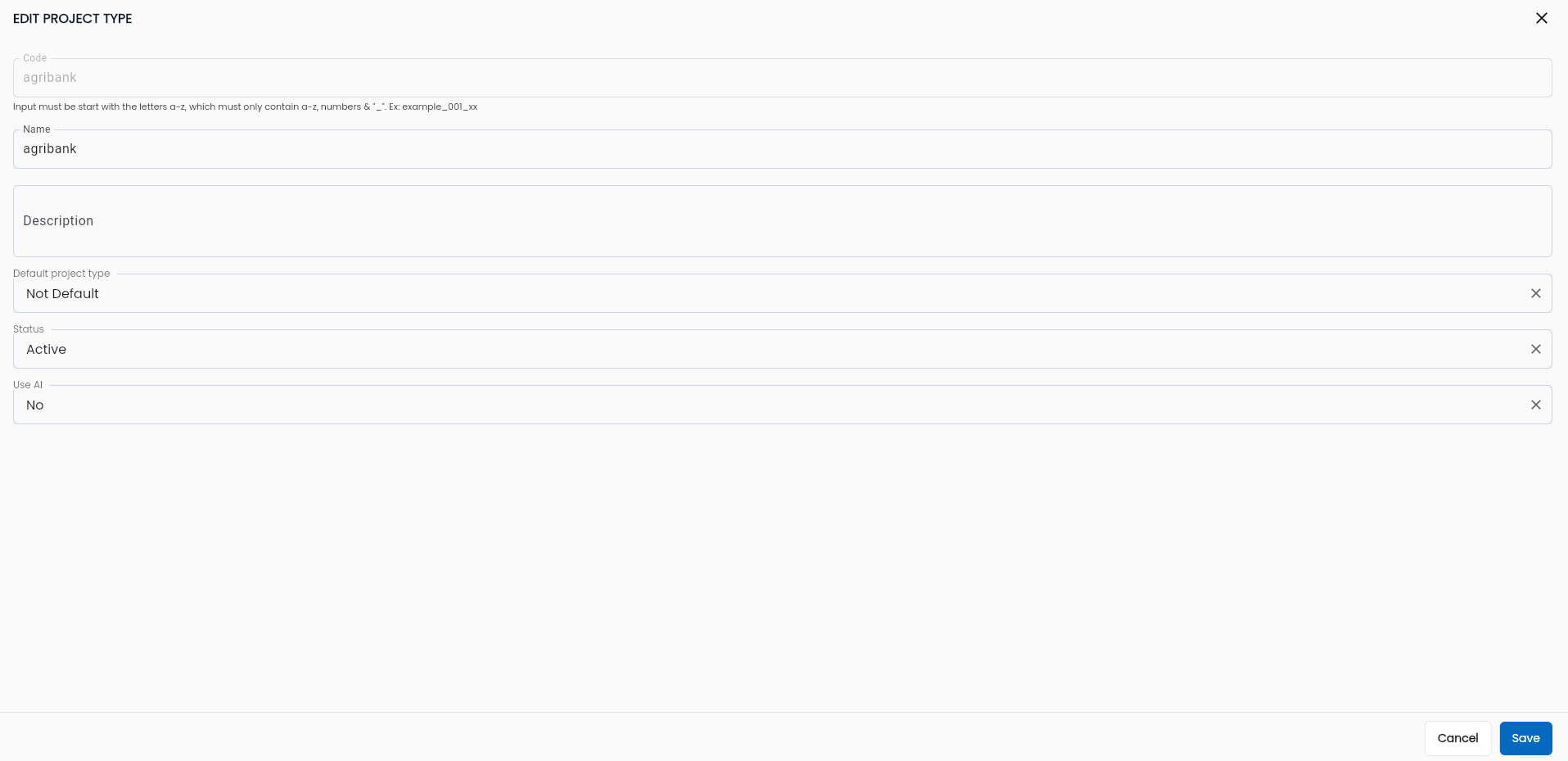
Step 2: Enter the information to be edited similarly to the form Create Project Type, but the code cannot be edited.
Step 3: Click OK, the system notifies “Update successful”.
Delete Project Type
Step 1: On the Project type screen, click the ⋮ button next to the project type you want to delete, then click Delete.
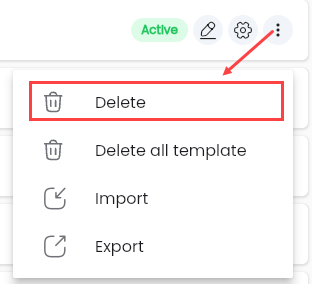
The system displays a confirmation popup for deletion.
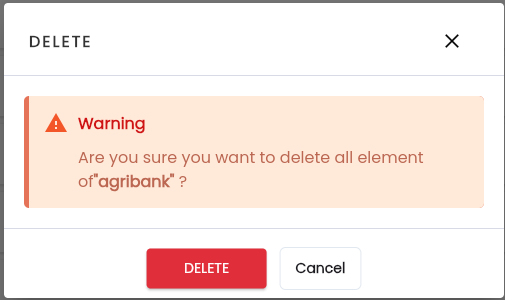
Step 2: Confirm deletion by clicking Delete, the system notifies “Delete successful”.
Note: If the project type has element templates and has been used, the system will display an error message indicating that it cannot be deleted.
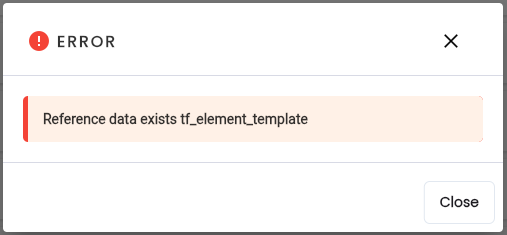
Delete All Value
Delete all element templates of the project type.
Step 1: On the Project type screen, click the “⋮” button next to the project type you want to delete, then select “Delete all value”.
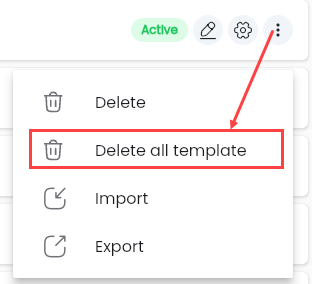
The system displays a confirmation popup for deletion.
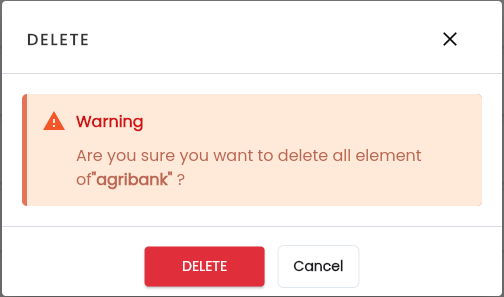
Step 2: Click Delete, the system notifies “Delete successful”.
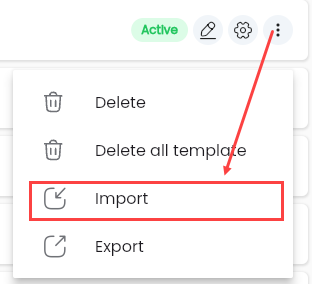
Import
The system supports importing a JSON file containing project type information that has been previously exported. Upon successful import, the system updates the project type in the list.
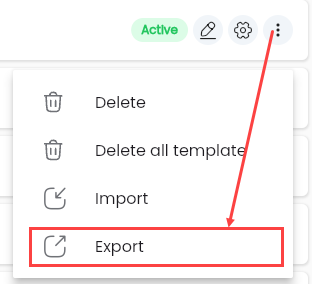
Export
The system supports exporting project type information to an Excel file for reporting purposes or to create a new set of project types for a new project.
Element Template
Element Template is a feature that helps users automatically find the XPath of elements on the application interface without manually entering it during the test script configuration process.
Create New Element Template
Step 1: On the Project type screen, click the ⋮ button next to the project type you want to add/edit an element, then click Element Template.
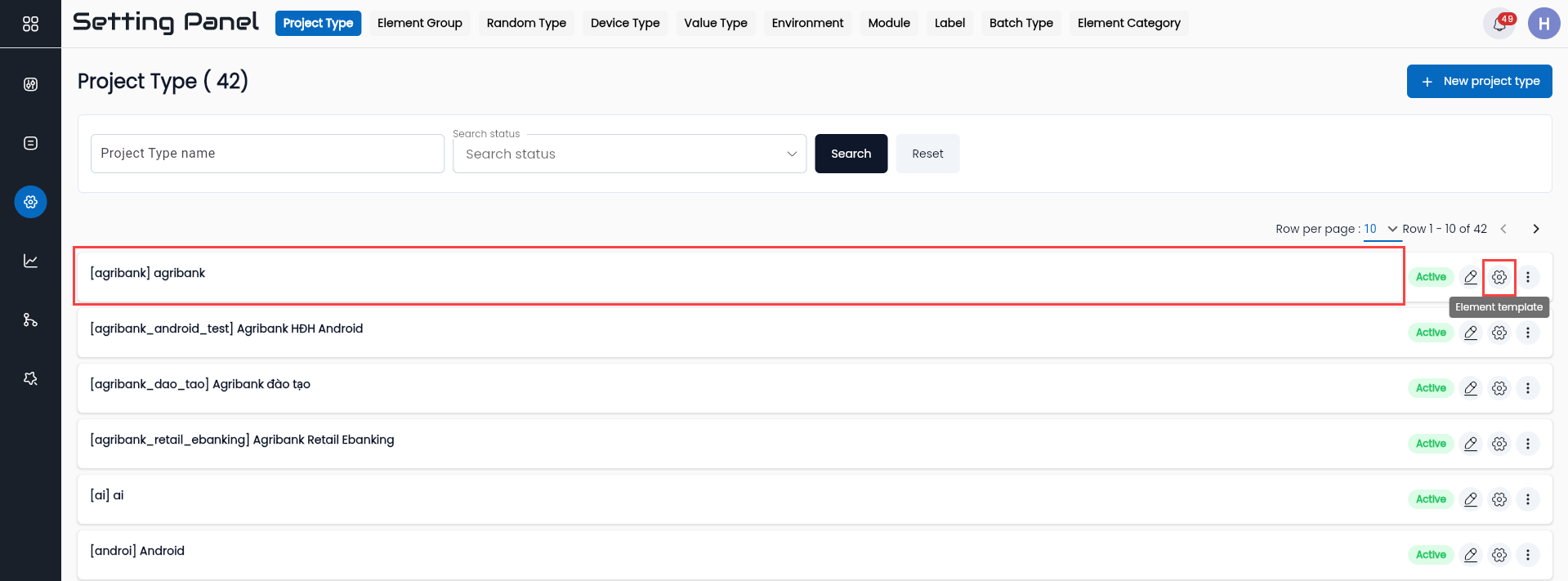
The system displays the Element Template screen for the Project type.
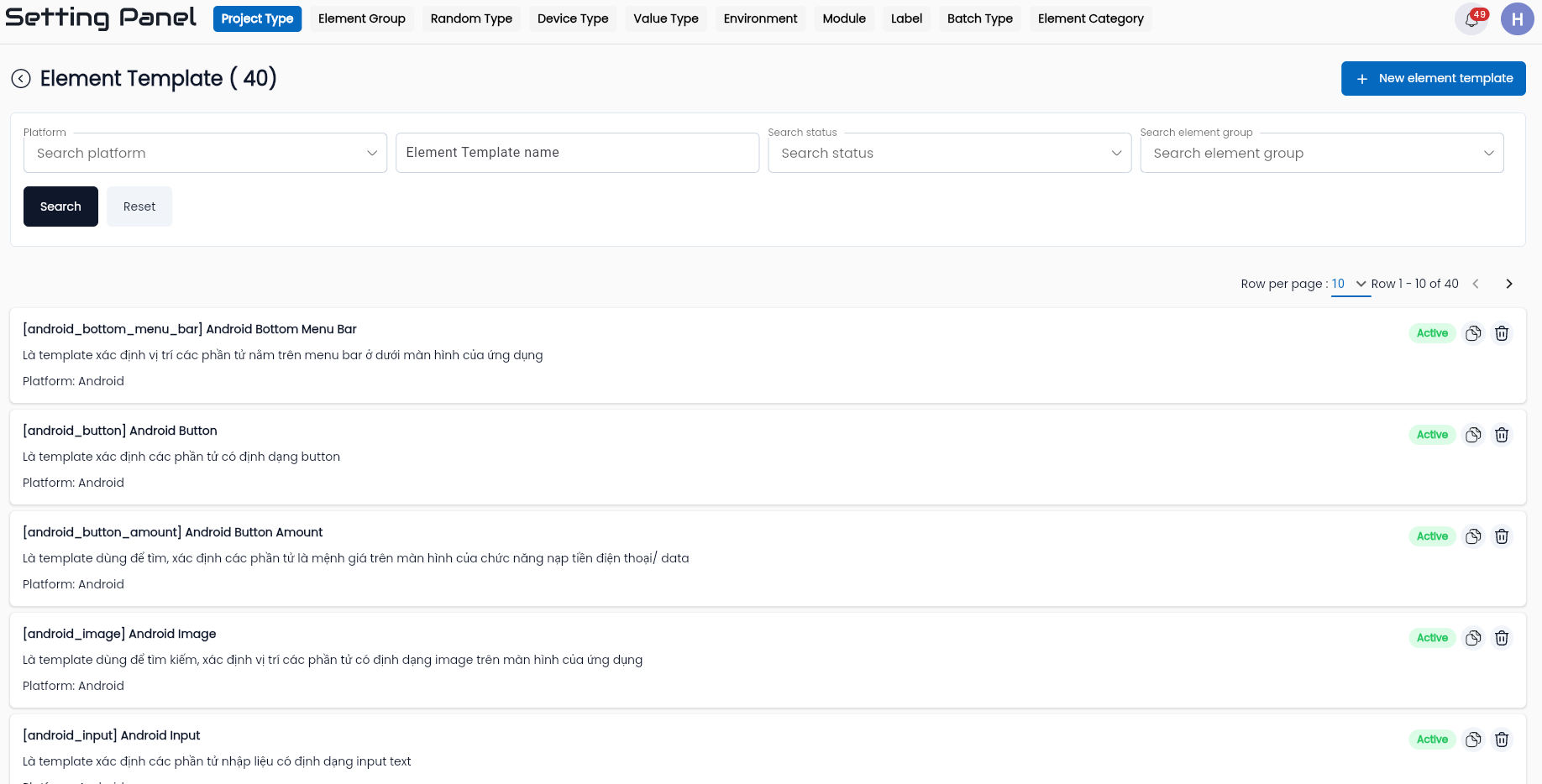
Description of the information fields:
Tab Element Template : Manage a set of Element Templates in the Project Type.
| Field Name | Description |
|---|---|
 | Click the button to create a new Element Template |
| CODE | Code of the Element Template |
| NAME | Name of the Element Template |
| DESCRIPTION | Description of the Element Template |
| PLATFORM | Platform used for the Element |
Step 2: Trên màn hình Element Template, click NEW ELEMENT TEMPLATE để thêm mới.
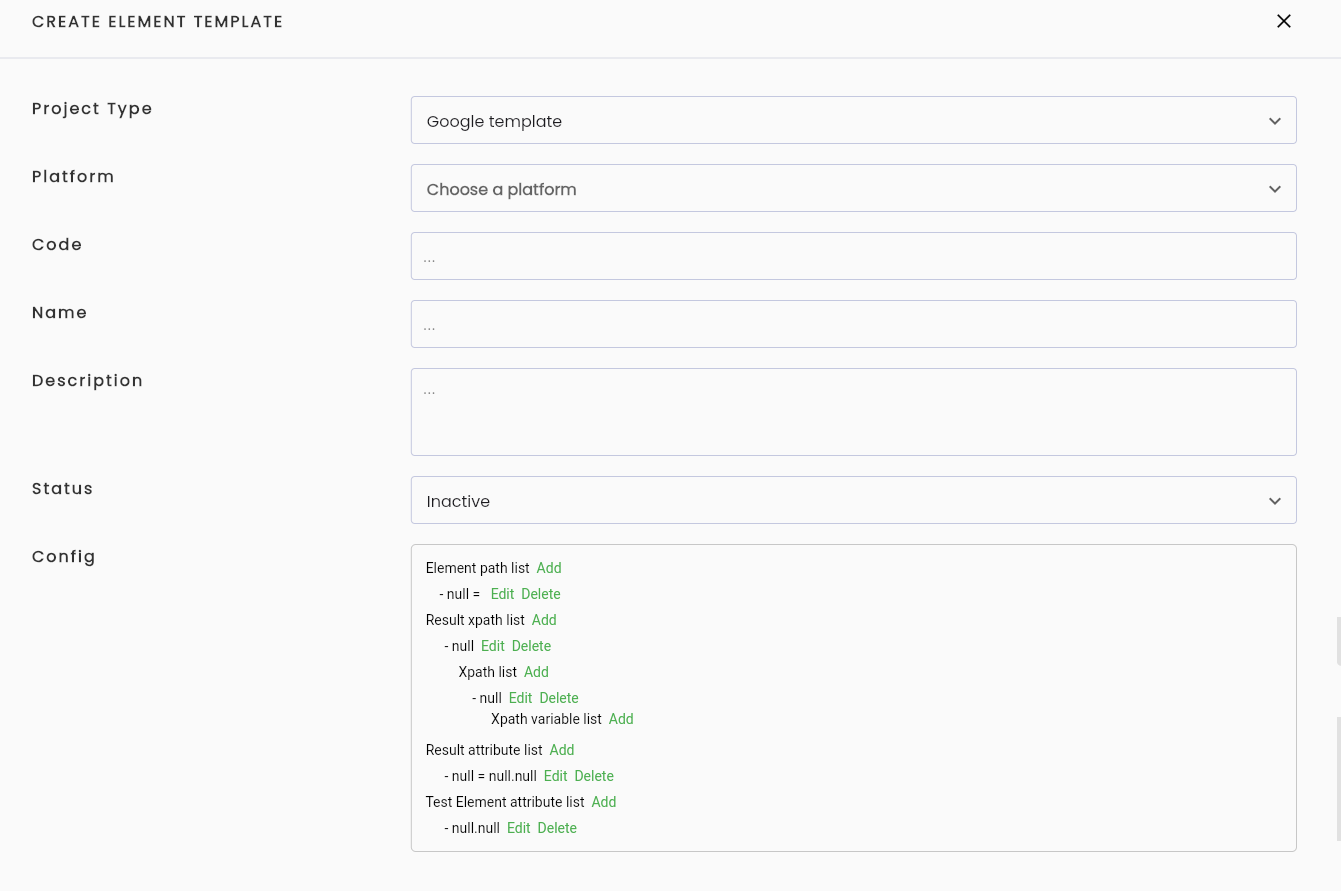
Step 3: Enter the necessary information, including:
| Field Name | Mandatory | Format | Constraints | Description |
|---|---|---|---|---|
| Project type | Yes | Combobox | Displays a list of project types in the system | Default is the project type that the user selects to find the element |
| Platform | Yes | Combobox | Platform that the template defines the element: + Web + Android + IOS + JavaSwing + Windows + Api + JDBC + Web Only one value can be selected | |
| Code | Yes | Text | Must be unique, cannot be edited, cannot contain special characters except for “_” | Identifier code distinguishing different elements |
| Name | Yes | Text | Enter the name of the Element It is advisable to name it according to the type of element | |
| Description | - | Textarea | Enter a description for the element | |
| Status | Yes | Combobox | Choose the status of the Element Template: + Active: Active + Inactive: Inactive To use the Element Template, the status must be active | |
| Config | - | Configuration for finding XPath | ||
| OK | - | Button | Click OK to save the Element Template | |
| CANCEL | - | Button | Click CANCEL to cancel |
Step 4: Config
Configuring the Element Template includes four parts:
- Element path list: Information about the XPath of the element on the interface.
- Result xpath list: Information for configuring the XPath formula of the elements that will be found.
- Result attribute list: Information for configuring the attributes that will be displayed when the element is found.
- Test element attribute list: Information for configuring the attributes used to name the element when scanning with Smart Locator.

- Element path list: A list of XPath elements on the interface.

-
Click Add to add an XPath.
-
On each XPath line, click Edit to update the value of the XPath element:

Enter values for the information fields:
| Field Name | Mandatory | Format | Constraints | Description |
|---|---|---|---|---|
| From | - | Text | User enters the name of an element that has been previously identified to find the element | |
| Name | Yes | Text | User names the element + Note: It is advisable to name it according to the type/format of the element for convenience during use. | |
| Xpath | Yes | Text | XPath of the element on the interface | |
| CLOSE | - | Button | Click CLOSE to save the configuration data |
- Click Close:

- Result xpath list : The attributes configured to retrieve the XPath.
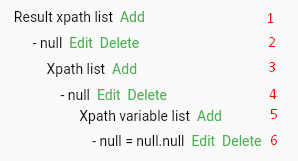
An attribute is configured based on three parts:
- Line (1) (2): Result XPath list is the information name of a formula used to retrieve the XPath.
- Line (3) (4): XPath list is the information about the base XPath of the element, the part that will not change in the XPath formula.
- Line (5) (6): Information about the attributes contained in the base XPath element used to find the XPath, this information will change according to each element.
-
Click Add in the lines until enough lines are displayed to configure appropriately to be able to search for the element, for example, using all 6 lines as illustrated.
-
Click Edit on line 2 to name the XPath retrieval formula, then click Close.

Note: It is advisable to name it according to the attribute used to retrieve the XPath. It is usually named according to the structure “by_” + the attribute used to find the XPath.
-
Click Edit on line 4 to enter the base XPath of the element, usually matching the base XPath of the element path list, then click Close.
You can use components to support querying the relationship between elements to determine the base XPath.

- Click Edit on line 6 to enter the attribute information of the XPath.
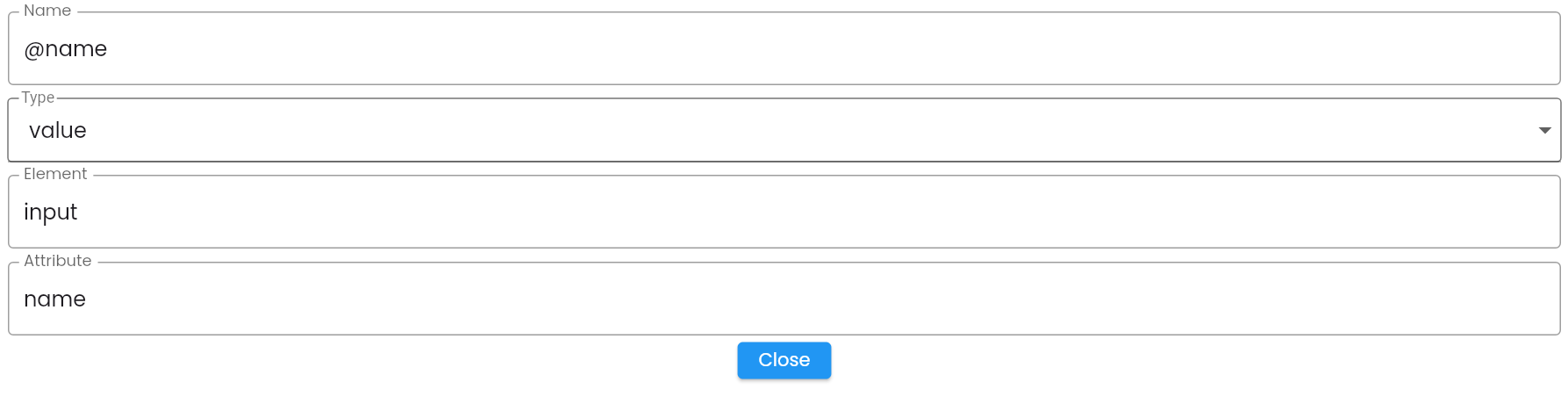
In this:
- Name: The name of the XPath parameter is set according to the property query rules of one node in XPath.
- Type: Search condition through the attribute
- Value: Use the exact value of the attribute.
- Contains: Use the approximate value (contains) of the attribute.
- Contains is often used in cases of comparison with the text of the XPath (name = text()).
- Element: The name of the element the user has set when searching for the XPath in the Element path list.
- Attribute: The name of the attribute you want to retrieve the value.
- Click Close, the configuration information is displayed in the list.
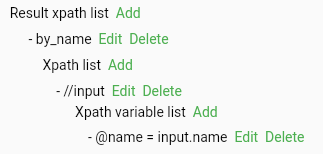
Note:
- To retrieve the XPath of the element by multiple different attributes, click Add on line 1 to add another XPath template.
- To configure multiple attributes in the same XPath result, click Add on line 5, and continue to configure the attribute similarly. For example: the XPath of the Input element is retrieved simultaneously by id and type.
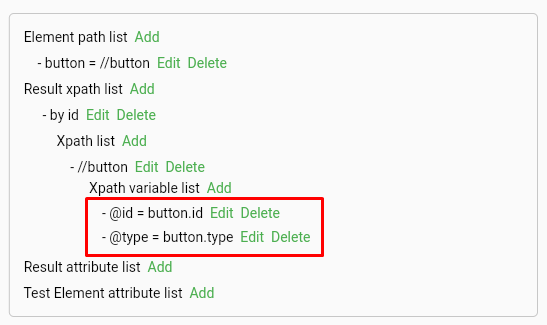
- Result attribute list: A list of configured values of the attributes that will be displayed when the element is found.

- Click Add to add a result attribute.
- On each XPath line, click Edit to update the value of the result attribute:

Enter values for the information fields:
| Field Name | Mandatory | Format | Constraints | Description |
|---|---|---|---|---|
| Name | Yes | Text | Name of the attribute for the result - This information will be displayed when scanning with Smart Locator | |
| Element | Yes | Text | The name of the element the user has set when searching for the XPath in the Element path list | |
| Attribute | Yes | Text | The name of the attribute to retrieve the value | |
| CLOSE | - | Button | Click CLOSE to save the configuration data |
- Click Close:

Note: To display additional XPath results by other attributes, click Add and enter similarly. It is advisable to configure the Position attribute to view the position of the element during the test script configuration process.
For example:

To delete an attribute line, click Delete on the corresponding line.
-
Test Element attribute list: A list to configure the formula for automatically naming the element based on the attribute value when the user uses the smart locator.

- Click Add to add an attribute used to name the element when scanning with the smart locator.
- Click Edit to define the attribute used to name the element.

Enter values for the information fields:
| Field Name | Mandatory | Format | Constraints | Description |
|---|---|---|---|---|
| Element | Yes | Text | The name of the element the user has set when searching for the XPath in the Element path list | |
| Attribute | Yes | Text | The name of the attribute to retrieve the value | |
| CLOSE | - | Button | Click CLOSE to save the configuration data |
Example: The name of the element is configured to concatenate the values of name and class.

Note: To delete an attribute line, click Delete on the corresponding line.
Step 5: Click OK, the system notifies “Create successful”.
Duplicate
Supports creating a new Element Template, used when the Element Template to be created has similar characteristics to an existing template in the system.
Step 1: On the Element Template screen, click button  corresponding to the template you want to duplicate, then click Duplicate.
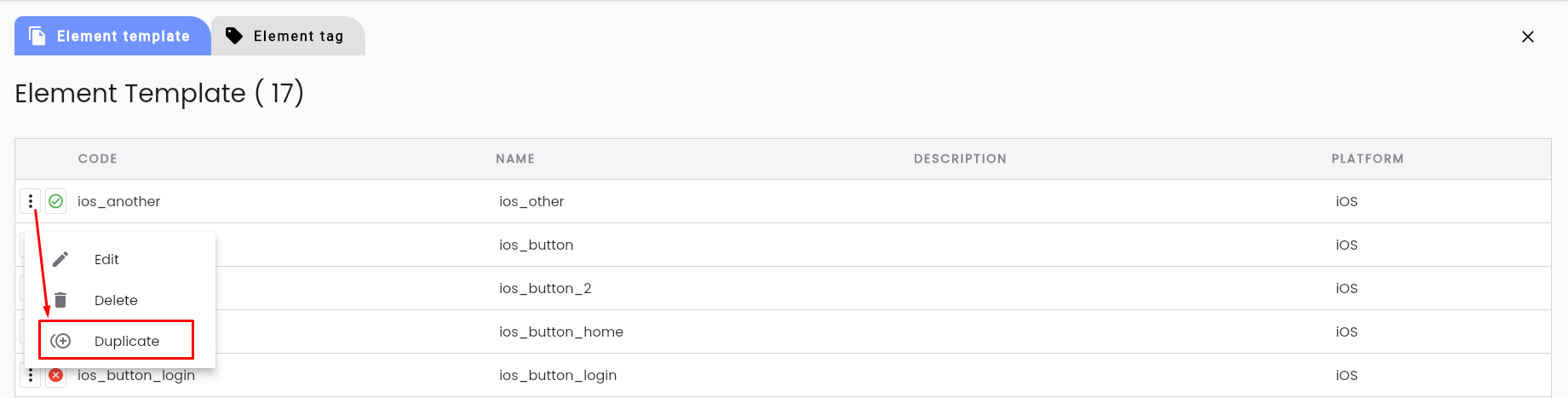
Step 2: On the Duplicate Element Template screen, edit the necessary information.
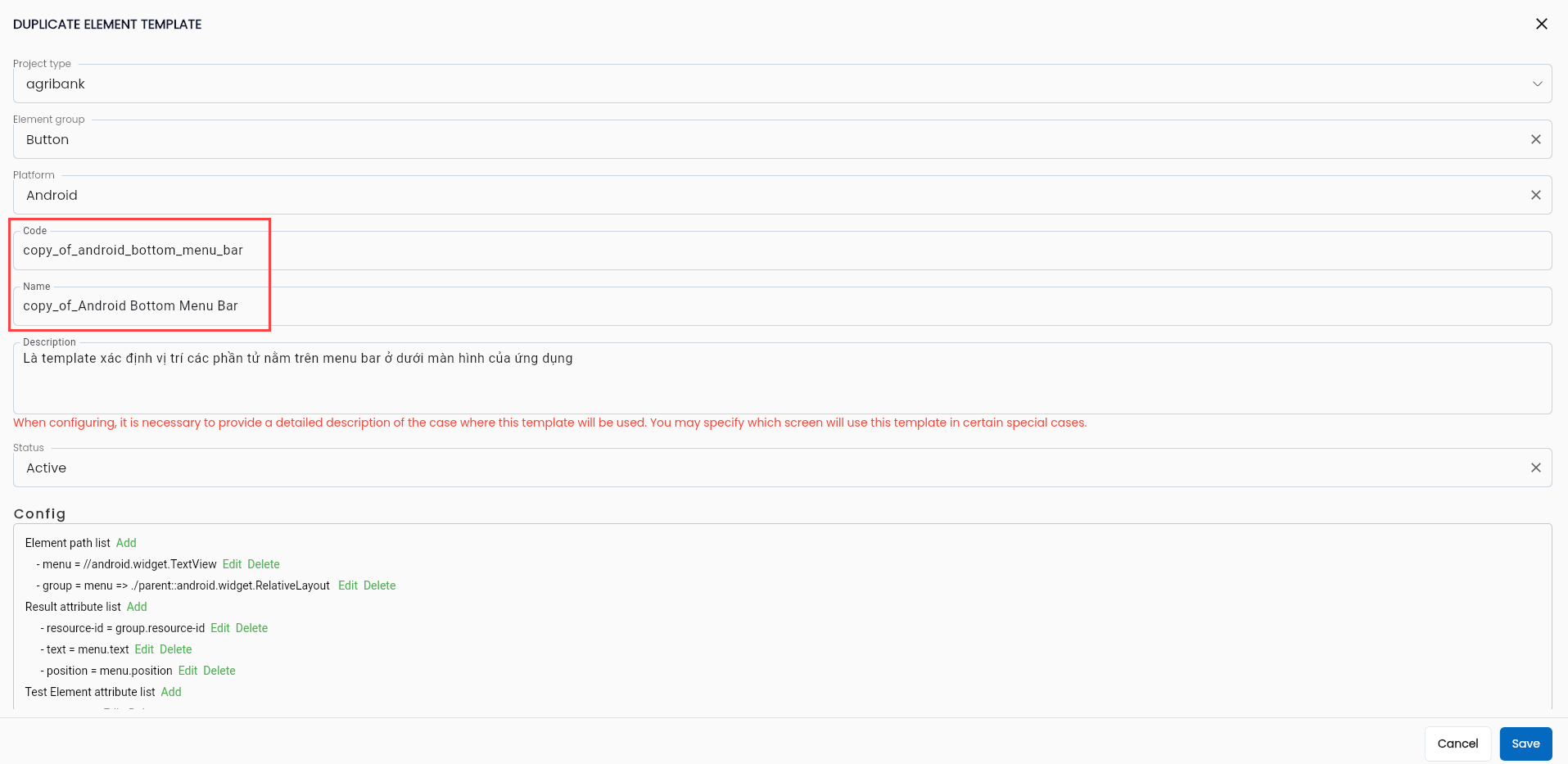
The information is similar to the Add New screen, except for:
| Field Name | Mandatory | Format | Constraints | Description |
|---|---|---|---|---|
| Code | Yes | Text | Change the code = “copy_of_” + code of the duplicated element template. The user can edit it. | |
| Name | Yes | Text | Change the name = “copy_of_” + name of the duplicated element template. The user can edit it. |
Step 3: Click “OK”, the system notifies “Duplicate successful”
Edit Element Template
Step 1: On the Element Template screen, click button corresponding to the template you want to edit, then select Edit.
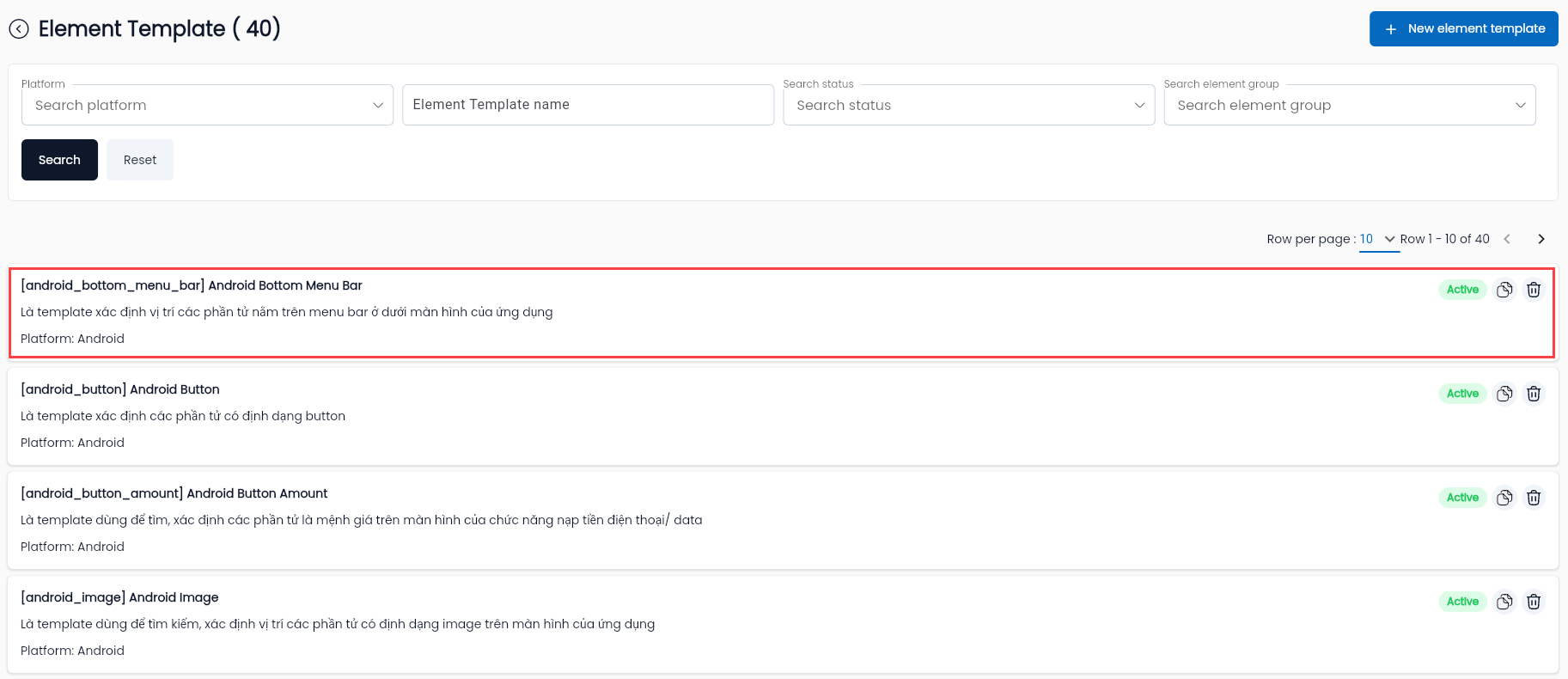
The system displays the Edit Element Template screen.
Step 2: Enter the information to be edited similarly to the Create Element Template screen, but the code cannot be edited.
Step 3: Click OK, the system notifies “Update successful”.
Element Tag
Element Tag is a feature that helps users tag groups of element templates that share the same base XPath. When using the Smart Locator scanning function, the system will check the XPath of the Element Tag first before checking the XPath of the element template. This helps reduce the scanning time of element templates when configuring test scenarios.
Create New Element Tag
Step 1: On the Project type screen, click the “⋮” button next to the project type you want to add/edit an element, then select Element Template.
The system displays the Element Template screen for the Project type, where users select the Element Tag Tab.
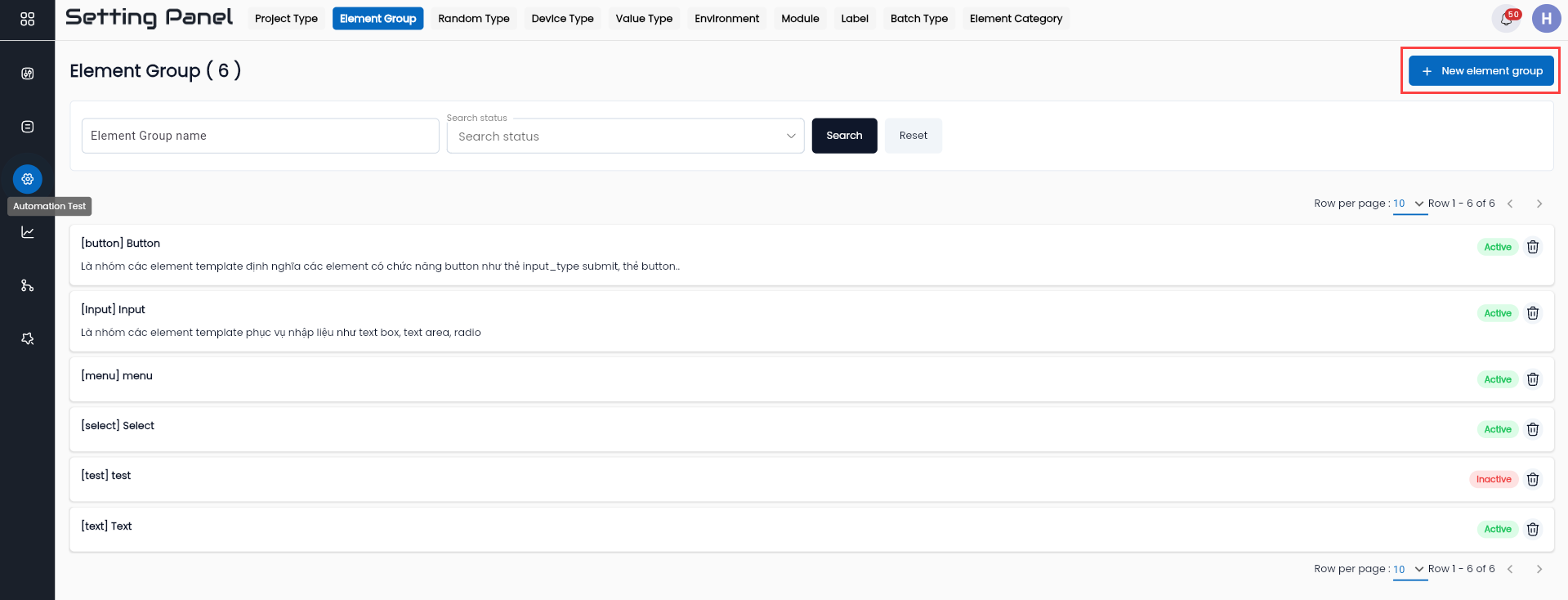
Description of the information fields:
| Field Name | Description |
|---|---|
| Tab Element Tag | Manage Element Tags that help mark groups of Element Templates with the same element tag. |
 | Click the button to create a new Element Tag template |
| CODE | Code of the Element Tag |
| NAME | Name of the Element Tag |
| DESCRIPTION | Description of the Element Tag |
| PLATFORM | Platform used for the Element Tag |
Step 2: On the Element Tag screen, click NEW ELEMENT TEMPLATE to add a new one.
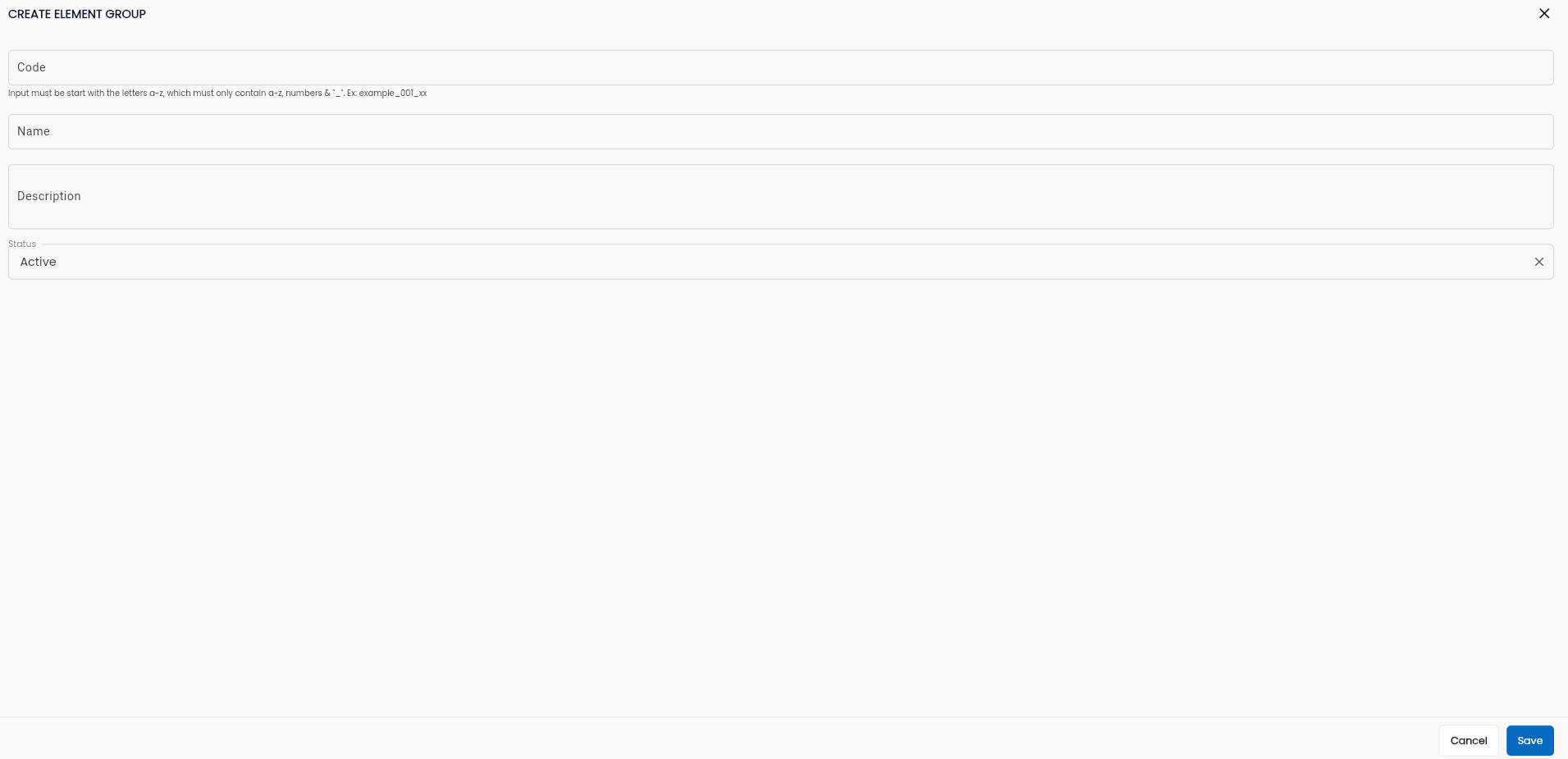
Step 3: Enter the necessary information, including:
| Field Name | Mandatory | Format | Constraints | Description |
|---|---|---|---|---|
| Project type | Yes | Combobox | Displays a list of project types in the system | Default is the project type that the user selects to find the element |
| Platform | Yes | Combobox | Platform that the template defines the element: + Web + Android + IOS + JavaSwing + Windows + Api + JDBC + Web Only one value can be selected | |
| Code | Yes | Text | Must be unique, cannot be edited, cannot contain special characters except for “_” | Identifier code distinguishing different element tags |
| Name | Yes | Text | Enter the name of the Element Tag It is advisable to name it according to the type of element Tag | |
| Xpath | Yes | Text | XPath of the common element tag | |
| Description | - | Textarea | Enter a description for the element tag | |
| Status | Yes | Combobox | Choose the status of the Element Tag: + Active: Active + Inactive: Inactive To use the Element Tag, the status must be active | |
| OK | - | Button | Click OK to save the Element Tag | |
| CANCEL | - | Button | Click CANCEL to cancel |
Step 4: Click OK, the system notifies “Create successful”.
Edit Element Tag
Step 1: On the Element Tag screen, click the button corresponding to the tag you want to edit, then select Edit.
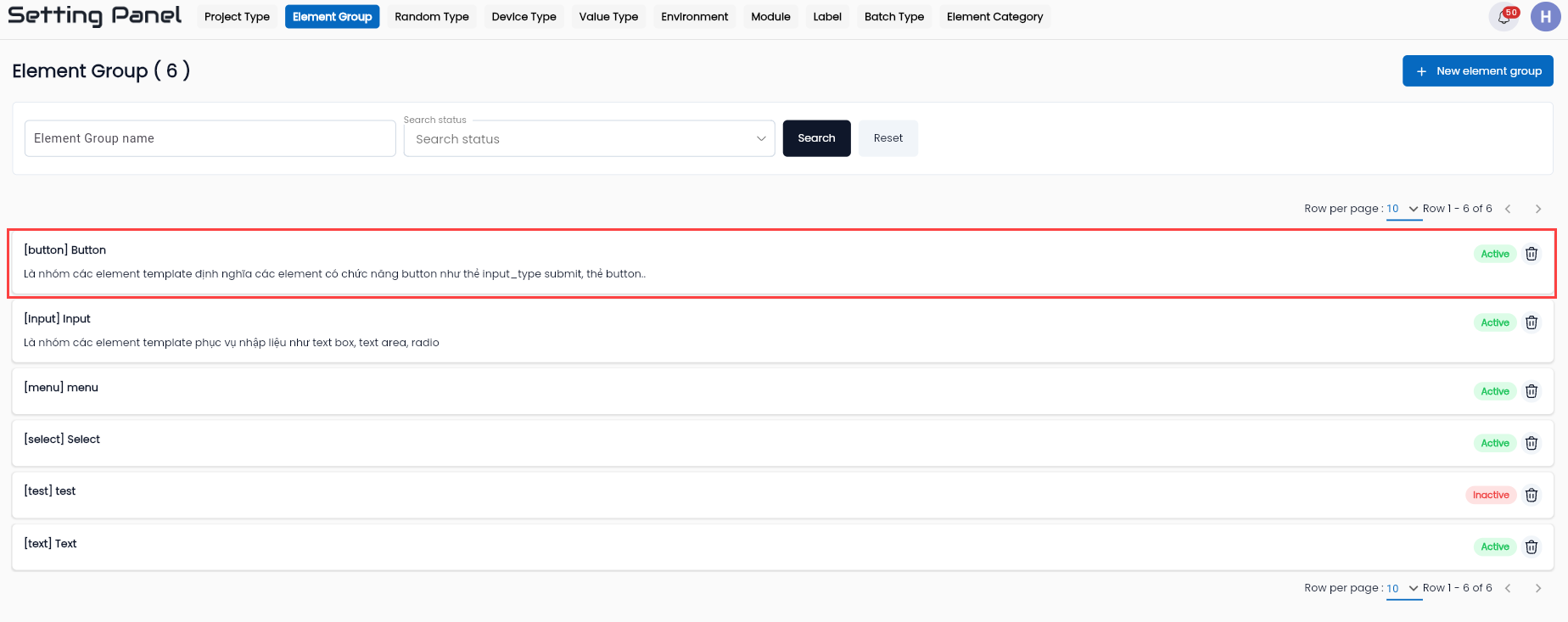
Step 2: The system displays the Edit Element Tag screen.
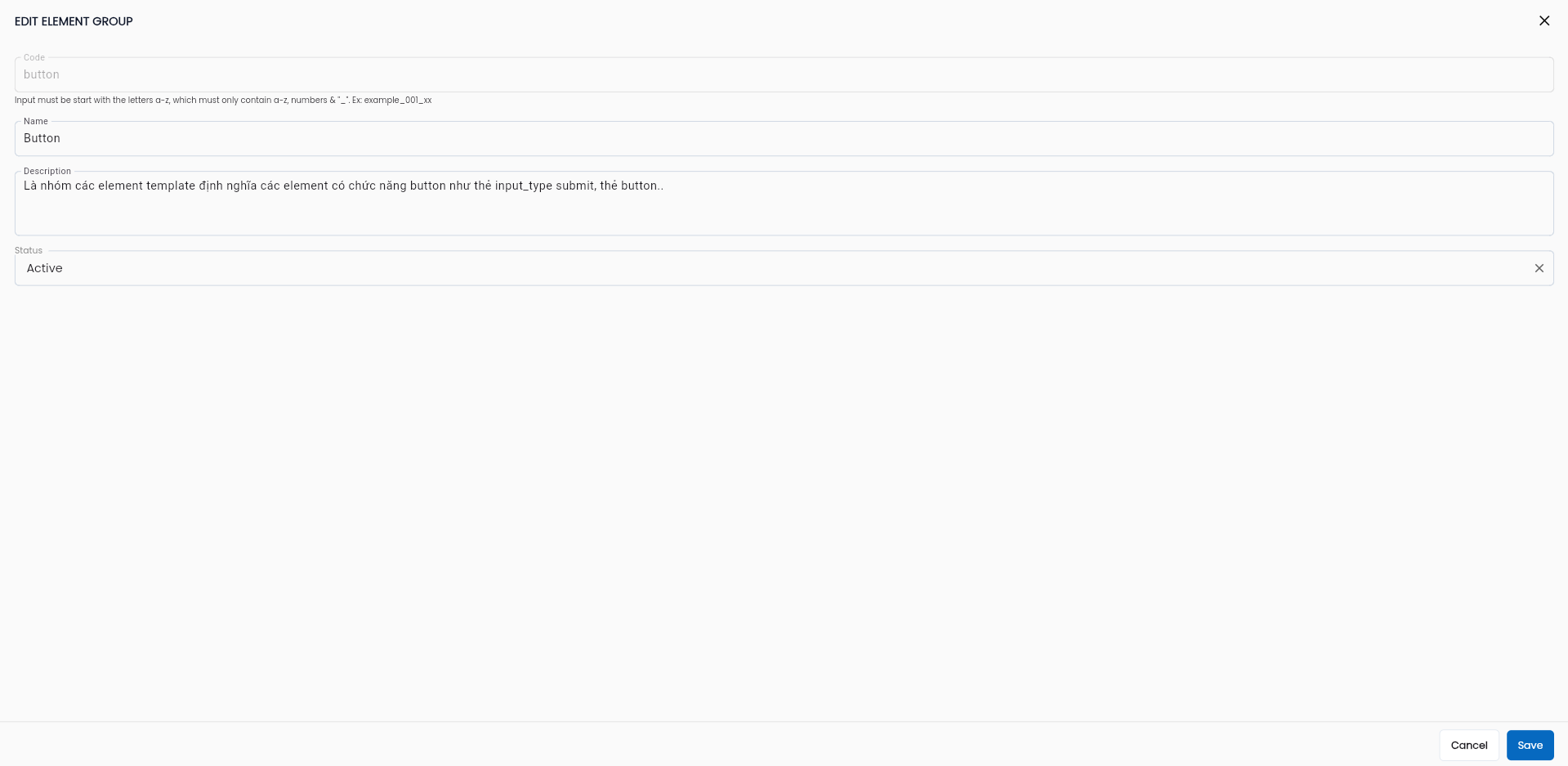
The EDIT ELEMENT TAG screen includes the same information fields as the CREATE ELEMENT TAG screen, in addition to special fields that are only displayed when EDITING ELEMENT TAG:
| Field Name | Mandatory | Format | Constraints | Description |
|---|---|---|---|---|
| Element Tag Template | Yes | Label | Displays the number of element templates contained in the element tag | |
| - | Button | Click the button to add a new template element to the element tag | |
| Name | - | Text | Name of the element in the element tag | |
| Element Template | Yes | Text | Code of the Element Template | |
| Element Tag | Yes | Text | Code of the element tag assigned to the Element Template |
Step 3: Click OK, the system notifies “Update successful”.
Add New ELEMENT TAG TEMPLATE
Step 1: On the EDIT ELEMENT TAG screen, click the button NEW ELEMENT TAG TEMPLATE.
Step 2: The system displays the CREATE ELEMENT TAG TEMPLATE.
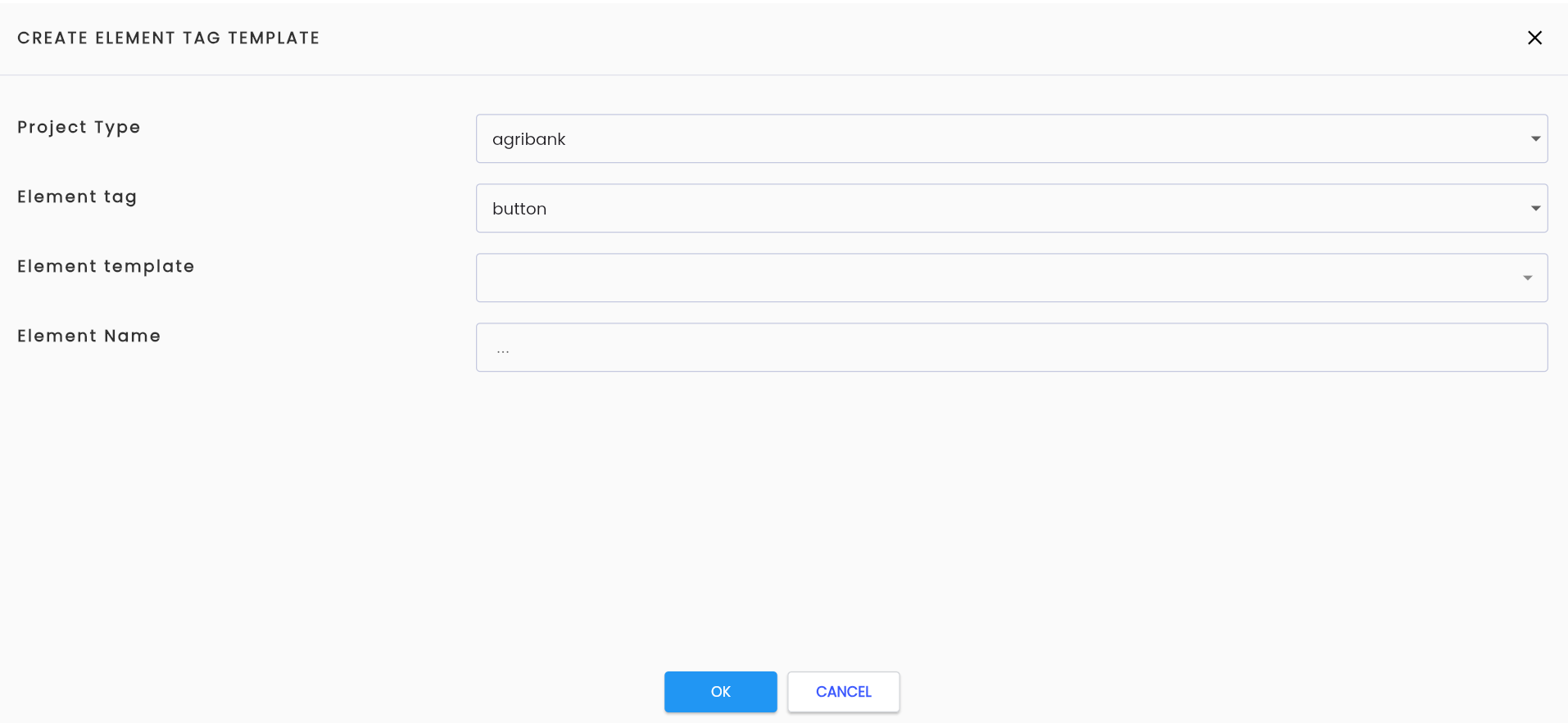
Users enter the necessary information:
| Field Name | Mandatory | Format | Constraints | Description |
|---|---|---|---|---|
| Project type | Yes | Combobox | Displays the project type containing the element tag. Cannot be edited | |
| Element tag | Yes | Combobox | Displays the code of the element tag. Cannot be edited | |
| Element template | Yes | Combobox | Only displays a list of element templates that share the same platform as the element tag. Only element templates that do not already exist in the element tag being created can be selected | Displays a list of element templates defined in the element template tab. The user is allowed to select one value |
| Element Name | Yes | Text | Enter the name of the Element Template used in the element tag. It is advisable to name it according to the type and function of the element | |
| OK | - | Button | Click OK to save the Element Template | |
| CANCEL | - | Button | Click CANCEL to cancel |
Step 3: Click OK, the system notifies “Update successful”.
Edit ELEMENT TAG TEMPLATE
Step 1: There are two ways to edit the element tag template:
Method 1: On the EDIT ELEMENT TAG, click button on the line of the element tag template you want to edit and select Edit.
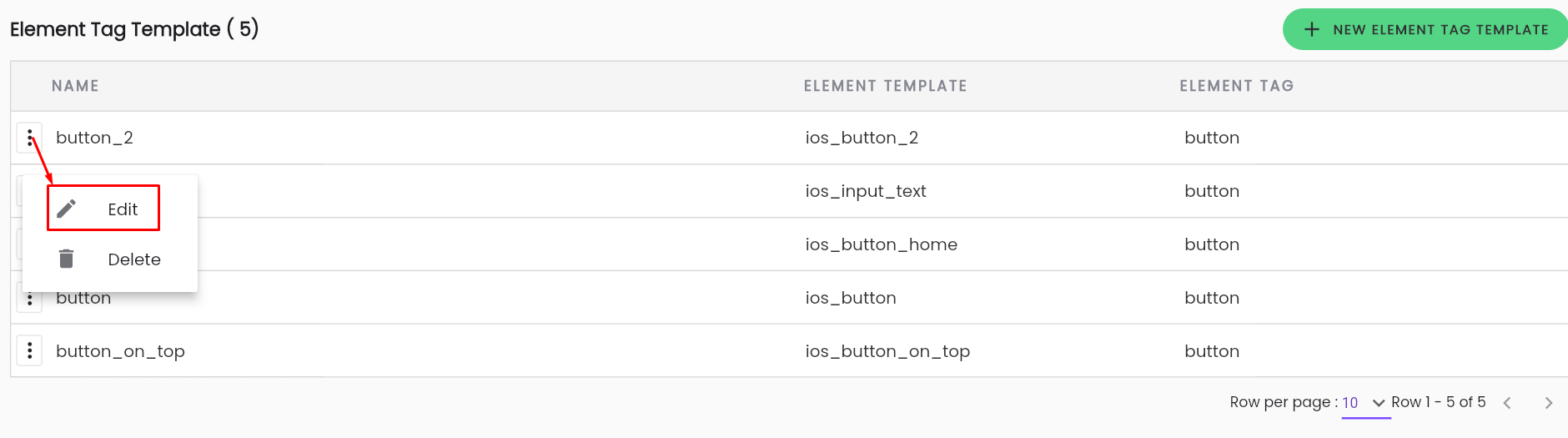
Method 2: Click on the line of the element tag template you want to edit.
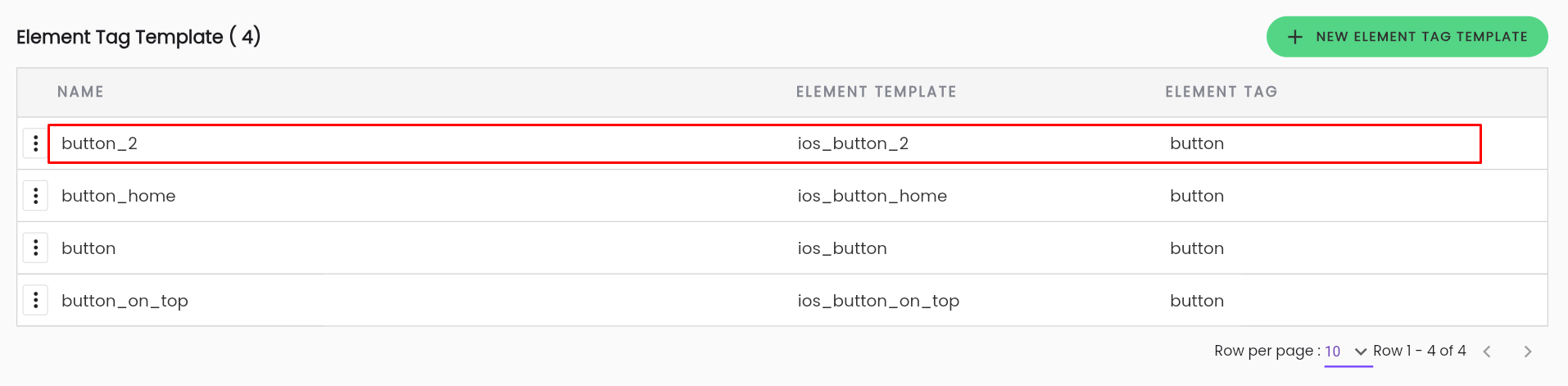
Step 2: The system displays the EDIT ELEMENT TAG TEMPLATE.
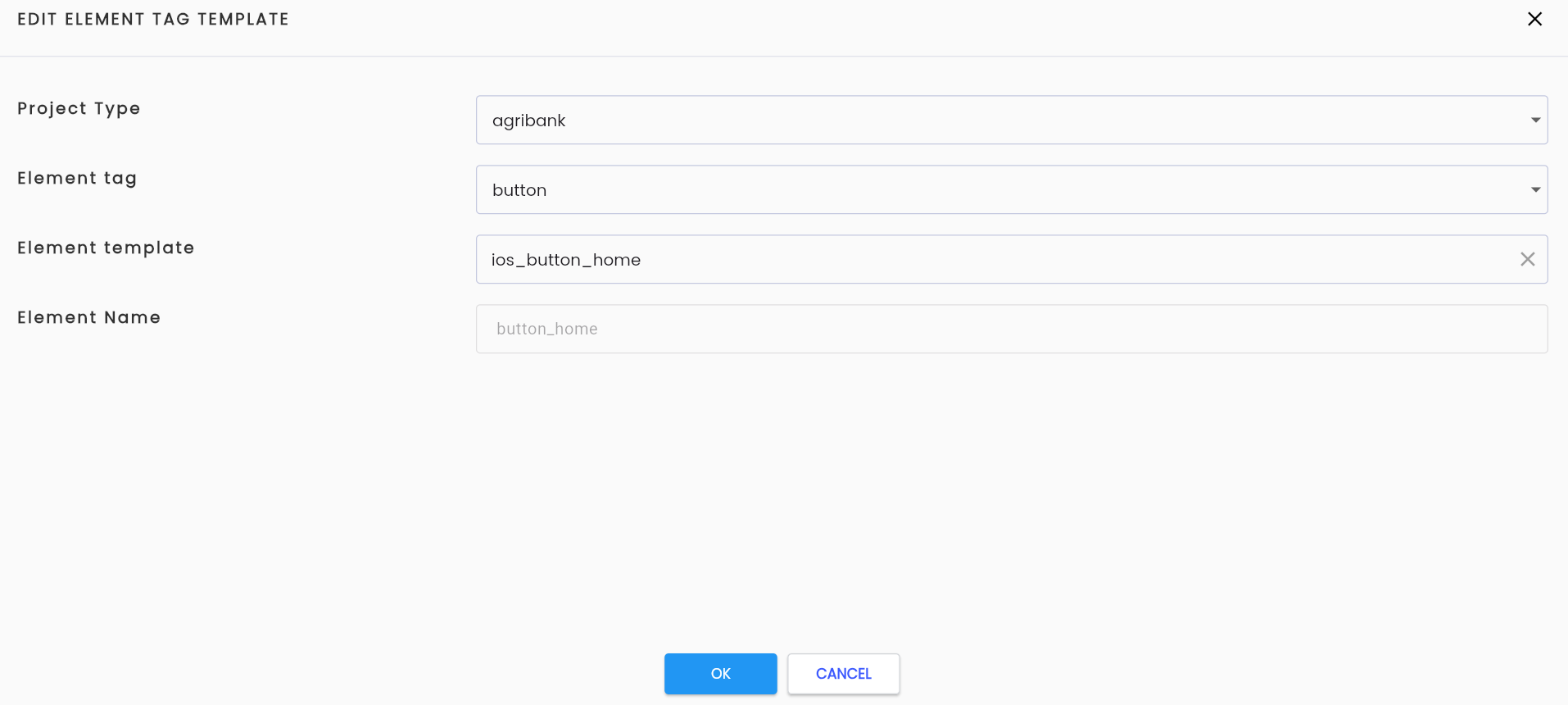
- The information fields and buttons are similar to those on the CREATE ELEMENT TAG TEMPLATE.
- In the Edit element tag template only the Element template, field can be edited; other information cannot be modified.
Step 3: Click OK, the system notifies “Update successful”.
Delete ELEMENT TAG TEMPLATE
Step 1: On the EDIT ELEMENT TAG, click button on the line of the element tag template you want to delete and select Delete.
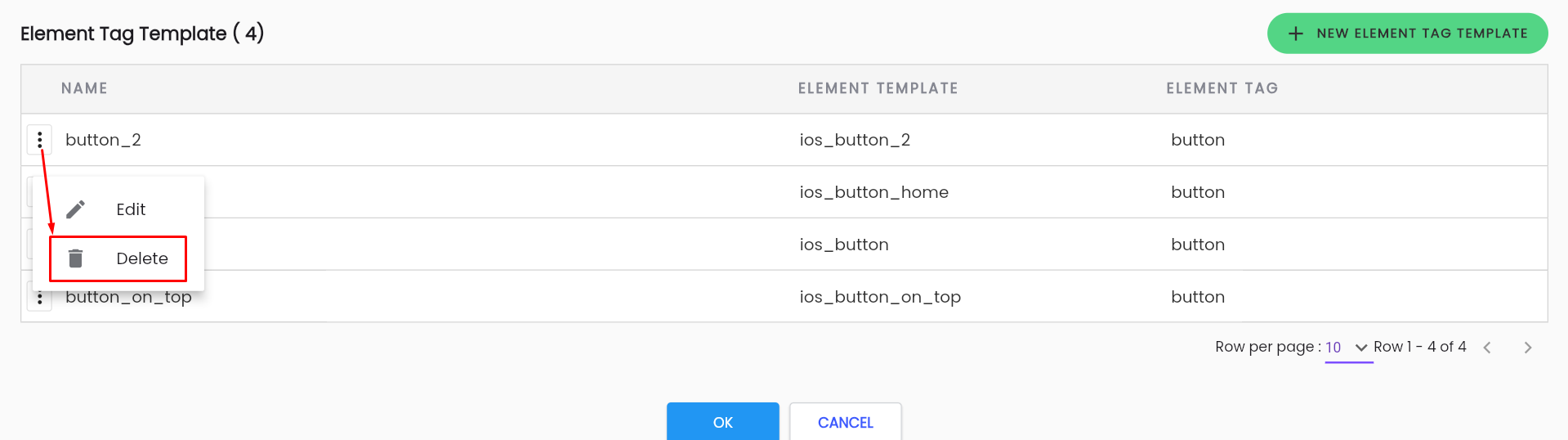
- The system displays a confirmation popup for deletion.
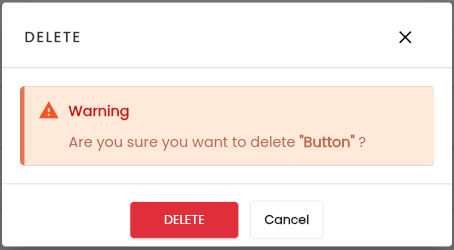
Step 2: Confirm deletion by clicking Delete, the system notifies “Delete successful”.
Delete Element Tag
Step 1: On the Element tag screen, click the button corresponding to the tag you want to delete and select Delete.
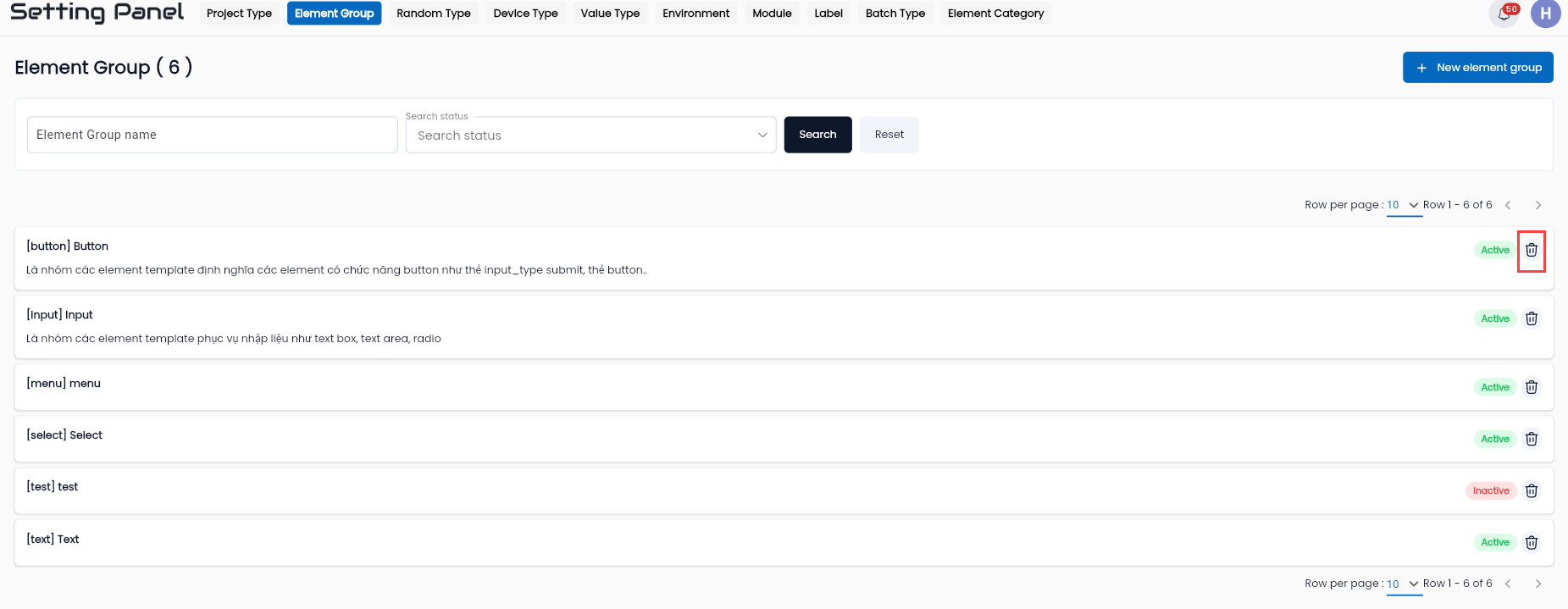
- The system displays a confirmation popup for deletion.
Step 2: Confirm deletion by clicking Delete, the system notifies “Delete successful”.