Template
Overview of templates
Template helps you build messages in a concatenated form by value through concatenation characters. For example: $aaa@$bbbb@$asdadas@$ccccc
This section explains how to manage templates in LLQ Service Visualization:
Create a new template
To create a new template on the system, do the following:
Step 1: Click on the settings icon on the right corner of the screen and select Template
Step 2: In tab Template config, click the Add Template button
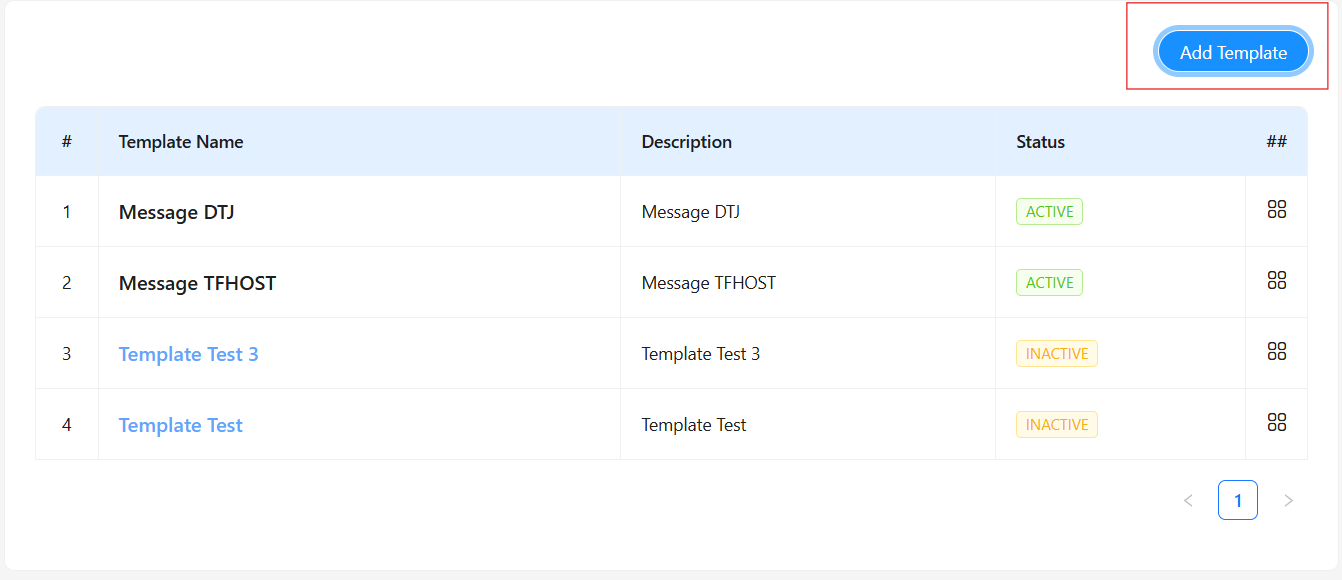
Step 3: Enter all necessary information correctly and completely into the Save form. The template will be added to the list of created templates
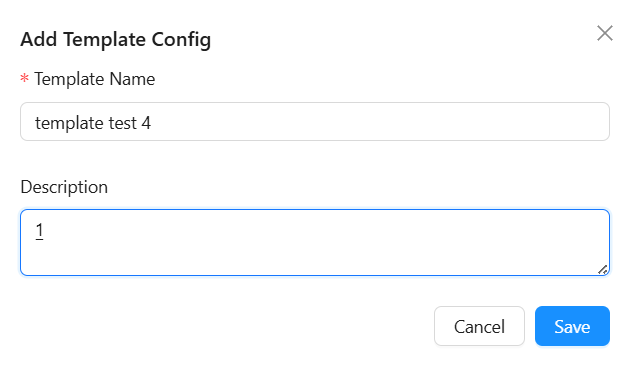
Description of information fields:
| Field Name | Mandatory | Format | Constraints | Description |
|---|---|---|---|---|
| Template name | Yes | Textbox | Template name must be unique | Template name is displayed in the list |
| Description | No | Textbox | Detailed description for the template |
Step 4: Enter additional information needed for the template:
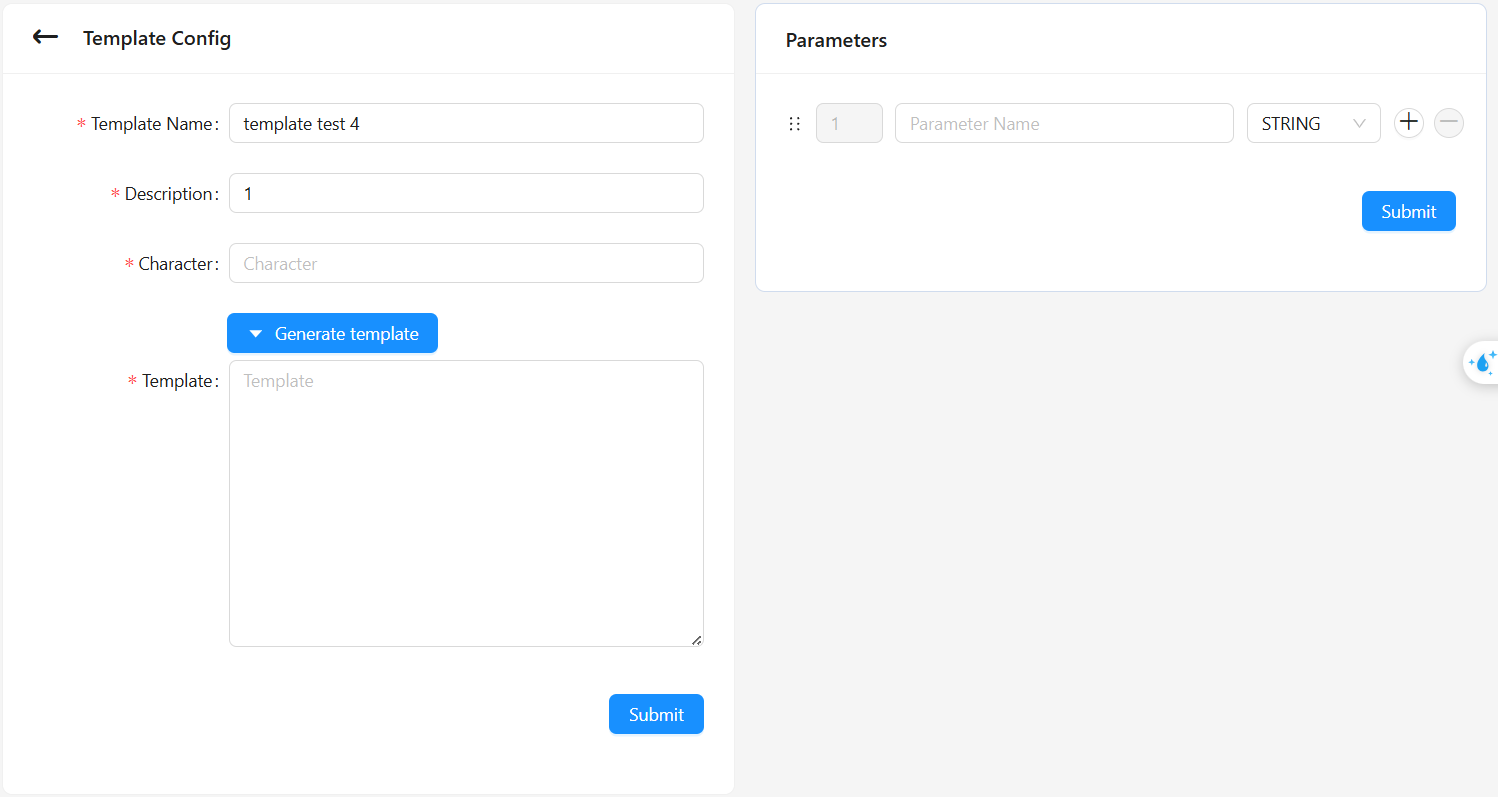
Description of template information fields:
| Field Name | Mandatory | Format | Constraints | Description |
|---|---|---|---|---|
| Template name | Yes | Textbox | Template name must be unique | Template name is displayed in the list |
| Description | No | Textbox | Detailed description for the template | |
| Character | Yes | Textbox | Character that separates values | |
| Template | Yes | Textbox | Sample message sent |
Step 5: Enter parameter information and press submit. The system updates the parameters for that template

Description of parameter information fields:
| Field Name | Mandatory | Format | Constraints | Description |
|---|---|---|---|---|
| Parameter name | Yes | Textbox | Parameter names must be unique | Parameter name used in the template |
| Type | Yes | Combobox | Text or number | Data type of parameter |
Step 6: Click the generate button to generate a sample message from the parameters
Step 7: Click the submit button to save
Update a template
To update a template on the system, do the following:
Step 1: Click on the name of a template you want to update or press the icon on the created template information and select Edit
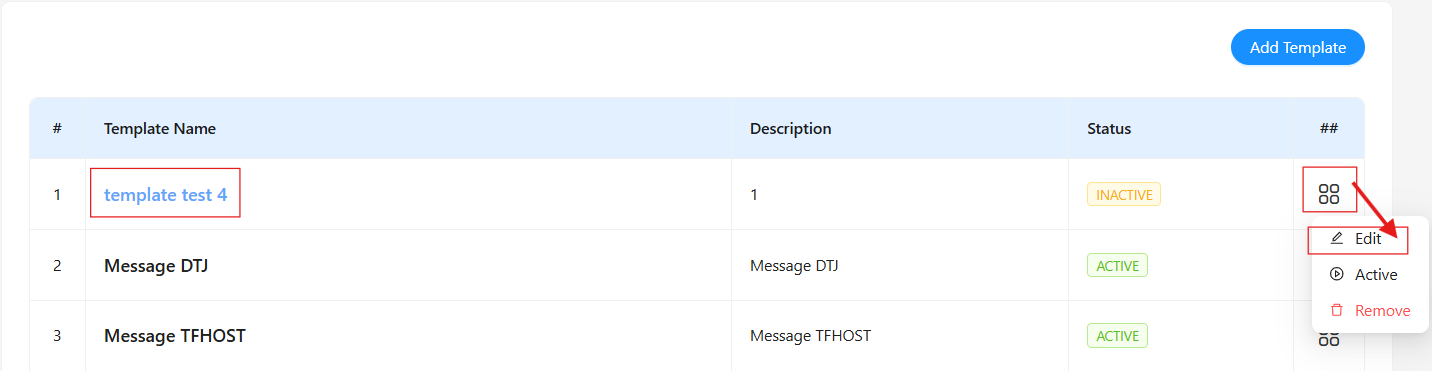
Step 2: Update information as instructed in steps 4 to 7 above
Active a template
After being activated, templates can be used as templates for sent messages
To activate a template, do the following:
Step 1: Completely update the required information for the template: Template Name, Description, Character, Template
Step 2: Press the icon on the created template information and select Active
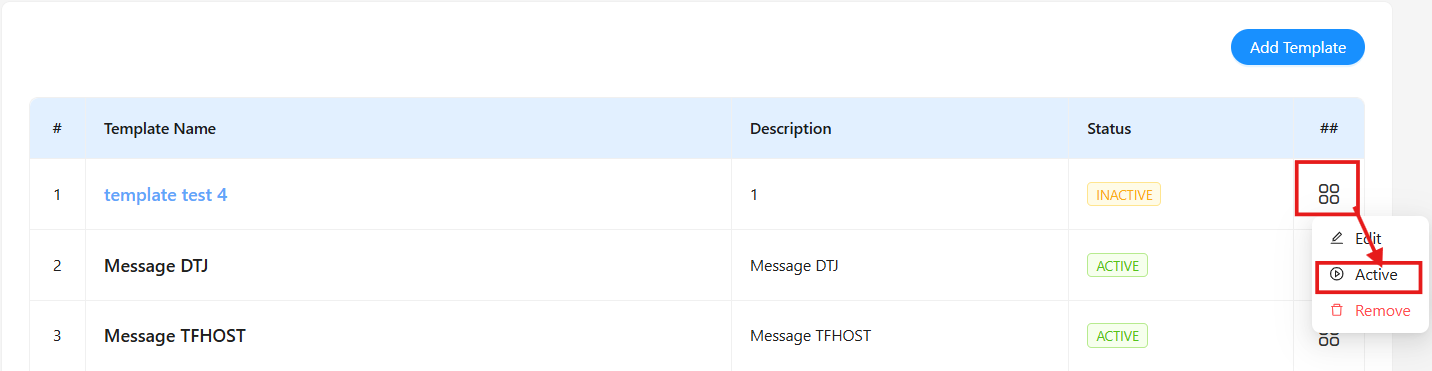
- With templates in current state
Active
Click on the name of a template you want to update or press the icon on the created template information and select Inactive.
The system will change the template status to Inactive and the user can perform guided updates with the template in state Inactive above
Delete a template
-
For templates that have not been activated (Status
Inactive): Press the icon on the created template information and selectRemove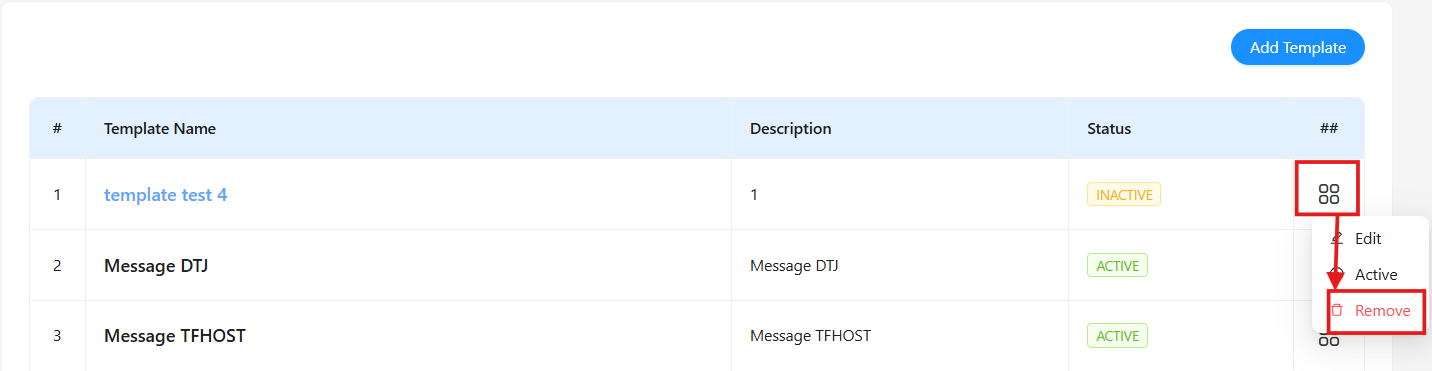
-
For templates that have been activated (Status
Active):
Step 1: Press the icon on the created template information and select Inactive
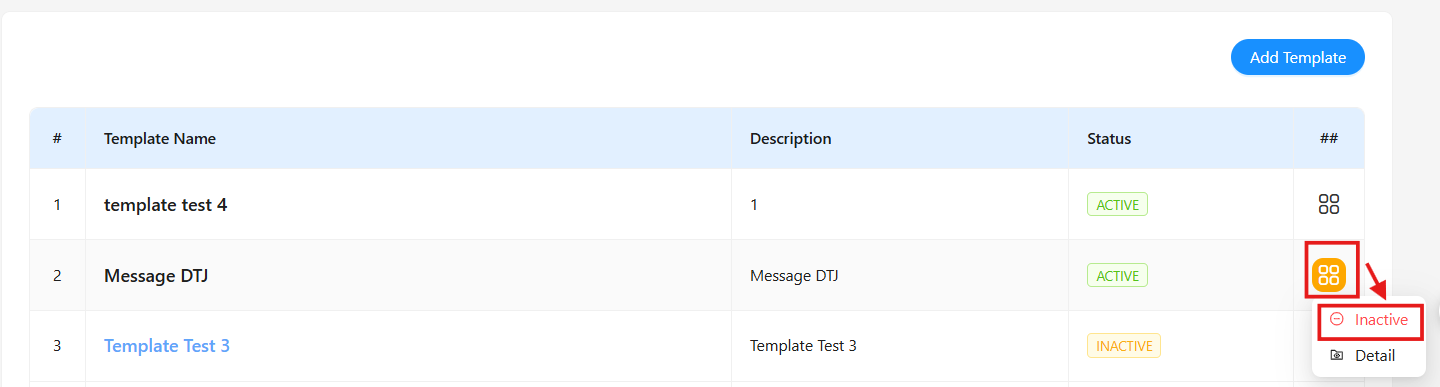
Step 2: Press the icon on the created template information and select Remove