Connector
Overview of connectors
Connector helps you manage connections to your database
This section explains how to manage connectors in LLQ Service Visualization:
Create connections
Create a database connection
To create a new database connection on the system, do the following:
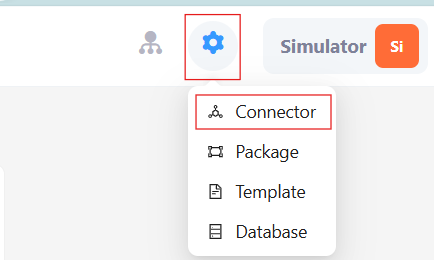
Step 1: Click on the settings icon at the top right corner of the screen and select Connector
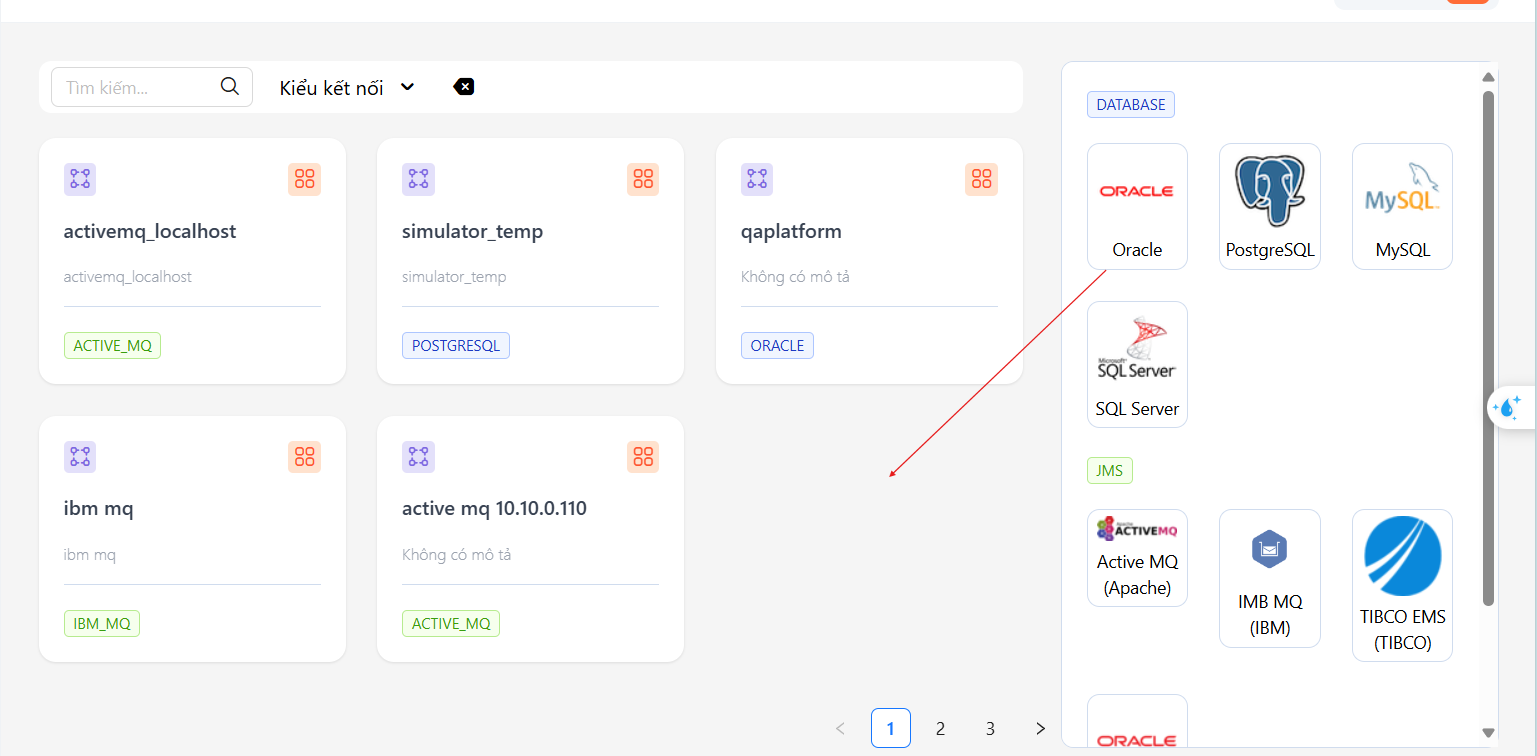
Step 2: In the Connector tab, drag the desired connection type from the list on the right.
Step 3: Enter the required details in the form.
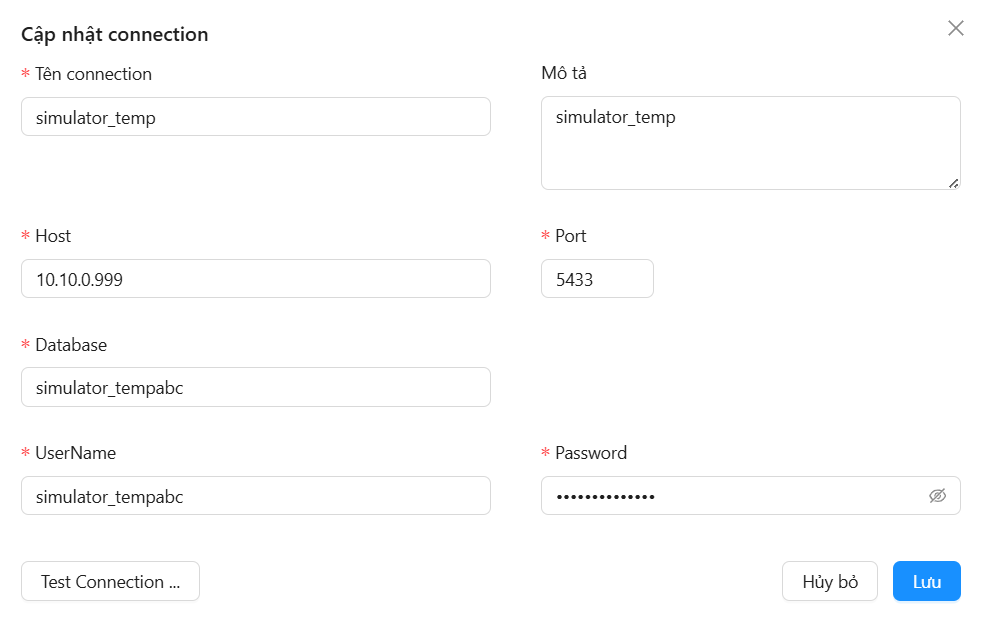
Field Descriptions:
| Field Name | Mandatory | Format | Constraints | Description |
|---|---|---|---|---|
| Tên kết nối | Yes | Textbox | Must be unique | Name displayed in the connection list |
| Host | Yes | Textbox | Must be in TCP/IP format | Database host address |
| Port | Yes | Textbox | Connection port | |
| Database | Yes | Textbox | Database name to interact with | |
| Username | Yes | Textbox | Database connection username | |
| password | Yes | Textbox | Database connection password |
Step 4: Click the Test Connection button to check if the connection is successful. Click Save to store the connection. Saved connections will be displayed in the list of created connections.
Creating a JMS Connection
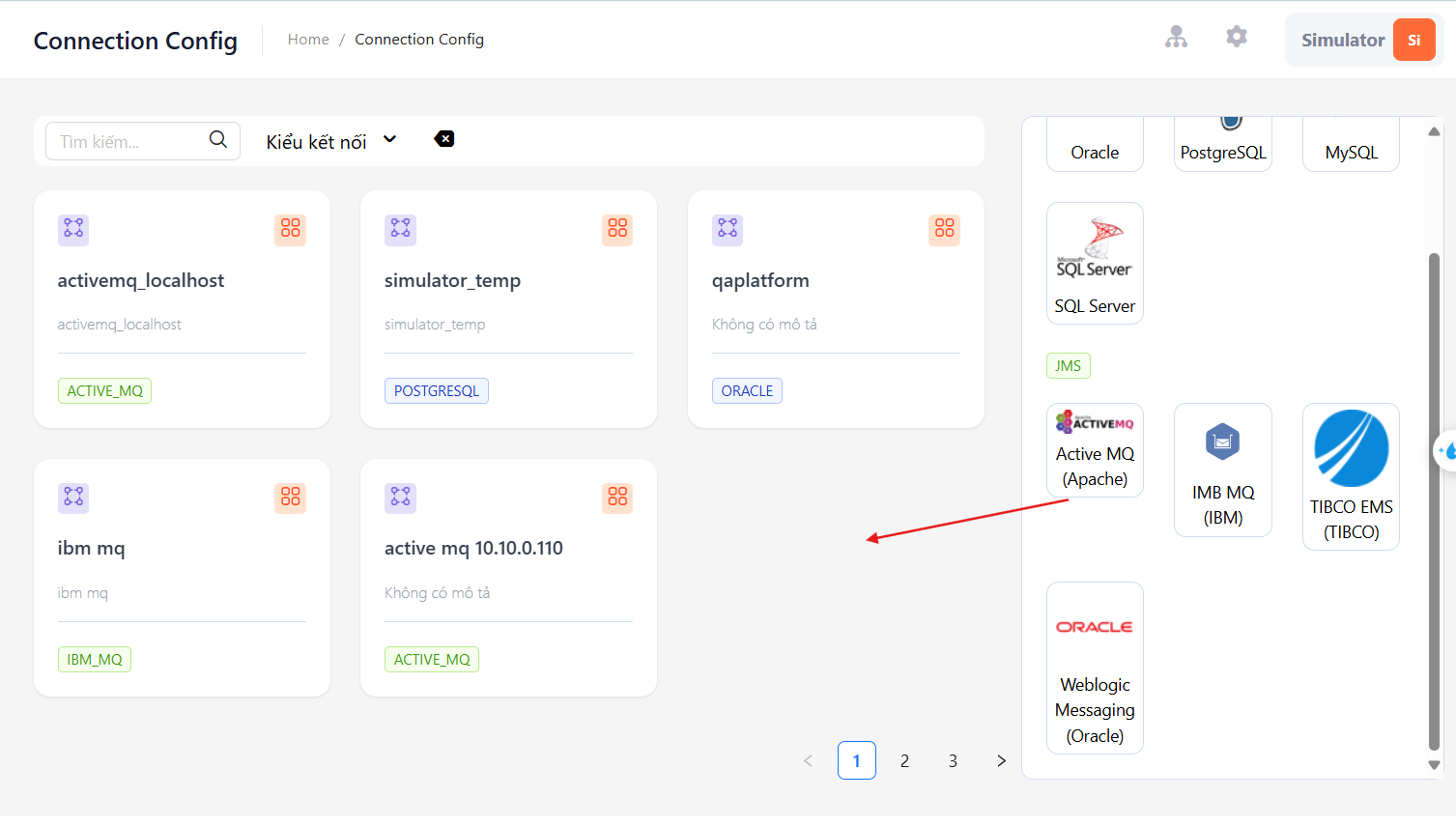
Step 1: In the Connector tab, drag the desired JMS connection from the list on the right.
Step 2: Enter the required details in the form.
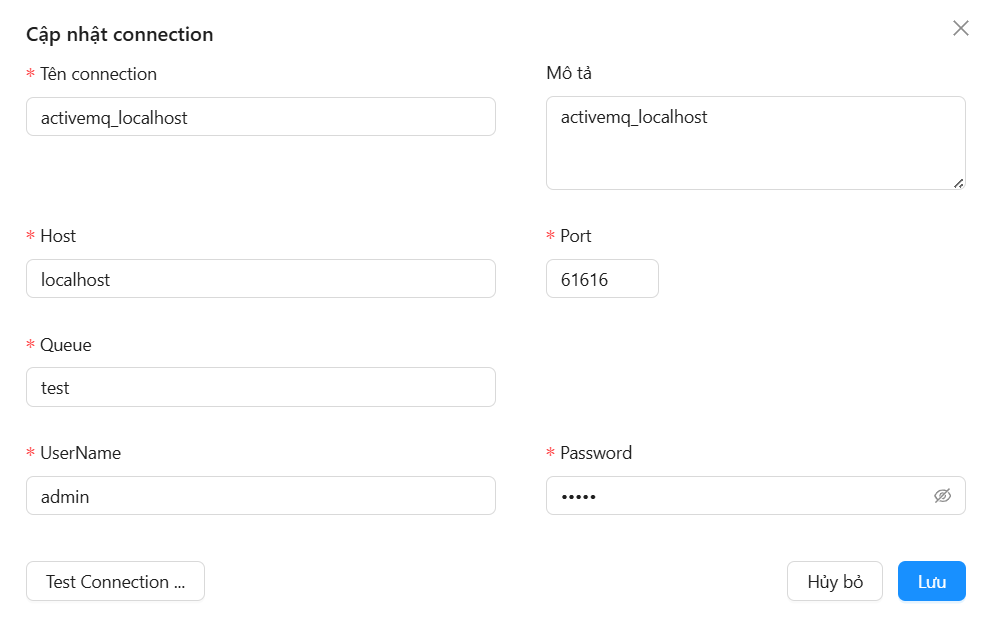
Field Descriptions:
| Field Name | Mandatory | Format | Constraints | Description |
|---|---|---|---|---|
| Connection Name | Yes | Textbox | Must be unique | Name displayed in the connection list |
| Description | Không | Textbox | Connection description | |
| Host | Yes | Textbox | Must be in TCP/IP format | Server address |
| Port | Yes | Textbox | Connection port | |
| Queue | Yes | Textbox | Connection queue name | |
| Username | Yes | Textbox | Connection username | |
| password | Yes | Textbox | Connection password |
Step 3: Click Test Connection to verify the connection, then click Save to store it. Saved connections will be displayed in the list.
Update a connector
To perform a connection update, do the following:
Step 1: Click the icon and select Update.
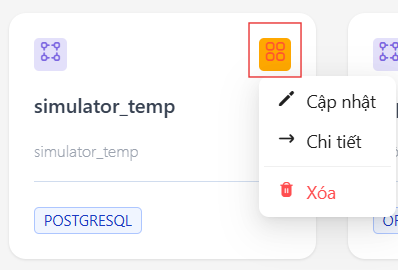
Step 2: Update the connection details following steps 3 and 4 above.
Delete a connector
Click the connector, please do the following:
Step 1: Press the icon on the created template information and select Delete
Step 2: Press the Yes button to delete the selected column, press the No button to cancel
