Package
Overview of Package
A package is similar to an object that contains user-defined properties. Users can use a package to quickly add existing properties of the package to requests sent out.
This section guides how to manage packages in LLQ Service Visualization:
Create a new package
To create a new package in the system, follow these steps:
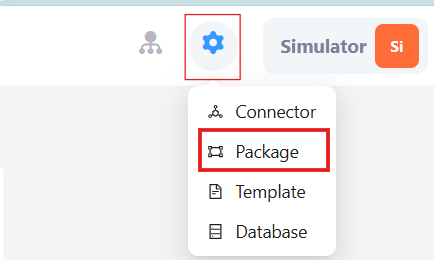
Step 1: Click on the settings icon in the top right corner of the screen and select Package.
Step 2: In the Package config tab, click the Add Package button.

Step 3: Enter all required information into the Save form. The package will be added to the list of created packages.
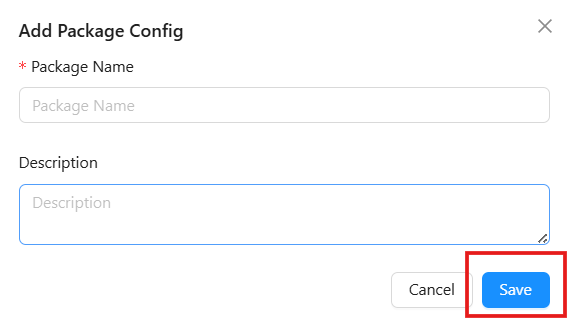
Description of the information fields:
| Field Name | Mandatory | Format | Constraints | Description |
|---|---|---|---|---|
| Package name | Yes | Textbox | Package name must be unique | Package name displayed in the list |
| Description | No | Textbox | Detailed description for the package |
Step 4: Enter all necessary information for the package.
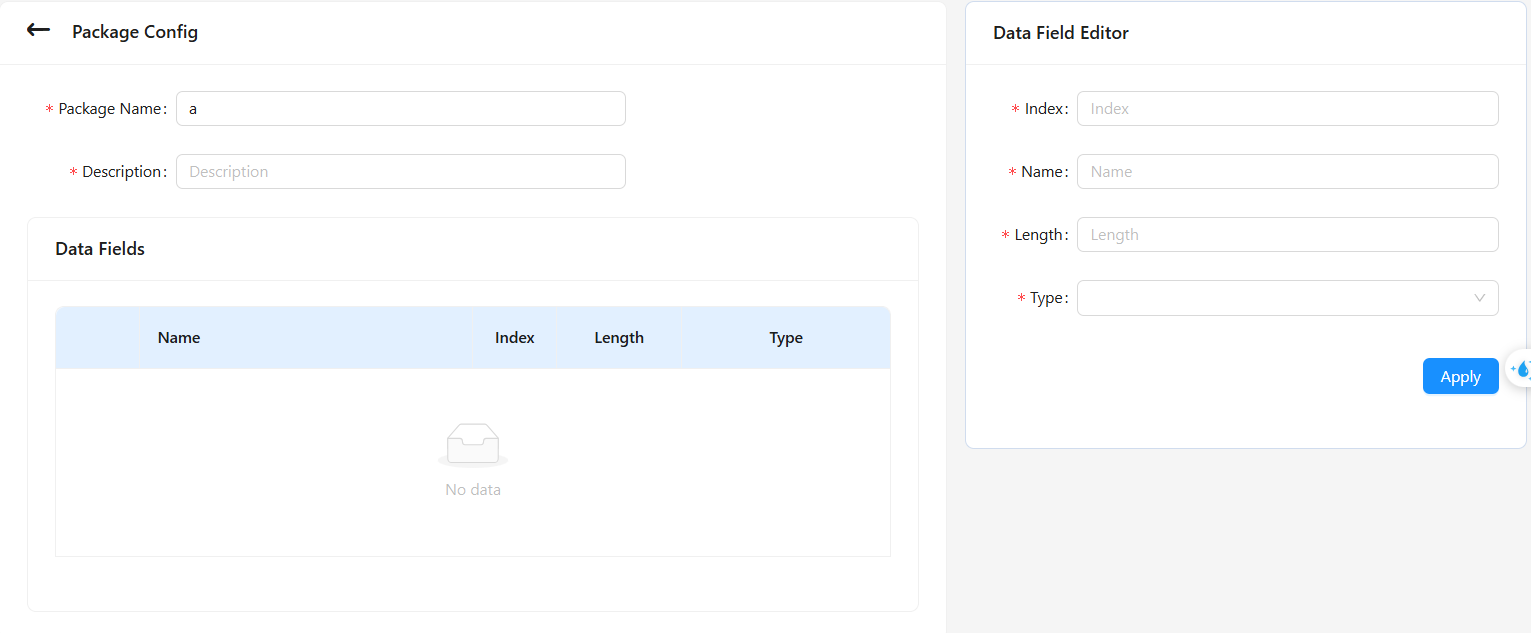
Description of the information fields:
| Field Name | Mandatory | Format | Constraints | Description |
|---|---|---|---|---|
| Package name | Yes | Textbox | Package name must be unique | Package name displayed in the list |
| Description | No | Textbox | Detailed description for the package | |
| Data field | Yes | List of fields of the package |
Step 5: Enter all necessary information for the fields of the package.
Description of the information fields:
| Field Name | Mandatory | Format | Constraints | Description |
|---|---|---|---|---|
| index | Yes | Number | ||
| Name | Yes | Textbox | Name must be unique | Field name displayed in the list |
| length | Yes | Number | Maximum length for the value of that field | |
| Type | Yes | Combobox | Number or String | Data type |
Step 6: Click the Apply button to update the package information.
Update a Package
- For packages that are in the
Inactivestate:
Step 1: Click on the name of a package that is in the Inactive state.
Step 2: Follow the instructions from Step 4 to Step 6 above.
- For packages that are in the
Activestate:
Click on the name of a package you want to update or click the icon on the information section of the created package and select Inactive.
The system will change the package status to Inactive, and the user can update it according to the instructions for packages in the Inactive state above.
Activate a Package
Packages that have been activated can be used to add package properties to outgoing requests.
To activate a package, follow these steps:
Step 1: Ensure all required information for the package is updated: Package Name, Description, Data fields.
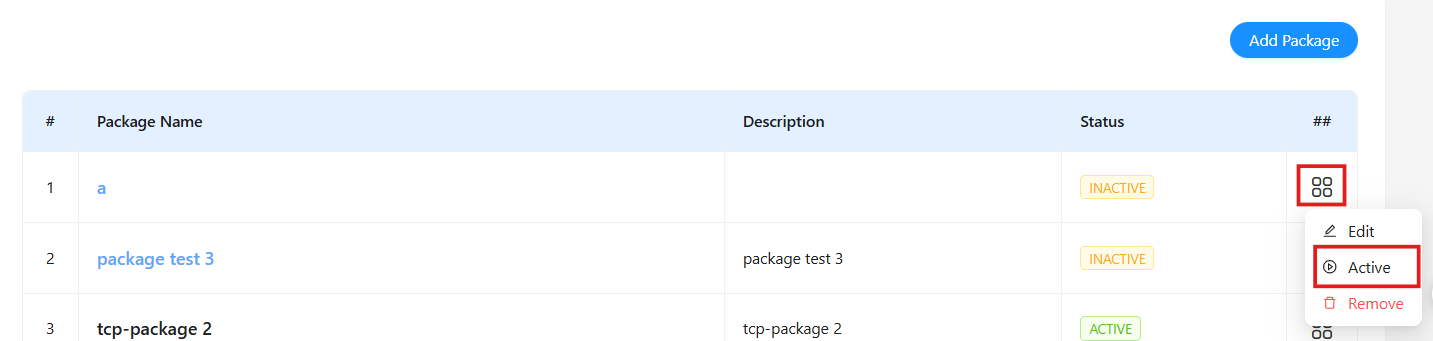
Step 2: Click the icon on the information section of the package that is in the Inactive state and select Active
Delete a package
-
For packages that are not activated (Status
Inactive): Click the icon on the package information section is inInactivestate and selectRemove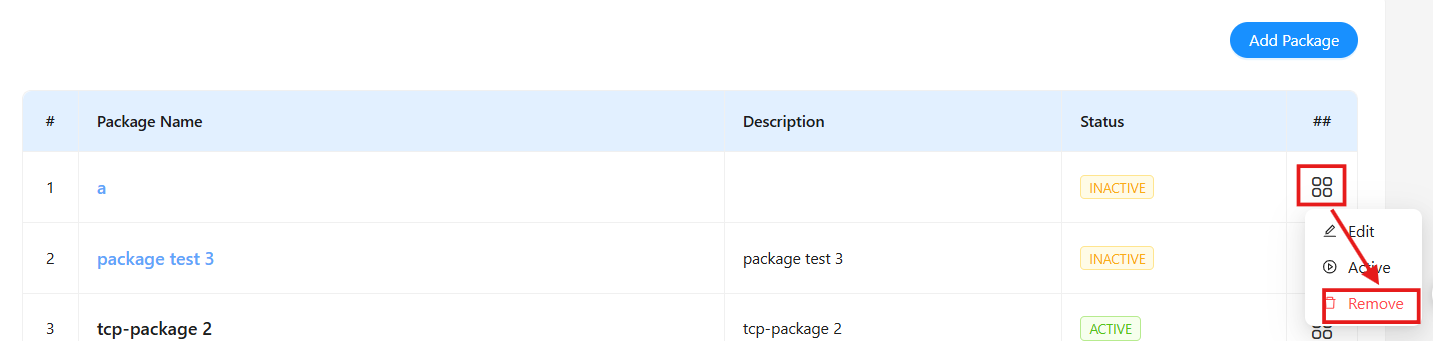
-
For packages that are activated (Status
Inactive):
Step 1: Press the icon on the package information section is in Active state and select Inactive

Step 2: Press the icon on the package information section is in Inactive state and select Remove