Database
Database overview
A database is a storage space for related tables.
This section guides you on how to manage a database in LLQ Service Visualization:
Create a new database
To create a new database in LLQ Service Visualization, follow these steps:
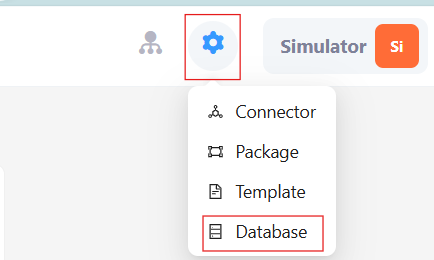
Step 1: Go to LLQ Service Visualization, click on the settings icon on the top right corner of the screen and select Database
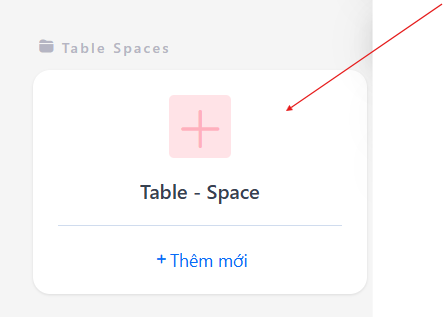
Step 2: In the Database tab, click the Thêm mới button
Step 3: Enter the correct and complete information for the table space.
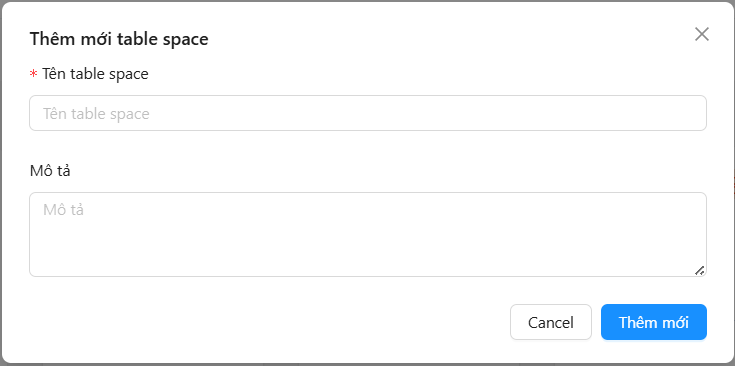
Description of the table space information fields:
| Field Name | Mandatory | Format | Constraints | Description |
|---|---|---|---|---|
| Tên table space | Yes | Textbox | The table space name must be unique | The name of the table space displayed |
| Description | Yes | Textbox | Detailed description for the table space |
Update a Table Space
Add a Table to the Table Space
To add a table to a table space, do the following:
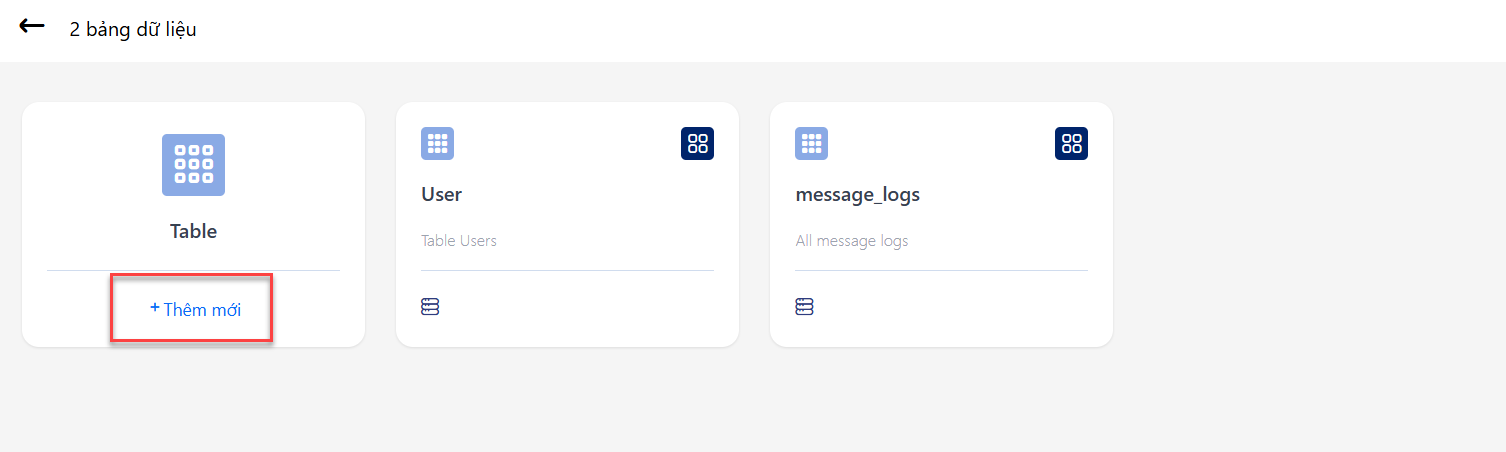
Step 1: Click the Thêm mới button to add a table to the table space.
Step 2: Enter the correct and complete information for the table.
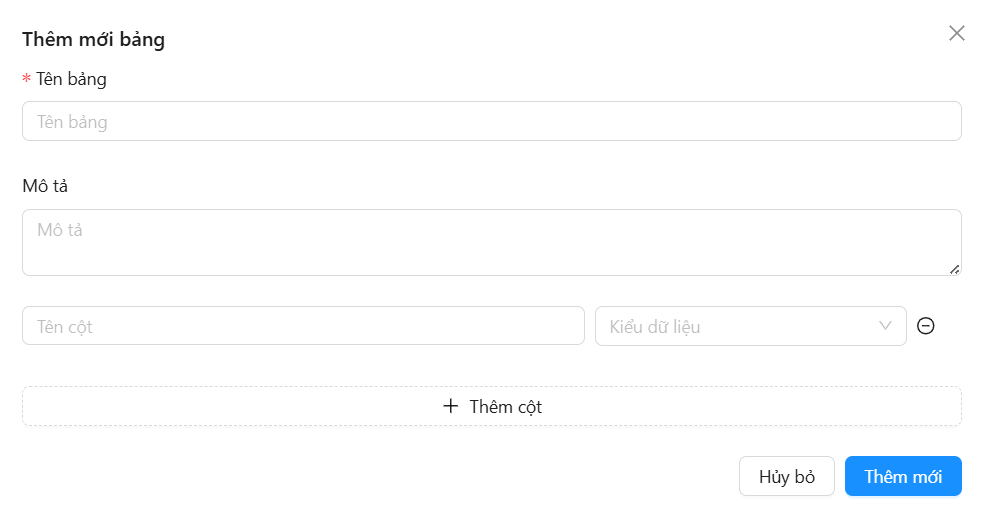
Description of the fields for creating a table:
| Field Name | Mandatory | Format | Constraints | Description |
|---|---|---|---|---|
| Table Name | Yes | Textbox | The table name must be unique | The name of the table displayed |
| Description | Yes | Textbox | Detailed description for the table | |
| Column List | Yes | List of columns in the table |
Step 3: Enter the information for the columns of the table. If you want to add a column, click the Add Column button.
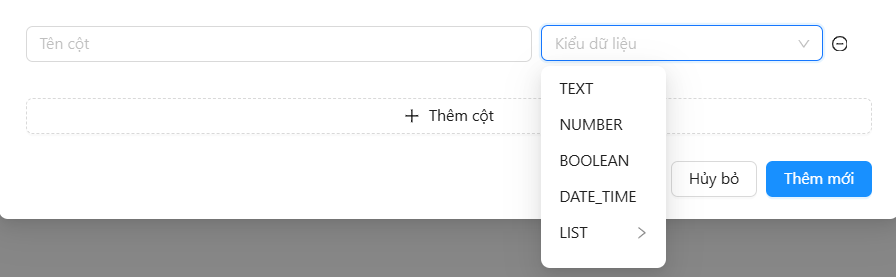
Description of the fields for creating a column:
| Field Name | Mandatory | Format | Constraints | Description |
|---|---|---|---|---|
| Column Name | Yes | Textbox | The column name must be unique | The name of the table's column |
| Data Type | Yes | Combobox | Text, number, boolean, or specified object list | The data type of the column |
Step 4: Click the Thêm mới button to add the table to the system.
Update a Table in the Table Space
To update a table in the table space, do the following:
Step 1: Click on the table space you want to update.
Step 2: Click on the table you want to update.
Add a New Column
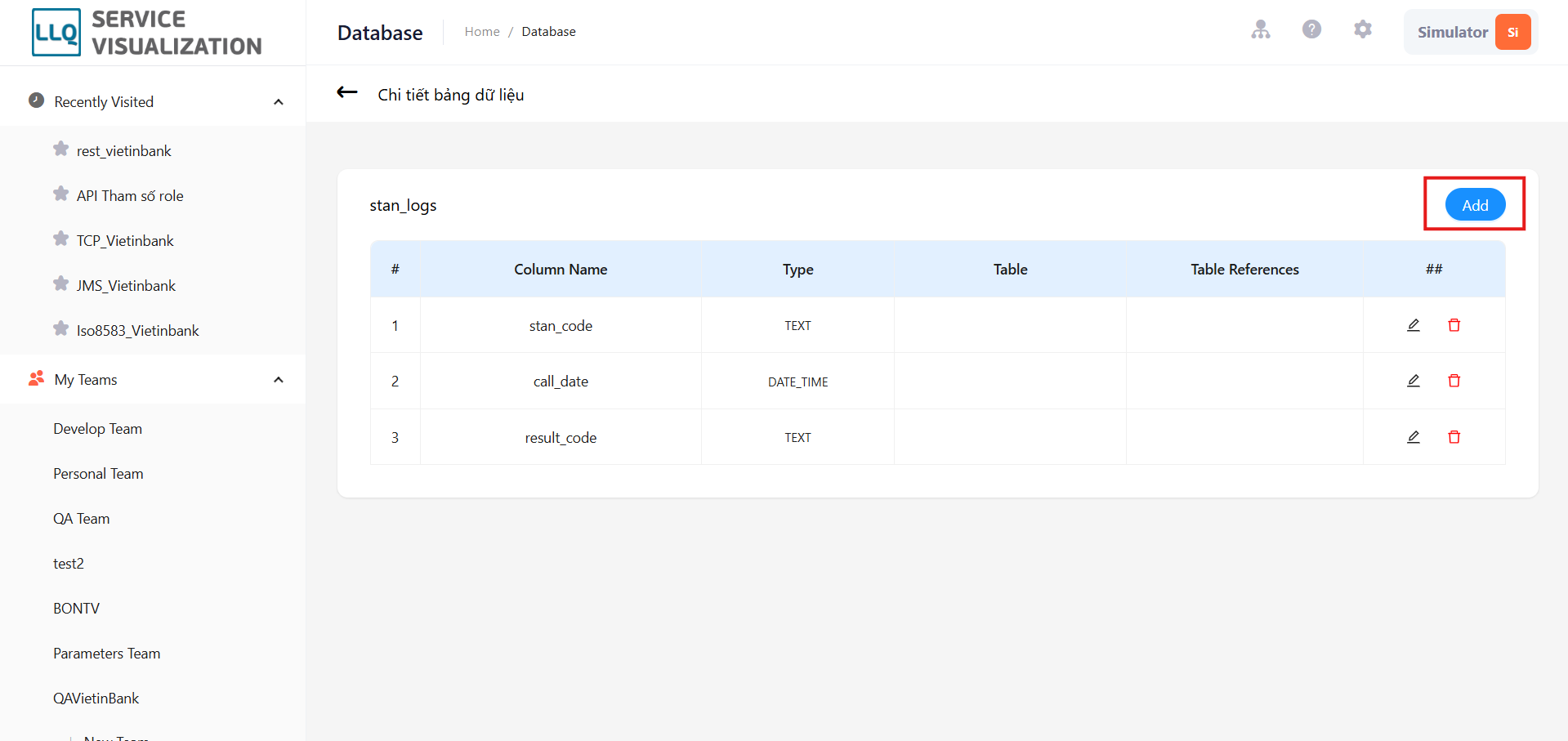
Step 1: In the Table Data Detailstab, click the Add new button.
Step 2: Enter the correct and complete information for the column.
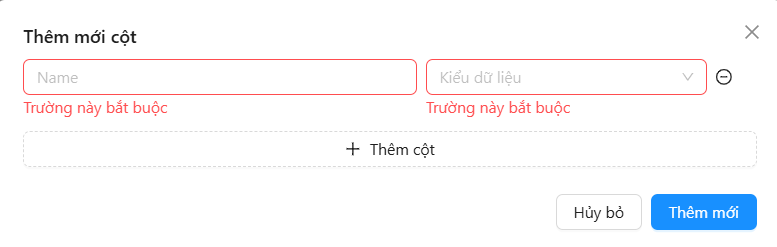
Step 3: Click the Thêm cột button to add the new column. Click the - button to remove a column.
Step 4: Click the Thêm mới button to add the entered columns.
Update a Column
To update a column of the table, do the following:
Step 1: In the Table Data Details tab, click the Update button on the data column you want to update.

Step 2: Enter the new information for the column.

Step 3: Click the Save button to save the updated information.
Delete a Column
To delete a column of the table, do the following:
Step 1: In the Table Data Details tab, click the Delete button.

Step 2: Click the Yes button to delete the selected column, or click the No button to cancel.

Move a Table to Another Table Space
To move a table to another table space, do the following:
Step 1: In tab table space tab, click on the table space that contains the table you want to move to another table space.
Step 2: Click the icon and select Move
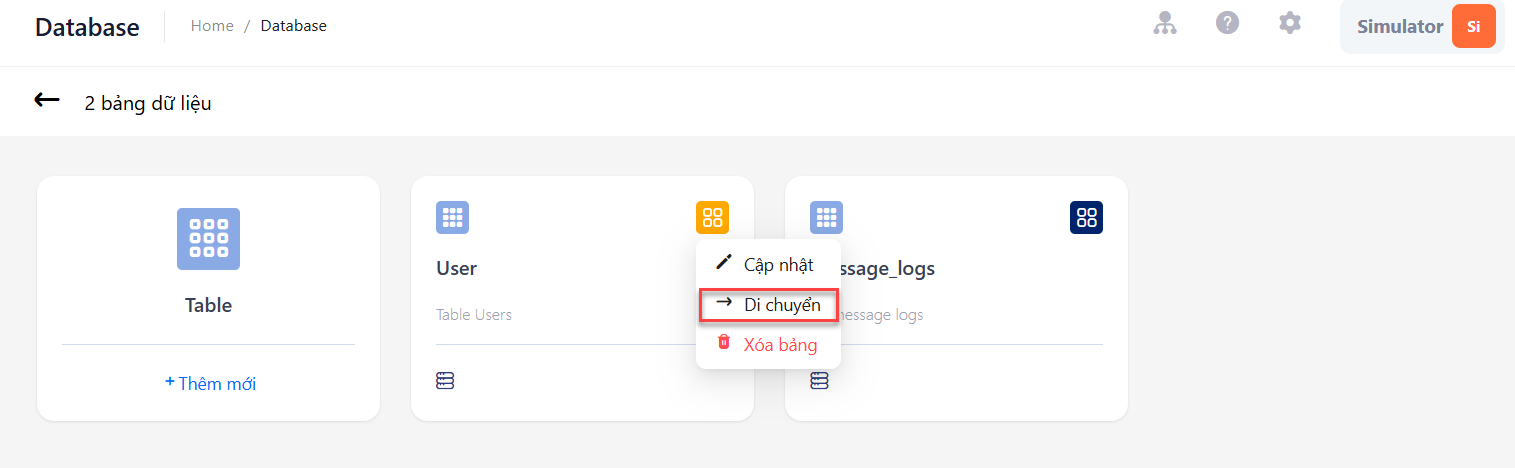
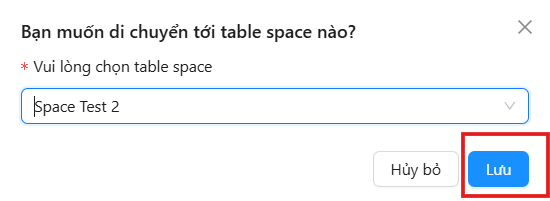
Step 3: Click on the table space selection and choose the desired table space.
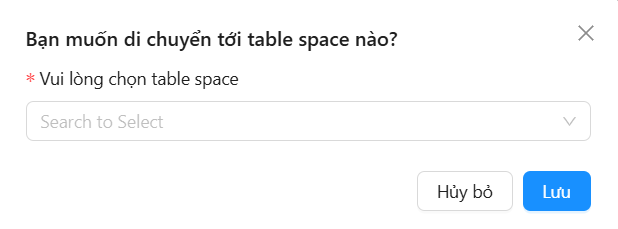
Step 4: Click the Save button to move the table to the selected table space.