Install Agent
What is an Agent?
An Agent is a Java application, a component of the LLQ QA Platform system.
The Agent receives commands from the LLQ QA Platform Server and sends them to the browser/operating system of the machine where the Agent is installed, as well as to the device. Additionally, the Agent manages the platforms and testing environments: operating systems (Android, iOS), browsers (Chrome, Firefox, etc.).
Types of Agents
There are 2 types of agents:
-
Private: It is a type of personal Agent, where only the account that created the Agent can use it, serving the configuration of test scenarios and test runs for personal purposes. Typically, client machines often use this as a Private Agent.
-
Public: It is a type of Public Agent, which can be used by any user, mainly serving the execution of test runs for testing purposes.
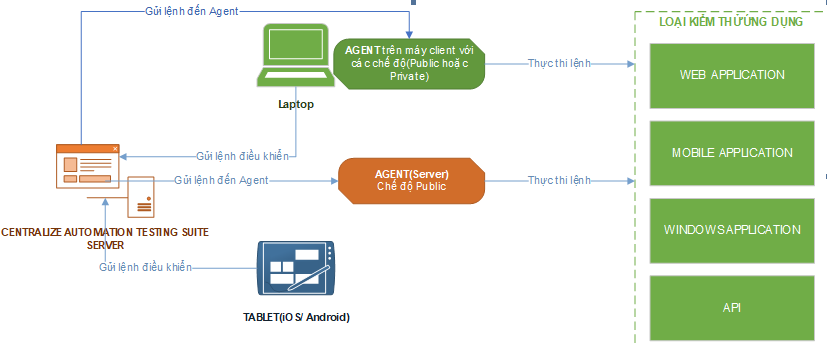
Recommendation: When using an Agent to configure test scenarios, it is not recommended to use a public Agent.
Details of each type of Public/Private Agent include the following characteristics:
-
Public all in one agent: A public Agent that allows configuring, verifying configurations, and executing test runs on the same Agent.
-
Public config agent: A public Agent that only performs configuration tasks.
-
Public build agent: A public Agent that only performs configuration verification.
-
Public run agent: A public Agent that only executes test runs.
-
Public build and run agent: A public Agent that performs both configuration verification and test runs.
Recommendation: When creating an Agent on a personal computer, it is recommended to use the Private all in one Agent. type.
How to use different types of Agents in executing Parallel Test Runs
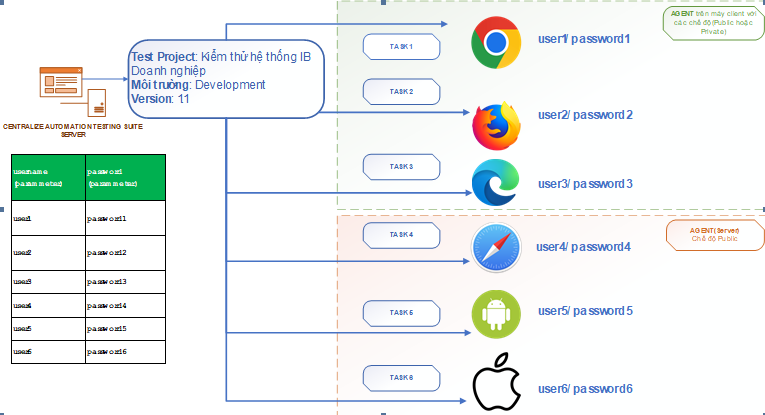
Public
Users utilize Public Agents when executing a large number of test cases, test data, or test scenarios in a Test Run. At this point, the system leverages multiple Public Agents to execute the Test Run in parallel, aiming to reduce execution time. During parallel Test Runs, test data is shared among different Public Agents. This process does not focus on a single Agent but distributes the execution across multiple machines operating in public Agent mode.
Example: There are 100 test cases (each test case has only one data point) being executed using Public Agents, and 10 Public Agents (one Agent corresponding to one machine) are configured to match the test environment of these 100 test cases. The 100 test cases will be evenly distributed among the 10 Agents, with each Agent running 10 test cases.
This significantly reduces execution time when testing with a large volume of test data.
Private
When using Agents in private mode, the executions will only utilize the Agent associated with the user's account currently in use.
Example: If the user is logged into the admin account, the system will specifically locate the Agent belonging to the admin account to execute the tests.
Installing JDK Before Installing the Agent
The Agent requires JDK 17 to be installed on the machine: https://www.oracle.com/cis/java/technologies/downloads/#jdk17-windows
Step 1: Download and install JDK 17.
Step 2: After installation, open cmd (on Windows) or terminal (on macOS) and run the command java -version to verify the exact version of the installed JDK.

How to install Agent
Install the Agent on Windows and Start the Agent for the First Time
Step 1: Access the link: https://test-framework.llq.vn/downloads/
Step 2: Click test-framework_v0.0.5 with JDK 17 to download the Agent installation file to your computer.
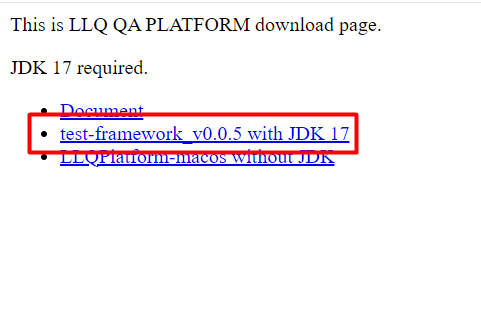
Unzip the file after successfully downloading.
Step 3: Open the extracted folder and click on the file. Start
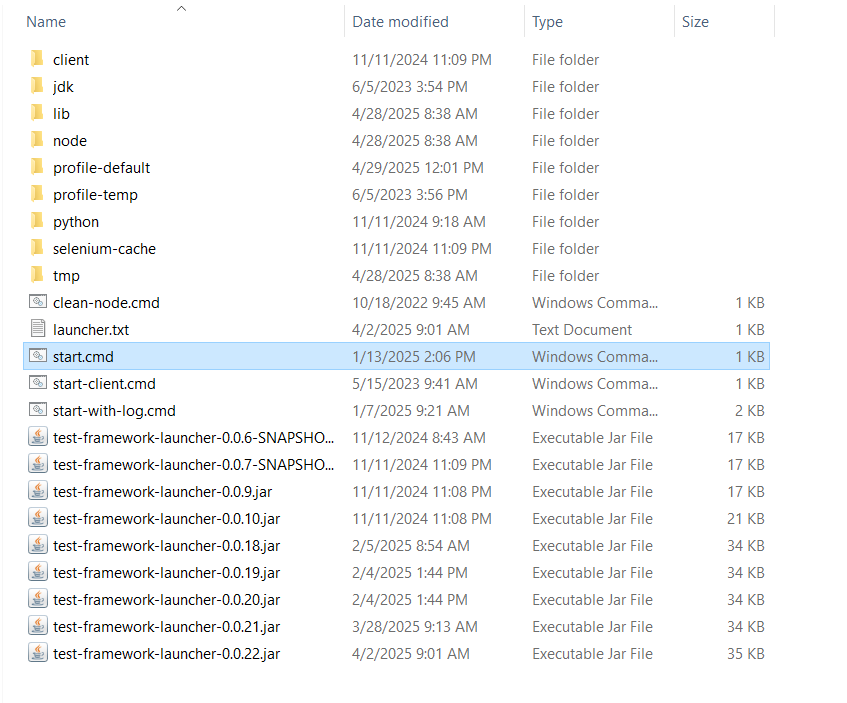
Wait for the loading to reach 100%.

After the loading is complete, the system will display a screen allowing the user to create a new Agent.
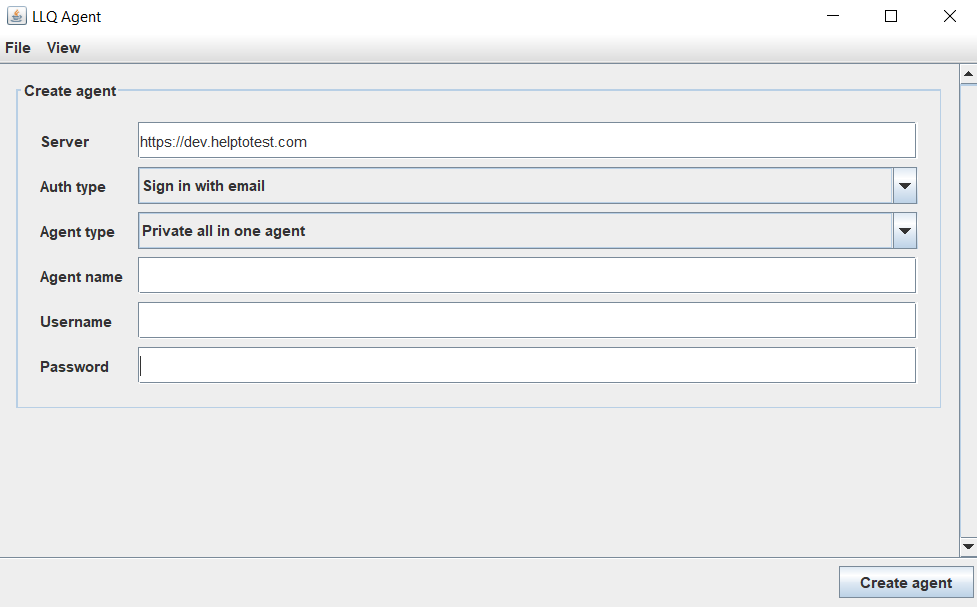
Step 4: Enter the required information in all the fields.
| Create Agent | |
|---|---|
| Project | Select a project from the system: + All Project + List of active projects |
| Agent type | Select a value: + Private all in one Agent + Private config Agent + Private run Agent + Public all in one Agent + Public config Agent + Public build Agent + Public run Agent + Public build and run Agent |
| Agent name | Enter the name of the Agent |
| Username | Enter the username of the LLQ QA Platform account of the user |
| Password | Enter the password of the LLQ QA Platform account of the user |
Step 5: Click button Create Agent
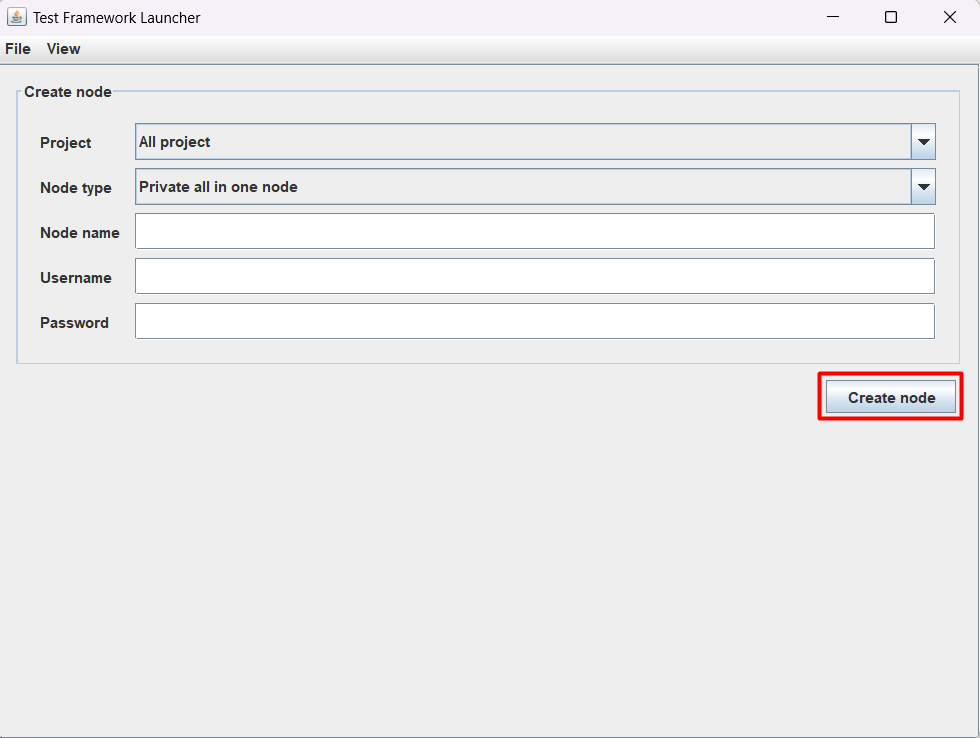
Once the Agent is created successfully, the system will display the following screen:
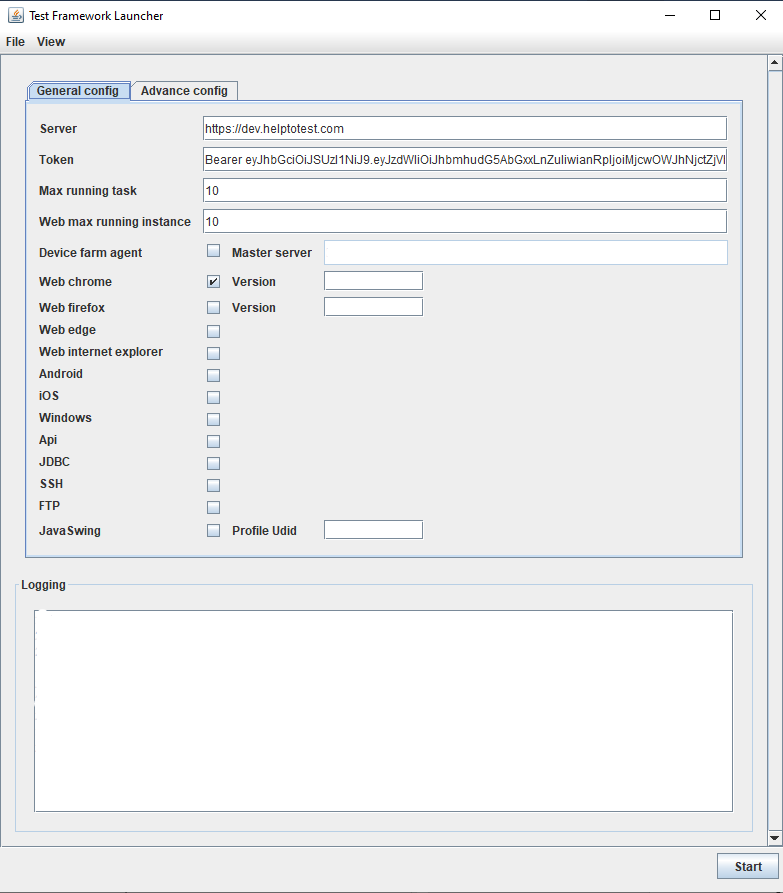
Step 6: Select and enter the information that matches the user's requirements.
| Config | |
|---|---|
| Platform | Select one or more platforms that the user wants |
| Server | Enter the server information: this is the URL of the LLQ QA Platform Centralized automation testing suite |
| Running Task | Enter the desired number of tasks |
| Token | Leave blank |
Step 7: Click button Start
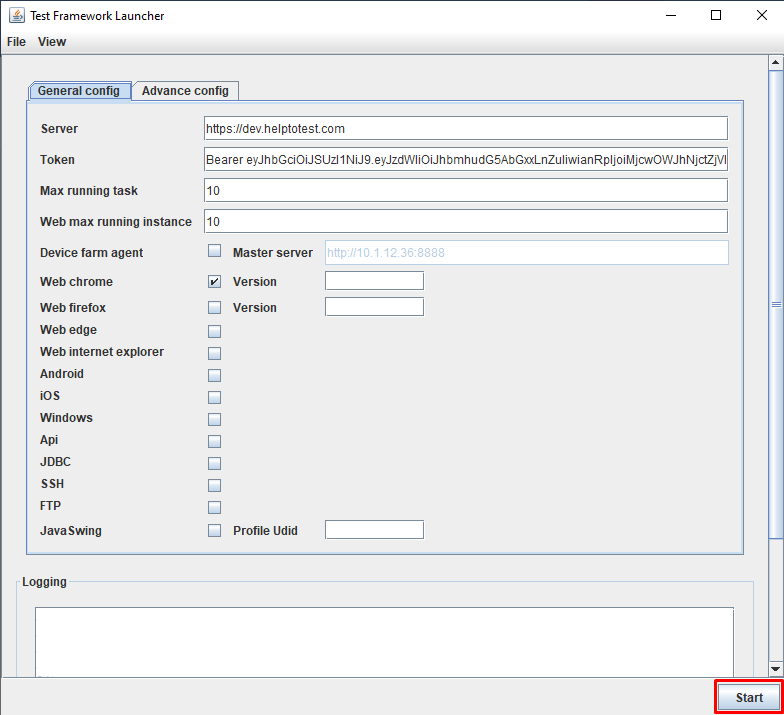
The system displays the screen when starting the Agent successfully
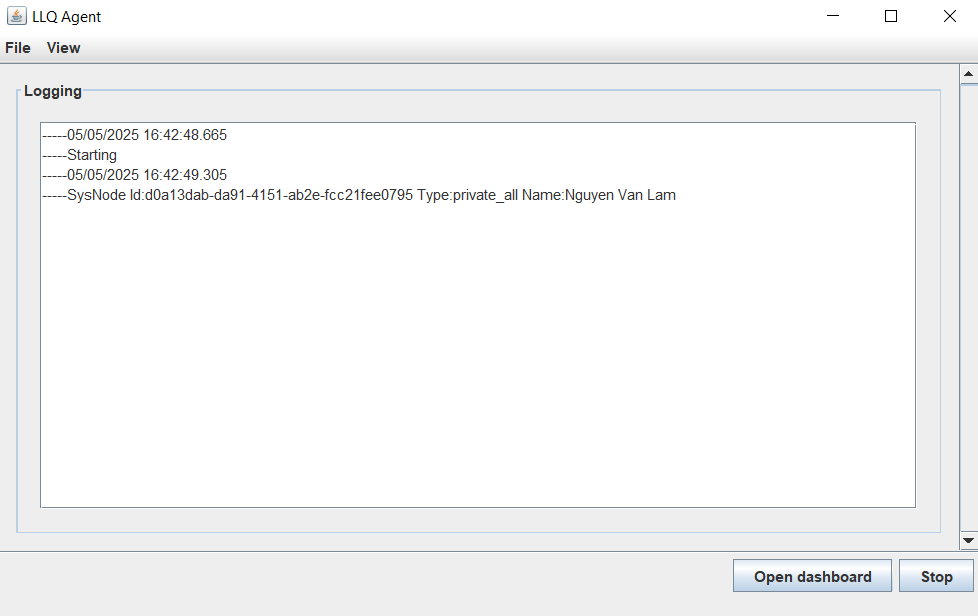
Now, the user can start configuring or executing the tests!
Install the Agent on MacOS and Start the Agent for the First Time
Step 1: Access the link: https://test-framework.llq.vn/downloads/
Step 2: Click test-framework_v0.0.5 with JDK 17 to download the Agent installation file to your computer.
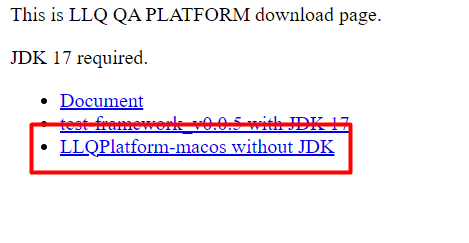
Unzip the file after successfully downloading.
Step 3: After extracting, copy the files to the application folder on your machine.
Step 4: Click on the file you just extracted in the application folder.
Wait for the loading to reach 100%.
Once the loading is complete, the system will display a screen allowing the user to create a new Agent.
Step 5: Enter the required information in all the fields.
| Create Agent | |
|---|---|
| Project | Select a project from the system: + All Project + List of active projects |
| Agent type | Select a value: + Private all in one Agent + Private config Agent + Private run Agent + Public all in one Agent + Public config Agent + Public build Agent + Public run Agent + Public build and run Agent |
| Agent name | Enter the name of the Agent |
| Username | Enter the username of the LLQ QA Platform account of the user |
| Password | Enter the password of the LLQ QA Platform account of the user |
Step 6: Click button Create Agent
Once the Agent is created successfully, the system will display the following screen:
Step 7: Select and enter the information that matches the user's requirements.
| Config | |
|---|---|
| Platform | Select one or more platforms that the user wants |
| Server | Enter the server information: this is the URL of the LLQ QA Platform Centralized automation testing suite |
| Running Task | Enter the desired number of tasks |
| Token | Leave blank |
Note: If the platform to be tested is JavaSwing, Python 3 needs to be installed on the machine.
Step 8: Click button Start
The system will display the screen when the Agent starts successfully.
Now, the user can start configuring or executing the tests!
Stop Agent
Step 1: On the currently displayed screen, Click button Stop
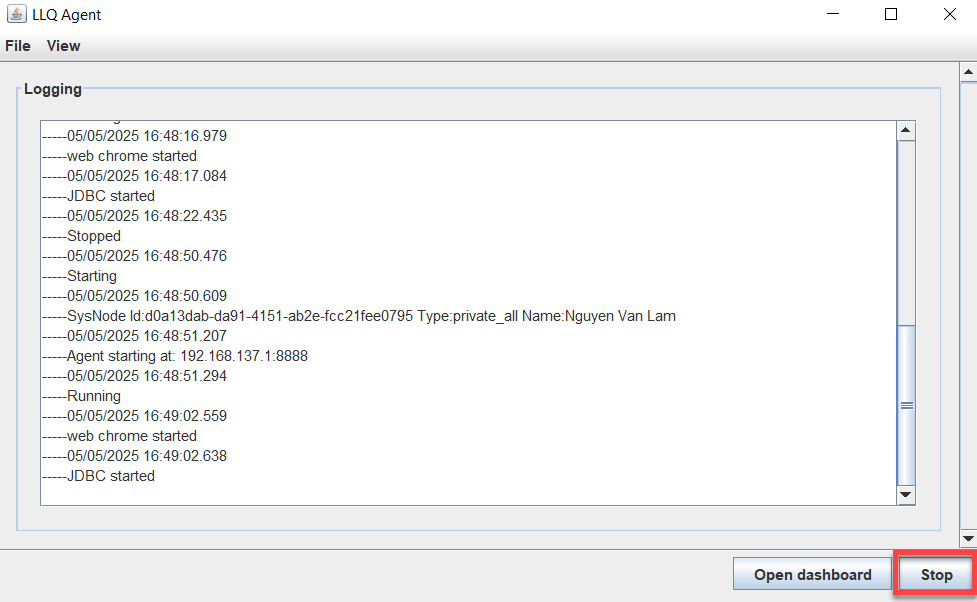
Show notifications “Stopped” means you have successfully stopped the Agent.
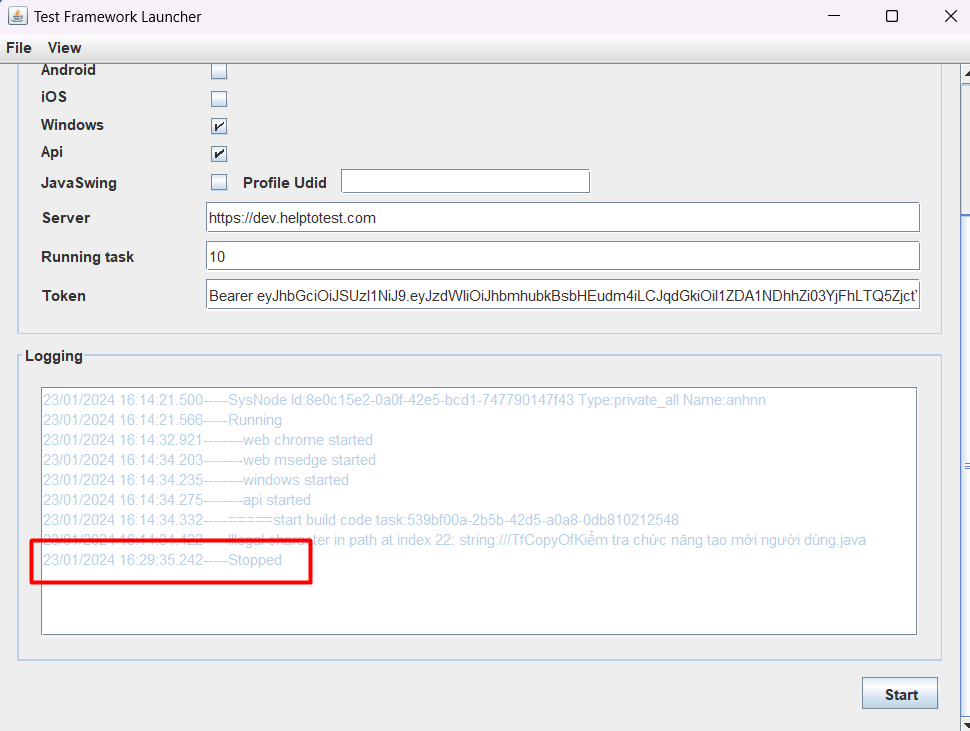
Start the Agent after successfully creating the Agent
Step 1: Open the folder containing the Agent file on the user's machine., Click file Start
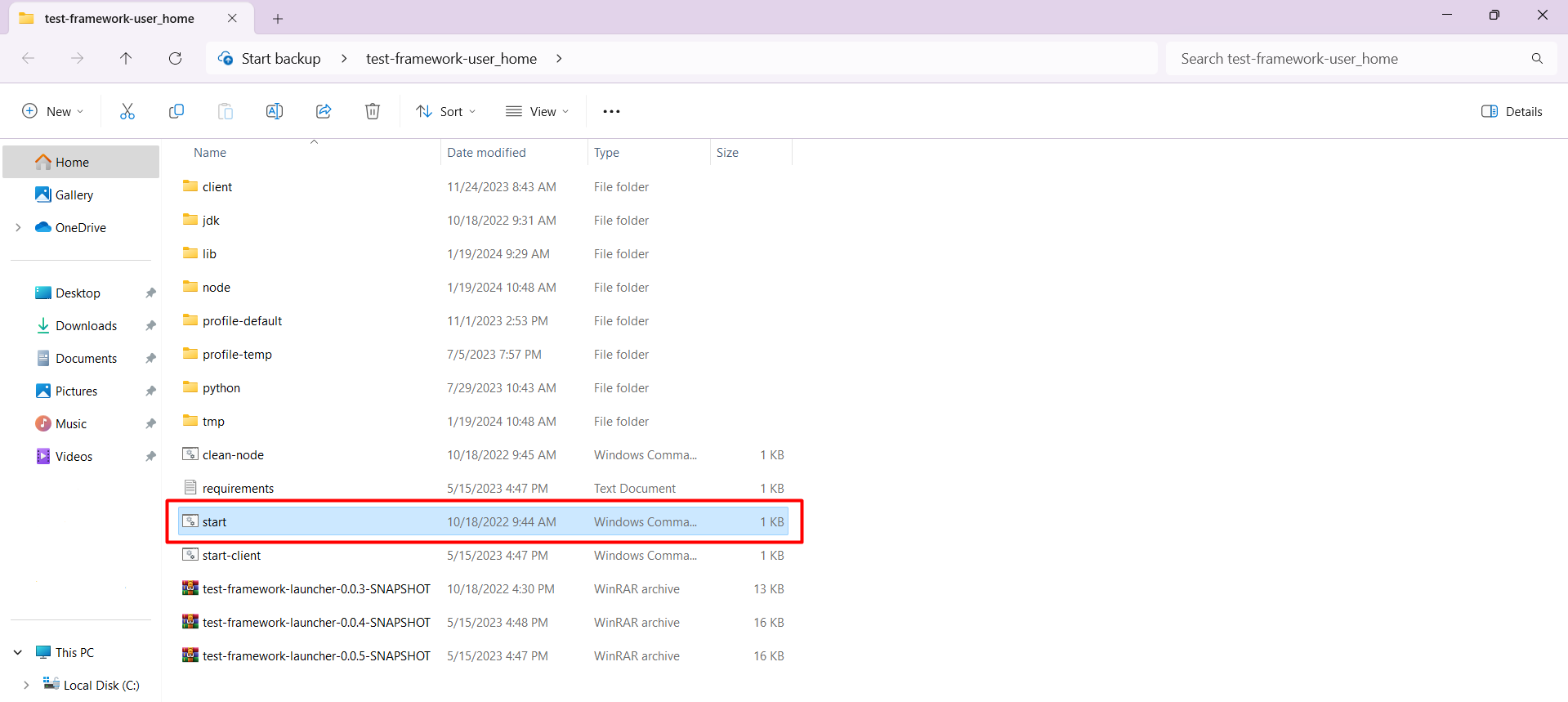
The system will display a notification after the Agent has started successfully.
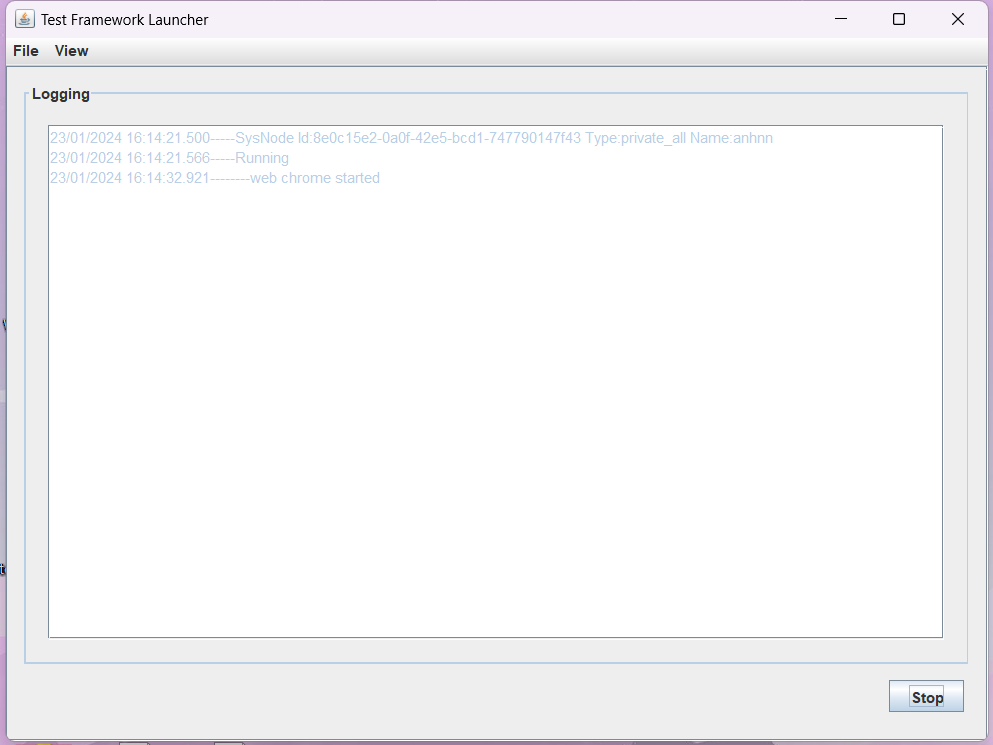
Note: If you want to select additional platforms to start the Agent, click on Stop Agent. Then, select the additional platforms, and click Start again.
Create new Agent
Step 1: On the Agent screen, Click View,then select Create Agent
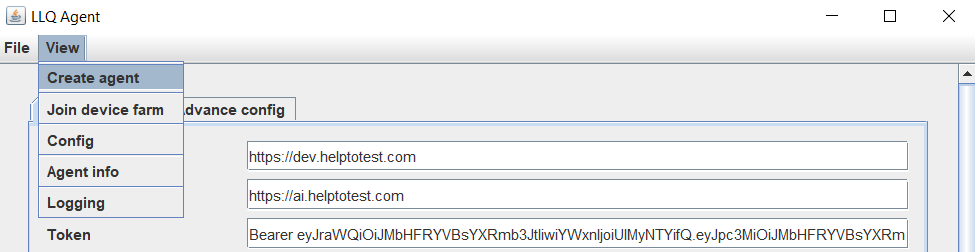
Step 2: Enter the required information and restart the Agent. Refer to Agent Settings section (see from Step 4 for Windows and Step 5 for macOS).