Project
This section will guide you on how to manage projects in Service Visualization:
Create a Project
When creating a project for the team, select the desired project group to create the project before proceeding with the steps:
Step 1: On the My Teams screen, click the "New Project" button.
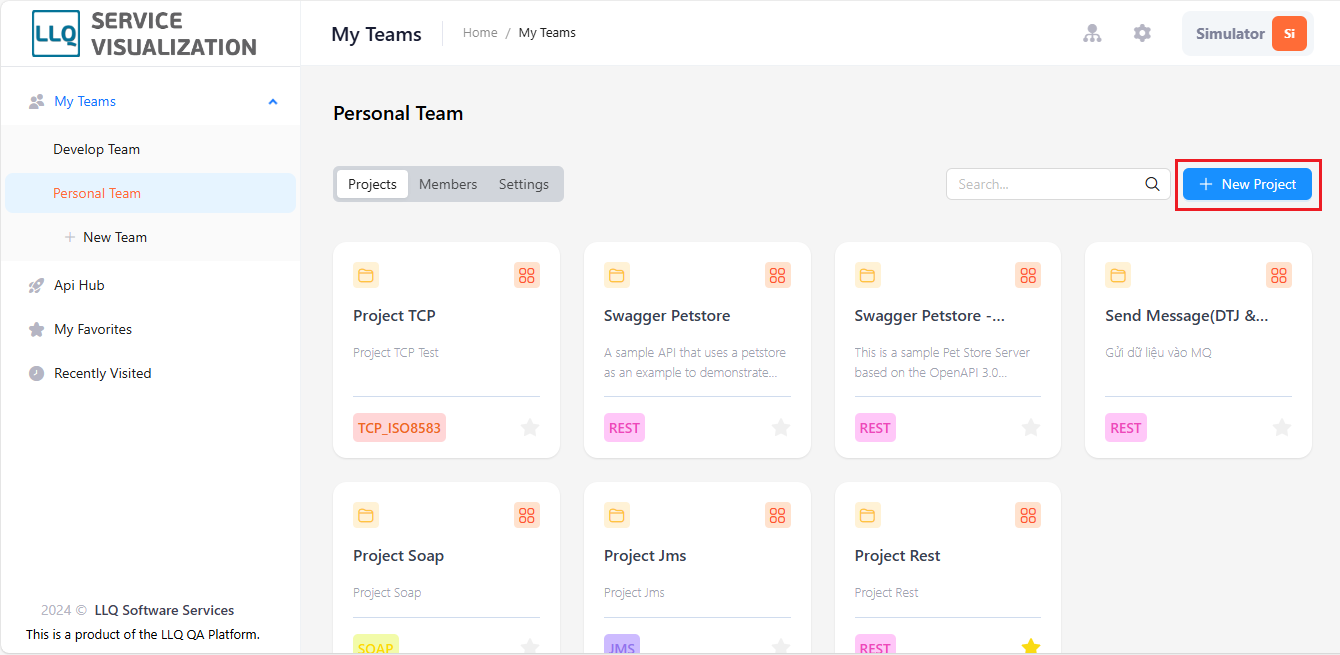
Step 2: The system will display the Create a New Project screen.
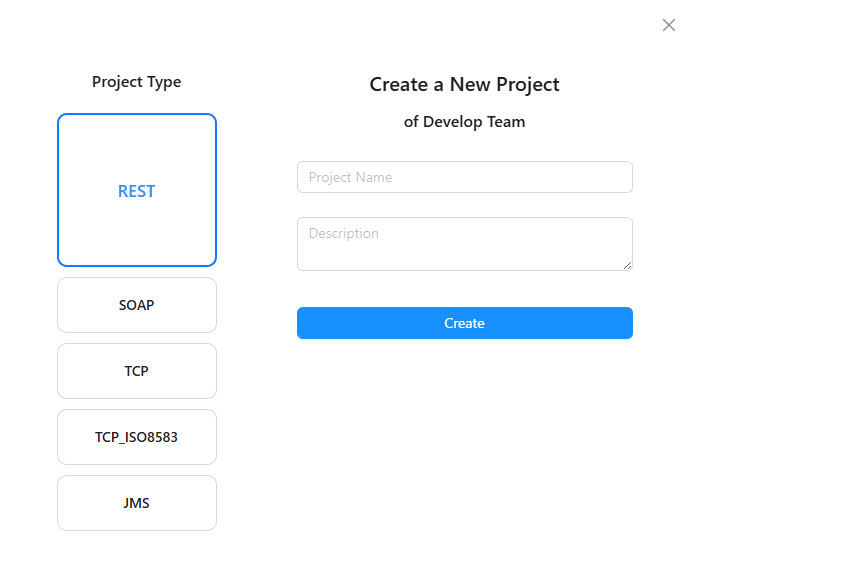
Step 3: Choose "Project Type" and fill in the required fields:
Field Descriptions
| Field Name | Mandatory | Format | Constraints | Description |
|---|---|---|---|---|
| NAME | Yes | Textbox | The name of the project group | |
| DESCRIPTION | No | Textbox | Description of the project group | |
| PROJECT TYPE | Yes | Textbox | Communication methods |
Project Type:
- REST (Representational State Transfer)
- SOAP (Simple Object Access Protocol)
- TCP (Transmission Control Protocol)
- TCP_ISO8583
- JMS (Java Message Service)
Step 4: Click the "Create" button to save the project. The system will notify “Successfully added”.
Update a Project
Step 1: On the project screen, click the icon and select "Update".
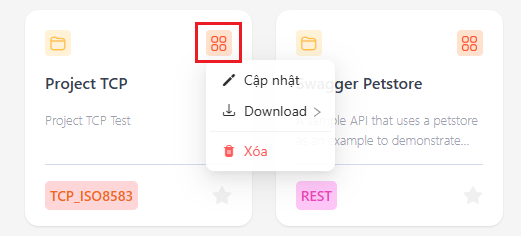
Step 2: The system will display the "Cập nhật project" screen.

Step 3: Enter the information in the fields.
Field Descriptions
| Field Name | Mandatory | Format | Constraints | Description |
|---|---|---|---|---|
| NAME | Yes | Textbox | The project name | |
| DESCRIPTION | No | Textbox | Description of the project |
Step 4: Click the "Save" button to update the project information.
Download Project API
You can retrieve all API information in the project, converted into two formats:
- JSON
- YAML
Steps to follow:
Step 1: On the project screen, click the icon and select "Download".
Step 2: The system will display 2 data download methods.
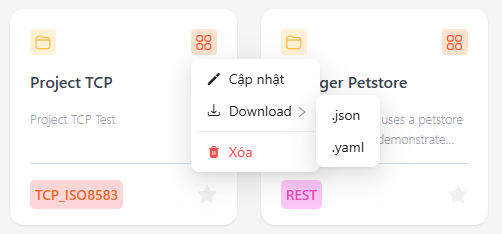
Step 3: Click to choose 1 of 2 methods to download data.
Delete a Project
Step 1: On the project screen, click the icon and select "Delete".
Step 2: The system will display a notification screen.

Step 3: Click the "Có" button to delete the project.